

User Timezone
Display match kickoff times in your visitors’ local timezone automatically. No action required from visitors – times convert based on their browser settings.
Key Benefits
- Zero friction – Times convert automatically based on browser timezone
- Optional manual override – Visitors can choose a specific timezone if needed
- Remembers preferences – Selected timezone saved in cookie for 30 days
- Works everywhere – Match lists, calendars, widgets, tooltips, and more
How It Works
When a visitor loads your site:
- Automatic detection – JavaScript detects the visitor’s browser timezone
- Time conversion – All match kickoff times are converted instantly
- No action needed – Visitors see times in their local timezone immediately
Tip
In most cases, visitors don’t need to do anything – times just appear correctly in their timezone.
Enabling the Feature
- Go to Settings & Tools > Settings > Configuration > Advanced
- Find the Premium group
- Turn on “Use default user’s timezone”
- Click Save changes
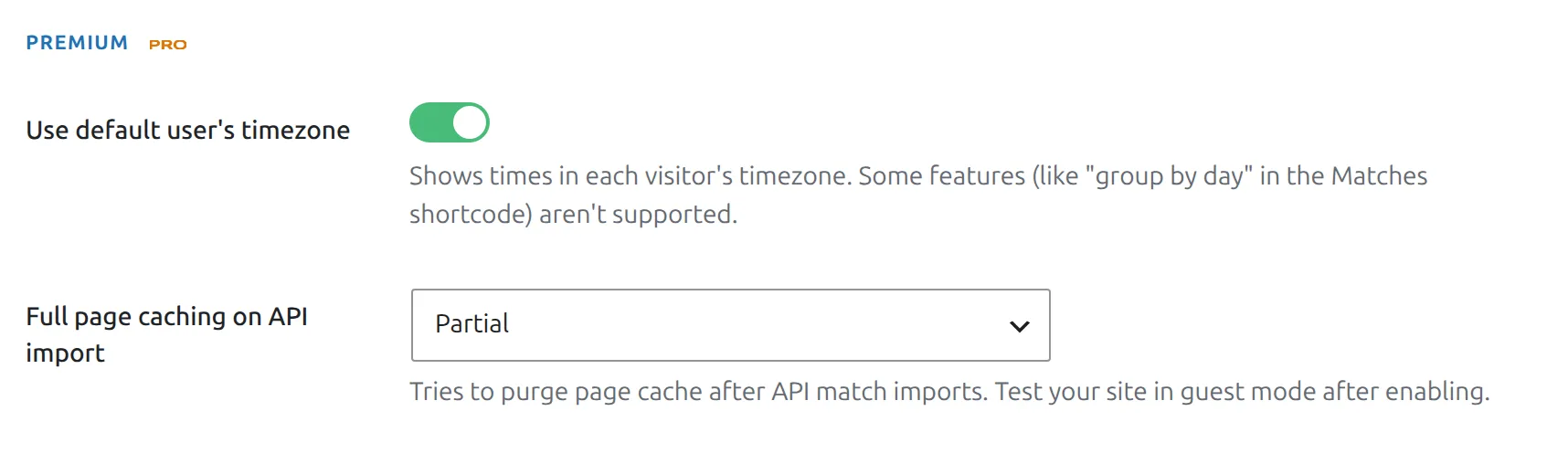
That’s it! Match times will now automatically convert for all visitors based on their browser timezone.
Timezone Selector Button (Optional)
The timezone selector button allows visitors to manually choose a timezone. This is entirely optional – the feature works automatically without it.
When to Add the Selector
Consider adding the selector if:
- Your audience spans multiple timezones and may want to override detection
- You want to give visitors control over their timezone preference
- Some users have inaccurate browser detection (VPNs, corporate networks)
Adding the Selector via Shortcode
Place this shortcode anywhere on your site – in a widget area, footer, or on match listing pages:
[anwpfl-timezones]With custom text:
[anwpfl-timezones text="Your timezone:" text_change_your_time_zone="Select Your Timezone"]What the Selector Looks Like
The selector displays a clock icon with the current timezone offset:
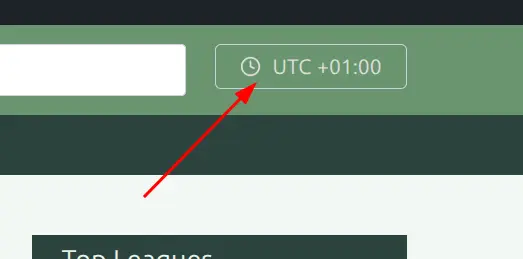
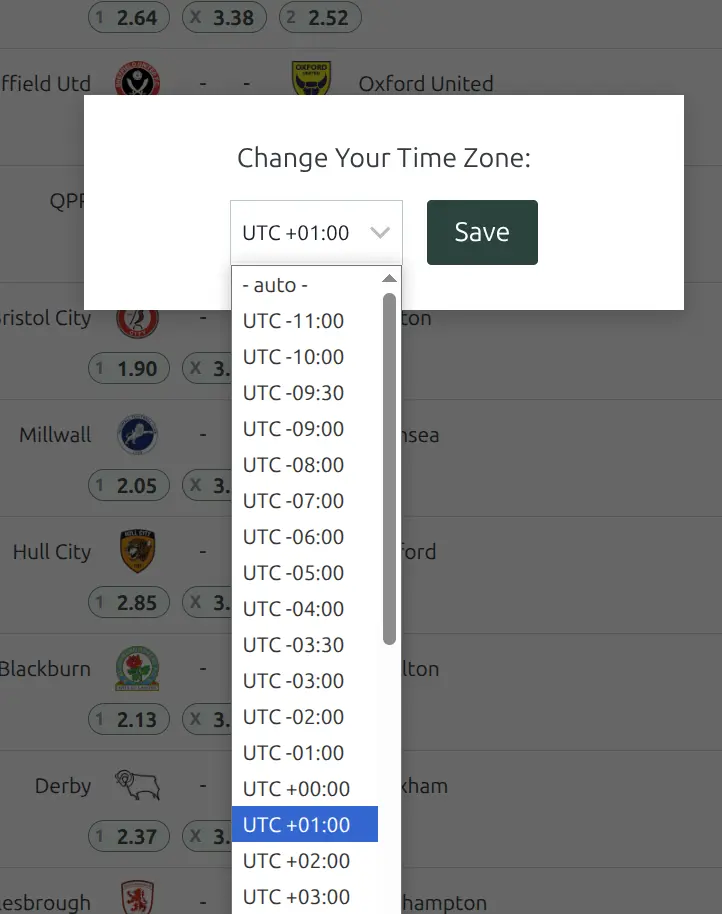
When clicked, visitors see a modal to select their preferred timezone:
Adding to Kadence Theme Header
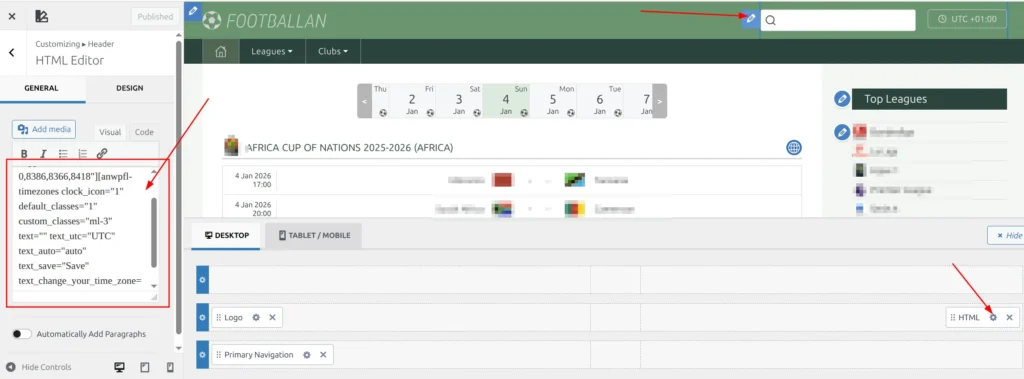
If you’re using the Kadence theme, you can add the timezone selector directly to your site header using the WordPress Customizer.
- Go to Appearance → Customize → Header
- Choose a header section (e.g., Top Row, Main Row, or Bottom Row)
- Add an HTML element to your desired position
- Paste the shortcode:
[anwpfl-timezones] - Click Publish
Tip
The header position works well for sports sites – visitors can quickly see and adjust their timezone from any page.
Shortcode Parameters
| Parameter | Default | Description |
|---|---|---|
clock_icon |
1 | Show clock icon (1 = yes, 0 = no) |
default_classes |
1 | Apply default styling (1 = yes, 0 = no) |
text |
(empty) | Label text before timezone display |
text_utc |
UTC | UTC label prefix |
text_auto |
auto | Label for automatic detection option |
text_save |
Save | Save button text |
text_change_your_time_zone |
Change Your Time Zone | Modal title |
custom_classes |
(empty) | Additional CSS classes |
Supported Components
The timezone conversion works with:
Match Displays:
- All match list layouts (default, slim, simple, modern, card)
- Single match pages
- Match widgets (Next Match, Last Match)
- Game tooltips
Calendars:
- Team Calendar
- Calendar Widget
- Calendar Slider shortcode
Premium Features:
- Scoreboard shortcode
- Tournament brackets
- Next Game shortcode
- Premium match widgets
Limitations
Note
“Group by day” in Matches shortcode: When matches are grouped by day server-side, the grouping uses server timezone. For visitors in significantly different timezones, a match might appear under a different day heading than expected.
Troubleshooting
Times not converting?
- Verify “Use default user’s timezone” is turned on at Settings & Tools > Settings > Configuration > Advanced
- Check browser Developer Tools (F12) for JavaScript errors
- Ensure premium JS files are loading correctly
Selector button not appearing?
- The feature must be enabled in settings first
- The shortcode must be placed on the page
- The button is initially hidden and revealed by JavaScript after initialization
Wrong timezone detected?
- Use the timezone selector to manually choose the correct timezone
- Common causes: VPN usage, corporate network proxies, browser privacy settings
- Manual selection is saved and used for future visits
Cookie Information
| Property | Value |
|---|---|
| Cookie Name | __fl_user_timezone_offset |
| Content | Timezone offset in minutes (e.g., 330 for UTC+5:30) |
| Expiration | 30 days |
| Created When | User manually selects a timezone |
If no cookie exists, the browser’s timezone is used automatically.