

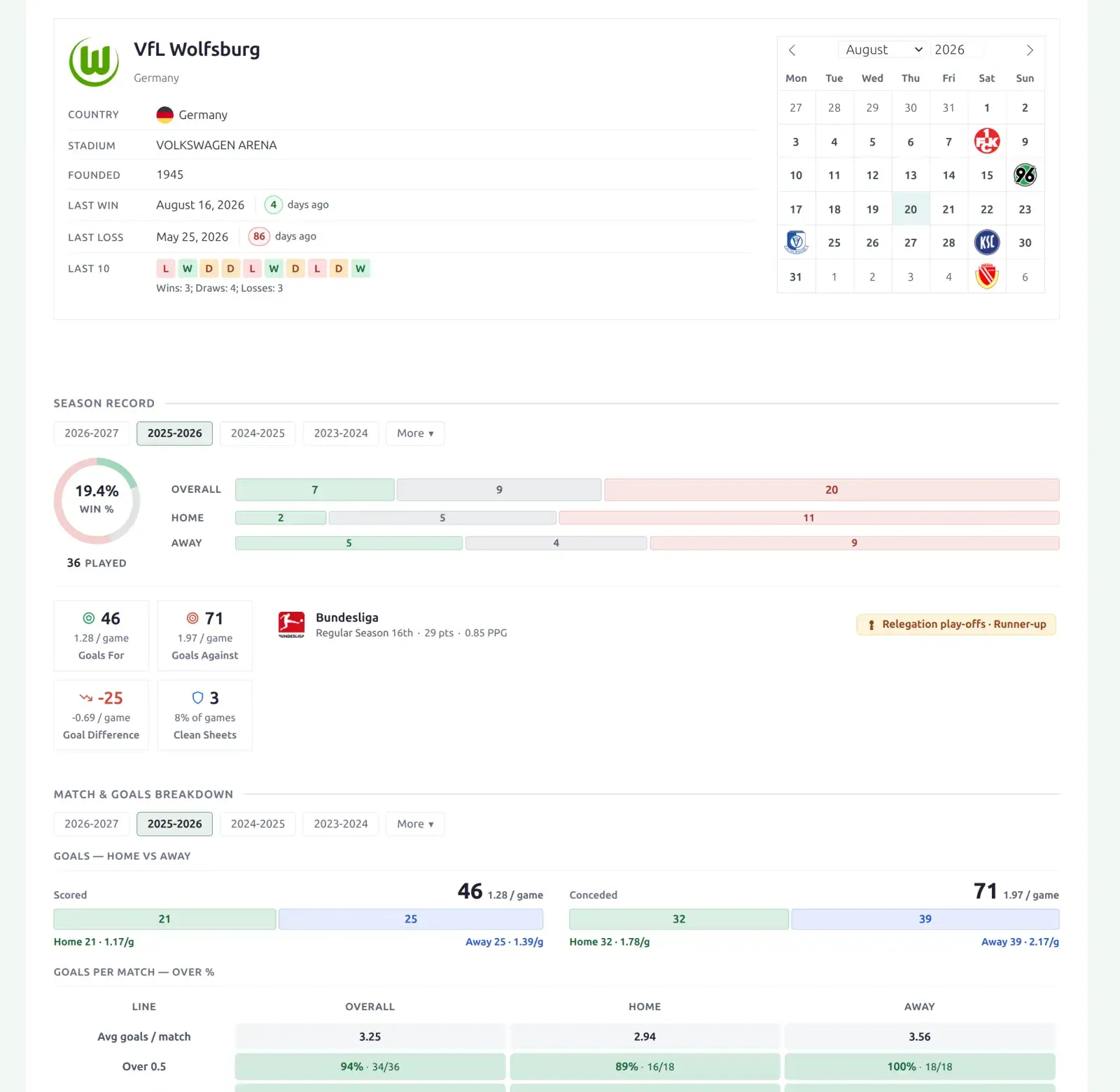
Layout Builder v2 gives your club (team) pages a new, modern design built from drag-and-drop blocks: a team header, season record, stat breakdowns, standings, a month-by-month schedule, the roster, player stats and recent form. Each section carries its own season and competition filter, so visitors can narrow one section without touching the rest of the page.
🚀 Turn it on
The new team layout is off until you activate it. Default club pages keep their current look until you do.
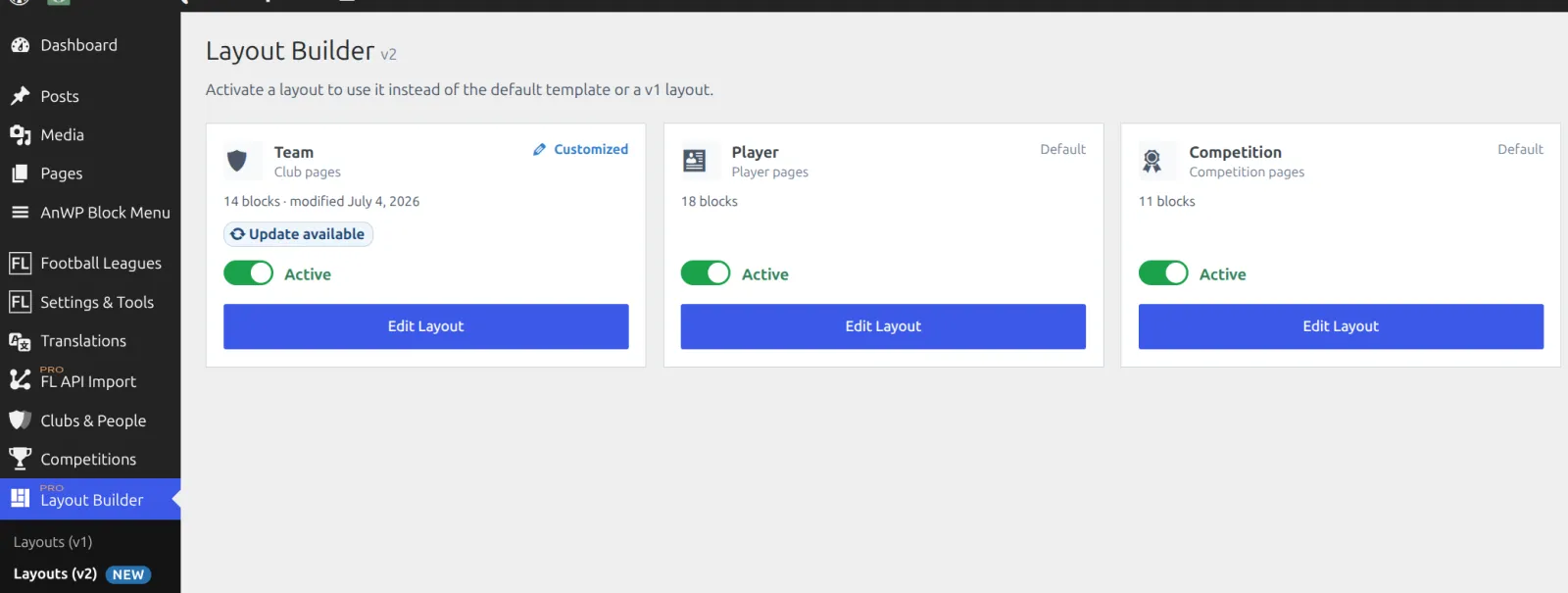
- In wp-admin, open Layout Builder → Layouts (v2).
- Find the Team layout card.
- Switch its toggle on. The label next to it changes from Inactive to Active.
That’s it. Every club page now renders the new design.
How it works
While the team layout is active it takes over every club page, overriding both the default club template and any older (v1) club layout. Deactivate it any time to go back.
What’s on the page
The default team layout ships with these blocks, in this order. You can reorder, remove, or regroup any of them in the builder. Sections with no data hide themselves, heading included, so the same layout works on a club with full statistics and on one that only has results.
| Block | Shows |
|---|---|
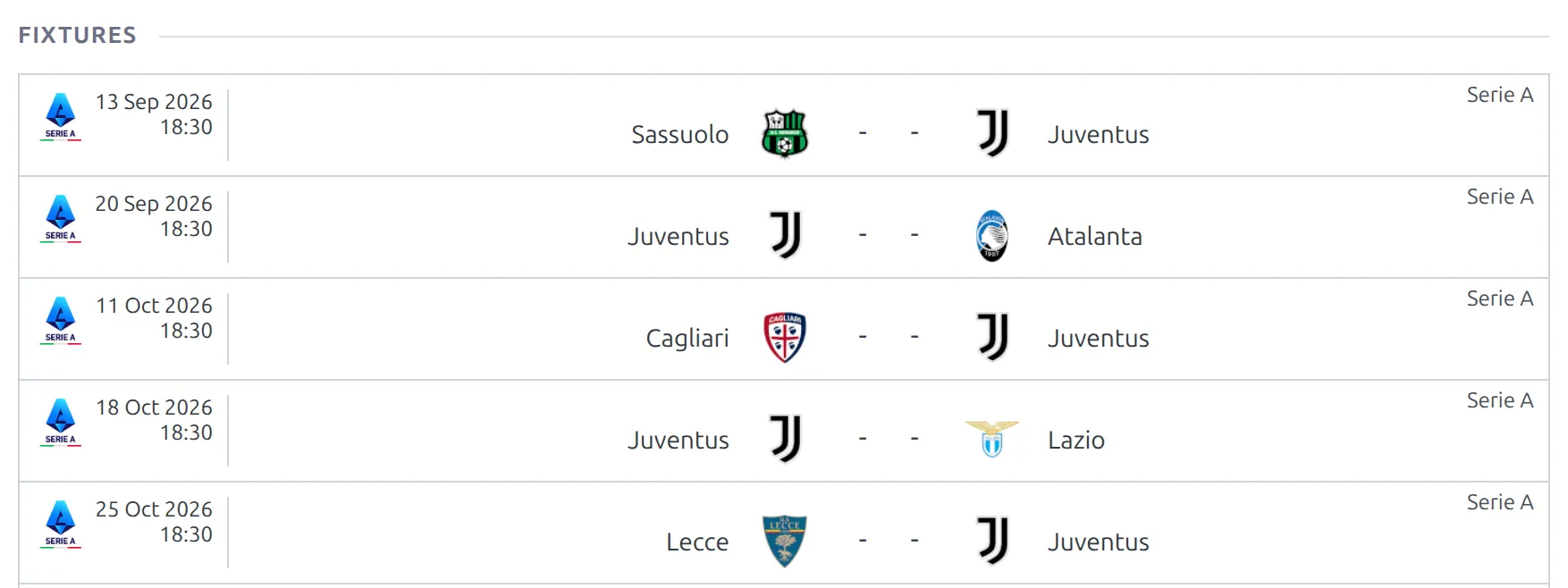
| Team Header | Logo and club name with city and country, then rows for country, stadium, founded year, address, website, your custom fields, last win and last loss, the last 10 results and social links. A fixtures calendar sits on the right. |
| Section navigation | Sticky jump links to the sections below (Block Nav in the palette). |
| Description | The text from the club’s Description box. Shortcodes in it run. |
| Subteam Statistics | Summary clubs only – one row per subteam. Hidden on ordinary clubs. |
| Combined Squad | Summary clubs only – all subteams’ players with a per-team switcher. |
| Subteam Schedule | Summary clubs only – every subteam’s games merged into one calendar. |
| Season Record | A win % donut and Win-Draw-Loss bars overall, home and away, games played, goals for and against, goal difference and clean sheets – plus how the club did in each competition that season: its league place, or the knockout round it reached. |
| Match & Goals Breakdown | Goals scored and conceded, split home and away, an Over % table by goal line, clean sheets, failed to score, both teams scored and win margins. |
| Scorelines & Goals | Most common full-time and half-time scorelines, total goals per match, half-time to full-time outcomes and goals by half, with Overall, Home and Away tabs. |
| Season Statistics | The club’s own per-match and total statistics, overall, home and away – the stat columns you pick. |
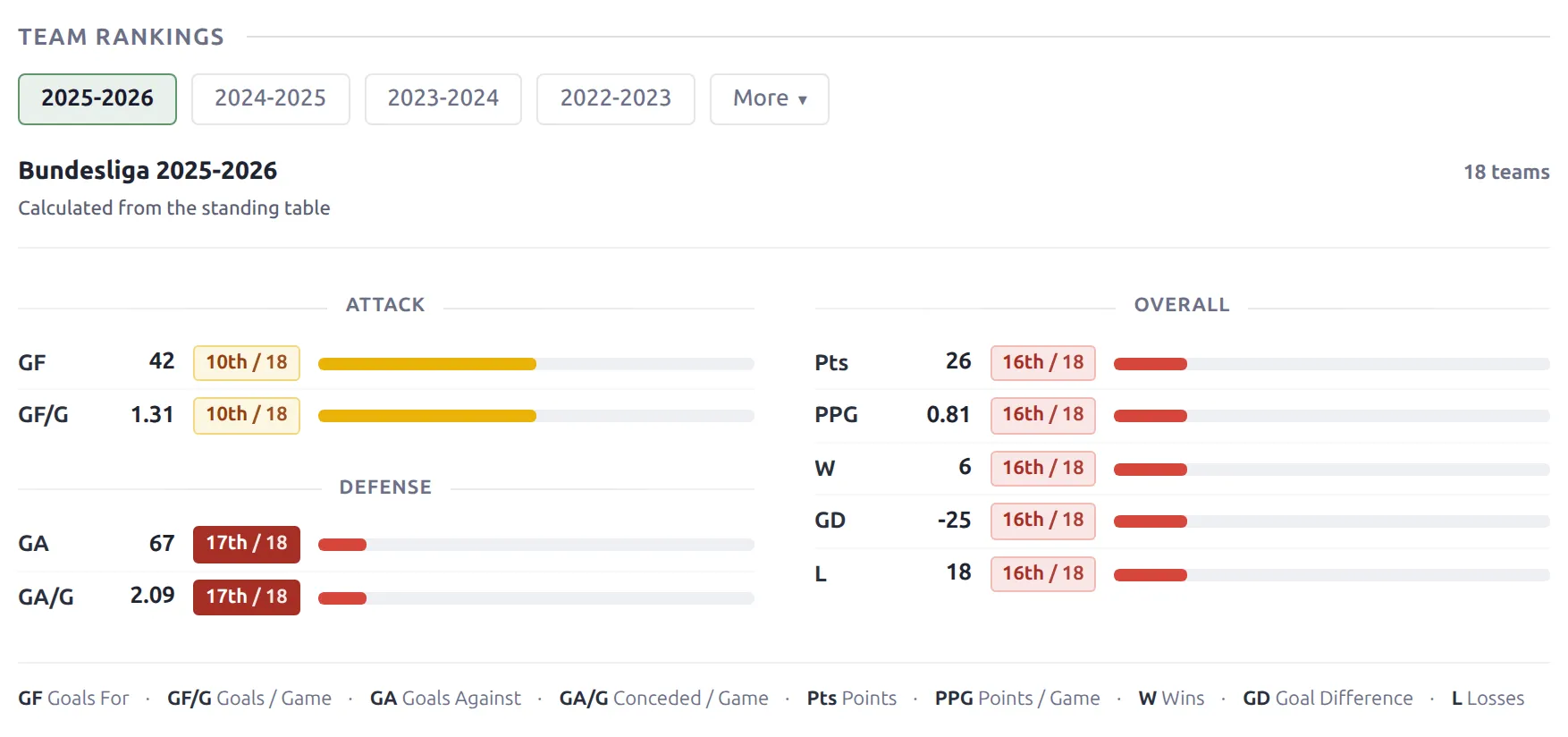
| Team Rankings | Where the club ranks in its competition’s standing table on nine stats. |
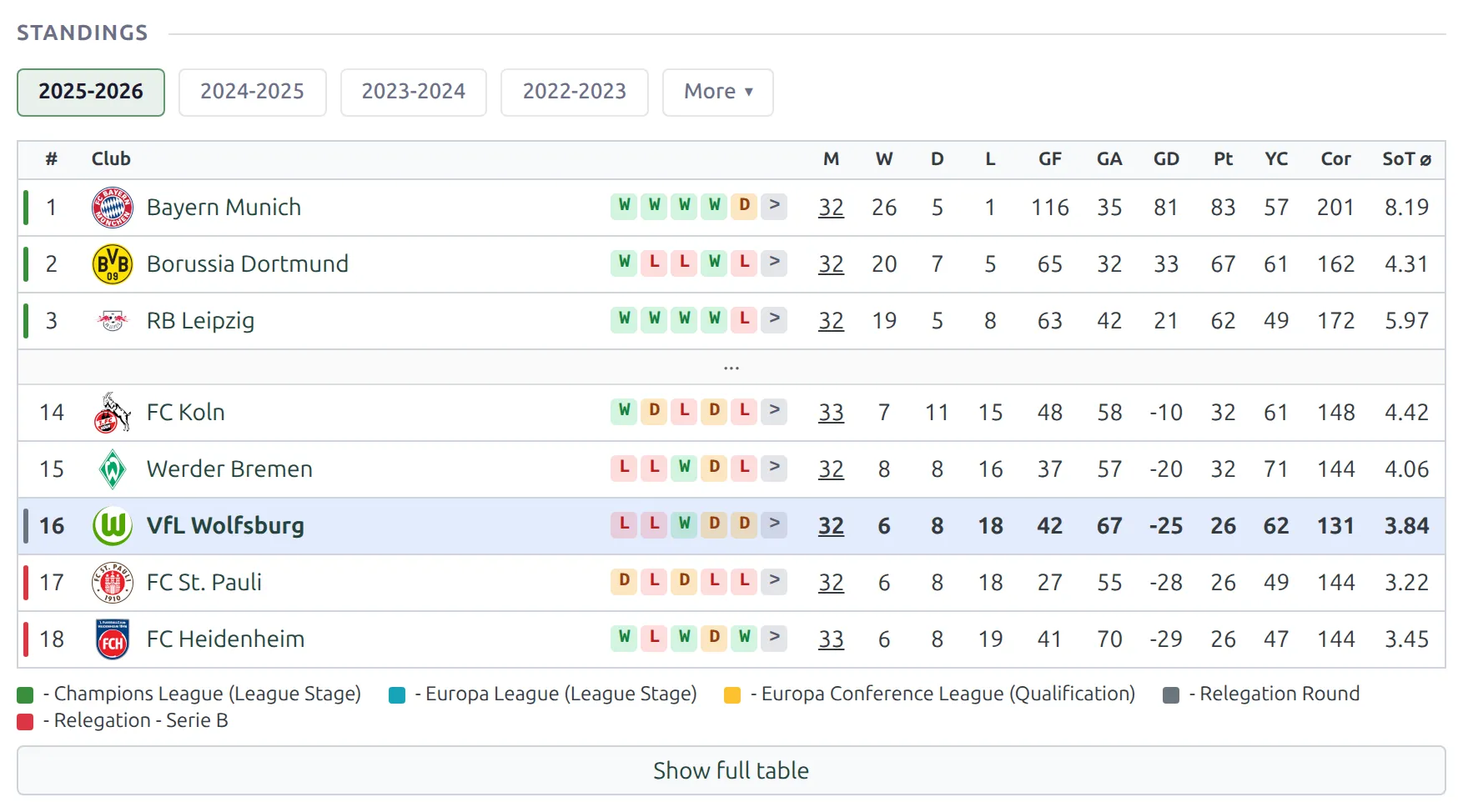
| Standings | The table(s) the club is in, and the bracket of any knockout stage it played. Full or partial – see below. |
| Schedule | Results and fixtures in one month-by-month grid. |
| Roster | The squad, in a compact card layout. |
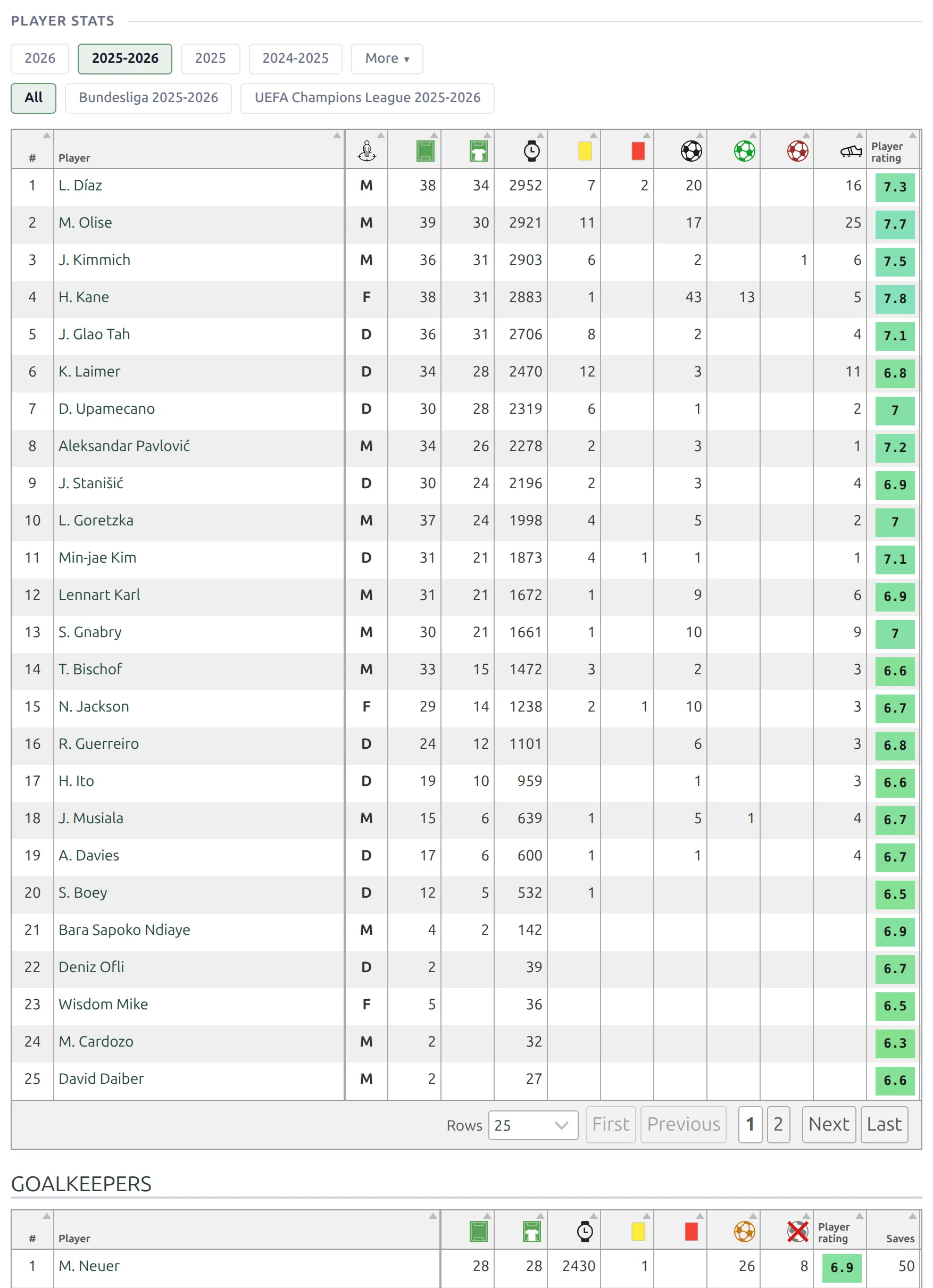
| Player Stats | The per-player statistics table, with goalkeepers in a separate table below it. |
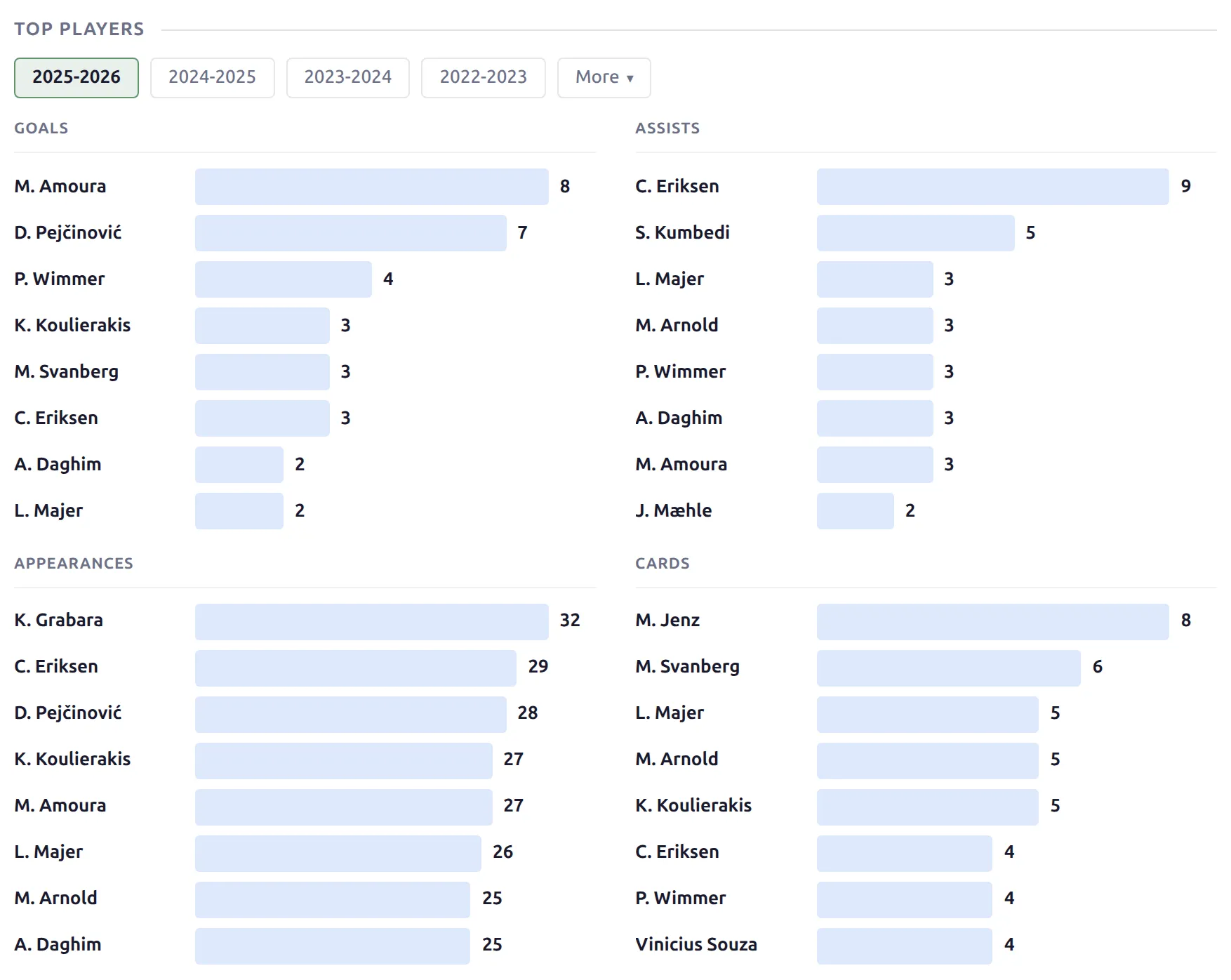
| Top Players | Leaderboards for the stats you choose – goals, assists, appearances and cards by default, top 8 in each. |
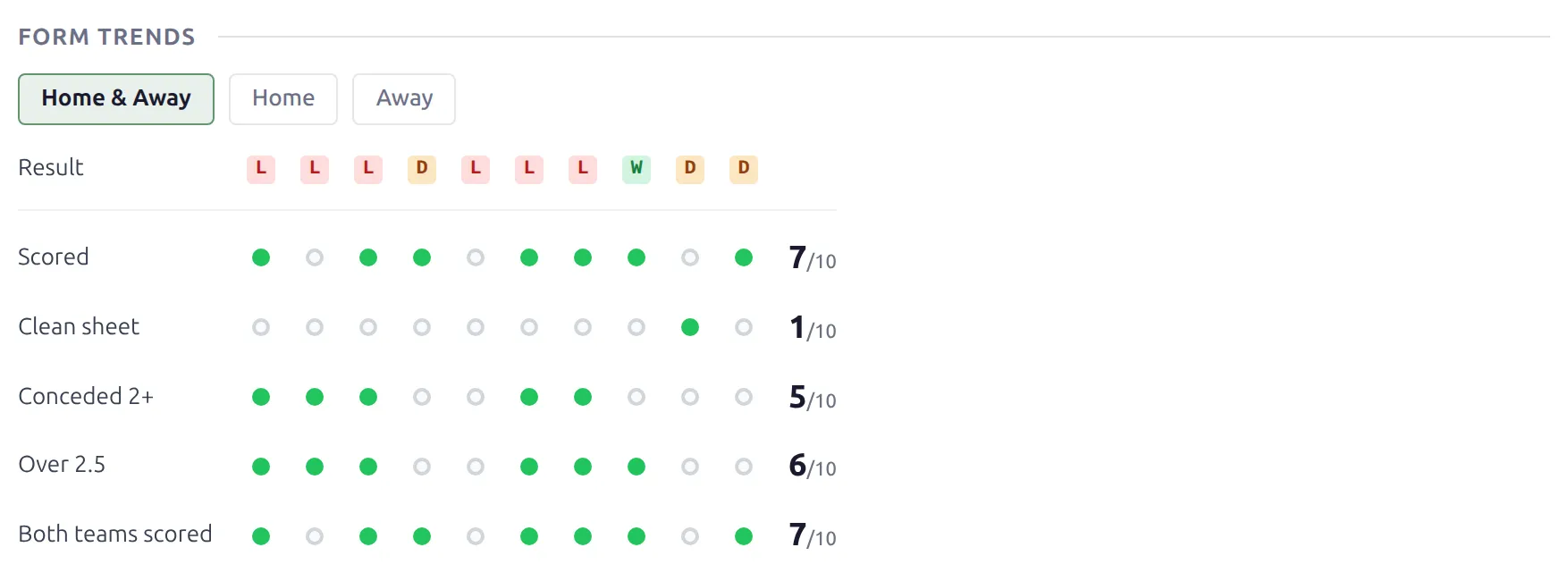
| Form Trends | The last 10 finished matches as a grid of result, scored, clean sheet, conceded 2+, over 2.5 and both teams scored, with a Home & Away / Home / Away toggle. |
The header
Every row in the header comes from the club’s editor and only shows when it has a value. The social icons cover the seven networks on the club’s Social tab: X (Twitter), Facebook, Instagram, YouTube, LinkedIn, TikTok and VK. Last win, last loss and the last 10 results are the club’s most recent games, whatever season a visitor picks further down the page.
The fixtures calendar on the right follows the Show calendar in club header setting in Settings & Tools > Settings > Display > Club. Summary clubs never show it.
Description
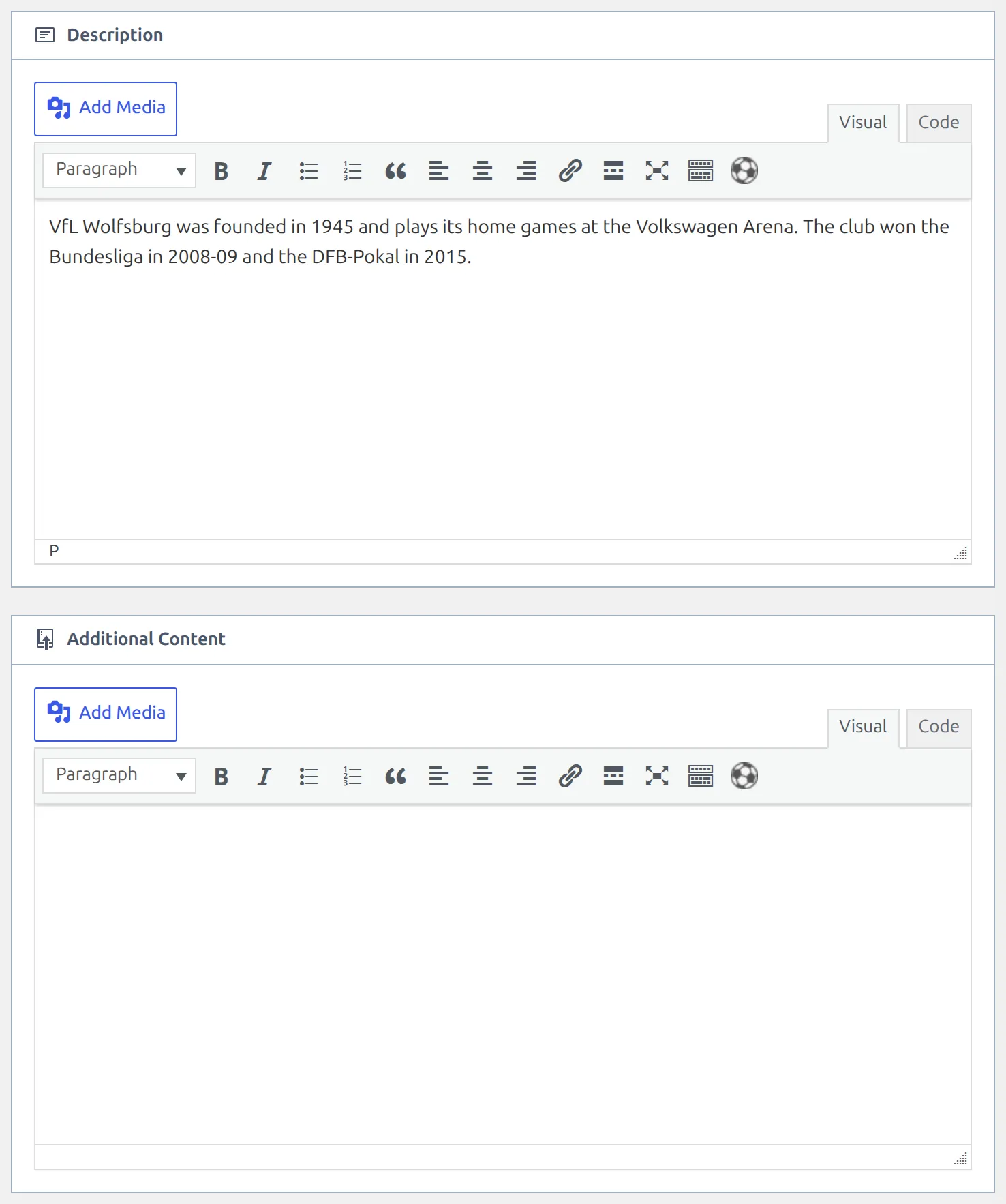
The Description block prints what you write in the Description box on the club edit screen (Clubs & People > Clubs) – a club history, a stadium note or a shortcode. Leave the box empty and the block hides. The Additional Content box below it isn’t shown on a v2 team page – see Troubleshooting below.
Team Rankings, Top Players and Form Trends
Team Rankings reads the club’s standing table and ranks it on goals for, goals per game, goals against, conceded per game, points, points per game, wins, goal difference and losses, grouped into Attack, Defense and Overall. Each row shows the value and a rank such as “3rd / 20”.
Top Players is the quickest way to show a club’s top scorers. It draws one bar-card leaderboard per stat, and you pick the stats and their order under Stats to Show in the block settings – goals, assists, appearances, minutes, starts, cards, penalty goals, own goals, goals conceded and clean sheets. It follows its own season and competition pills.
Player Stats is a sortable table of every player’s numbers for the selected season and competition, with a separate Goalkeepers table below. Choose the columns under Stats to Show. Stats with mode chips can show a total, per-game and per-90 column at the same time.
Form Trends looks at the club’s last 10 finished matches, not a season – so it has competition pills and the venue toggle, but no season pills. Pick its rows under Metric Rows (over 1.5 and 3.5, scored 2+, failed to score and more are available) and the number of matches under Items to Show.
Also in the palette
Five more blocks aren’t in the default layout but are one drag away:
| Block | Use it when |
|---|---|
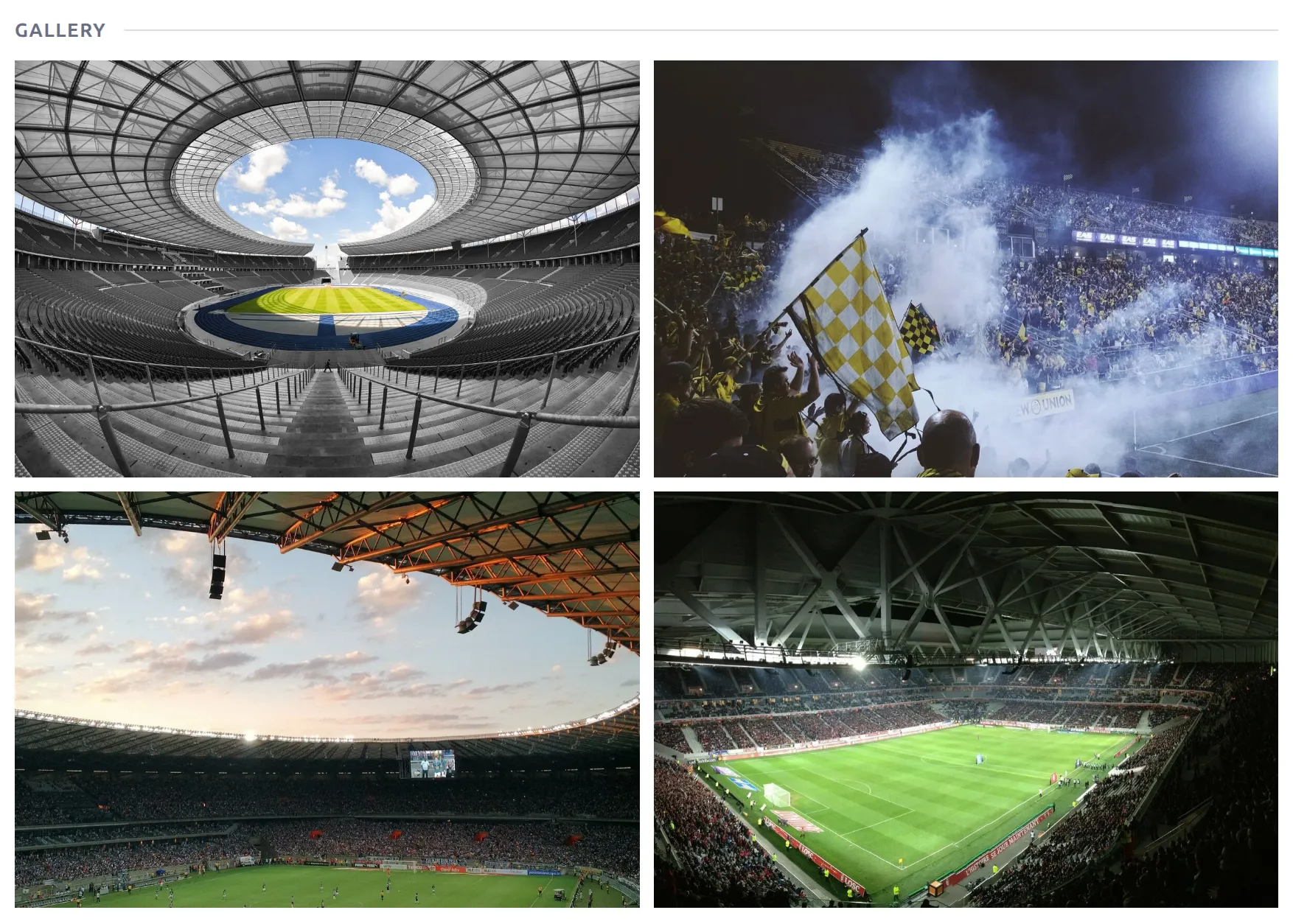
| Gallery | You want the club’s photo gallery and gallery notes on the page. Both come from the club’s Media tab, and the block hides when the gallery is empty. |
| Trophies | The club has trophies entered in its editor. Shows each one as a tile with image, count and title, and hides itself on clubs without trophies. A trophy without an image is skipped. FL+ 0.18.4 and later – see Club Trophies. |
| Results | You prefer a flat list of finished matches to the Schedule grid. |
| Fixtures | Same, for upcoming games. |
| Squad | You prefer the fuller squad table to the compact Roster. It also lists the club’s staff. |
Sections hide themselves
This is what lets one layout cover every club. Each block checks its own data when the page renders and returns nothing when there isn’t any – the heading goes with it, so you never get an empty “Top Players” title above blank space.
- A club with full statistics shows everything.
- A club that only has results has no player numbers for Player Stats and Top Players. Season Record, Match & Goals Breakdown, Scorelines & Goals and Form Trends still fill in, because they’re worked out from match results.
- A club playing only cups has no standing table, so Team Rankings has nothing to rank. Standings shows the cup’s bracket instead.
- A summary club shows its header, description and the three subteam blocks. Its own-match blocks hide.
There’s one exception, and it’s deliberate. A block with season or competition pills stays on the page when the selected season or competition has no data, and shows a short note such as “No matches for the selected season.” instead – so visitors can still switch to one that has. It only hides when there’s also nothing to switch to.
Rows and tab containers follow the same rule: a row hides when every block inside it is empty, and tabs drop empty panes together with their tab buttons. If a section should show even when it’s empty, open the block’s settings, go to the Advanced tab and tick Always Show.
Season and competition filters
Filters live on each block, not on the page. A block that supports them shows a small pill row – seasons, and usually competitions – and clicking a pill refetches just that block, in place, without reloading the page.
Blocks are independent on purpose: changing the season on Season Record doesn’t move the Schedule below it. That lets you show, say, this season’s table next to a form run over the last 10 games.
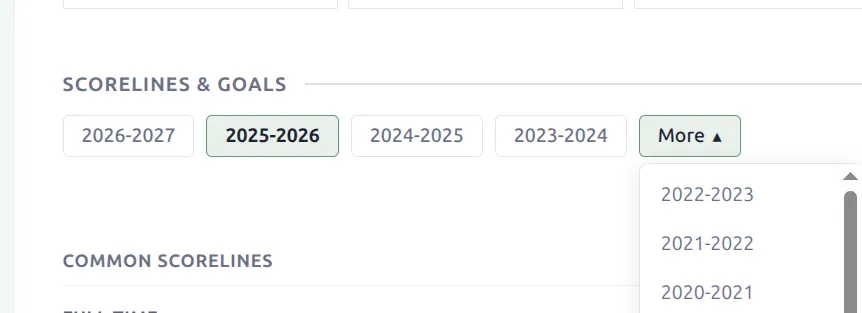
A pill row only appears when there’s something to switch: the season row needs at least two seasons with matches for that club, and the competition row needs at least two competitions in the selected season. The first four seasons show as pills and the rest sit under More – change that number with Visible Season Pills on the block.
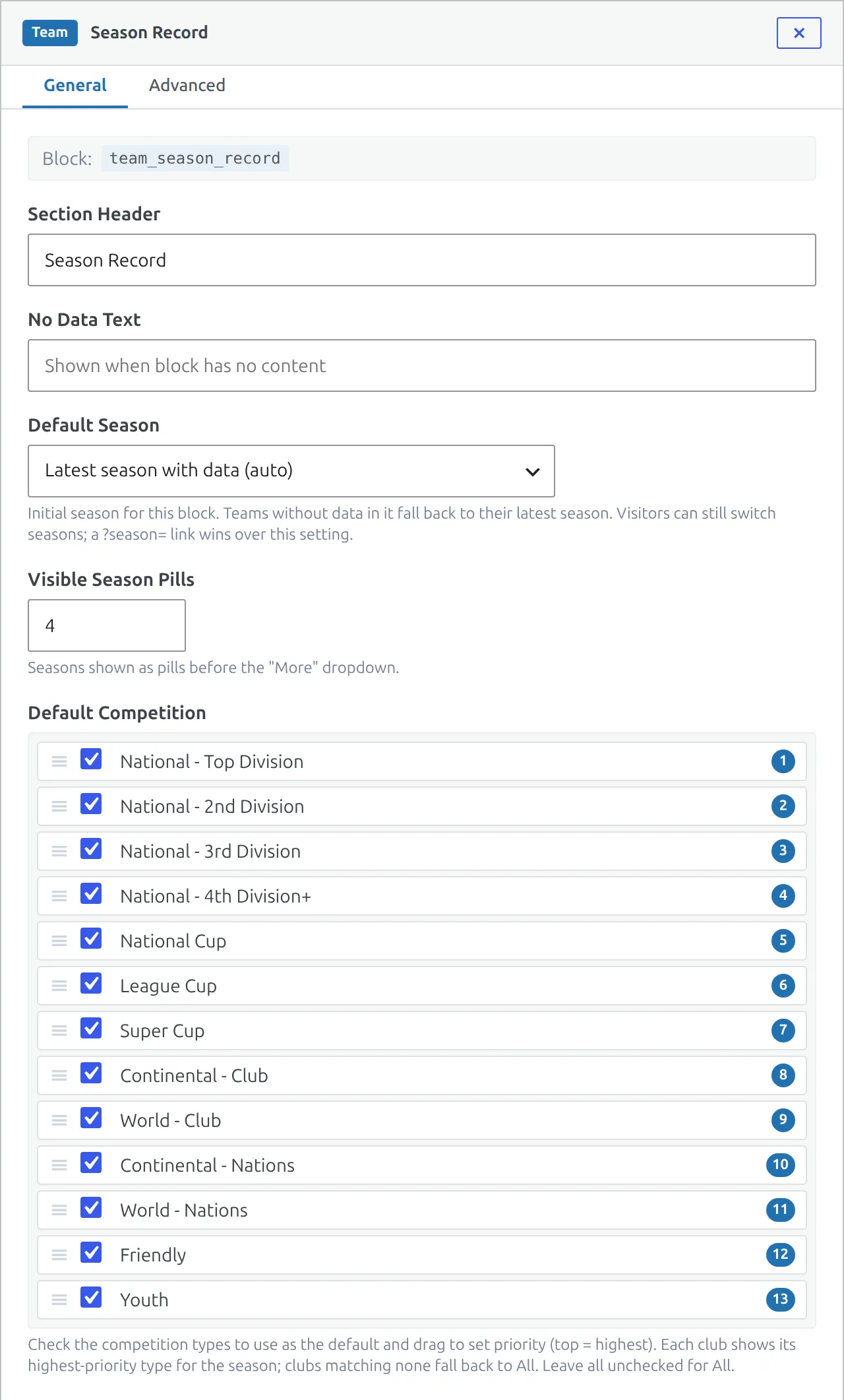
Each block opens on the latest season in which the club has finished matches, so a new season with only scheduled fixtures doesn’t open every section empty. Set Default Season on a block to open it on a particular season instead – a club with no matches in that season falls back to its own latest one. A ?season= in the page address still wins.
The competition a block opens on depends on the block:
- Season Record, Match & Goals Breakdown, Scorelines & Goals, Season Statistics, Top Players and Form Trends open on the club’s highest-tier competition rather than an all-competitions total, so a club that plays a league and a cup shows its league first. This comes from the Default Competition list on each block: tick competition types and drag them into priority order. Untick them all and the block opens on All competitions.
- Schedule and Player Stats open on All competitions in the default layout. Tick competition types in their Default Competition list to change that.
- Standings and Team Rankings have no All pill – a table can’t mix competitions. They open on the competition the club played most that has a standing table.
Form Trends adds a venue toggle (Home & Away / Home / Away). Team Rankings only lists competitions that have a table, so a knockout cup never leads to an empty ranking.
Two things that don’t follow the filters
The header’s recent form and last win / last loss are “recent across seasons” on purpose – they’re the club’s last 10 games whatever season you’re viewing. And filter choices aren’t written into the page address, so a filtered view isn’t a shareable link. A ?season= in the URL is still honored when the page first loads.
Schedule, Results and Fixtures
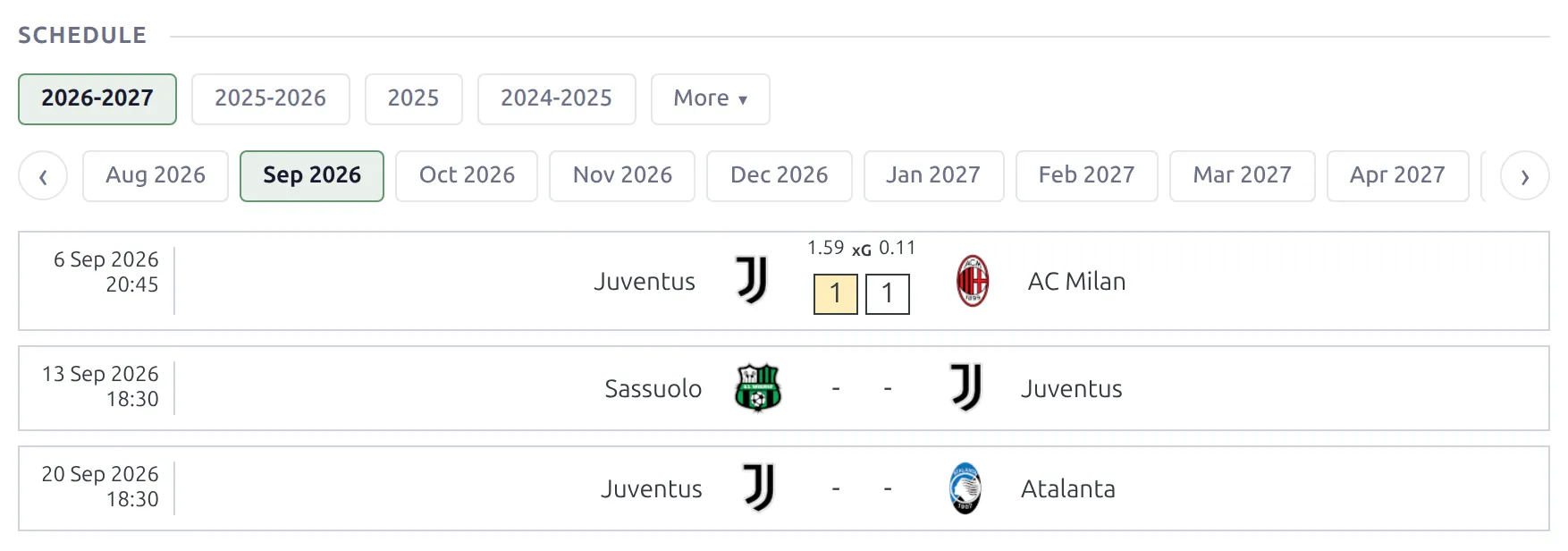
The default layout uses Schedule: the club’s whole season, results and fixtures together, one month at a time, with a pill for each month. Card Style on the block switches between Slim cards (the default), Compact cards and Modern cards.
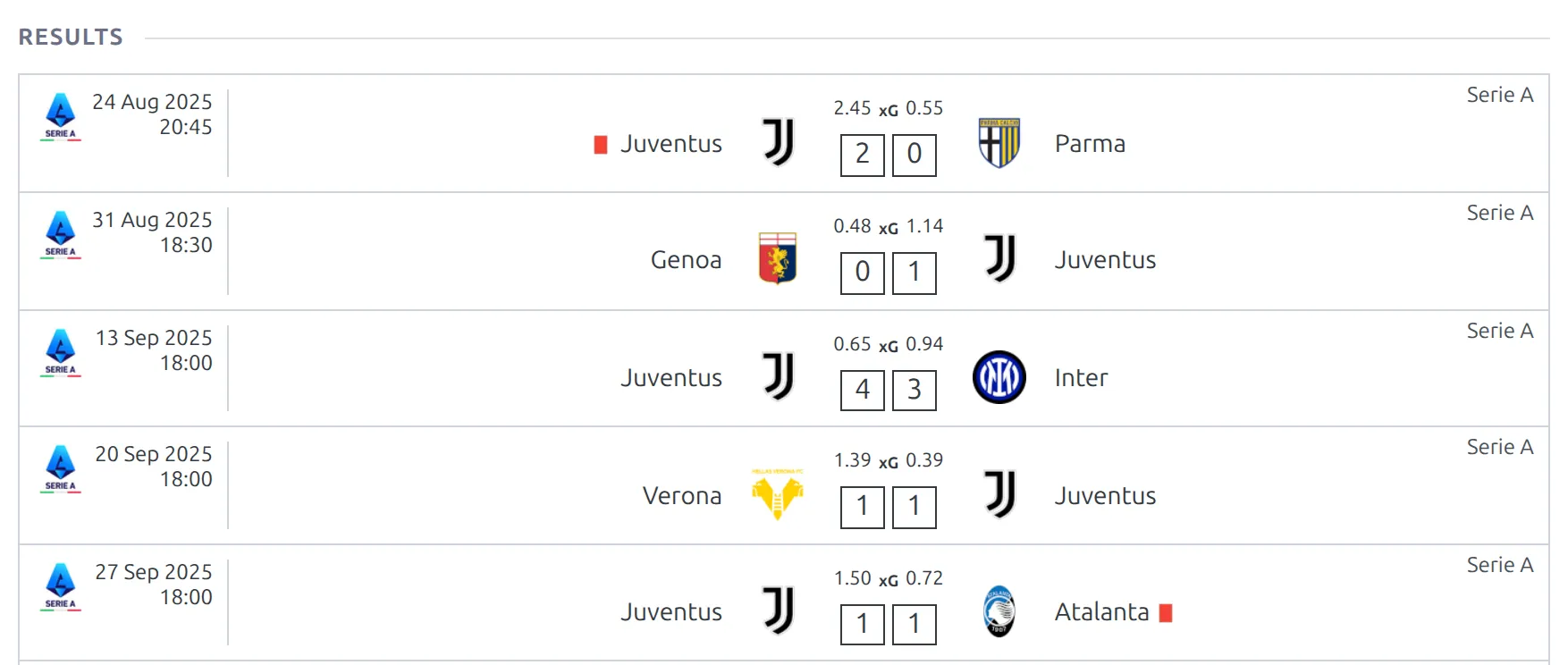
If you’d rather have two plain lists, drag in Results and Fixtures from the palette. They show the club’s finished and upcoming matches for the season in the page address (?season=), or the active season, and have no filter pills.
The Roster block
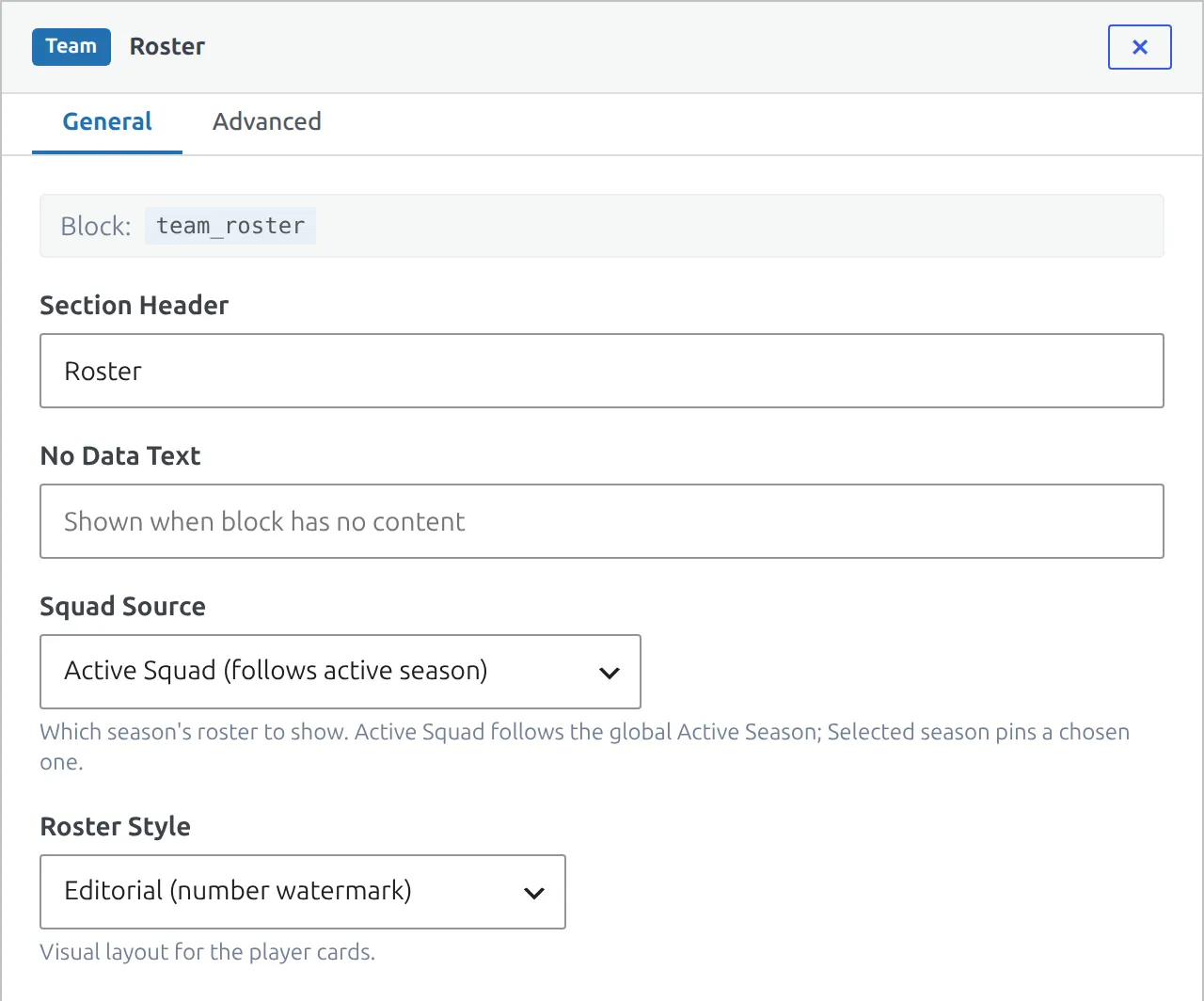
Two settings decide what the Roster shows and how it looks.
Squad Source – which roster to show:
- Active Squad (default) follows the active season, so it stays current on its own.
- Selected season pins the roster to one season you choose.
- Season pills lets the visitor switch the roster season in place.
Roster Style – Editorial (a large number watermark behind each player, the default) or Clean (color pills). Position groups are separated by a divider, and players with no position sit in their own group at the end rather than running on from the previous one.
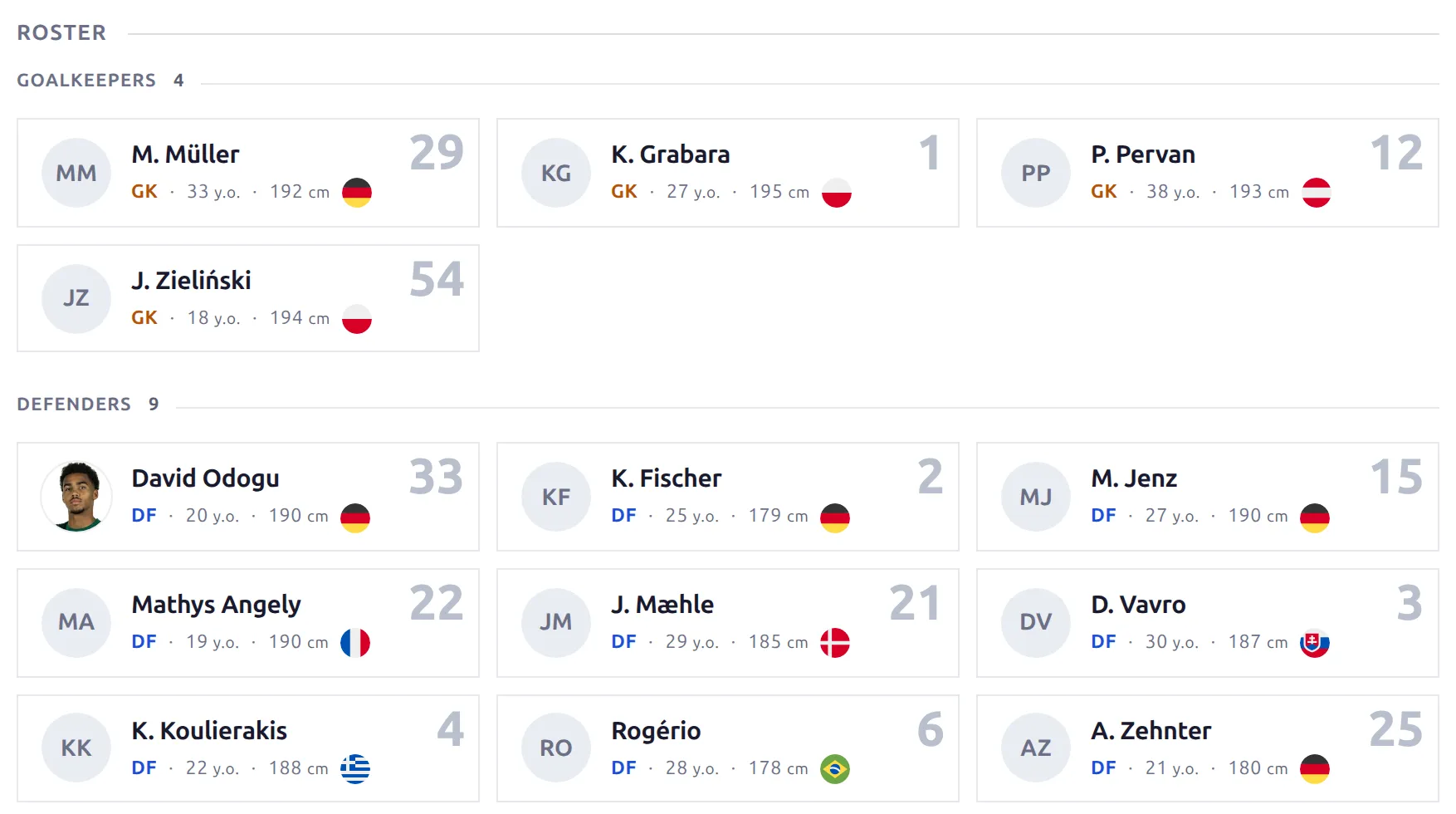
The Roster lists players only. Players marked as left or on trial don’t appear, and on-loan players get an On Loan tag. For a table that also lists the club’s staff, use the Squad block from the palette. It always uses the table layout – the Squad Layout setting in Settings & Tools > Settings > Display > Squad changes the squad on classic and v1 club pages, not on a v2 team page.
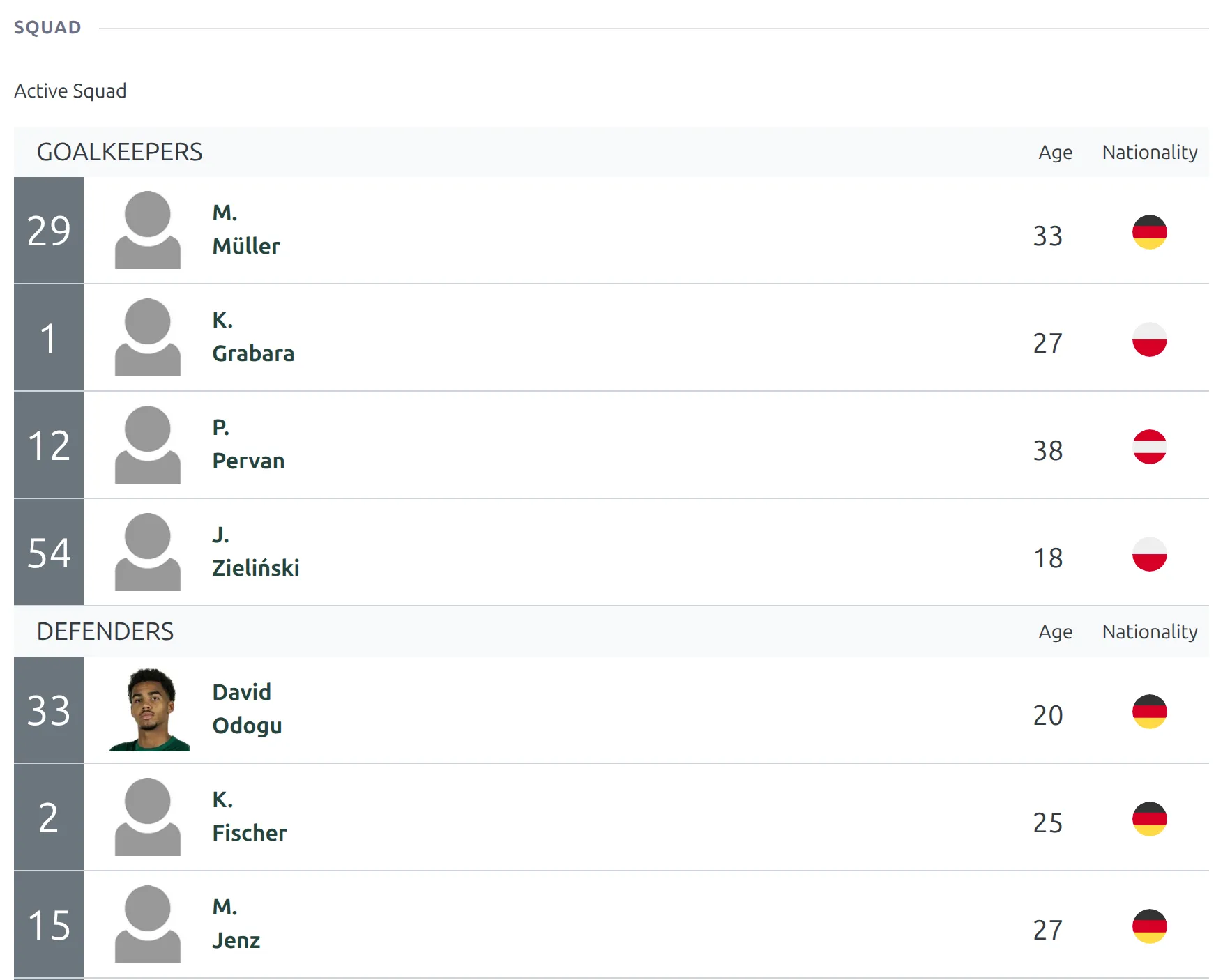
Want the squad as player blocks rather than a table? Add a Shortcode block with [anwpfl-squad club_id="%club_id%" layout="blocks" header="0"] – see the Squad shortcode.
Standings: full table or just the club’s slice
The Standings block shows the table the club sits in for the selected competition. A competition with several stages – a league phase and then a knockout round, say – gets a tab for each, in stage order: the table the club is in, and the bracket of each knockout stage the club played. A cup-only club sees its cup bracket. A table where the club hasn’t played a game yet is left out, except before the season starts, when the first one stays so visitors still see who’s in the league.
The table can be whole or a slice of it. Set Table Rows on the block:
| Mode | Shows |
|---|---|
| Full table | Every row (default). |
| Top rows | Just the top of the table – 5 rows unless you change Top Rows Count. |
| Around this team | The club and 2 rows on each side of it. |
| Top rows + around this team | Both slices, combined, with a separator between them. |
The partial modes can add a Show full table button so visitors expand it in place – tick Show “Full table” button on the block. On a multi-group stage, panels the club isn’t in always render in full.
Summary clubs and subteams
If you run a club with several teams – a first team, a reserve side, youth ages – you can set up one club as the summary page for all of them. In the club editor open the Subteams tab, set Subteam Status to Root Team and Root Type to Summary, then list its subteams under Subteam List.
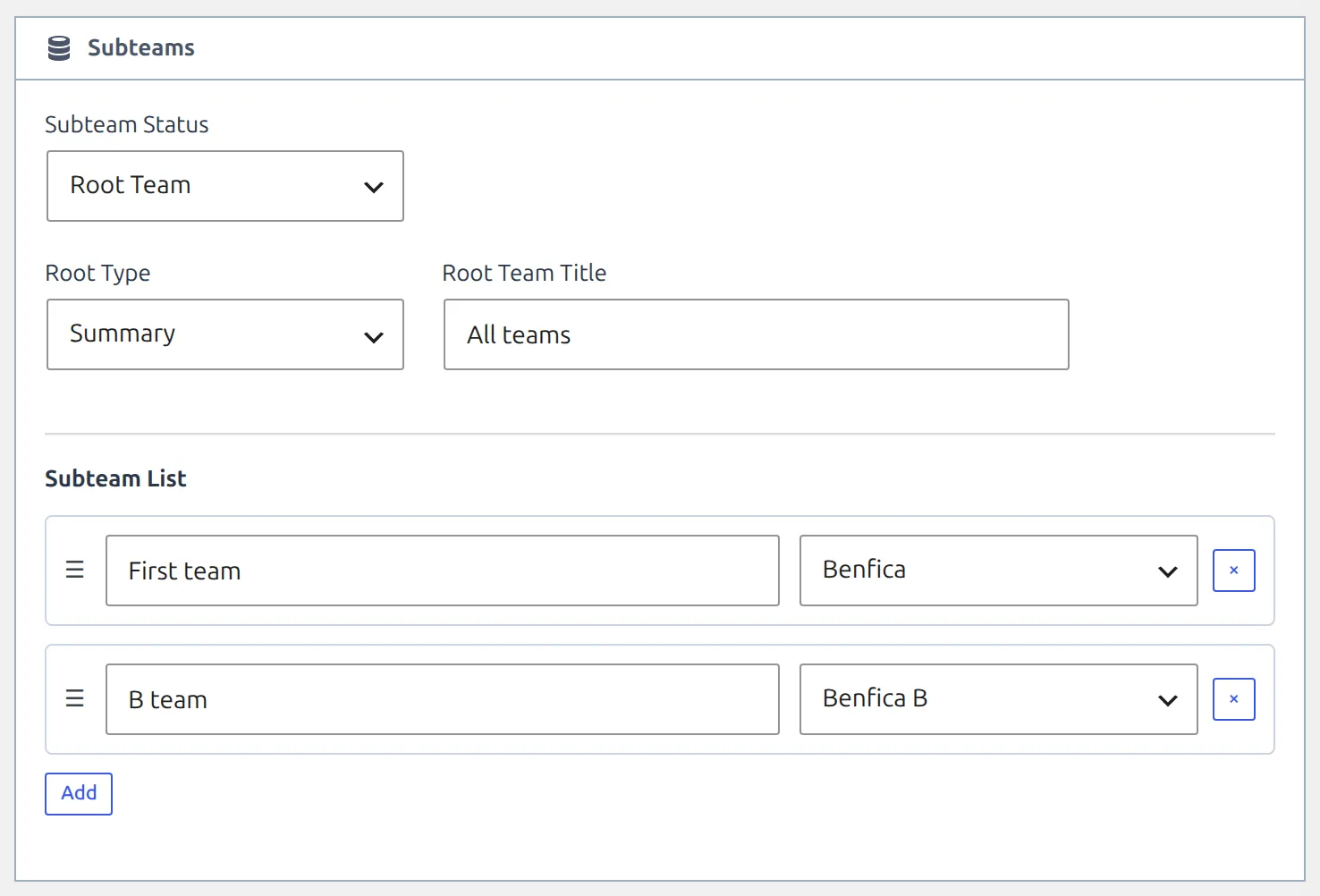
Three blocks in the default layout exist for those pages, and they hide themselves on every ordinary club – so one shared layout covers both:
- Subteam Statistics – one row per subteam for the selected season: games, W-D-L, goals for and against, goal difference, win % and the subteam’s league position (a dash for a cup-only side with no table).
- Combined Squad – every subteam’s players, with a per-team switcher.
- Subteam Schedule – all subteams’ results and fixtures merged and de-duplicated into one month-by-month grid.
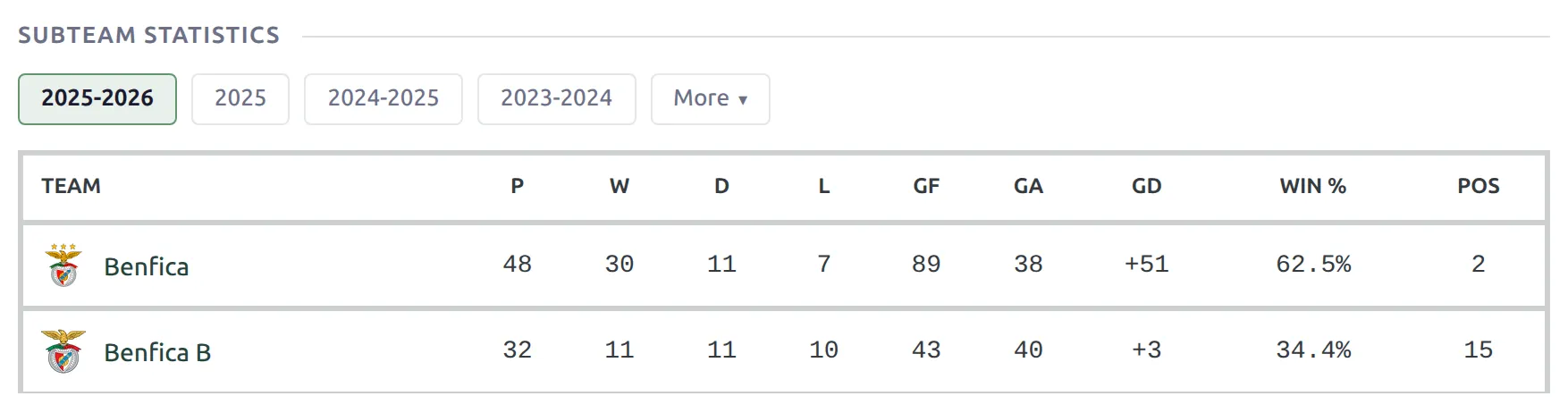
The season pills on these blocks come from the seasons the subteams actually played, since a summary club has no matches of its own. For the same reason, the club’s own blocks (Season Record, Schedule, Form Trends and the rest) hide themselves there.
Customize the layout
Open Layouts (v2) and click Edit Layout on the Team card. You can drag blocks into rows and tabs, reorder them and remove ones you don’t need. Each block’s settings have a General tab for its heading and options and an Advanced tab for spacing. Click Save Layout, and your club pages update right away.
Layout Builder v2 pages use one consistent block style across team, player and competition pages: only the header block at the top of the page keeps a frame, and the sections below it are separated by their section heading rather than each sitting in its own box. If you prefer boxed sections, put the blocks inside a row container and set that row’s background and border – which also lets you pick the colors per layout.
Section headings (“Standings”, “Season Record”, and so on) are per-block – edit the heading right on the block in the builder. The wording inside the stat blocks (Season Record, Subteam Statistics, Scorelines, Match & Goals Breakdown, Team Rankings, Player Stats) is separate: rename or translate it from Translations > Text Strings, with no translation plugin needed. Search for the default English wording, such as “Goals For” or “Last Win”, and type your own.
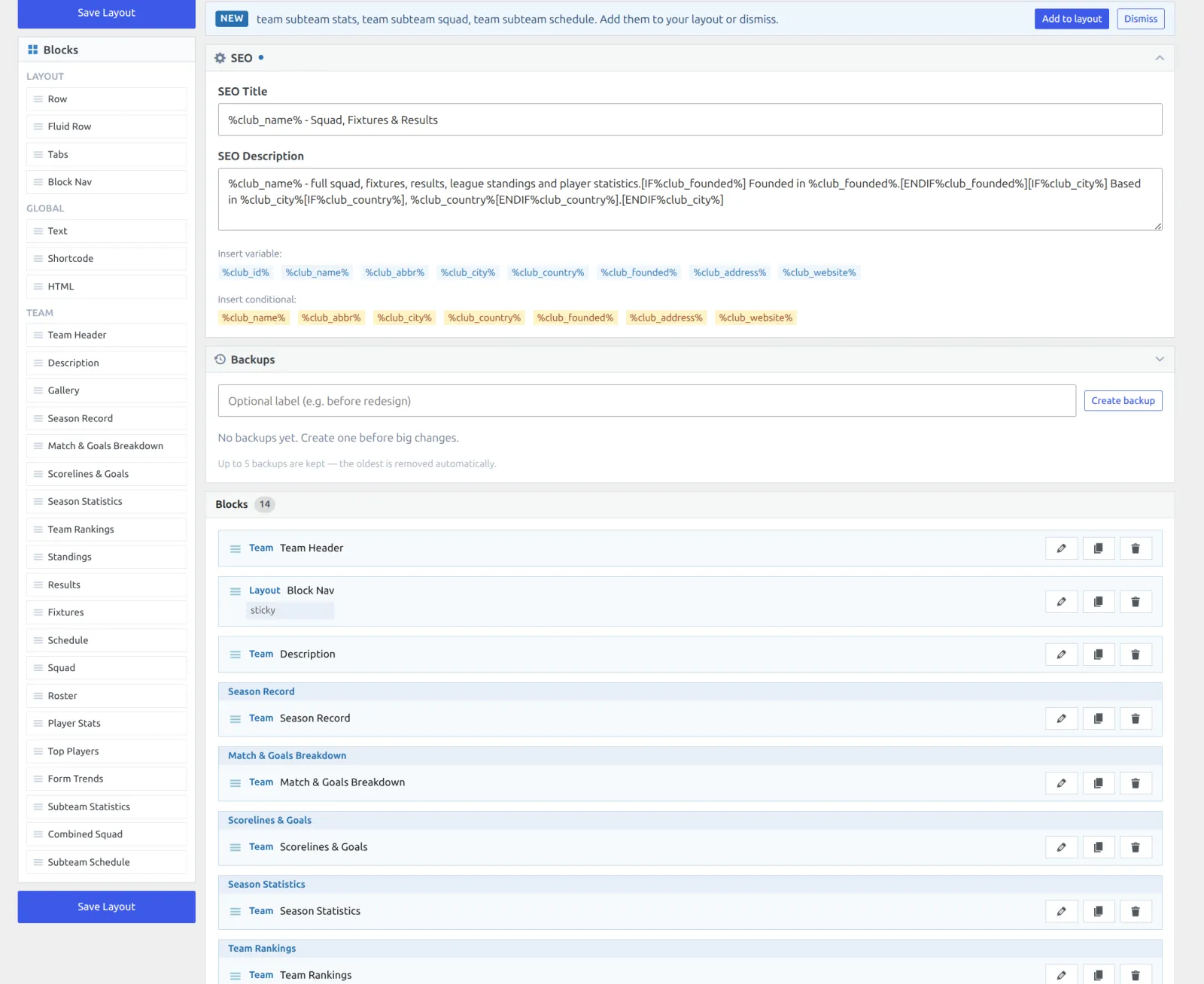
When a plugin update adds blocks to the default team layout, the Team card shows Update available, and the builder names the new blocks in a bar at the top with Add to layout and Dismiss buttons.
Before a big change, open the Backups panel in the builder and click Create backup. Up to 5 backups are kept, and any of them can be restored. If you’ve customized the layout and want the shipped default back, use Reset to Default in the builder – the button appears once the layout differs from the default. That replaces your layout, so create a backup first.
Moving from a Layout Builder v1 club layout
Your v1 club layouts aren’t converted. You activate the v2 Team layout, check a few clubs, and the v1 layouts stay under Layout Builder → Layouts (v1) – they render again if you switch the v2 layout off. Most v1 club blocks have a v2 block that does the same job:
| Layout Builder v1 block | Layout Builder v2 block |
|---|---|
| Header | Team Header |
| Info | Description |
| Fixtures | Fixtures, or Schedule for results and fixtures together |
| Latest Matches | Results, or Schedule |
| Squad | Roster (compact cards), or Squad (the table, with staff) |
| Players Stats | Player Stats, plus Top Players for leaderboards |
| Club Stats | Season Statistics |
| Gallery | Gallery |
| Transfers | No team block – use a Shortcode block, below |
| Birthdays | No team block – use a Shortcode block, below |
| Bottom Content | No team block – the club’s Additional Content text doesn’t show on a v2 team page |
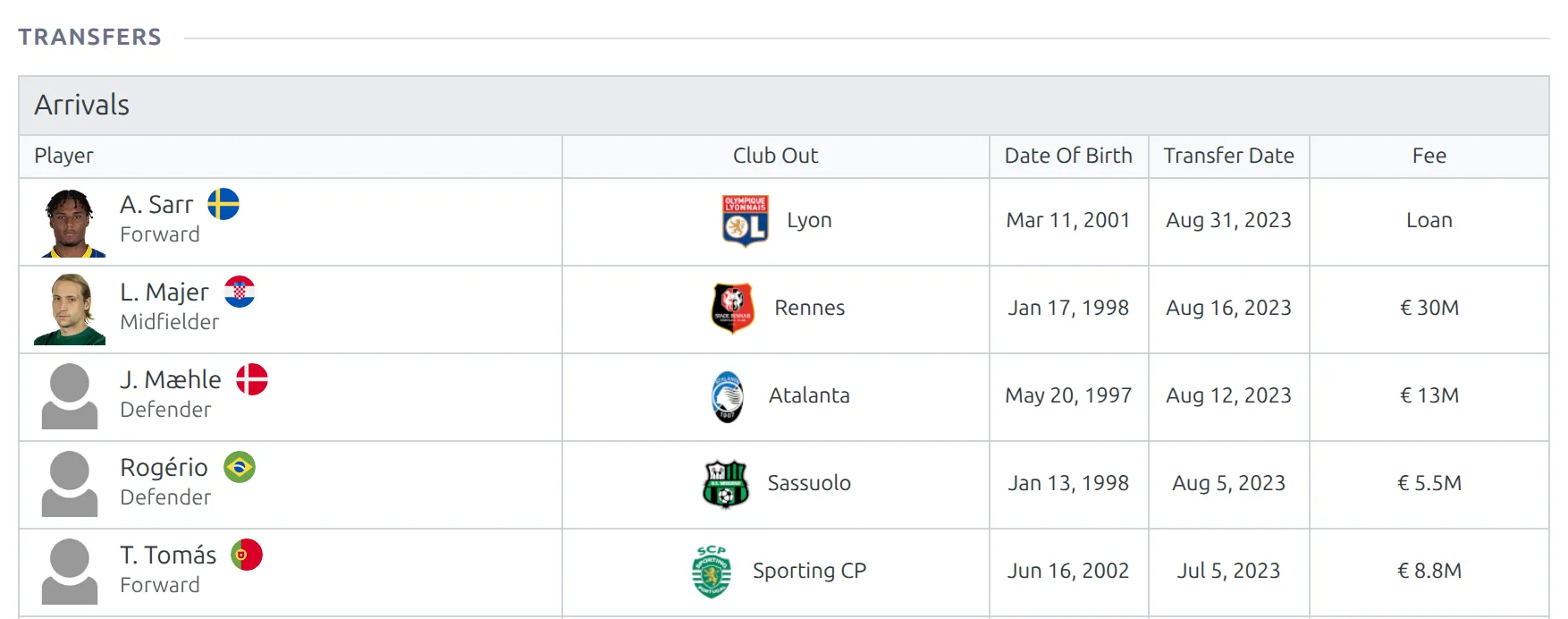
Transfers. Drag a Shortcode block (under Global) into the layout and add [anwpfl-transfers club_id="%club_id%" order="DESC"]. It lists the club’s arrivals and departures from every season, newest first. The v1 block showed only the selected season and split it into pre-season and mid-season windows – the Transfers shortcode page covers the season_id, window and limit attributes if you want that back.
Birthdays. Use a Shortcode block with [anwpfl-birthdays club_id="%club_id%" group_by_date="1"], the same settings the v1 block used. See the Birthdays shortcode for the other options.
Shortcodes copied from a v1 layout. The team layout has its own set of variables, so check any shortcode you bring over:
| v1 club variable | In the v2 team layout |
|---|---|
%club_id%, %club_city%, %club_country% | Same name |
%club_title% | %club_name% |
%season_id%, %season_name%, %club_home_stadium% | Not available – they’re left in the text unreplaced, so take them out |
| – | New: %club_abbr%, %club_founded%, %club_address%, %club_website% |
Still running v1 club layouts? Their blocks are covered in Layout Builder v1 block types.
🆘 Troubleshooting
A section I expected is missing
That’s the hide-when-empty rule – the block found no data for this club. Check the data first: are player statistics recorded for its matches, is there a standing table, does the club have a squad for the season? If the section should show regardless, turn on Always Show in the block’s Advanced tab.
The page still looks like the old design
The Team layout isn’t active yet, or a page cache is serving the old HTML. Switch the toggle on in Layouts (v2), then clear your caching plugin.
Can I use a different layout for some clubs?
No. There’s one Team layout, and once it’s active it renders on every club page – v2 has nothing like the Team IDs or National Teams targeting of v1 club layouts. Blocks with no data hide on the clubs they don’t fit, which is how the same layout serves a first team, a youth side and a summary club.
How do I show the club’s top scorers?
Use the Top Players block – it’s in the default layout. Its Goals card is the club’s top-scorer list for the selected season and competition, and Stats to Show adds assists, appearances, clean sheets and more. Visitors switch season and competition with the block’s own pills.
The Squad Layout setting doesn’t change the squad
Squad Layout (Table or Blocks) only applies to classic and v1 club pages. On a v2 team page, use the Roster block and its Roster Style, or a Shortcode block with [anwpfl-squad club_id="%club_id%" layout="blocks" header="0"].
The club’s Additional Content text doesn’t show
The team layout has no block for the Additional Content box (the Bottom Content block in v1), so that text doesn’t appear on a v2 team page. Move it into the club’s Description box, which the Description block prints.
Can I add Telegram or Threads to the social icons?
Not as icons. The header shows the seven networks on the club’s Social tab – X (Twitter), Facebook, Instagram, YouTube, LinkedIn, TikTok and VK. You can add a Custom Fields row to show a channel name in the header, as plain text.
📚 Related
- Player Pages with Layout Builder v2
- Competition Pages with Layout Builder v2
- Layout Builder v1 block types – if you still run v1 club layouts
- Shortcode block – adding any shortcode to a layout
- Transfers shortcode and Birthdays shortcode
- Club Trophies
- See the Site Migration guide to move an existing site onto the new tables.