

Alongside goals and cards, api-football.com publishes a per-game line for every player who took the field: passes, shots, tackles, dribbles, fouls and a rating out of 10. The plugin can store those numbers against each player in each game and show them on the game page: a statistics table for each club, and the rating as a colored badge next to each name in the line-ups.
It is off by default, and it needs somewhere to put the numbers before it can import them. That is the whole setup: one switch, then a set of stat columns.
It costs no extra API requests
Player statistics arrive inside the same fixture response the plugin already fetches for events, lineups and team stats. Turning this on does not add a request to your daily allowance.
🚀 1. Turn the import on
Go to FL API Import > Settings. In the Import Data block, set Import Player Game Statistics to Yes and press Save.

The moment it is on, the page checks whether you have anywhere to store the numbers and reports underneath the switch. Two outcomes:
- All API fields are mapped correctly! – nothing more to do here.
- Some API fields need to be mapped correctly, followed by a list of the missing ones and a Fix button.
2. Create the stat columns
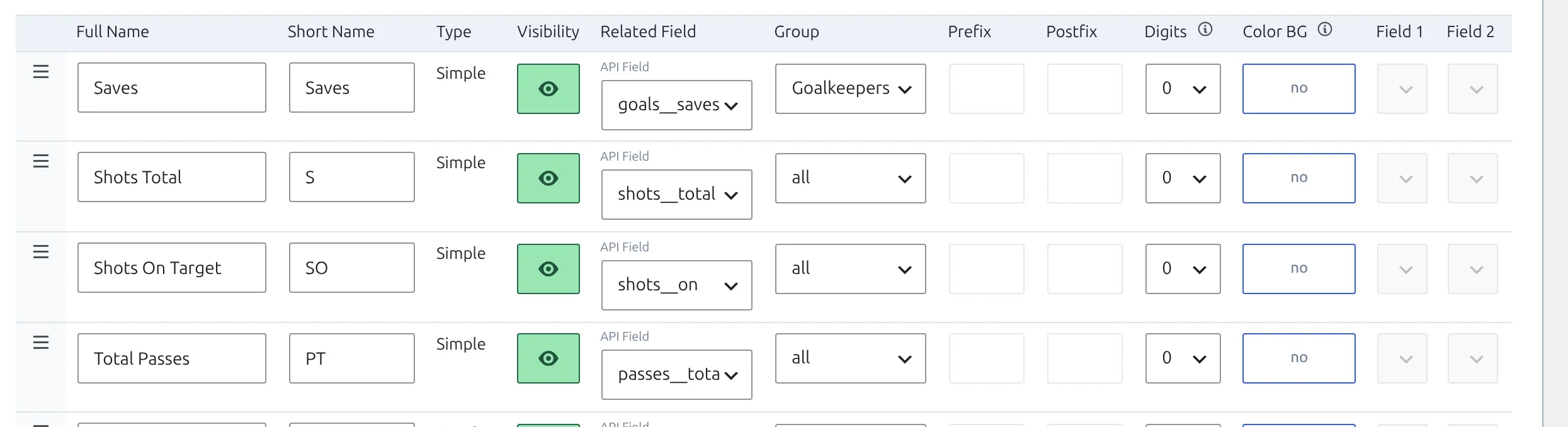
Press Fix. It creates the 14 columns below in one go, each already pointed at its API field, and switches player ratings on. They’re added in this order, after any columns you already have, and that’s the order they appear in on the game page. Saves is set to goalkeepers only; the other 13 apply to every player.
| Column | Short | API field |
|---|---|---|
| Saves | Saves | goals__saves |
| Shots Total | S | shots__total |
| Shots On Target | SO | shots__on |
| Total Passes | PT | passes__total |
| Accurate Passes | PA | passes__accuracy |
| Key Passes | PK | passes__key |
| Tackles Total | TT | tackles__total |
| Tackles Blocks | TB | tackles__blocks |
| Tackles Interceptions | TI | tackles__interceptions |
| Dribbles Attempts | DA | dribbles__attempts |
| Dribbles Success | DS | dribbles__success |
| Fouls Drawn | FD | fouls__drawn |
| Fouls Committed | FC | fouls__committed |
| Player rating | Rating | rating |
If you already have your own player stat columns, Fix leaves them alone and only adds what’s missing. You can also do the job by hand, which is the only way to get the last three fields.
Mapping a column by hand
Go to Settings & Tools > Statistics and find the Match >> Player Statistics block. Once the import is on, every simple column gains an API Field select in its Related Field column. Pick the field you want and save.
Three fields Fix never creates
duels__total, duels__won and dribbles__past are imported if a column points at them, but the Fix button does not create those columns and the check still reports everything as mapped. Add them by hand if you want them.
⚽ 3. Show the numbers on the game page
Import a finished game with the switch on and its page picks up two things by itself: a player statistics table and a rating badge next to each player in the line-ups. On the standard game page you don’t add a block or a shortcode for either.
The player statistics table
The table has its own Players Statistics section, below the team statistics. Each club gets two tables, Goalkeepers and Field Players, with one row per player and a column for every stat you mapped. With the columns Fix creates, Saves appears in the goalkeepers table only, and Player rating is the last column, each value in a colored pill.
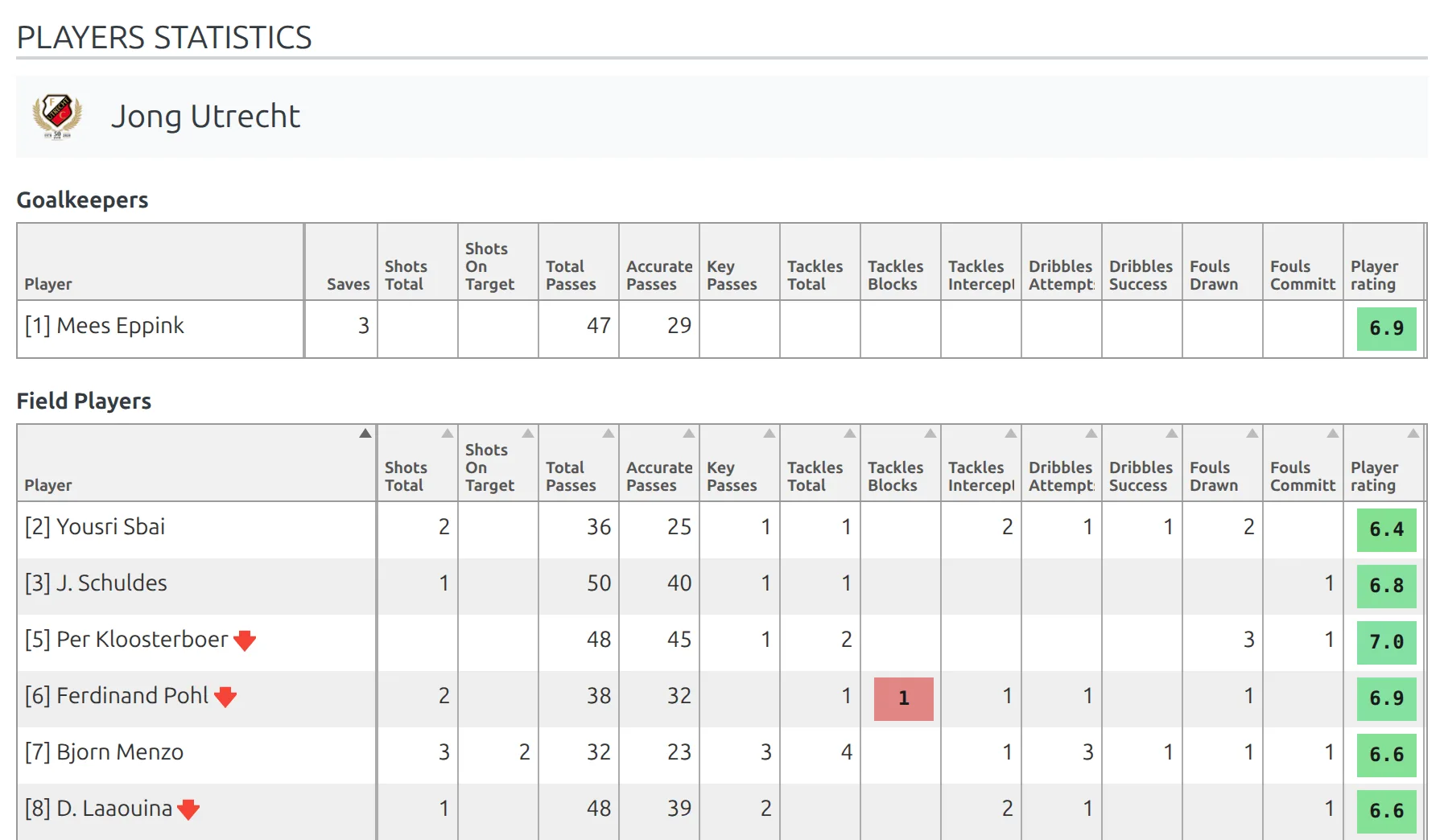
- Who gets a row. Players with a value above zero in at least one column. Unused substitutes never do, because the import skips anyone who didn’t play.
- Column headers. They show each column’s full name by default. For the short codes (S, SO, PT and so on), set Show Full Column Name to No. Hovering a header still shows the full name.
- Sorting. Visitors can sort the Field Players table by clicking a header. The Goalkeepers table can’t be sorted.
Show Full Column Name, Hide Zero Values, Show Game Event Icons, the header font size and the maximum column width are under Settings & Tools > Settings > Display > Match Display, in the Player Statistics group. What each one does is on Custom Player Statistics.
Player rating badges in the line-ups
The rating also appears as a small colored badge beside each player’s name in the Line Ups section, for the starting eleven and for substitutes who came on. The badge prints the rating exactly as it was imported, while the table rounds it to one decimal, the Digits setting of the column Fix creates.
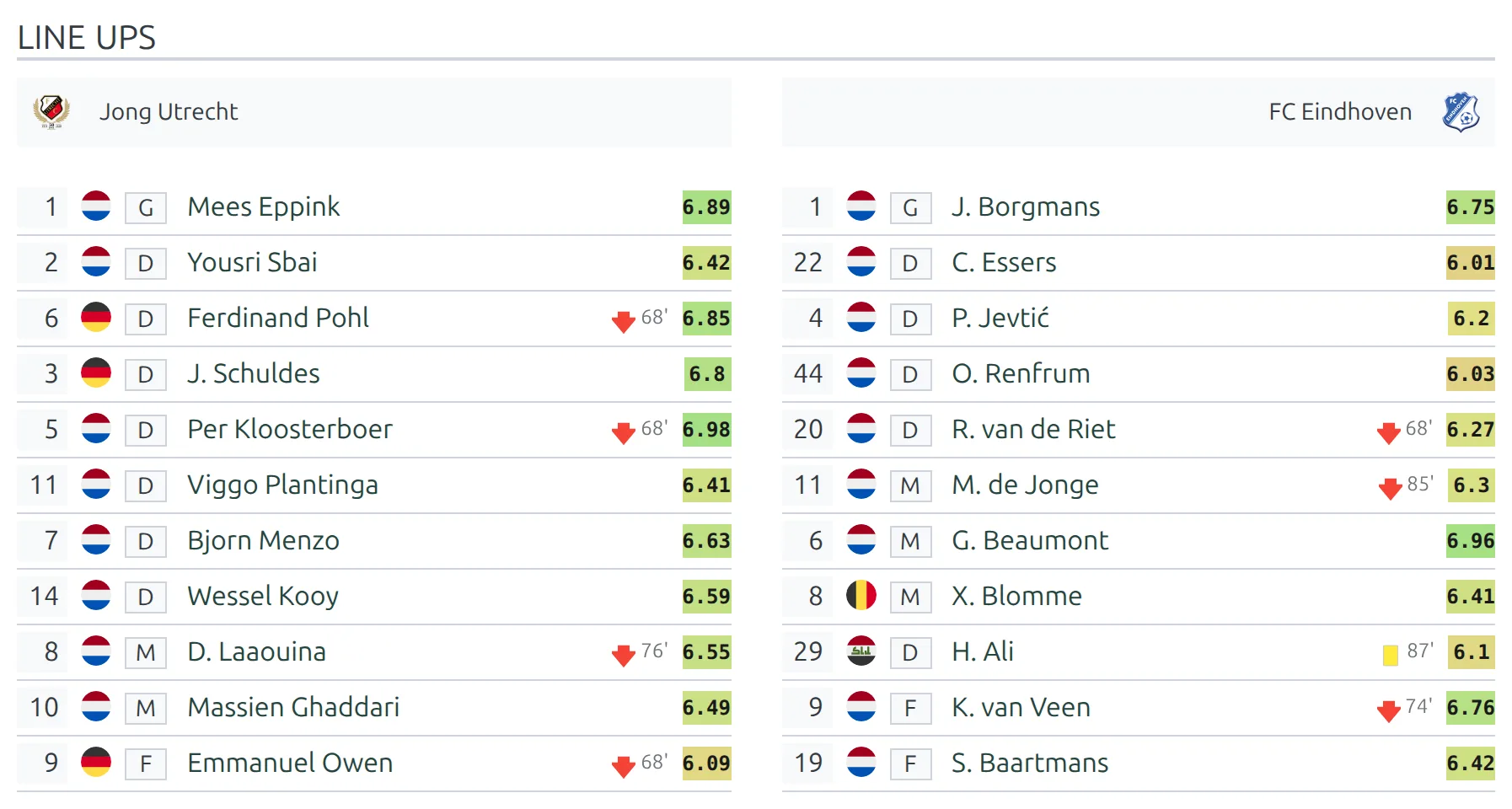
The badge needs Player Rating Field to point at the rating column. Fix sets that when it creates the column. If you mapped rating by hand, go to Settings & Tools > Settings, open Display > Match Display, and in the Lineups group set Player Rating Field to that column, then save.
The same setting puts the rating on the formation, on player pages and in season rankings. Badge colors and every place the rating shows up are covered on Player Match Rating.
If you use a game layout in the Layout Builder
A game layout replaces the standard game page, so only the blocks you put in it are drawn. Open the layout in the Layout Builder and add, from the Match group, Custom Player Stats for the table and LineUps for the rating badges. Leave either out and that part is missing, with no warning. Layout Builder v2 covers team, player and competition pages only, so game pages always use these blocks.
4. Fill in games you already imported
Statistics are written when a game is imported as finished. Games imported before you turned this on have none, and switching it on does not go back for them.
Update Finished Games won’t fill them in, whether you run it from the Import Dashboard or from a league’s configuration. It only picks up games that are still fixtures on your site and skips every game already marked finished. The tool for this job is Re-Update Finished Matches, and it works on one competition at a time:
- Go to FL API Import > API Leagues and click the database button on the league’s row. Import Competition Configuration opens.
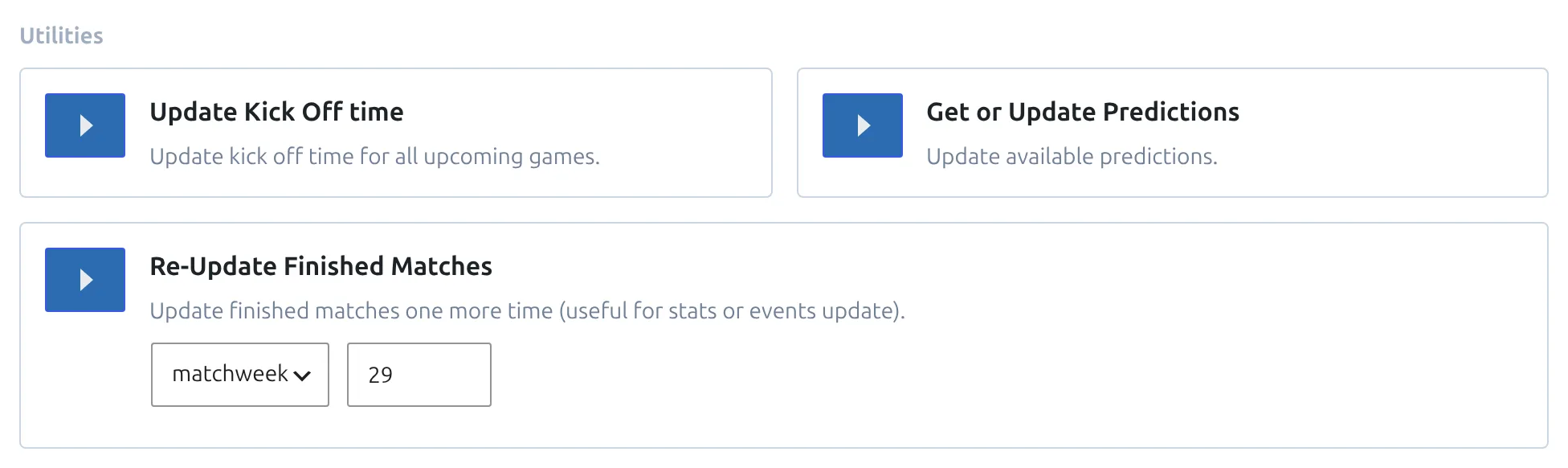
- In the Utilities block, find Re-Update Finished Matches.
- In its dropdown, pick all for every finished game in the competition, matchweek and type a matchweek number, or match and choose one game.
- Press the blue arrow button at the left of the card, and leave the tab open until it reports that it’s done.
An older season can be a long run, and unlike the switch itself, this does use your daily API allowance: about one request per game it re-imports. In all mode the importer works through three games per round-trip. In matchweek mode it does the whole matchweek in one go, pausing a second between games. Going a matchweek at a time (29, then 30, and so on) keeps each run short, and you can open one game page to check the numbers arrived before you carry on.
🆘 Troubleshooting
Nothing was imported at all
Three causes, in order of likelihood. No stat column points at an API field, so there is nowhere to write – check the mapping report under the switch. The game isn’t finished: only games the provider marks finished, after extra time, after penalties, awarded or walkover are processed. Or your provider plan doesn’t include player statistics for that league, in which case the response simply arrives empty and nothing is reported.
Stats appear for some players only
A player is skipped if they played no minutes, so unused substitutes never get a line, not even a rating. A player is also skipped if they aren’t already in that game’s lineup – statistics are attached to existing lineup rows, never used to create them. If your lineups are incomplete, fix those first and re-run the update.
Numbers show during a live game and then disappear
Live player statistics are held only for the live widget and are not saved against the players. They are written properly once the game finishes and the finished-games import picks it up. Live statistics also need this page’s switch on as well as their own, which the Live Scores panel doesn’t mention.
The stats were imported but the game page doesn’t show them
Almost always a game layout in the Layout Builder without the Custom Player Stats block, see step 3. If the table shows but the rating badges don’t, check three things: the layout has a LineUps block, Player Rating Field in Match Display > Lineups points at the rating column, and Formation & Lineups Stat Field in the same group is empty. When that second field names another column, the line-ups show that stat instead of the rating.
A column stays empty for every player
Only simple columns can be fed from the API. A calculated or formula column has no API Field dropdown and is worked out from other columns instead.
📚 Related
- Import Additional Team Statistics – the same idea for possession, shots and passing.
- Import Dashboard – running and scheduling the finished-games update.
- Custom Player Stats shortcode – the same numbers aggregated across a season.
- Player Match Rating – badge colors, the formation, player pages and best-rated lists.
- Custom Player Statistics – the stat columns in full, including calculated columns built from the imported ones.