

The Live Scores Dashboard runs live scoring for every match from one screen – start a half, push a score, watch the clock – without opening each match separately. It’s the fastest way to cover a full matchday by hand.
Open it at Settings & Tools → Live Scores. The screen is administrators only.
🚀 Turn it on first
The dashboard is empty until manual live scoring is enabled. Go to Settings & Tools → Settings → Features → Live Scores, and under Manual Live Scores set Enable Manual Live Scores to Yes. Save.
Two related options sit just below it – Team Stats and Player Stats – which let you enter stats while scoring live. Those apply to the match edit screen, not to this dashboard.
If the page says “Live Scores is disabled in FL+ Configurator”
That message points at a settings page that no longer exists – the Configurator was folded into the main Settings screen. Ignore the page name and use the path above: Settings & Tools → Settings → Features → Live Scores.
The two panels
| Panel | What’s in it |
|---|---|
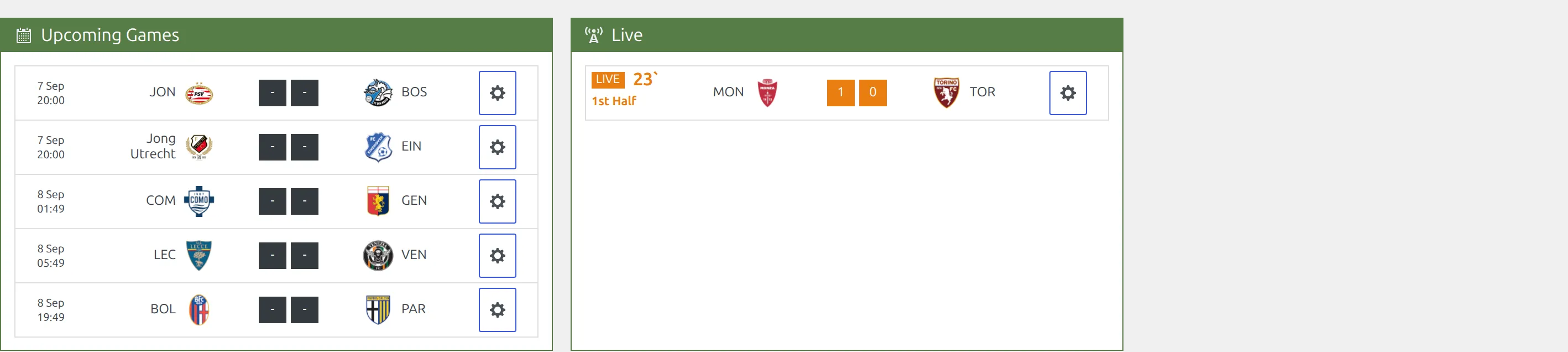
| Upcoming Games | Every match still marked as a Fixture whose kickoff falls between the start of today and the end of tomorrow, earliest first. |
| Live | Every match that currently has a live status, whatever its date. A match moves here from Upcoming Games the moment you give it a status. |
Each row shows the kickoff date and time, both clubs with logos, the score, and a gear button. Once a match is live the row also carries a red Live label and a running minute.
The dashboard does not create matches. A match has to exist already, with a kickoff date, before it can appear here.
Start a match
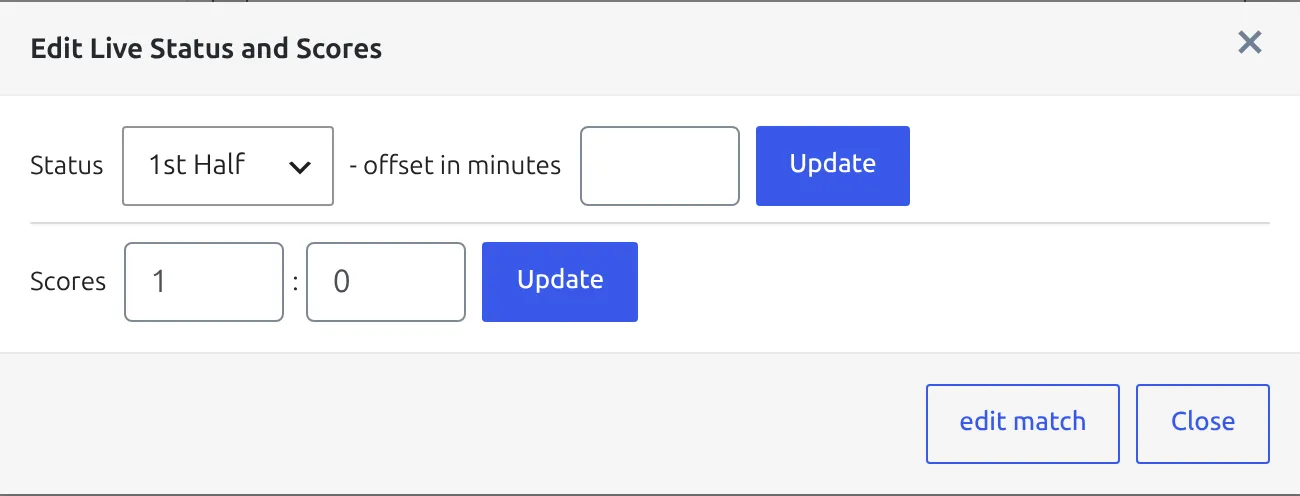
- Click the gear on the match in Upcoming Games. The Edit Live Status and Scores dialog opens.
- Set Status to 1st Half.
- Leave – offset in minutes at 0 if the half is kicking off right now.
- Click Update on that row.
The match jumps to the Live panel and the clock starts.
Joining late? Use the offset
– offset in minutes means “this half started N minutes ago”. Start the 1st Half with an offset of 12 and the clock picks up at minute 13 instead of 1. It only applies to the half-starting statuses – 1st Half, 2nd Half and Extra Time. The field resets to blank every time you reopen the dialog.
Update the score and the status
Click the gear on the live match. The dialog has two independent rows, each with its own Update button:
- Status – plus the offset field. Move through Half Time, 2nd Half, Full Time, and Extra Time / Penalty when they apply.
- Scores – the two boxes either side of the colon, home first.
Click the Update belonging to the row you changed – changing the score and clicking the status Update saves the status only.
Finish the match
Finishing happens on the match itself, not in the dialog:
- Click edit match at the bottom of the dialog – it opens the match in a new tab.
- Set Status to Result.
- Check the final score and anything else you want to record, then click Update.
Saving the match as a Result clears the live state and drops it off the dashboard.
“Finished” in the dropdown does not finish the match
Picking Finished stops the clock but leaves the match live and sitting in the Live panel with a blank status. Always finish through edit match → Status: Result. If a match is stuck in the Live panel, that’s why – set it to – not set – to clear it, then finish it properly.
Refresh rate
The dashboard reloads its data every 60 seconds, silently – there’s no spinner or timestamp on the refresh, though the minute counters keep ticking in between. This interval is fixed and there is no setting for it.
The Update period options in Settings (single match and match list), along with Blink on score change and Play sound on changed scores, control how the public pages behave for your visitors. They have no effect on this admin screen.
🆘 Troubleshooting
A match isn’t in Upcoming Games
Check that it exists with a kickoff date, that the kickoff is today or tomorrow, and that its status is still Fixture – a match already saved as a Result never appears. If you’re running a very large matchday, the list is capped at 200 matches.
A match won’t leave the Live panel
It still has a live status. Open the gear, set Status to – not set – and click Update, then finish it on the match edit screen.
Live scoring switched itself off after an update
Manual live scores and the API live import can’t both run on the same site unless hybrid mode is on – if both were enabled, the update turned the manual one off. Re-enable it in Settings → Features → Live Scores, and if you need both, turn on hybrid mode.
Old live data came back
If you disable manual live scores while a match is still live, saving that match as a Result won’t clear its live state – it reappears when you switch the setting back on. Finish every live match before turning the feature off.
My editors can’t reach the dashboard
This screen is administrators only, by design. To let other people score matches, use the front-end live match editing feature instead – Settings → Features → Frontend Editing.
📚 Related
- Live shortcode – show live matches on the front end
- Matches Scoreboard – a scrolling live scoreboard