

Display player transfer records with filtering by club, season, competition, or date range. Shows incoming and outgoing transfers with multiple layout options. Perfect for transfer news sections, club pages, or season reviews.
This page covers both halves: how to add and manage player transfers in the admin, and how to show them on your site with the [anwpfl-transfers] shortcode.
Premium Feature
This shortcode requires the Football Leagues Premium plugin.
🚀 Add and manage transfers
Every move is its own transfer record – one player, one season, the club left and the club joined. The records live under Clubs & People > Transfers (the menu item has a PRO badge), not inside the player profile. The shortcode, the club page and the Layout Builder blocks all read from this one list.
Add a transfer
- Go to Clubs & People > Transfers and click Add New Transfer.
- In Player Details, start typing the player’s name in Player and pick the player from the list. The birth date in brackets and the flag help you tell two players with the same name apart.
- Pick the Season the transfer belongs to.
- In Club IN – OUT, set Club In (the club the player joins) and Club Out (the club the player leaves).
- In Transfer Details, fill in the date, status, window and fee – all optional.
- Click Publish.
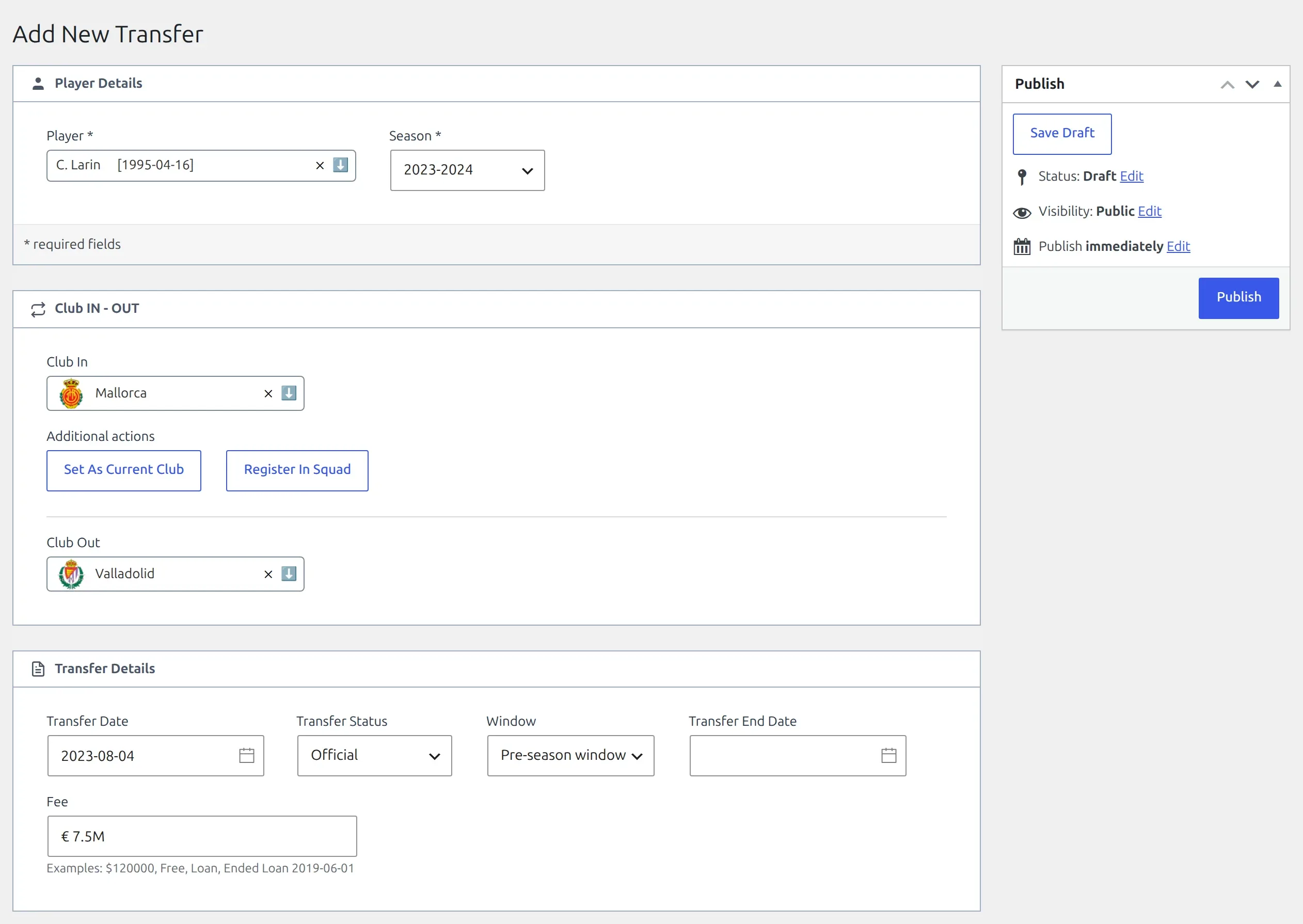
| Field | What to enter |
|---|---|
| Player (required) | The player who moves. The search matches names and shows up to 20 players. |
| Season (required) | The season the move belongs to. The club page and the season_id attribute filter by it. |
| Club In | The club the player joins – see the club choices below. |
| Club Out | The club the player leaves – the same choices. |
| Transfer Date | The day of the move. Every layout sorts by it. Leave it empty and the date cell stays blank. |
| Transfer Status | Official (the default) or Rumour. A rumour gets a gray RUMOUR badge on the front end. |
| Window | – not selected –, Pre-season window or Mid-season window. The club page groups transfers by it, and the shortcode’s window attribute filters by it. |
| Transfer End Date | An optional second date, for example when a loan ends. It shows in the admin list and its filters, not on the front end. |
| Fee | Free text, shown as you type it. The field’s own examples: $120000, Free, Loan, Ended Loan 2019-06-01. Leave it empty when the fee isn’t known – the Fee cell stays blank. |
Player and Season first
If you click Publish with Player or Season empty, the transfer is saved as a Draft instead – everything you entered is kept, and a notice asks you to select a Player and a Season to publish it. Drafts don’t show on the front end.
Club In and Club Out: a club, unknown, custom text or none
The club dropdowns list every club on your site, with two extra choices at the top. Leaving a dropdown empty is a fourth choice.
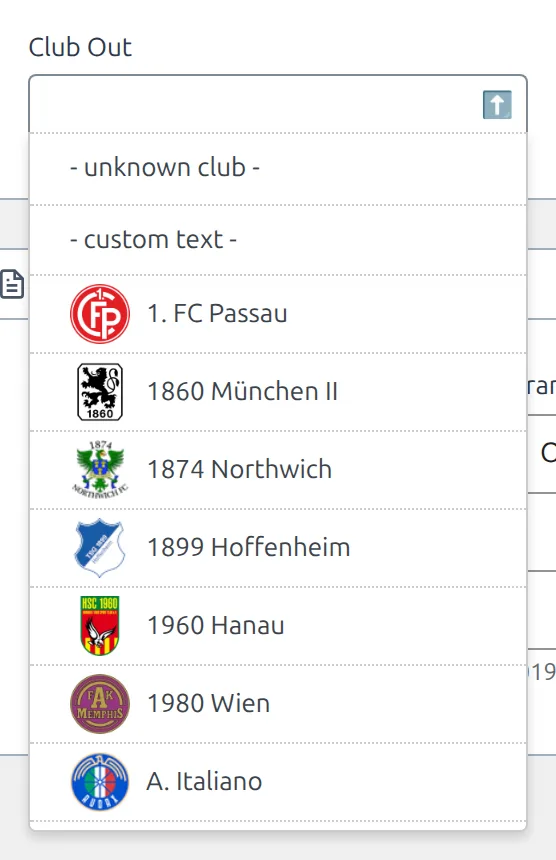
| Choice | Use it when | Front end shows |
|---|---|---|
| A club | The club exists on your site | The club’s logo and name, linked to the club page |
| – unknown club – | You know the player moved but not where from or to | A question-mark club icon and “- unknown club -“ |
| – custom text – | The club isn’t on your site and you don’t want to create it. A text box appears – type the club name there | The name you typed, without a logo or link |
| Left empty | The player had no club – a free agent joining, or a player retiring | A crossed club icon and “- without club -“ |
Does a transfer change the player’s current club?
No. Saving a transfer only records the move – the player’s Current Club and the club squad stay as they were. That’s deliberate, since you often enter old moves or rumours.
When the move should also update the player, use the two buttons under Additional actions, which appear once you pick a club in Club In:
- Set As Current Club – makes Club In the player’s current club.
- Register In Squad – adds the player to Club In’s Active Squad.
Both ask you to confirm and save straight away – they don’t wait for Publish. Use them with a real club, not with – unknown club – or – custom text –. The squad itself is covered on the Club Squad page.
Create a transfer from the club squad
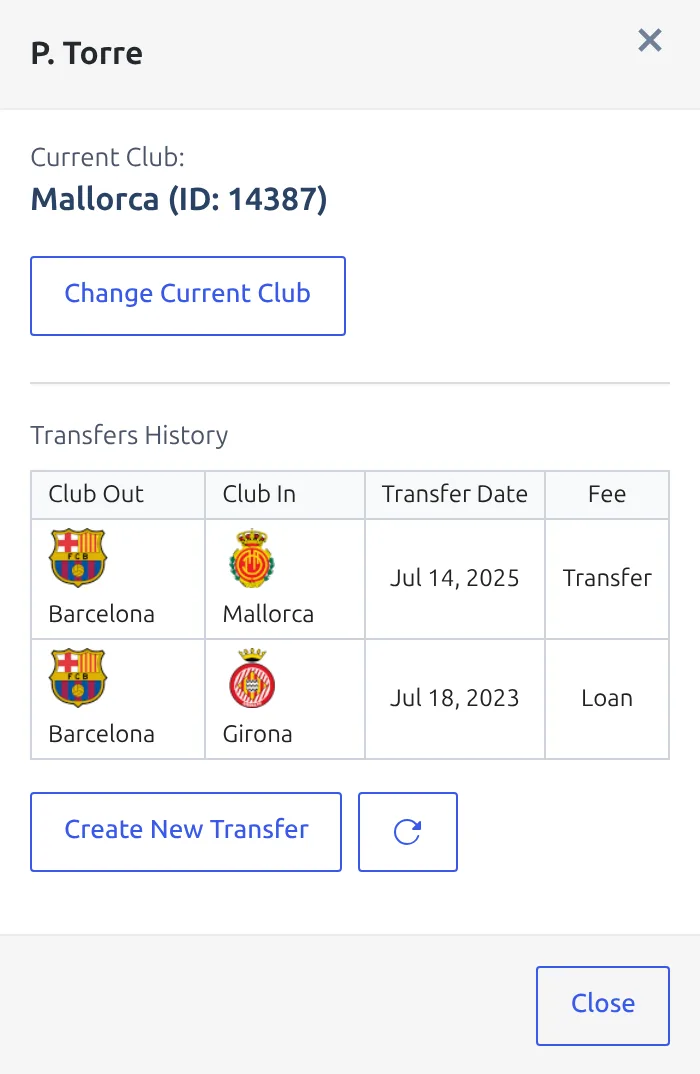
You can also start a transfer from a club. Open the club, scroll to its Club Squad panel and click Actions on a player’s row. The panel shows the player’s current club and Transfers History. Create New Transfer opens the transfer form in a new tab with the player and Club In already filled in – and Club Out set to the player’s current club when that’s a different club. After you publish, click the reload button next to it to refresh the history.
Find and filter transfers
Clubs & People > Transfers lists every transfer with its Player, Season, Club In, Club Out, Transfer Date, Transfer End Date, Fee and Transfer Status. Click a player name to edit that transfer. Search Transfers matches the player name.
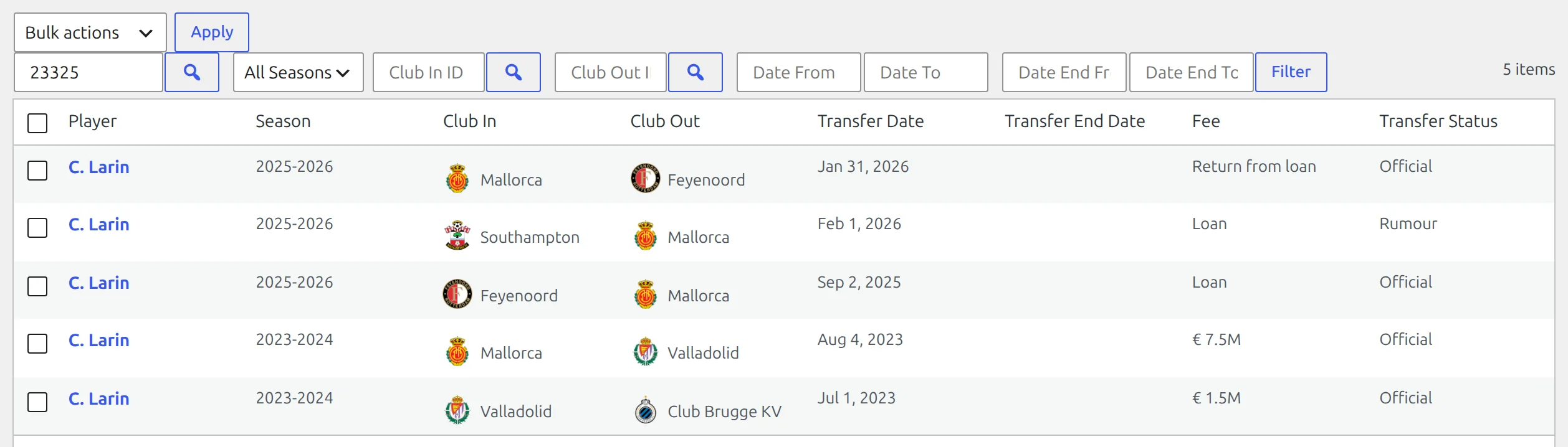
Set any of these above the table, then click Filter:
| Filter | What it does |
|---|---|
| Player ID | One player’s transfers. Type the ID or click the search button to pick the player. |
| All Seasons | Transfers of one season. |
| Club In ID / Club Out ID | Transfers into, or out of, one club. The search button opens a club picker. |
| Date From / Date To | A range of transfer dates. |
| Date End From / Date End To | A range of transfer end dates – handy for loans ending soon. |
Importing from API-Football? The Update Transfers action on the Import Dashboard creates these records for you – as Official, with the window worked out from the date, and with any club you haven’t imported saved as custom text. They land in the same list, so you edit them the same way.
Where transfers show up
Transfers don’t need a shortcode on club, player and competition pages – there are ready-made places for them:
| Page | What shows |
|---|---|
| Club page without a Layout Builder layout | A Transfers section at the bottom for the season selected on the page. Transfers with no window come first, then Mid-season window and Pre-season window groups. |
| Club page, Layout Builder v1 | The Transfers block – the same section. See block types. |
| Team page, Layout Builder v2 | No Transfers block. Add a Shortcode block with [anwpfl-transfers club_id="%club_id%" order="DESC"] – the Team Layout Builder page shows how. |
| Player page, Layout Builder v1 or v2 | The Transfers block – the player’s whole transfer history in the player layout, newest first. See Player Layout Builder. |
| Competition page, Layout Builder | The Transfers block – the competition’s clubs, with a club switcher in v2. See Competition Layout Builder. |
| Any post or page | The [anwpfl-transfers] shortcode below, or the Transfers block in the block editor. |
A player page without a Layout Builder layout has no Transfers section – use a player layout, or the shortcode with player_id.
Transfers shortcode
Basic Usage
[anwpfl-transfers club_id="8" season_id="5"]This displays all transfers for club 8 in season 5.
Don’t want to look up IDs? Open Football Leagues > Shortcodes, pick Transfers and choose the season, club, competition or player from the pickers. The builder writes the shortcode for you – see the Shortcode Builder guide.
Which ID each layout needs
Each layout needs one ID, and it prints nothing without it. season_id is never required – it narrows the list, and without it you get transfers from every season.
| Layout | Needs |
|---|---|
club (the default) |
club_id |
competition, competition-compact |
competition_id |
player |
player_id |
rows |
Nothing – with no ID it lists transfers from every club |
All Parameters
Query Parameters
| Parameter | Default | Description |
|---|---|---|
club_id |
(empty) | Club ID to show transfers for |
season_id |
(empty) | Season ID. Optional – empty means every season |
competition_id |
(empty) | Competition ID – one competition per shortcode |
player_id |
(empty) | Player ID (shows all transfers for a player) |
type |
(all) | Transfer type: in (incoming), out (outgoing). Works with the club and competition layouts, and with rows when club_id is set |
window |
(all) | Transfer window: pre (pre-season), mid (mid-season), none (not set) |
limit |
0 | Maximum transfers to show (0 = all) |
Date Filter Parameters
| Parameter | Default | Description |
|---|---|---|
date_from |
(empty) | Start date (YYYY-MM-DD) |
date_to |
(empty) | End date (YYYY-MM-DD) |
days_offset |
(empty) | Dynamic start date. Use negative for past (e.g., -14 = 14 days ago) |
days_offset_to |
(empty) | Dynamic end date. Use 0 for today, positive for future |
Display Parameters
| Parameter | Default | Description |
|---|---|---|
layout |
club | Layout: club, competition, competition-compact, player, rows |
link |
0 | Link player names to their profiles. Use 1 to enable |
order |
ASC | Sort order by date: asc (oldest first), desc (newest first) |
Layout Comparison
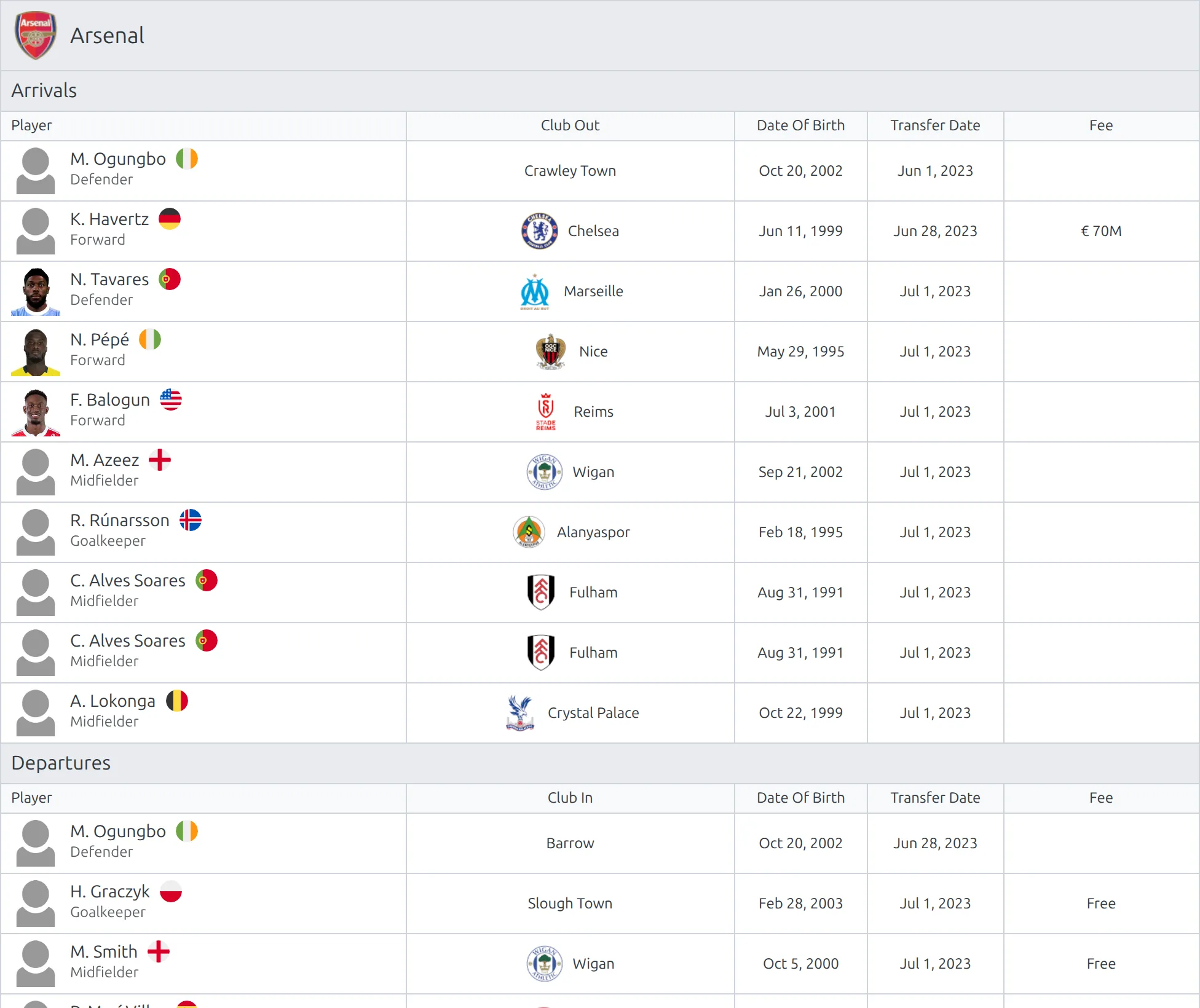
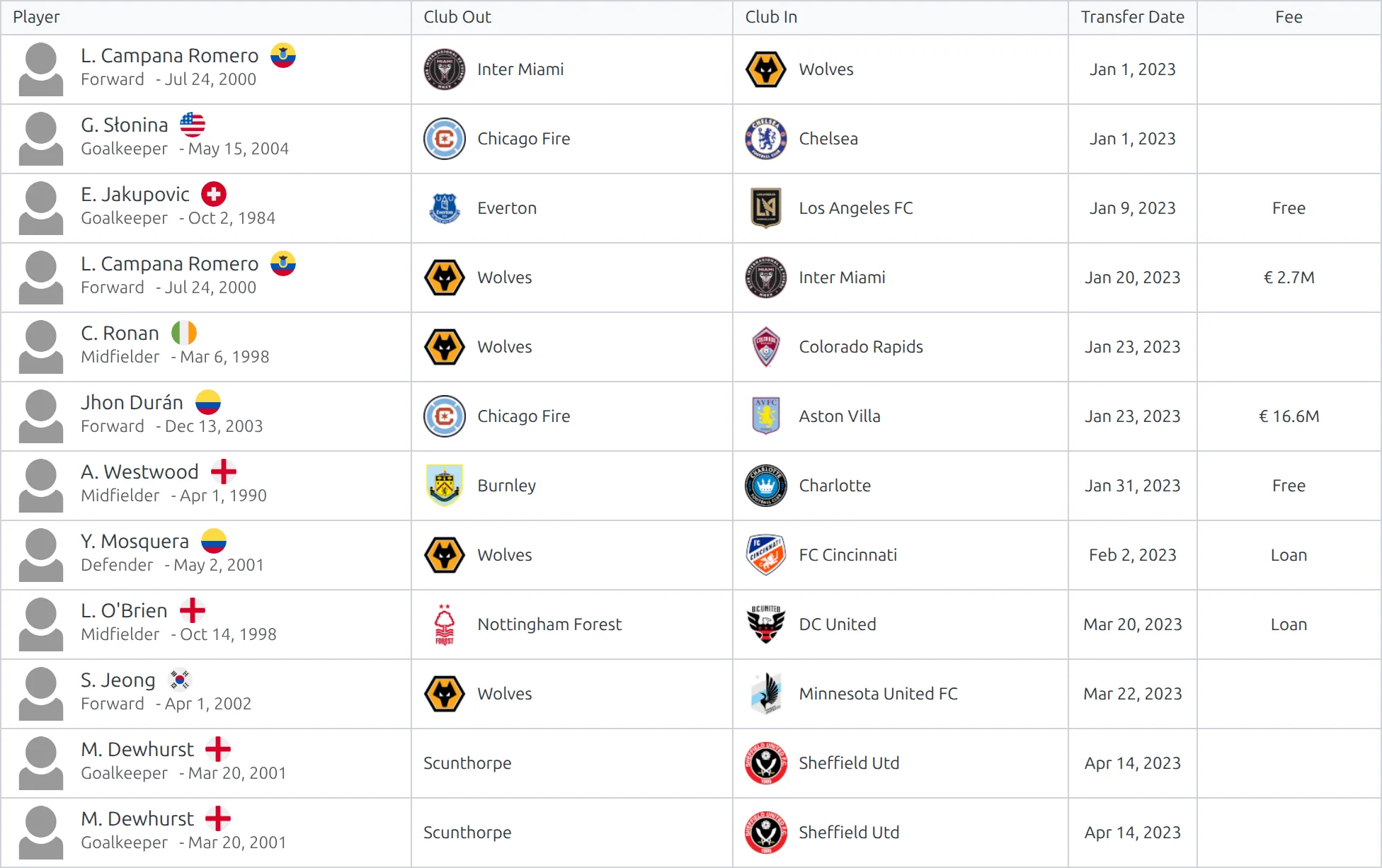
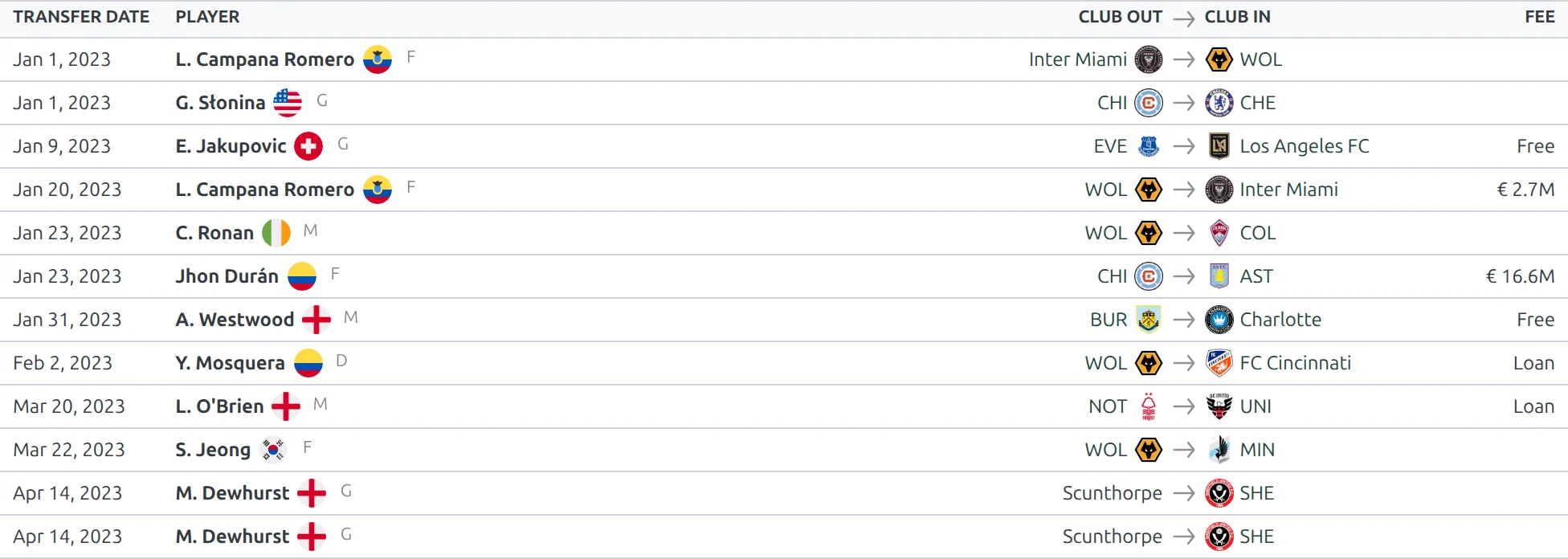
The five layouts show the same moves at different densities. Pick club or player for a single entity, one of the competition layouts for a whole league, and rows for a dense feed across clubs:
club
competition
competition-compact
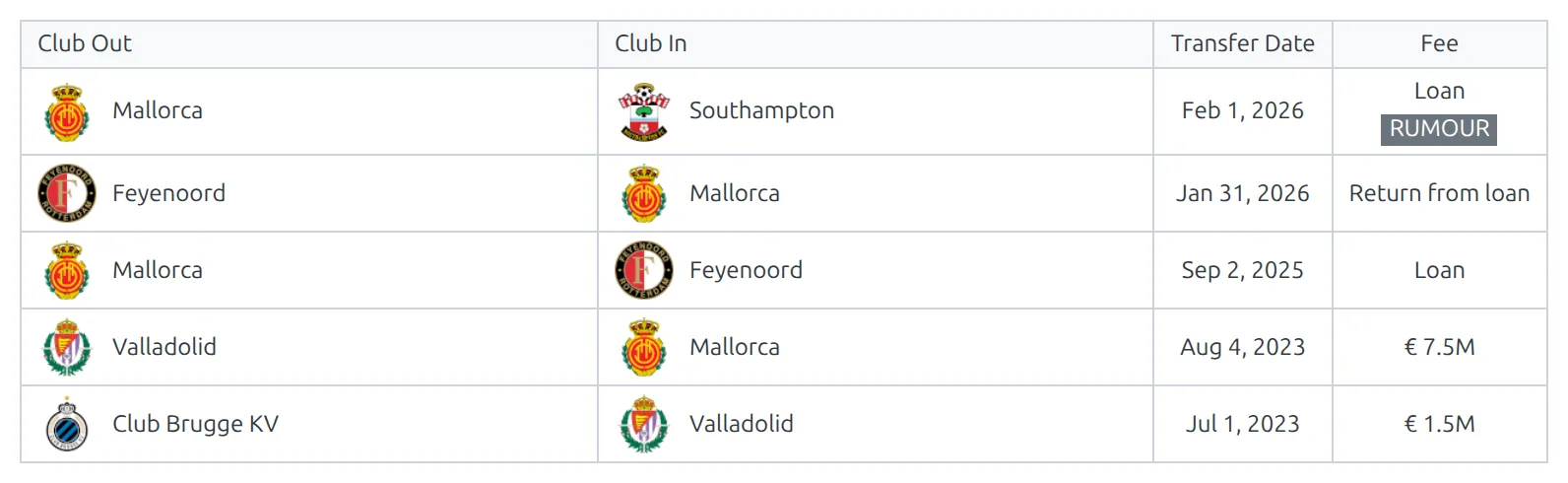
player
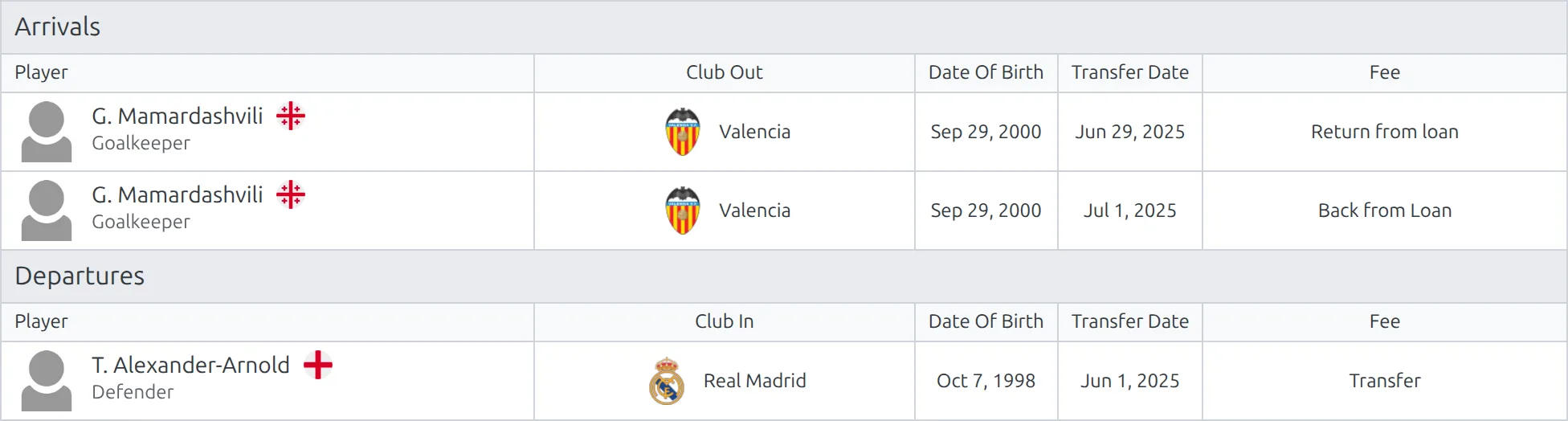
One player’s career moves, one transfer per row: club out, club in, transfer date and fee, with the RUMOUR badge under the fee for unconfirmed moves. This is the layout the player page’s Transfers block uses.
rows
Examples
Example 1: Club Transfer History
When to use: Club page showing all season transfers.
[anwpfl-transfers club_id="8" season_id="5" layout="club" link="1"]Result: All transfers for the club with player profile links.
Example 2: Incoming Transfers Only
When to use: Show new signings section.
[anwpfl-transfers club_id="8" season_id="5" type="in" order="desc"]Result: Only incoming transfers, newest first.
Example 3: Summer Window Transfers
When to use: Show pre-season transfer activity.
[anwpfl-transfers competition_id="12" season_id="5" window="pre" layout="competition"]Result: Pre-season transfers of every club in competition 12, grouped by club. The competition layout needs competition_id – without it the shortcode prints nothing.
Example 4: Player Transfer History
When to use: Player profile page showing career moves.
[anwpfl-transfers player_id="150" layout="player"]Result: All transfers for the specified player.
Example 5: Recent Transfers by Date Range
When to use: Latest transfer news widget.
[anwpfl-transfers date_from="2024-01-01" date_to="2024-01-31" limit="10" order="desc" layout="rows"]Result: The 10 latest transfers dated January 2024, across all clubs.
Example 6: Rolling 2-Week Window
When to use: Auto-updating recent transfers widget.
[anwpfl-transfers days_offset="-14" days_offset_to="0" limit="10" order="desc" layout="rows"]Result: Transfers from the last 14 days, automatically updating daily.
Example 7: Every Transfer in a Season
When to use: A season transfer roundup across every club and competition on your site.
[anwpfl-transfers season_id="5" layout="rows" order="desc"]Result: Every transfer saved under season 5, newest first. Add limit="50" on a busy site.
Example 8: Two Competitions on One Page
When to use: You cover two leagues and want both transfer lists together.
[anwpfl-transfers competition_id="12" season_id="5" layout="competition-compact"]
[anwpfl-transfers competition_id="14" season_id="5" layout="competition-compact"]
Result: Two lists, one per competition. One shortcode takes one competition, so place one after the other.
Tip
Use the layout parameter to match the context: club for team pages, player for individual profiles, competition for league-wide transfer roundups, and rows for a date-based feed across every club.
🆘 Troubleshooting
No transfers showing?
- Check the transfers exist under Clubs & People > Transfers – they aren’t entered in the player profile
- Check the layout has its ID – see Which ID each layout needs above
- Check the season_id or date range parameters
- Ensure the club_id matches existing clubs
My competition shortcode comes out blank unless I add a club ID
Without layout, the shortcode uses the club layout, and that one needs club_id. Set layout="competition" (or competition-compact) together with competition_id, as in Example 3.
Can one shortcode show more than one competition?
No – competition_id takes a single competition. Put two shortcodes one after the other, as in Example 8. For every competition at once, use layout="rows" with just season_id (Example 7).
Can I hide the Fee column?
There’s no setting for it. If a fee isn’t known, leave the Fee field empty and the cell stays blank.
📚 Related
[anwpfl-squad]– Current team roster (Core)[anwpfl-players]– Player listings (Core)- Club Squad – the Active Squad and the player Actions panel
- Player Layout Builder – the Transfers block on player pages
- Competition Layout Builder – the Transfers block with a club switcher
- Import Dashboard – import transfers from API-Football