

Store and display historical team logos and names for previous seasons. When viewing past matches or standings, the system automatically shows the team’s branding as it was during that season.
Use Cases
- Teams that have rebranded or changed their name
- Clubs with season-specific sponsor logos
- Historical accuracy for archived competitions
- Teams that merged or were renamed
How to Use
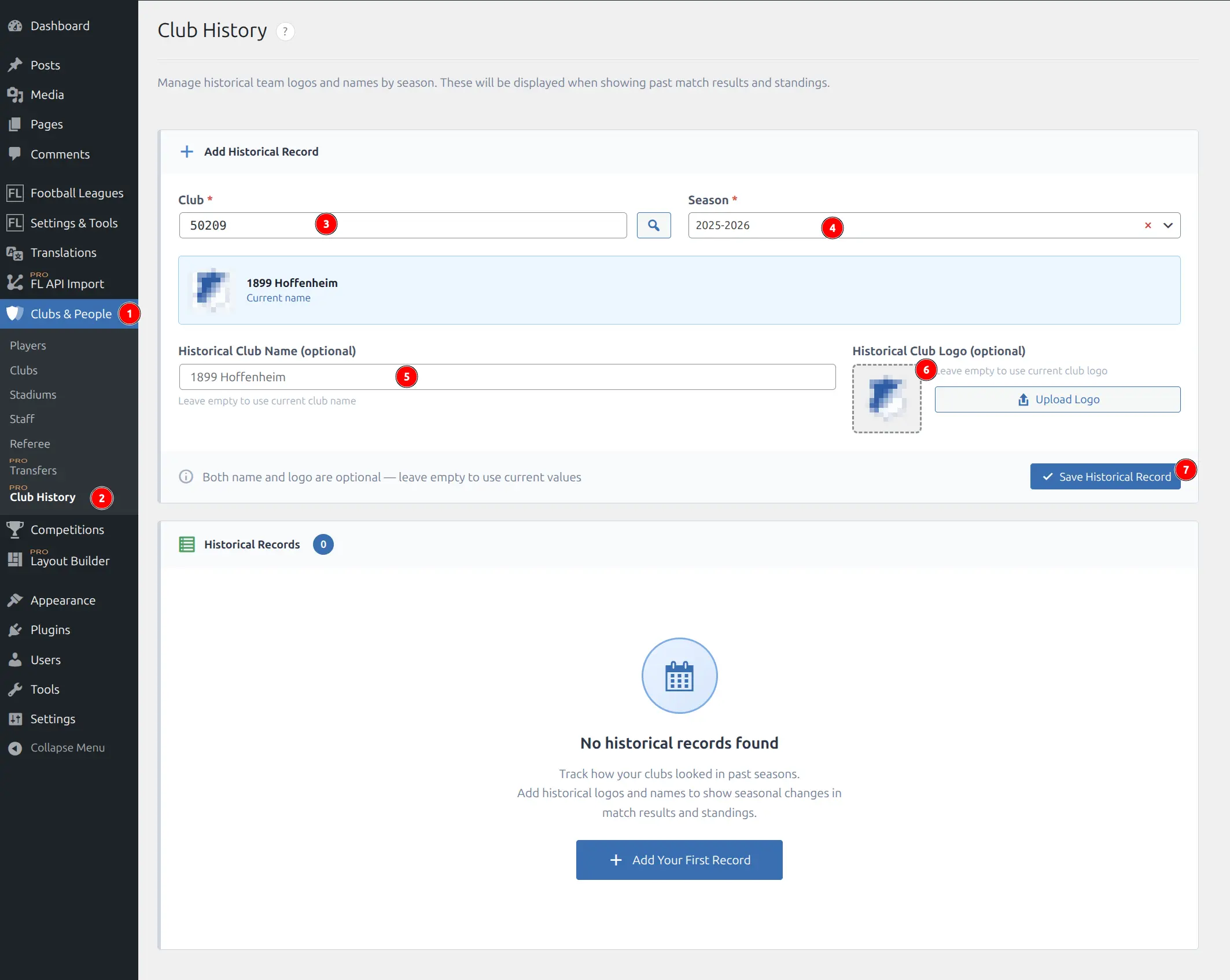
Navigate to Clubs & People → Club History (1, 2) in the WordPress admin menu to access the Club History management page.
Adding a Historical Record
Fill in the form fields to create a historical record:
- Club (3) — Required. Enter the club ID or click the search button to open the club selector. The selected club’s current name and logo will display below.
- Season (4) — Required. Choose the season this historical data applies to from the dropdown.
- Historical Club Name (5) — Optional. Enter the team name as it was during this season. Leave empty to use the current name.
- Historical Club Logo (6) — Optional. Click “Upload Logo” to open the WordPress Media Library and select an image. Leave empty to use the current logo.
- Click Save Historical Record (7) to create the entry.
Note
Both name and logo are optional. You can override just the name, just the logo, or both. Empty fields use the current club values.
Managing Historical Records
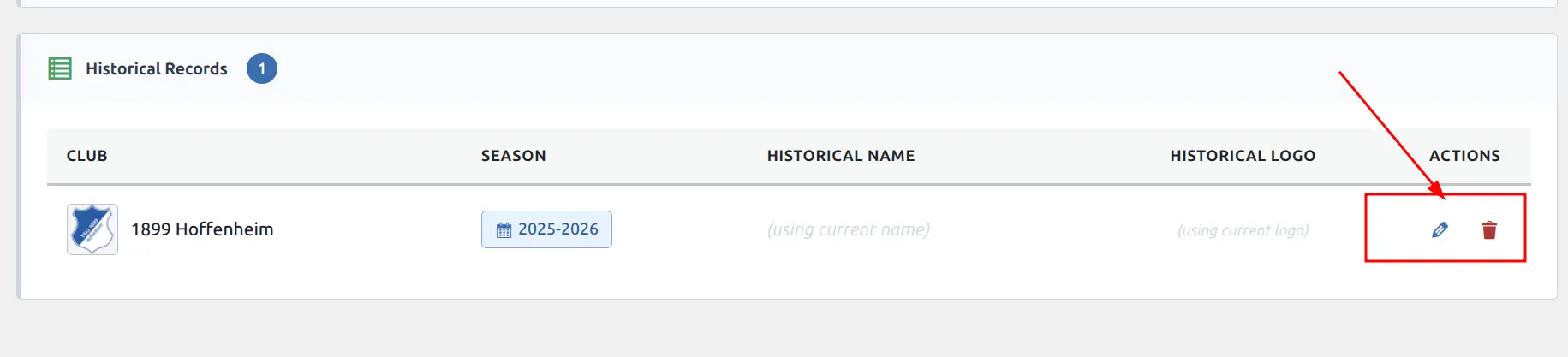
All saved records appear in the Historical Records table below the form. The table shows:
- Club — Current club logo and name
- Season — Which season this record applies to
- Historical Name — Overridden name, or “(using current name)” if not set
- Historical Logo — Overridden logo, or “(using current logo)” if not set
- Actions — Edit (pencil icon) or delete (trash icon) the record
Field Reference
| Field | Required | Description |
|---|---|---|
| Club | ✓ | The club this historical data applies to |
| Season | ✓ | The season when this branding was used |
| Club Name | — | Historical team name (leave empty to use current) |
| Club Logo | — | Historical team logo (leave empty to use current) |
Examples
Example 1: Team Rebranding
A club was known as “FC United” until 2023, then rebranded to “United FC”:
- Set current club name to “United FC” (current branding)
- Add Club History record:
- Club: United FC
- Season: 2022/23
- Historical Name: FC United
- Historical Logo: (upload the old logo)
Result: When viewing 2022/23 matches, visitors see “FC United” with the old logo.
Example 2: Sponsor Logo Change
A club uses different sponsor logos each season:
- Add a Club History record for each past season
- Set only the historical logo (leave name empty)
Result: Each season displays the correct sponsor branding in match results and standings.
Where Historical Data Appears
Historical logos and names automatically display in these templates:
| Template | Status |
|---|---|
| Match layouts (Slim, Modern, Simple, Small, Card-A) | ✓ Supported |
| Match single page | ✓ Supported |
| Standing tables (full and mini) | ✓ Supported |
| Player matches list | ✓ Supported |
| Club header and title | ✓ Supported |
The pattern can be applied to any template displaying club data with season context.
Troubleshooting
Historical data not appearing
Problem: Added a record but still seeing current branding.
Solution:
- Verify the season matches exactly (must be the same season ID)
- Clear any caching plugins
- Check that the template supports Club History (see table above)
Cannot select a club
Problem: Club selector doesn’t show the club.
Solution:
- Ensure the club is published (not draft)
- Check the club exists in the system
- Try typing the club ID directly in the input field
Logo not uploading
Problem: Media Library button doesn’t work.
Solution:
- Ensure you have upload permissions in WordPress
- Check if another plugin conflicts with the Media Library
- Try a different image format (PNG or JPG recommended)
Tip
Clear your browser cache and any WordPress caching plugins after adding historical records to see changes immediately.