

The Style Editor lets you restyle Football Leagues by clicking it. Open one of your own pages inside the editor, click a team name, a score or a whole standing table, and change its colour, font size, spacing or border. The preview updates as you go, and nothing reaches your visitors until you click Save. You don’t write CSS and you don’t need another plugin.
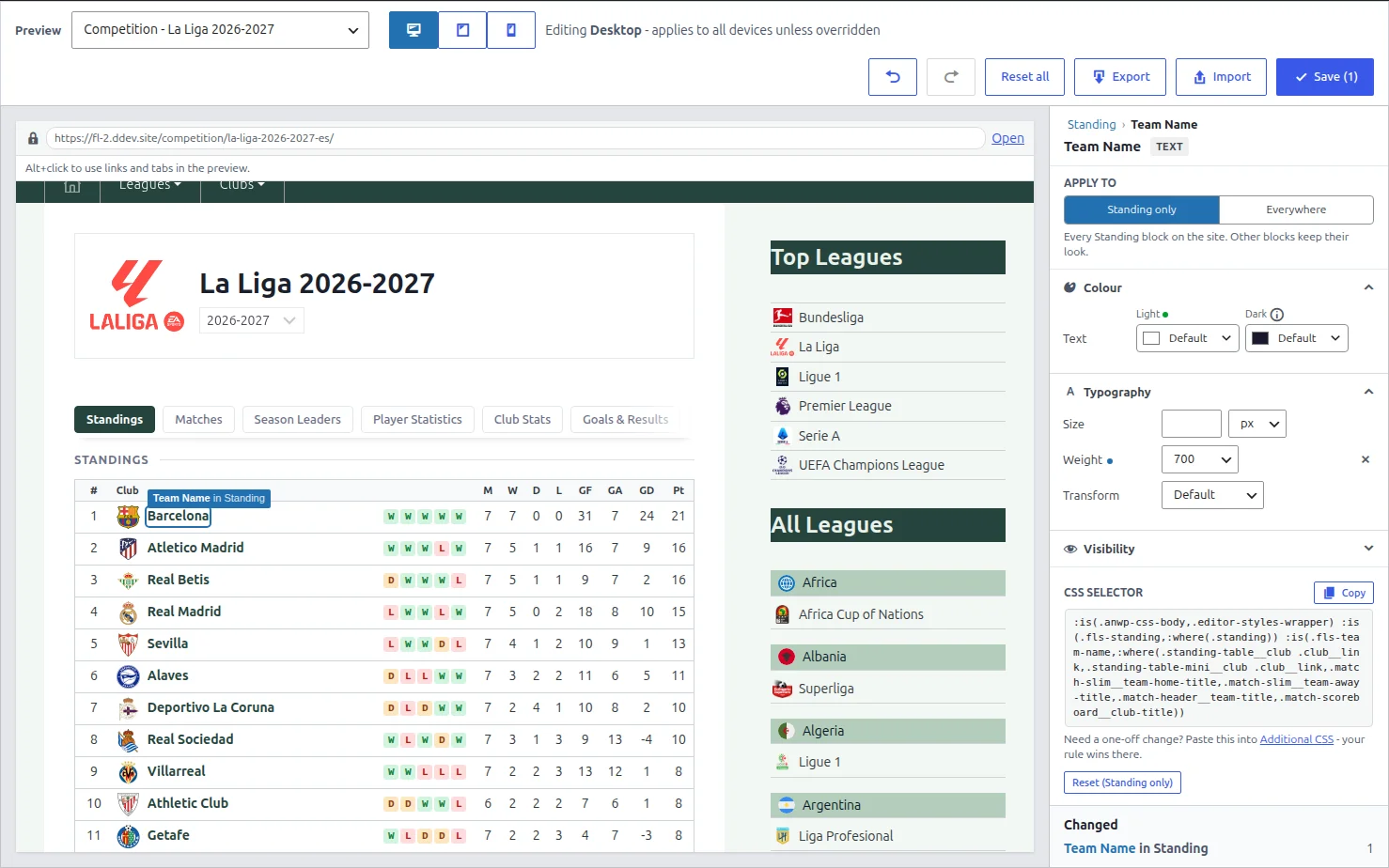
A change styles every copy of that element on the site – every standing table, not the one you clicked. That’s the point: you set the look once. For a change to one block only, see One-off changes further down.
🚀 Style an element, step by step
Go to Settings & Tools > Style Editor. Here’s the whole loop, making team names in standing tables bold:
- Pick a page. The Preview list at the top offers sample pages (a competition, a club, a player, a game) and every page on your site that has a Football Leagues block or shortcode. Other URL on this site… opens any other address. Choose a competition with a standing table.
- Click the element. Football Leagues elements get a dashed outline when you hover them. Click a team name in the table. Links and tabs don’t fire while you pick – hold Alt and click to follow a link or open a tab, for example to reach a block on a hidden tab.
- Choose where it applies. Under Apply to, pick Standing only. The other option, Everywhere, would make team names bold in match lists and headers too.
- Change it. Under Typography, set Weight to 700. Every team name in the preview turns bold at once.
- Save. The button reads Save (1) – the number is how many styles differ from what’s saved. Saving also clears the page cache of the common caching plugins.
If you use a CDN such as Cloudflare, purge it after saving – the editor can’t reach a CDN’s copy.
Where a change applies
What Apply to offers depends on what you clicked:
| You clicked | Options | Example |
|---|---|---|
| A team, player or competition name or logo, a score, date, time, venue or referee | {Block} only or Everywhere | “Standing only” styles team names in standing tables; “Everywhere” styles every team name on the site |
| A block title, header, tab or pill | {Block} only or Everywhere | “Everywhere” also reaches the titles of Layout Builder rows and tab sections |
| Anything else inside a block: a row, a cell, points, a stat label | {Block} only | “Every row on the site” is never what anyone means, so it isn’t offered |
| A whole block | {Block} blocks or All FL blocks | A border on every standing table, or rounded corners on every Football Leagues block |
The narrower choice wins. If you style team names “Everywhere” and again “Standing only”, standing tables use the “Standing only” values and everything else uses “Everywhere”. That holds on every device – see the next section.
Tablet and mobile
Switch devices with the Device buttons. The preview shrinks to match, and every change you make applies to that device:
| Device | Screen width | A change here applies to |
|---|---|---|
| Desktop | any | All devices, unless tablet or mobile sets its own value |
| Tablet | 991px and below | Tablets and phones |
| Mobile | 767px and below | Phones |
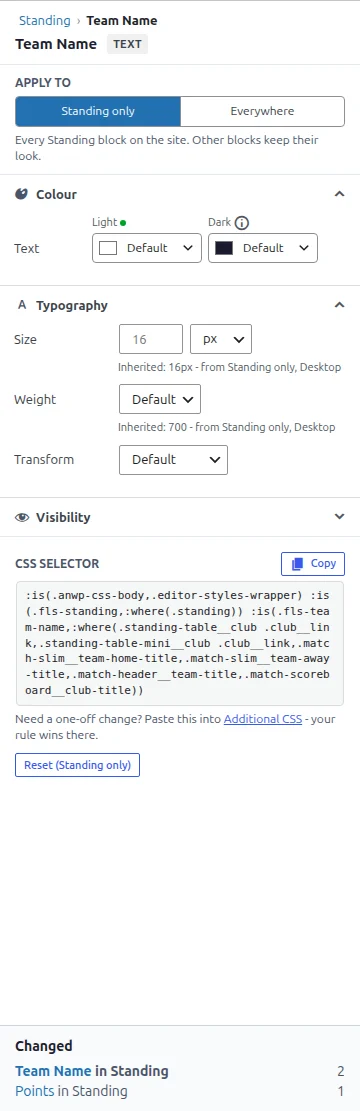
When a field is empty on the current device, the panel shows what applies instead and where it comes from, for example Inherited: 16px – from Standing only, Desktop.
Smaller on phones, but only in one block?
Set the Mobile value on the same Apply to choice. A “Standing only” Desktop size of 16px beats an “Everywhere” Mobile size of 12px on phones too, because the narrower choice wins first. So for standing tables, switch to Mobile with Standing only still selected and set 12px there.
Hide follows the same order. On Desktop it hides the element on all devices, on Tablet on tablets and phones, on Mobile on phones only. There’s no “desktop only” hide.
What you can change
The panel offers what makes sense for the element you clicked:
| Element | Controls |
|---|---|
| Text: names, titles, scores, dates, labels, values | Colour, size, weight, transform (UPPERCASE and so on), hide |
| Boxes: whole blocks, headers, rows, cards | Background, padding, margin, border, radius, hide |
| Images: logos, photos | Size, radius, border, hide |
| Stat bars, form guide chips | Background, radius, hide |
| Tabs, pills, buttons | Size, weight, transform, padding, radius, hide |
Some colours deliberately aren’t here. Win / draw / loss chips, LIVE colours, promotion zones and the selected tab or pill take their colours from Settings & Tools > Settings > Appearance. A single colour on a form chip or a tab would paint wins, losses and the selected tab the same.
Colours come from three places: the Football Leagues colours, your Kadence palette (on Kadence sites only – other themes don’t have one), or Custom… for any colour. Every colour has a Light and a Dark value. The site uses one of them, the one matching Settings & Tools > Settings > Appearance > Layout Builder > Color scheme. Leave Dark empty and Dark sites keep their default colours.
Undo, reset and the Changed list
- Undo / Redo (Ctrl+Z, Ctrl+Shift+Z) step through your edits until you leave the page.
- Reset in the panel clears the selected element for the current Apply to choice, on all devices – the button names it, for example Reset (Standing only). An “Everywhere” style stays, and the inherited line tells you it’s still there.
- Reset all in the toolbar removes every style. You can still undo it, or leave without saving.
- Changed lists every element you’ve styled. Click one to select it again – it’s the only way back to an element you’ve hidden.
Move styles to another site
Export downloads the styles you see in the editor as a JSON file, including any you haven’t saved yet. On the other site, Import the file and choose:
- Merge – keep that site’s styles and add the file’s. Where both set the same thing, the file wins.
- Replace – drop that site’s styles and use only the file’s.
Importing only loads the styles into the editor. Check the preview, then click Save.
Styles are stored by Football Leagues, not by your theme, so they survive plugin updates and a theme switch – unlike Additional CSS. A site can hold up to 400 styles, far more than a typical site uses.
One-off changes
The Style Editor styles every copy of an element. For one block only, or for a property the panel doesn’t offer, use Additional CSS – the editor gives you the selector:
- Click the element. Under CSS selector at the bottom of the panel, click Copy.
- Click the Additional CSS link next to it, paste the selector and add your rule.
- For one Layout Builder block only, give that block your own class first (its settings, Advanced tab, CSS Classes) and put it in front of the copied selector.
Your Additional CSS rule wins over the Style Editor’s for the same element. One difference to know: the Style Editor’s styles also show in the block editor, Additional CSS shows on the site only. So a page you edit in the block editor can show the Style Editor value while the live page shows your Additional CSS value.
Developers: the classes behind all of this are listed on Styling Hooks.
What can’t be picked yet
- Classic pages (without Layout Builder): standing tables, match lists, the match header and scoreboard, the club header and the player header can be picked. Other sections, such as lineups and stats tables, can’t yet.
- Layout Builder blocks that show another shortcode inside them: you can style the block itself and its title, but not the content: Team Squad, Team Player Stats, Team Season Statistics (the stats table), Team Form Trends, Competition Header, Competition Player Statistics, Competition Bracket, Competition Results Matrix, Competition Matchweek Slides and Competition Transfers.
- The Season Leaders pop-up and the Momentum chart on game pages.
- Template overrides in your theme copied before 0.19.0 can’t be clicked, although most styles still reach them.
🆘 Troubleshooting
| What you see | Why | Fix |
|---|---|---|
| The preview stays empty, or says the page can’t be shown in the editor | Your site sends a header that stops pages from opening inside another page (X-Frame-Options: DENY), usually from a security plugin or the server config | Allow the same site instead: X-Frame-Options: SAMEORIGIN or frame-ancestors 'self'. The notice names the header it found |
| “The preview can’t show your changes on this page” | An optimization plugin moved the page’s styles | Saved styles still work on the site. Pick another page, or pause the optimization plugin while you edit |
| Saved, but the live page looks the same | A page cache or CDN still serves the old page | Purge the CDN (Cloudflare and so on) and reload. With LiteSpeed Cache, also try turning off CSS Combine External and Inline: combining can move the Style Editor’s styles ahead of the plugin’s, so the plugin’s win |
| One block ignores a style the others take | That block has its own spacing or colours in its Layout Builder settings, and a block’s own settings win | Clear the block’s setting, or leave it – that’s the intended order |
| “N rules target elements that are no longer on the site” | A style belongs to something that’s switched off, such as an add-on | Nothing to do. The styles are kept and work again when it’s back |
📚 Related
- Styling Hooks – every
fls-class, for Additional CSS and add-ons. - CSS Recipes – where to put custom CSS, and tested snippets.
- Layout Builder – block settings, including per-block CSS classes.