

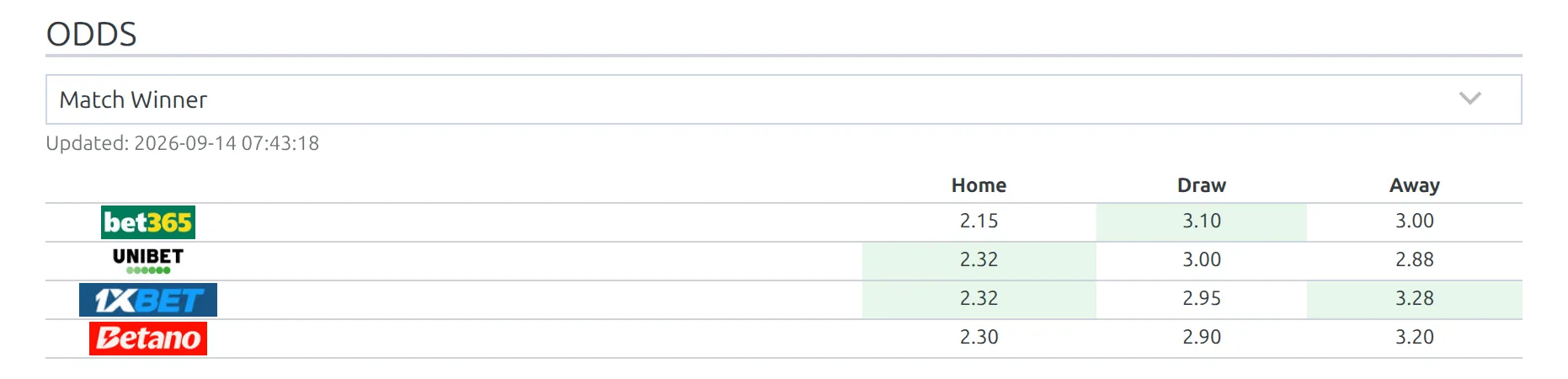
Import Odds pulls pre-match bookmaker odds from api-football.com into the competitions you import. Visitors see them as an odds table on the game page, as a one-line W1-X-W2 strip in game headers and match lists, and as “Who Will Win” percentages. Every price can be an affiliate link.
Odds are pre-match only. Nothing here updates prices during a game.
Before you start, the competition has to be imported from the API and saved to your Dashboard (the orange star on API Leagues) – see API Import: Getting Started. What the provider returns is described in the Odds (Pre-Match) section of the api-football.com documentation.
🚀 1. Turn the import on
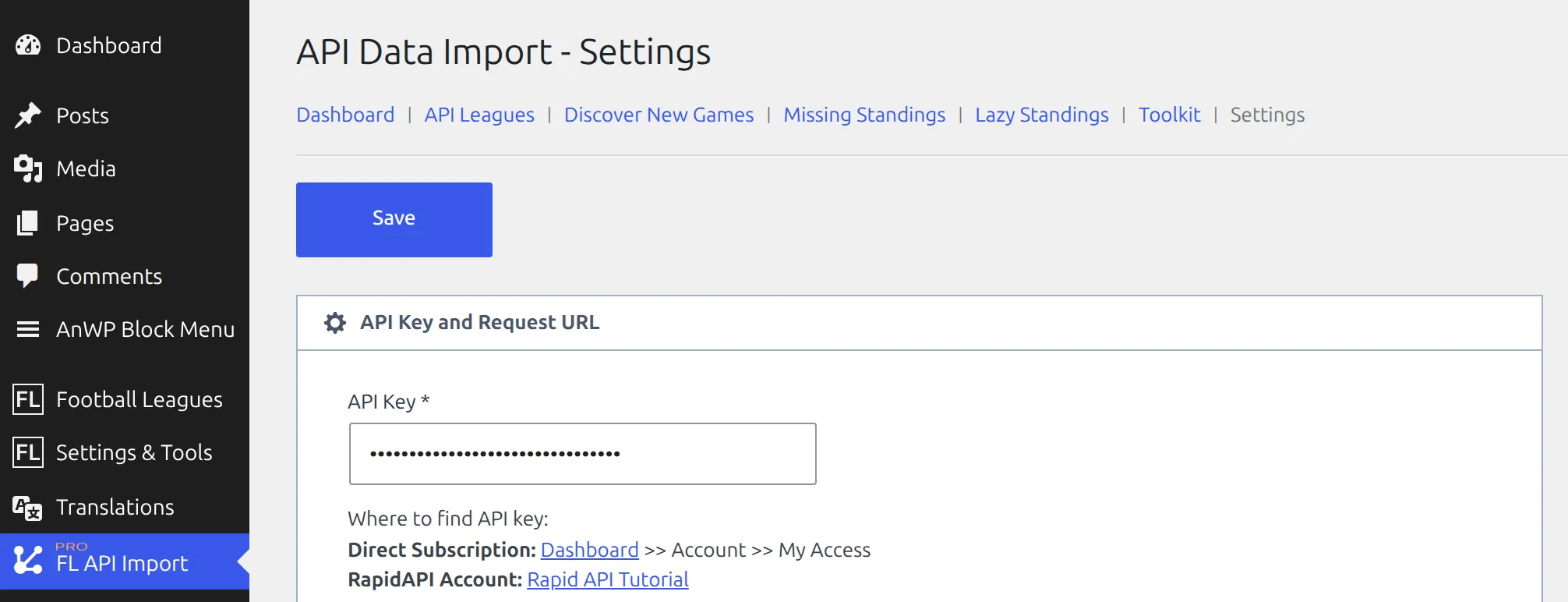
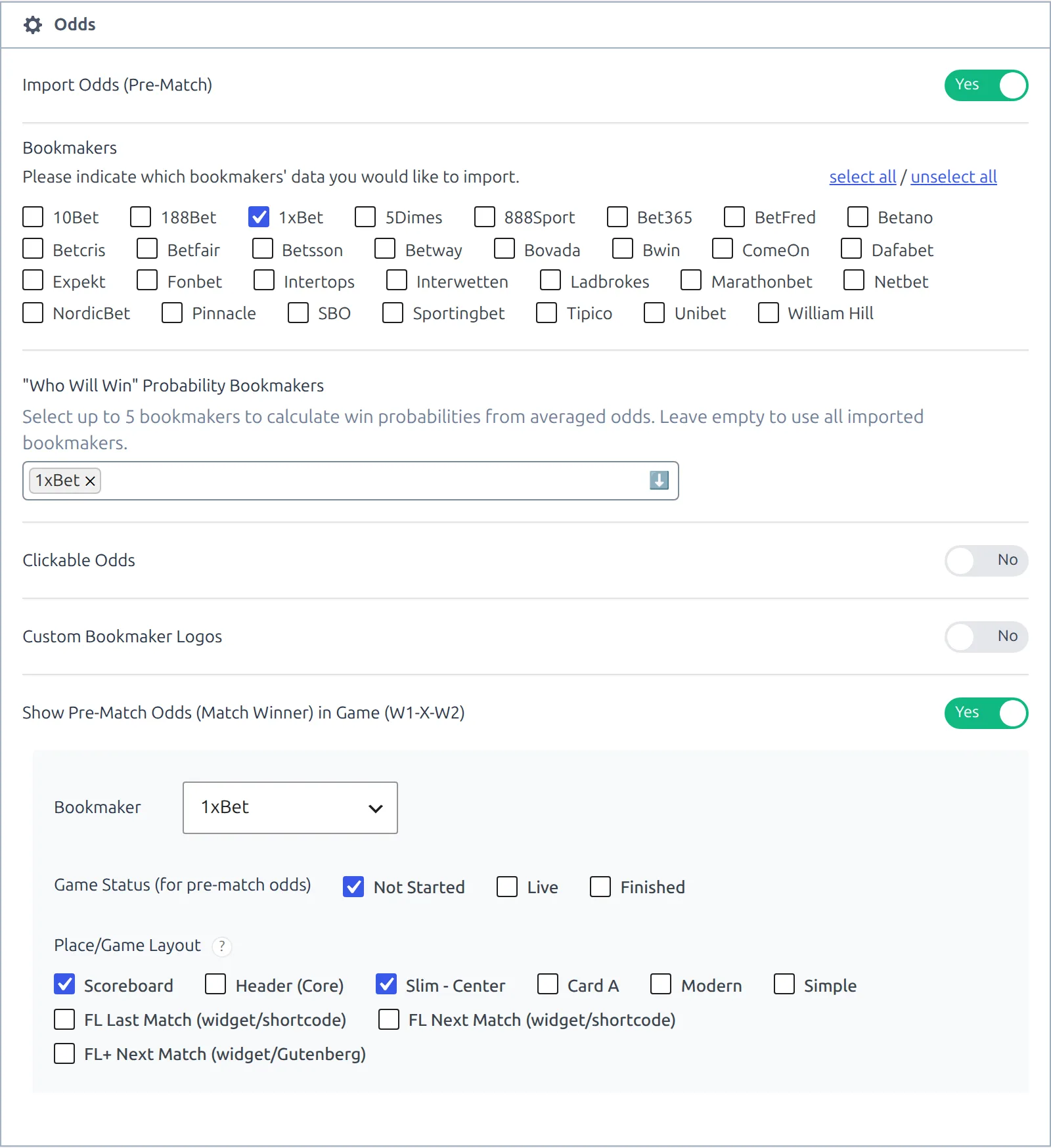
Go to FL API Import > Settings and find the Odds block. Set Import Odds (Pre-Match) to Yes. The rest of the block appears once it is on.
Under Bookmakers, tick the ones you want to display. There are 30 names on the list, and select all and unselect all are there to save clicks. Press Save.
What the bookmaker list actually does
Tick exactly one bookmaker and the plugin asks the provider for that one only. Tick two or more, or none, and it stores everything the provider returns and filters the list when the page is rendered. The table only ever shows ticked bookmakers – so with none ticked, every market says “No data”.
⏱ 2. Schedule the import
Odds change constantly, so this is a scheduled job rather than something you run once.
- Open the Import Dashboard and find the Update Odds row. While the import is off, the row is grayed out and reads disabled in API Settings.
- Click the
selected / allcount in the Competitions column and tick the competitions it covers. Only competitions saved to your Dashboard are listed. The same switch is also inside the competition’s configuration on API Leagues, as Update Odds under Dashboard Actions. - Press Run once to check it works, then press Schedule. The status turns
ACTIVE.

A scheduled Update Odds runs every 4 hours. Unlike Update Finished Games, this row has no clock link, so the interval can’t be changed from the Dashboard.
Pressing Run twice in a row doesn’t fetch fresher prices. While Cache some requests is on (the Import Data block on the Settings tab, on by default), the provider’s odds response is kept for an hour and reused.
Multistage competitions: one entry covers every stage
The competitions in this list are the ones you linked to an API league, and a link always points at the main stage – secondary stages can’t be linked. So one Update Odds entry fetches odds for the games in every stage, group stage and knockout rounds alike, and stores them against the main stage.
⚽ 3. Show the odds table
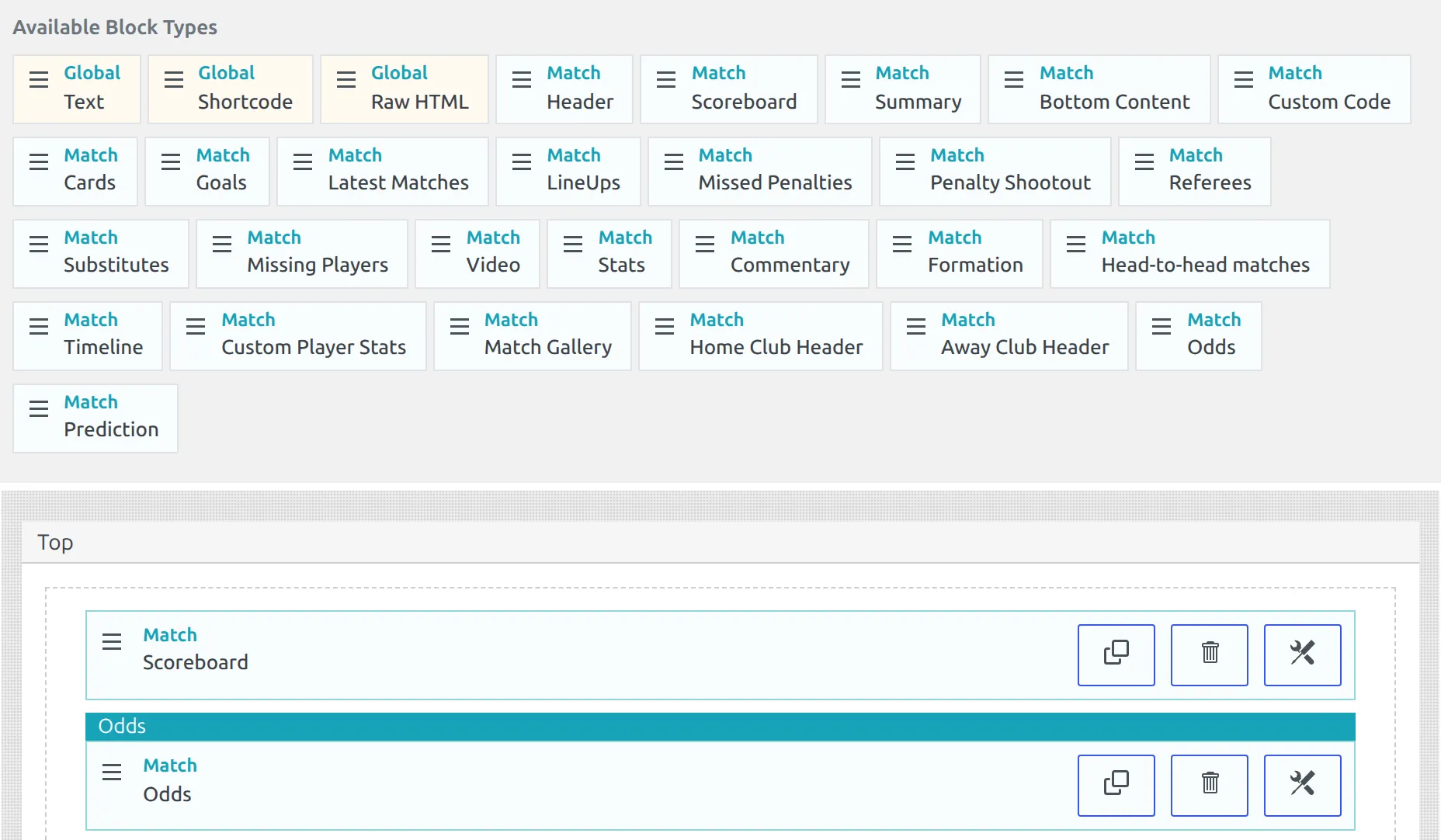
Go to Layout Builder > Layouts (v1), open your Match layout in the Layout Builder, and drag the Odds block from the Match group into a section. Update the layout.
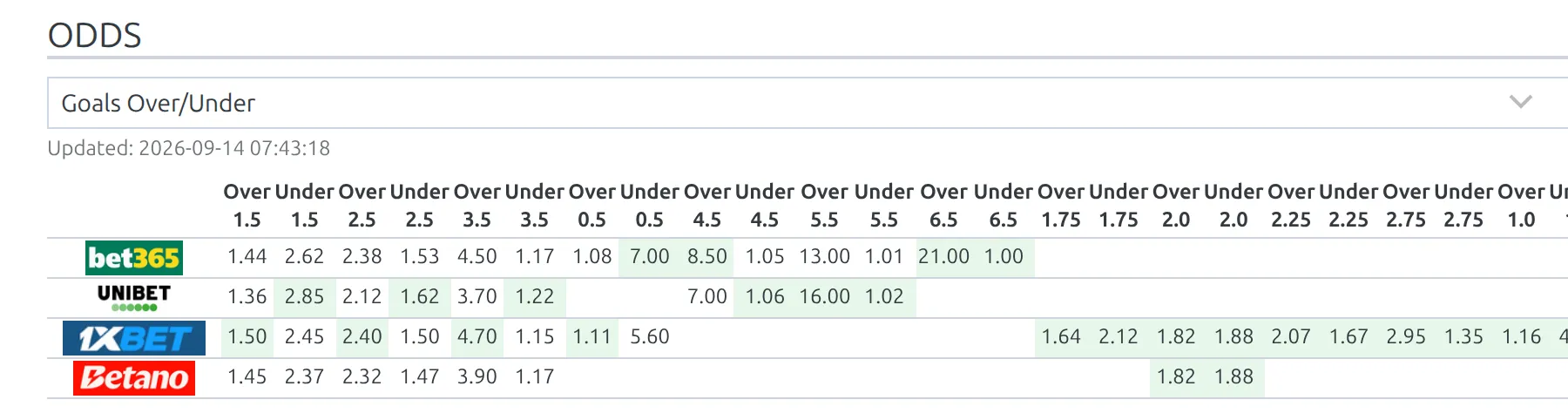
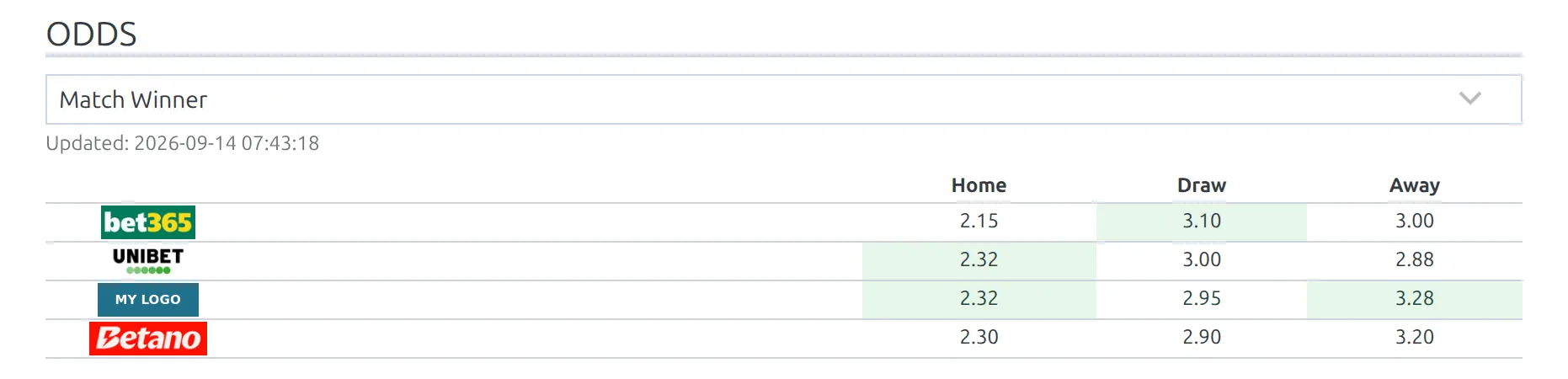
On the game page the block opens on the first market the provider sent, usually Match Winner. The dropdown lists every market stored for that game, and picking one loads its table without reloading the page. Updated shows when the provider last changed those prices. The highest price in each column is shaded green, so the best book for each outcome stands out. A column with only one price has nothing to compare, so it isn’t shaded. Over/Under lines run from the lowest line up.
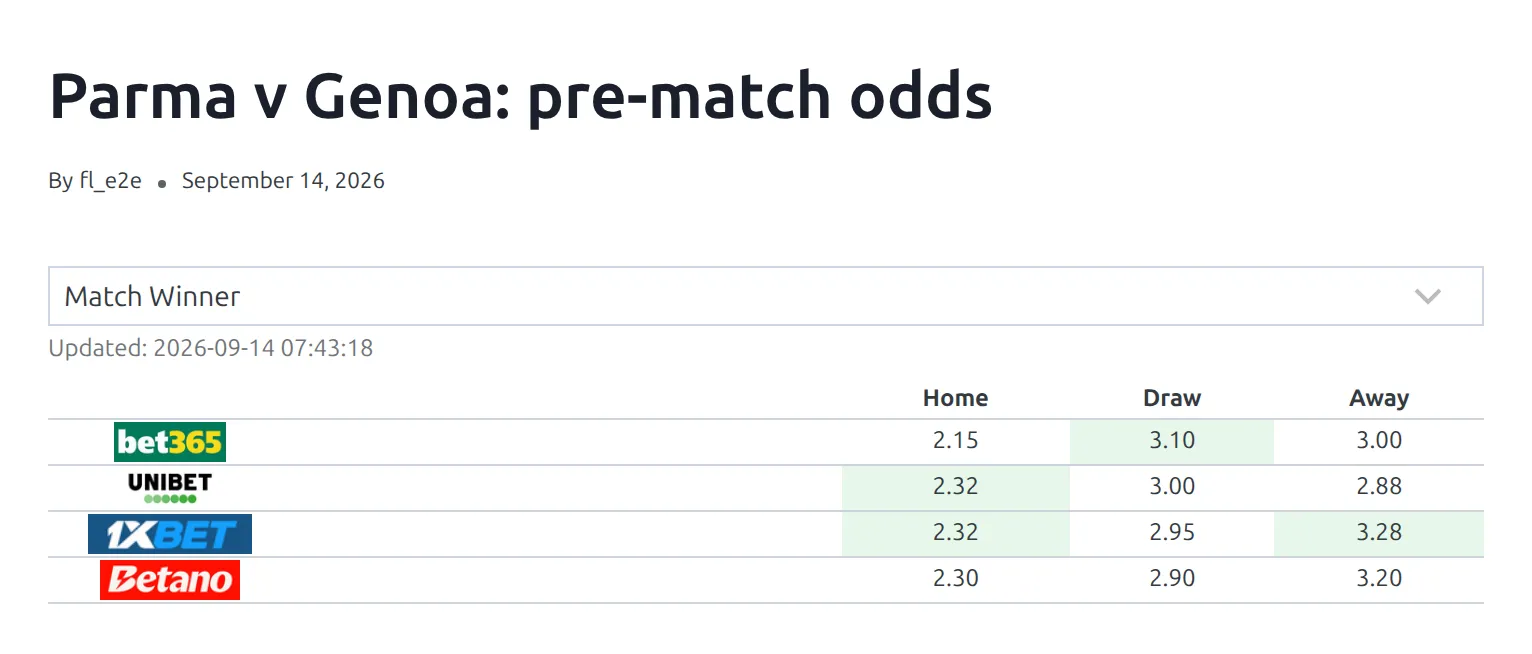
Odds for one game on any page or post
To put the same table on any page or post, use the match shortcode with the odds section on its own:
[anwpfl-match match_id="123" sections="odds" show_header="0" section_header="0"]Replace 123 with the game ID – Finding entity IDs shows where it is. show_header="0" hides the game header and section_header="0" hides the “Odds” heading. Type odds in by hand: the Sections picker in the shortcode builder doesn’t offer it.
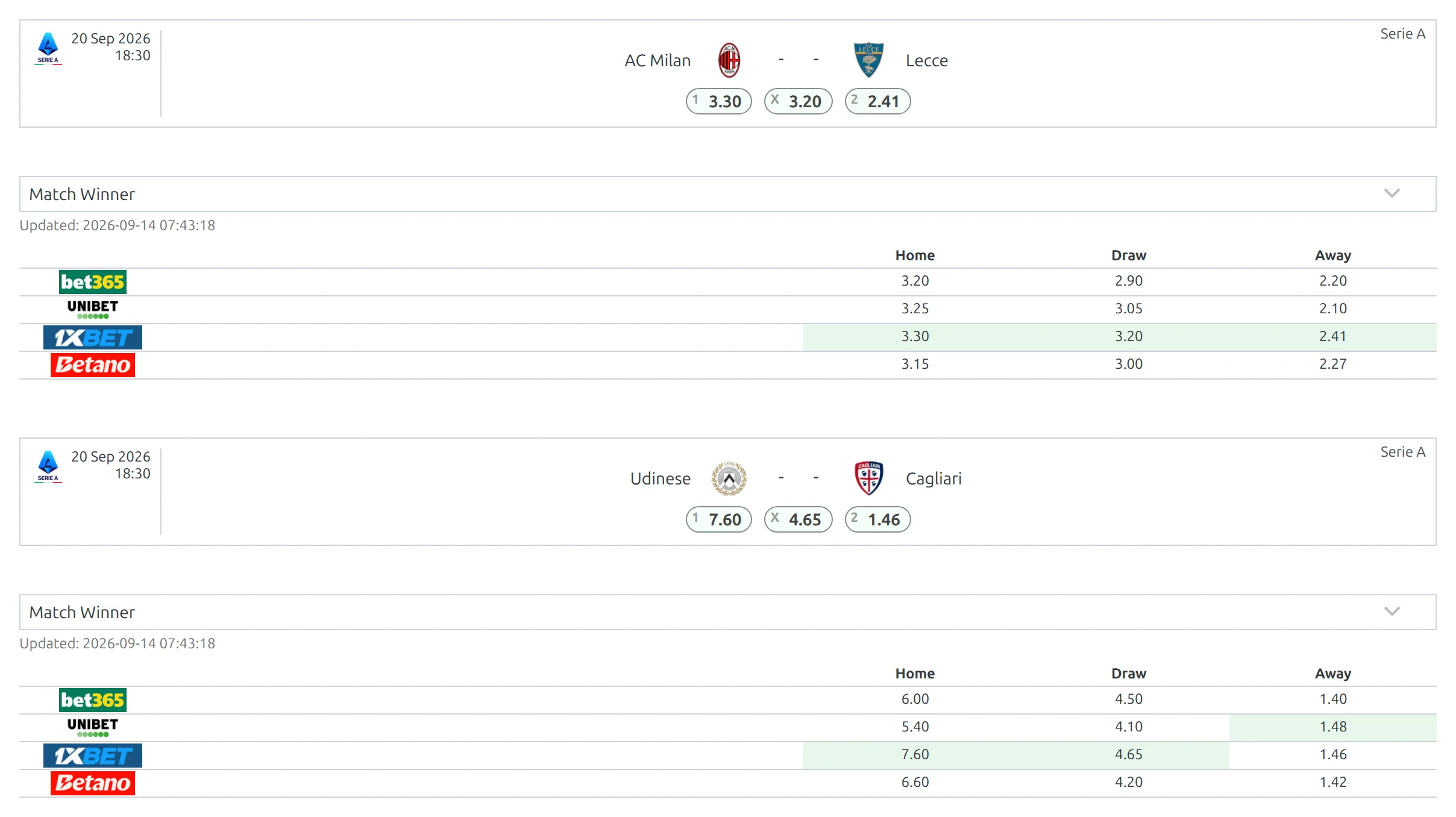
Odds for several upcoming games
The Matches Section shortcode prints one section for a list of games. This shows the odds for the next five fixtures of a competition, each under a slim game header:
[anwpfl-matches-section section="odds" competition_id="123" type="fixture" sort_by_date="asc" limit="5" header="slim"]A game with no stored odds still gets its header, just with nothing under it.
The “Odds” heading and the “Updated” label are ordinary text strings. Rename them under Translations > Text Strings.
4. The W1-X-W2 strip
Separately from the table, you can print a single row of match-winner prices – 1, X and 2 – in the game header, the scoreboard, match lists and the next and last match widgets. It needs four things set, and shows nothing if any one of them is missing.
- Set Show Pre-Match Odds (Match Winner) in Game (W1-X-W2) to Yes.
- Choose one bookmaker under Bookmaker. The strip shows a single set of prices, so it needs a specific book. Only ticked bookmakers are offered.
- Tick at least one Game Status (for pre-match odds): Not Started, Live or Finished.
- Tick at least one place under Place/Game Layout.
Not Started shows the strip before kickoff. Live keeps it up while the game is live – leave it unticked and the strip is hidden during the game. Finished keeps it on finished games, as long as their prices are still stored.
The places are Scoreboard and Header (Core) on the game page, Slim – Center, Card A, Modern and Simple in match lists, and FL Last Match, FL Next Match and FL+ Next Match for the widgets. Tick as many as you use. Place/Game Layout has a picture of each one.
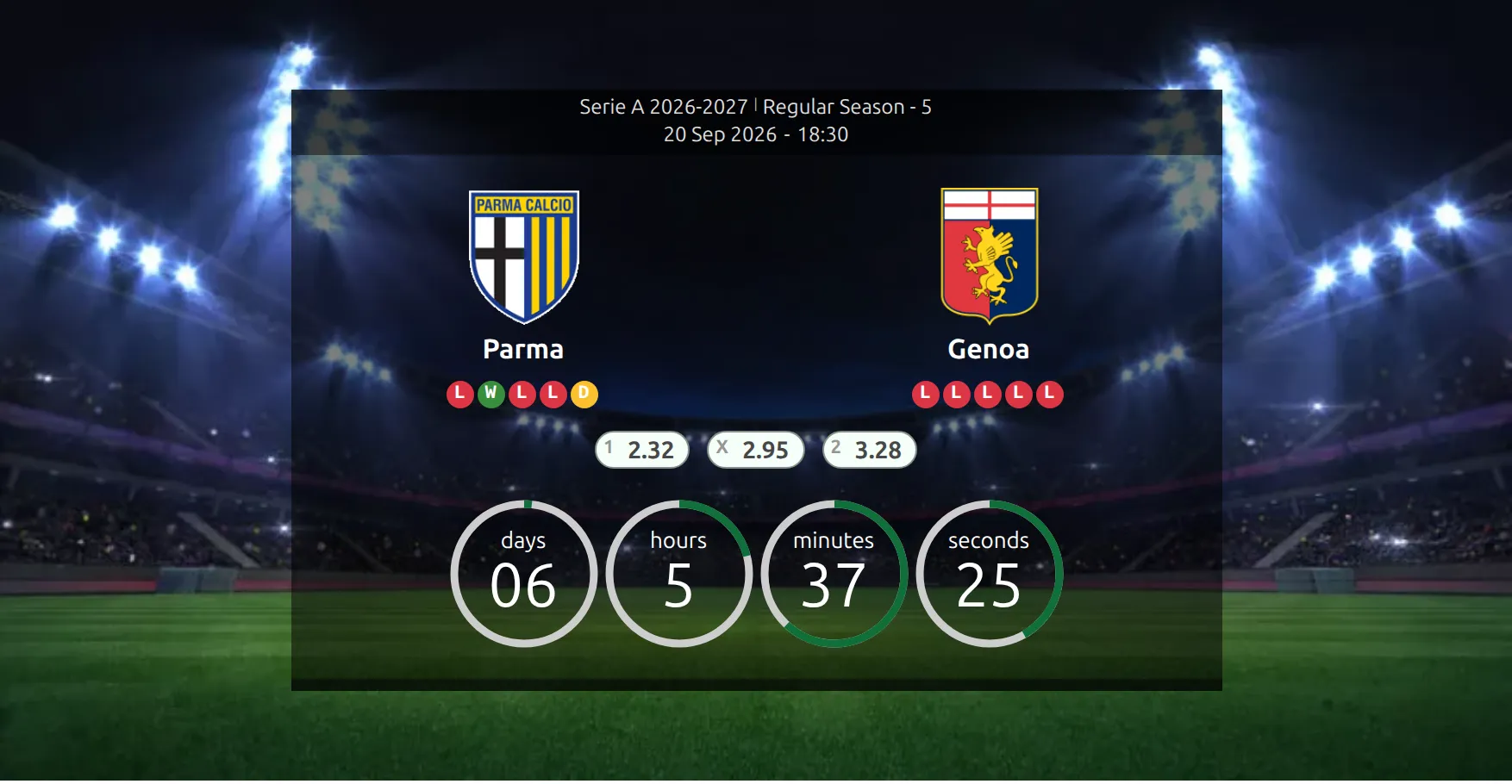
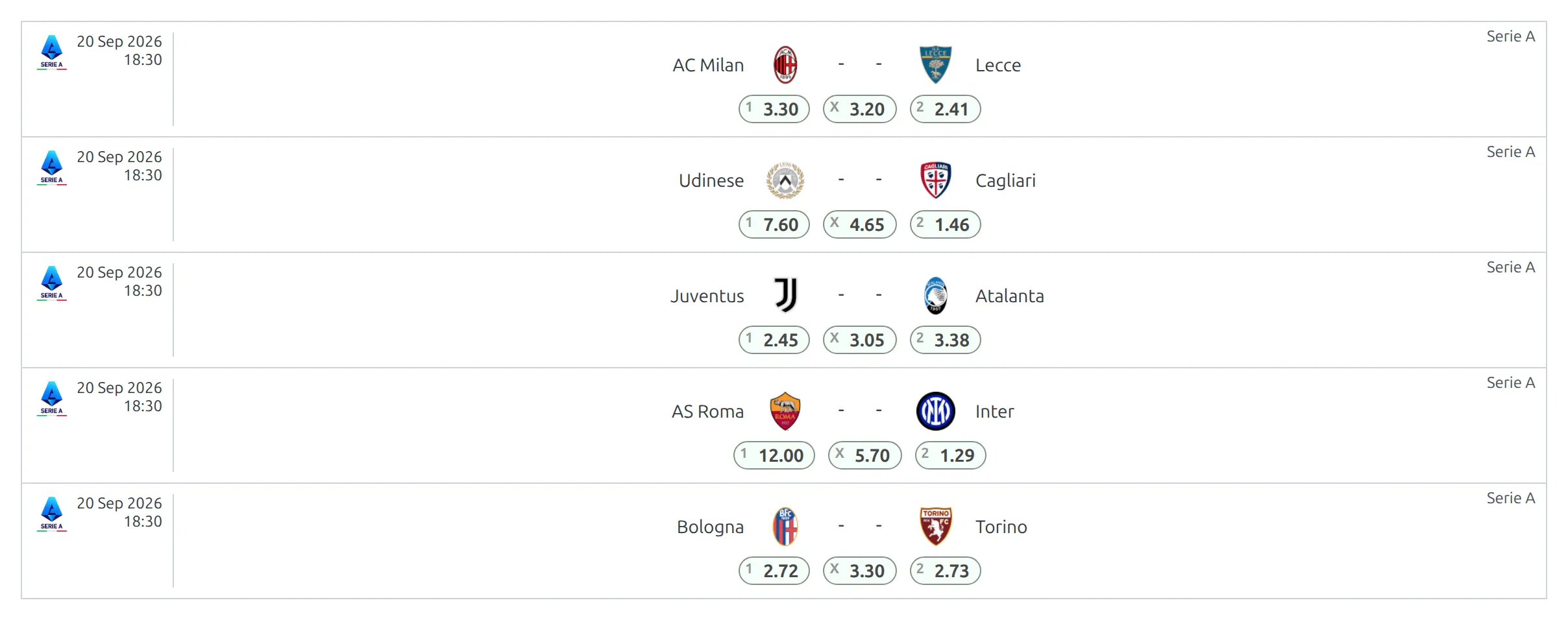
Two things change what a game shows. If Manual Odds is on (Settings & Tools > Settings > Features > Manual Odds) and a game has all three manual prices, that game shows the manual strip instead of the imported one. And the FL+ Next Match place works in the FL+ Next Match widget, but the Next Game block doesn’t draw the strip at the moment.
5. Affiliate links and bookmaker logos
Set Clickable Odds to Yes and a set of Affiliate Links fields appears, one per bookmaker you ticked. Paste your link for each and press Save. In the odds table, every price from that bookmaker becomes a link, and so does its logo. The links open in a new tab. Switch Clickable Odds back to No and every affiliate link goes – prices, logos and the W1-X-W2 strip – while the saved links stay for next time.
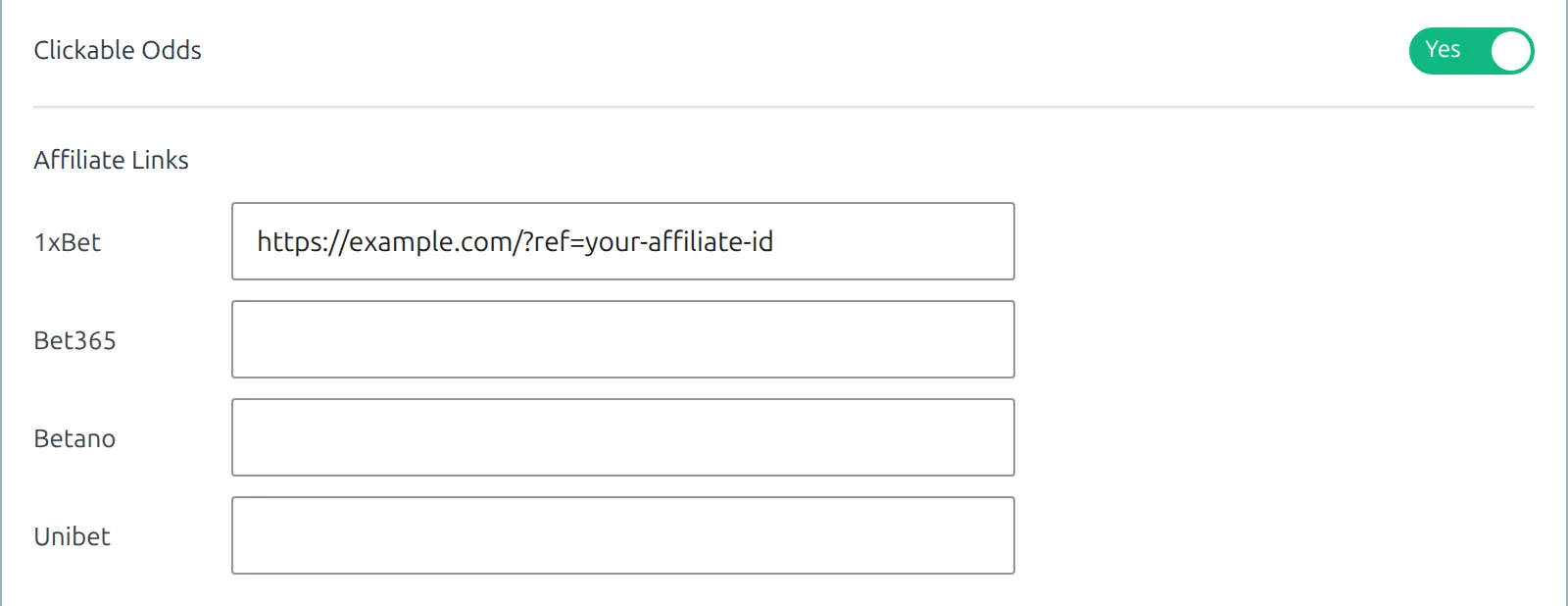
The W1-X-W2 strip uses the same link. With Clickable Odds on and an affiliate link saved for the strip’s bookmaker, its 1, X and 2 prices all point to it.
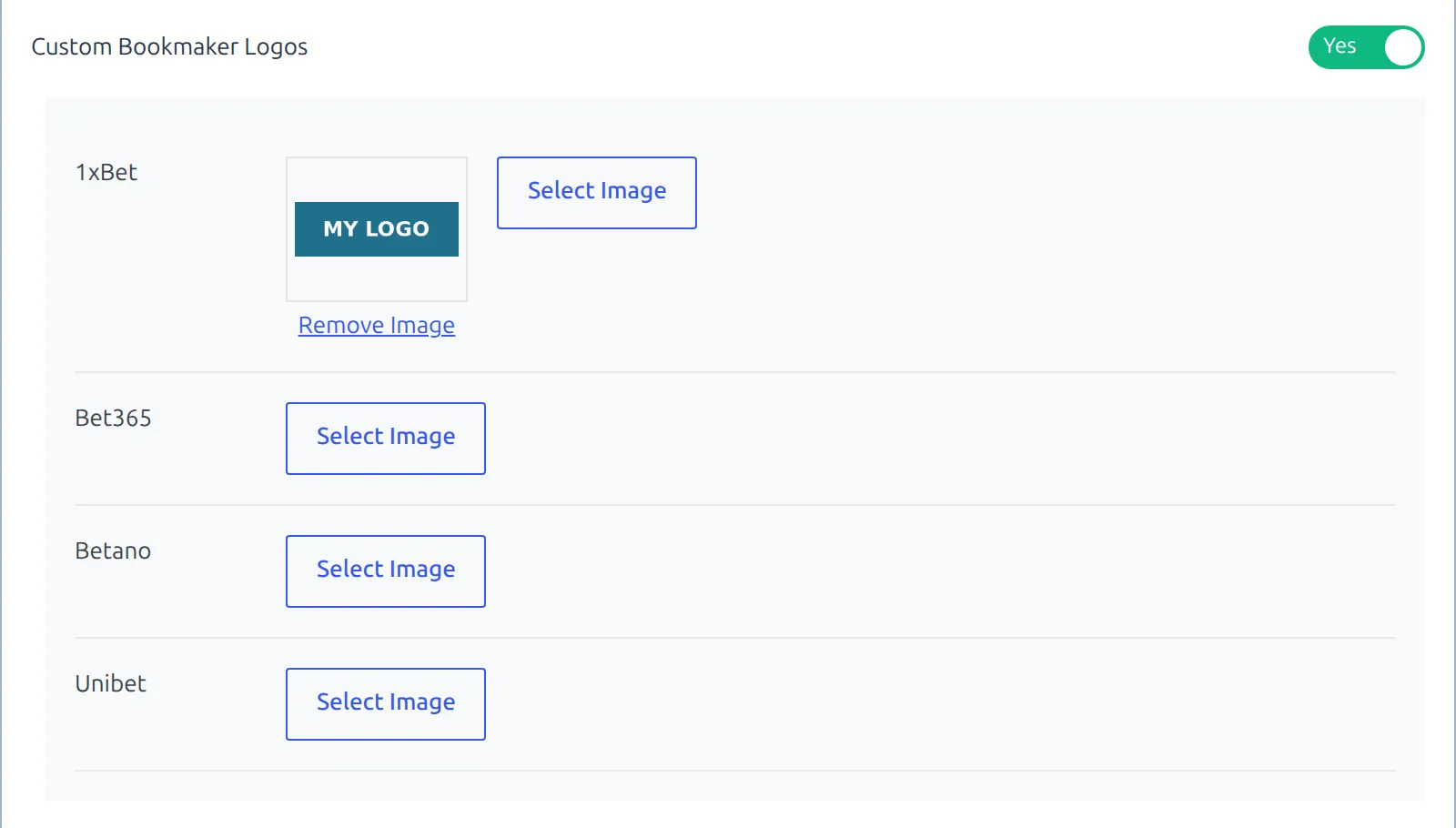
Custom Bookmaker Logos does the same for images: switch it on and each ticked bookmaker gets a Select Image button that opens the media library, plus Remove Image to go back to the default. The logo appears in the odds table – the W1-X-W2 strip has no logos.
6. Win probabilities
The plugin can turn match-winner odds into a percentage split for the “who will win” display. It averages the home, draw and away prices across bookmakers and removes the margin, so the three figures add up to 100. The pie that shows them is part of Game Prediction.
By default it uses every bookmaker the provider returned for the game – including ones you didn’t tick. Narrow that with “Who Will Win” Probability Bookmakers, up to five, picked from your ticked bookmakers. Leaving it empty is the same as all of them.
A bookmaker that doesn’t publish all three prices for a game is left out of the average for that game. The calculation doesn’t run at page load. It runs about half an hour after an odds import, and about a minute after you change the probability bookmakers and press Save.
7. Translating the market names
Market names arrive in English, as the provider names them – Match Winner, Goals Over/Under, Asian Handicap and so on. Go to Translations > Odds Translations to replace them. The page lists more than 300 market names, each with its default wording and an empty field for your own. The third column, Context, stays blank on this page. Fill in only the names you need and save.
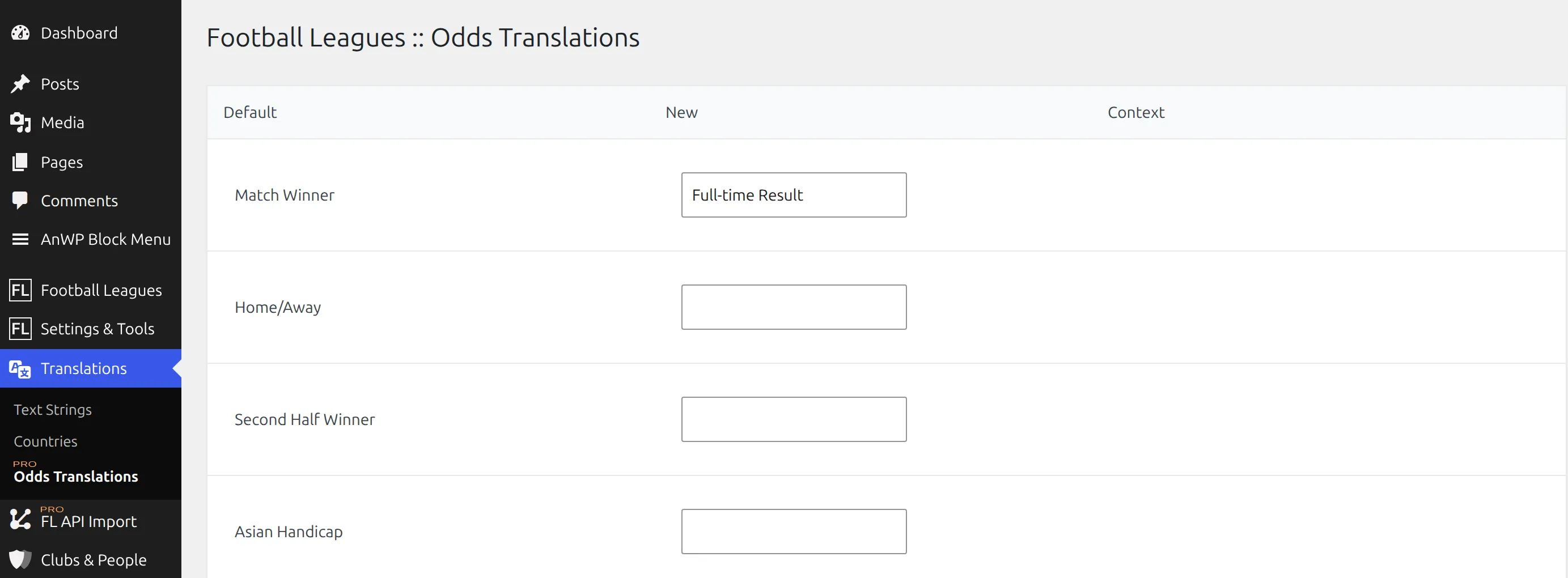
Your wording replaces the name in the market dropdown. A market the provider sends that isn’t on the page keeps its English name. The outcome labels inside the table – Home, Draw and Away for Match Winner – are printed as the provider sends them and aren’t on this page either.
🆘 Troubleshooting
The run finishes but no odds appear
The Dashboard doesn’t report a count for this action, so a clean finish is not proof anything was stored. A green - OK - line in the Actions Log means the provider sent odds for that league and season. It doesn’t mean any of them matched your games. A red - Error message means the provider sent nothing for it.

So open a game that hasn’t kicked off yet and look for the odds block there. If it is empty, check three things. The competition is linked and saved to your Dashboard. The game was imported from the API – odds are matched to imported games only, so a game you added by hand never gets any. And the provider actually has prices for that game yet.
The dropdown lists markets, but the table says “No data”
The table shows ticked bookmakers only. “No data” means none of them has prices for the market you picked – or no bookmaker is ticked at all. Tick more bookmakers under Bookmakers and save.
Odds vanished for older games
Each run that brings back odds for your games replaces the competition’s whole stored set with that response. A game the provider no longer sends odds for loses them at that run, and its table and strip go with them. If a run brings back nothing, the old set stays. This is expected. There’s no option to keep older prices, and pausing the schedule keeps what’s stored but also stops fresh prices for upcoming games.
The W1-X-W2 strip is missing
All four settings in step 4 must be filled in. The usual miss is Bookmaker left on – select bookmaker –, no game status ticked, or no place ticked. After that, check the strip’s bookmaker has match-winner prices for that game – the strip doesn’t fall back to another book. If the game has manual odds, you’ll see the manual strip instead. And in the Next Game block the strip doesn’t show at the moment, even with FL+ Next Match ticked.
A bookmaker has no prices even though it is ticked
Ticking a book only filters what’s displayed – it doesn’t create prices. If the provider sent nothing from that bookmaker for a game, its row isn’t in the table. Widen the selection, or switch the strip to a book that does have prices for your competitions.
The strip or bookmaker logos stopped linking after an update
Since Football Leagues PRO 0.18.4, Clickable Odds controls every affiliate link. Before that, a saved link still worked on the W1-X-W2 strip and the table logo while the switch was off. Set Clickable Odds to Yes and save to bring them back.
I ran Update Odds again and the prices didn’t change
With Cache some requests on, the provider’s odds response is reused for an hour. Wait for the hour to pass, or let the 4-hour schedule do the refreshing.
📚 Related
- Manual Odds – entering prices by hand, without the API.
- Import Dashboard – scheduling the odds job alongside your other imports.
- Game Prediction – the Who Will Win pie built from these odds.
- Place/Game Layout – every place the W1-X-W2 strip can appear.
- Match shortcode – every section the shortcode can render.