

A fresh design shows a fictional club in a fictional league, so every page looks finished from the start. This page walks you through swapping it for your own club, step by step: the football data first, then the site club, the header and footer, the news and the partners.
🎯 The checklist
| What | Where |
|---|---|
| Your club, season and games | Football Leagues (add them or import them) |
| Site club | Settings > Theme Blocks > Site team |
| Blocks that point at the demo club, season or game | The Squad, Fixtures, Standings / Table and Match Centre pages, and the home page |
| Opponents without their own pages | Settings & Tools > Visibility |
| Header: name, logo, buttons | Settings > Theme Blocks |
| Top strip, utility bar, fixture bar, footer | Blocks Everywhere |
| News posts and photos | Posts and Media |
| Partner logos | Logo Grid blocks on the home page |
| Menu | Appearance > Menus |
| Colors and fonts | The Kadence Customizer. See Change Colors. |
1. Your club’s football data
The design installs a fictional league: the Meridian League, season 2026, with 12 clubs, their players and staff, and a season of games. One of those clubs is the design’s demo club. You have two ways to make the site yours.
| Way | How | Good for |
|---|---|---|
| Add your own data (recommended) | Add or import your club, season, competition and games in Football Leagues, next to the demo league. Then point the site at your club (steps 2 and 3). | Real sites. Your data is yours: Replace and Remove never touch it. |
| Edit the demo data | Rename the demo club, edit its players and games. | Trying things out, or a quick demo. |
The demo league belongs to the design
Removing or replacing the design deletes its clubs, players, staff and games, even the ones you edited. If you turn the demo club into your club, you lose it on your next Replace. Put your real club in as your own data instead.
- Same season or league name: if your season is also “2026” or your league is also “Meridian League” (same slug), the design shares it with you instead of adding a second one. Removing the design keeps a shared season or league.
- Active season: the design doesn’t set one. Pick yours in Settings & Tools > Settings > Configuration > General > Season > Active Season. Left empty, Football Leagues uses the newest season.
- Taking the demo league off: once your own data is in, you can delete the demo games, then the demo competition, then its clubs, players and staff. Football Leagues won’t delete a competition that still has games, or a season a competition still uses. Anything you delete yourself is simply skipped when you remove the design later.
Adding your own data
Work in this order: a competition needs a season and a league, and games need a competition with its clubs. For a site about one club, you only add the other clubs in your league as opponents. Step 3 hides them, so they show up in games and tables but get no pages of their own.
| Task | Where to read |
|---|---|
| The whole setup, start to finish | Start Guide |
| Season, league, clubs and games of a league | Competition: Round-Robin |
| A cup, or a league with a cup round after it | Competition: Knockout and Competition: Multistage |
| Your players and staff on the club’s squad | Club Squad |
| Points, tiebreakers and table colors | Standing Rules |
| Many clubs, players or games at once from a spreadsheet | Data Import Tool |
| Opponents without their own pages | Hidden Clubs, Players and Staff |
Futsal or mini-football?
The demo league plays 90-minute games. For shorter games, set Match Duration: Full Time on your competition stage before you add any fixtures: usually 40 for futsal, 50 or 60 for mini-football. A new game copies the duration when it’s created. The same stage can allow players to come back on after a substitution. Both are in Rolling Substitutions, and Goals per 10 Minutes is a chart sized for short games.
2. Set your club as the site club
Most of the design’s football blocks show “the site club” rather than a club picked in the block. Change it once and they all follow.
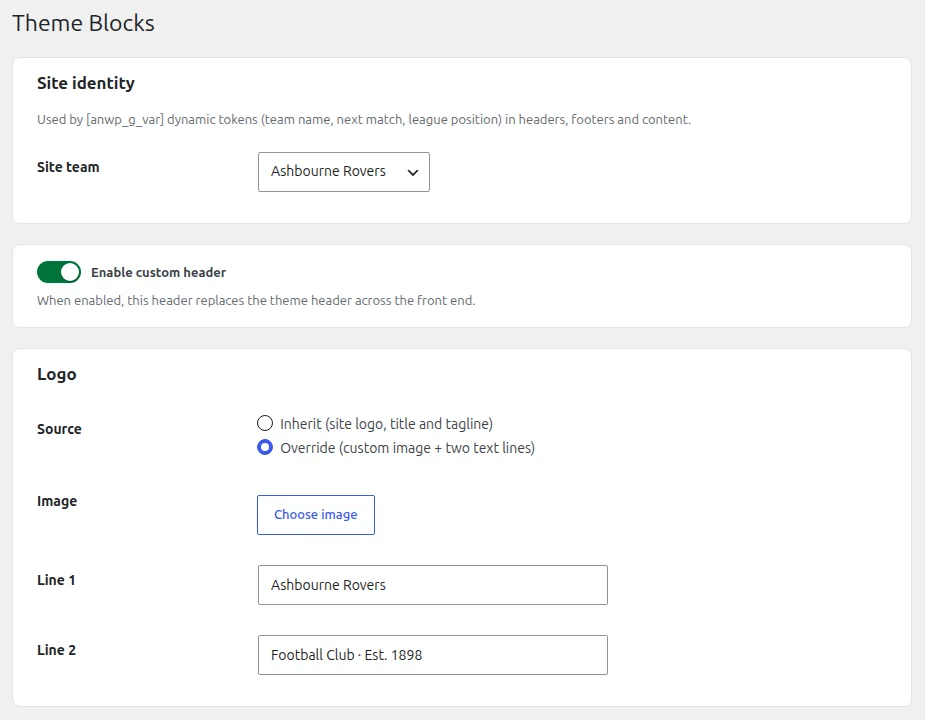
- Go to Settings > Theme Blocks.
- In Site team, pick your club.
- Click Save Changes.
These now show your club: the Next Fixture, Fixtures List and Recent Results blocks, the Match Center at the top of the home page (Red Scoreline, Grounded Power, Broadcast Prime Time) and the Match Report on it (the Heritage designs), the league position card on the Yellow Wedge home page, and the league position in the top strip or utility bar. The Fixtures page follows the site club too.
Blocks with their own club, season or game
A few blocks and shortcodes name the demo club, season, table or game directly. Open each page in the editor and point them at yours.
| Page | Block or shortcode | Change |
|---|---|---|
| Squad | Roster (adv) and Staff (adv) | Club and season |
| Home (squad section) | Roster (adv) | Club and season |
| Standings / Table, and Home | [anwpfl-standing] | id (your table) and highlight_club (your club). The league position card on the Yellow Wedge home page also has partial set to the demo club: put your club’s id there. |
| Match Centre | Match Report or Match Center block, and [anwpfl-match] | The game in the block, and match_id in the shortcode (it shows the lineups) |
| Home (Broadcast Prime Time) | Two [anwpfl-players] (top scorers) | competition_id in both, club_id in the second |
For a shortcode, the easiest way is to build a new one in Football Leagues > Shortcodes and paste it over the old one.
Let Match Centre follow your club
Clear the game in the Match Center or Match Report block on the Match Centre page. With no game picked, it shows your club’s last finished game, so you don’t have to change it after every matchday. The lineups shortcode below it always needs a game, so update it or delete it.
3. Hide the other clubs
The design hides every demo club, every player outside the demo club’s squad and every staff member not tied to it. They still show in tables, stats and lineups, as plain names, but their own pages return a 404. The demo club is hidden too: on a club site, the Squad, Fixtures and Standings pages are its home.
To do the same for your club:
- Go to Settings & Tools > Visibility.
- Under Hide all clubs except, pick your club.
- Tick Also hide every player except those on the clubs above and Also hide staff not tied to the clubs above.
- Click Hide all other clubs and keep the tab open until it says Finished.
Your club stays visible. To hide its own page as well, like the design did, click the eye in the Visibility column of the Clubs list. See Hidden Clubs, Players and Staff for the details.
4. Header, top strip and footer
Header
The header comes from Settings > Theme Blocks, the same screen as the site club. It replaces the Kadence header on every page.
- Line 1 and Line 2: your club’s name and a short line under it (the demo says things like “Established 1889”).
- Logo: choose your crest. Until you do, the header shows a square with the first letter of line 1.
- Action buttons: the tickets button (Buy Tickets, or Tickets in Red Scoreline and Yellow Wedge) links to “#”. Set your ticket page URL, or remove the button.
- Account: the Heritage designs show an account icon. Set its Account URL, or turn it off.
Top strip, utility bar, fixture bar and footer
These are Blocks Everywhere items. Open Blocks Everywhere in the admin menu and edit them in the block editor like a page.
| Item | Designs | What to change |
|---|---|---|
| Masthead strip | Heritage Broadsheet, Heritage Supplement | The founding year, plus the members count in Heritage Broadsheet. The date and the league position fill in by themselves. |
| Utility bar | Grounded Power | The 4 links. Your club’s league position fills in by itself, but the club and league names next to it are text. |
| Top strip | Red Scoreline, Yellow Wedge | The ground’s name, the founding year and the 3 links. They’re all text. |
| Next fixture bar | Heritage Broadsheet, Heritage Supplement | Nothing: it follows the site club. |
| Site footer | All | The club’s name, the blurb and address, the link lists and the social icons. |
Links in the footer, the utility bar and the social icons point to “#” until you set them. Check every one before you go live.
Want a block somewhere else, say under the header on every page? A Blocks Everywhere item goes on a hook, so first find the hook’s name. On the Blocks Everywhere screen, click Find a hook on your site. Your home page opens in a new tab with every hook as a small grey label. Click a label to copy its name, then paste it into the item’s Action Hook field in the editor sidebar. For another page, add ?anwp_hooks=1 to its address. Hide Action Hooks in the admin toolbar switches the labels off again. Only admins see them.
5. News, photos and home page text
The design adds 8 or 9 news posts about its demo club, each with a photo. Rewrite them or delete them and write your own. The news grids always show your newest posts, but a few blocks show a post picked in the block:
- Heritage Broadsheet: The Long Read (Feature Article). The lead story at the top (Feature Hero) is written into the block itself: its headline, text, photo and match numbers.
- Heritage Supplement: the four lead stories (Story Masonry) and the Long Reads (Feature Article).
- Broadcast Prime Time: the lead story in Latest news (Feature Hero).
- Yellow Wedge: the match report at the top (Feature Hero).
Pick one of your posts in each of them. The three shorter reads next to a Feature Article, and its byline, are text in the block. Grounded Power has more text written into the home page: the Four squads panels and the foundation band with its numbers and button. So do Red Scoreline (the season tickets band) and Yellow Wedge (the Join for 2027 band).
For player photos, add a photo to each of your players in Football Leagues. The demo squad uses cut-outs on a transparent background, and photos in that style suit the player cards best.
Every match page shows a photo of the demo club’s ground behind the scoreboard. To show your own ground, change Scoreboard background image in Settings & Tools > Settings > Display > Match Display > Scoreboard. A stadium or a single game can have its own photo too, and it wins over this one: Match Scoreboard Image on the stadium’s edit screen, Scoreboard Background Image on the game’s.
Use your own images
The demo photos and logos belong to the design. Removing or replacing it deletes them, even where you used them in your own posts and pages. The design’s pages and posts go too, edited or not, so pick your design before you spend time rewriting them.
6. Partner logos
The partners section at the bottom of the home page is a Logo Grid block with made-up partners: 6 logos in most designs, and 3 blocks (principal, official and community partners) in Grounded Power. Select the block and use Edit logos to swap in your partners’ logos, and add a link to each one if you like. No partners yet? Delete the section.
7. Menu
The main menu is called Primary (or “Primary (2)” if your site already had a menu with that name) in Appearance > Menus. Rename items or add your own pages there. Keep in mind that removing the design deletes this menu, items you added included. The header uses the menu in the Primary location, unless you pick another one in Settings > Theme Blocks > Navigation menu.
🆘 Troubleshooting
A block says “set the Site team”
No site club is set, or it was deleted. Pick your club in Settings > Theme Blocks > Site team.
The Squad page still shows the demo players
The Roster (adv) and Staff (adv) blocks pick their own club and season. Change both in each block, on the Squad page and on the home page.
My club’s page returns a 404
Your club is hidden. That’s how the design sets up its own club. To publish its page, click the eye in the Visibility column of the Clubs list. Logged in, you still see hidden pages, so check in a private window.