

The Shortcode Builder is a visual tool for creating shortcodes without memorizing parameters. Instead of writing shortcode syntax manually, you select a shortcode type and configure options through an interactive form with live preview.
You’ll find it at Football Leagues > Shortcodes. The same form also opens from a Football Leagues button in the Classic Editor toolbar, and on PRO from the Layout Builder’s Shortcode block.
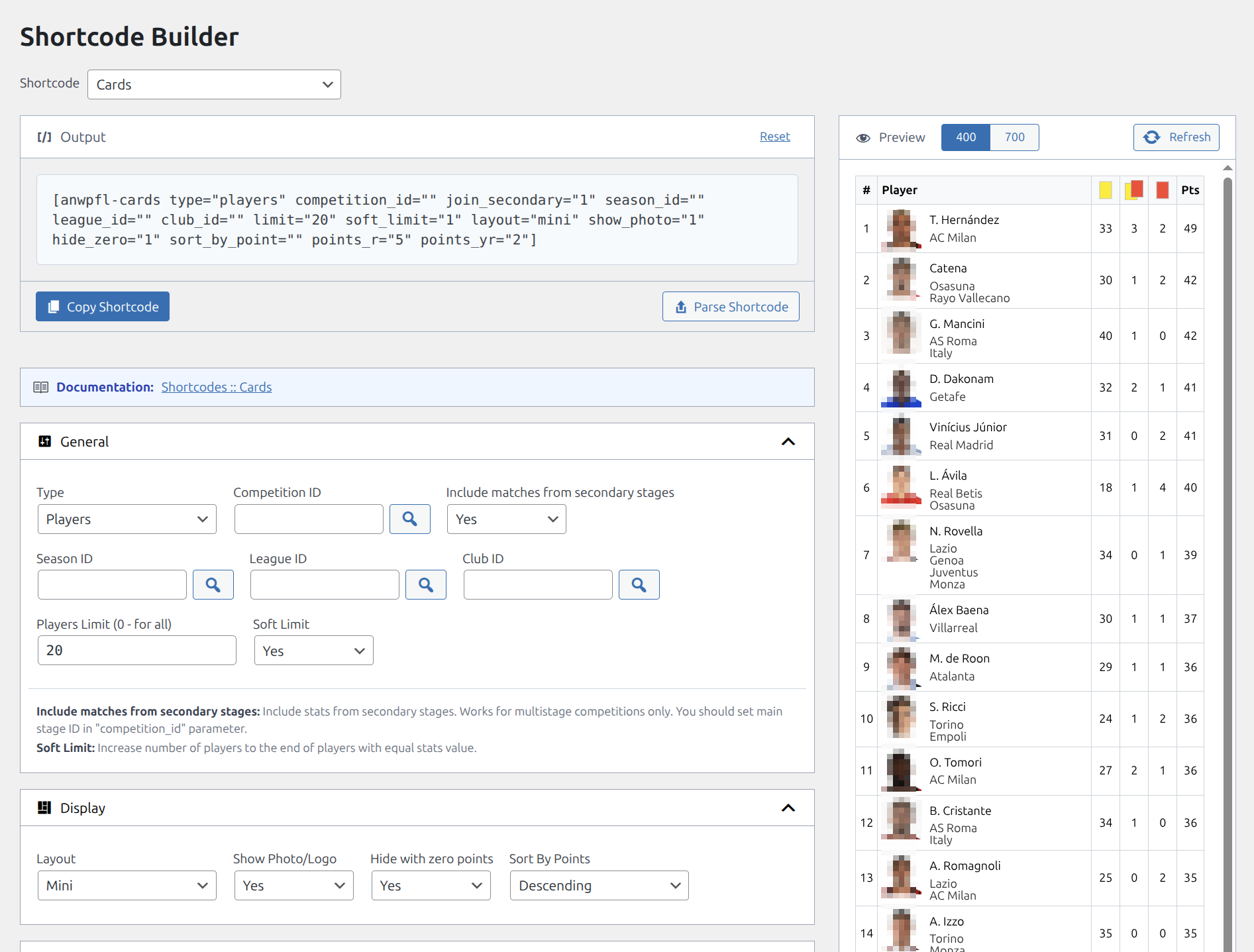
Key Benefits:
- No need to memorize shortcode parameters
- Visual form fields with descriptions
- Live preview shows output before copying
- Parse existing shortcodes to edit them
- Available in both Gutenberg and Classic Editor
Accessing the Shortcode Builder
Method 1: Admin Menu (Recommended)
- Go to Football Leagues → Shortcodes in WordPress admin
- Select shortcode type from dropdown
- Configure options
- Copy generated shortcode
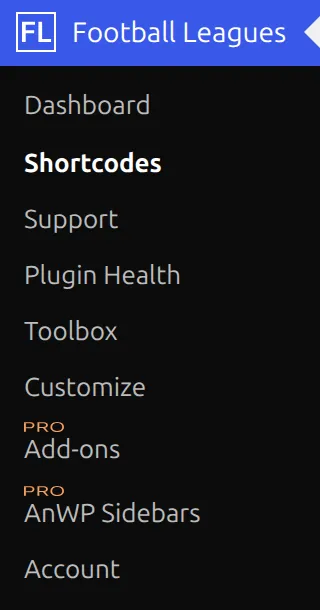
The page opens straight on the builder. Just under the page heading there’s a How To’s link – it opens a second tab with the same four video walkthroughs you’ll find further down this page.
Only administrators see the Shortcodes page. Editors and authors can build shortcodes from the editor button in Method 2 or Method 4 instead – though they’ll have to type IDs by hand (see Troubleshooting below).
Method 2: Classic Editor Button
WordPress uses the block editor by default. If you prefer the old editor, install the Classic Editor plugin first.
When editing a page/post in Classic Editor:
- Click the Football Leagues button in the editor toolbar – a gray trophy icon at the end of the first toolbar row. Hover it and the tooltip reads “Football Leagues”.
- Select shortcode type
- Configure in popup modal
- Click Insert Shortcode to add the shortcode where your cursor is

The popup is a lighter version of the builder page. It has the Shortcode dropdown and the same option sections, but no preview and no Parse Shortcode button – just Close and Insert Shortcode.
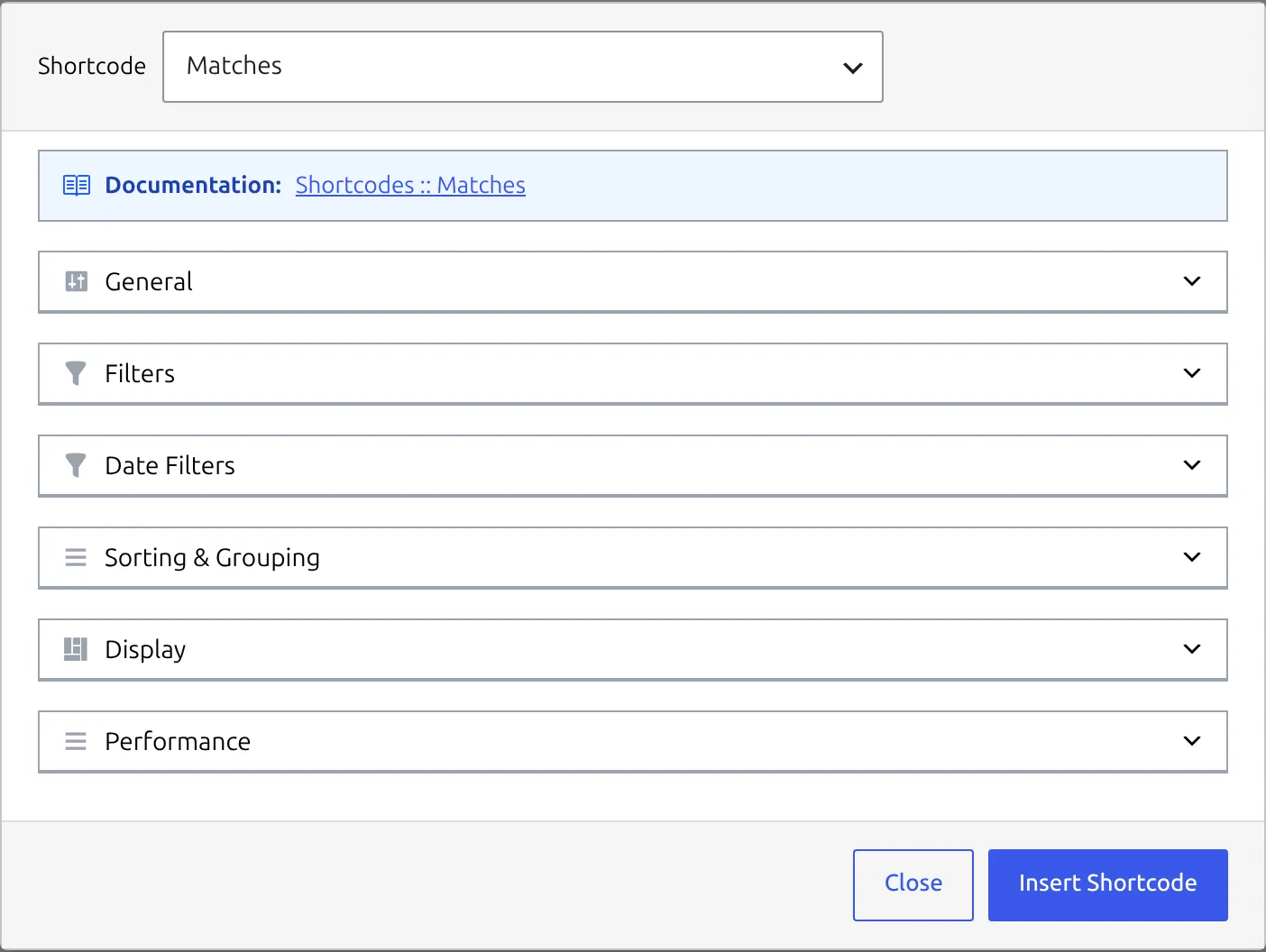
This video was recorded on an older version, so the popup looks plainer than it does today – the options now sit in collapsible sections. The steps haven’t changed: toolbar button, pick a shortcode, Insert Shortcode.
Method 3: Gutenberg Shortcode Block
- Add a Shortcode block to your page
- Open Shortcode Builder from admin menu
- Configure and copy shortcode
- Paste into the block
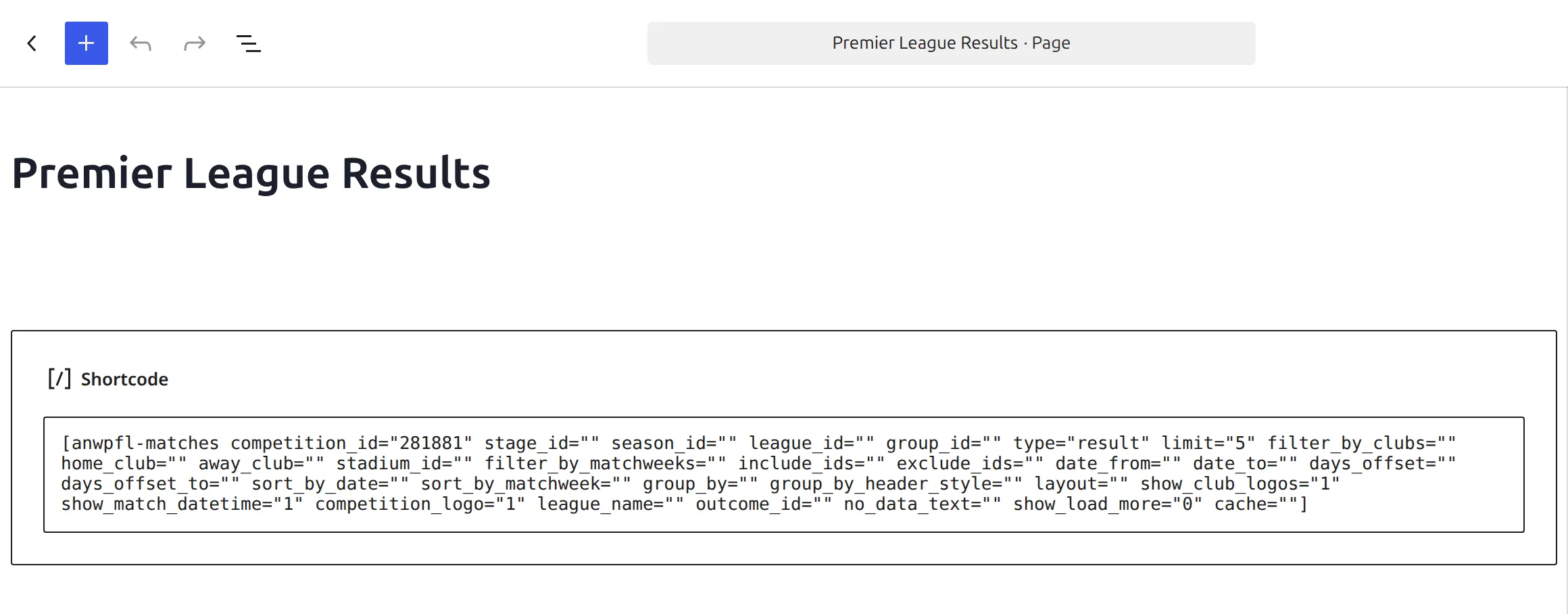
And this is what visitors see once the page is published:
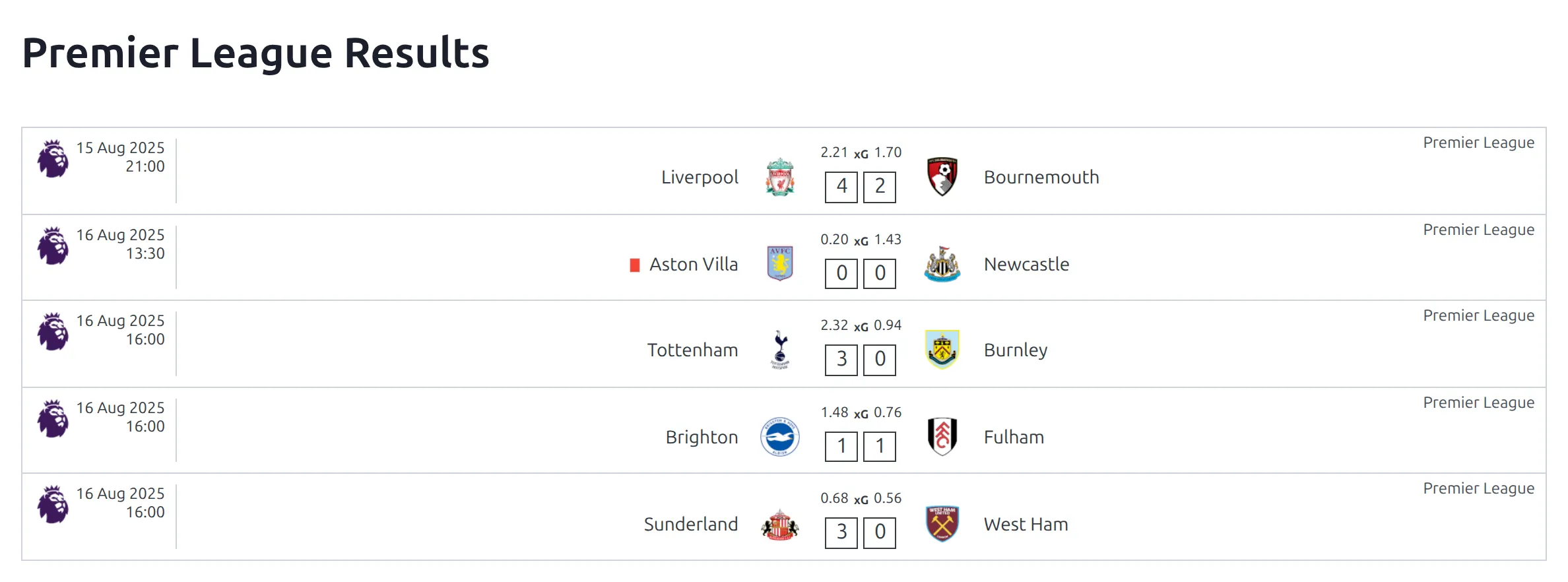
The builder in this video is an older one, with a “copy code” link above a single-column form. Today it’s the two-column page at Football Leagues > Shortcodes, with Copy Shortcode under the Output box. Copying and pasting into the Shortcode block works exactly the same.
Method 4: Classic Block in the Block Editor
Want the popup from Method 2 without switching editors? The block editor’s Classic block carries the same Football Leagues toolbar button.
- Add a Classic block to your page
- Click the Football Leagues trophy button in the block’s toolbar
- Pick the shortcode, set the options and click Insert Shortcode
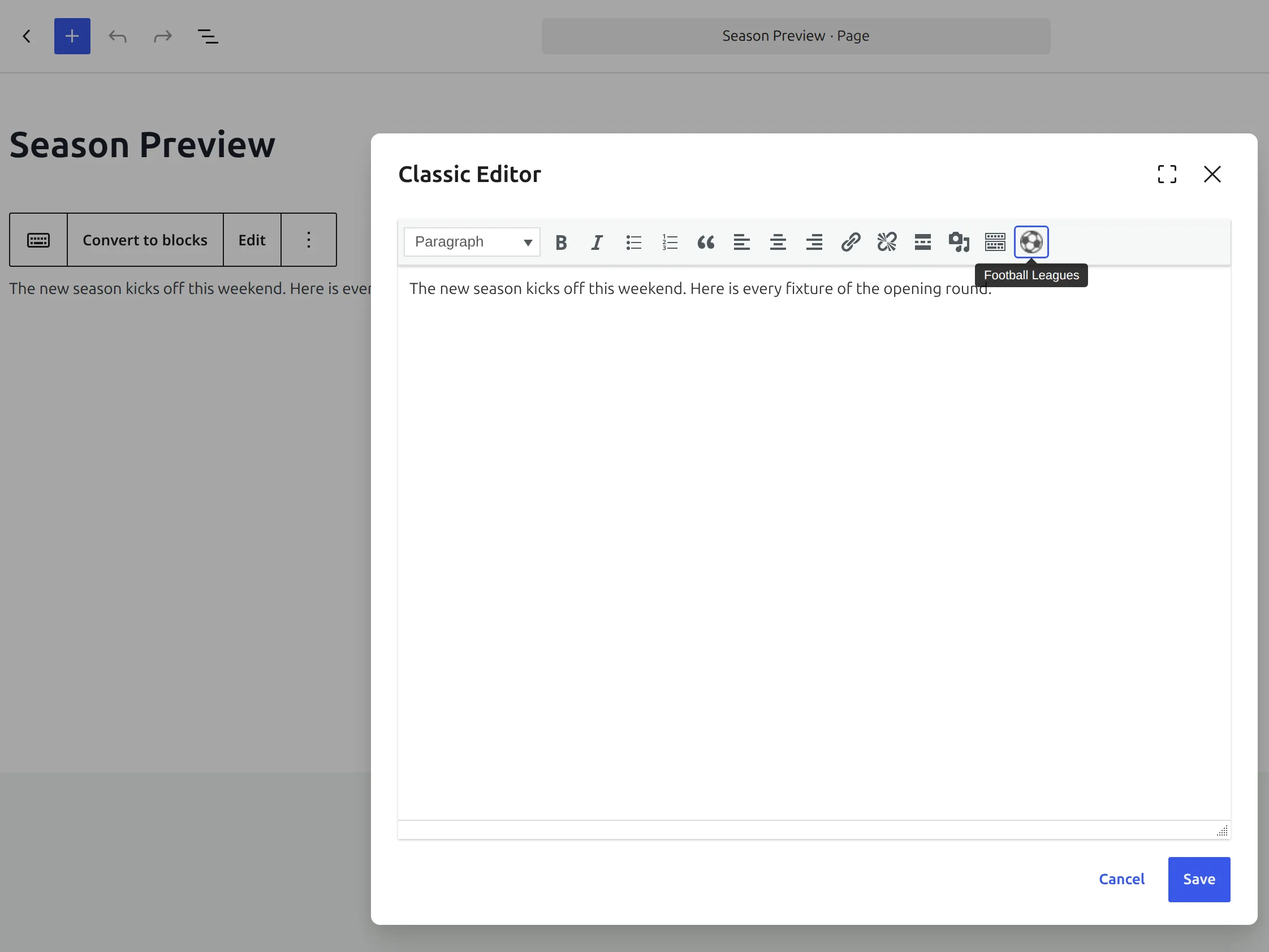
Recorded on an older version of both WordPress and the plugin, so the editor and the popup look different now. The button, the popup and Insert Shortcode are all still there.
Method 5: Elementor Shortcode Widget
Elementor has its own Shortcode widget, so there’s nothing extra to set up on the Football Leagues side.
- Build the shortcode at Football Leagues > Shortcodes and click Copy Shortcode
- In Elementor, search the widget panel for “shortcode” and drag the Shortcode widget onto the page
- Paste the shortcode into the widget
Recorded on an older version, so the Shortcode Builder screens in it look different from today’s two-column page at Football Leagues > Shortcodes. The copy-and-paste into Elementor is unchanged.
Layout Builder Shortcode Block (PRO)
On PRO, the Layout Builder’s Shortcode block has an Open Shortcode Builder button. It opens this same builder in a dialog, and Copy and Close copies the result so you can paste it into the block. The Shortcode Block page explains how to swap the IDs it writes for variables, so one layout works for every club or game.
Using the Shortcode Builder
Step 1: Select Shortcode Type
Use the dropdown at the top to choose which shortcode to configure:
- Core shortcodes – Available to all users. All 16 are listed first, in alphabetical order, from Cards to Standing Table.
- Premium shortcodes – Listed after the core ones, each name starting with an orange diamond (🔸). They only appear when Football Leagues Premium is active.
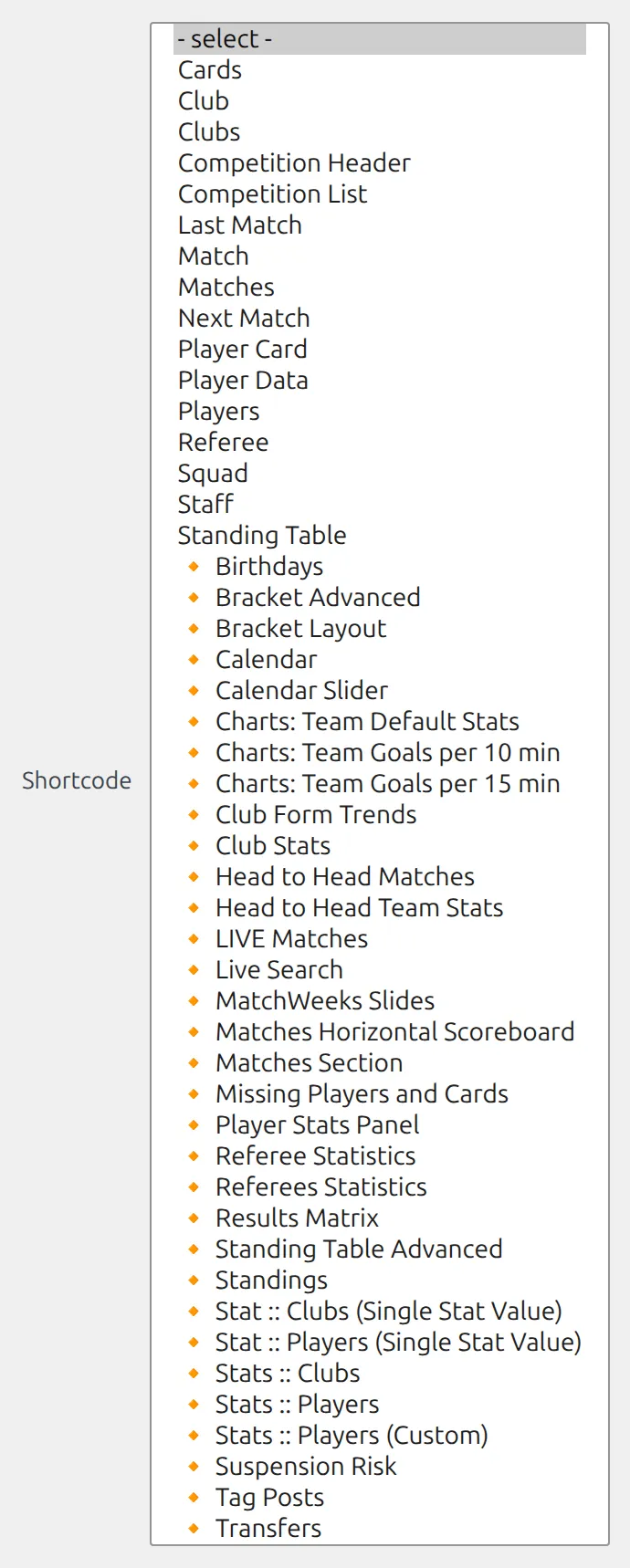
Each form opens with a Documentation link to that shortcode’s own page, where every option is explained.
Step 2: Configure Options
The form displays all available options for the selected shortcode, organized in collapsible sections:
| Section | Contains |
|---|---|
| General | Main entity selection (club, player, competition) |
| Query | Data filtering (season, competition, date range) |
| Filters | Additional filtering options |
| Display | Layout style, visible columns, ordering |
| Sorting | Sort field and direction |
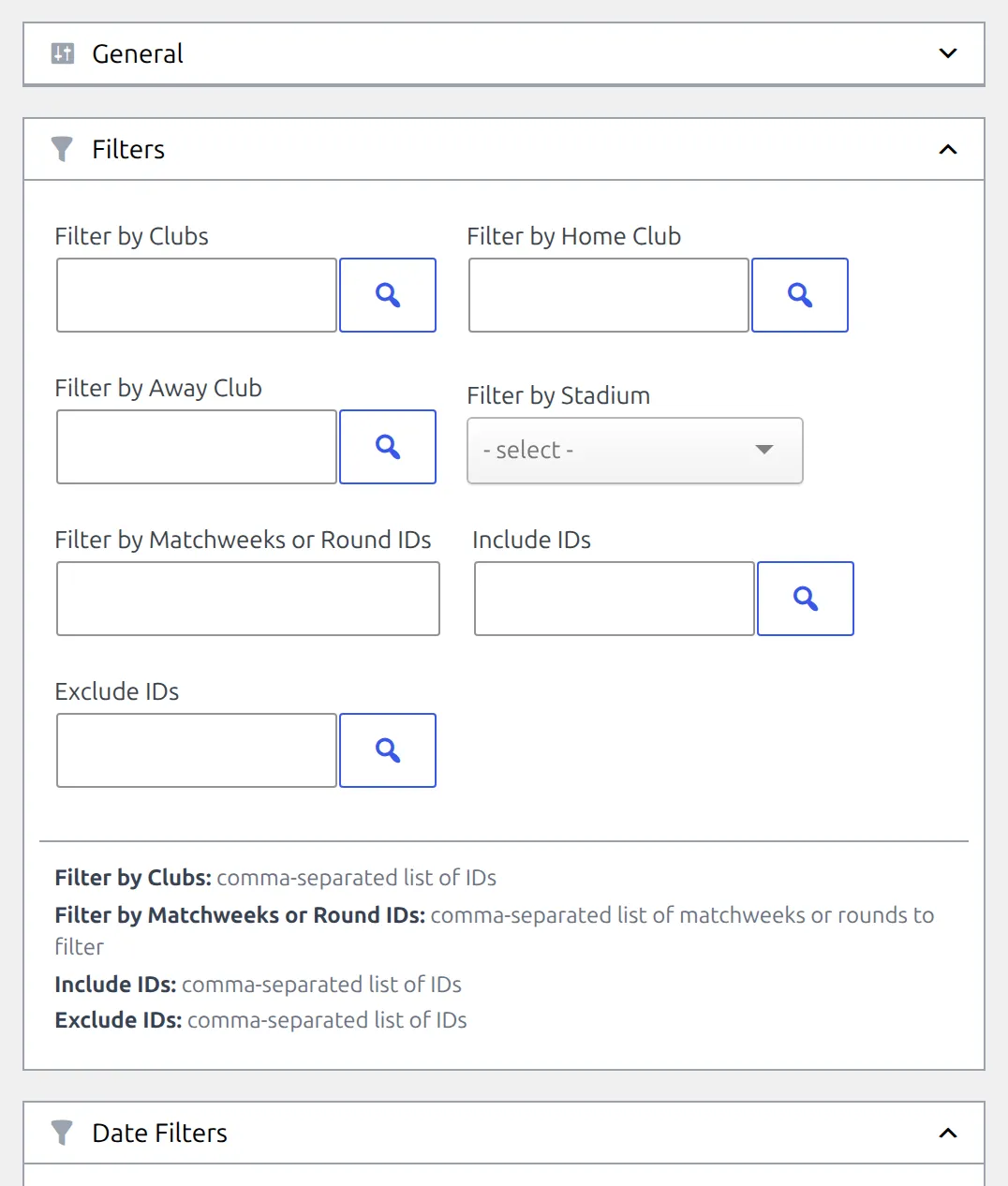
Section names vary by shortcode. Matches, for example, has General, Filters, Date Filters, Sorting & Grouping, Display and Performance. Click a section’s header to collapse it or open it again. Field descriptions don’t sit next to each field – they’re listed together at the bottom of their section.
Field Types:
- Dropdowns – Select from predefined options
- Selectors – Click the magnifier button next to the field to open an entity picker (clubs, players, etc.)
- Yes/No – A small dropdown with Yes and No
- Numbers – Numeric values, like the cache time in seconds on Matches and Standing Table
- Multi-select – Select multiple values. On fields like Sections, Stats or Columns you can also drag them to reorder.
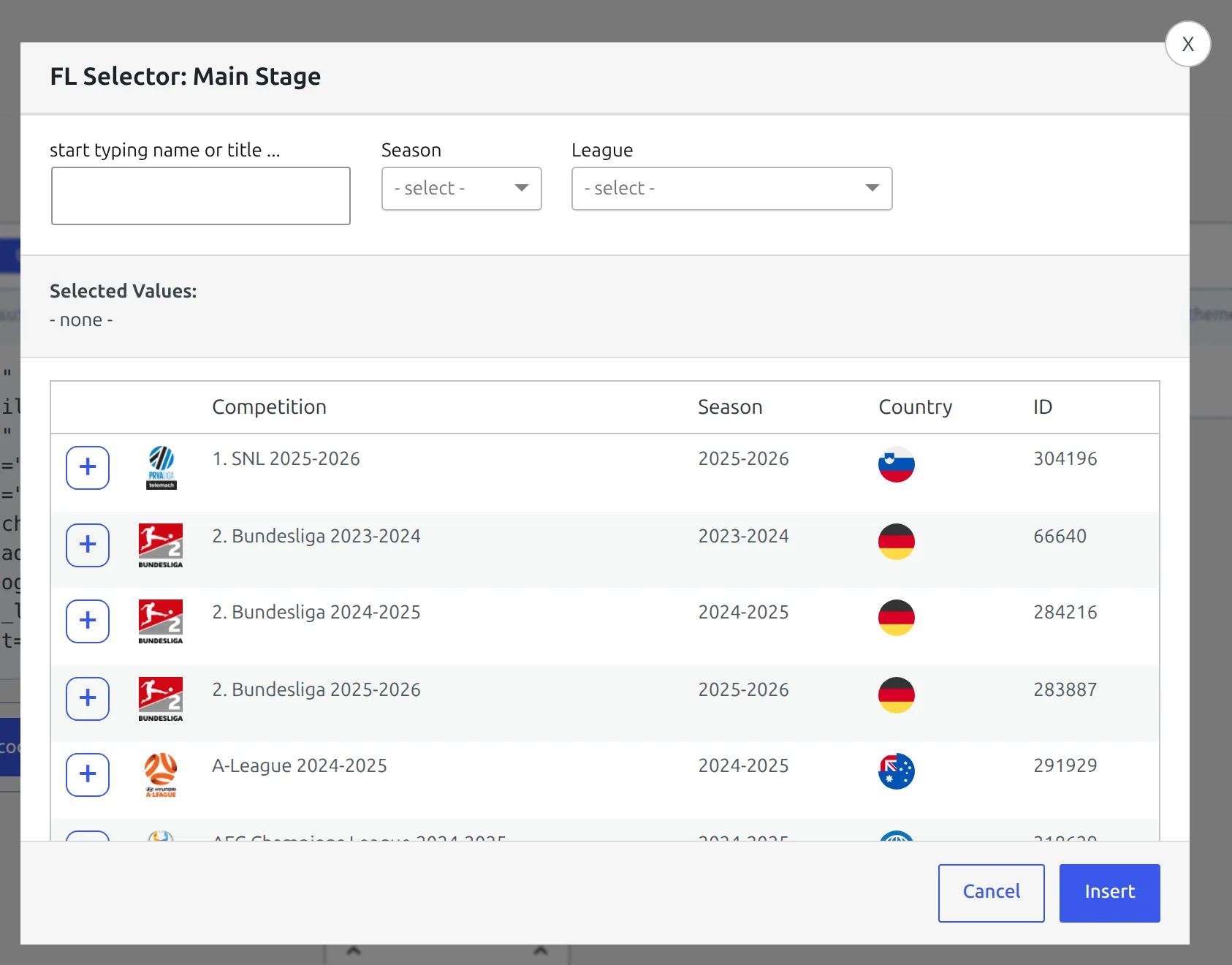
Step 3: Use Live Preview
The right panel shows a live preview of how the shortcode will appear on your site:
- The preview doesn’t load by itself. Click Refresh to load it, and click it again after each change.
- Use the 400 and 700 buttons to change the preview width. Single-item shortcodes (Player Card, Referee, Staff, Next Match, Last Match) open at 400, everything else at 700.
- The preview uses your real data and the plugin’s own styles, but not your theme’s CSS – so fonts and spacing on the live page can look a little different. The blue bar above the preview says the same.
Step 4: Copy and Use
- The generated shortcode appears in the Output field at the top
- Click Copy Shortcode to copy to clipboard. The button reads Copied! for two seconds.
- Paste into any page, post, or widget
Every field in the form goes into the shortcode, empty ones included – so you’ll see things like season_id="" or club_id="". That’s expected. An empty ID field just means “no filter”.
Editing Existing Shortcodes
The Parse Shortcode feature lets you edit shortcodes you’ve already created.
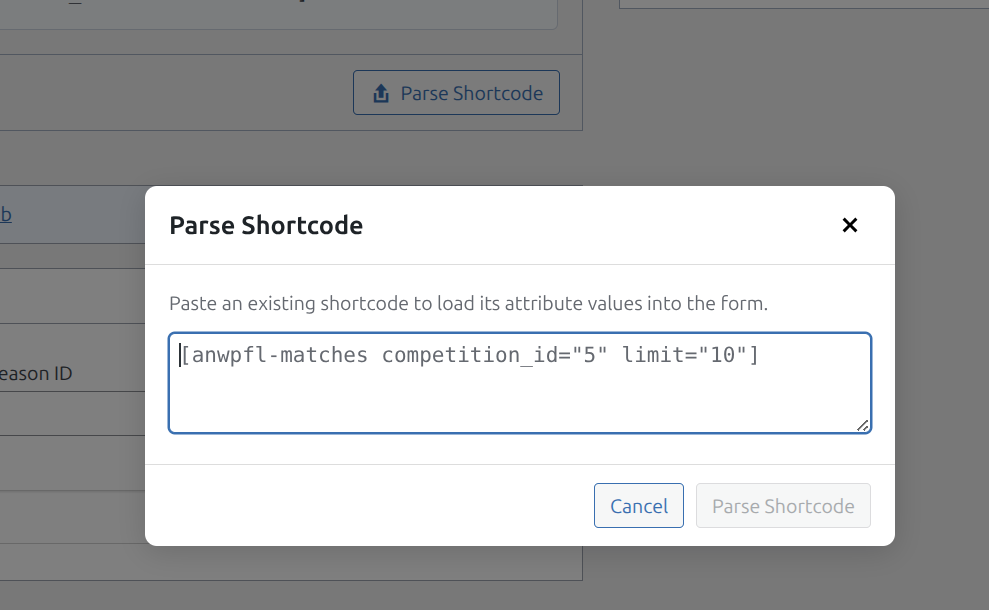
How to Parse a Shortcode
- Select the same shortcode in the Shortcode dropdown first – the Output box, and the button with it, only appear once a shortcode is selected
- Click Parse Shortcode button (next to Copy)
- Paste your existing shortcode in the popup
- Click Parse Shortcode (or press Ctrl+Enter)
- Form fields fill in with the values from your shortcode
- Modify options as needed
- Copy updated shortcode
Example:
[anwpfl-matches competition_id="5" limit="10"]After parsing, the form shows Competition ID = 5 and Matches Limit = 10, ready to edit.
Note
If the pasted shortcode doesn’t match the selected type – a Standing Table shortcode while Matches is selected, say – you’ll see a warning. Continue Anyway loads only the attributes the two forms share by name. Cancel lets you pick the right shortcode first, which is usually what you want.
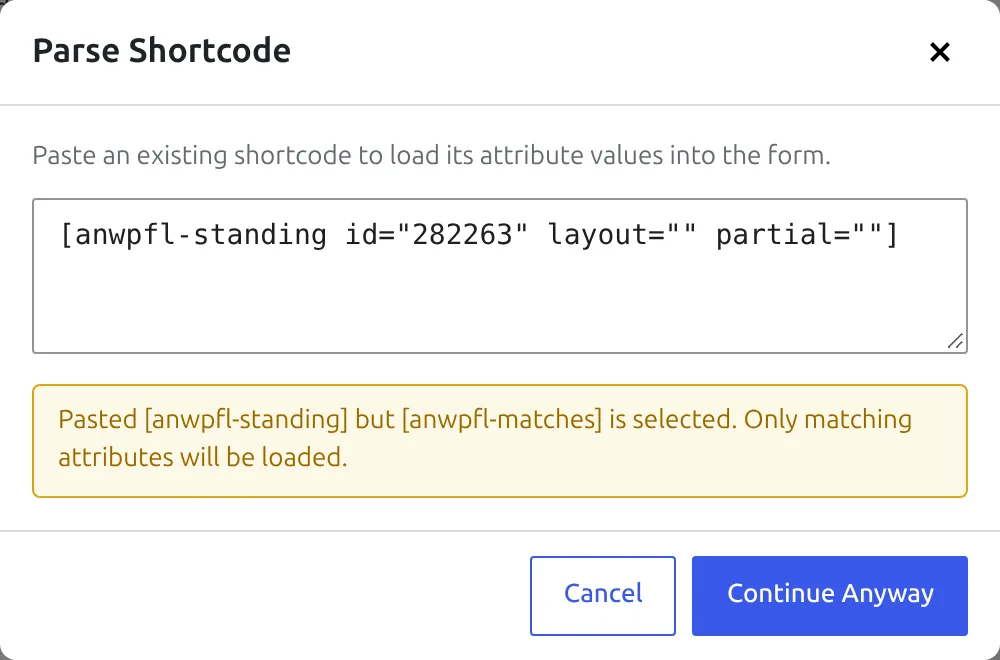
Attributes the form has no field for are skipped without a message. Before you replace the old shortcode on your page, compare the new Output with it.
Tips & Best Practices
Finding Entity IDs
Many fields require entity IDs (clubs, players, competitions). Two ways to find them:
- Use the Selector – Click the magnifier button next to the field to open a searchable picker
- Check the URL – When editing an item, look at the URL:
post.php?post=123(ID = 123)
Some attributes want a different kind of ID than their name suggests. Finding Entity IDs covers which is which.
Working with Multi-Select Fields
For fields like “Sections” or “Columns”:
- Click to add items
- Drag items to reorder them
- The order in the field = display order on frontend
A real case: the Match shortcode’s Sections field. Put Line Ups before Goals and the lineups show first:
[anwpfl-match match_id="123" sections="line_ups,goals,stats"]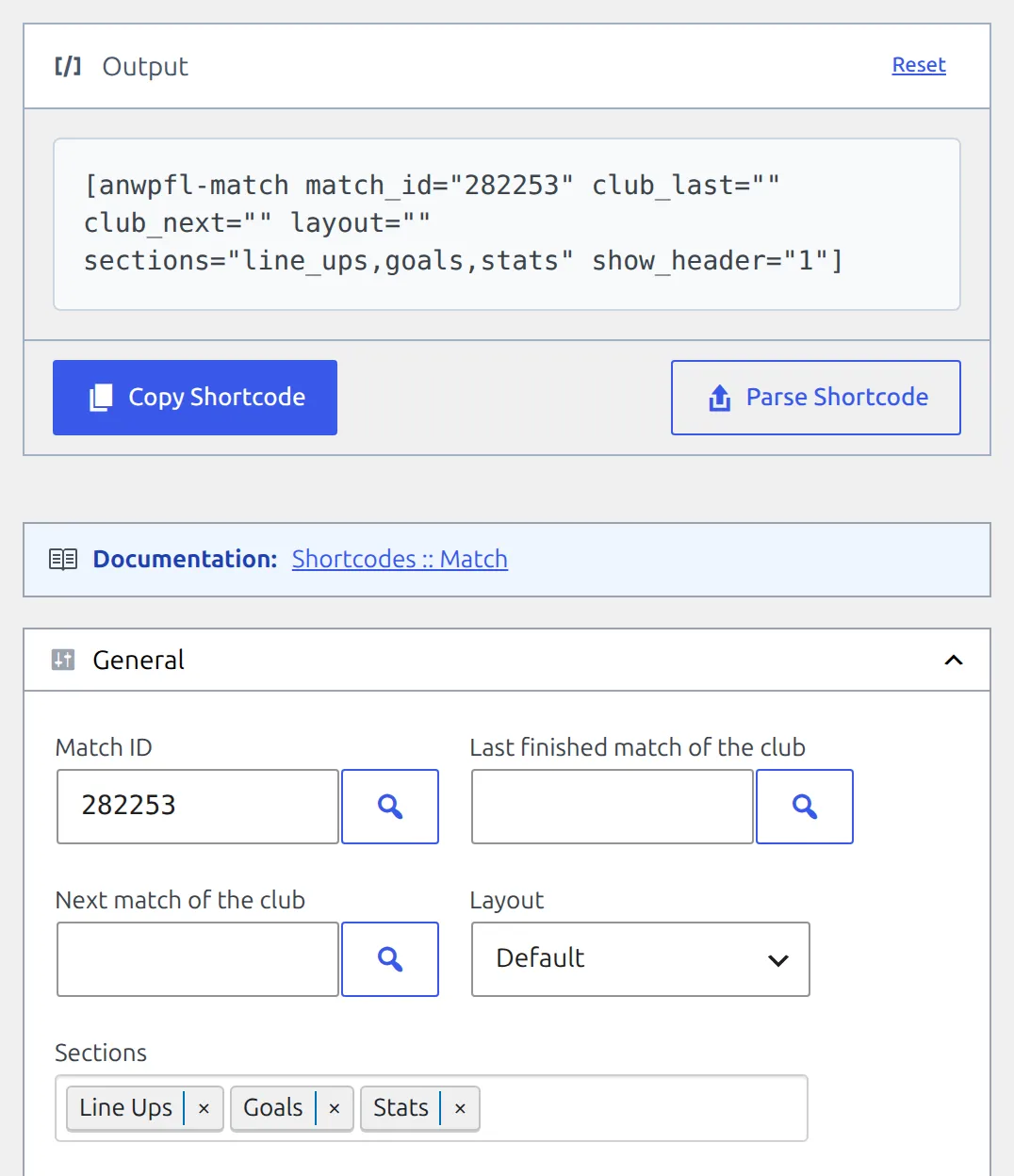
Tip
Click Reset (top right of the Output box) to reload the form with its default values and start fresh.
Preview Limitations
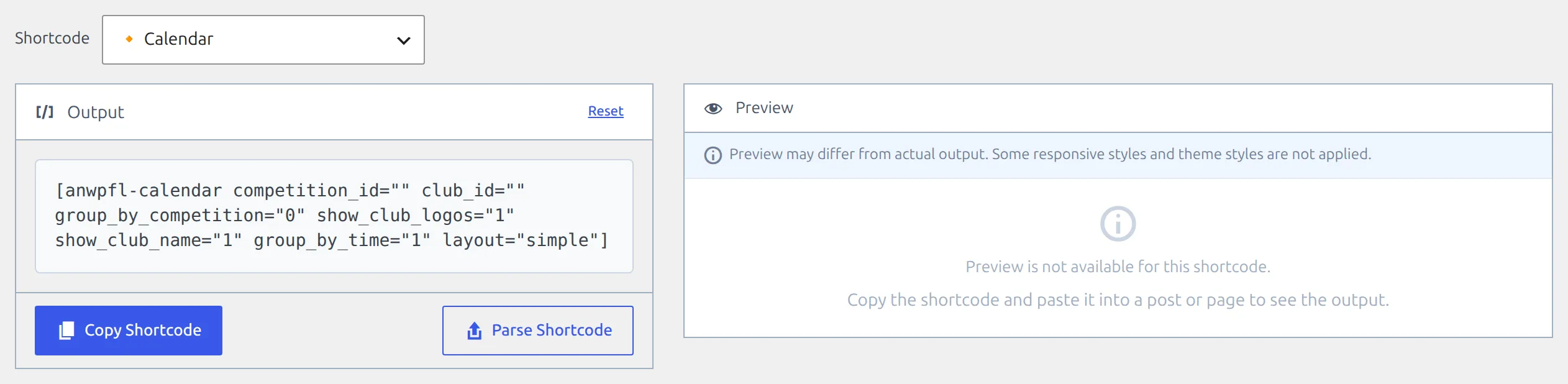
Calendar (PRO) is the one shortcode with no preview. The panel says “Preview is not available for this shortcode” – copy it into a page to see the result. Sliders, charts and sortable stats tables do load their scripts in the preview.
If your settings match nothing, the preview says “No data to display for current settings”. Loosen a filter and click Refresh again.
Troubleshooting
Shortcode Shows as Text
Problem: The shortcode [anwpfl-...] appears as plain text instead of rendering.
Solutions:
- In Gutenberg: Use a Shortcode block, not Paragraph
- In Classic Editor: Switch to Text mode (not Visual)
- Check for typos in shortcode name
- A premium shortcode (the ones marked 🔸 in the builder) prints as plain text on a site where Football Leagues Premium isn’t active – WordPress doesn’t know the tag
Football Leagues Button Missing in the Editor
Problem: There’s no trophy button in the Classic Editor or Classic block toolbar.
Solutions:
- Open Users > Profile and make sure Disable the visual editor when writing is unchecked. The button only loads with the visual editor on.
- Your user needs to be able to edit posts or pages. A Subscriber, for example, doesn’t get the button.
- In the block editor the button isn’t in the normal block toolbar – it only lives inside a Classic block (Method 4)
ID Pickers Are Empty for Editors
Problem: An Editor opens the shortcode popup, clicks a magnifier button, and the picker shows no results.
The pickers load their lists for administrators only, while the popup itself opens for anyone who can edit posts. So an Editor can build the shortcode but has to type the IDs in by hand. An administrator can look them up in the Shortcode Builder, or read them from the edit screen URL as shown above.
Preview Not Loading
Problem: Preview panel shows blank or error.
Solutions:
- Click Refresh button – the preview never loads until you do
- Check browser console for JavaScript errors
- Ensure WordPress REST API is accessible
Form Not Appearing
Problem: Selecting a shortcode type shows no form.
Solutions:
- Clear browser cache (Ctrl+Shift+R)
- Check for JavaScript errors in browser console
- Ensure plugin is updated to latest version
- The form loads through the WordPress REST API, so a security plugin that blocks
/wp-json/for logged-in users stops it too. The console shows “Failed to load shortcode form” when that happens.
Copied Shortcode Missing Parameters
Problem: Some parameters don’t appear in copied shortcode.
The builder writes one attribute for every field in the form, empty or not. So a missing parameter is one the form has no field for. That usually shows up after Parse Shortcode: an attribute from your old shortcode that the form doesn’t know is dropped without a warning. Add it back to the copied shortcode by hand, and check the shortcode’s own documentation page (linked at the top of its form) for the exact attribute name.
Related Documentation
- Shortcodes – All core shortcode parameters
- Premium Shortcodes – Premium shortcode parameters
- Finding Entity IDs – Which ID each attribute wants
- Layout Builder Shortcode Block – Shortcodes inside a layout, with variables instead of IDs