If you encounter unexpected 404 errors in your WordPress site, it often means that your site’s permalink structure needs to be refreshed.
How to Flush Permalinks from the WordPress Dashboard
- Log in to your WordPress admin panel.
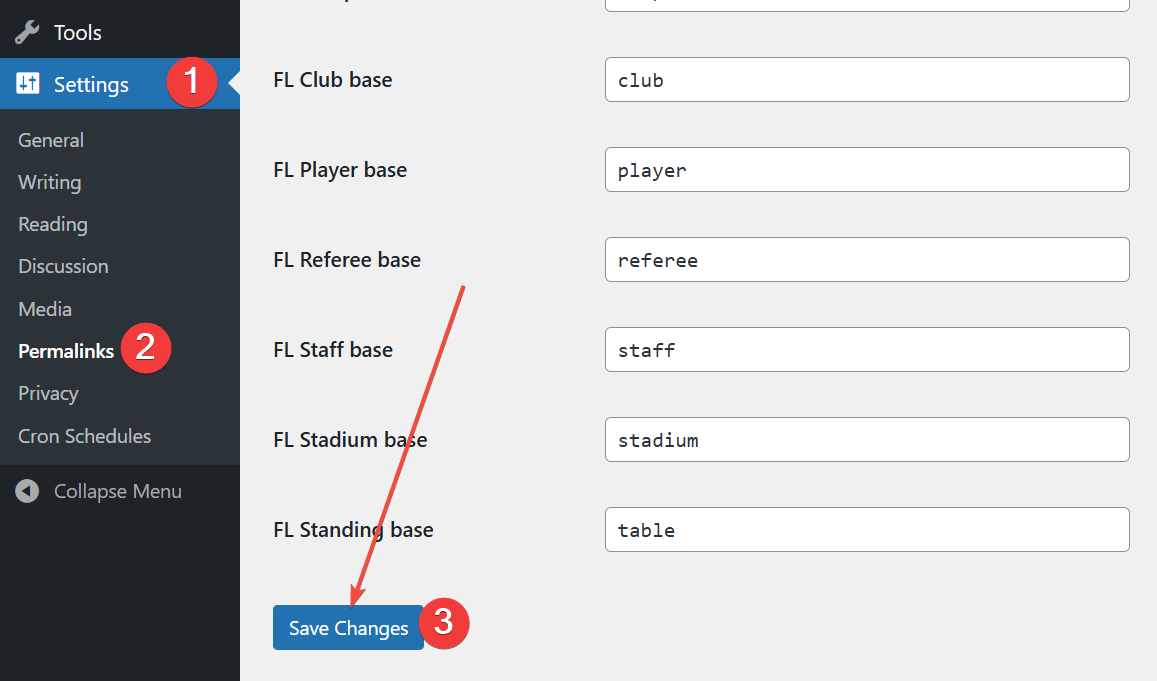
- Go to Settings > Permalinks.
- Without changing anything, scroll down and click Save Changes.
- This action refreshes the permalink cache and regenerates rewrite rules.
Now, check your affected pages and confirm the 404 error is resolved.
Change the Custom Post Type Slug Base
If flushing the permalink cache does not resolve the 404 error for a custom post type (CPT), try changing the permalink slug base of the problematic CPT to a unique, unused value. This can help avoid conflicts with existing pages or other post types, which is a common cause of persistent 404 errors.
Why Changing the Custom Post Type Slug Can Help
When a custom post type slug matches a page, taxonomy, or another post type, WordPress’s rewrite rules can become ambiguous, causing URLs to break and return 404 errors. By updating the CPT slug to something unique (such as adding a suffix or altering the naming pattern), the rewrite system can properly distinguish between content types and generate working links.
How to Change the Custom Post Type Slug
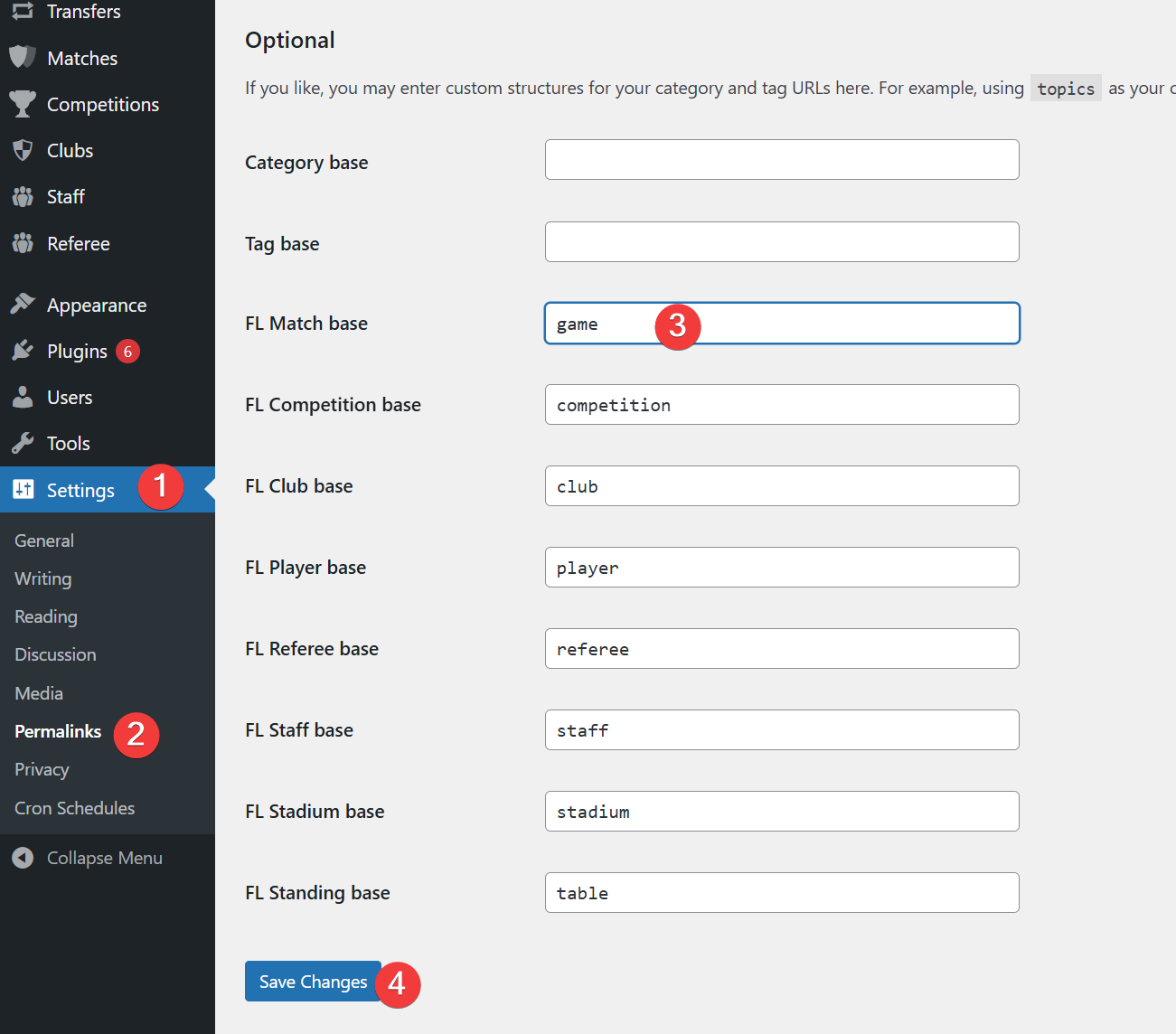
- Log in to your WordPress admin panel.
- Go to Settings > Permalinks.
- Change the permalink slug base of the problematic CPT and click Save Changes.
- This action refreshes the permalink cache and regenerates rewrite rules.