

There are three ways to change how Football Leagues looks, and they’re worth trying in this order: flip a setting, use the point-and-click CSS editor, or write CSS by hand. Most of what people ask for on this page turned into a setting at some point, so start at the top.
🎛 Check for a setting first
Every row below is a thing customers regularly write CSS for. None of them need it. All the paths start at Settings & Tools > Settings.
| What you want to change | Where it lives |
|---|---|
| Promotion / relegation colours on a table | The standing’s own editor, Standing Table Colors |
| Whether that colour is a filled cell or an edge bar | Standing > Display > Zone Color Style (0.18.5) |
| The five background and border greys | Appearance > Colors |
| Text sizes across the whole plugin | Appearance > Font Sizes (px) |
| The word “Matchweek” | Text & Labels > Match > MatchWeek |
| Kickoff countdown on or off | Match Display > Fixture & Countdown > Countdown in match fixture |
| Kickoff countdown layout, Classic or Modern | Match Display > Fixture & Countdown > Countdown Type (PRO) |
| Score flashing when it changes during a live game | Live Scores > Blink on score change (PRO) |
| The WordPress post title on match and competition pages | Advanced > Layout & Rendering (hidden by default) |
| Default home and away club colours | Club tab |
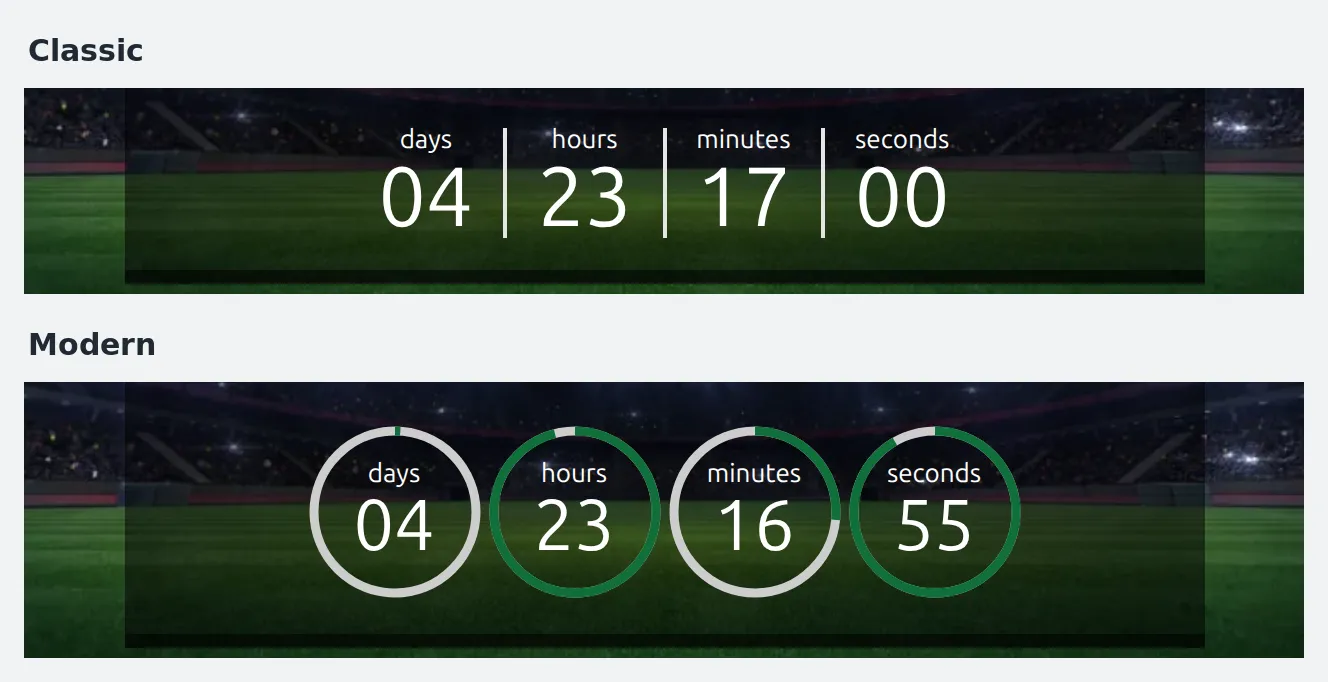
The countdown in particular is a settings job, not a CSS one. It has two layouts and neither of them has a background you can recolour – pick the layout you want and it’s done.
If you’re here from an old “change the background of the flip countdown” recipe: that flip-clock countdown, with its green number tiles, was replaced. Its .anwp-match-flip-countdown class isn’t printed on any page any more, so a rule aimed at it does nothing. Today’s two layouts look like this. And the words under the numbers (days, hours, minutes, seconds) aren’t CSS either – rename them at Translations > Text Strings.
🎨 Where to put custom CSS
Football Leagues has no CSS box of its own. There’s nowhere in the plugin’s settings to paste a stylesheet, and you don’t need one – WordPress already ships the right place.
Classic theme
Go to Appearance > Customize > Additional CSS, paste your rules, and click Publish. Step by step:
- In the WordPress admin sidebar, open Appearance > Customize.
- Click Additional CSS in the Customizer’s list of panels, usually at the bottom.
- Paste your CSS into the code box. The site preview on the right updates as you type, so you can check a rule before anyone else sees it.
- Click Publish.
The short “Add Custom CSS” video below walks through it. It was recorded on an older WordPress admin, but on a classic theme the path is still Appearance > Customize > Additional CSS.
Block theme
Block themes usually don’t show the Customize menu item at all. The same box lives in the Site Editor instead: Appearance > Editor > Styles, open the styles editor, then the ⋮ (More) menu > Additional CSS.
Child theme
If you keep your CSS in version control, put it in your child theme’s style.css instead. One thing to know about the Additional CSS box: it’s stored per theme. Switch themes and your rules don’t come with you.
You don’t need !important
WordPress prints enqueued stylesheets early in the page head and Additional CSS right at the end of it. Your rules always come after the plugin’s, so a rule at the same specificity wins on order alone. Not one snippet on this page uses !important. The exception is hiding or showing something: the plugin does mark a handful of display, padding and font-size rules !important, and you’ll have to match that. Colours never are.
🖱 Point and click instead: SiteOrigin CSS
If you’d rather not write selectors at all, Football Leagues integrates with SiteOrigin CSS, a free visual CSS editor. You click a block on your own site and it gives you colour, spacing and font controls for it.
The plugin adds a mode on top of it called Football Leagues Mode. Without it, SiteOrigin offers you every class it finds on the page, including your theme’s and every other plugin’s – hundreds of them, in no useful order. With it on, the picker offers the Football Leagues class names only, which is the difference between styling the thing you clicked and guessing.
The video below is the full walkthrough. It was recorded when the mode first shipped, so a few screens have moved on: the Football Leagues > Customize page now has a second panel with an Open Appearance Settings button, and SiteOrigin CSS’s editor has had a facelift. The steps are the same, and they’re written out underneath.
Setting it up
Go to Football Leagues > Customize. That page does three things:
- Installs or activates SiteOrigin CSS for you, with one button, if it isn’t there yet.
- Shows whether Football Leagues Mode is Active or Disabled, with a Change button to flip it.
- Links straight into the editor at Appearance > Custom CSS – the start customizing link, step 3 in the box at the top.
The second panel on the same page, Open Appearance Settings, is the settings route from the top of this page: it opens Settings & Tools > Settings > Appearance, where the font sizes and background colours live.
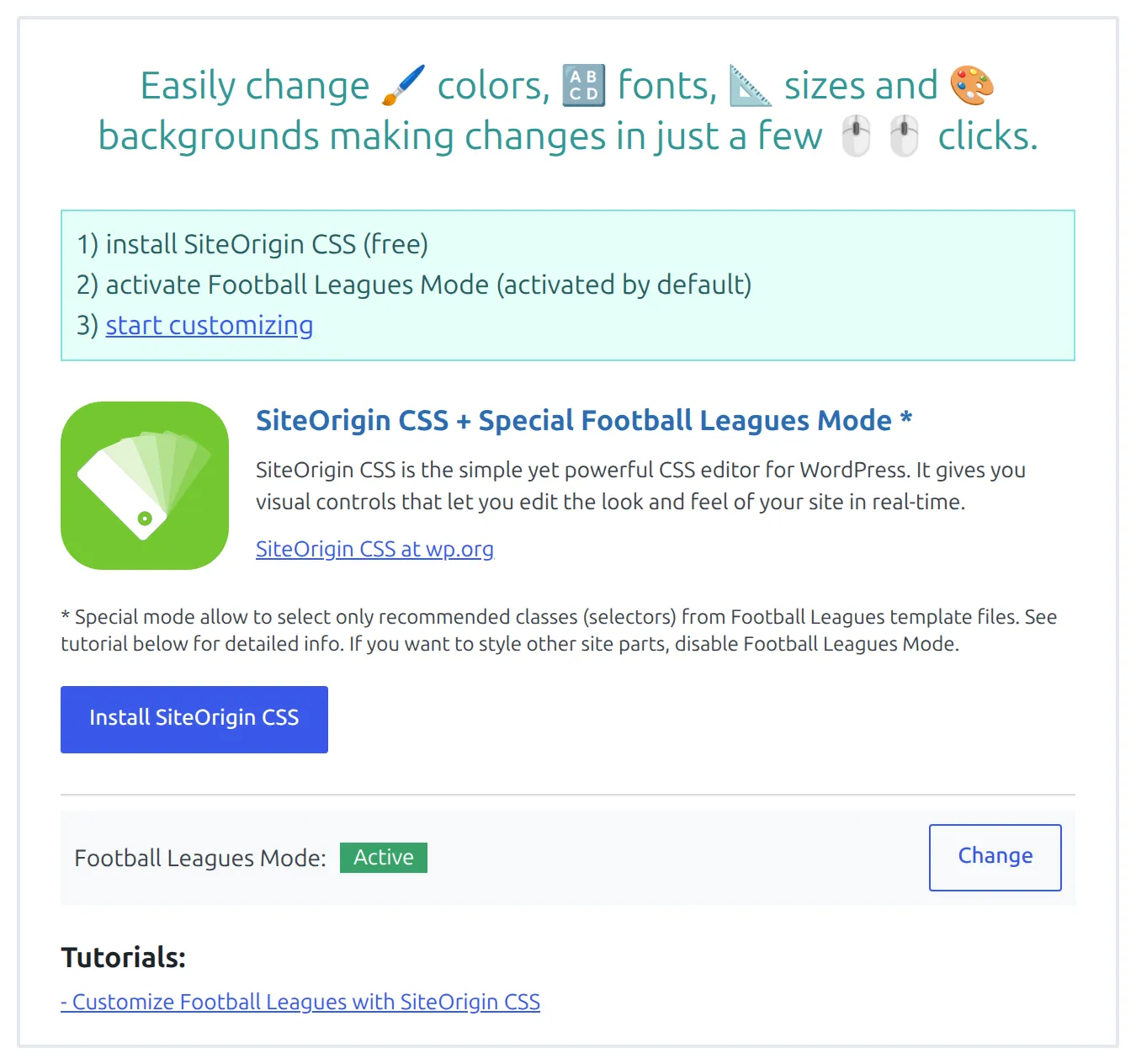
Football Leagues Mode is on from the start. You don’t have to switch it on after installing SiteOrigin CSS – it’s already Active, and the button is there to turn it off. Turn it off when you want to style something that isn’t a Football Leagues block, then turn it back on.
Whatever you build there is saved by SiteOrigin CSS, not by Football Leagues, so it survives plugin updates and it’s yours to export.
Styling a block, step by step
Here’s the whole loop, using the match header on a single game page as the example: give it a pale green background.
- Go to Appearance > Custom CSS (or click start customizing on the Football Leagues Customize page).
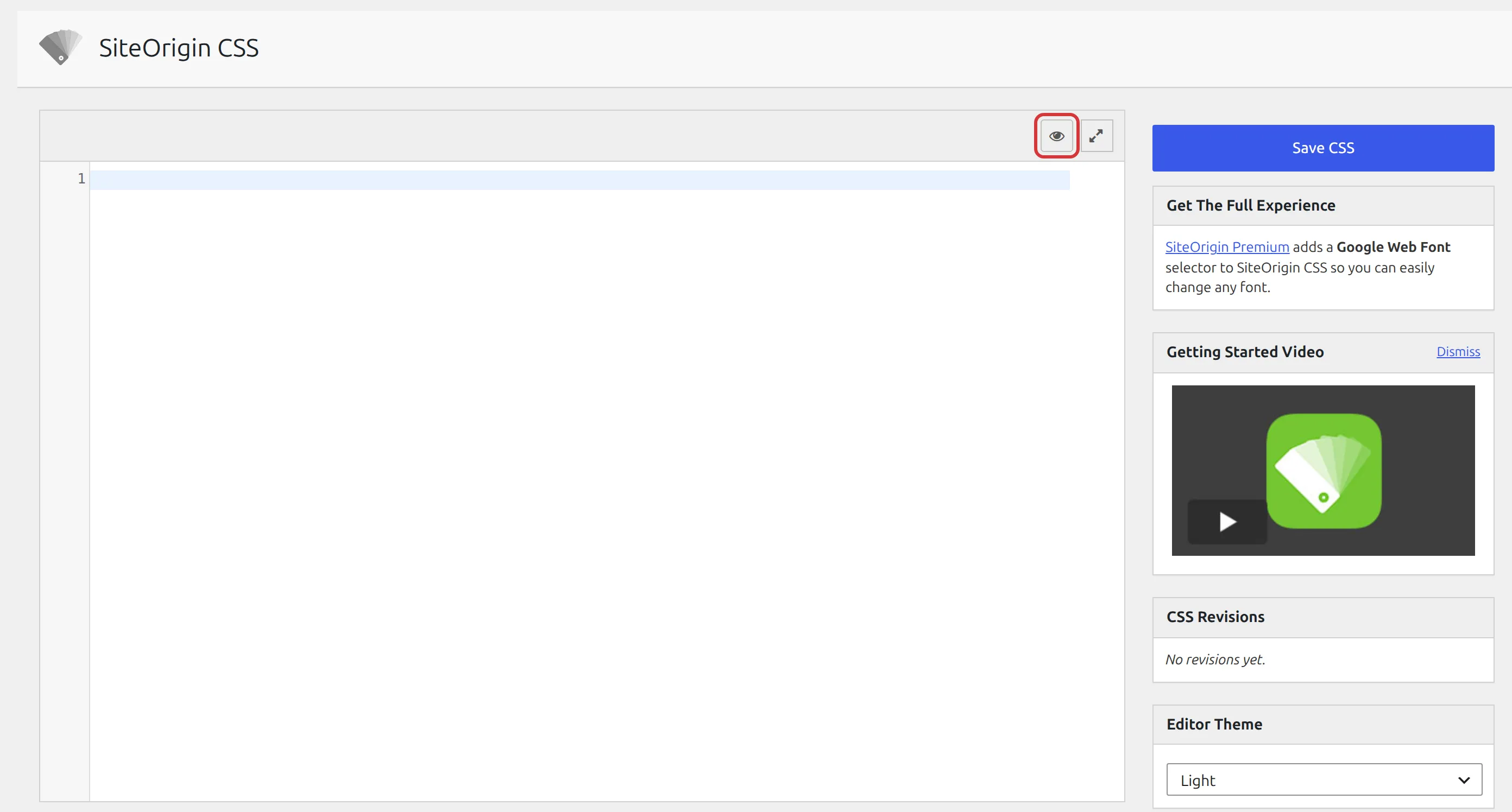
- Click the eye button above the code editor – its tooltip reads Open Visual Mode. Your site opens inside the editor.
- Go to the page you want to style. The preview opens on your home page. Either type the address of a game page into the address bar at the top of the preview and press Enter, or click the magnifying glass at the bottom left to switch from picking to browsing, click through to the page as a visitor would, then click the magnifying glass again to go back to picking.
- Click the block. Hover over the match header until it’s outlined in blue, and click. The strip at the bottom lists the Football Leagues classes on the element and its parents – with Football Leagues Mode on, you’ll see
match-headerhere rather than a wall of theme classes. - Pick the class. Click
.match-headerin the list. It appears in the selector box at the top left, which is what your styles will apply to. The panel on the bottom right shows the rules the element already has. - Style it. Use the Text, Decoration and Layout tabs on the left. Background colour is under Decoration. The preview updates as you change values.
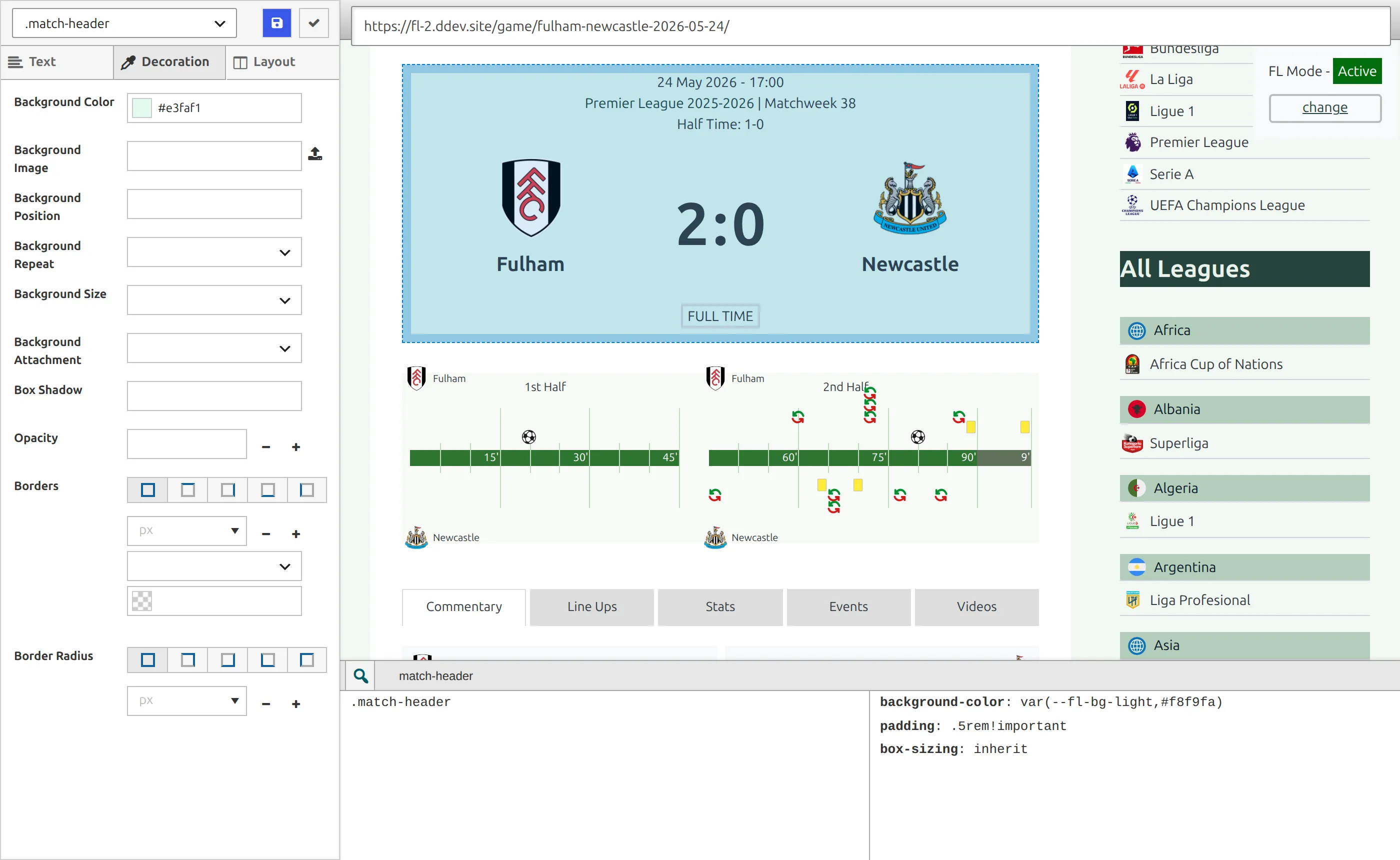
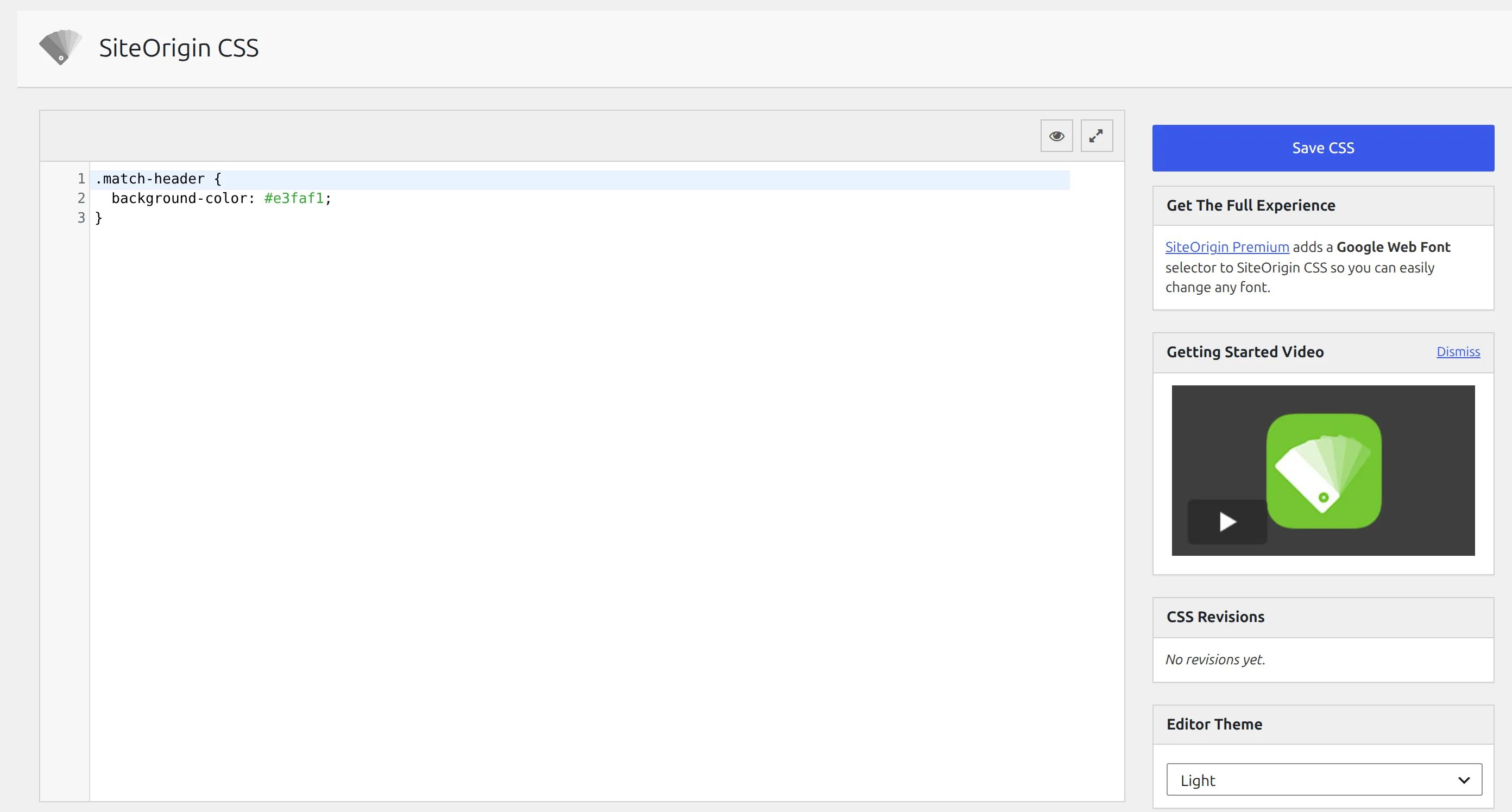
- Close Visual Mode with the check mark button next to the selector box. You’re back in the code editor, and the rule you just built is written out as ordinary CSS – you can edit it by hand from here.
- Click Save CSS. Nothing is live until you do.
When a SiteOrigin change doesn’t show up
The picker writes the shortest possible rule: one class, like .match-header. That’s fine for anything the plugin doesn’t already style, but where the plugin’s own rule is longer, the plugin’s rule wins and your change doesn’t appear. The LIVE colours are the classic case – “I picked the orange score in SiteOrigin and nothing changed” is exactly this.
Two fixes, both in the code editor after you close Visual Mode. Add !important to the value (background-color: #e3faf1 !important;), which is the quick one. Or replace the one-class selector with the longer one from the recipes further down this page, which is the tidy one.
Three more things catch people out:
- LIVE elements only exist during a live game. The LIVE badge, minute and live score are added to the page by JavaScript while a game is in play. Open a page with no live game and there’s nothing to click. Use the selectors in the LIVE section below instead.
- The class list is Football Leagues classes only, and not every one of them. If the thing you clicked shows nothing to pick – the numbers in the matchweek slider’s navigation strip, say – switch the mode off on the Customize page, or write the rule by hand.
- It’s saved per theme. The editor says so under the code box: “Changes apply to {your theme} and its child themes”. Switch theme and the CSS stays behind, same as Additional CSS.
Colour a promotion or relegation place
This one is built in. Don’t write CSS for it.
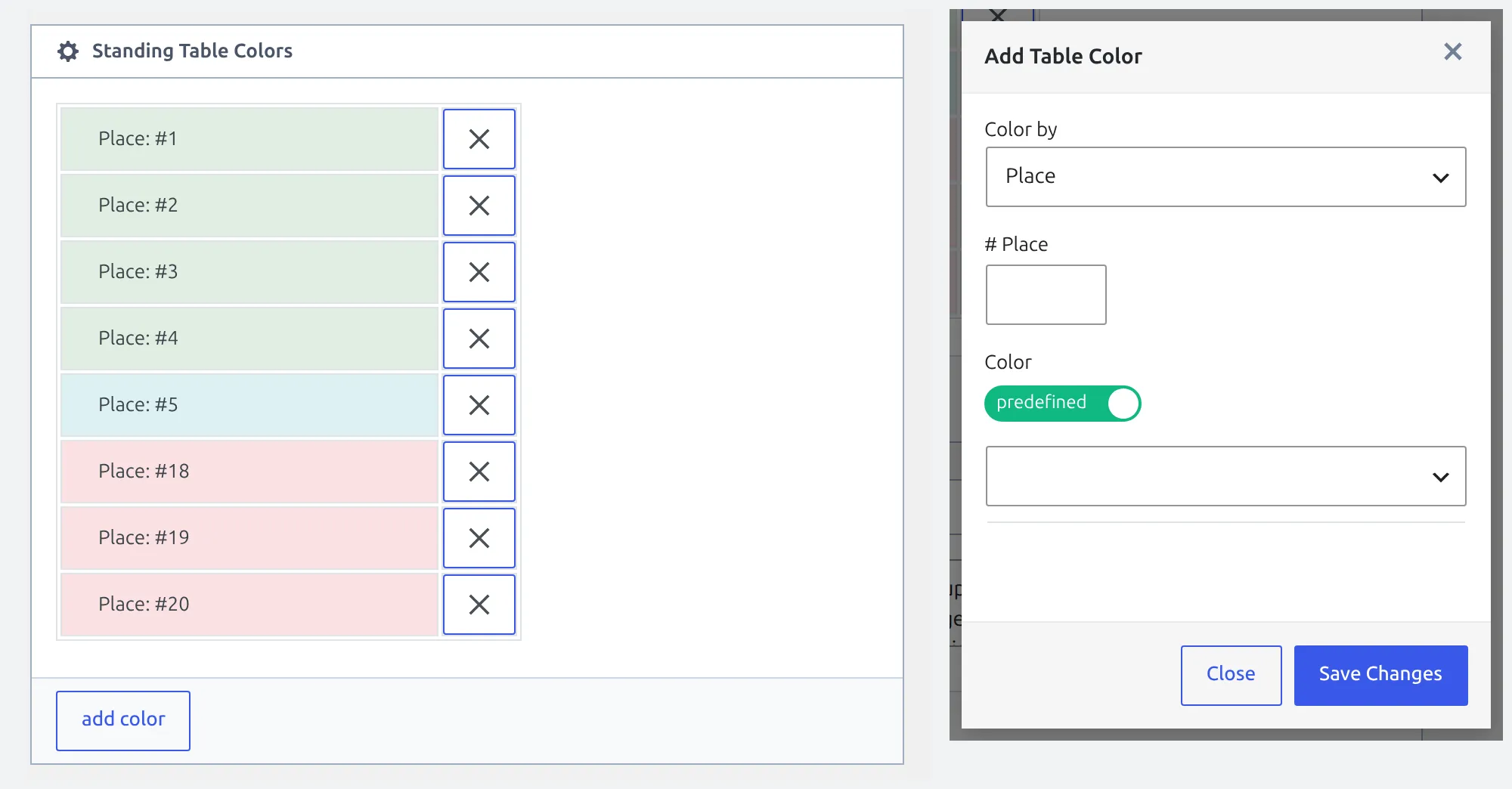
Open the standing table you want to colour – standings live under Competitions – and find the Standing Table Colors block in its editor. Add Color opens a small dialog:
| Field | What it does |
|---|---|
| Color by | Place colours a position (1st, 2nd, 18th). Club colours one team wherever it finishes. |
| # Place or club | The position number, or the team, depending on the choice above. |
| Predefined / Custom | Predefined gives you six named colours: primary, secondary, success, danger, warning, info. Custom gives you a colour picker for any hex value. |
A preview row under the picker shows the colour before you save. Repeat for each place you want marked – one for the champion, three for the Champions League spots, three for relegation, and so on. A club colour is applied on top of a place colour, so you can mark a zone and still single out one team inside it.
Filled cell or edge bar
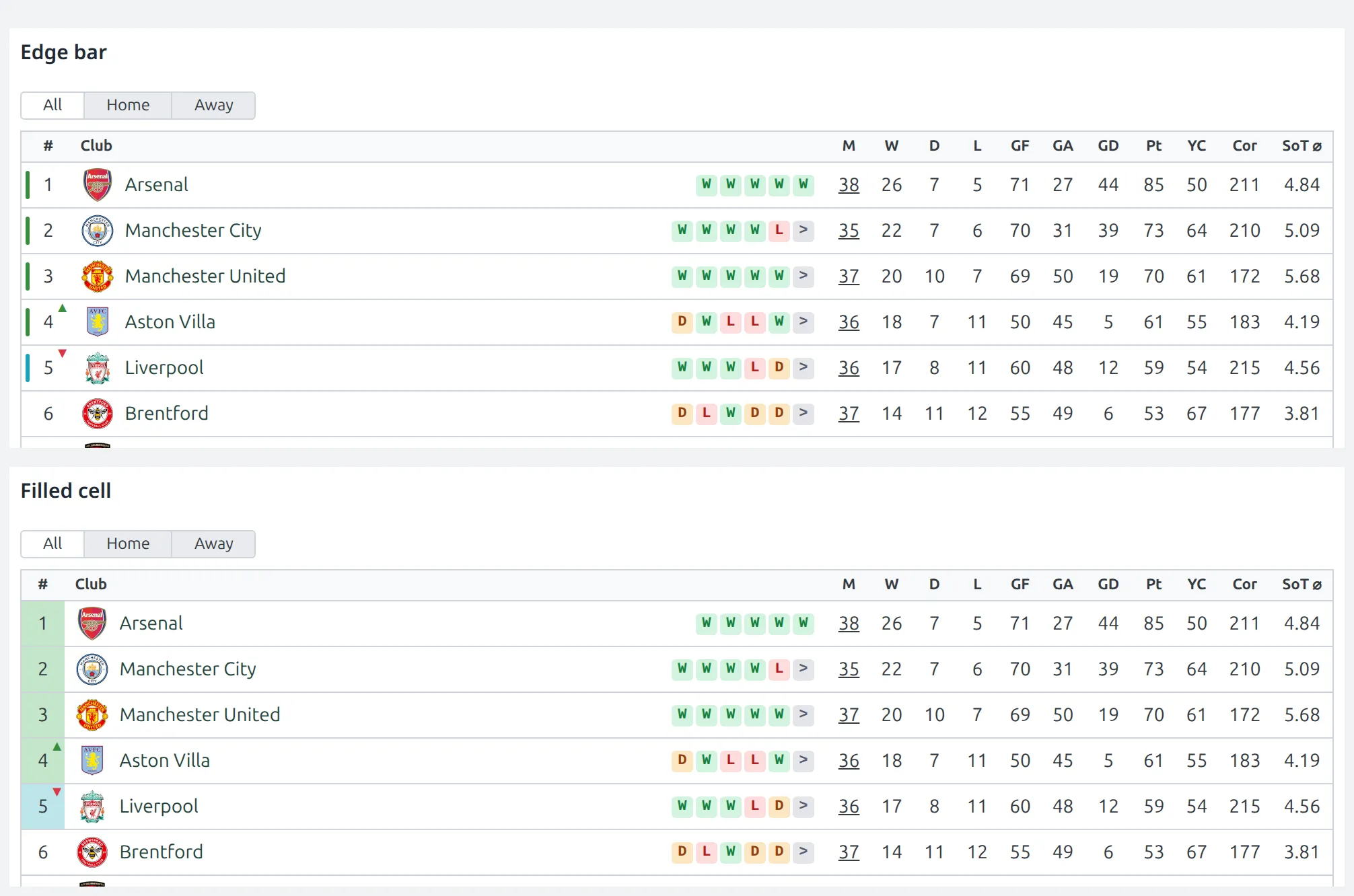
How that colour is drawn is a separate, site-wide setting: Settings & Tools > Settings > Standing > Display > Zone Color Style. It arrives in 0.18.5. On 0.18.4 and earlier there is nothing to choose – the colour always fills the position cell.
| Option | What you get |
|---|---|
| Edge bar | A slim 3px rounded bar down the leading edge of the position cell. The default from 0.18.5, on new and updated sites. |
| Filled cell | The position cell is tinted with the colour. This is how every version up to 0.18.4 draws it. |
Updating switches your tables to Edge bar
From 0.18.5 every site draws zone colours as an edge bar, including sites that already had standing tables before the update. If you prefer the tinted cell, set Zone Color Style back to Filled cell in the Standing tab.
If the picker can’t express what you want
The picker colours the position cell. If you want the whole row tinted, that’s the one thing it won’t do, and CSS is fair enough here.
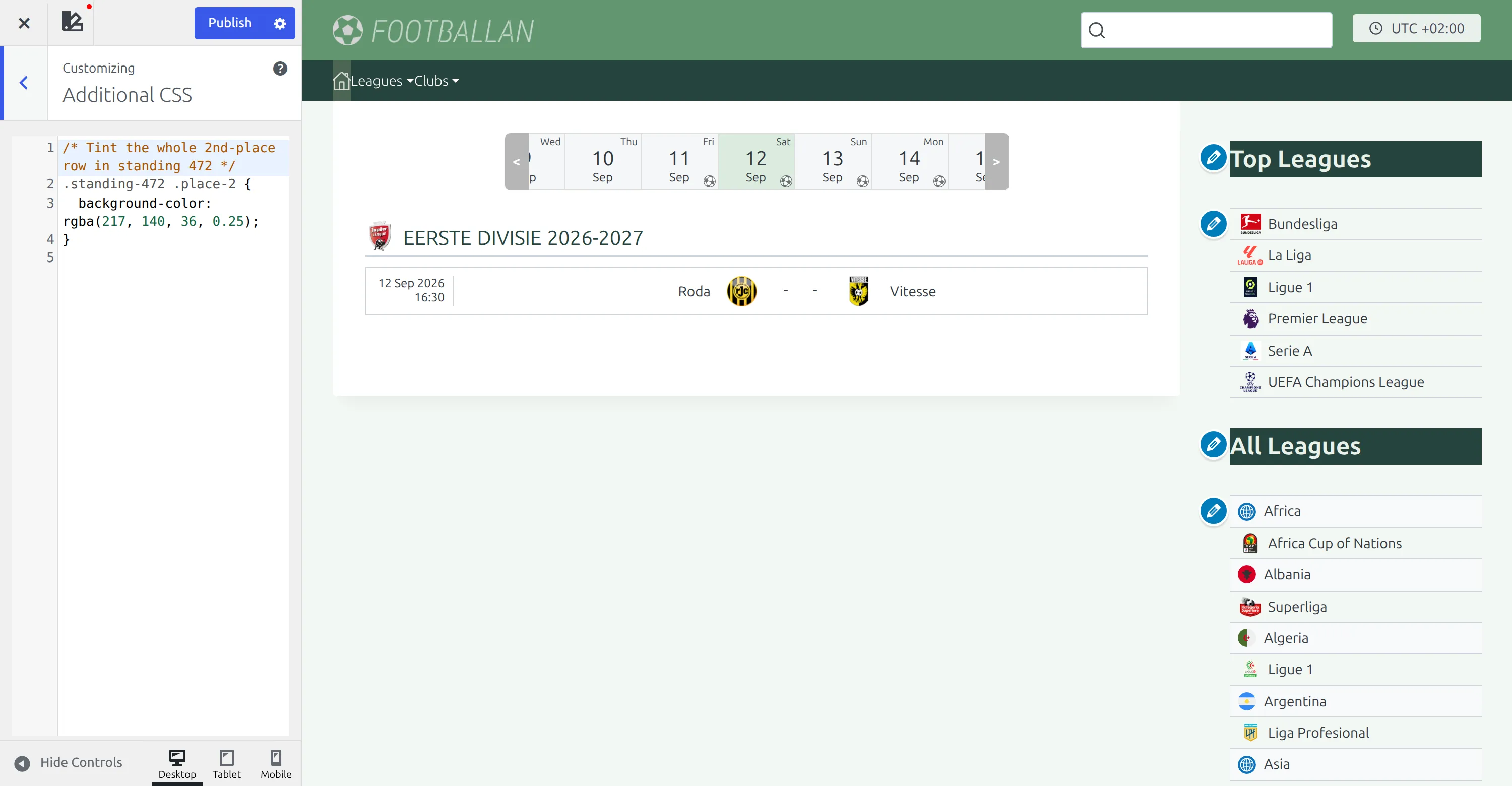
If you’re replacing an older recipe that stopped working after an update – one built on .standing-table__row.place-2 – this is why: the table is now a grid of cells with no row element at all, so that selector matches nothing, in Additional CSS and in SiteOrigin CSS alike. Every cell in a standing row carries two classes instead: club-{club id} and place-{position}. The table itself carries standing-{standing id}, so you can scope a rule to one table. Swap 472 below for your own standing’s ID.
/* Tint the whole 2nd-place row in standing 472 */
.standing-472 .place-2 {
	background-color: rgba(217, 140, 36, 0.25);
}
In Edge bar mode you can recolour just the bar without touching the picker, by setting the custom property it reads. Note that the compact Mini standing widgets use a different class for the position cell, so cover both:
/* Edge bar mode only - recolour the marker on 2nd place */
.standing-472 .standing-table__rank.place-2,
.standing-472 .standing-table-mini__rank.place-2 {
	--fl-zone-color: #d98c24;
}
Two things to expect. In Filled cell mode --fl-zone-color does nothing, because there’s no bar to paint. And in Edge bar mode a full-cell background sits behind the bar and tends to look like a mistake – pick one or the other.
LIVE score colours (PRO)
The orange used for LIVE badges, the match minute and live scores is the one part of the plugin with no colour setting behind it. There are exactly seven colour settings in Football Leagues – five background and border greys, plus two fallback club colours – and none of them touches LIVE. So this is a genuine CSS-only job.
One exception first. The pale panel behind the live score on a single game page isn’t orange and isn’t hard-coded – it uses the Background – Light colour from Settings & Tools > Settings > Appearance > Colors. If the complaint is about that panel rather than the orange, change it there.
In a match list
While a game is live, the plugin’s JavaScript injects the LIVE badge, the minute and the status into each list item. Every layout gets the same three generic classes, so one rule covers the slim, simple, modern and card layouts at once.
The selectors are long on purpose. The card layout styles its own badge with a four-class rule, and a short rule of yours would lose to it, so these match that weight. Don’t shorten them.
/* LIVE badge, minute and status in any match list */
.anwp-fl-game.fl-match-is-live .anwp-fl-game__live-block .anwp-fl-game__live-label {
	background-color: #1f7a1f;
}

.anwp-fl-game.fl-match-is-live .anwp-fl-game__live-block .anwp-fl-game__live-time,
.anwp-fl-game.fl-match-is-live .anwp-fl-game__live-block .anwp-fl-game__live-status {
	color: #1f7a1f;
}

/* The live score itself - a text and border colour, not a background */
.match-slim__scores-number-live {
	color: #1f7a1f;
	border-color: #1f7a1f;
}
On a single game page
The single game page is the trap. The live block there is injected by a different piece of code that doesn’t add those generic classes, so the rules above change nothing on it. It also sits inside one of two wrappers depending on the page: .match-header on a standard game page, or .match-scoreboard when the game uses the scoreboard or a Layout Builder layout. Cover both or half your site won’t change.
/* LIVE badge, minute and status on a single game page */
.match__inner .match-header .match-list__live-block > .match-list__live-label,
.match__inner .match-scoreboard .match-list__live-block > .match-list__live-label {
	background-color: #1f7a1f;
}

.match__inner .match-header .match-list__live-block > .match-list__live-time,
.match__inner .match-scoreboard .match-list__live-block > .match-list__live-time,
.match__inner .match-header .match-list__live-block > .match-list__live-status,
.match__inner .match-scoreboard .match-list__live-block > .match-list__live-status {
	color: #1f7a1f;
}

/* The big live score numbers */
.match__inner .match-header .match-list__scores--home,
.match__inner .match-header .match-list__scores--away,
.match__inner .match-scoreboard .match-list__scores--home,
.match__inner .match-scoreboard .match-list__scores--away {
	background-color: #1f7a1f;
}
The > in those selectors isn’t decoration. The plugin’s own rules use it, and dropping it makes your rule weaker than the one you’re trying to beat, so nothing changes.
Stopping the blinking
There are two different blinks, and only one of them is a CSS job.
The score flashing for a few seconds when it changes is a setting: Settings & Tools > Settings > Live Scores > Blink on score change. It’s off by default, so if your scores are flashing, someone switched it on.
The match minute pulsing for as long as the game is in play has no setting. It’s a one-second animation on a single class, and turning it off is one rule:
.anwp-blinking-text {
	animation: none;
}
Two more hooks worth knowing while you’re in here: a list item gets fl-match-is-live while its game is in play, and the single game wrapper gets fl-match-is-live--active. Both are useful for styling a live game differently without touching anything else.
Matchweek slider labels and arrows (PRO)
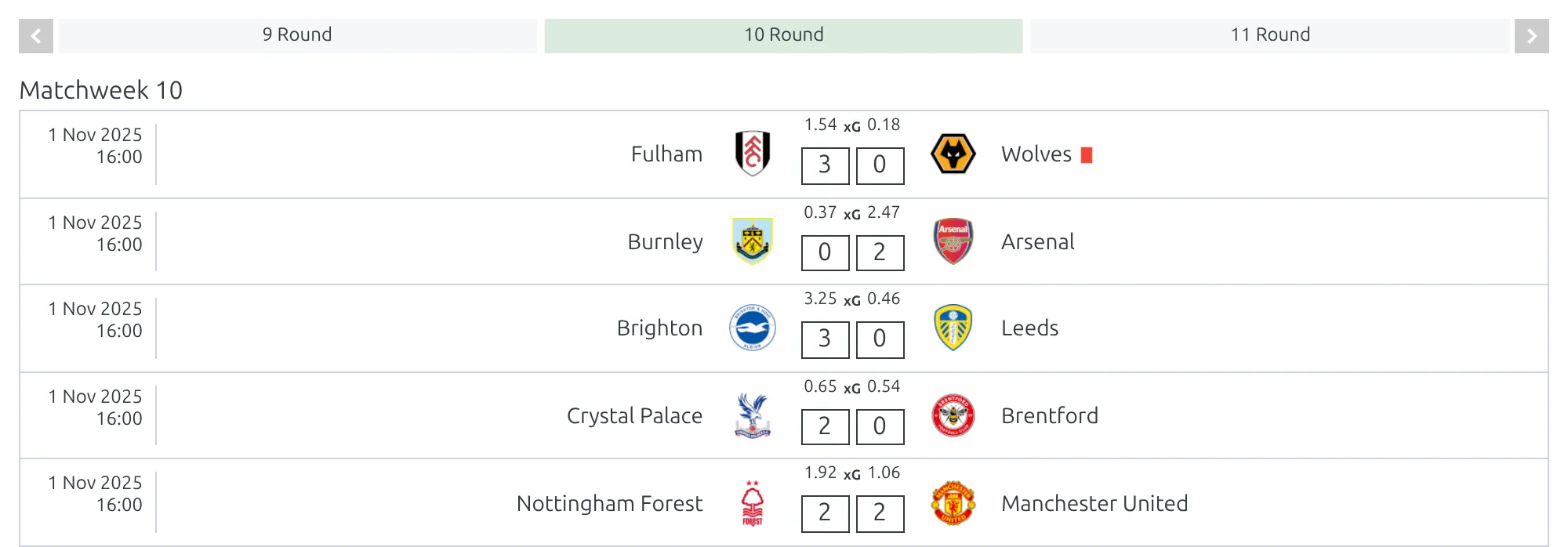
The Matchweeks Slides block has two parts: a narrow strip of numbers you click along the top, and the slide itself with a “Matchweek 5” heading over the games.
The heading is a setting. If you call them rounds, matchdays or jornadas, set Settings & Tools > Settings > Text & Labels > Match > MatchWeek and the heading becomes “Round 5” everywhere in the plugin. Don’t do this one in CSS.
The strip is different. It renders a bare number with no label at all, so there’s nothing for the setting to rename. If you want a word in there, add it:
/* Put a label on the navigation strip and shrink it to fit */
.anwp-fl-matchweek-nav-slides__swiper-slide {
	font-size: 0.75rem;
}

.anwp-fl-matchweek-nav-slides__swiper-slide::before {
	content: "R";
}
Keep it short. Those cells are 22px tall and sized to fit a number, and how many of them show at once is set by the block’s own navigation option, not by CSS.
Want the whole word, “5 Round” rather than “R5”? Put it after the number instead, and give the cells room by showing fewer of them – the shortcode’s Navigation Slides to Show option (slides_to_show, default 4):
/* "5 Round" instead of "5" - fits with 4 or fewer cells in a wide column */
.anwp-fl-matchweek-nav-slides__swiper-slide {
	font-size: 0.75rem;
}

.anwp-fl-matchweek-nav-slides__swiper-slide::after {
	content: " Round";
}
Two more you might want. The active cell is tinted, and the arrows either side are 22px squares:
/* Highlight the matchweek you're on */
.anwp-fl-matchweek-nav-slides__swiper-slide.swiper-slide-active {
	background-color: #d98c24;
	color: #fff;
}

/* Hide the heading over each slide */
.anwp-fl-matchweek-slides__swiper-slide .competition__stage-title {
	display: none;
}
Show text instead of a score
Scores are stored as whole numbers, so you can’t type “W”, “awarded” or “3-0 (fft)” into a game. What you can do is cover the number with text on one specific game. It’s display only – standings, statistics and everything else still use the real number.
The usual reason is a game that was never played properly: a walkover, a forfeit, a result awarded by the league. Many leagues mark those + : – instead of a score. Before the CSS, set the result up properly on the game itself, because the CSS only changes what people see.
First: Custom Outcome on the game
Open the game under Competitions > Matches and click Custom Outcome in the editor’s section menu. Set Custom Outcome to Yes and the rest of the fields appear:
| Field | What it does |
|---|---|
| Outcome for home team / Outcome for away team | Won, Drawn or Lost. The standing counts the game this way, whatever the score says. |
| Points for home team / Points for away team | The points each club gets in the table for this game. Fill both in – a blank field counts as 0 points, even for the winner. |
| Outcome Text | Replaces the “Full Time” label under the score on the game page, for example Technical Loss or Awarded 3-0. |
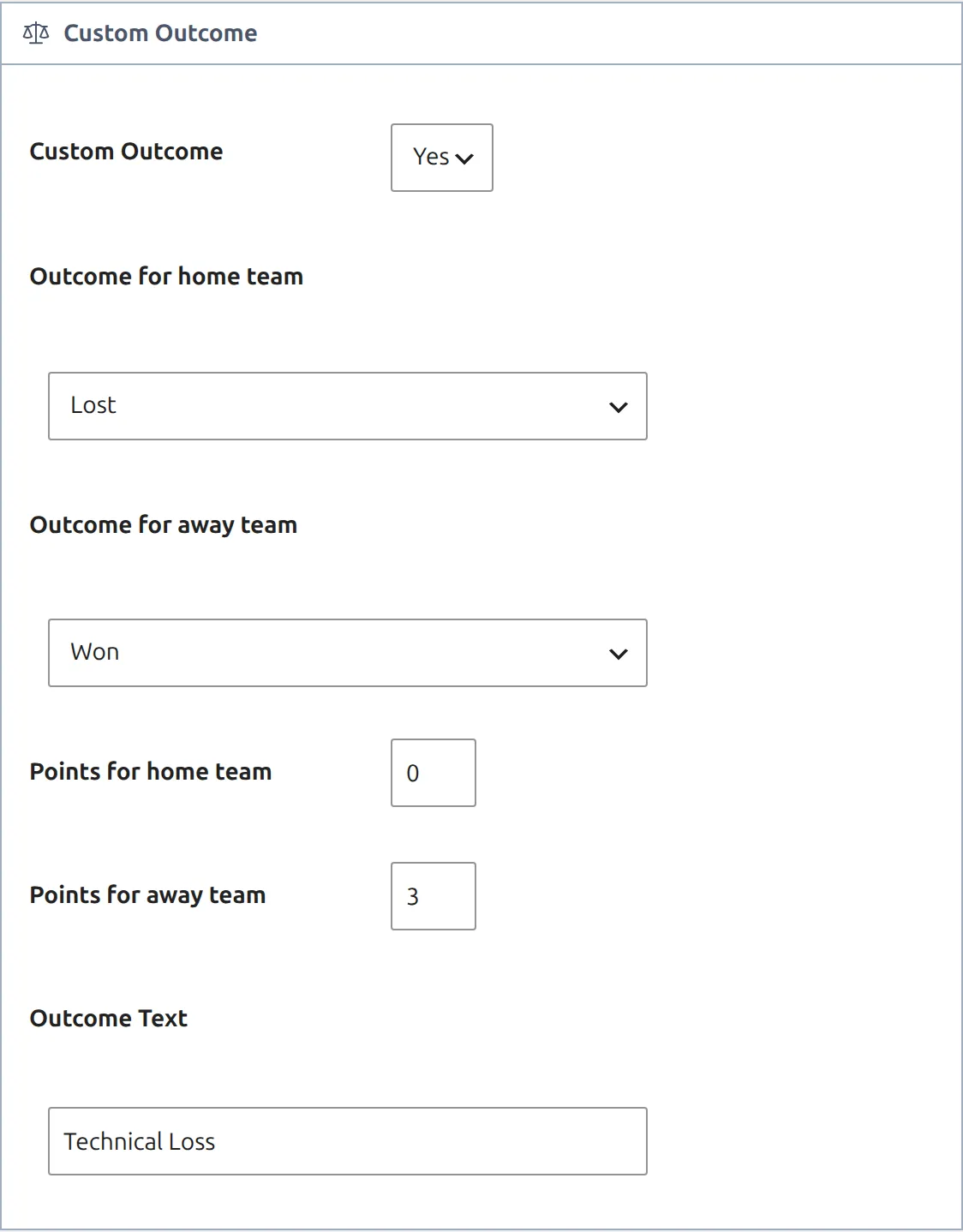
Custom Outcome only applies to a game marked finished. Goals for and against in the table still come from the score you entered, so put in the score the league recorded (often 3-0) rather than leaving 0-0.
Then: cover the numbers with CSS
Every game carries its own ID as a class and as a data attribute, so a rule can be scoped to one match. Replace 9916404 with your game’s ID throughout.
On the scoreboard (PRO), the two numbers sit either side of a separator, so they’re the first and third children:
.match-9916404 .match-scoreboard__score-number:nth-child(1),
.match-9916404 .match-scoreboard__score-number:nth-child(3) {
	visibility: hidden;
	position: relative;
}

.match-9916404 .match-scoreboard__score-number:nth-child(1)::after {
	content: "W";
	visibility: visible;
	position: absolute;
	inset: 0;
}

.match-9916404 .match-scoreboard__score-number:nth-child(3)::after {
	content: "L";
	visibility: visible;
	position: absolute;
	inset: 0;
}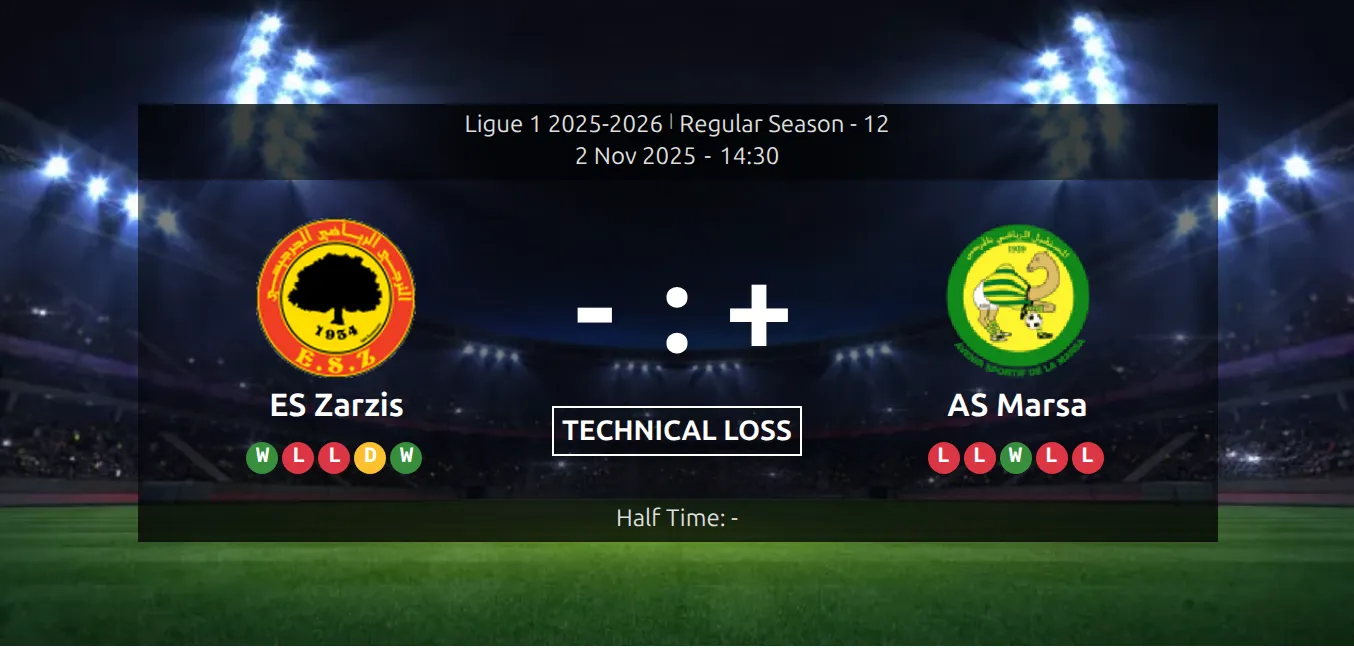
That’s the Custom Outcome text and the scoreboard rule together, with content: "-" and content: "+" in place of “W” and “L”. Use whatever fits your league.
A game page without the scoreboard – every free site, and a PRO game with the scoreboard switched off or no scoreboard background image to use – shows the standard match header instead. It needs its own rule, and it prints the score twice: once between the club names on wider screens, and once beside each club name on phones. The rule covers both:
.match-9916404 .match-header__main > .match-header__scores-wrapper .match__scores-number:nth-child(1),
.match-9916404 .match-header__main > .match-header__scores-wrapper .match__scores-number:nth-child(3),
.match-9916404 .match-header__team-wrapper .match__scores-number {
	visibility: hidden;
	position: relative;
}

.match-9916404 .match-header__main > .match-header__scores-wrapper .match__scores-number:nth-child(1)::after,
.match-9916404 .match-header__team-home .match__scores-number::after {
	content: "W";
	visibility: visible;
	position: absolute;
	inset: 0;
}

.match-9916404 .match-header__main > .match-header__scores-wrapper .match__scores-number:nth-child(3)::after,
.match-9916404 .match-header__team-away .match__scores-number::after {
	content: "L";
	visibility: visible;
	position: absolute;
	inset: 0;
}
The > matters here. Without it, the phone copy beside the away club also counts as a “first child” and picks up the home team’s text.
In a match list, home and away scores carry their own classes on every layout, so no child counting is needed:
.anwp-fl-game[data-anwp-match="9916404"] .anwp-fl-game__scores-home,
.anwp-fl-game[data-anwp-match="9916404"] .anwp-fl-game__scores-away {
	visibility: hidden;
	position: relative;
}

.anwp-fl-game[data-anwp-match="9916404"] .anwp-fl-game__scores-home::after {
	content: "W";
	visibility: visible;
	position: absolute;
	inset: 0;
}

.anwp-fl-game[data-anwp-match="9916404"] .anwp-fl-game__scores-away::after {
	content: "L";
	visibility: visible;
	position: absolute;
	inset: 0;
}
Two limits. Scores only show on a game marked finished – before that there’s a dash or nothing – so there’s nothing to cover on a fixture. And the small match layout doesn’t carry those two generic score classes – if you use it, inspect the element and use the match-small__scores-home and match-small__scores-away classes instead.
If you’re doing this for more than a couple of games, stop and reconsider. A Special Status of PST, TBD or CANC on the game itself handles postponed and cancelled properly, everywhere, with no CSS.
The byline on a match page is your theme’s
“Posted by admin on 14 May” above a match is one of the most common questions about this plugin, and it isn’t this plugin. That line is your theme printing post meta, the same as it would on a blog post. Football Leagues doesn’t render it and can’t remove it.
Three things to try, in order.
- The post title. Football Leagues does own this one. It hides the WordPress title on match and competition pages by default, at Settings & Tools > Settings > Advanced > Layout & Rendering. If you’re seeing a duplicated title, check that setting first.
- Your theme’s options. Most decent themes let you turn post meta off per post type. In Kadence it’s under Appearance > Customize > Posts > Post Meta. Look there before writing anything.
- CSS, last. If the theme gives you no switch, hide it.
WordPress puts a single-{post type} class on the body of every single page, so you can target Football Leagues pages without touching your blog. The class names are:
| Page | Body class |
|---|---|
| Match | single-anwp_match |
| Player | single-anwp_player |
| Club | single-anwp_club |
| Competition | single-anwp_competition |
| Standing table | single-anwp_standing |
| Referee | single-anwp_referee |
| Stadium | single-anwp_stadium |
| Staff | single-anwp_staff |
The second half of the rule is your theme’s class, and there’s no universal answer – .entry-meta, .post-meta, .byline and .posted-on are all common, and plenty of themes use none of them. Find yours with the tip below, then:
/* Replace .your-theme-meta-class with what you found */
.single-anwp_match .your-theme-meta-class {
	display: none;
}
Finding a class name
Right-click the thing you want to change and choose Inspect. The highlighted line in the panel that opens shows the element’s classes. Pick the most specific one that describes what you clicked rather than the page around it, and try it. This works for anything on this page, not just the byline – and it’s the only reliable way to handle a theme we can’t see.
🆘 When a rule does nothing
Five causes, in the order they’re worth checking.
| Symptom | Likely cause |
|---|---|
| Nothing at all happens, anywhere | The selector matches nothing. Inspect the element and read its real classes – class names do change between versions, and a recipe copied from an old forum post is the usual culprit. |
| It works on one page but not another | Different layout. Single game pages use either .match-header or .match-scoreboard; match lists have five layouts; standings have a full and a Mini version with different class names. |
| The element is found but keeps the old colour | Specificity. The plugin’s rule is more specific than yours. Match its shape – if it uses three classes and a >, so should you. Adding another ancestor class is the fix, not !important. |
| A class picked in SiteOrigin CSS changes nothing | The same specificity problem. The picker writes a one-class rule, and the plugin’s rule for that element is longer. Add !important to the value in SiteOrigin’s code editor, or swap in the longer selector from this page. |
| It works logged in, not logged out | A caching plugin or CDN is serving an old page. Clear the cache. |
One more, for anyone upgrading from an older version: a lot of class names changed in 0.18.0 when the plugin moved to custom database tables. If your CSS stopped working after that upgrade, the 0.18.0 migration guide lists what moved.
📚 Related
If your question turns out to be about markup rather than colour – moving a block, adding a column, changing the order of sections – CSS is the wrong tool. Template overrides and the plugin’s hooks are the right ones. For the blocks themselves, see Shortcodes and PRO Shortcodes.