

Standing tables created by Lazy Import arrive complete, but they don’t record which games they were calculated from. A Game Date Range – the first and last game date a table covers – fills that gap. The Lazy Standings tab lets you set it for all your imported tables in one place, with dates suggested from the provider’s fixtures.
This tab is about the date ranges only. Lazy Import itself – how the competitions, games and tables get imported – is covered on its own page.
🎯 What a date range gives you
| Feature | Without a range | With a range |
|---|---|---|
| Statistics columns (corners, cards and so on) on the table | Skipped | Shown, once FL confirms the range covers the same games as the table |
| The Standings block on a game page | The imported table is skipped | Shown for every game whose date falls inside the range |
Lazy Import never sets the range, so every table starts without one.
🚀 Where to find it
FL API Import > Lazy Standings. Two buttons at the top switch the list between Without Dates and With Dates, each with its count. The tab opens on Without Dates.
Tables are grouped by competition, with the provider’s league and season number next to the name. Each row has the table’s name, its number of teams, the two dates and three buttons. The list shows 50 tables per page.
Set the dates
- Click Suggest Dates on any row of a competition. The plugin loads that season’s fixtures from the provider and fills the empty date fields of every table in the competition. Nothing is saved yet.
- Check the dates. Click Game List to see the fixtures a table’s suggestion is based on.
- Click Save on the row. The table moves to the With Dates list.
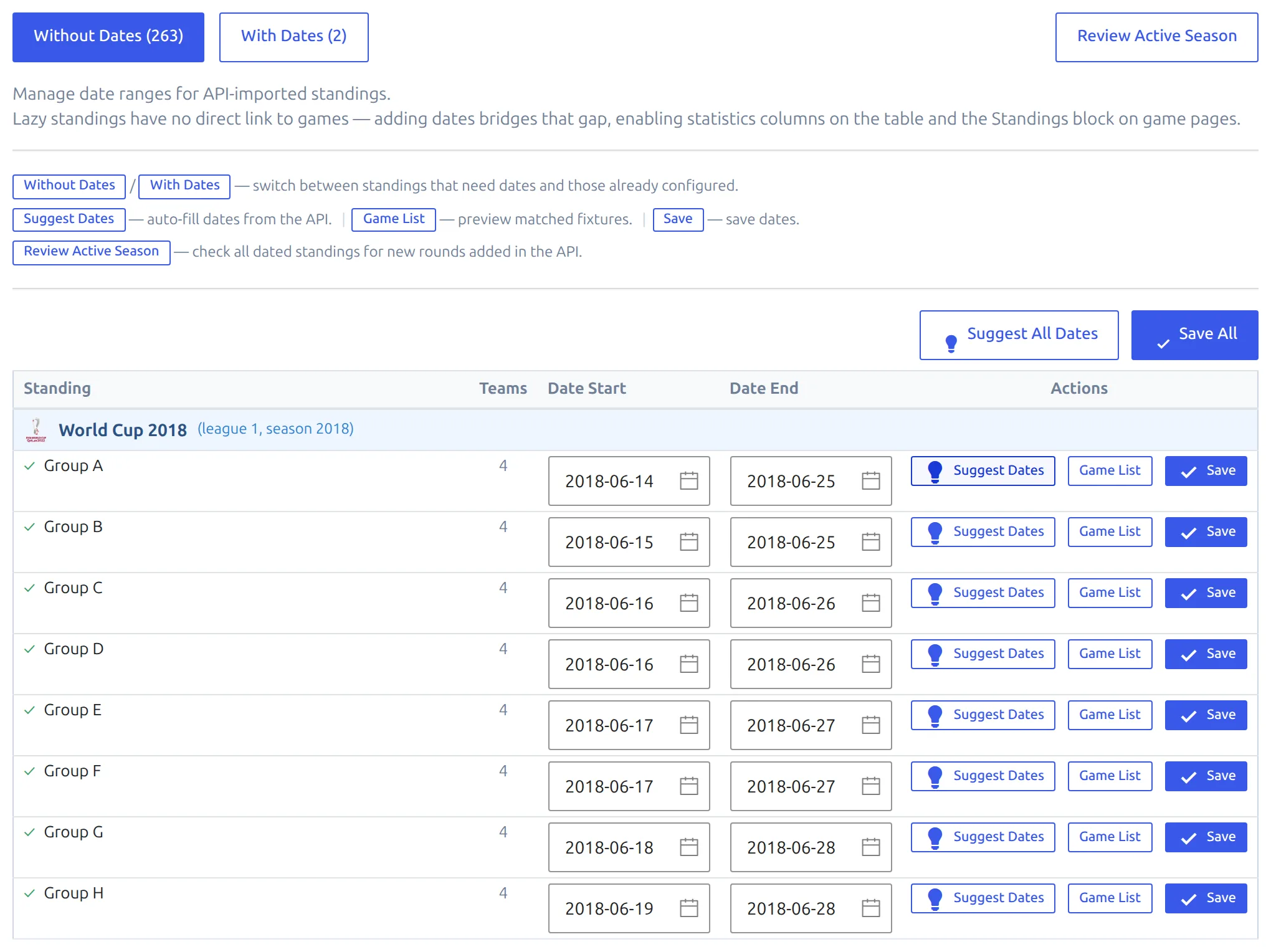
For a whole page at once, use Suggest All Dates and then Save All above the table, on the Without Dates list. Save All saves every row that has both dates filled in and skips the rest.
To remove a range, clear both dates and click Save. The table goes back to Without Dates.
How the dates are suggested
Each table is matched to the provider’s games in up to three ways, most precise first:
- By round name. A table named Regular Season, or Bundesliga: Regular Season, gets the first and last date of the provider’s Regular Season games. That suits a league split into phases, where each phase has its own table.
- By its clubs. When the name matches no round – group tables called Group A, Group B while the provider calls the round Group Stage – the plugin takes the games played between the table’s own clubs in the group stage. On the World Cup 2018 above, Group A gets its six games, June 14 to 25, and a later knockout meeting of two Group A teams isn’t counted.
- The whole season. Only when neither works, for example when the table’s clubs aren’t linked to the API. The row then shows a gray ? instead of the green check, so check the Game List and correct the dates by hand.
The green check means the suggestion came from a matching round or the table’s clubs. It doesn’t check the range against the table – that happens in the standing editor, below.
Game List shows the games the suggestion is based on, with the date, kick-off, both clubs, the score and the provider’s round name.
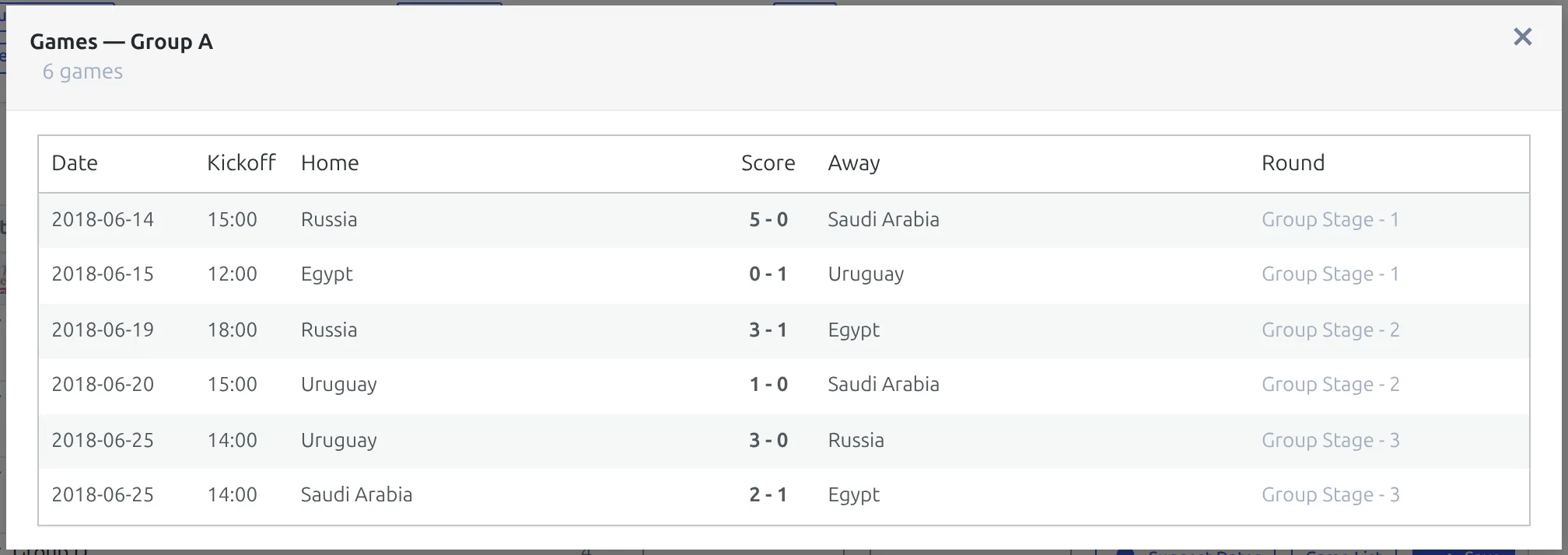
If a table’s list holds games it shouldn’t – another group’s, or the final – fix its dates by hand before you save.
Check that the range works
This tab saves the dates without checking them. The check happens in the standing editor: open the table under Competitions > Standing Tables and look at the verdict under its Game Date Range block. Green means your site holds exactly the games the table reports, and the statistics columns appear. Red tells you how many finished games the range covers and how many the table reports, so you can correct it. The details are in Standing Columns.
The game-page Standings block doesn’t need the green verdict – any range that holds the game’s date is enough.
Keep a running season up to date
Providers add rounds as a season goes on, so a range saved in October can end too early by March. Click Review Active Season. The plugin opens the With Dates list, asks the provider for fresh suggestions for every competition on that page, and reports how many tables it checked and how many need attention.
A table needs attention when the provider’s range is wider than the saved one. Its row gets a warning line with the suggested dates and the number of games, and an Accept Suggested button. Accept it, then click Save – accepting alone doesn’t save.
Review covers the page of the With Dates list you’re on. With more than 50 dated tables, open the next page and run it again.
🆘 Troubleshooting
I saved the dates, but the statistics columns still don’t show
Open the table in the standing editor and read the Game Date Range verdict. If it’s red, the range covers a different number of games than the table – check its Game List for games that belong to another table. If your site doesn’t hold the games at all (you imported tables but not fixtures), there’s nothing to count, and statistics columns aren’t available for that table.
A row shows a gray ? instead of the green check
The plugin couldn’t match the table by round name or by its clubs, so it suggested the whole season. Usually the table’s clubs aren’t linked to the API. Check with Game List, then type the right dates in by hand.
“No fixtures found”
The provider returned no fixtures for that league and season, so there’s nothing to suggest from. Set the dates by hand.
📚 Related
- Lazy Import – the import that creates these tables
- Standing Columns – statistics columns and the date range check
- Game Layout Builder – the Standings block on game pages