

Clubs are created from a competition’s team list, so you never type them in one by one. The same tool updates clubs you already have. The API calls them teams; in Football Leagues they’re clubs.
You need Football Leagues PRO and an active api-football.com plan, already connected. If it isn’t yet, start with API Import – Getting Started.
Moved in a recent version
There’s no longer a separate “Create Clubs” screen, and no country dropdown to start from. Clubs are now imported per competition, from the API Leagues tab. If you’re following an older tutorial, this is the step that changed.
Video: Create or Update teams
This video walks through Create or Update teams. It was recorded on an earlier version of the plugin, so some screens have moved on: today the job starts at FL API Import > API Leagues, the branching-arrow button on the league row, then Create/Update teams. The steps below match the current screens.
Do you need this tool?
Often you don’t open it at all. The Import Wizard, Update Competition Structure and Lazy Import all create any club a competition needs that isn’t on your site yet. But they only create. None of them touches a club you already have.
Create/Update teams is the one place that refreshes existing clubs. Reach for it when you want to:
- bring in a league’s clubs, or a tournament’s national teams, before you build the competition;
- refresh nationality, founded year, the national team flag and the home stadium on clubs you already imported;
- fetch a badge again after you cleared a club’s logo.
⚽ Importing clubs
- Go to FL API Import > API Leagues.
- Find the competition. The filter bar narrows the list by league, country, season, active status and start date. Each season is its own row, so pick the right year.
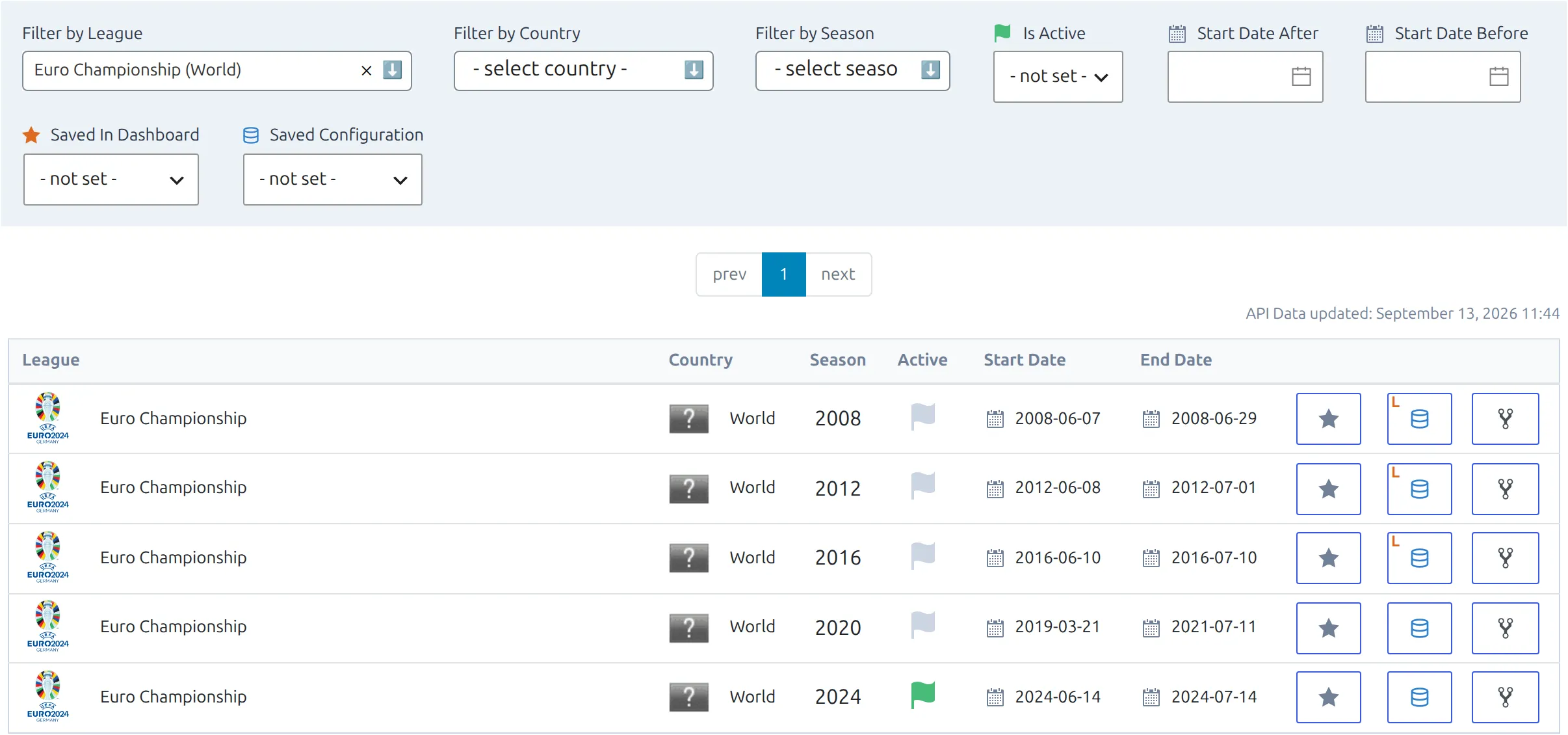
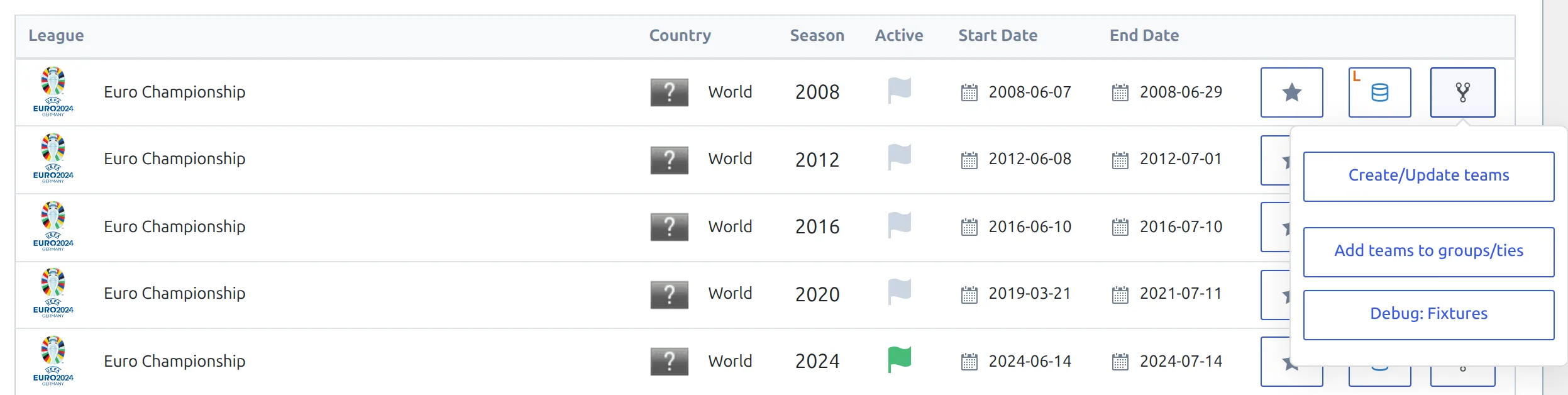
- On its row, open the structure dropdown – the branching-arrow button whose tooltip reads edit Structure (groups and teams) – and choose Create/Update teams.
- The modal opens empty. Click get teams to fetch the team list for that season.

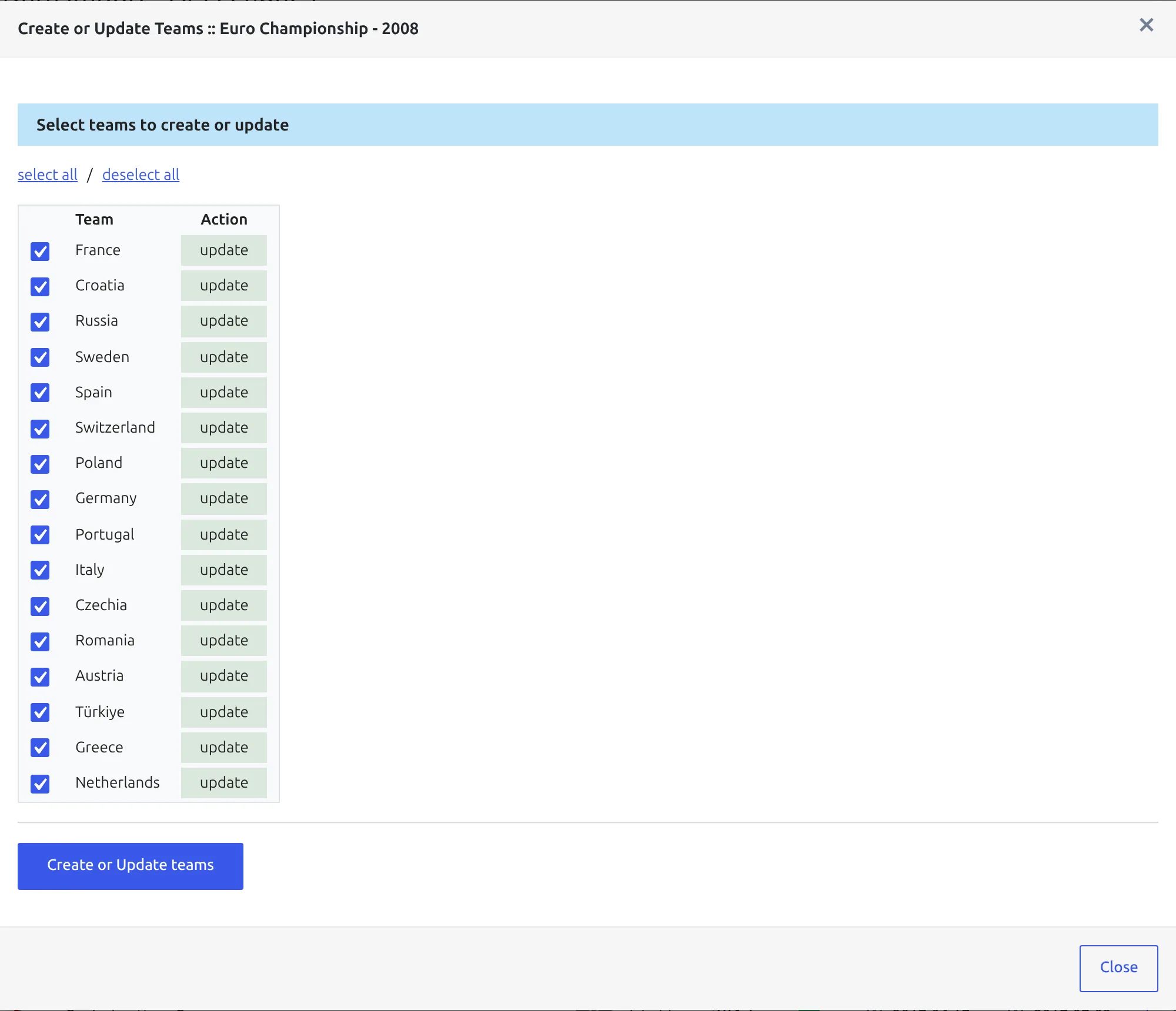
- Review the table. Every team is ticked, and the Action column tells you what will happen to each one –
createfor a new club,updatefor one already linked. The select all / deselect all links toggle the whole list. - Untick anything you don’t want, then click Create or Update teams. When it’s done, a message reads Updated teams: followed by the number of clubs it wrote, and the modal closes.
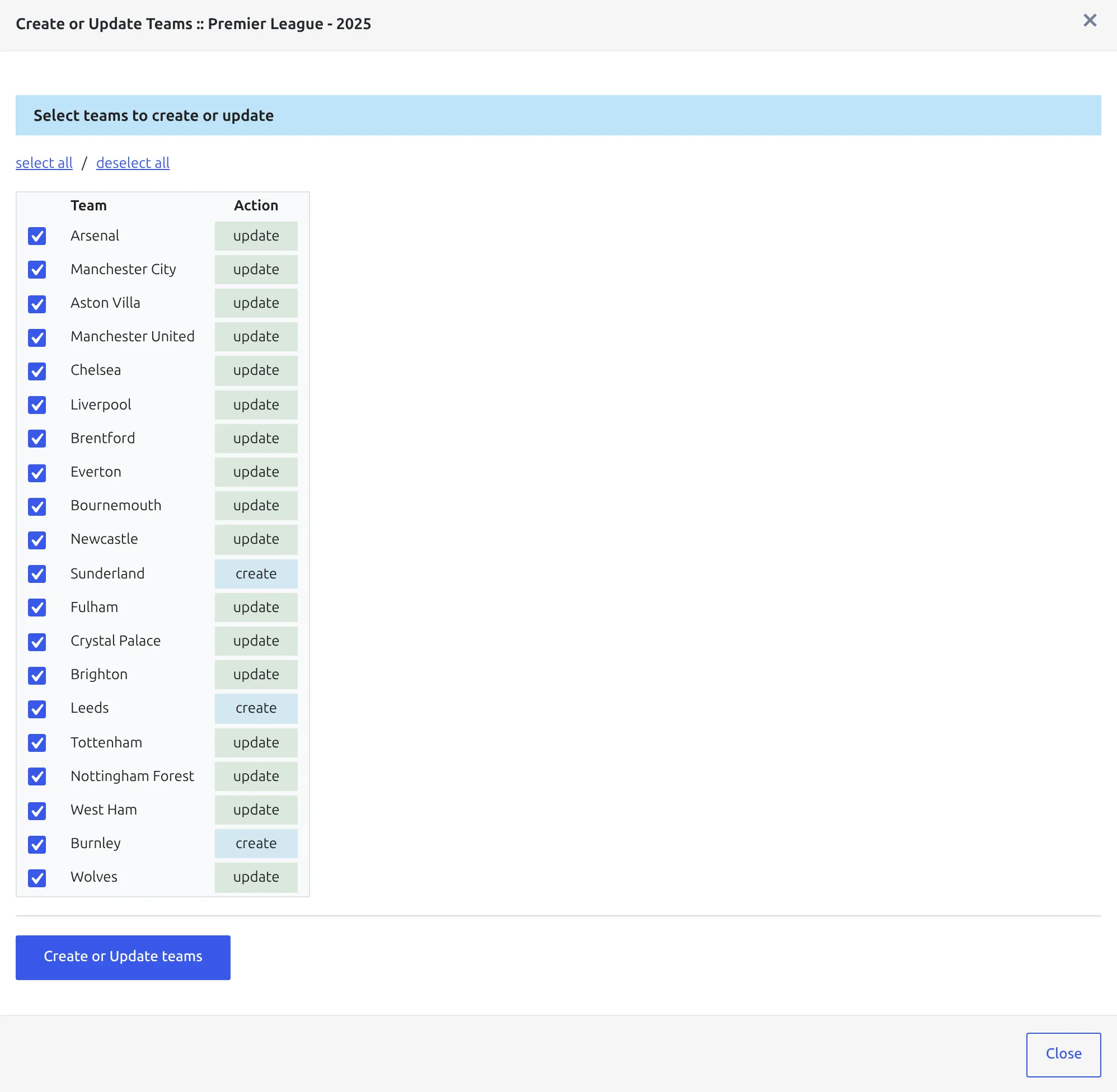
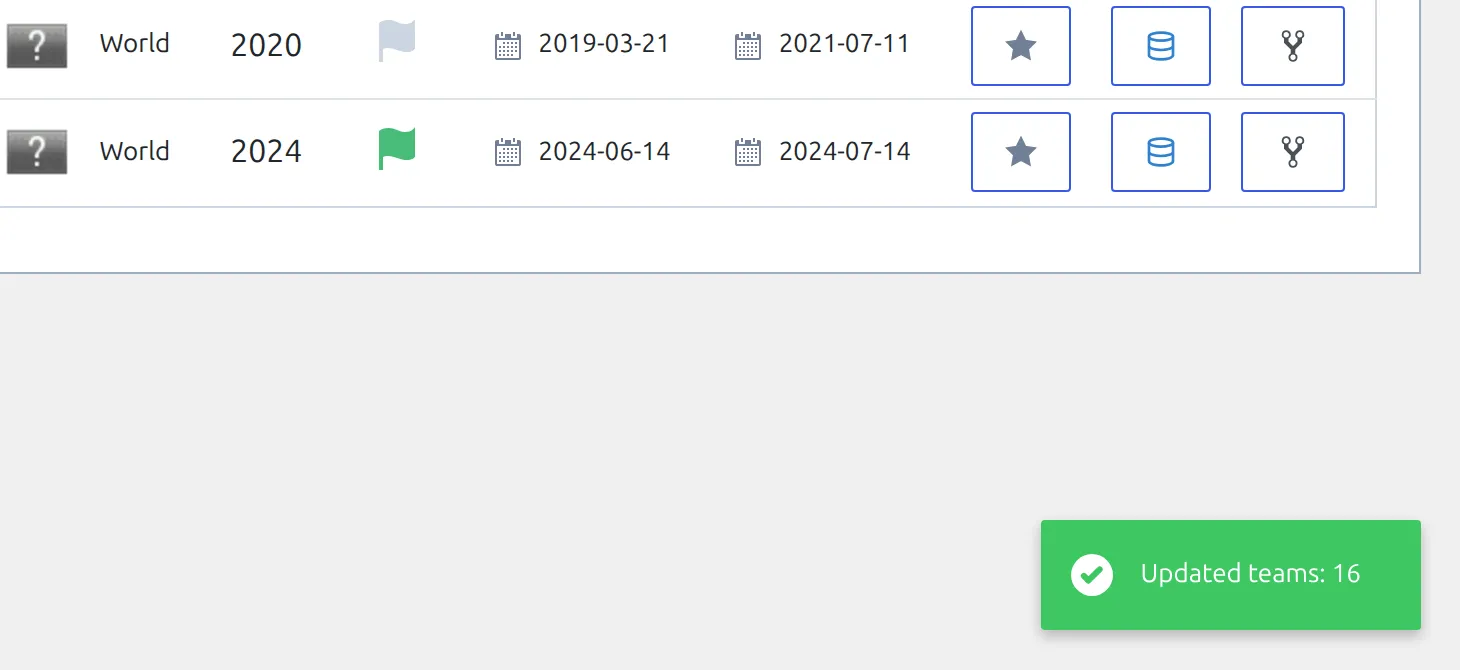
Running it again later is safe and is how you pick up clubs that are new to a league. Promoted clubs are on the new season’s row, not last season’s.
National teams (World Cup, Euro)
National teams work the same way – there’s no separate button for them. Filter API Leagues by the tournament (the World Cup or the Euro Championship, listed with the country World), open Create/Update teams on the season you want and click get teams. The screenshots above use Euro Championship 2008: France, Croatia, Spain and the rest come in as clubs with National Team switched on, because the API flags them as national sides.
What an import writes
The import is deliberately careful with clubs you’ve already edited. Some fields are written every time, some only once, and one is never overwritten at all. Field names below are the ones in the club editor (Clubs & People > Clubs).
| Field | On create | On update |
|---|---|---|
| Title | from the API | never touched – your title wins |
| Nationality | yes, when the country is recognized | yes, when the country is recognized |
| Founded | yes, when the API has a year | yes, when the API has a year |
| National Team | yes | yes |
| Abbreviation | yes, when the API has a code | only if yours is empty |
| Logo and Logo (Big) | yes, while Team Logo is on | only if both are empty |
| Stadium | yes, while Import Stadiums is on | yes, while Import Stadiums is on |
So renaming “Manchester United” to “Man Utd” sticks. Uploading your own badge sticks. Setting your own three-letter abbreviation sticks. Everything else follows the API.
That includes the home ground. With Import Stadiums on, every update sets the club’s Stadium back to the API’s venue, even if you picked a different one by hand.
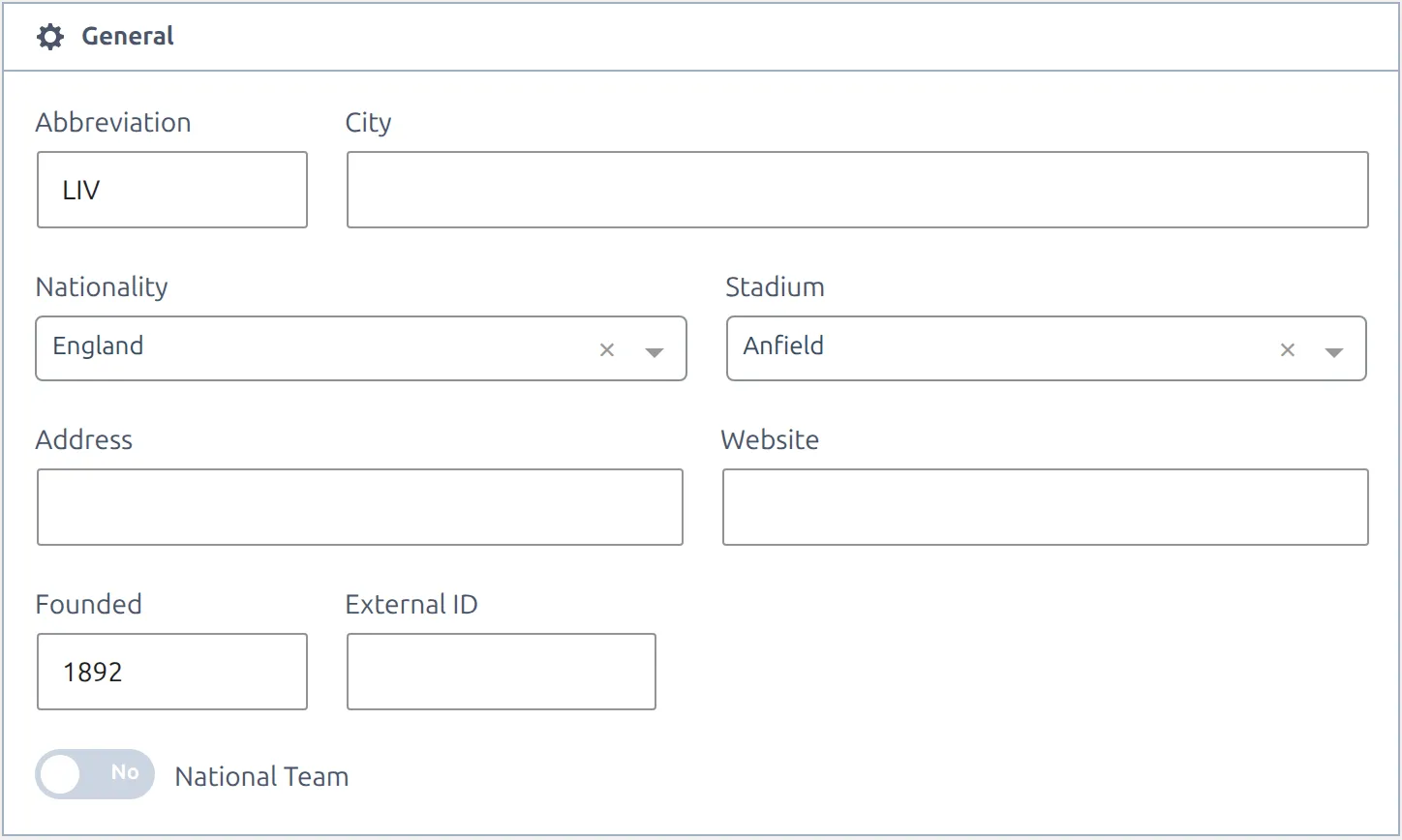
Two details worth knowing:
- Nationality is matched from the API’s country name to the plugin’s country list. If it can’t be matched, the field is left as it is rather than filled with something wrong.
- Logo counts as “already set” if either Logo or Logo (Big) exists. An imported badge goes into both. Clear both if you want the API badge back.
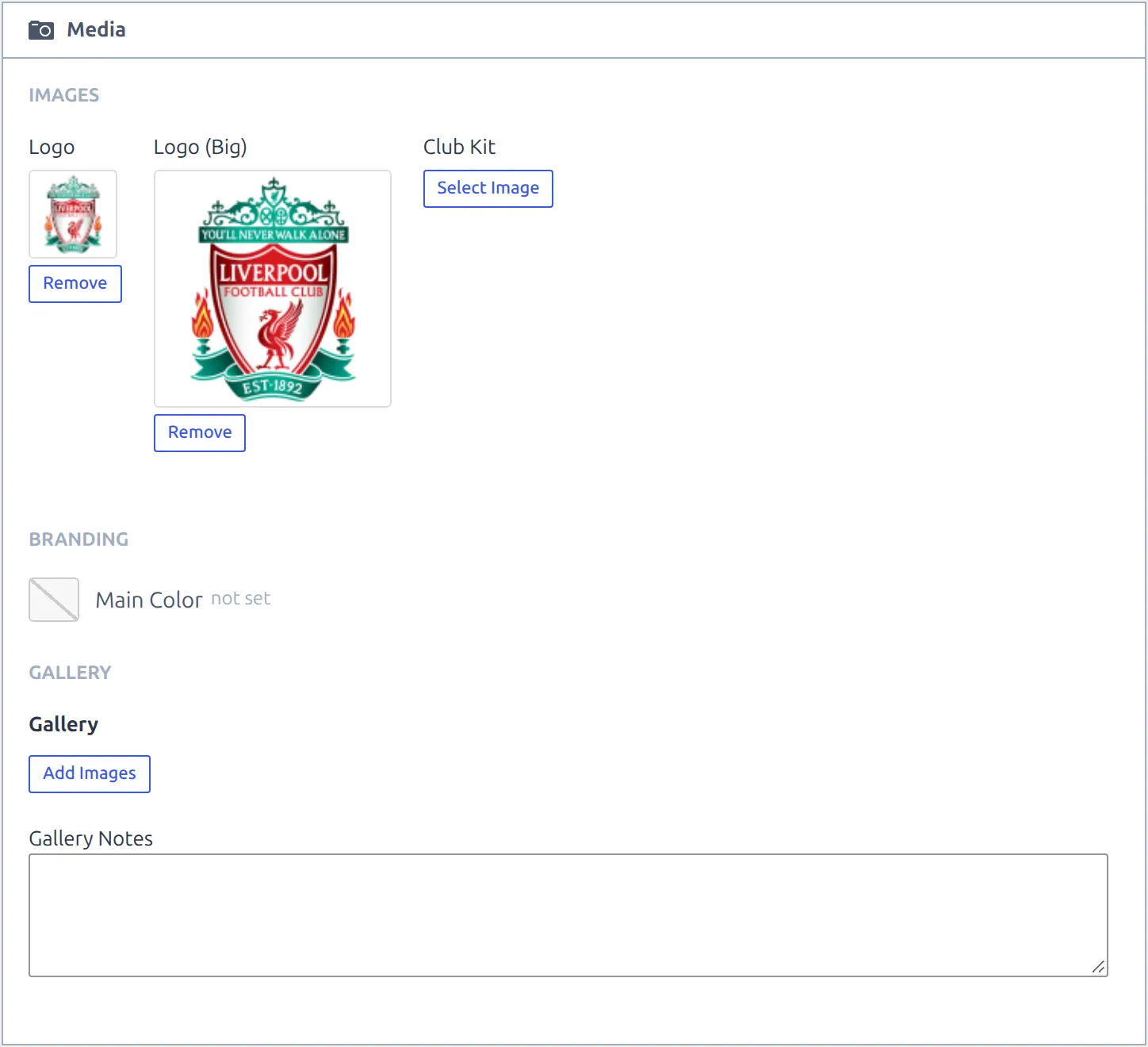
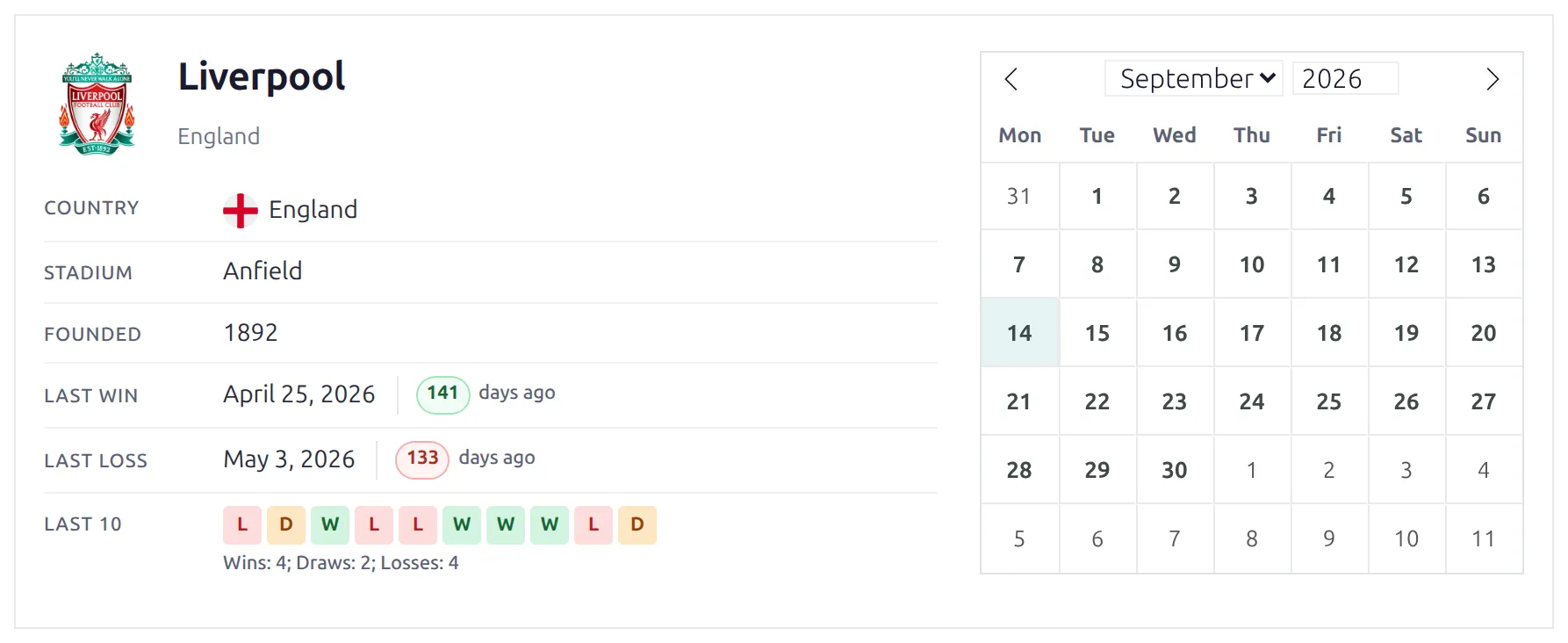
On the front end, those fields fill the club page header: the badge, the nationality flag, Founded and Stadium.
Hidden clubs
A club you’ve set to Hidden stays hidden when it’s re-imported – the import won’t quietly republish it.
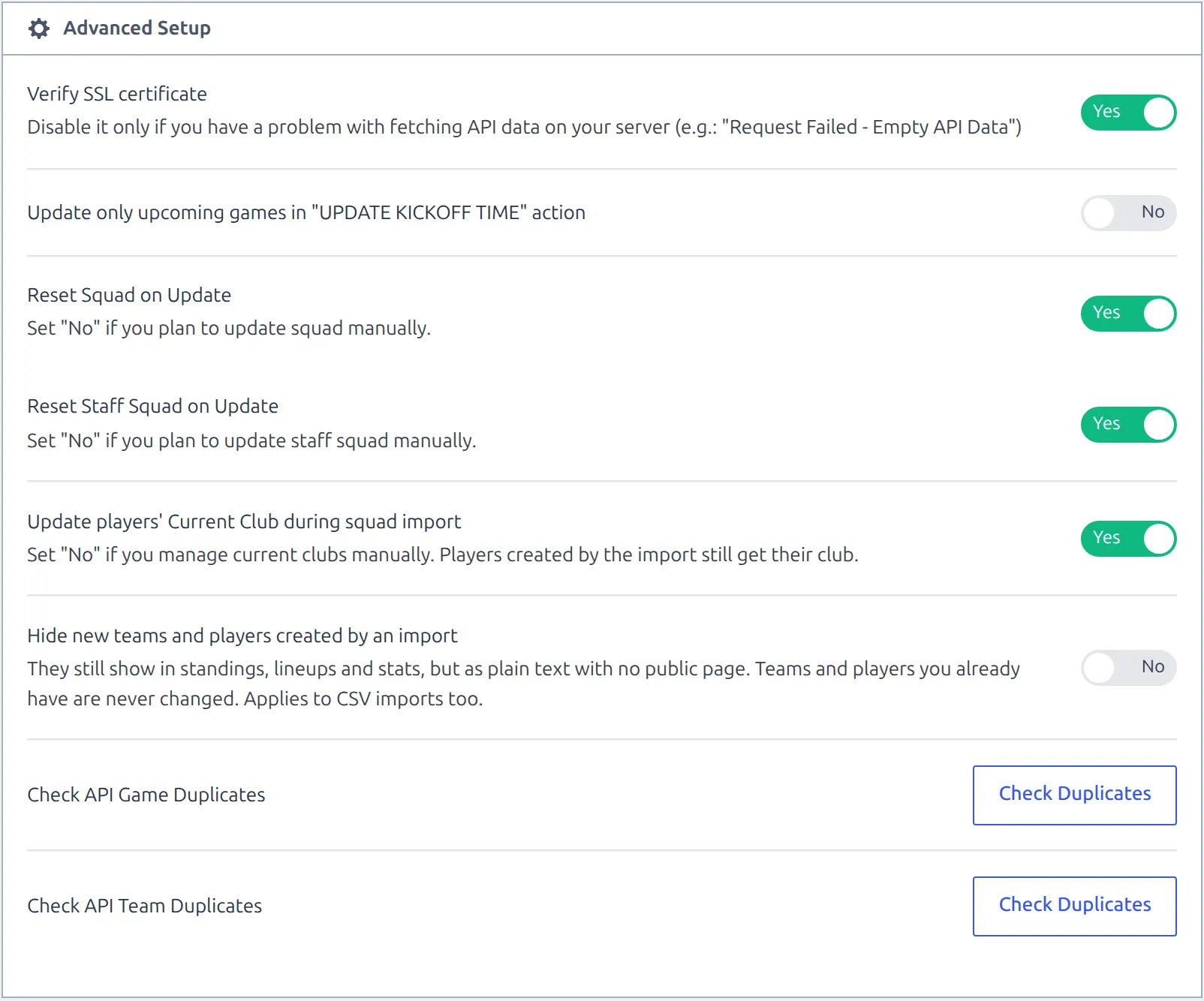
And if you’d rather review new clubs before they appear on the site, turn on Hide new teams and players created by an import in FL API Import > Settings > Advanced Setup. New clubs and players the import creates from then on arrive Hidden. They still show in standings, lineups and stats, but as plain text with no page of their own, until you publish them. The setting applies to CSV imports too.
🏟 Stadiums
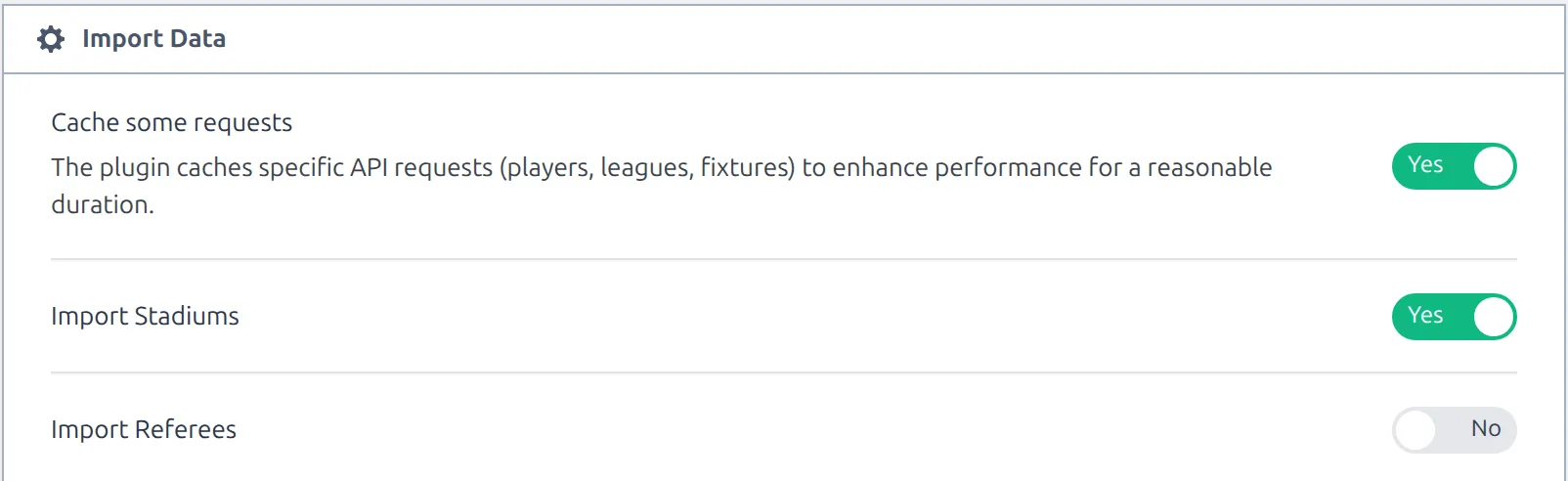
Each club’s home ground is imported with it, and linked as the club’s stadium. It’s on by default. Turn it off with Import Stadiums in FL API Import > Settings > Import Data.
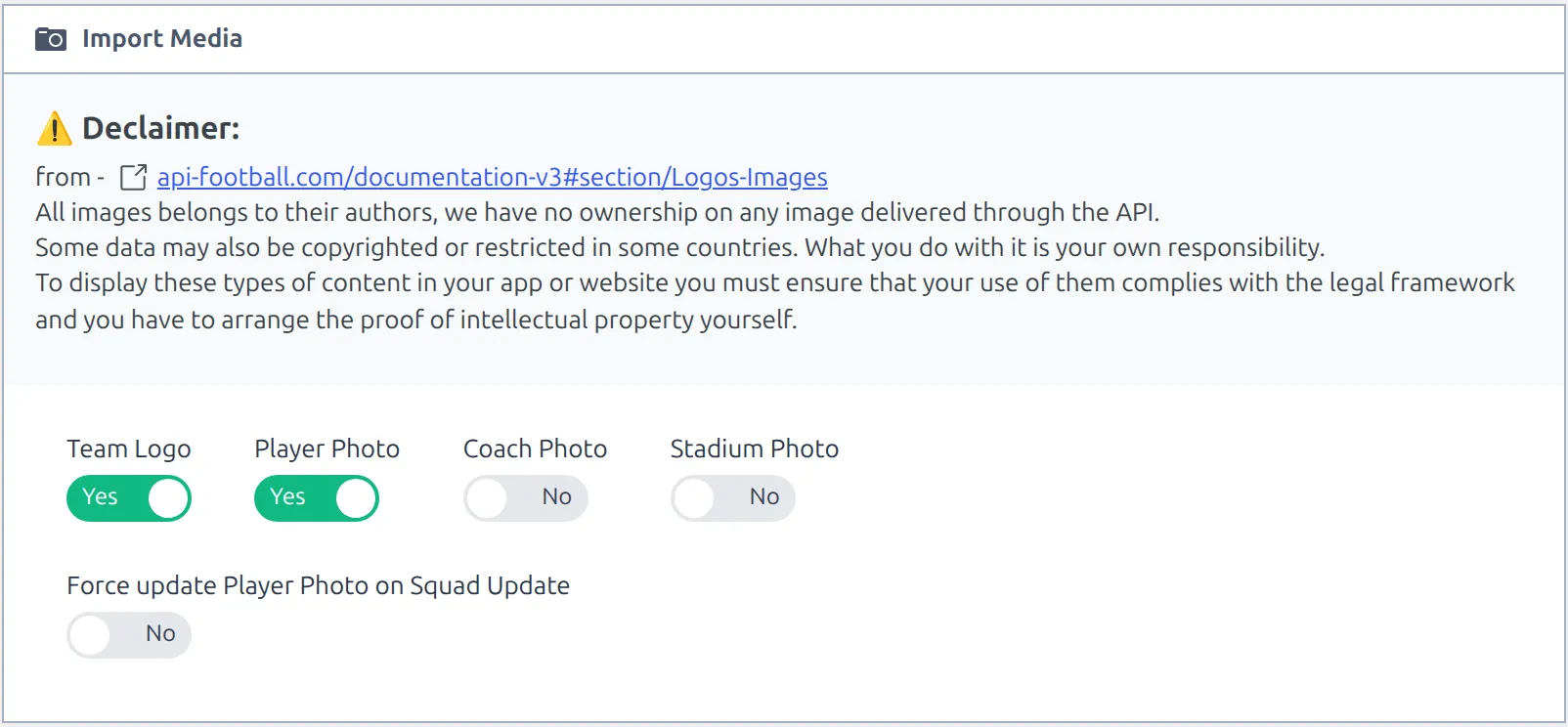
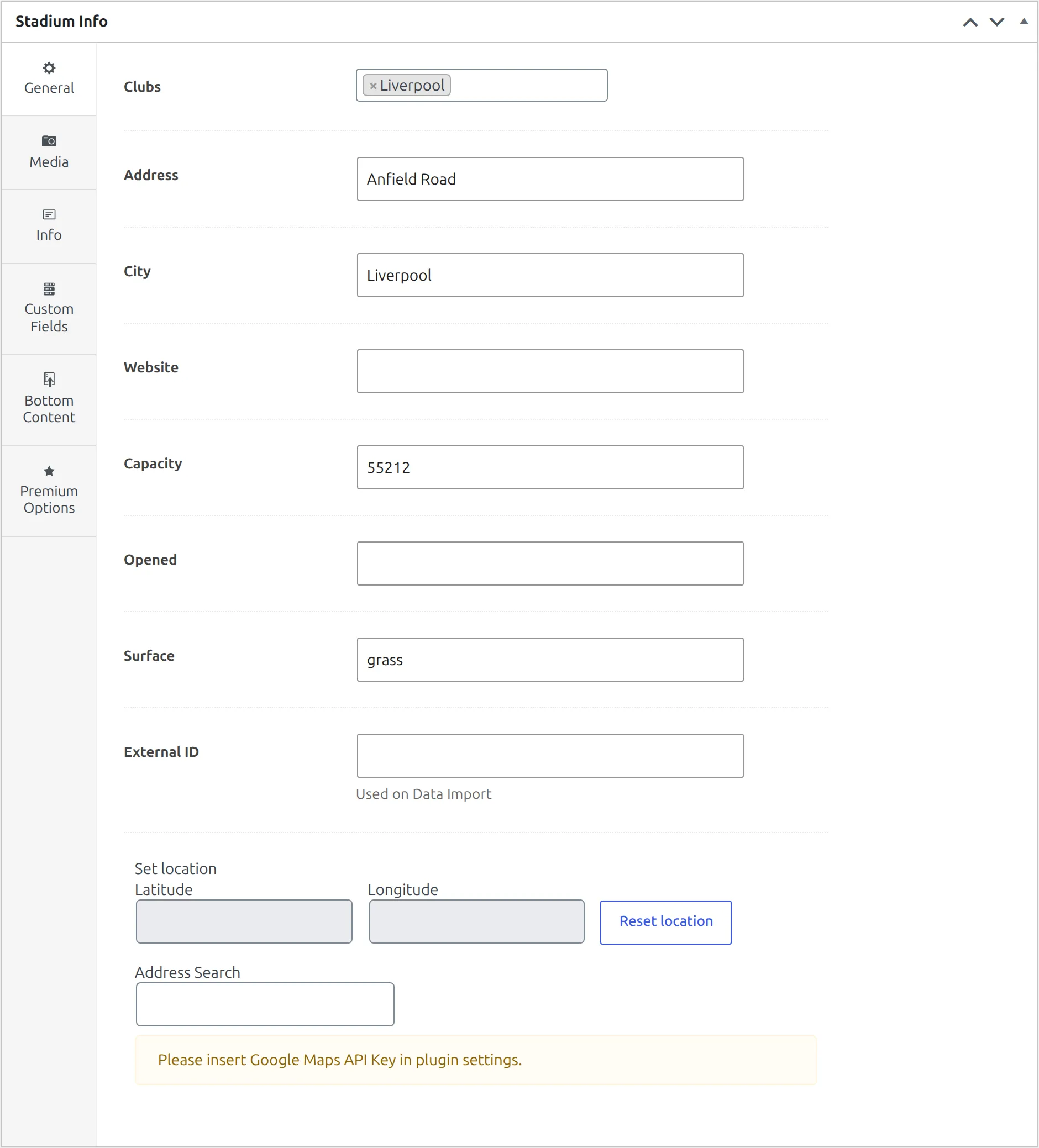
Imported stadium fields: title, city, address, capacity and surface – each written only when the API actually has a value. The stadium photo is off by default. To bring it in, turn on Stadium Photo in Import Media, the block where Team Logo also lives. A photo is only fetched while the import creates or claims a stadium, so a stadium that’s already linked won’t get one later.
How an existing stadium is matched
Before creating anything, the import looks for a stadium you already have:
- If this API venue has been imported before, that same stadium is reused and nothing is rewritten.
- Otherwise it looks for a published stadium with the same title that isn’t linked to any API venue yet. Found one, it updates it and links it to this venue. Found none, it creates a new stadium.
Title matching has three sharp edges
Only the name is compared – not the city, not the country. So your hand-made “Municipal Stadium” can be claimed by a ground with the same name in a different country, and its city, address, capacity and surface are then replaced with that ground’s details. Only published stadiums are considered, so a draft with the same name gets a duplicate. And a claim is permanent: the stadium stays linked to that API venue, so later imports reuse it and never look at the title again.
If you keep hand-made stadiums, give them distinct titles before the first import – “Municipal Stadium (Ploiesti)” rather than “Municipal Stadium”.
🆘 Troubleshooting
The club logo didn’t update
Working as designed – a logo is only fetched when the club has none. Remove the existing logo (both Logo and Logo (Big) on the club’s Media tab) and re-run the import. Check that Team Logo is on in FL API Import > Settings > Import Media, too – with it off, no badge is fetched at all.
The club name reverted to the API’s version
It shouldn’t – titles are preserved on update. If you see the API’s name, you’re almost certainly looking at a second club, not your renamed one. There are two ways that happens:
- Your club was never linked to the API. The import recognizes a club only by its API link, never by its name. A club you made by hand reads
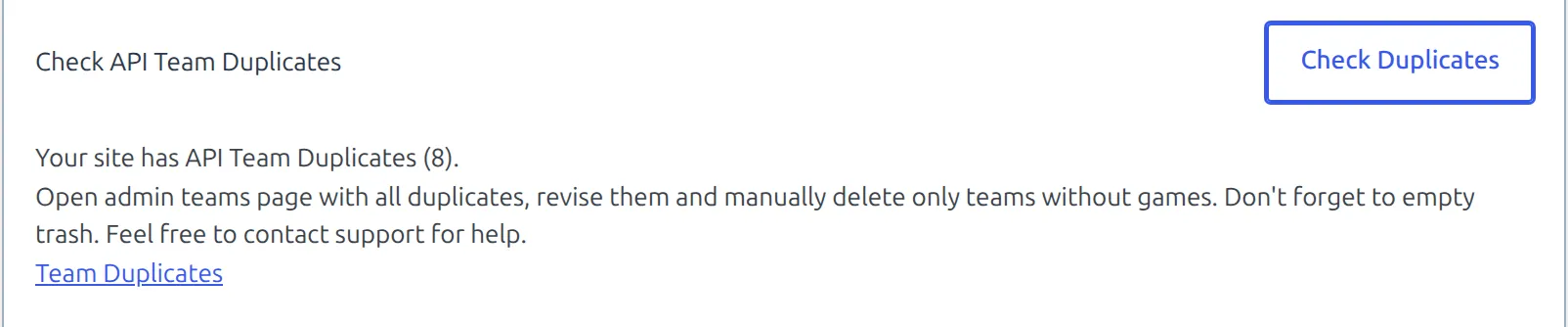
createin the Action column and gets imported a second time. See the next answer. - Two clubs are linked to the same API team. Run Check Duplicates next to Check API Team Duplicates in FL API Import > Settings > Advanced Setup. It reports how many clubs share an API team with another club. The Team Duplicates link under that message currently opens an empty Clubs list, so find the copies by searching the Clubs list for the club name instead. Delete only the copies without games, and empty the trash. It won’t find a hand-made lookalike, because that one has no API link at all.
I created my clubs by hand before importing, and now I have two of each
The import doesn’t match clubs by name, so a club you typed in yourself is never reused. You can see it coming: click get teams first, and any club you already have that reads create will be duplicated. There’s no tool to link an existing club to its API team, and no club merge (the Toolkit tab merges players only).
The usual way out is to keep the imported club. Rename it and give it your badge – both stick, as the table above shows. Then delete your hand-made copy once no games use it.
A real case from the old knowledge base: a customer had built a Premier League competition by hand, then connected the API and imported games, and the standing table came out wrong. What fixed it was removing things in this order – the games, then the standing table, then the competition – and emptying the trash each time. Then create the competition and its standing table again, and import the games from the API. The order matters: a competition that still has games can’t be deleted (“It is prohibited to delete a Competition with Games. First, remove the attached Games.”). Remove Games in Bulk covers the first step.
Can I type the API team id into External ID?
No. External ID on the club editor’s General tab is read by Settings & Tools > Data Import, when you import clubs or games from a spreadsheet. API Import keeps its own link between a club and its API team, and that link isn’t editable on any screen.
Duplicate stadiums after an import
Usually your stadium was a draft (only published ones are matched), its title was spelled differently, or it was already linked to a different API venue. Re-running alone won’t fix it, because the new stadium is now the one linked to that venue.
Delete the stadium the import created and empty the trash – deleting it for good also removes its API link. Make sure yours is published with exactly the API’s title, then run Create/Update teams again: your stadium is claimed and set as the club’s Stadium. Do this before you create games, since games that already exist keep the stadium they were given.
Nationality is empty on imported clubs
The API’s country name didn’t match the plugin’s list, which needs the exact spelling. Set it manually on the club’s General tab; the import won’t overwrite it with a blank.
A club that just joined the league isn’t in the list
First check you opened the right season’s row. If you did, the team list may be cached: while Cache some requests is on (the default, in Import Data), a league’s team list is kept for a day. Try again tomorrow, or switch that option off for a moment.
“Empty API Data” or “No teams to update”
Empty API Data after get teams means the API returned no teams for that league and season – usually a season that hasn’t been filled in yet, so try another row. No teams to update means every checkbox was unticked when you clicked Create or Update teams.
📚 Related
- API Import – Getting Started
- API Import for a Round-Robin League – a league from start to finish, clubs created along the way.
- Import Dashboard – run and schedule updates for the competitions you follow.