

A match preview reads better with a picture of how each side scores. This recipe puts a goals per 15 minute interval chart for the home club and the away club side by side on every upcoming match page, from a single layout. You build it once, and every fixture on the site picks up its own two clubs.
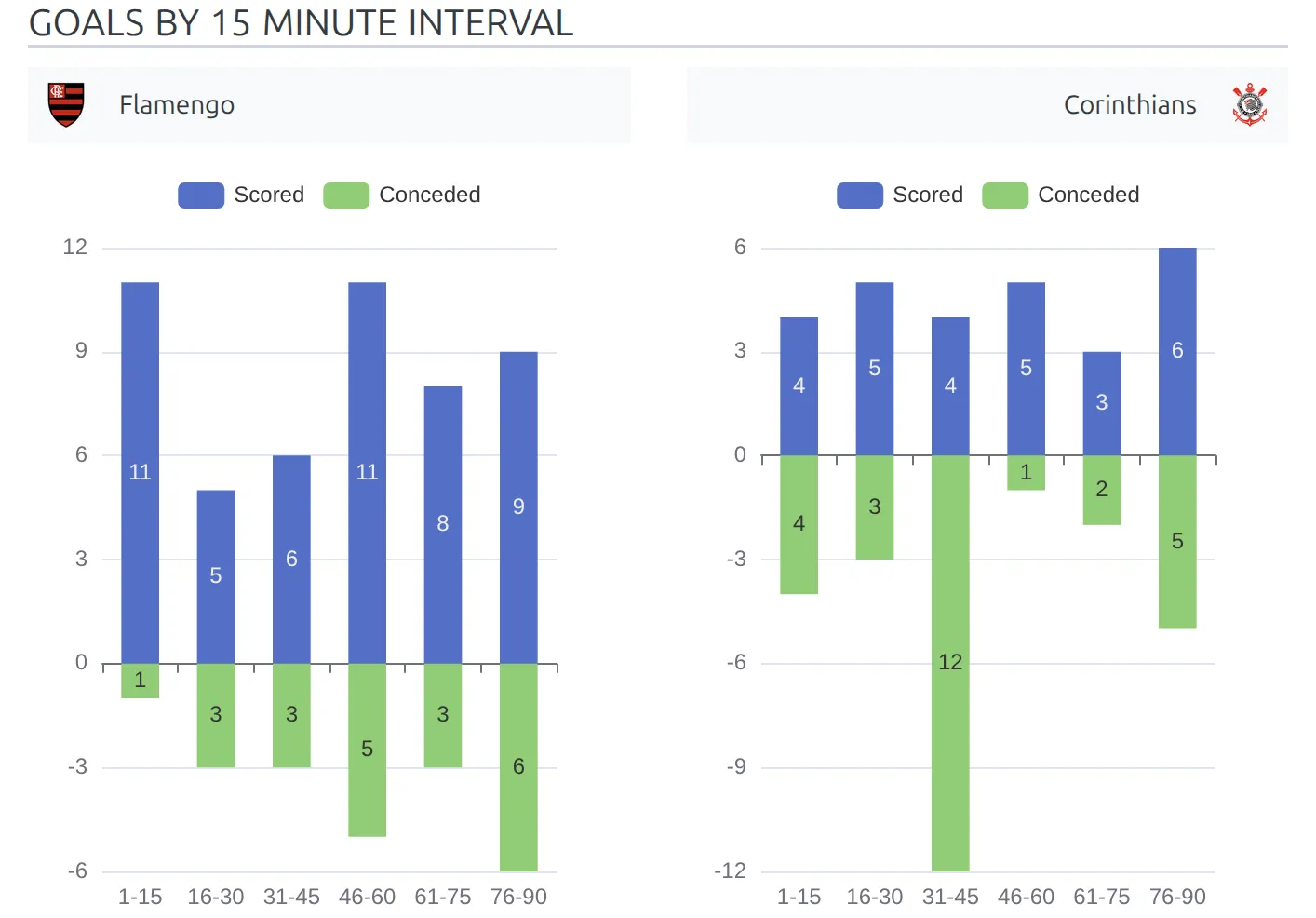
It is a Layout Builder v1 recipe. Layout Builder v2 builds club, player and competition pages only, so match pages have no v2 equivalent yet and v1 is the right tool here. If you are doing the same thing on a club, player or competition page, use v2 instead – see Layout Builder.
🎯 What you need first
- A Match layout whose Display Options have Status set to Upcoming, so it applies to fixtures rather than finished games. Step 1 shows how to find or create one.
- Finished games for both clubs in the same season, with goals entered as events (scorer and minute), not just the final score. The chart counts goal events from finished, official games, so a club with two games behind it produces a thin chart.
Step 1 – find or create an Upcoming match layout
Check whether you already have one
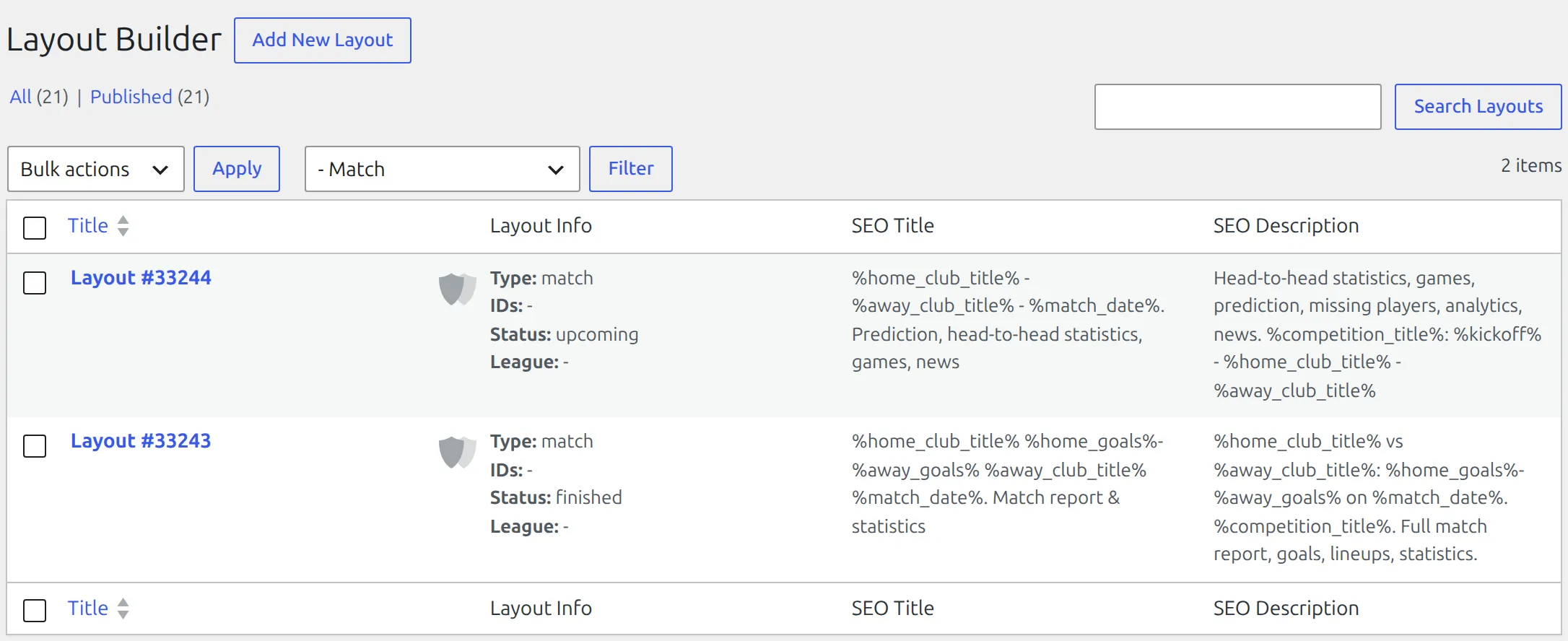
Open Layout Builder → Layouts (v1), pick Match in the Layout Type dropdown above the list and click Filter. The Layout Info column shows each layout’s rules. The one you want reads Status: upcoming (or finished, upcoming). If it’s there, open it and go straight to Step 2.
Create one if you don’t
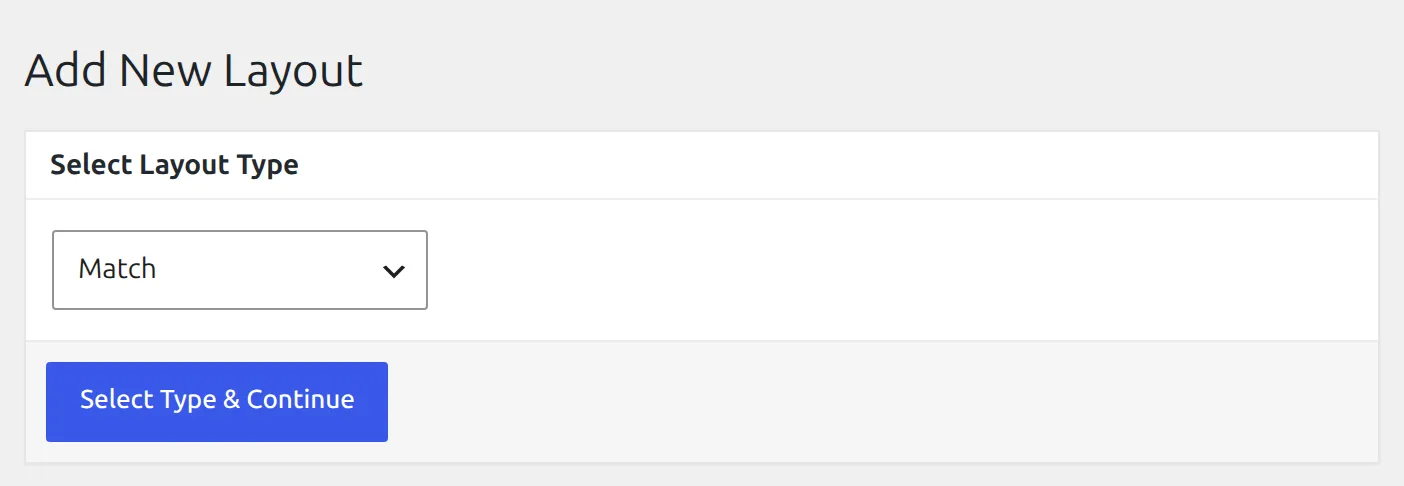
The sidebar menu no longer has an Add New Layout item, but the Add New Layout button next to the Layout Builder page title on the Layouts (v1) screen still creates one.
- Click Add New Layout at the top of the Layouts (v1) list.
- In Select Layout Type choose Match, then click Select Type & Continue. The type can’t be changed later.
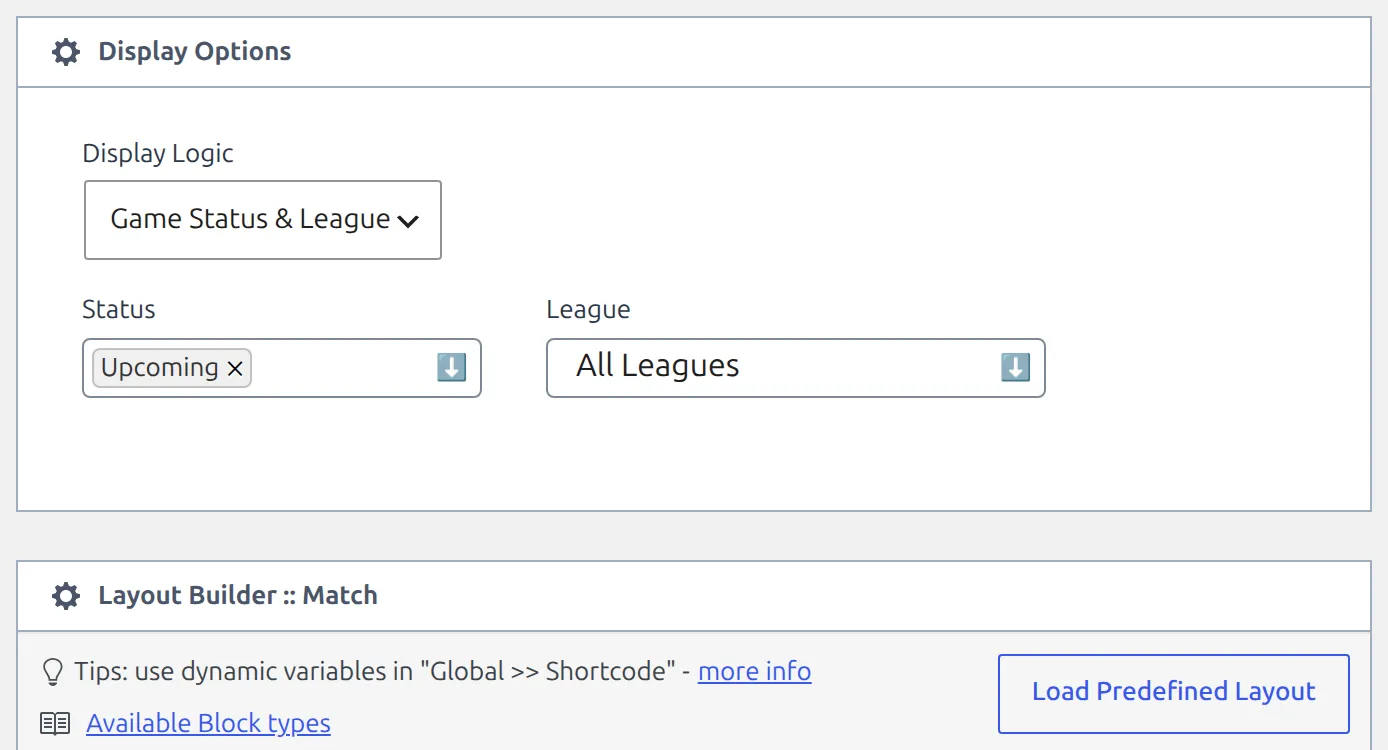
- In Display Options, leave Display Logic on Game Status & League, set Status to Upcoming, and leave League on All Leagues – or pick one league if the charts should only appear on its fixtures.
- Click Load Predefined Layout and press Load next to Upcoming Game. You get a scoreboard, head-to-head matches, a slider of the matchweek’s games and each club’s latest matches – a sensible page to add the charts to.
- Click Save below the builder.
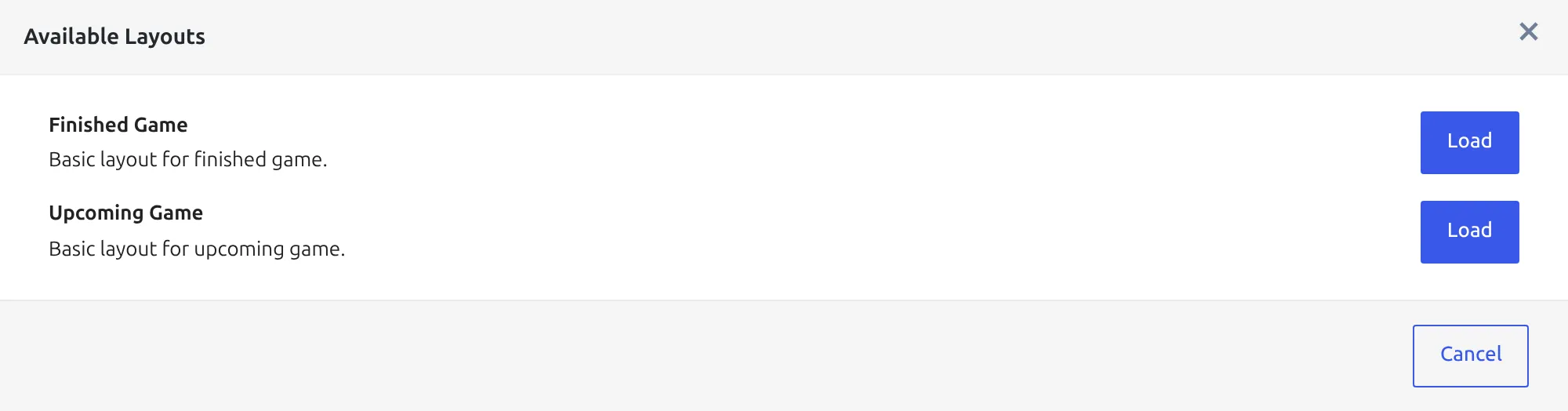
Load replaces everything already in the layout, so only use it on a new one. If you already have a finished Match layout you like, you can Clone it from the list instead – but a clone starts as a draft with the same Display Options, so switch its Status to Upcoming and publish it, or it renders nowhere. Cloning is covered on the Layout Builder page.
Step 2 – the home club chart
- From Available Block Types, drag a Global :: Shortcode block to where you want the charts – below the head-to-head block works well.
- Click the block’s Edit Block button (the tools icon) and set Width to 1/2.
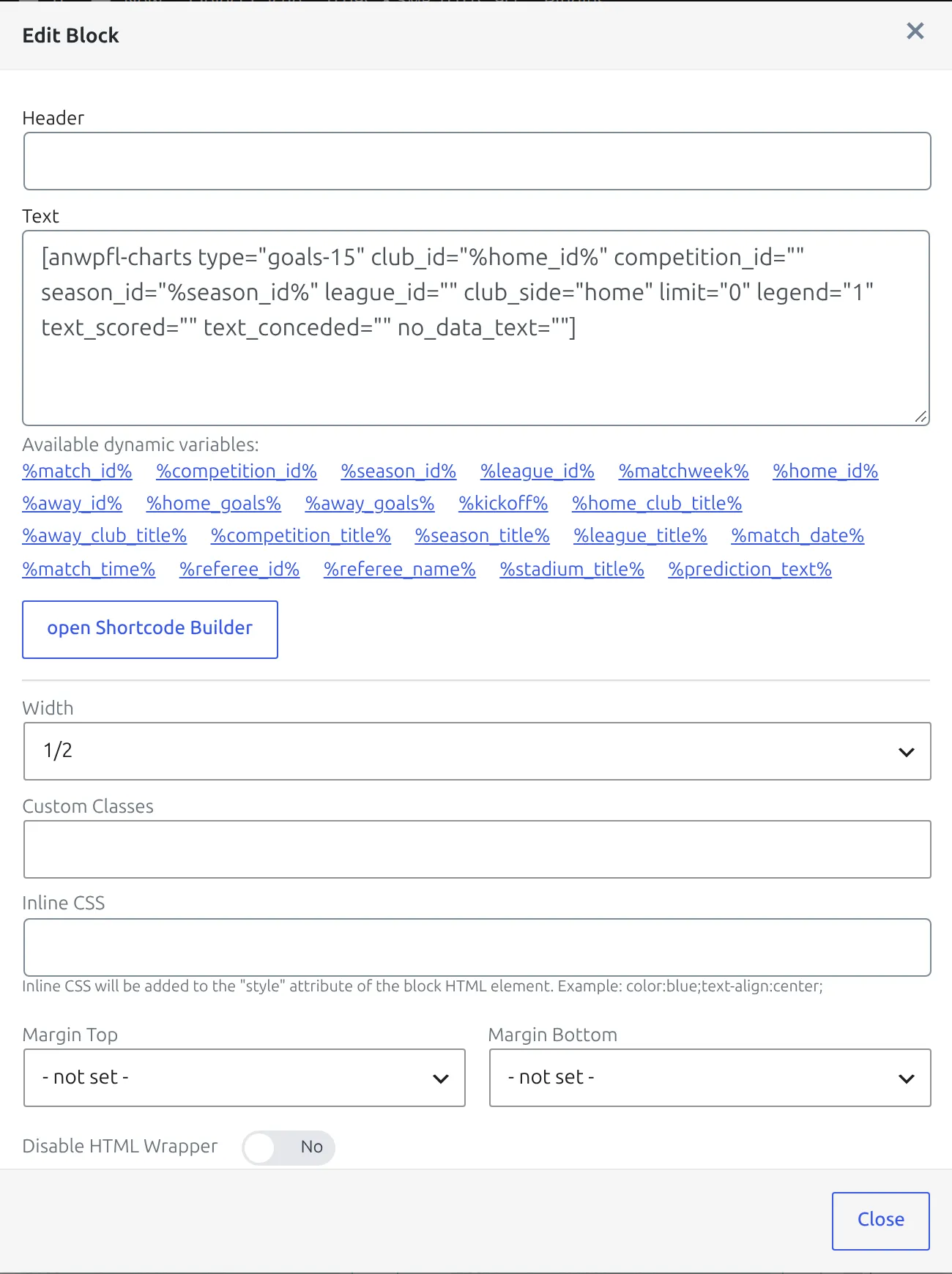
- Click open Shortcode Builder and choose Charts: Team Goals per 15 min in the Shortcode dropdown (PRO shortcodes carry a small orange diamond).
- Leave Club ID empty – you’ll fill it with a variable in a moment. Set Club Header to Home.
- Click Copy and Close. That copies the shortcode to your clipboard, so paste it into the block’s Text field.
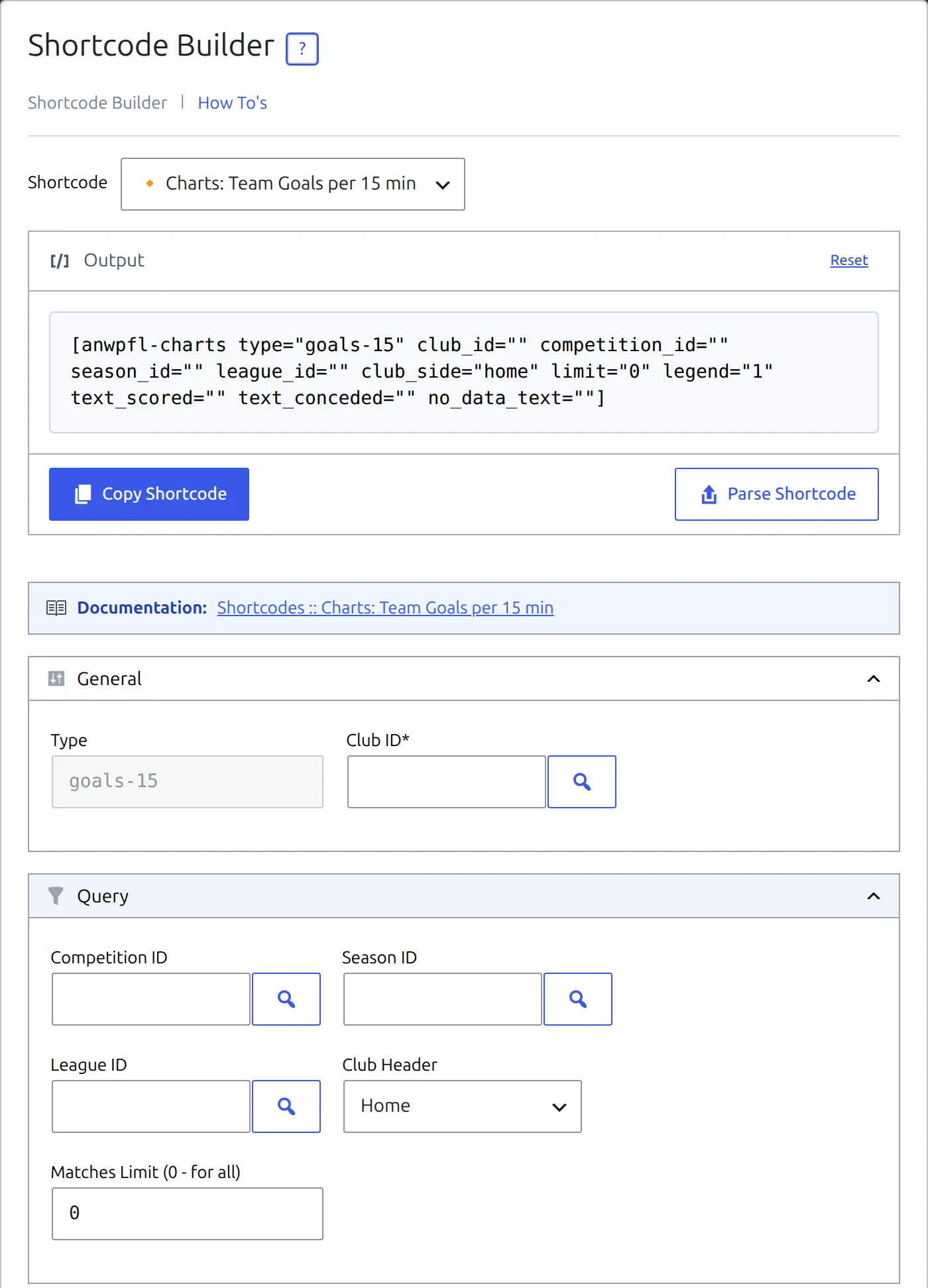
What you pasted looks like this:
[anwpfl-charts type="goals-15" club_id="" competition_id="" season_id="" league_id="" club_side="home" limit="0" legend="1" text_scored="" text_conceded="" no_data_text=""]Now put dynamic variables into club_id and season_id, so the chart follows whichever match is being viewed. Click in the Text field where the value goes, then click the variable in the Available dynamic variables list under it:
[anwpfl-charts type="goals-15" club_id="%home_id%" competition_id="" season_id="%season_id%" league_id="" club_side="home" limit="0" legend="1" text_scored="" text_conceded="" no_data_text=""]Do not leave a real ID in
If you picked a club in the Shortcode Builder, it wrote that club’s real ID, because it can’t know which match the layout will render on. Leaving club_id="35" in place shows the same club on every fixture on the site, and an empty club_id shows nothing at all. This substitution is the whole point of the recipe.
club_side is the Club Header option. It adds the club’s logo and name above the chart, linked to the club page: home puts the logo on the left, away mirrors it to the right, so the pair frames the fixture like a scoreboard. It doesn’t change the numbers – scored and conceded always come from club_id. Leave it empty for a chart with no header.
Step 3 – the away club chart
Copy the block you just made rather than building a second one from scratch: click its Clone Block button (the copy icon, left of the bin). You now have two identical blocks side by side, both 1/2 width. Open the second one with Edit Block and change two attributes – %home_id% to %away_id%, and club_side to away:
[anwpfl-charts type="goals-15" club_id="%away_id%" competition_id="" season_id="%season_id%" league_id="" club_side="away" limit="0" legend="1" text_scored="" text_conceded="" no_data_text=""]Edit the second block, not the first, so home stays on the left and away on the right – that’s the order they appear on the page. If you changed the first one by mistake, drag the blocks to swap them.
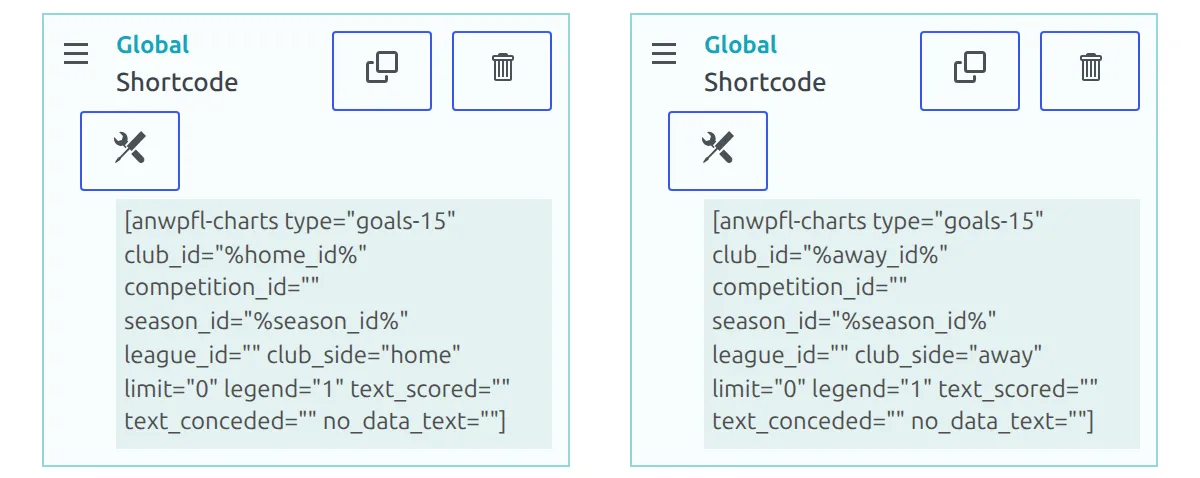
Both blocks are half width and next to each other, so they render as one row of two from tablet width up and stack on phones. Each chart is 400px tall.
Step 4 – one heading over both
Two charts with two separate headings look like two unrelated widgets, and a Header on the home block would only sit over the left half. Put a single heading over the pair instead:
- Drag a Global :: Text block directly above the two chart blocks, and leave its Width on full.
- Open Edit Block and set its Header to something like Goals by 15 minute interval.
- Leave its Text empty, and set Margin Bottom to 0.
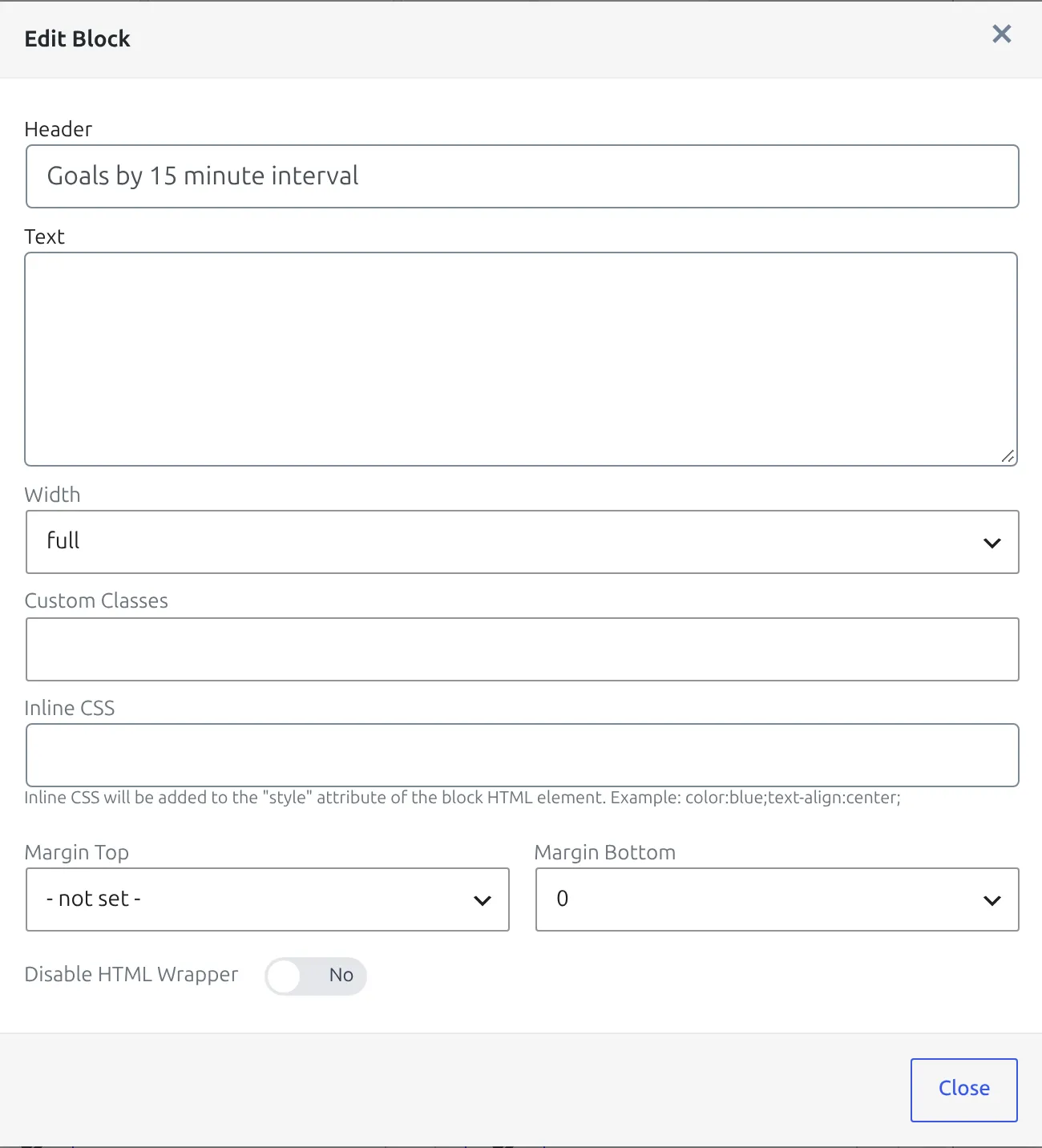
Layout blocks get a 30px gap under them by default. The Margin Bottom setting is what removes that gap between the heading and the charts under it. Close the dialog, click Save below the builder, then open any upcoming fixture to check it.
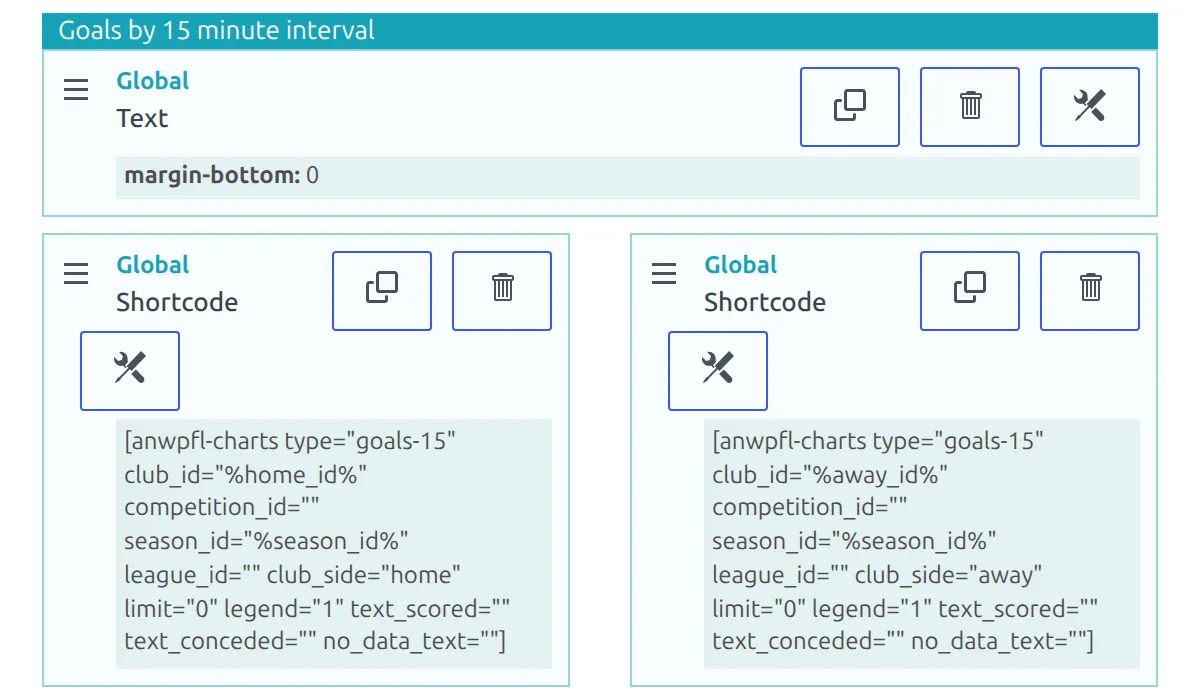
The Header is plain text. Inside the builder, dynamic variables are only swapped in the Text of a Global :: Shortcode or Global :: Raw HTML block, so %home_club_title% in a Header or in a Global :: Text block prints as typed.
📊 Variations
Three chart types are available from the Shortcode Builder, and they all take the same two-block treatment.
| Shortcode Builder entry | type | Shows |
|---|---|---|
| Charts: Team Goals per 15 min | goals-15 | Goals scored and conceded in six bands, 1-15 to 76-90. |
| Charts: Team Goals per 10 min | goals-10 | The same in 10-minute bands. Defaults to a 40-minute futsal game – set max_duration="90" for football. |
| Charts: Team Default Stats | team-defaults | One team statistic per game, with the opponent under each bar. Pick it with stat: fouls, corners, offsides, possession, shots or shots_on_goal. |
All three are documented in full on their own pages: goals per 15 minutes, goals per 10 minutes and team default stats.
Goals per 10 minutes on a football fixture
Without max_duration="90" this chart stops at minute 40 and silently leaves out every goal after it. With it you get nine bands, 1-10 to 81-90:
[anwpfl-charts type="goals-10" club_id="%home_id%" season_id="%season_id%" club_side="home" max_duration="90"]
[anwpfl-charts type="goals-10" club_id="%away_id%" season_id="%season_id%" club_side="away" max_duration="90"]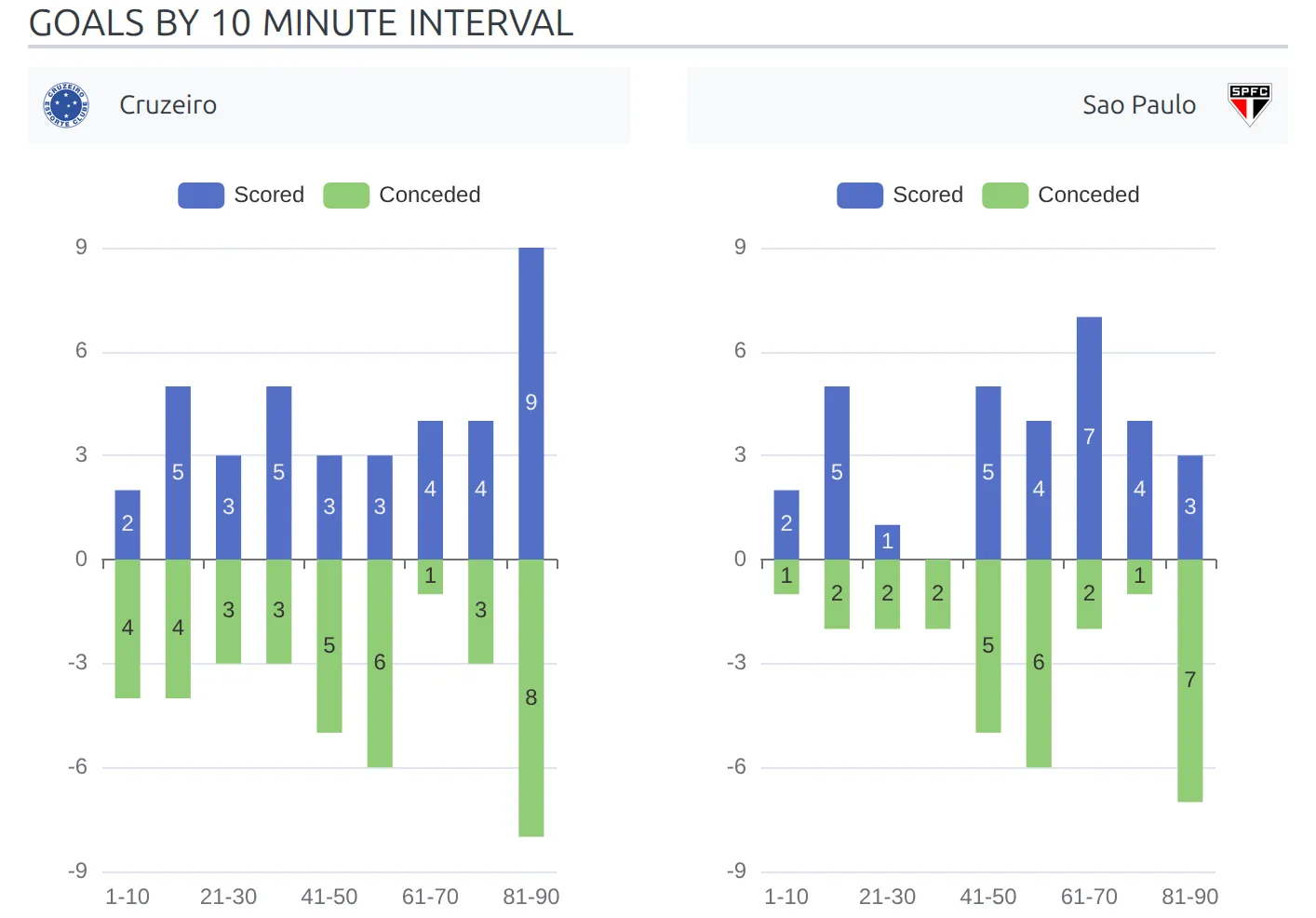
Corners in the last 10 games
A form-style bar chart: one bar per game, oldest on the left. limit="10" keeps it to the last 10 finished games and color="club" draws the bars in the club’s main colour (the Main Color field on the club’s Media tab; without one, the default colour is used). It needs team statistics – corners here – entered on those games.
[anwpfl-charts type="team-defaults" stat="corners" club_id="%home_id%" season_id="%season_id%" club_side="home" limit="10" color="club"]
[anwpfl-charts type="team-defaults" stat="corners" club_id="%away_id%" season_id="%season_id%" club_side="away" limit="10" color="club"]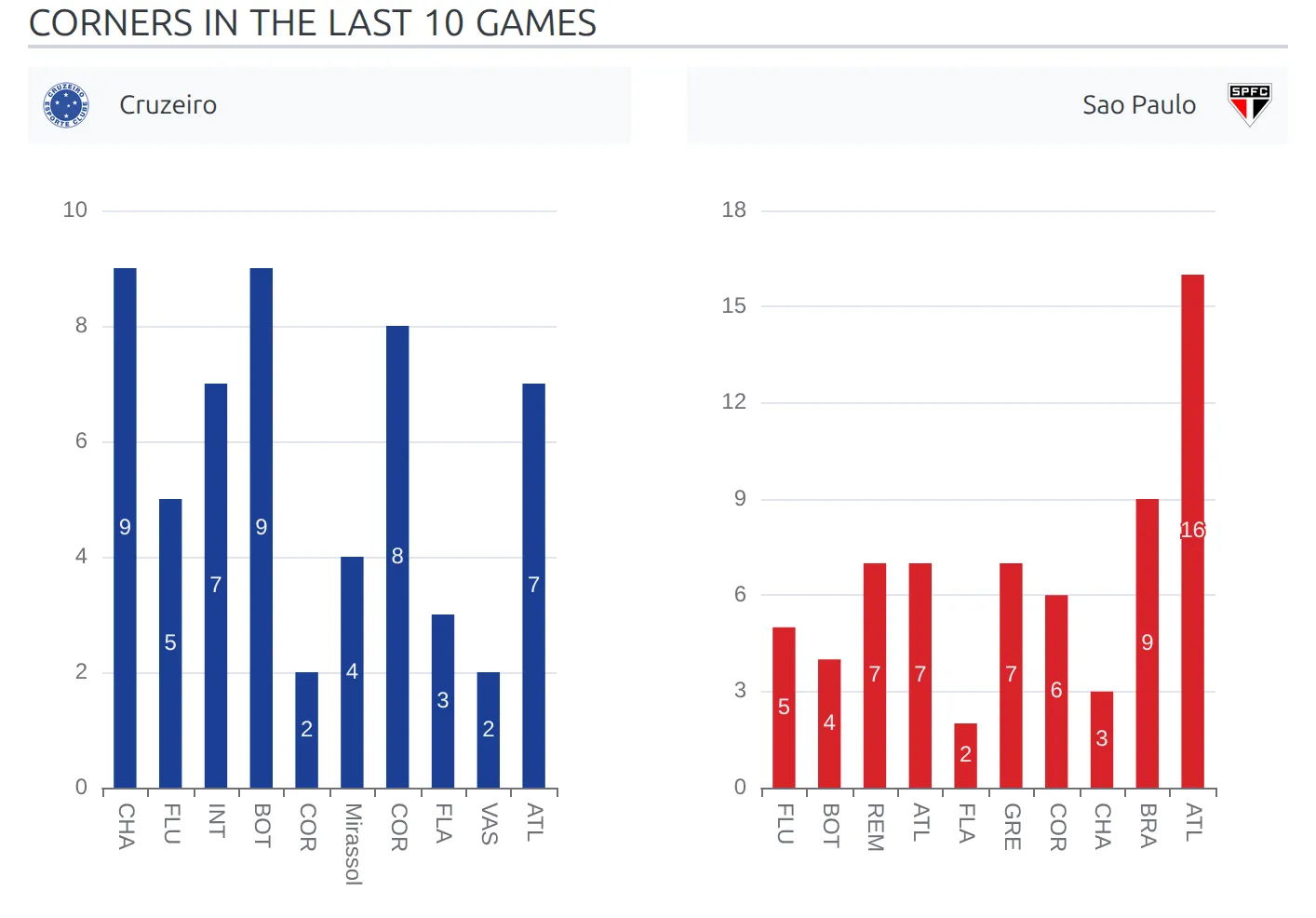
Other useful attributes
competition_id="%competition_id%"narrows the chart to the competition the match belongs to, instead of the club’s whole season. In a multistage competition the variable holds the main stage, and the chart includes every stage. Don’t addmultistage="0"alongside it – that keeps only the games of the main stage and drops every other stage.limit="10"works on the goals charts too: the last 10 finished games only, for a recent-form picture.legend="0"drops the legend, which helps when the charts are narrow.text_scoredandtext_concededrelabel the two series in your own language, for exampletext_scored="Marcados" text_conceded="Sofridos".no_data_textsets what appears when a club has no finished games to chart yet. Without it the block disappears.
You don’t have to put the charts in the Top section. They work inside a tab as well – a Preview or Stats tab keeps a busy match page short – and they size themselves when the tab is opened.
The same two-block pattern works for any shortcode that takes a club: swap the shortcode and keep %home_id% and %away_id%. Shortcodes that compare the two clubs take both in one block, for example [anwpfl-stats-h2h club_a="%home_id%" club_b="%away_id%"]. On a club page, the Team Layout (v2) Shortcode block offers %club_id% for the same job.
🆘 Troubleshooting
Both charts show the same club
The cloned block still has %home_id%. Change it to %away_id%, and change club_side with it. If both headers sit on the left, it’s only the club_side that was missed.
One chart, or both, is missing from the fixture
A club with no finished, official games in that season has nothing to chart, and the chart outputs nothing. When a Shortcode block’s output is empty, the whole block is skipped – its Header included – so it looks as if the block was never added. That’s common early in a season, for a newly promoted club, or when you filtered to a competition the club hasn’t played in yet. Add no_data_text="No games played yet" to show a message instead.
To tell a data problem from a layout problem, paste the same shortcode with a real club ID and season ID into an ordinary page.
The chart has axes but no bars, or looks too low
The goals charts count goal events, not the final score. Games with only the result filled in add nothing, and neither does a goal with no minute. Goals count by their minute from 1 to 90 – a 45+2 goal falls in the 31-45 band, a 90+4 goal in 76-90 – and extra-time goals from minute 91 on aren’t counted. For the team statistics chart, the chosen statistic has to be entered on each game.
The charts don’t appear on any fixture
- Check the layout’s Display Options. A layout with Status set to Finished only never renders on a fixture, one scoped to a single league skips matches from the others, and an empty Status shows the warning Set “Game Status” to make this Layout active.
- A layout that lists the match in Match IDs beats any status-based layout, and among status-based layouts the newest one wins. Check you’re editing the layout that actually renders.
- A cloned layout is a draft until you publish it.
- Clear your caching plugin.
The charts vanished when the game kicked off
While a game is live, a Match LIVE layout takes over the page if you have one, and your Upcoming layout stops rendering. Once the game is marked finished, a Finished layout renders instead, or the default match page if you have none. If you want the charts during the game or after it, add the same blocks to those layouts too.
The charts are stacked instead of side by side
Both blocks need Width 1/2, and they only sit side by side on screens 768px wide and up – on a phone they stack by design. A narrow content column doesn’t stack them, it just makes them narrower, so try legend="0" there. Also check Disable HTML Wrapper is off: with it on, the block prints the bare chart without the column around it, and the Width setting no longer applies.
Layout Builder v1 columns and margins are built from the plugin’s legacy CSS classes. If you’ve set Load Legacy Grid CSS to No at Settings & Tools > Settings > Configuration > Advanced > Legacy CSS, every v1 block goes full width and the charts stack. Load Legacy Bootstrap CSS works the same way for Margin Top and Margin Bottom – with it off, the gap under the heading comes back, and the away club header no longer mirrors to the right. Both are on by default.
A variable name is printed on the page
It was misspelt, it isn’t a Match layout variable, or it sits in a Header or a Global :: Text block, which don’t swap variables. Click the variable links under the Shortcode block’s Text field rather than typing them.
📚 Related
- Shortcode Block – the full list of dynamic variables
- Block Types – every block a Match layout offers
- Custom Classes – width, spacing and styling for these blocks
- Layout Builder – display rules, tabs and cloning
- Shortcode Builder – how the builder dialog works
- Charts: Goals per 15 Minutes – every attribute of the chart used here