

A conference splits one standing table into named groups – East and West, or four divisions, or any grouping your league uses. Each group is drawn as its own block with its own heading, its own numbering starting at 1, its own position colors and its own position arrows. It stays one standing table: one set of ranking rules, one recalculation, one place in the admin.
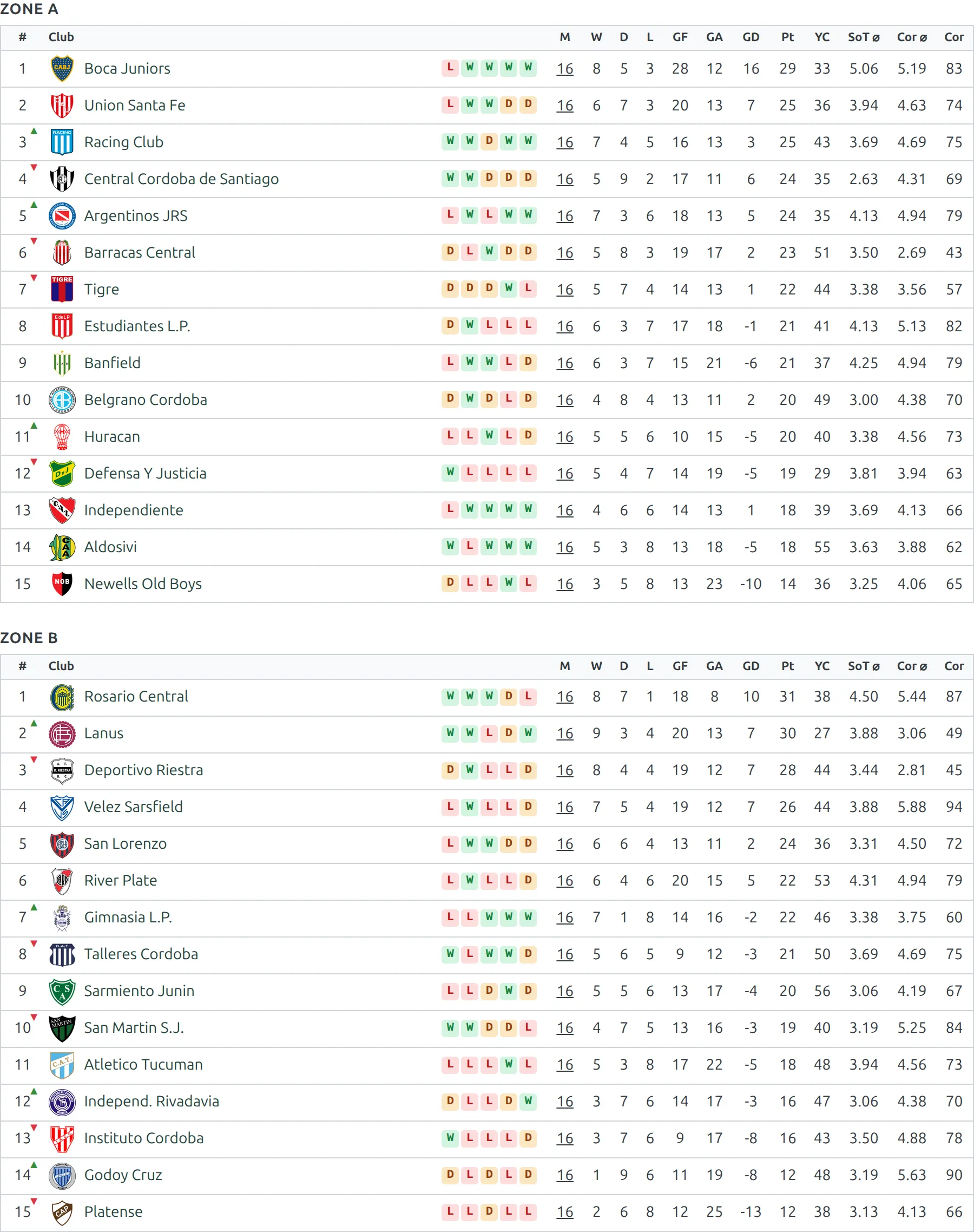
🚀 Turn conferences on
- Go to Competitions > Standing Tables and open the table you want to split.
- In the settings strip above the table, switch Conferences Support to Yes.
- A Conference column appears at the right of every club row, and a Manage conferences button appears above the table.
- Click Manage conferences and add your group names – “East”, “Division 2”, whatever you use.
- Back in the table, pick a conference for each club from the select in its Conference column.
- Click Update.
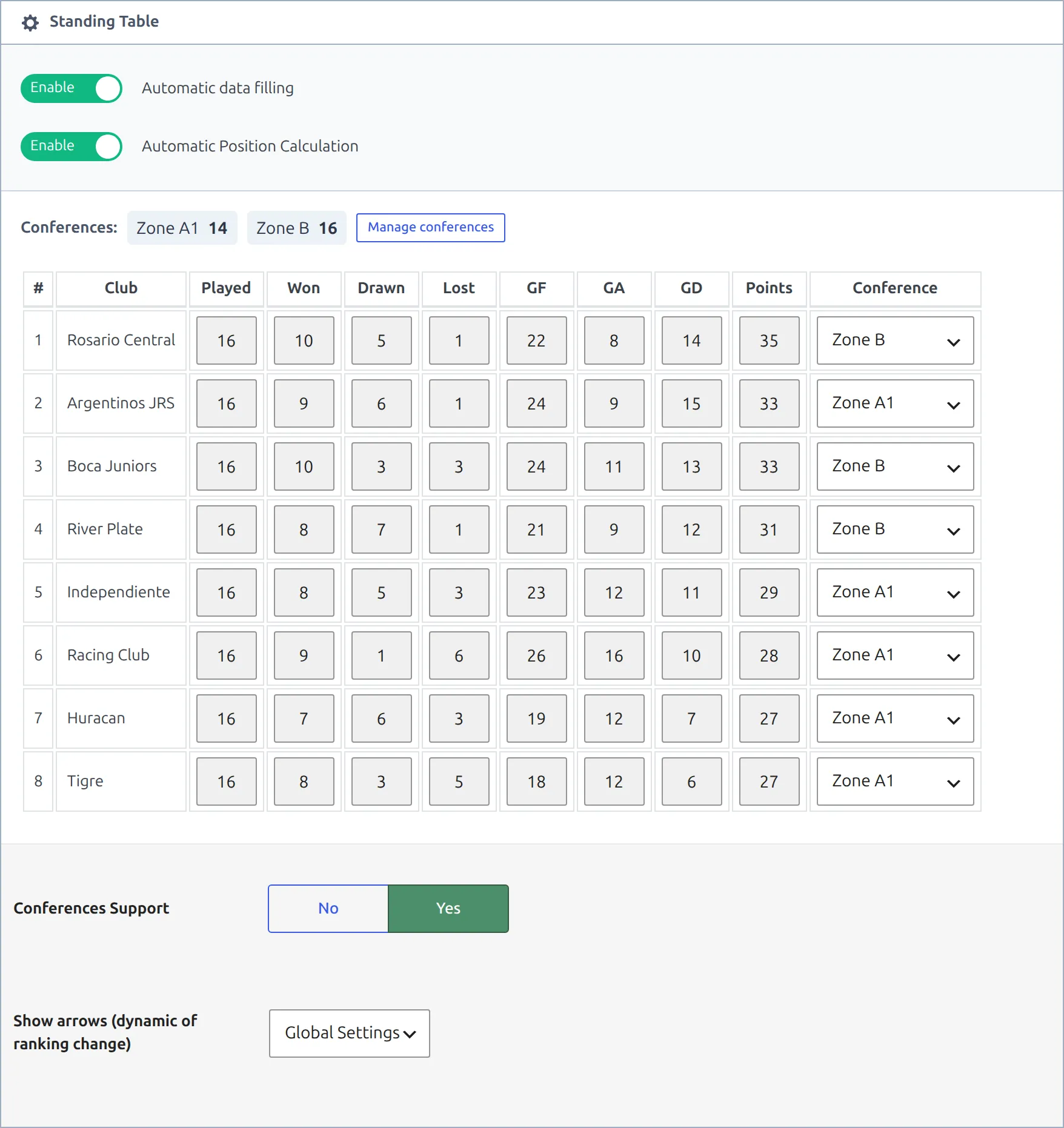
That’s the whole setup. A conference is nothing more than a name carried by its clubs, so the strip above the table lists every name with the number of clubs in it – what you see there is what will render. One catch: a name with no club in it isn’t saved. Assign at least one club before you click Update, or the name is gone on the next reload.
How the names are read
- Names are matched exactly. “East” and “east” are two different conferences. The row select can’t produce that, but adding both spellings in Manage conferences can – and the strip shows each of them separately, so you can see it before you save. To fold one into the other, rename it to the other’s exact name: renaming is a merge.
- Groups are ordered alphabetically, not in the order you added them. To force an order, put a number in front of the name: “1. East”, “2. West”.
- Fill in every club. Any club left on Unassigned drops into a trailing group at the bottom of the table, headed Other.
- If no club has a name, the table renders as one plain table – exactly as it would with conferences switched off.
Renaming the “Other” group
Go to Translations > Text Strings and look for the field described as standing :: clubs with no conference. Type anything you like there – “Unassigned”, “Independents”, or a blank space to hide the heading.
On an automatically calculated table, clubs join the standing as soon as they play a match. A club that joins after you filled in the Conference column has no name of its own, so it lands in the Other group until you open the table and give it one. That’s the one thing worth re-checking after a new club enters a competition.
What changes on the front end
| Element | Behaviour with conferences |
|---|---|
| Numbering | Restarts at 1 in each named conference. The Other group keeps the overall positions instead. |
| Position colors | Follow the position within the conference, so the color you set for 1st place paints the top club of every conference. The Other group uses overall positions. |
| Club colors | Unchanged. A color set on a specific club still wins over any position color. |
| Position arrows | Compare against the club’s previous position inside its own conference, so an arrow always matches the number printed beside it. |
| Table notes | Rendered once, below the last group. |
| Club form (W/D/L) | Unchanged – built from the club’s matches, not from its group. |
Ranking is still worked out across the whole table with your ranking rules, then split into groups for display. Two clubs on equal points in different conferences are separated by the same tiebreakers as always.
Where conference tables show up
Conferences are a property of the standing table, so every place that table is displayed picks them up. That covers the competition page, the Layout Builder v2 standings blocks on team and competition pages, and all three standing shortcodes, in both the default and the mini layout:
[anwpfl-standing id="123"]
[anwpfl-standing id="123" layout="mini"]
[anwpfl-standings competition_id="45"]
[anwpfl-standing-advanced id="123"]
What conferences don’t work with yet
Three standing options are set aside while conferences are on. None of them error – the table renders, it just ignores the grouping or the option.
| Option | What happens |
|---|---|
| Home / Away split | Switched off. The All / Home / Away buttons are not drawn and the table shows overall figures. A home-only conference table is not available. |
partial | Slices the overall table first, then groups whatever is left. So partial="1-5" means “the overall top 5, split into their conferences” – not “the top 5 of each conference”. |
matchweeks | Grouped, same as a normal conference table – one heading and one table per conference, each numbered from 1. The table is rebuilt from the matches in the range, so the order can differ from the overall table. |
The matchweeks and Home / Away options belong to [anwpfl-standing-advanced]. The partial option is on every standing shortcode, and the team page standings block uses it to show a window around the club – which is why a team page on a conference league shows a slice of the overall table rather than a slice of that club’s conference.
🆘 Troubleshooting
The whole table went blank after I turned conferences on
On versions before PRO 0.18.4, switching Conferences Support on and saving without typing a name for every club left the front-end table empty. Update the plugin, or fill in the Conference column for every club.
One club appears in every conference
Also fixed in PRO 0.18.4. A club with no conference name used to be repeated inside each group. It now appears once, in the Other group at the bottom.
The same table is drawn two or three times
This was a matchweek-filtered conference table on versions before PRO 0.18.4 – the whole table was drawn once per conference, so every club showed up two or three times. Each conference is now drawn once, holding only its own clubs.
A position arrow points the wrong way
Before PRO 0.18.4, arrows on a conference table followed movement in the overall table, so a club could hold its conference position and still show an arrow. They now compare against the position printed next to them.
My conferences are in the wrong order
Groups are sorted alphabetically. Prefix the names to control it: “1. Eastern Conference”, “2. Western Conference”.
A club I assigned still shows under “Other”
Either the club is still on Unassigned, or it sits in a near-identical name – “zone a” next to “Zone A”. Open the table and read the strip above it: every name in use is listed with its club count, so a stray spelling stands out on its own. Fix it in the club’s row select, or open Manage conferences and rename the stray name to the exact name of the real one – that merges the two.
One of my conferences isn’t on the front end at all
A conference is only drawn when it still has clubs to show. If every club in it was removed by exclude_ids, or fell outside a partial slice, the whole group is skipped – heading included. It also disappears if the only clubs carrying that name have since left the group, which leaves the name sitting in the table with nothing attached to it. Open the table and read the strip above it: it lists only conferences that still hold clubs, so a name you expect and can’t find there has nothing left in it. Pick it again in the rows that belong to it. Before PRO 0.18.4 these cases drew the heading with an empty table under it.
📚 Related
- Standing Columns – pick, order and rename the columns in your standing tables
- Team Pages with Layout Builder v2 – where the team page standings block comes from
- Competition Pages with Layout Builder v2