

Football Leagues ships with a fixed set of game events: goals, cards, substitutions, missed penalties and a few more. Game Events lets you add the ones it doesn’t have – a futsal 10 m penalty, timeouts, accumulated fouls, a blue card, corners, woodwork. You set a type up once, with a name and an icon. From then on it can be picked in every game editor, shows in the game’s Commentary and Timeline, and can fill your statistics columns.
Go to Settings & Tools > Game Events.
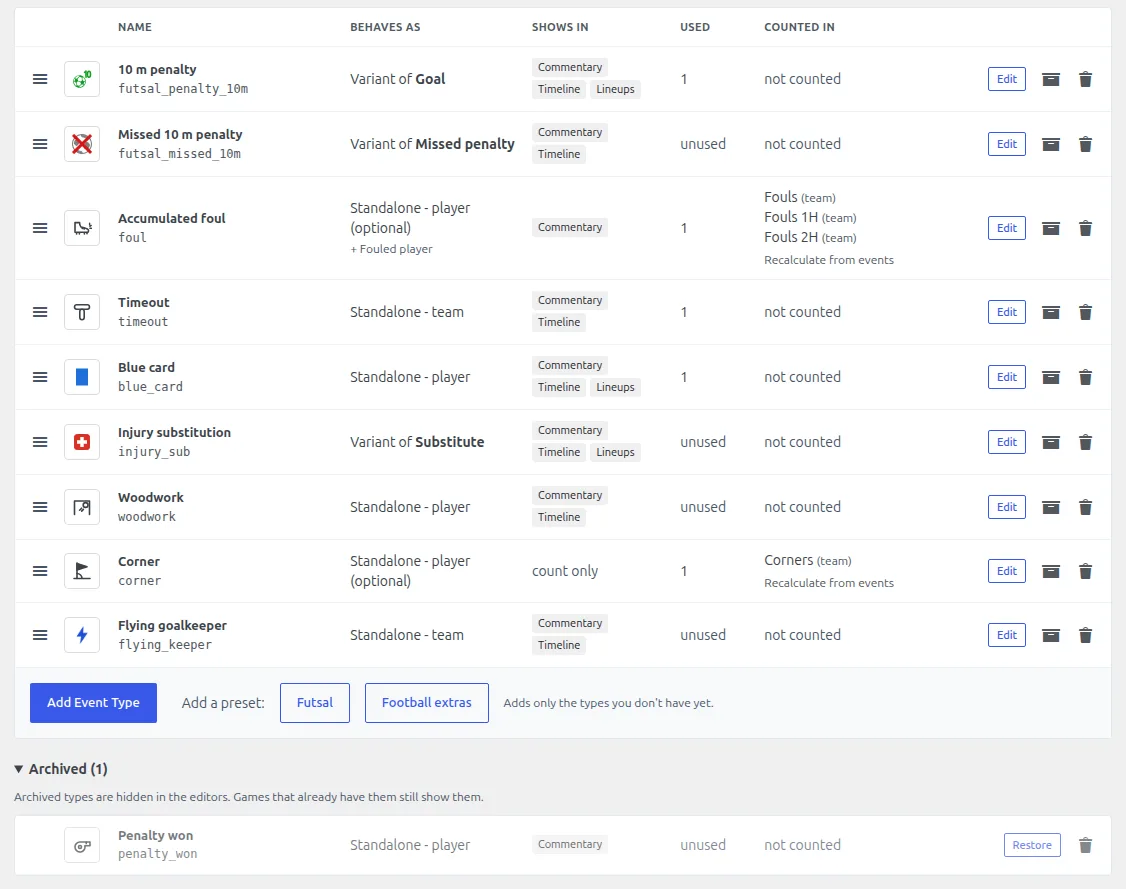
Two kinds of event type
| Kind | How it counts | Use it for |
|---|---|---|
| Variant of a Goal, Card, Substitute or Missed penalty | Exactly like the base event, everywhere: the score, goals, top scorers, team card totals, suspensions, minutes played. Only the icon and the name change. | 10 m penalty goal, missed 10 m penalty, injury substitution |
| Standalone event | Nowhere – unless you link it to a statistics column. | Timeout, accumulated foul, corner, woodwork, blue card |
Ask one question: should this event count as a goal (or card, or substitution)? Yes – make it a variant. No – make it standalone.
A blue card is standalone, not a card variant
A card variant is still a yellow or red card underneath. A blue card set up that way would count as a yellow, add to the team’s card totals and trigger card suspensions. Make it a standalone event – the Futsal preset already does.
🚀 Create an event type
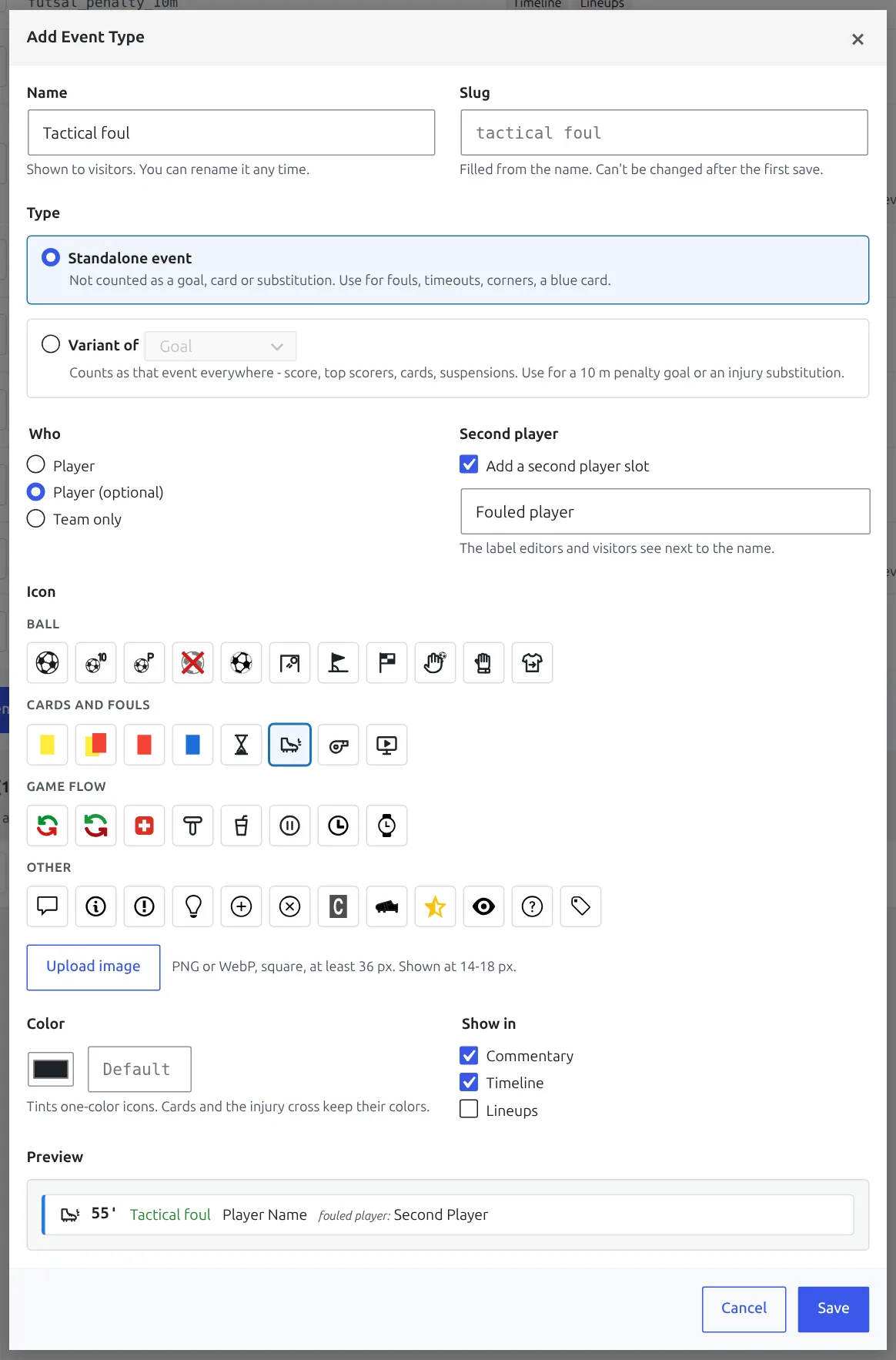
Click Add Event Type, fill in the form and click Save. Every change on this page is saved the moment you make it – there’s no page-level Save button.
| Field | What it does |
|---|---|
| Name | What visitors and editors see. You can rename it any time. |
| Slug | The type’s internal key. Leave it empty and it’s filled from the name. 2-32 lowercase Latin letters, digits and underscores, starting with a letter. Locked after the first save. For a name in a non-Latin script, type a Latin slug yourself – otherwise you get event_1. |
| Type | Standalone event or Variant of Goal / Card / Substitute / Missed penalty. Locks as soon as one game uses the type. |
| Who (standalone only) | Player, Player (optional) or Team only. A team-only event has no player field – a timeout belongs to the team. |
| Second player (standalone only) | Tick Add a second player slot and name it, such as “Fouled player”. The label shows in the editors and next to the name on the game page. |
| Icon | Pick one of 39 icons in four groups (Ball, Cards and fouls, Game flow, Other), or click Upload image for your own (PNG or WebP, square, at least 36 px). |
| Color | Tints one-colour icons from the list. The card icons and the injury cross keep their own colours, and uploaded images aren’t tinted. |
| Show in | Commentary, Timeline and Lineups – see “Where custom events show” below. |
Start from a preset
Two buttons under the list add ready-made types. Each adds only the types you don’t have yet, so clicking twice is safe. Everything they add can be edited afterwards.
| Preset | Adds |
|---|---|
| Futsal | 10 m penalty (variant of Goal), Missed 10 m penalty (variant of Missed penalty), Accumulated foul (standalone, player optional, “Fouled player” slot, Commentary only), Timeout (standalone, team only), Blue card (standalone, player) |
| Football extras | Injury substitution (variant of Substitute), Woodwork (standalone, player), Penalty won (standalone, player, Commentary only), Corner (standalone, player optional, count only) |
10 m penalty, Blue card and Injury substitution also come with Lineups ticked. Corner ships with every Show in box off, because 8-12 corners per team would flood the commentary. It’s there to fill the Corners statistic (see below), and the list marks it “count only”.
Reorder, archive and delete
- Drag a row by its handle to change the order the editors list the types in.
- Archive hides a type from the editors. Games that already have it still show it. Archived types sit under Archived with a Restore button.
- Delete works only while no game uses the type – the Used column shows how many do. A used type can be archived, not deleted.
Add a custom event to a game
- Edit the game and click add event in Match Events.
- For a standalone type, open Select event and pick it from the Custom events group at the bottom.
- For a variant, pick its base event (say, Goal). A Type select appears next to it – choose your variant there, or leave it on Standard.
- Fill in the team, the minute and the player fields the type asks for, then save the game.
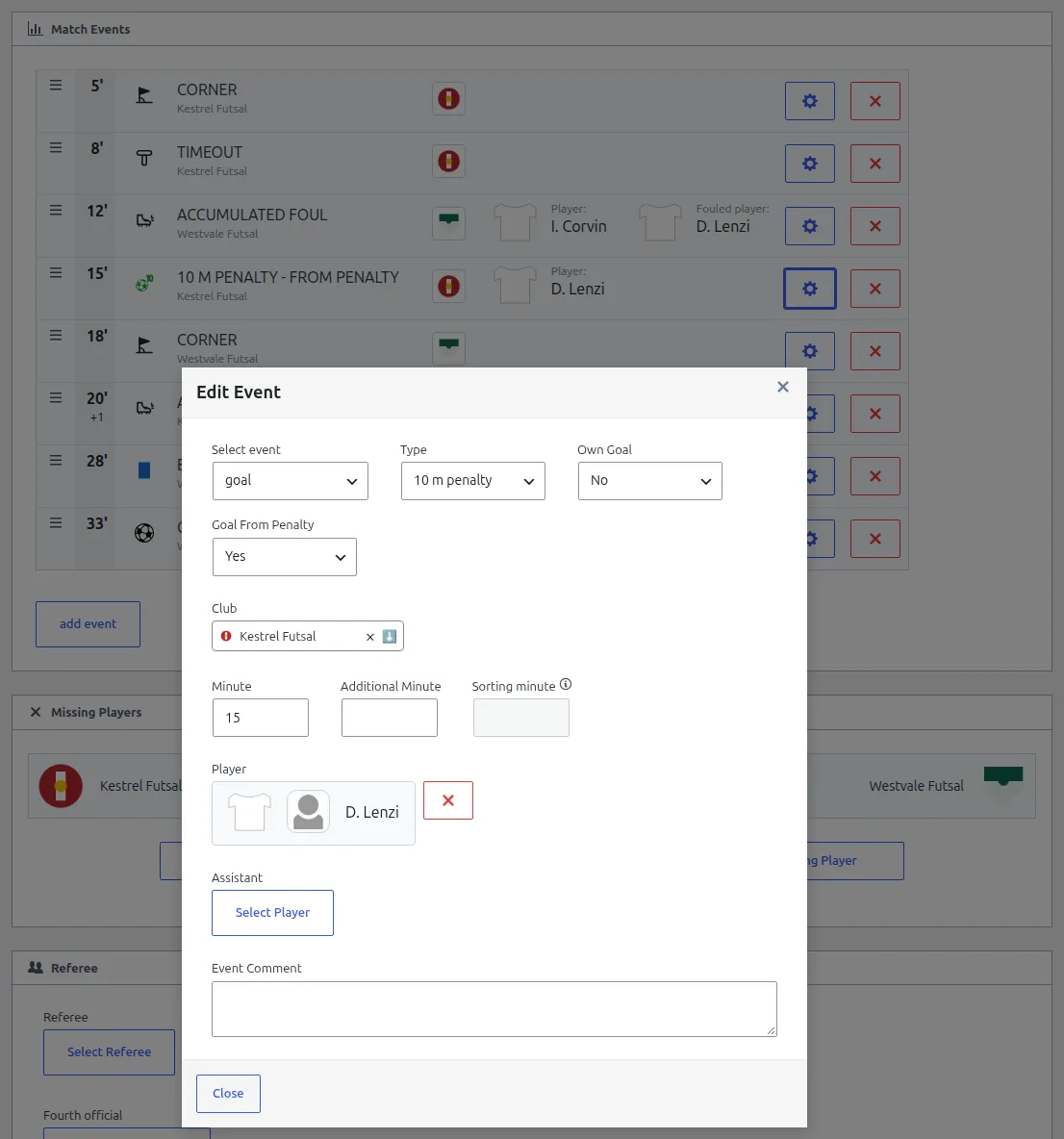
The front-end editors – Edit Match and the LIVE editor on the game page, see User Roles – offer the same lists.
Picking a variant changes the icon and the name, nothing else. Choosing 10 m penalty doesn’t set Goal From Penalty for you – set it to Yes yourself if the goal should count as a penalty goal. Archived types aren’t offered for new events, but an event that already has one keeps it, marked “(archived)”.
Where custom events show
| Place | Variant | Standalone |
|---|---|---|
| Commentary | The base event’s line with your icon and name | A line of its own. Team-only events show the team name under it, and a second player shows with its label. |
| Timeline | Your icon in the base event’s row, your name in the tooltip | A row of its own, with the player or team in the tooltip |
| Lineups | Your icon next to the player in the lineups list, on the formation field and in the Players Statistics table. A substitution variant marks the player going off. A missed penalty variant isn’t drawn there, same as a plain missed penalty. | Your icon next to the player in the lineups list and the Players Statistics table. The formation field has no spot for it, and team-only types aren’t shown. |
| Goals, cards and substitutes lists, scoreboard | The base event’s icon and name | Not shown |
| AI Writer | The base event with your name added | Passed to the AI when Commentary is on for the type |
This works the same on classic game pages and on game pages built with the Layout Builder, and during games you update by hand from the live editor.
The Show in boxes work differently for the two kinds. On a variant, an unticked box means “draw it as the plain base event there” – a 10 m penalty is still a goal, so it never disappears. On a standalone type, an unticked box hides the event from that place. It’s still counted in your stats either way.
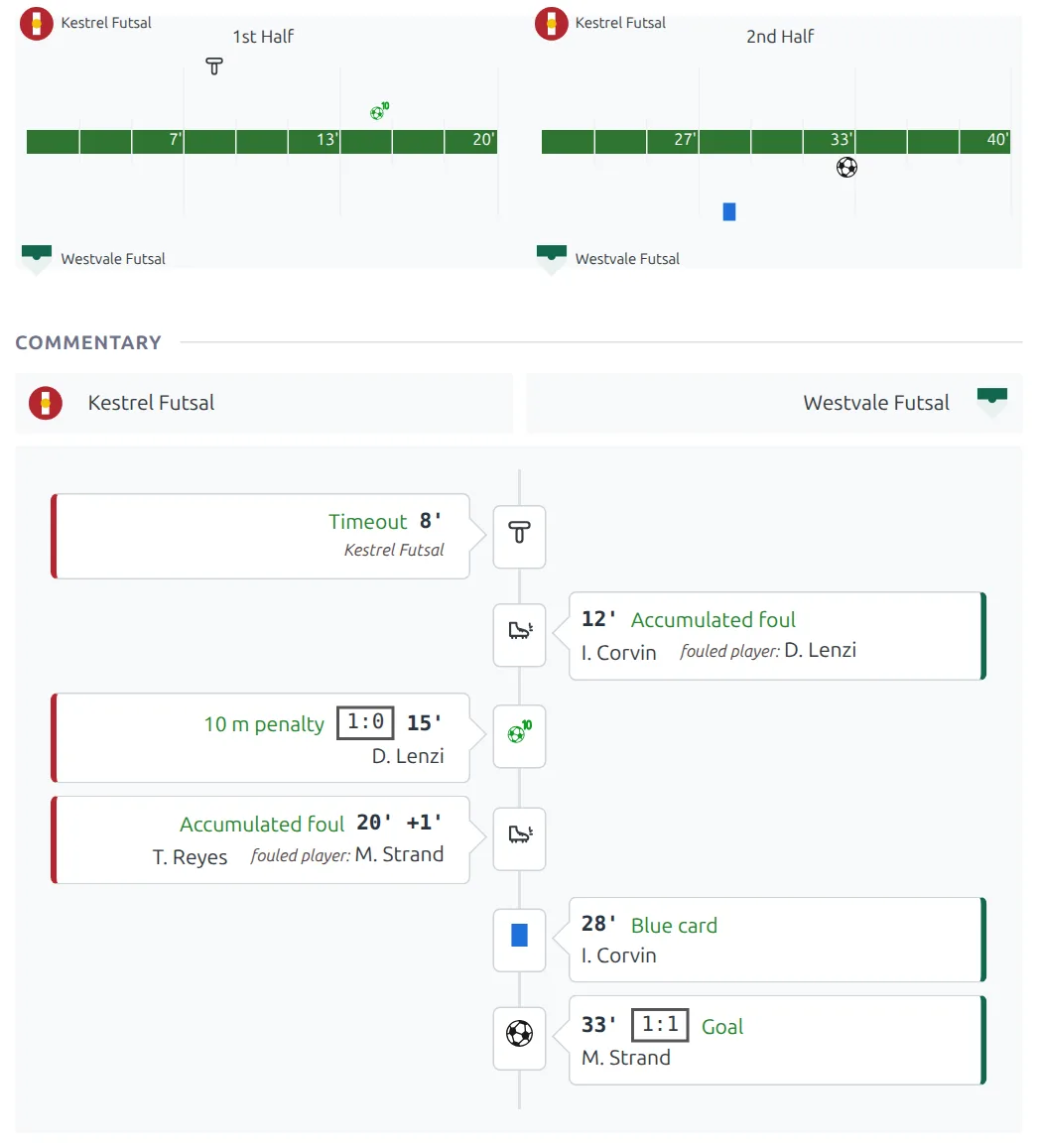
During a game with live scores from the API, the timeline draws only the events the API sends. A custom event you add during the game appears once the live feed ends.
Keep uploaded icons simple
Commentary draws icons at 18 px, the timeline at 14 px and the lineups at 12-14 px. A detailed logo turns into a smudge at that size – use an icon from the list, or a simple one-colour PNG or WebP. If you delete an uploaded icon from the Media Library, a variant falls back to its base event’s icon and a standalone type to an “info” icon until you pick a new one.
Count events as statistics
Any Simple column in the Statistics Configurator can count a custom event type instead of waiting for you to type a number. So can five of the built-in team stats: Corners, Fouls, Offsides, Shots and Shots on Goal.
- Go to Settings & Tools > Statistics.
- Find the column. Player counts go in a Simple column in Match >> Player Statistics. Team counts go in a Simple column in Match >> Club Statistics, or in a built-in Default column set to one of the five stats above.
- Under Value, switch Manual to Event count and pick the Event type.
- On a player column, choose Main player or Second player. On a team Simple column, choose Whole game, 1st half or 2nd half – built-in stats always count the whole game.
- Click Save.
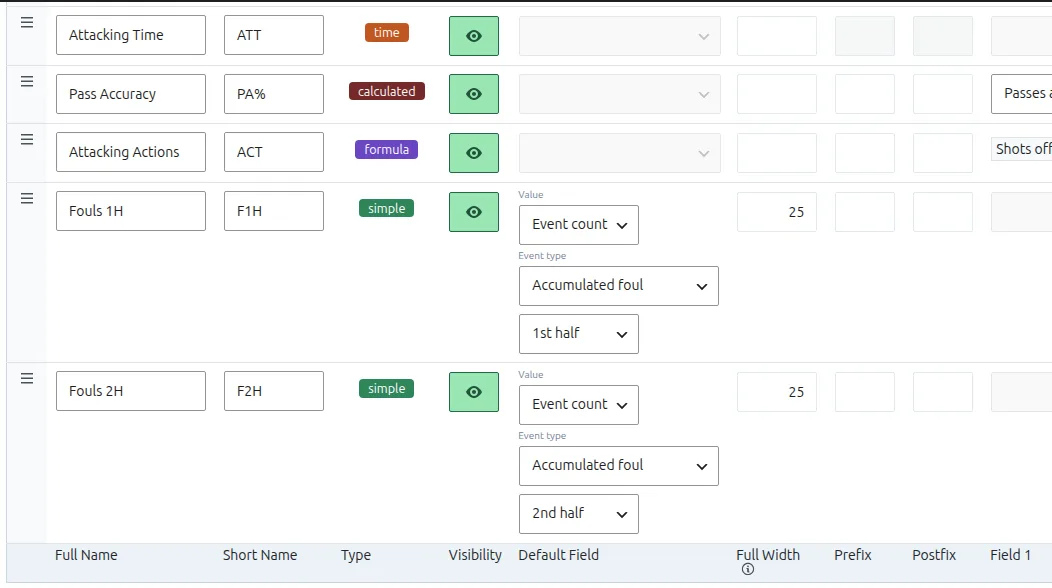
From then on the count is worked out every time a game is saved – from the admin editor, the front-end editors, the app or an import. Every stats table, shortcode and block that uses the column picks it up. The Counted in column on the Game Events page lists the columns each type feeds.
- Halves are the game’s Match Duration: Full Time split in two. In a 40-minute futsal game, minute 20 is the 1st half and 21 the 2nd. Added time stays in its half (20+1 is 1st half), and extra time counts only in Whole game.
- Team counts go to the team set on each event.
- In the game editors, a counted input is greyed out (“Counted from game events” on hover). A column that counts events but has none on this game stays editable.
- Built-in stats such as Corners are replaced only on games that have events of that type – other games keep the number you typed or imported. Delete the last such event and the number is cleared, unless you’d typed a different one.
- Live games you update by hand show the team counts ticking up during the game. Player counts update live only for players in the lineup; the rest fill in when the game is saved.
Games entered before you switched a column
Switch a column that already holds typed values to Event count and your old games keep those values. A game moves over to the count the first time it gets an event of that type.
To fill in games that already have the events, go to Game Events, click Recalculate from events in the type’s Counted in cell, then Recalculate. A progress bar shows the games done.
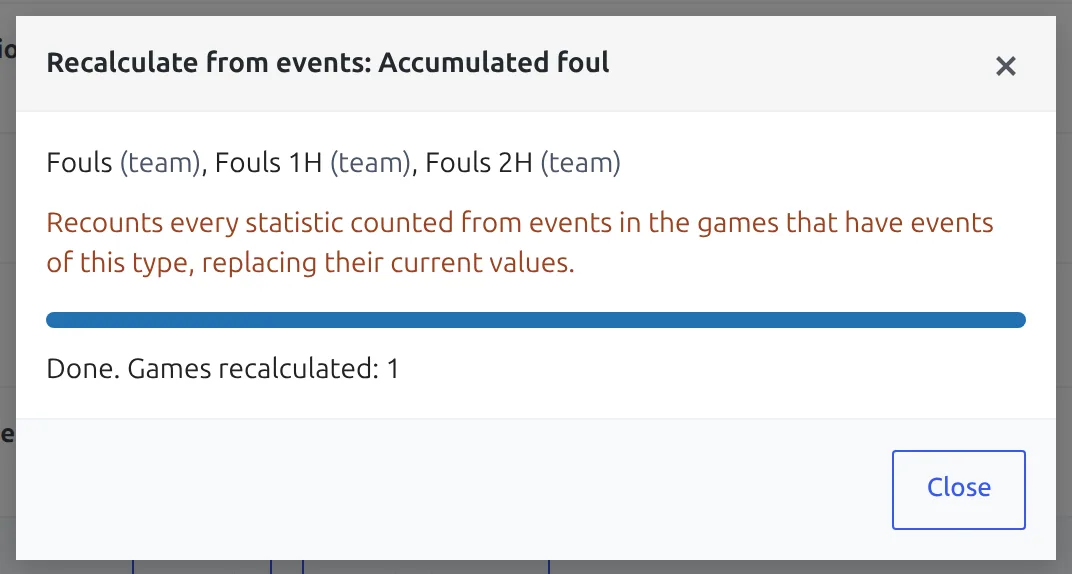
Recalculate replaces values
On every game that has events of this type, Recalculate recounts every statistic counted from events – not only this type’s columns – and overwrites what’s there, typed numbers included. It writes the same values the next save of each game would. Games without events of the type aren’t touched.
Sites that don’t enter lineups
Player counts need the player to have a stats row for the game. A standalone event with a player creates that row (it doesn’t count as a game played), just as a goal or a card does. Two cases don’t: a variant of Missed penalty or Substitute, such as a missed 10 m penalty, and the second player of a standalone event. Add those players to the lineup to get them counted.
⚽ Futsal recipe
- Set Match Duration: Full Time to 40 on your competition stage, so halves split at minute 20. New games copy it from the stage; games that already exist keep their own value, so set it to 40 in their editor too (see Rolling Substitutions for the other futsal settings).
- On Game Events, click Futsal.
- In Settings & Tools > Statistics, Match >> Club Statistics: set the built-in Fouls column to Event count, Accumulated foul.
- Add two Simple columns, “Fouls 1H” and “Fouls 2H”: Event count, Accumulated foul, 1st half and 2nd half. That’s the number to watch for the 6th-foul 10 m kick.
- Add “Timeouts 1H” and “Timeouts 2H” the same way, with Timeout.
- Optional, in Match >> Player Statistics: Simple columns “Blue cards” (Blue card, Main player) and “10 m goals” (10 m penalty, Main player). Save.
- In games, a 10 m penalty goal is Goal + Type 10 m penalty + Goal From Penalty Yes. A blue card is Custom events > Blue card – it never counts as a yellow.
- Already entered games with these events? Run Recalculate from events once per type.
Moving to another site
Site Migration brings your event types along, uploaded icons included. If the new site already has a type with the same slug, the new site’s version is kept – so check it’s set up the same way. Re-importing a game from API-Football keeps your standalone events, and a variant keeps its type when the imported event matches it by team, player and minute.
🆘 Troubleshooting
The event isn’t on the timeline or in the commentary
Check the type’s Show in boxes – the Accumulated foul and Penalty won presets are Commentary only, and Corner is count only. On a game with API live scores, wait for the live feed to end.
The count stays empty
Check that the column’s Value is Event count with the right type, and that you saved the Statistics Configurator. For a player column, check the player is in the lineup (see above). For a half column, check the game’s Full Time duration. Old games need a Recalculate from events.
I can’t delete a type or change its Type
Both lock once a game uses the type, so old and new games never disagree on what the event counts as. Archive it instead. If the Type was wrong, archive it, create a new type and re-pick it on the games that used the old one.
📚 Related
- Custom Player Statistics and Club Statistics – the Statistics Configurator in full.
- Staff Cards – cards for coaches and team officials.
- REST API – apps read each event’s type as
kind(the slug) andkind_name.