

A round-robin competition is the ordinary league shape: every club plays every other club, and one standing table decides the winner. This page links such a competition to a league on api-football.com, so fixtures, results, squads and statistics arrive automatically instead of being typed in.
The work happens on one screen, FL API Import > API Leagues, and takes about five minutes per competition. The screenshots follow one real season all the way through: Premier League 2023-2024, which the API calls Premier League (England) – 2023, with 38 rounds and 20 clubs.
Before you start
You need Football Leagues PRO with an API provider already connected – see API Import: Getting Started. You also need somewhere to put the data: either an existing round-robin competition, or a new one you create on the way through. The competition itself is covered in Round-Robin Competitions.
Video: a league from start to finish
This video imports a regular national league from api-football.com, from picking the league to creating its games. It was recorded on older screens, so the layout has moved on: today the same job starts at FL API Import > API Leagues, the database button on the league row, then Manual Configuration, and the configuration modal groups its actions into cards. The steps below match the current screens.
🚀 1. Find the league
Open FL API Import > API Leagues. The table lists every league your API plan covers, one row per league and season, so a single league appears once for each season it has. The list is kept for a day; Update API Data at the top fetches it again, for example when a new season has just been added.
Eight filters sit above the table: Filter by League, Filter by Country, Filter by Season, Is Active, Start Date After, Start Date Before, Saved In Dashboard and Saved Configuration. Filtering by country and season is usually the fastest way in.
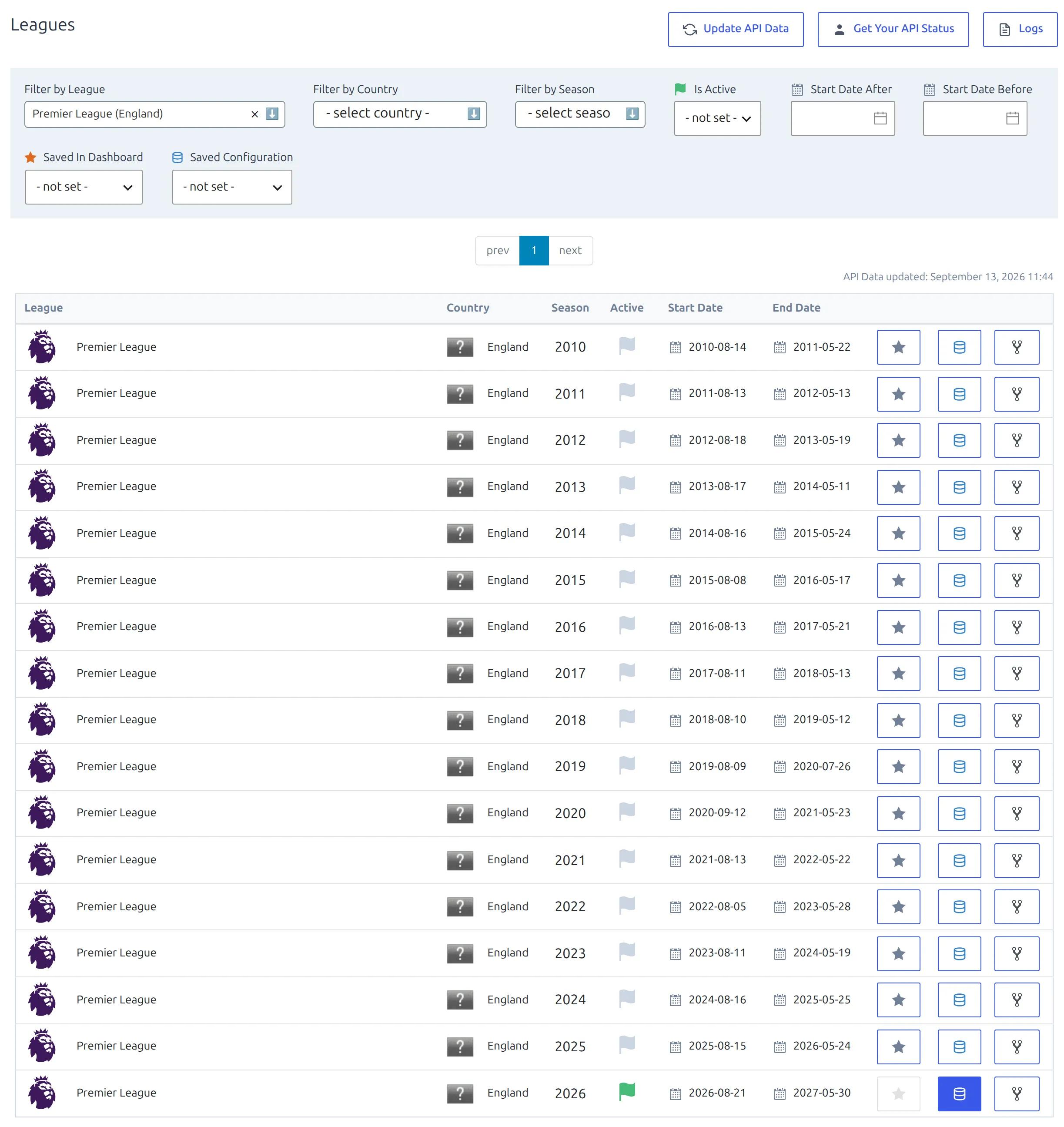
The Season column shows a single year. For a league that runs across two calendar years it’s the year the season starts, so the 2023-2024 Premier League is the 2023 row. The Start Date and End Date columns settle any doubt.

Each row ends with three controls:
| Button | What it does |
|---|---|
| Star | Saves the league to the Import Dashboard, or removes it. Stays disabled until an import configuration exists. |
| Database | Opens Import Competition Configuration. It’s filled blue while no configuration exists, and outlined once there is one. |
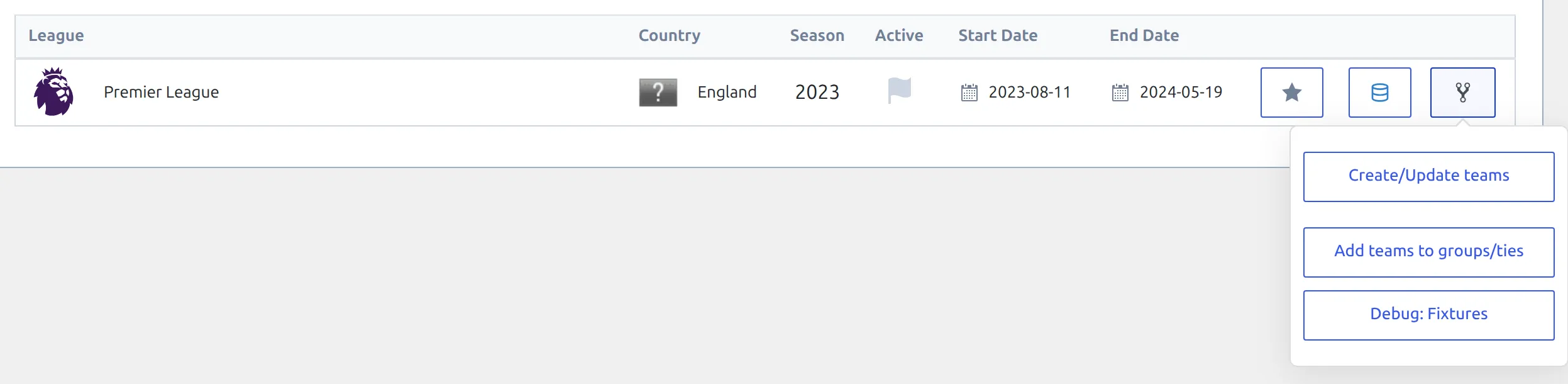
| Branching arrow | A small menu: Create/Update teams and Debug: Fixtures, plus Add teams to groups/ties once the league is linked to a competition. |
Two small letters can appear on the database button. A red A means the Import Wizard can set this league and season up automatically. An orange L means the existing configuration is a Lazy Import.
2. Choose Manual Configuration
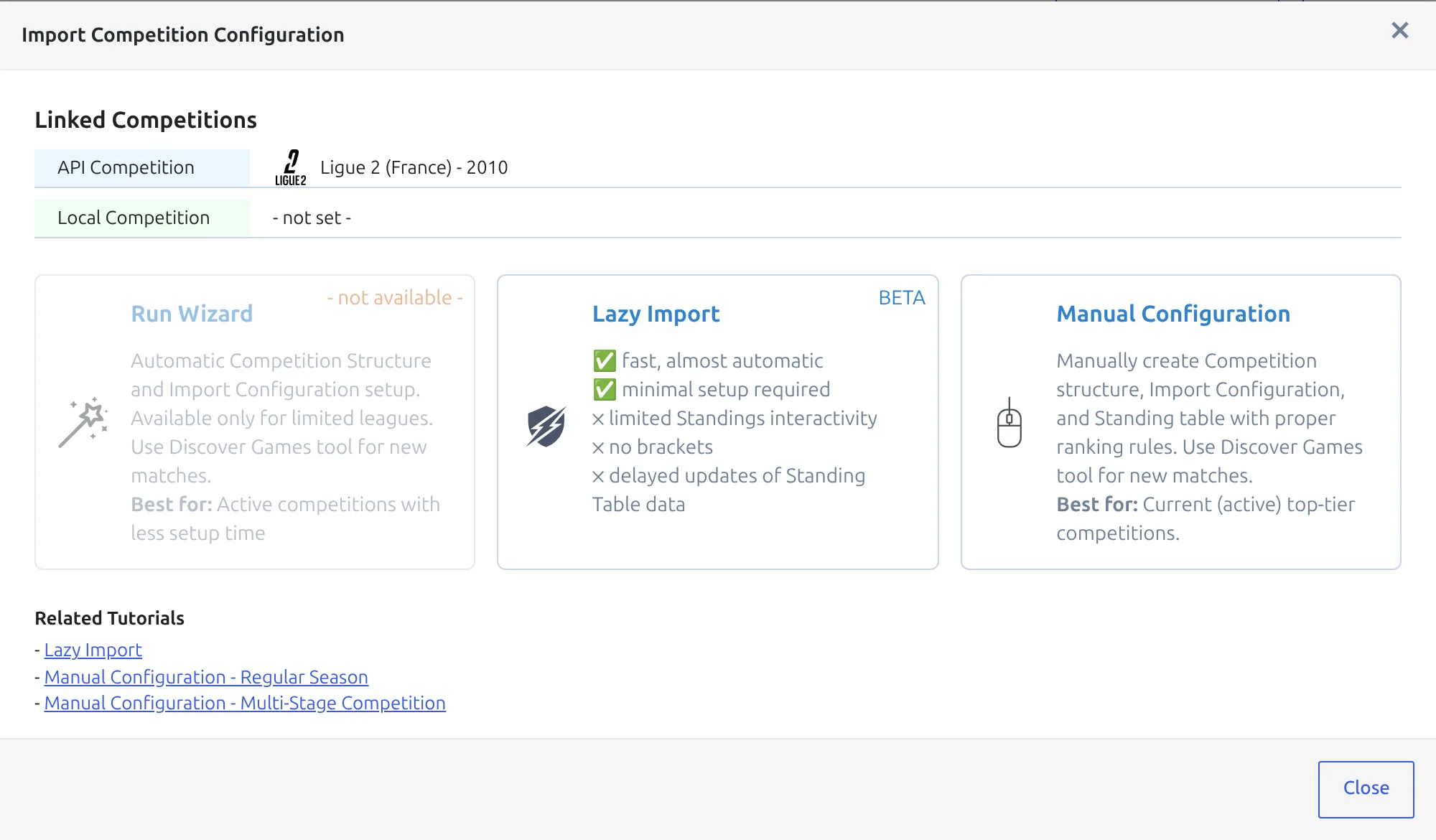
Click the database button. With no configuration yet, the modal offers three ways to build one.
| Card | Use it when |
|---|---|
| Run Wizard | The league is on the wizard’s supported list and you want the structure and the configuration built for you. It’s grayed out and marked – not available – otherwise. |
| Lazy Import (BETA) | You want speed over control. Fast and almost automatic, but standings are less interactive, there are no brackets, and standing data updates late. |
| Manual Configuration | You want a real competition structure and a standing table with your own ranking rules. This is the route described below. |
Click Manual Configuration.
3. Pick the local competition
The Select Local Competition modal lists the competitions on your site that aren’t linked to an API league yet.
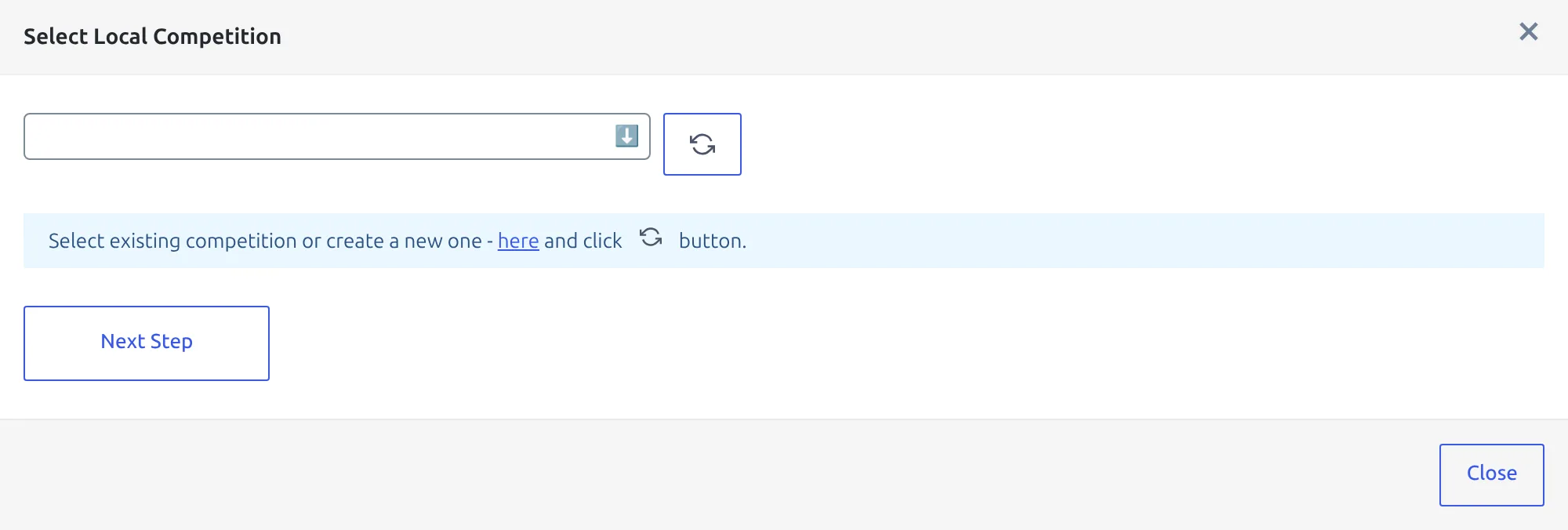
If the competition doesn’t exist yet, use the here link in the modal to open a new competition in another tab, then come back and press the circular refresh button next to the dropdown. The list re-reads without reloading the page.
Creating the competition on the way
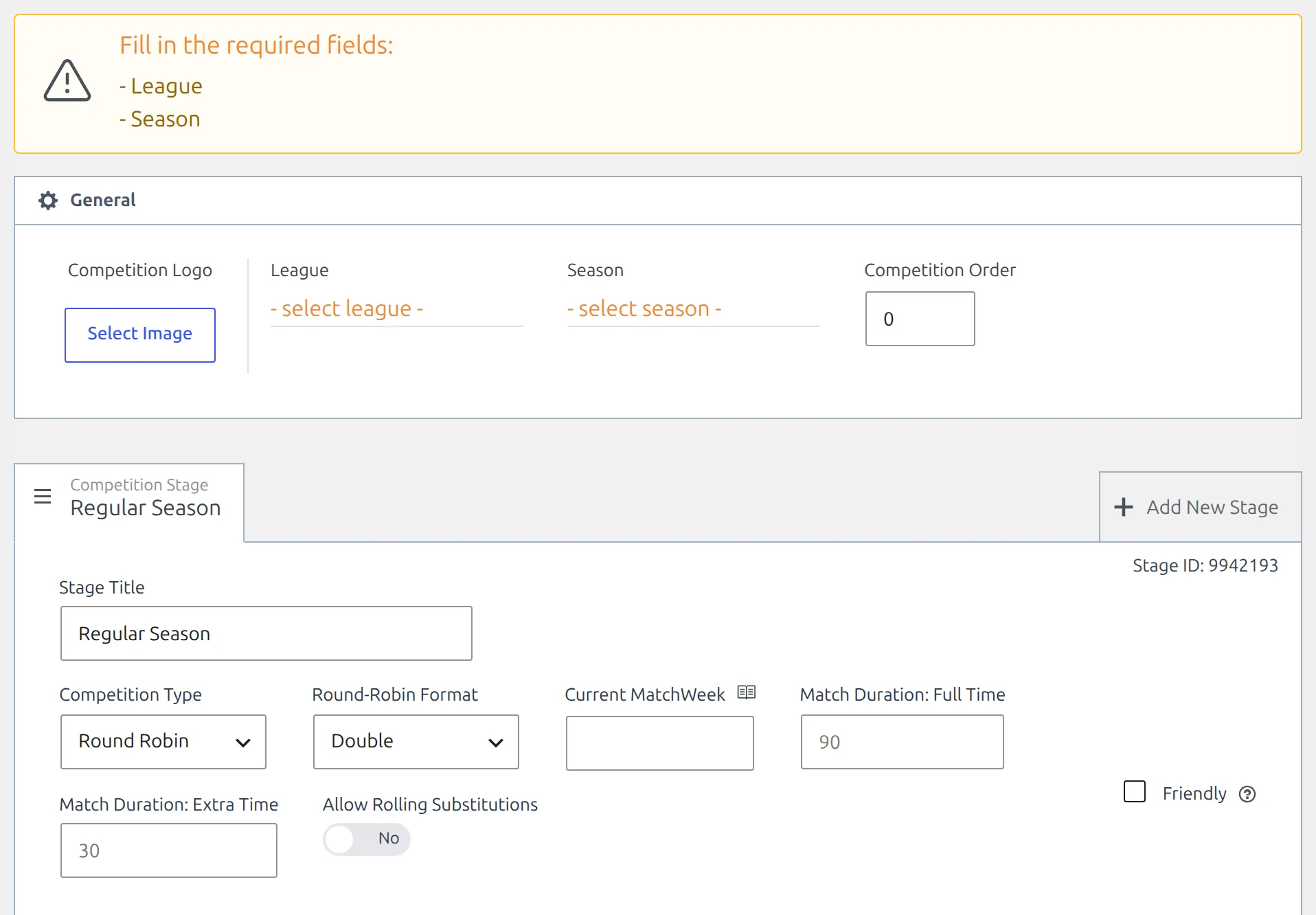
The here link opens Add New Competition. A new competition already starts as a single Regular Season stage with Competition Type set to Round Robin, which is exactly the shape you need. Only two things are required:
- Click – select league – and pick the league. If it isn’t in the list, click Create New League, type the League Name, choose its country and click Save New League.
- Click – select season – and pick the season, creating it the same way if needed.
- Leave the title empty if you like – on publish the competition is named after its league and season, for example Premier League 2023-2024. Click Publish.
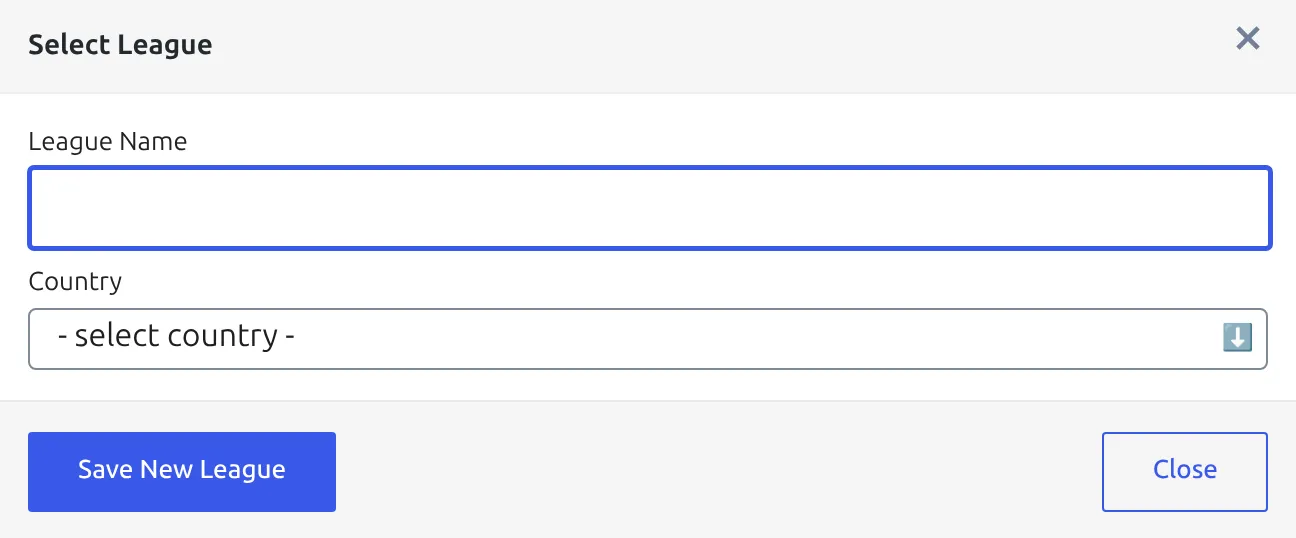
Back in the Select Local Competition modal, press refresh, select the competition and click Next Step.
4. Map the API rounds
Edit Competition Structure opens on step 1. The table has one row per round of your competition, with the stage name and its type on the left, and a multi-select of API rounds on the right.
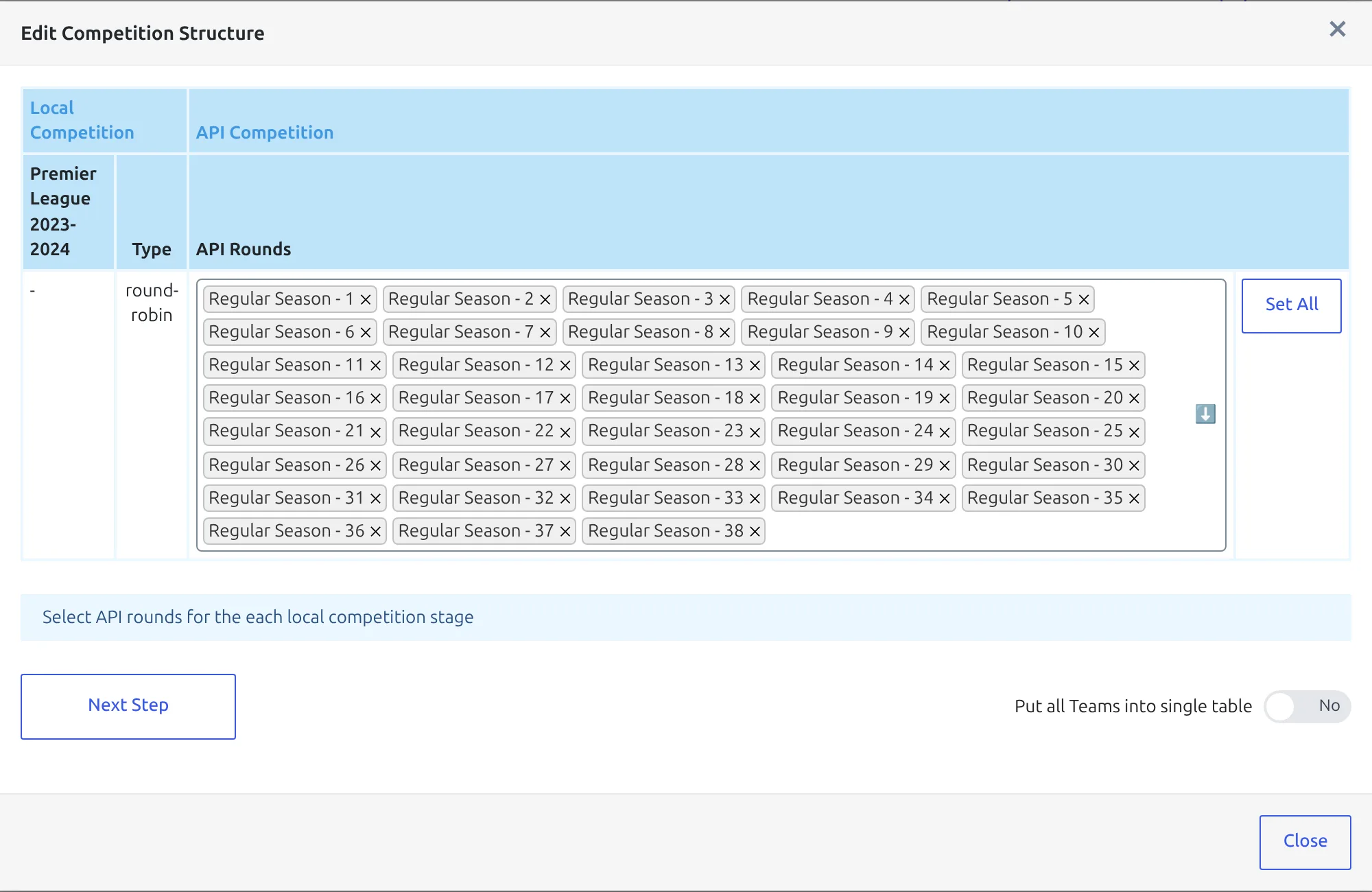
A plain league has a single round, so there’s a single row. Click Set All to attach every API round to it. That’s the right answer for almost every national league, because the API splits a league season into Regular Season – 1, Regular Season – 2 and so on, and all of them belong to the same table. For Premier League 2023-2024 that’s 38 rounds, Regular Season – 1 to Regular Season – 38; a Bundesliga season has 34.
Mapping all of them to one row doesn’t lose the matchweeks. When games are created, each one takes its matchweek from the last number in its round name, so a game from Regular Season – 12 lands in matchweek 12.
The toggle at the bottom, Put all Teams into single table, decides how the plugin reads those fixtures:
- No (default) – the plugin builds one list per club: the club plus every club it meets in the mapped rounds. Clubs with identical lists share a group, and every different list becomes a group of its own. In a full league, where everyone plays everyone, all the lists match and you get one group. If some clubs haven’t met each other in the rounds you mapped, the lists differ and you get several overlapping groups – close to one per club when most of them differ.
- Yes – every club found in the mapped rounds goes into one group, whatever the fixtures say.
Leave it on No for a straight league with the whole season mapped, and click Next Step. Switch it to Yes when not every club meets every other in the mapped rounds – part of the season isn’t published yet, say. It goes back to No each time step 2 loads, so set it again if you return to step 1. If your league is split into conferences or divisions, read API Import for a Competition with Conferences instead.
5. Check the groups and write the structure
Step 2 shows what the plugin recognized: the rounds you mapped, then each group it found with the club names it contains and a Create / Ignore toggle.
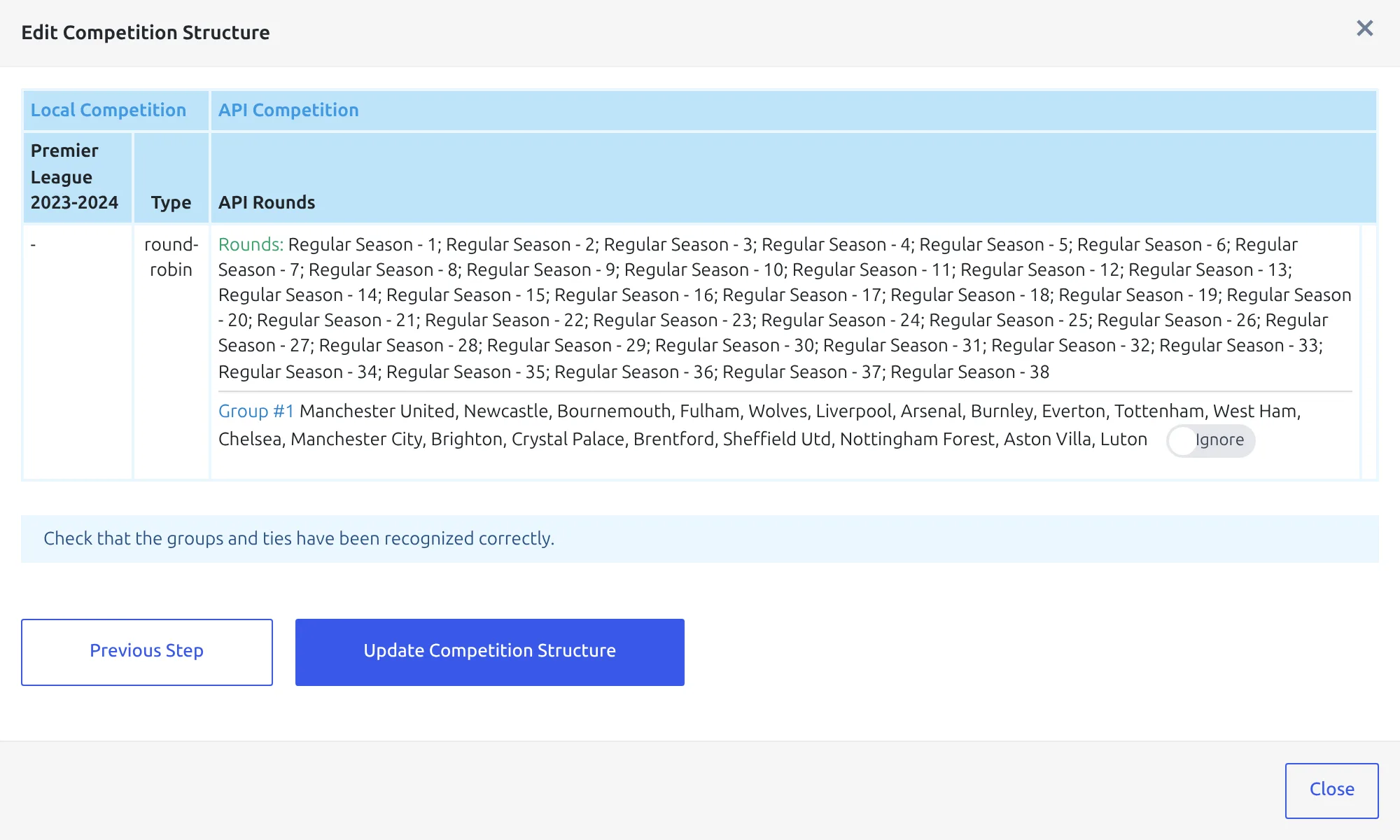
A group is named Group #1, Group #2 and so on unless the API’s own standings call that exact set of clubs a group – so a plain league comes through as Group #1, while a group stage comes through as Group A and Group B. Check the club count against the real league: 20 names for the Premier League, 18 for the Bundesliga.
The toggle’s starting position depends on your competition. On a new competition, whose group is still empty, it starts on Create. If any group in that round already has clubs, every recognized group starts on Ignore, so re-running this step never quietly rewrites work you did by hand. That’s why the Premier League shot above, taken on a competition that’s already filled, reads Ignore.
Click Update Competition Structure. Three things happen:
- Any club in a Create group that doesn’t exist on your site yet is imported with its logo, plus its stadium while Import Stadiums is on under FL API Import > Settings.
- The clubs are written into the competition’s groups. Existing groups are filled in order, and any extra groups are added after them.
- The round mapping is saved, so later imports know which API rounds belong to which stage.
Groups are matched by position, not by name
The first recognized group fills your first group, the second fills your second, and so on. If your competition already has groups in a different order, the clubs land in the wrong ones. Set groups to Ignore and fix them in the competition editor instead.
Club creation takes a while on a full league, because every new club’s logo is downloaded into your Media Library, and its stadium created too when stadium import is on. Leave the tab open until the Competition Structure Updated message appears.
6. Create games and squads
The configuration now exists. On a first setup you don’t have to go looking for it: after the structure update succeeds, Import Competition Configuration opens by itself on the action cards. Later on, the database button opens straight to them instead of the three choices.
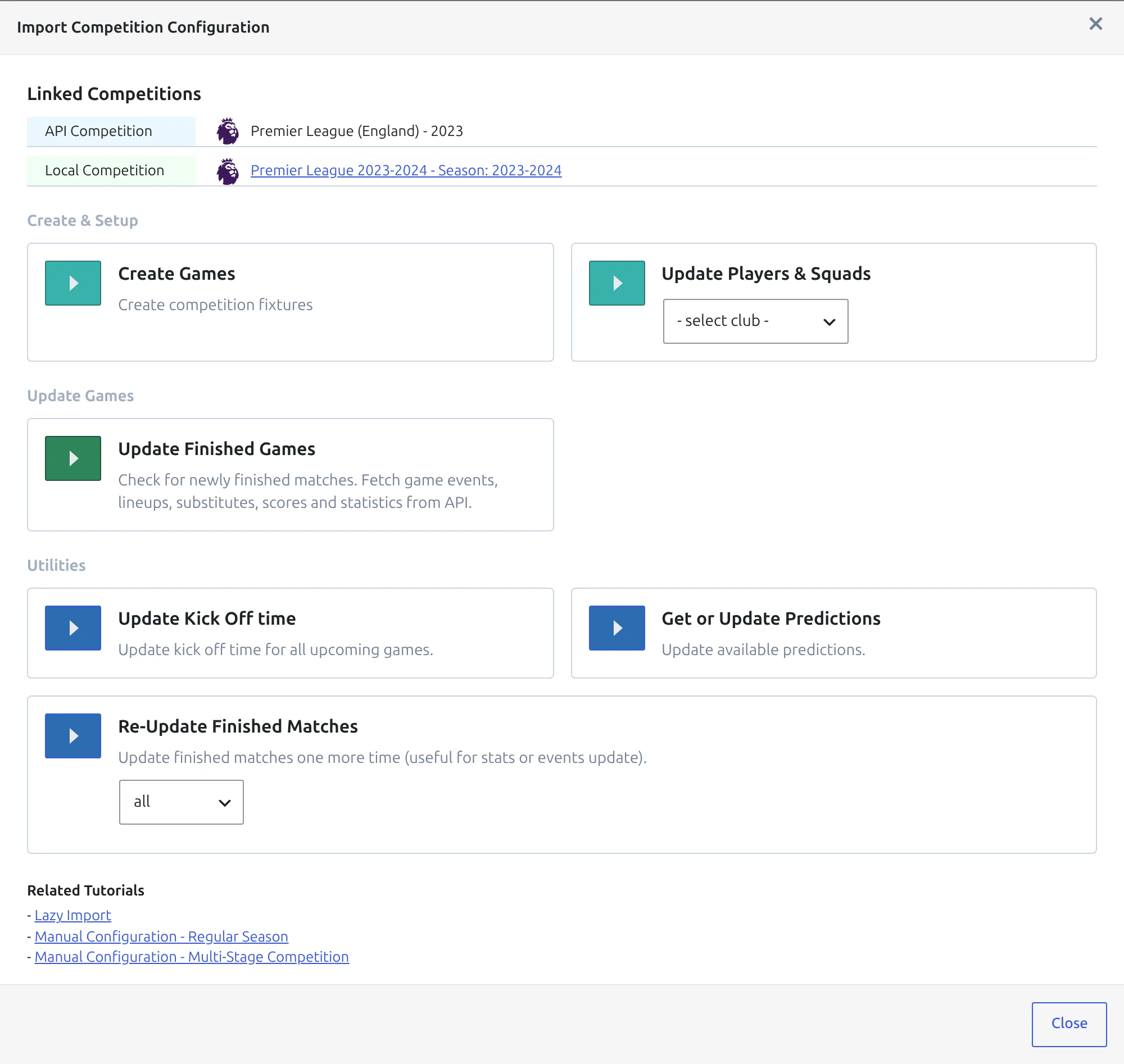
If the local competition has no logo yet, an update logo button sits at the end of the Local Competition line. One click copies the league’s logo from the API onto your competition.

Run the action cards in this order:
| Action | What it brings in |
|---|---|
| Create Games | Every fixture in the mapped rounds that isn’t on your site yet, with dates and kickoff times. Stadiums come with them while Import Stadiums is on, and referees only when Import Referees is on – both live under FL API Import > Settings. |
| Update Players & Squads | Players and squad numbers. Pick All Clubs, or one club at a time from the dropdown. |
| Update Finished Games | Scores, events, lineups, substitutes and statistics for games still marked as fixtures on your site that the API now reports as finished. When it’s done it recalculates the standing tables and moves the competition’s current matchweek on. |
Each action shows its progress under the card, for example Creating games – 120/380 …, and a message when it’s finished. Running Create Games again later is safe: fixtures you already have are skipped, and if nothing is new you’ll see No Games to Create.
The Utilities block below holds Update Kick Off time for upcoming games and Re-Update Finished Matches, which re-reads matches you already have, plus Get or Update Predictions when predictions import is on. Re-Update Finished Matches can target everything, a single matchweek or a single match, and it’s the tool to reach for when events or statistics look incomplete.
7. Add the standing table
The import fills the competition, not the table. Create the standing table yourself, once:
- Go to Competitions > Standing Tables > Add New Standing Table.
- Under Competition, pick the competition you just imported. Under Group, pick its group – Group #1 for a plain league. Only groups without a published table are offered.
- Click Save & Continue, set the ranking rules the league actually uses, and publish. Leave the title empty and one is built for you.
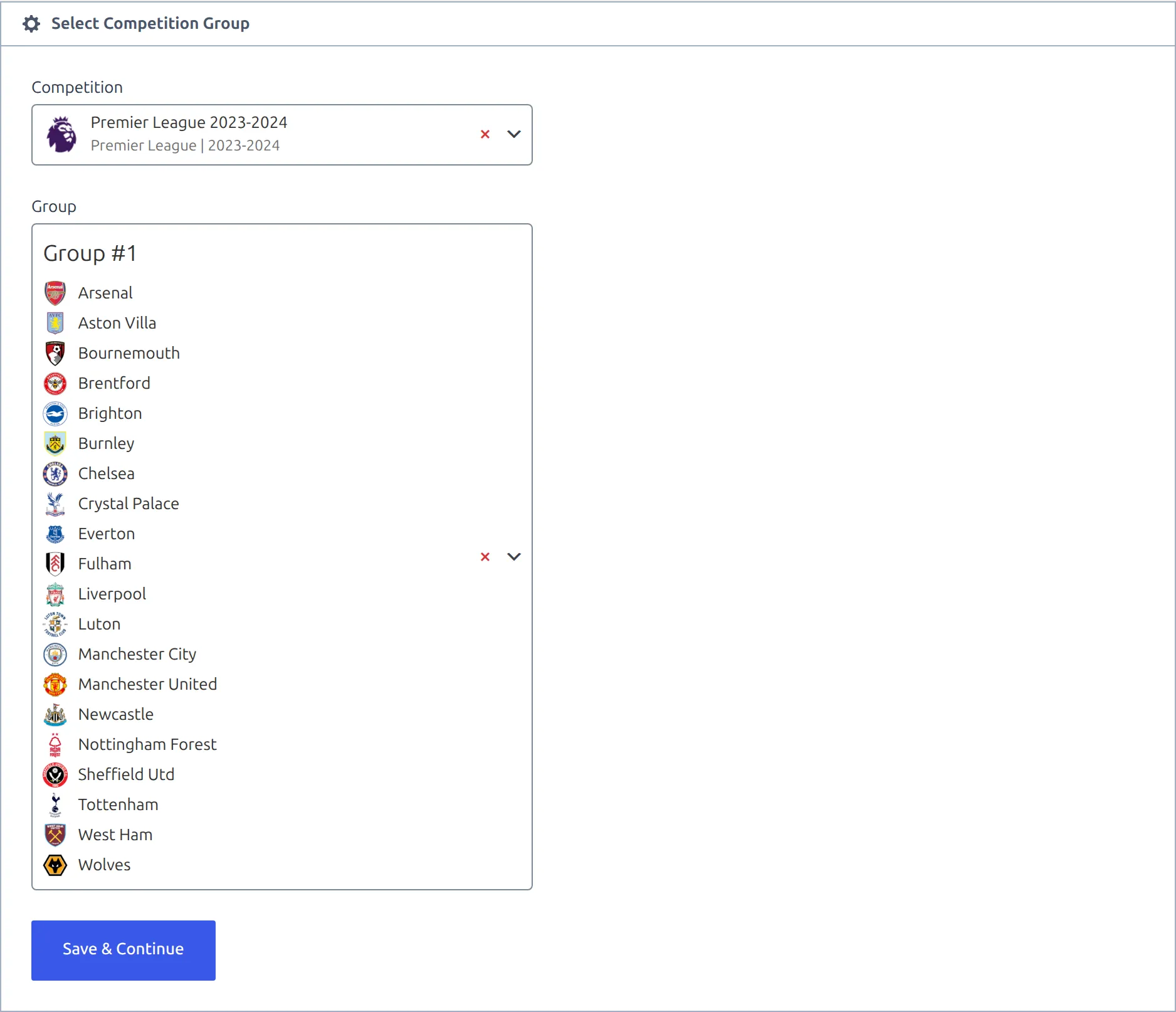
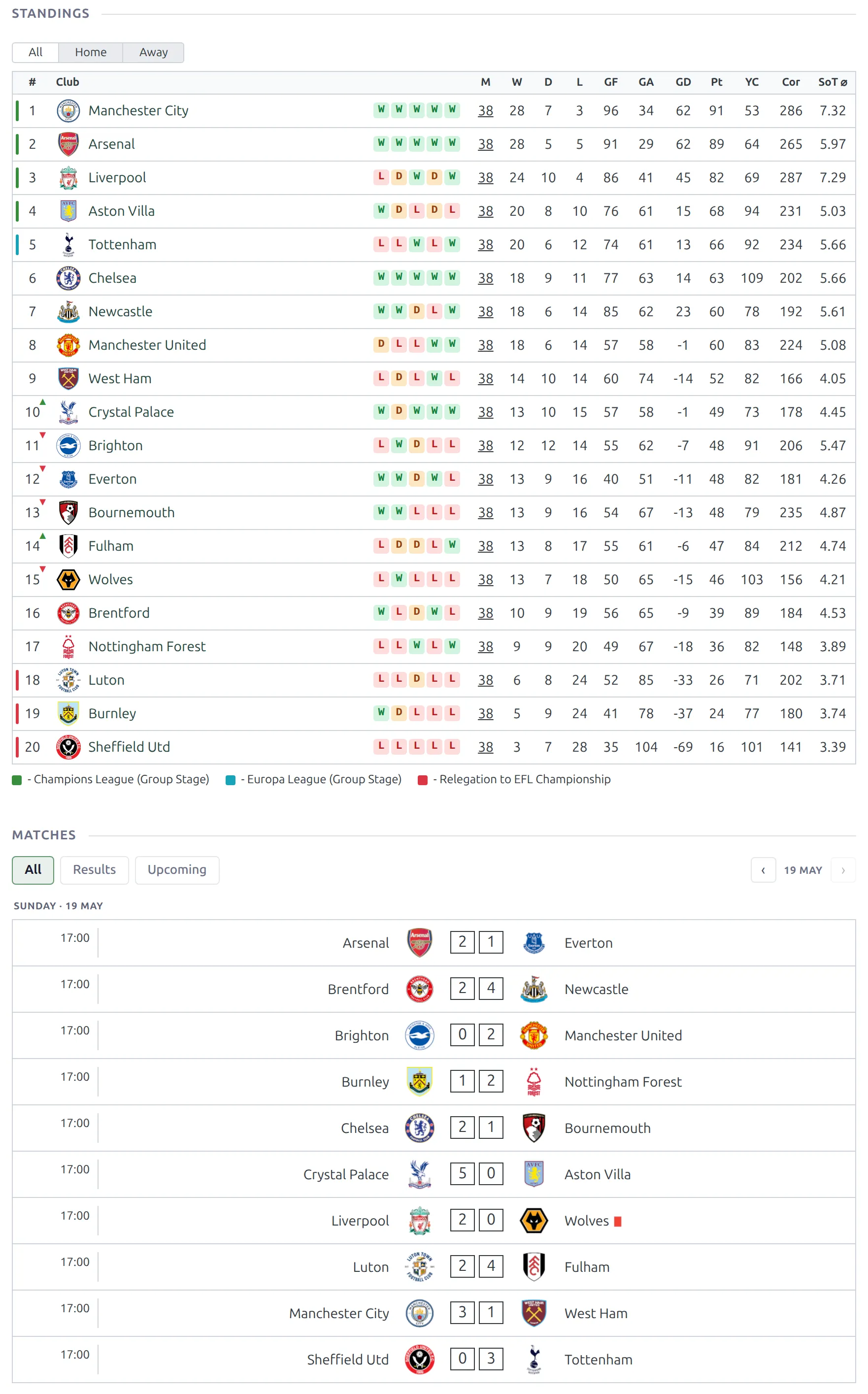
Saving calculates the table from the games already imported, and Update Finished Games recalculates it as results arrive, following the table’s ranking rules. The competition editor and standing basics are in Round-Robin Competitions.
Open the competition on the front end to check the result: the table and the imported games.
8. Keep it up to date
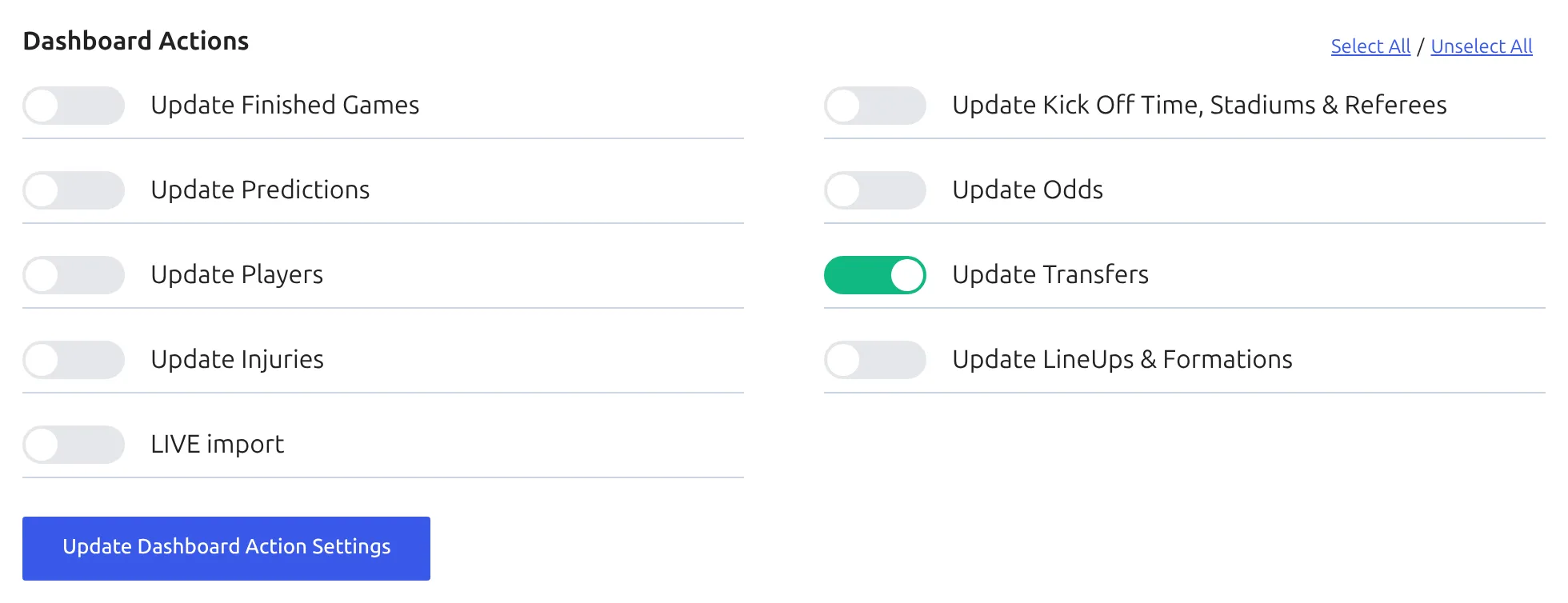
Click the star on the league row to save it to the Import Dashboard. Once it’s saved, the league’s Import Competition Configuration modal gains a Dashboard Actions block: switch on the updates this league should get – finished games, kickoff times, players, transfers, injuries, lineups and more – and click Update Dashboard Action Settings. How and when they run is set on the dashboard itself – see Import Dashboard.
New fixtures announced mid-season are picked up by the Discover New Games tab rather than by re-running the structure step.
If you do need the structure step again – to change the mapped rounds, or to fill a group you left on Ignore – the database button won’t take you there any more. Open the branching-arrow menu on the league row and choose Add teams to groups/ties.
🆘 Troubleshooting
“Sorry, no available competitions”
Every competition on the site is already linked to an API league. Create a new one with the here link and press refresh. A competition that’s already linked is left out on purpose – open its own league row instead of starting a new configuration.
Step 2 shows several groups for a normal league
Some clubs haven’t met every other club in the rounds you mapped, so their opponent lists differ and each different list became a group. Usually only part of the season is mapped. Click Previous Step, click Set All, and try again. If the provider hasn’t published every round yet, set Put all Teams into single table to Yes before Next Step – it resets each time step 2 loads. If the split is real, the competition is a conference league.
A group is missing clubs
Clubs are only recognized from fixtures. A club with no fixture in the mapped rounds isn’t in any group. Add it in the competition editor by hand.
Create Games finished, but some games are missing
A game is only created when both clubs sit in the same group of the mapped round. Fixtures that don’t are skipped, and the finish message doesn’t say so – compare the number of games with the real schedule. The usual causes are a group left on Ignore in step 2, or a club missing from the group. Fix the group (reopen Add teams to groups/ties, or add the club in the competition editor) and run Create Games again. Games you already have aren’t duplicated.
“No Games to Create”
Every fixture in the mapped rounds is already on your site. That’s the normal answer on a second run. If you expected new games, check that their rounds are mapped – a round the provider added after you set up the mapping isn’t attached to your stage until you add it in step 1.
“Empty API Data”
The API returned no fixtures for this league and season. Usually the season hasn’t been published by the provider yet, or your plan doesn’t cover that league. Check the row’s start date, and check coverage on api-football.com.
“Another request is active”
Only one import action runs at a time. Wait for the spinner to stop before starting the next one.
📚 What’s next
- API Import for a Multistage Competition – group phase plus knockout, on one page.
- API Import for a Competition with Conferences – one table split into divisions.
- Import Dashboard – schedule the updates.
- Create or Update Clubs – what a club import writes and what it leaves alone.