

A club’s squad is its roster – the players who belong to it, each with a squad number, a position and a status. The squad feeds the squad shortcode, the player pages, the match line-up editor and every place the plugin needs to know who plays for whom.
You edit it in the Club Squad panel on the club edit screen. Everything on this page is in the free version.
🎯 Active Squad and the season archive
Before the steps, the one idea worth getting right: a club has one canonical roster plus an optional archive of past seasons.
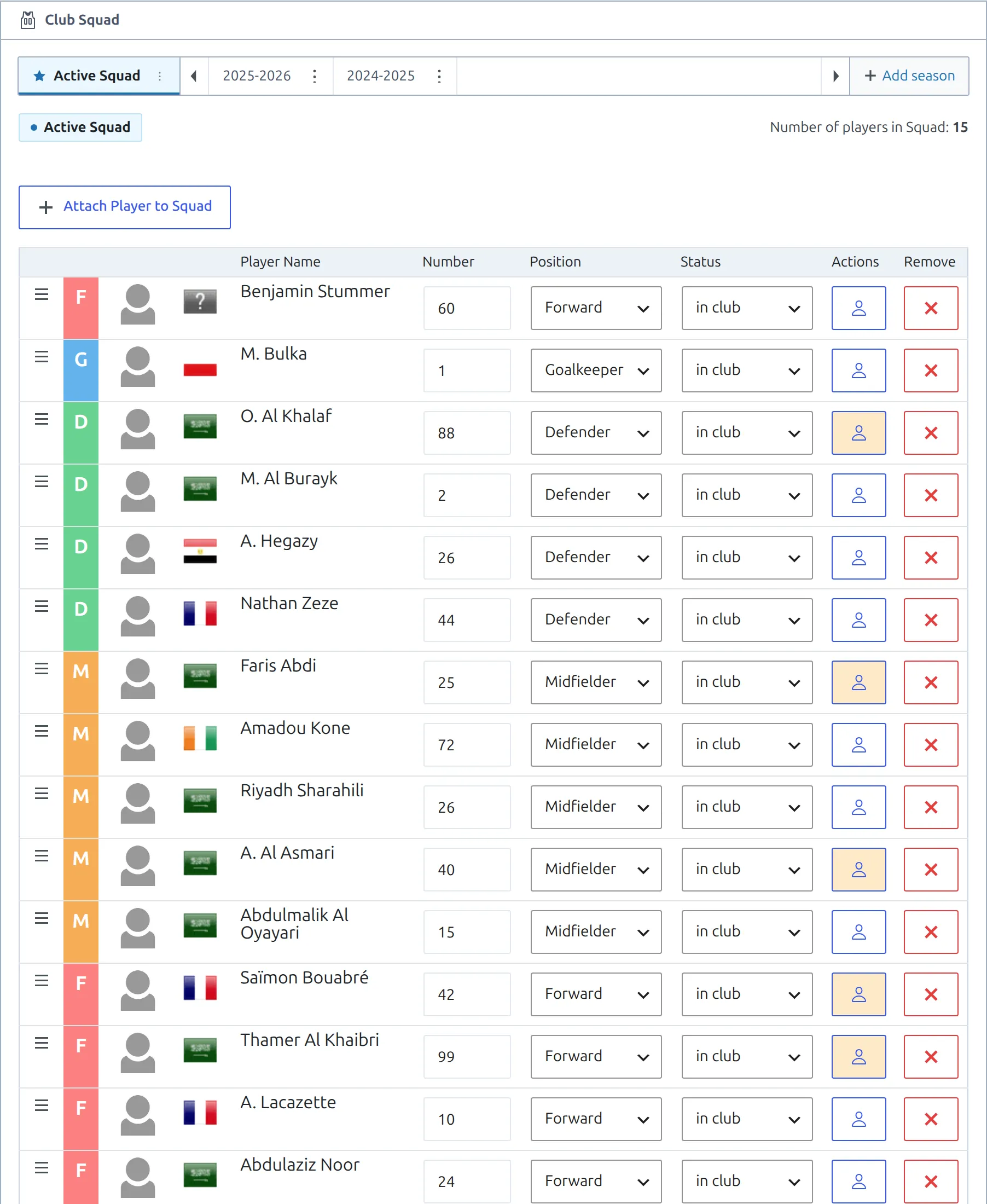
- Active Squad – the current roster, marked with a star. This is what shortcodes use by default. Most sites only ever need this tab.
- Season tabs – a snapshot of the roster for a past season, kept for history. Add them only when you want last season’s squad to stay visible.
The tabs are a display device, not separate records to save one at a time. Switching tabs is instant and nothing is submitted until you click Update on the club – at which point every tab is saved together.
🚀 Step 1 – Create the players
Players are their own records, so they have to exist before a squad can point at them. Open Players → Add New Player and create them one by one.
For a whole squad at once, the Data Import tool is much faster – paste a list from a spreadsheet and it creates the players for you.
Set the current club while you’re there
Give each player a Current Club when you create them. The attach modal opens filtered to club players, so players already pointed at this club are the ones you see first – it turns step 2 into a few clicks.
Step 2 – Attach players to the squad
Open the club (Clubs → your club), scroll to the Club Squad panel and make sure the tab you want to fill is selected – usually Active Squad.
- Click Attach Player to Squad.
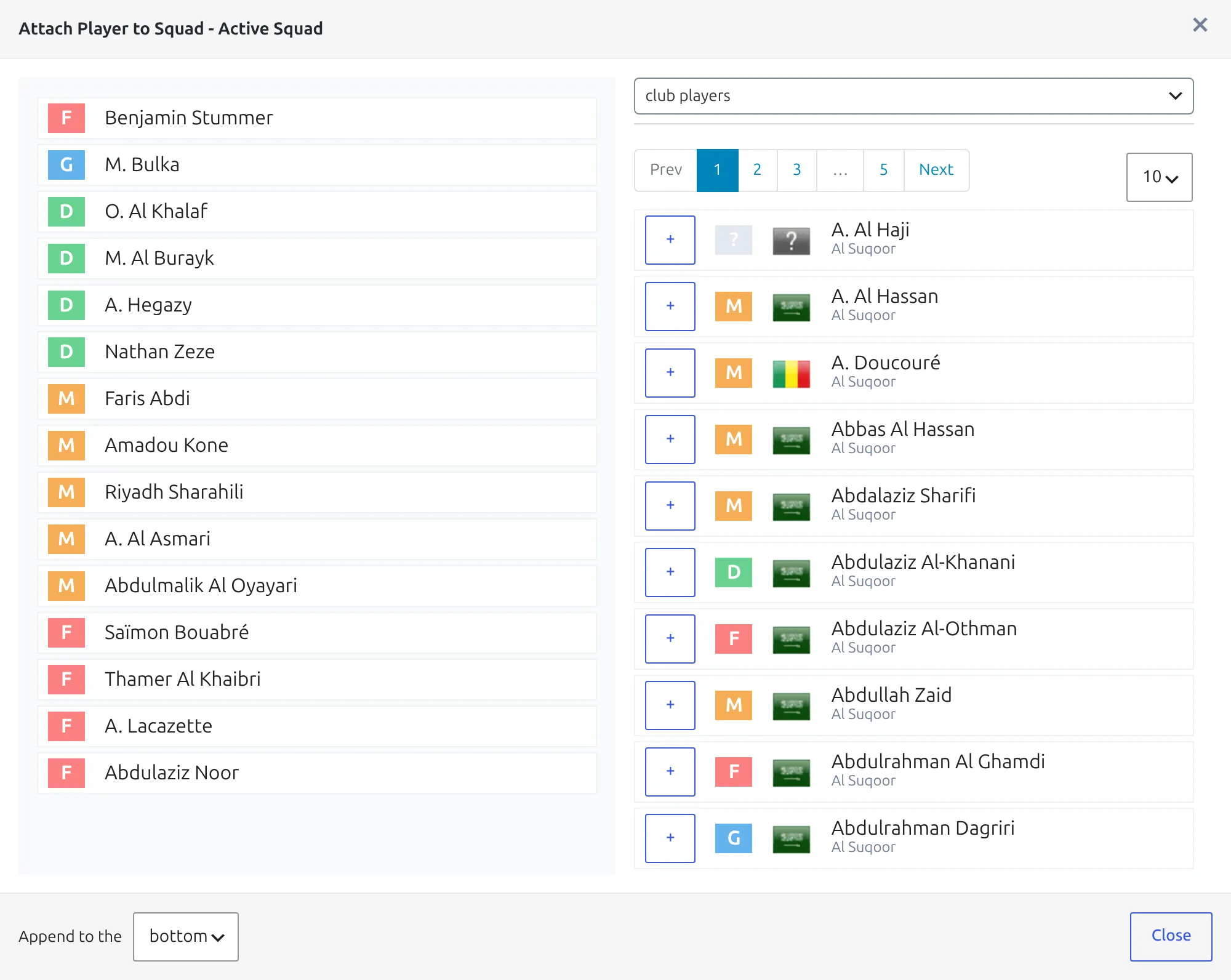
- The modal opens on club players – every player whose current club is this one, minus those already in the squad. Switch the select to search by name to find anyone else.
- Click a player to add them. The left-hand column shows the squad filling up as you go.
- Close the modal when you’re done.
The modal title tells you which tab you are adding to – Attach Player to Squad – Active Squad, or the season name if you are filling an archive tab.
Step 3 – Fill in the squad details
Each row in the table is one player. Edit the values directly in the row.
| Column | What it does |
|---|---|
| Number | The squad number. Used as the default shirt number in every match line-up this player appears in. |
| Position | Goalkeeper, Defender, Midfielder, Forward. Drives the color block at the start of the row and the grouping option below the table. |
| Status | in club (the default), on loan, left club or on trial. |
| Actions | Opens the player’s own panel – change their current club, and on PRO see their transfer history. |
| Remove | Takes the player out of this tab’s roster. The player record itself is untouched. |
Drag the handle at the far left of a row to reorder the squad – the order you set is the order the front end uses. Under the table, Group Players by Position switches the public squad between one flat list and blocks per position; players with no position set are shown in a separate group rather than dropped.
The Actions button turns orange when a player’s current club is not this club – a quick way to spot someone who has moved on but is still listed here.
Nothing saves until you click Update
Attaching a player, editing a number, reordering rows, adding a season tab – all of it lives in the browser until you click the club’s Update button. Leaving the page first loses the lot.
Keeping past seasons
If you want last season’s roster to stay on the site, archive it. Click Add season in the tab strip and pick the season – a new tab appears, and seasons already archived are not offered again.
Rather than retyping a roster, copy one. The kebab menu (⋮) on each tab moves players between it and the Active Squad:
| Menu item | Where | What it does |
|---|---|---|
| Save as season… | Active Squad | Copies the Active Squad into the season you pick, creating that tab. |
| Replace from Active | Season tab | Overwrites this season’s roster with the Active Squad. |
| Append Active to this | Season tab | Adds the Active Squad’s players to this season, keeping what’s already there. |
| Copy this to Active | Season tab | Overwrites the Active Squad with this season’s roster. |
| Delete season tab | Season tab | Removes the season from the archive. Asks first. |
The usual end-of-season routine is one click: Save as season… to file the roster you just finished, then edit the Active Squad for the new season.
🆘 Troubleshooting
The squad is empty on the front end
Shortcodes read the Active Squad. A roster filed only under a season tab will not appear as the club’s current squad – use Copy this to Active on that tab.
A player I attached isn’t there after saving
The panel was almost certainly left without clicking Update. Re-attach the player and update the club.
A player I want isn’t in the attach modal
Two reasons: they are already in this tab’s squad (attached players are hidden from the list), or their current club is a different one. Switch the filter to search by name to reach any player on the site.
A shirt number is wrong for one match only
The squad number is only the default. You can override it for a single match in the match line-up without touching the squad.
📚 Related
- Data Import tool – create a whole squad from a pasted list
- Squad shortcode – put the roster on a page
- Players shortcode – list players outside a club context
- Transfers (PRO) – track players moving between clubs