

Live import keeps scores, match events and elapsed time updating while games are being played, without anyone touching wp-admin. It runs every minute for the duration of each match you follow.
Check your hosting first
While a match is live this makes an API request and several database writes every 60 seconds, and recalculates standings each time a game finishes. That’s fine on a VPS or decent managed hosting. On cheap shared hosting it can exhaust your resource allowance and take the site down. Don’t switch it on and walk away – watch the first matchday.
🚦 The three switches
Live import only runs when all three are set. Missing one is the usual reason nothing happens.
1. Turn the feature on
Go to FL API Import > Settings > LIVE and enable Import LIVE data from API.
Two optional extras sit under it – Import LIVE – Game Team Stats and Import LIVE – Game Player Stats. Each costs one additional API request per 20 live fixtures on every tick, so leave them off unless you want in-play statistics.
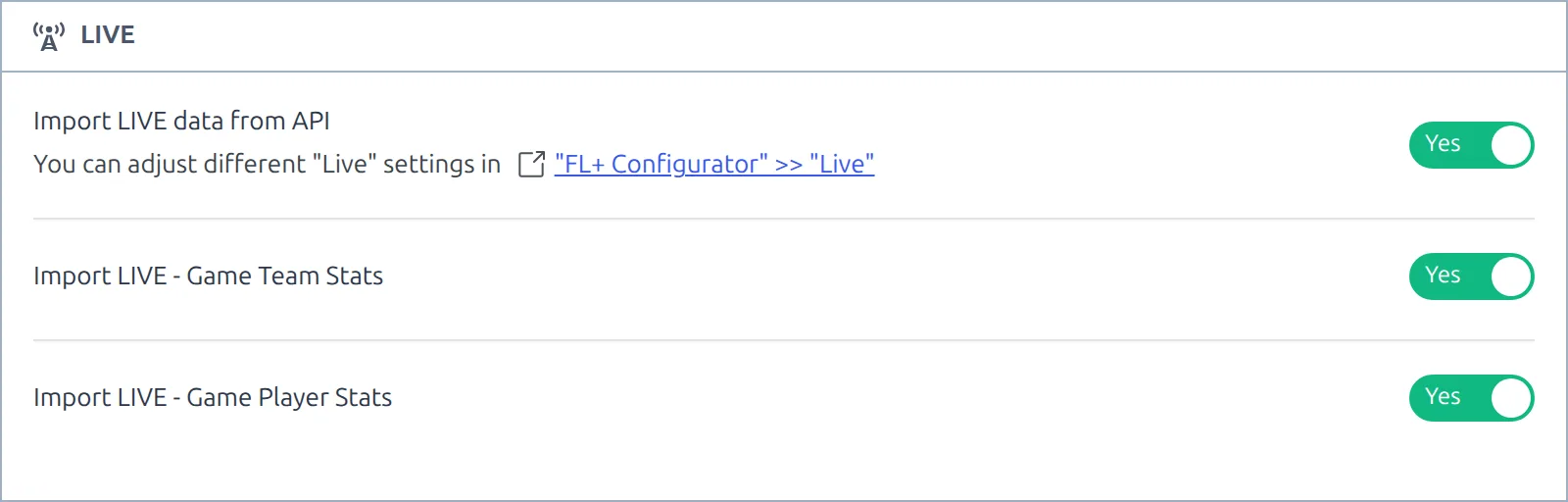
Turning this off later doesn’t just hide the feature – it actively cancels the scheduled jobs, so it’s a safe emergency stop.
2. Pick the competitions
On the Import Dashboard, find the LIVE import row and click its selected / all link. Tick the competitions you want followed live, then close the modal – the selection saves itself.
You can set the same thing from API Leagues, inside the Import Competition Configuration modal under Dashboard Actions. That route needs the Update Dashboard Action Settings button.
Be selective. Every competition on this list is polled during its matches, and the request cost is per tick, not per competition-day.
3. Start the schedule
Still on the Dashboard, click the Schedule button on the LIVE import row. Its Scheduled Status flips to ACTIVE. Clicking again pauses it and shows DISABLED.

That status is for the job as a whole, not per competition – individual competitions are just ticked or unticked in step 2.
⏱ What actually runs, and when
It isn’t polling the API all day. Two jobs work together:
- A planner runs hourly. It checks whether any selected competition has an unfinished game near kick-off, and if so it starts the worker roughly 20 minutes beforehand.
- The worker runs every 60 seconds, fetching the live fixtures and writing scores, events and elapsed time. When nothing is live any more, it shuts itself off.
As each game reaches full time the plugin pulls its final data, recalculates the competition standings and updates the current matchweek. No separate results job is needed for the competitions you follow live.
WP-Cron needs traffic
WordPress only fires scheduled jobs when someone visits the site, so a quiet site updates late no matter what interval you set. For live scores this matters more than anywhere else – use a real server cron job calling wp-cron.php every minute. Not sure yours is firing? See How to test if cron works properly in WordPress.
How live scores look on the site
This page covers getting the data in. How it’s displayed – refresh interval, blinking, sound, the scoreboard – is configured separately in Settings & Tools > Settings > Features > Live Scores.
To show live matches on a page, use the LIVE shortcode. To report on matches by hand instead of importing them, see the Live Scores Dashboard.
🆘 Troubleshooting
Scores aren’t updating
Work through the three switches in order: the LIVE toggle in Settings, the competition ticked on the LIVE import row, and the row showing ACTIVE. Then check the Actions Log under the Dashboard table, and confirm the match itself is mapped to the API – a game created by hand isn’t linked to any API fixture and can’t update.
My server load spiked
Reduce the number of competitions on the LIVE import row first – that’s the biggest lever. Then turn off live team and player stats, which add API requests to every tick. If you need it stopped immediately, pause the row from the Dashboard, or turn off Import LIVE data from API in Settings, which cancels the scheduled jobs outright.
Removing the jobs by hand
Rarely needed, but if you want to clear the events directly – with the WP Crontrol plugin, under Tools > Cron Events, the two to look for are:
anwp_fl_api_scheduled_live
anwp_fl_api_scheduled_import_live
As a last resort you can stop every scheduled job on the site by adding this to wp-config.php, above the “That’s all, stop editing!” line:
define( 'DISABLE_WP_CRON', true );That’s a blunt instrument – it also stops WordPress updates, scheduled posts and every other plugin’s background work. Pausing the Dashboard row is almost always the better answer.