

The Dashboard is where you keep imported competitions up to date. It’s the landing screen of FL API Import, and it manages active seasons and schedules automatic data updates.
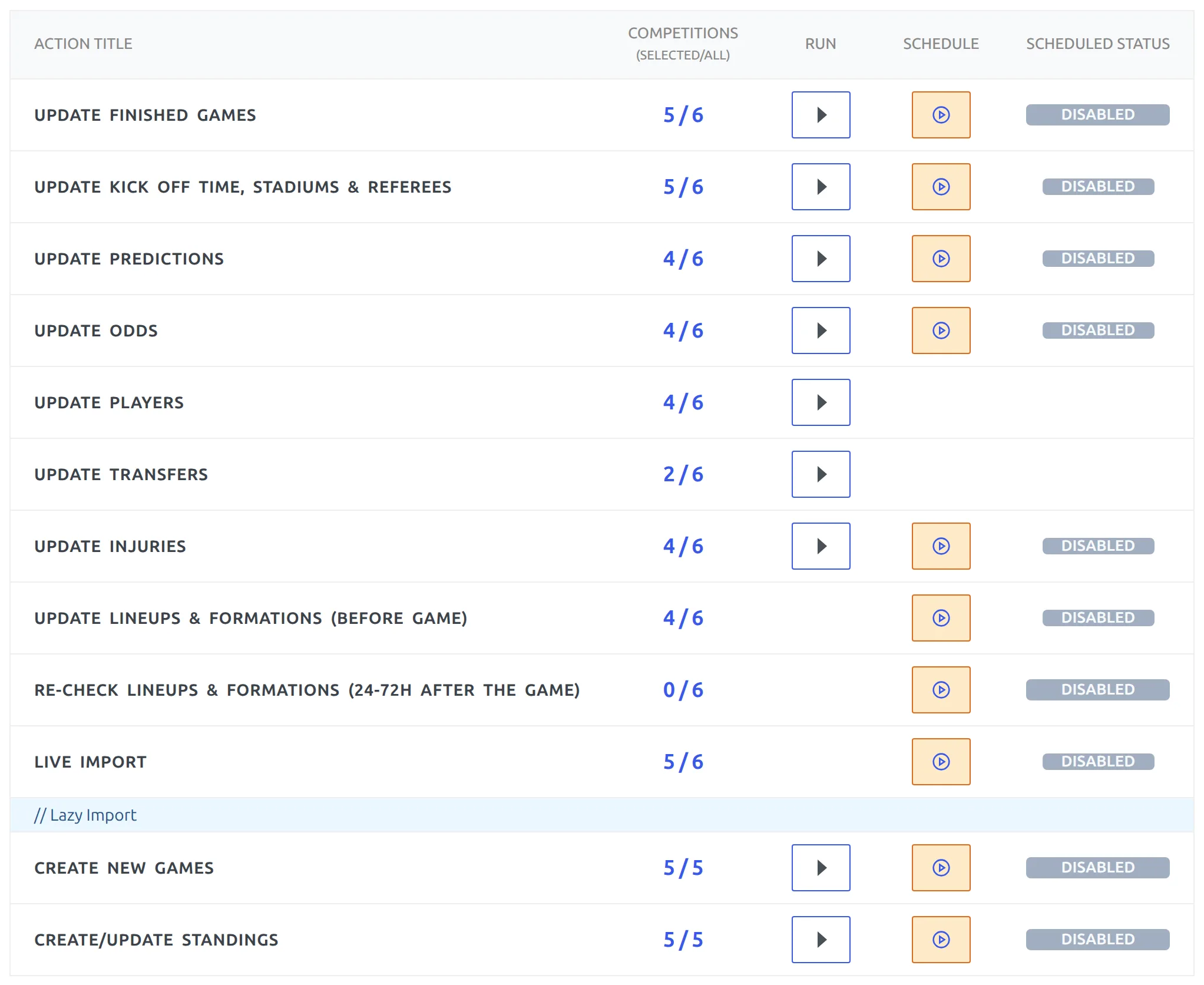
One thing to get straight first, because it trips people up: the Dashboard lists actions, not competitions. Each row is a job like “Update Finished Games”. Each row separately remembers which competitions it applies to.
⭐ Getting a competition onto the Dashboard
An empty Dashboard says No saved Competition configs. To fill it:
- Import the competition first, from the API Leagues tab – see Getting Started.
- On that league’s row, click the orange star button. Its tooltip reads save to Dashboard.
The star is gray and unclickable until the league is linked to a local competition. That’s the usual reason it “does nothing” – the import hasn’t created the competition yet.
To take a competition back off the Dashboard, click the same star again – the tooltip now reads remove from Dashboard. Nothing is deleted: the import configuration, the mappings and all imported data stay exactly as they are. Only the Dashboard listing goes.
Turning every toggle off is not the same thing
A competition with no actions selected still appears on the Dashboard – the rows just count it as 0 / N. Use the star to remove it properly.
Reading the table
| Column | What it does |
|---|---|
| Action Title | The job this row performs. |
| Competitions | A selected / all link. Click it to choose which competitions the row applies to. |
| Run | An icon button that runs the job once, right now. |
| Schedule | An icon button that starts or pauses the automatic version of the job. |
| Scheduled Status | ACTIVE or DISABLED. When active, a clock shows the current interval. |
The action rows
| Action | Run now | Schedule | Change interval |
|---|---|---|---|
| Update Finished Games | yes | yes | yes |
| Update Kick Off Time, Stadiums & Referees | yes | yes | – |
| Update Predictions | yes | yes | – |
| Update Odds | yes | yes | – |
| Update Players | yes | – | – |
| Update Transfers | yes | – | – |
| Update Injuries | yes | yes | – |
| Update LineUps & Formations | – | yes | – |
| Re-check LineUps & Formations | – | yes | yes |
| LIVE import | – | yes | – |
| Create new Games (Lazy Import) | yes | yes | yes |
| Create/Update Standings (Lazy Import) | yes | yes | yes |
The two lineup rows and LIVE import have no Run button on purpose – they only make sense on a timer, tied to kick-off. The last two rows belong to Lazy Import.
If a row is grayed out and says disabled in API Settings, the feature itself is switched off. Predictions, Odds and LIVE each have a master toggle on the Settings tab – turn it on there and the row comes back.
Choosing which competitions an action touches
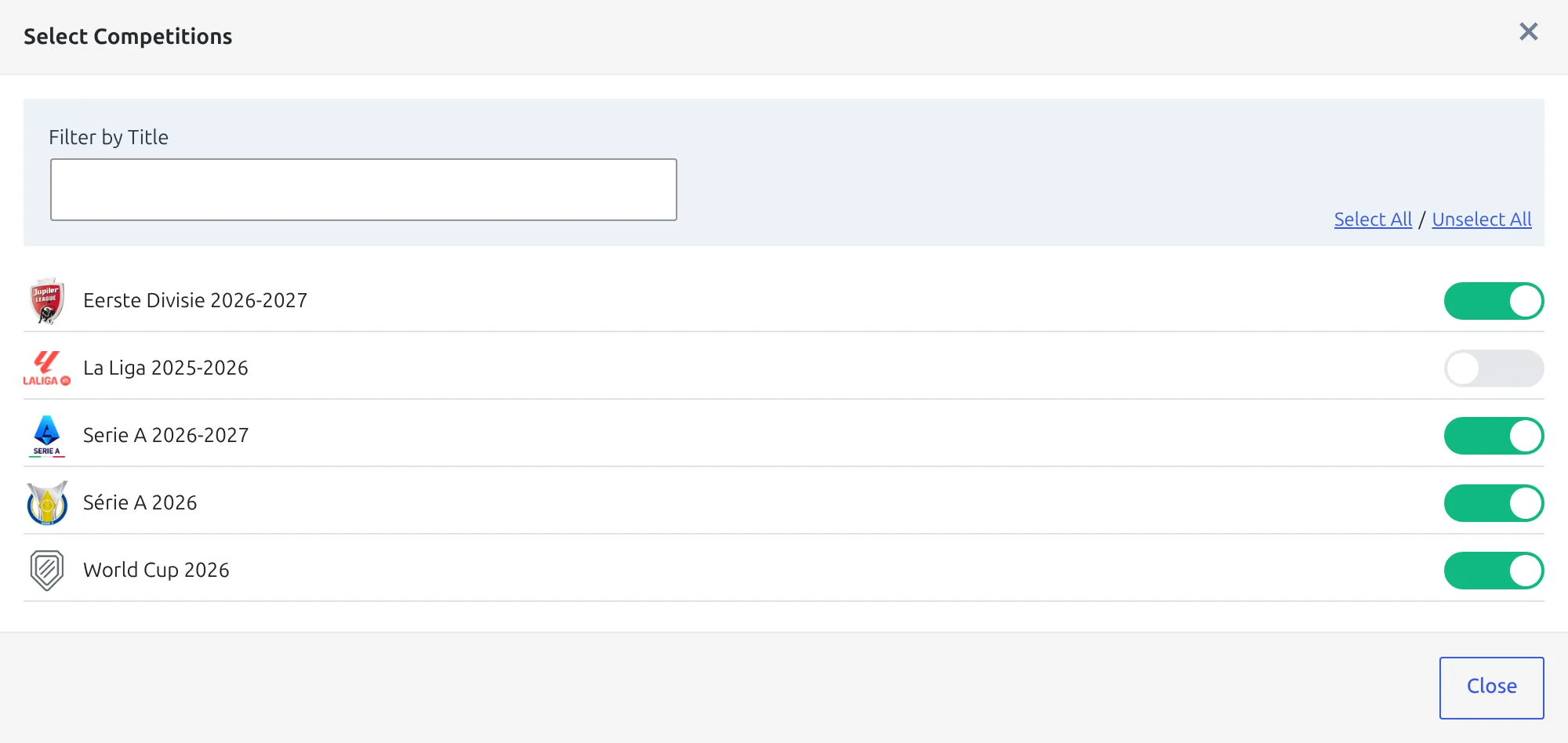
Click the selected / all link in the Competitions column. The Select Competitions modal opens with a title filter and Select All / Unselect All shortcuts.
There’s no Save button – and you don’t need one
Your selection is saved automatically when you close the modal. Just close it and the count in the Competitions column updates.
The same per-competition toggles are also reachable from API Leagues, inside the Import Competition Configuration modal under Dashboard Actions. Changes there need the Update Dashboard Action Settings button.
⏱ Running and scheduling
The Run button does the job once for the selected competitions, while you watch. Use it after setting a row up, to confirm it does what you expect before leaving it on a timer.
The Schedule button turns the same job into a recurring WP-Cron event. Click it once to start (status becomes ACTIVE), click again to pause it (DISABLED).
Changing how often it runs
While a row is ACTIVE, its interval appears next to a clock icon. Click it to open Change Task Recurrence and pick from – default –, Every 4 Hours, Hourly, Twice Daily, Daily or Weekly.
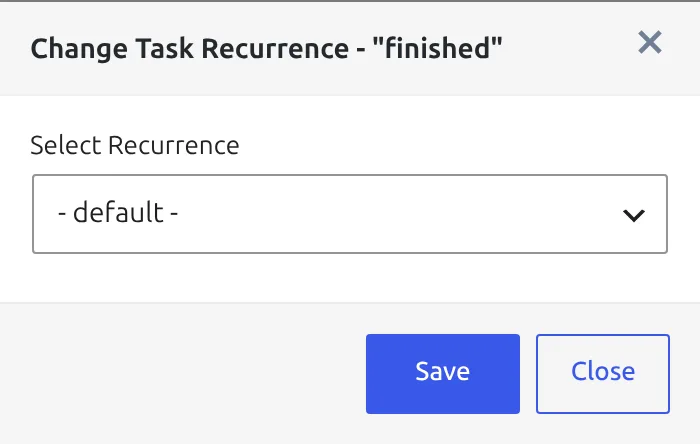
Only four rows offer this: Update Finished Games, Re-check LineUps & Formations, Create new Games and Create/Update Standings. Every other scheduled row quietly uses its default:
| Action | Default interval |
|---|---|
| Update Finished Games | Hourly |
| Update Kick Off Time, Stadiums & Referees | Daily |
| Update Predictions | Daily |
| Update Odds | Every 4 hours |
| Update Injuries | Daily |
| Update LineUps & Formations | Daily |
| Re-check LineUps & Formations | Every 4 hours |
| Create new Games (Lazy Import) | Every 4 hours |
| Create/Update Standings (Lazy Import) | Every 4 hours |
WP-Cron only fires when someone visits your site, so a quiet site runs its jobs late. If results matter to the minute, replace WP-Cron with a real server cron job – How to test if cron works properly in WordPress walks through checking it.
What Update Finished Games actually does
For each selected competition it asks the API for the season’s fixtures, keeps the ones the API marks finished (including after extra time, penalties, awarded and walkover), and matches them against your local games that are still marked unfinished. Each match found gets its result, events and statistics written in.
It then recalculates that competition’s standings and updates the current matchweek. You don’t need a separate standings job for ordinary league tables.
What Re-check LineUps & Formations does
API-Football keeps correcting lineups and formations for a few days after the final whistle, but a game is normally imported only once, at full time. This action looks again. On each run (every 4 hours by default) it takes the finished games that kicked off 24 to 72 hours ago, fetches them from the API (one call per 20 games) and compares the starting XI, substitutes and formation with what you have. A game that changed is updated in full, so player minutes and stats follow the new lineup. Each game is checked once.
Two cases are left alone on purpose. If the API suddenly sends an empty lineup for a team you already have, the game is skipped rather than wiped. And if the API has moved a player to a new ID, the game stays on your existing player instead of moving to a new duplicate – use the Player Merge Tool to clean up duplicates that already exist.
It’s off for every competition until you select it. Choose competitions in the row’s Competitions link, or in API Leagues with the Re-check LineUps after the game (24-72h) toggle.
Logs and API status
An Actions Log under the table shows what recently ran, with a Full Log link for the complete history. Start here when a scheduled job seems not to have fired.
Get Your API Status in the header reports your remaining request quota. It’s hidden on RapidAPI subscriptions – check quota in the RapidAPI dashboard instead.
🆘 Troubleshooting
“No saved Competition configs.”
Nothing has been starred yet. Go to API Leagues and click the star on an imported league’s row.
A row shows 0 / 12
Twelve competitions are on the Dashboard, but this particular action is switched on for none of them. Click the link and tick the ones you want.
A red banner about Imagick
The PHP Imagick extension is missing on your server. Imports still run, but images – team logos, player photos – are processed poorly or not at all. Ask your host to enable Imagick.
The scheduled job ran but nothing changed
Check the competition selection for that specific row, not for the Dashboard as a whole. Each row has its own list, and starring a new competition doesn’t add it to any action automatically.