

A cup doesn’t arrive all at once. The group stage is drawn months before the Round of 16, and the semi-final match-ups don’t exist until the quarter-finals are played. So a multistage competition is imported in installments: map what has been drawn, import it, and come back after the next draw.
This page is that return trip. It takes two or three minutes and it doesn’t touch anything you’ve already imported.
The examples follow the UEFA Champions League 2023-2024 in February 2024. The qualifying rounds, the play-off round and the group stage were already on the site. The Round of 16 had just been drawn, and the quarter-finals didn’t exist yet. The competition was built as API Import for a Multistage Competition describes, with four stages: Qualifying rounds, Play-off round, Group stage and Knockout phase.
Two ways in
The steps below start from FL API Import > API Leagues, for when you know which competition has new games. The Discover New Games tab reaches the same structure modal and the same Create Games action, and it checks every competition saved to the Import Dashboard for you. Step 2 covers both.
Video: add new games after a draw
This video walks through the same return trip on the Champions League. It was recorded on older screens, and one of them is gone: a new stage used to be tied to its competition with a Main Stage ID field. Today a stage is a tab you add with Add New Stage in the competition editor under Competitions, and the structure modal opens from FL API Import > API Leagues, the branching-arrow button on the league row, then Add teams to groups/ties. The steps below match the current screens.
🚀 1. Make sure the stage and its rounds exist
The import only fills rounds that exist on your site. It never adds a stage or a round by itself.
If the new games belong to a stage and round you already built – the Round of 16 of a Knockout phase you created with all four rounds – skip to step 2.
The stage exists, but not the round
Go to Competitions, open the competition and click the stage’s tab. Click Add New Round – it only shows on a Knockout stage. The new round arrives named Round # plus a number, so type the real name over it: that name is what you’ll see next to the API rounds in step 3. Click Save below the stages.
The stage doesn’t exist yet
This is the knockout phase of a competition you imported only the group stage for. Go to Competitions, open the competition, and click Add New Stage at the right end of the stage tabs. A new tab appears. That tab is what makes the stage part of this competition – there’s no field that points a stage at its main stage any more.
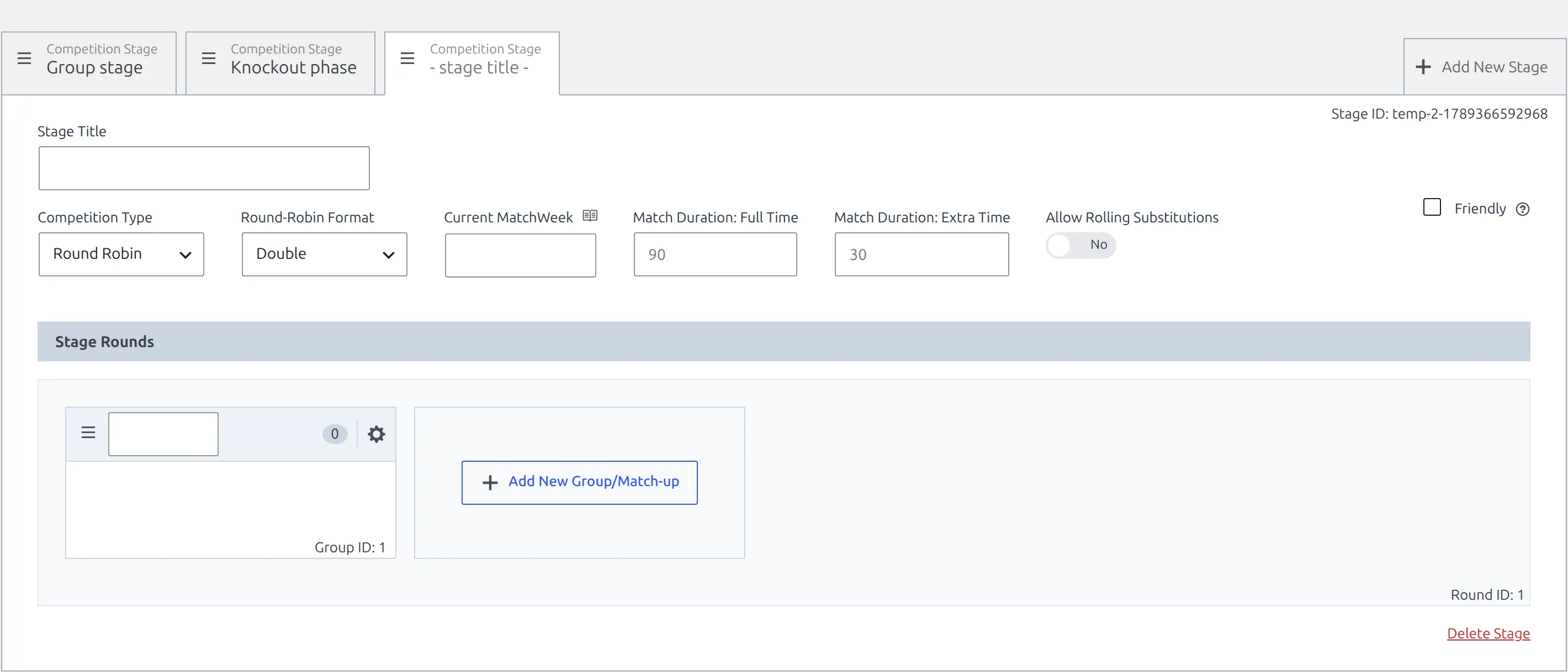
A new stage doesn’t start as a knockout. It starts as Round Robin with Double format and Bracket Layout on manual. So work through its settings:
- Stage Title – for example Knockout phase. Every row for this stage in the structure modal starts with it.
- Competition Type – Knockout for a knockout phase. Leave it on Round Robin for a new group stage.
- Knockout Format – two-legged ties or single-leg ties, to match how the ties are played.
- Bracket Layout – hide, manual, automatic or advanced. API Import for a Multistage Competition explains which to pick.
- Rounds – every round the stage will need: Round of 16, Quarter-finals, Semi-finals, Final. The stage’s first round has no name, so type one in, then use Add New Round for each round after it.
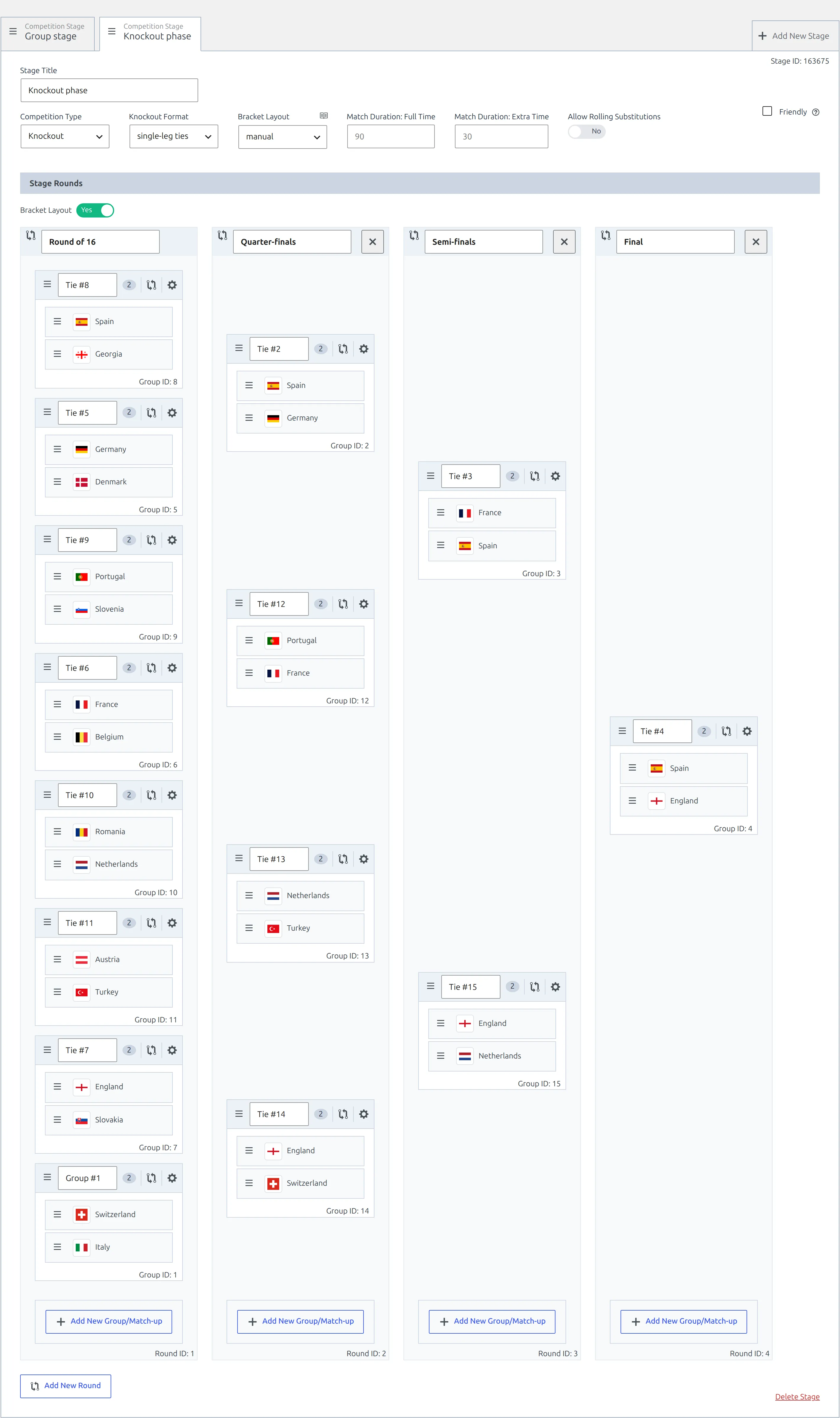
Each round you add comes with one empty tie already in place. The import fills that one and appends any others it finds, so there’s no need to create ties by hand. Click Save below the stages. Stage setup in full is in Multistage Competitions.
Then check it took. In the Competitions list the competition’s Stages column reads Multiple, and the new stage has its own line starting with its number and >> (#2 >> for a second stage), followed by its type, format, number of ties and ID. A four-round knockout stage straight after Save reads #2 >> Knockout phase | Knockout | two-legged | Ties: 4, one empty tie per round. The count grows as the import fills the rounds – the Euro 2024 stage below, fully imported, reads single-leg | Ties: 15.

Adding a stage doesn’t break the import link. The configuration points at the competition itself, and the structure modal reads its stages each time it opens.
2. Open the structure modal
There are two ways in, and both open the same Edit Competition Structure modal.
From API Leagues: Add teams to groups/ties
Go to FL API Import > API Leagues and find the league and season. Setting Saved Configuration to Yes narrows the table to the leagues you’ve linked. The API names seasons by their starting year, so Champions League 2023-2024 is the 2023 row.
Click the branching-arrow button at the far right of the row – the one whose tooltip reads edit Structure (groups and teams) – and choose Add teams to groups/ties.
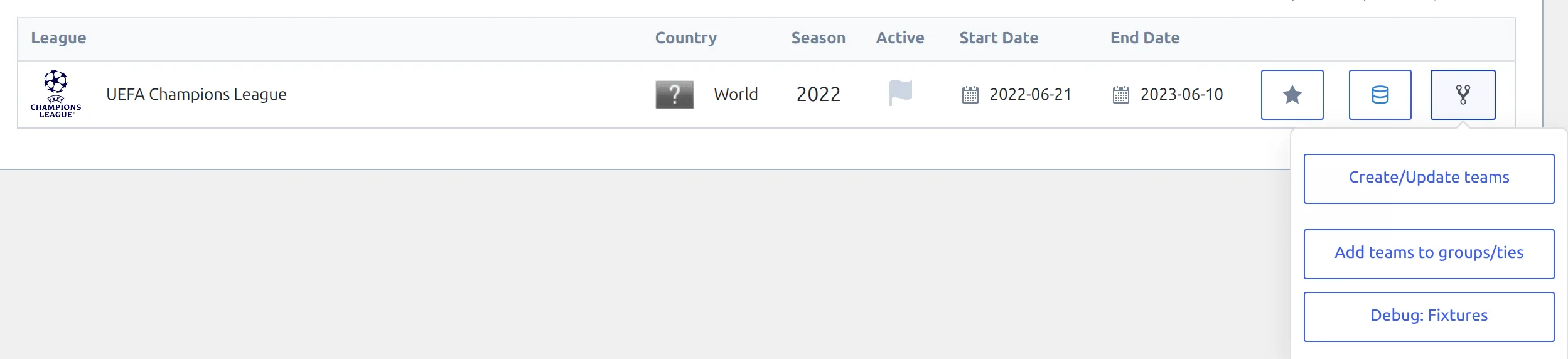
This opens the same Edit Competition Structure modal you used to set the competition up, but goes straight to it – there’s no need to pick a local competition again, because the link already exists.
No menu item?
Add teams to groups/ties only appears once the league has an import configuration. If you see just Create/Update teams and Debug: Fixtures, you’re on the wrong row – check the season – or the competition was never linked. Start from API Import for a Multistage Competition.
From Discover New Games: Modify Structure
Go to FL API Import > Discover New Games and click the Discover New Games button. The plugin works through every competition saved to the Import Dashboard, one at a time. The Status / New Games column then shows how many of the season’s fixtures aren’t on your site yet, and competitions with nothing new drop off the list.
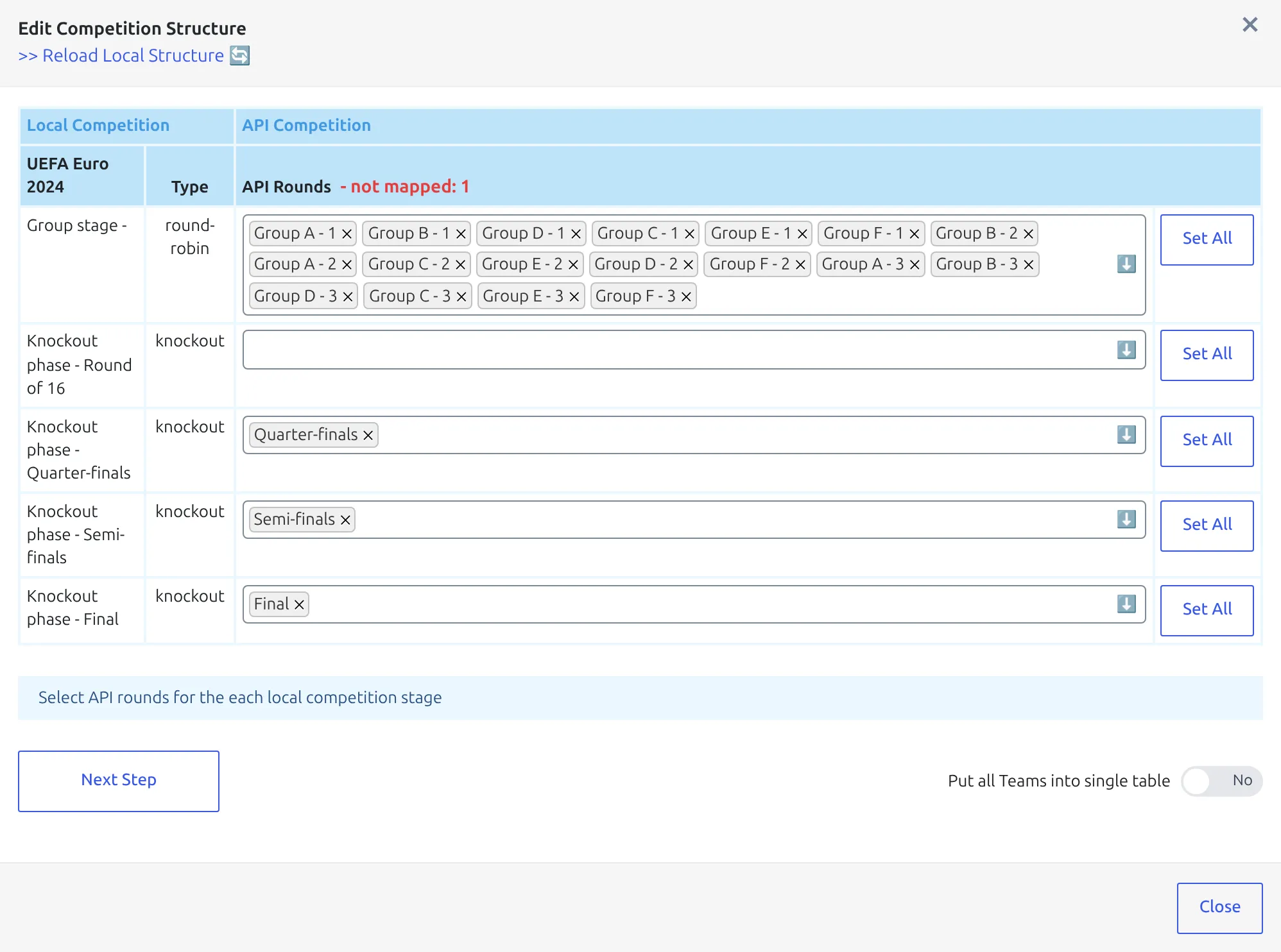
Click Modify Structure on the competition’s row. The modal opened from here has two extras. A red – not mapped: N next to API Rounds counts the provider rounds that aren’t on any row yet – after a draw, that’s your new round. And Reload Local Structure reads your stages again, which helps if you added the stage in another browser tab. Reloading also throws away any selections you haven’t saved.
The tab only lists competitions saved to the Dashboard – the star on their API Leagues row is orange – and never a Lazy Import. Euro 2024 Knockout Stage walks through this route on a real draw.
3. Map the new rounds
Step 1 lists every round of every stage, including the ones you mapped before. Their existing selections are still there, and you should leave them alone.
Find the rows for the new rounds and pick the matching API rounds for each. One row, one round: the Quarter-finals row gets the API’s quarter-final round and nothing else.
For the Champions League in February 2024 that was a single change. The Group stage row still held its 48 group rounds, and the qualifying and play-off rows held theirs. The Knockout phase – Round of 16 row got Round of 16. The Quarter-finals, Semi-finals and Final rows stayed empty, because the provider didn’t list those rounds yet. Leave rows like that blank and map them after their draw.
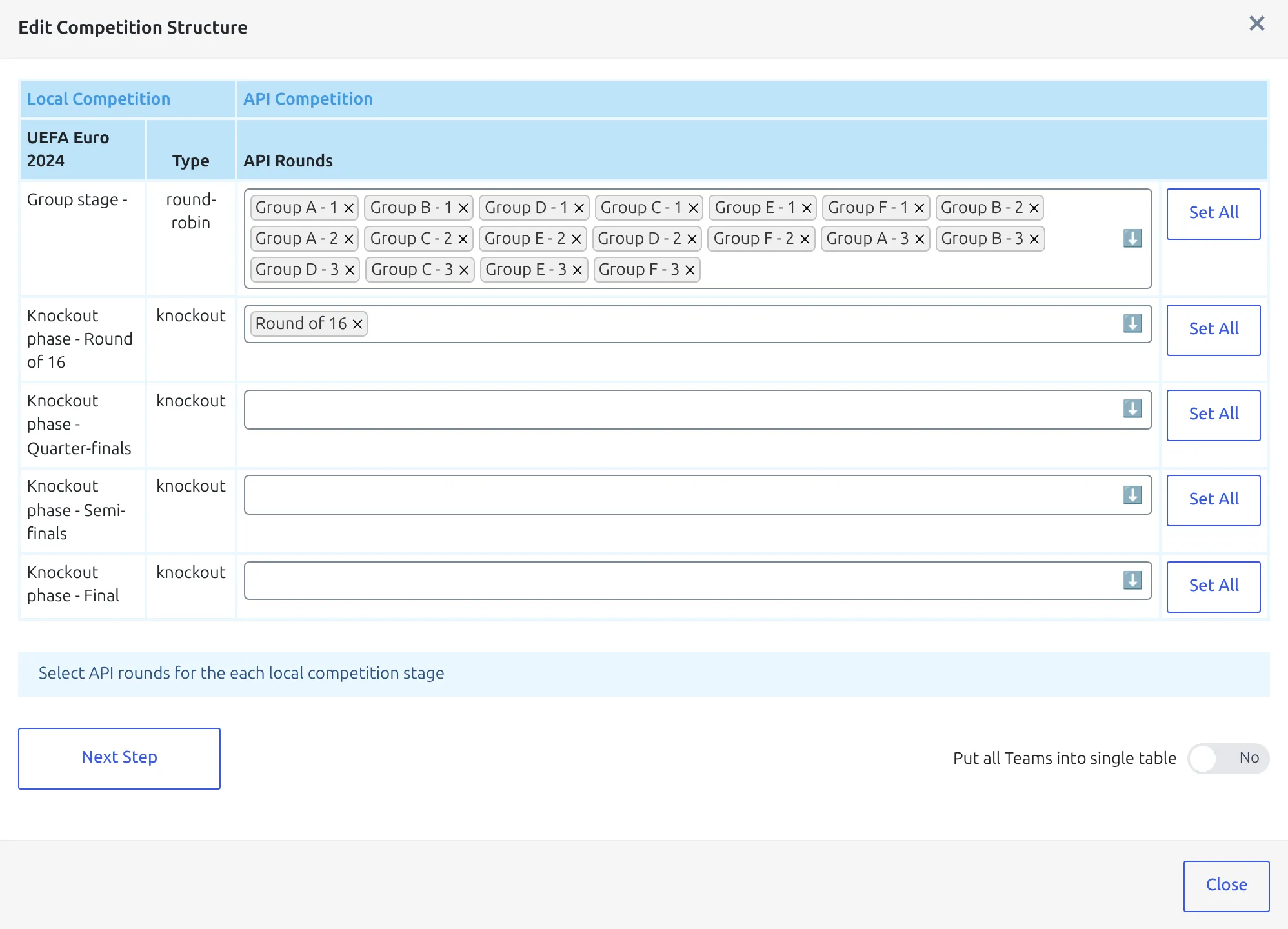
Each dropdown only offers rounds that aren’t mapped to any row. Once every provider round has a row, there’s nothing left to offer and the dropdown reads Sorry, no matching options. – a good sign, not an error.
Pick new rounds by hand rather than with Set All. Set All adds every round that isn’t mapped anywhere to that one row. On a return trip that’s all the new rounds at once, so if the quarter-finals were out by then too, they’d land in the Round of 16. It’s only safe when the single unmapped round left belongs to that row.
Leave Put all Teams into single table on No, and click Next Step. It’s meant for a league phase with no groups, and API Import for a Multistage Competition covers that case.
4. Check that only the new rounds are on Create
Step 2 lists what the plugin found for every mapped row, and this is where the safety comes from. Every group or tie listed has its own Create / Ignore switch, but where they start is decided per round. If any group or tie in a round already holds clubs, everything listed for that round starts on Ignore. A round with no clubs yet starts on Create.
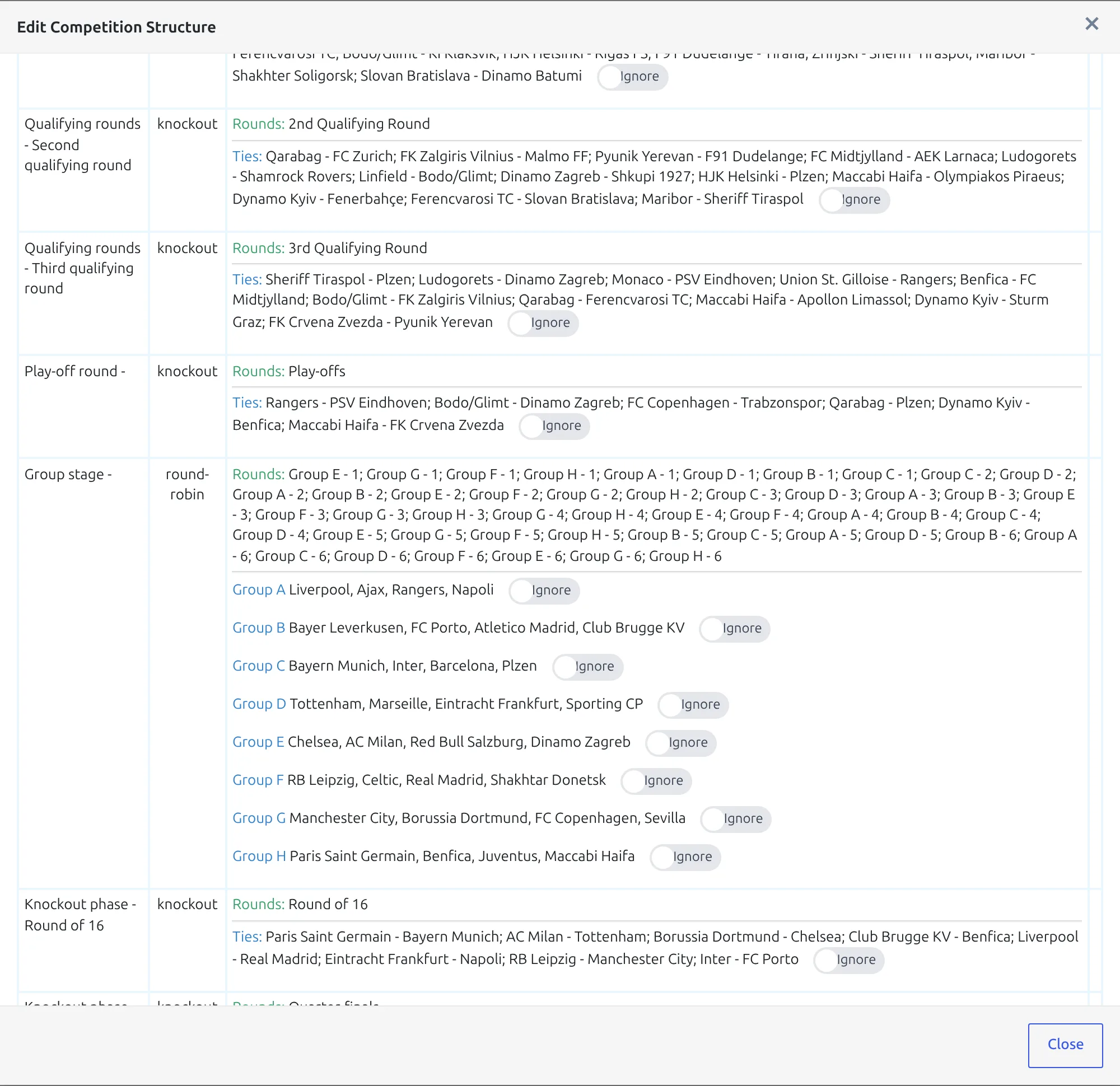
On the Champions League that meant Groups A to H on Ignore, each with its four clubs listed, and one Ties: line on the Round of 16 row, on Create: FC Copenhagen – Manchester City; RB Leipzig – Real Madrid; Paris Saint Germain – Real Sociedad; Lazio – Bayern Munich; Inter – Atletico Madrid; PSV Eindhoven – Borussia Dortmund; FC Porto – Arsenal; Napoli – Barcelona. Eight ties, each listed once even though every one is played over two legs.
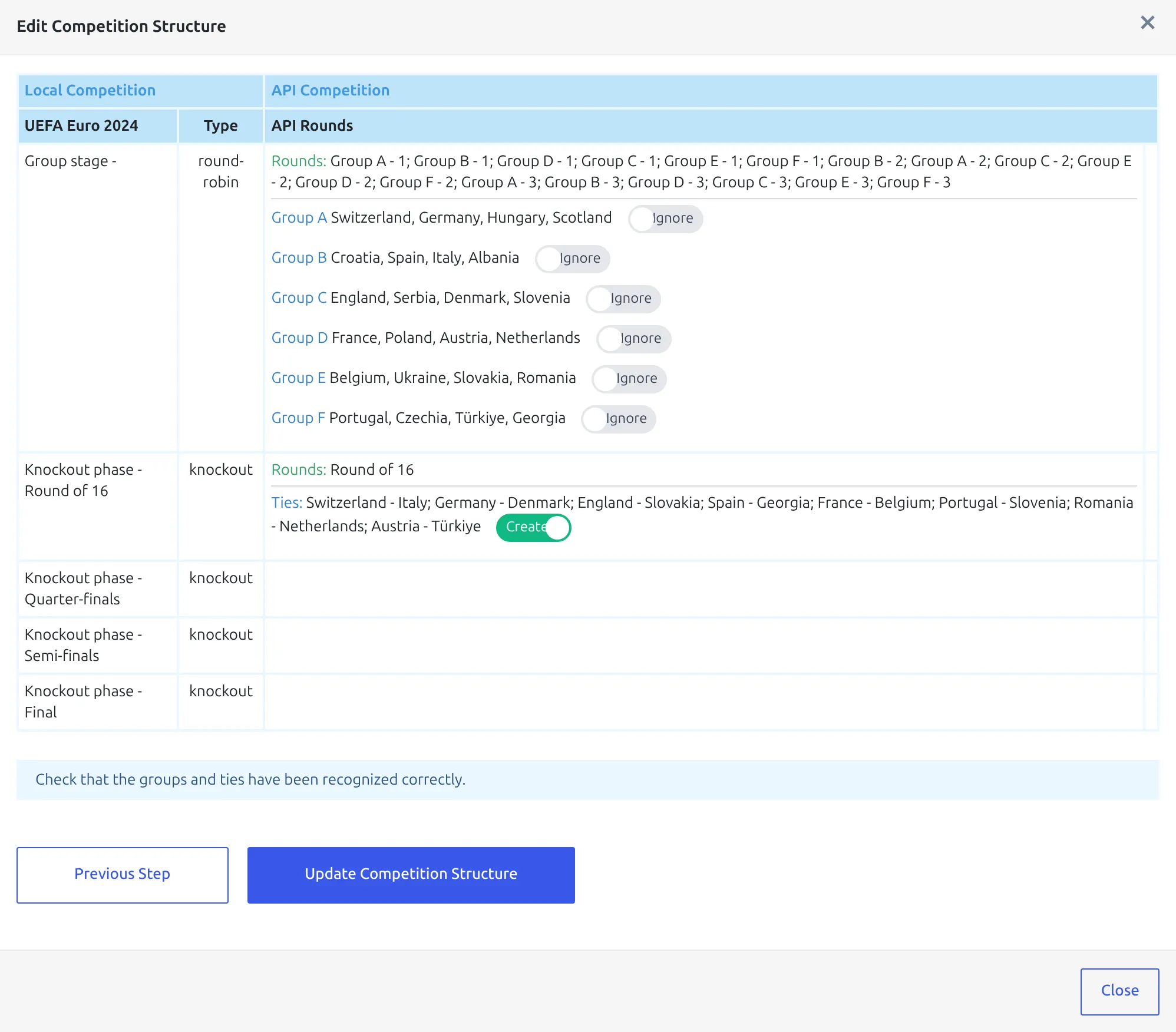
Read the switches before continuing rather than trusting them. If a round you already imported is on Create, every group or tie in it is empty – its clubs were cleared at some point – and running the update will refill it from the API.
Leave filled knockout rounds on Ignore
In a group stage, switching a filled round to Create is safe: each API group goes to the group with the same name or the same clubs, then to an empty one, and anything left is added as a new group. Knockout ties work differently. Don’t switch a round that already holds ties to Create – it writes the API’s ties over the existing ones, starting from the first, so clubs can end up in the wrong tie while the games you already imported stay in the tie they were created in.
Click Update Competition Structure. Clubs new to your site are imported with their stadiums, unless Import Stadiums is off in the API settings. The new round’s empty tie is filled first, the rest are added as Tie # plus a number, and the round mapping is saved. The modal closes with Competition Structure Updated.
5. Create the games
The structure now knows about the new round, but the fixtures aren’t in yet. Click the database button on the league row – its tooltip reads edit Import Configuration – and press Create Games under Create & Setup.
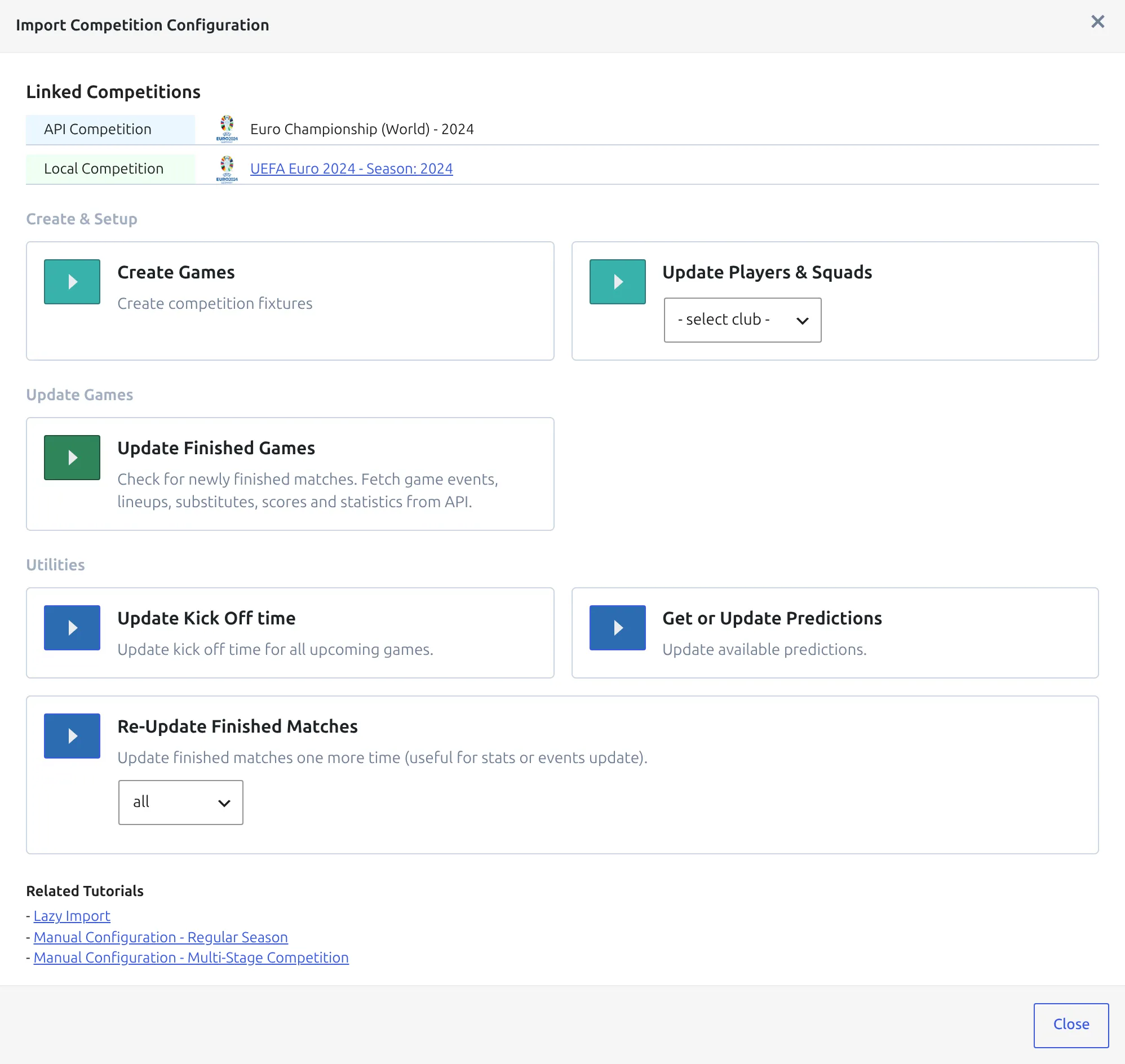
A progress line counts the games up, then a message confirms how many items were imported. Only missing fixtures are added, and only for mapped rounds, so running it after every draw is safe. Existing games keep their edits, their reports and their line-ups.
Came in through Discover New Games? The Create Games button on the competition’s row does the same job. The plugin then checks that competition again, and the row drops off the list once nothing is left to create.
If clubs joined the competition at this round and you want their squads, run Update Players & Squads too – you can point it at a single club from the dropdown rather than re-importing everyone.
6. Check the result
- Open the competition page and confirm the new round shows its match-ups.
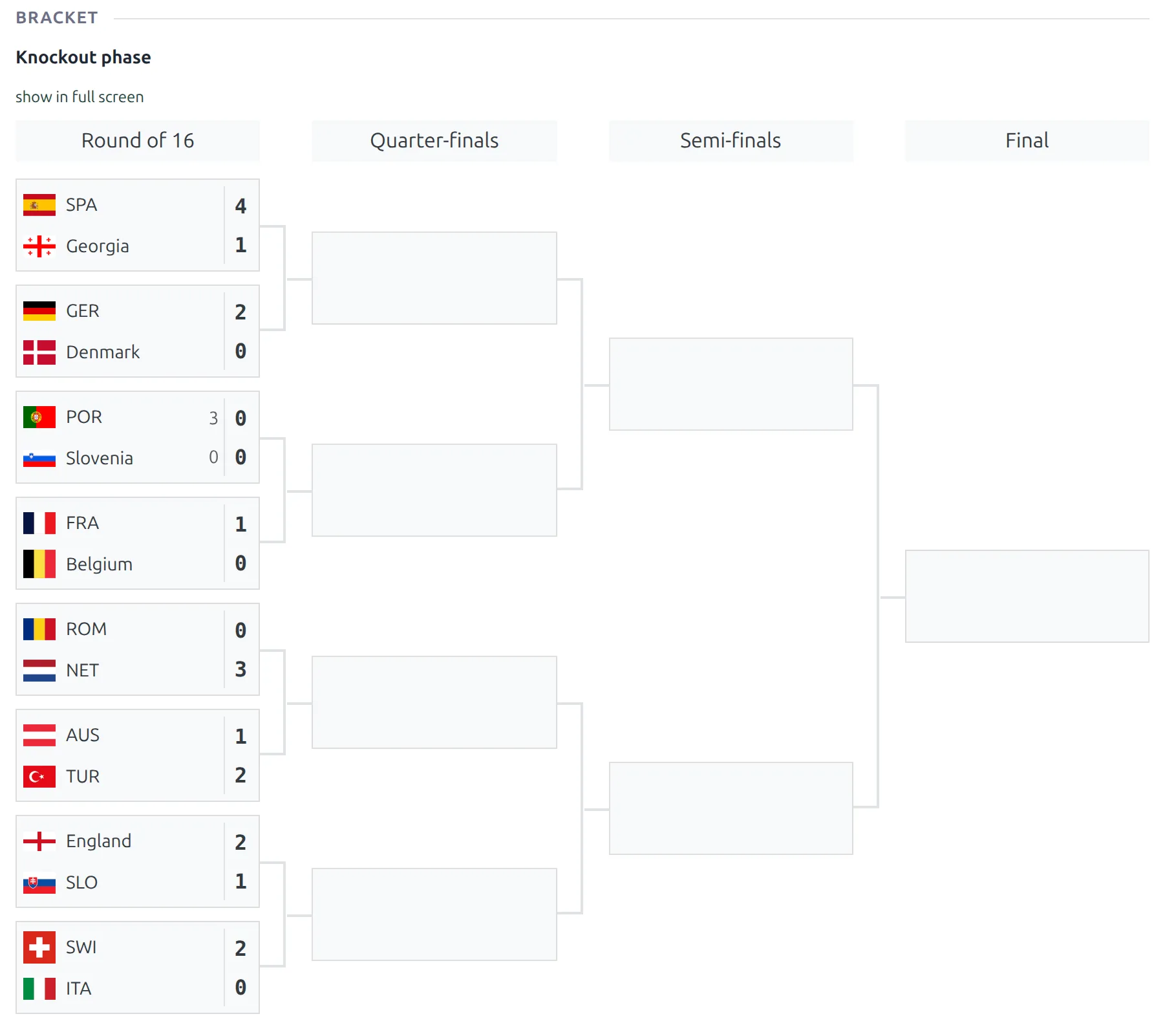
- On a knockout stage, check the bracket – a two-legged tie should appear once, not twice.
- Confirm the earlier rounds still hold the clubs they held before.
🆘 Troubleshooting
The new stage isn’t in step 1
The modal reads your stages when it opens. Save the competition, then close the modal and open it again – or click Reload Local Structure if you came from Discover New Games. Still missing? Then the stage isn’t a tab of this competition. A stage only joins a competition when it’s added with Add New Stage in that competition’s editor and saved. A competition created on its own stays separate, and the Competitions list shows it as Single.
The new round isn’t in the dropdown
The dropdown is built from the season’s fixtures, so a round only shows up once the provider lists at least one fixture in it. With Cache some requests on (FL API Import > Settings, Import Data block), fixture lists are kept for up to 10 minutes, so a round that appeared minutes ago can take a while to show. A round mapped on another row drops out of this one too – an earlier Set All may have put it there, so remove it from that row.
The new round has no ties in step 2
The provider lists the round, but not its match-ups: a fixture that doesn’t have both clubs yet is skipped. You can still click Update Competition Structure. The mapping is saved, nothing is written to the round, and next time it starts on Create because its ties are still empty. Or just come back after the draw – nothing you’ve mapped is lost.
The ties are right but the games didn’t appear
Updating the structure and creating the games are two separate actions. Step 4 writes the match-ups; step 5 writes the fixtures. Run Create Games from the database button, or from the competition’s row on the Discover New Games tab.
Discover New Games still shows a count after Create Games
The count covers every fixture of the season that isn’t on your site, in any round – including rounds you haven’t mapped yet and rounds you chose not to import. Create Games only creates games for mapped rounds, so those fixtures stay in the count, and pressing it again answers No Games to Create. Map the round if you want its games. If every round is mapped, some fixtures were skipped – see the next answer.
Create Games finished, but some games are missing
A game is only created when both clubs sit in the same tie or group of the mapped round, and Create Games doesn’t tell you when it skips one. The usual cause is a round left on Ignore in step 2, so its ties never got their clubs. The fix is written up in API Import for a Multistage Competition, in its troubleshooting.
A game I deleted doesn’t come back
Create Games skips every fixture it has imported before, and a game in the Trash still counts as imported. Delete it permanently, then run Create Games again.
A club was created twice
The club existed on your site but wasn’t linked to its API id. The import recognizes clubs by that link only, not by name, so it created a new one. There’s no tool that merges two clubs – the merge tool on the Toolkit tab is for players – and later imports keep using the copy the import created, because that’s the linked one.
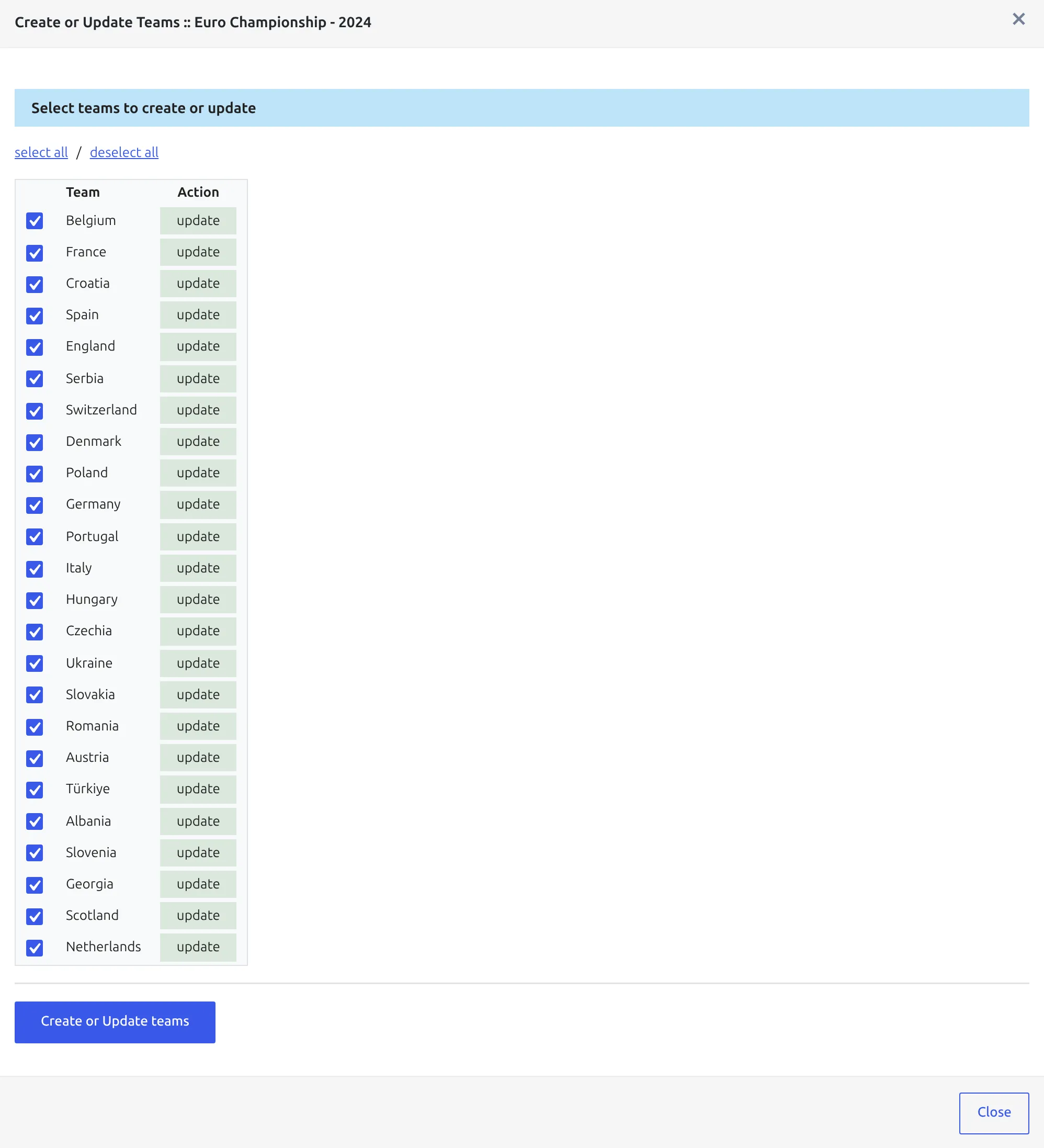
You can see this coming. Before you update a structure, open Create/Update teams from the same branching-arrow menu and click get teams. A club that’s already linked reads update in the Action column. A club the import doesn’t know reads create, and it will be created as a new club. More in Create or Update Clubs.
An earlier round lost its clubs
A round starts on Create only when every group or tie in it is empty, and then the update refills it from the API. That’s usually the recovery you want. If only some of a round’s groups or ties lost their clubs, the round starts on Ignore. In a group stage you can switch it to Create – the emptied groups are refilled and the others keep their clubs. In a knockout round, put the clubs back in the competition editor instead, since Create would write over the ties that are still right. And if the round no longer exists in the API, the editor is the only way.
📚 What’s next
- API Import for a Multistage Competition – the first-time setup.
- Euro 2024 Knockout Stage – a Round of 16 added with Discover New Games, then put in bracket order.
- Multistage Competitions – the competition editor in full.
- Import Dashboard – keep scores and line-ups current between draws.
- Advanced Bracket – a bracket that advances winners on its own.