

Front-end match editing lets someone who isn’t an administrator open a match on your site, type the score, the line-ups and the events, and save. Three flavours ship with the PRO plugin: a Match Editor for one match, a Competition Supervisor for a whole competition, and a Club Captain who can only touch their own club’s half of the match.
One correction before you start, because it saves a hunt. Football Leagues does not add any WordPress roles. There’s no “Match Editor” to pick from the role dropdown on a user’s profile, and nothing to create. You name specific users on a specific match, competition or club, and whatever role they already have is enough – a plain Subscriber works. The three names below are labels on those three fields, not roles.

That panel is what a permitted user sees, and only them. Everyone else sees the match page exactly as before.
🚀 Turn front-end editing on
Go to Settings & Tools > Settings, open the Features group and pick Frontend Editing. Direct link: admin.php?page=anwp-fl-settings#frontend_edit. Four toggles live there, all off on a fresh install.
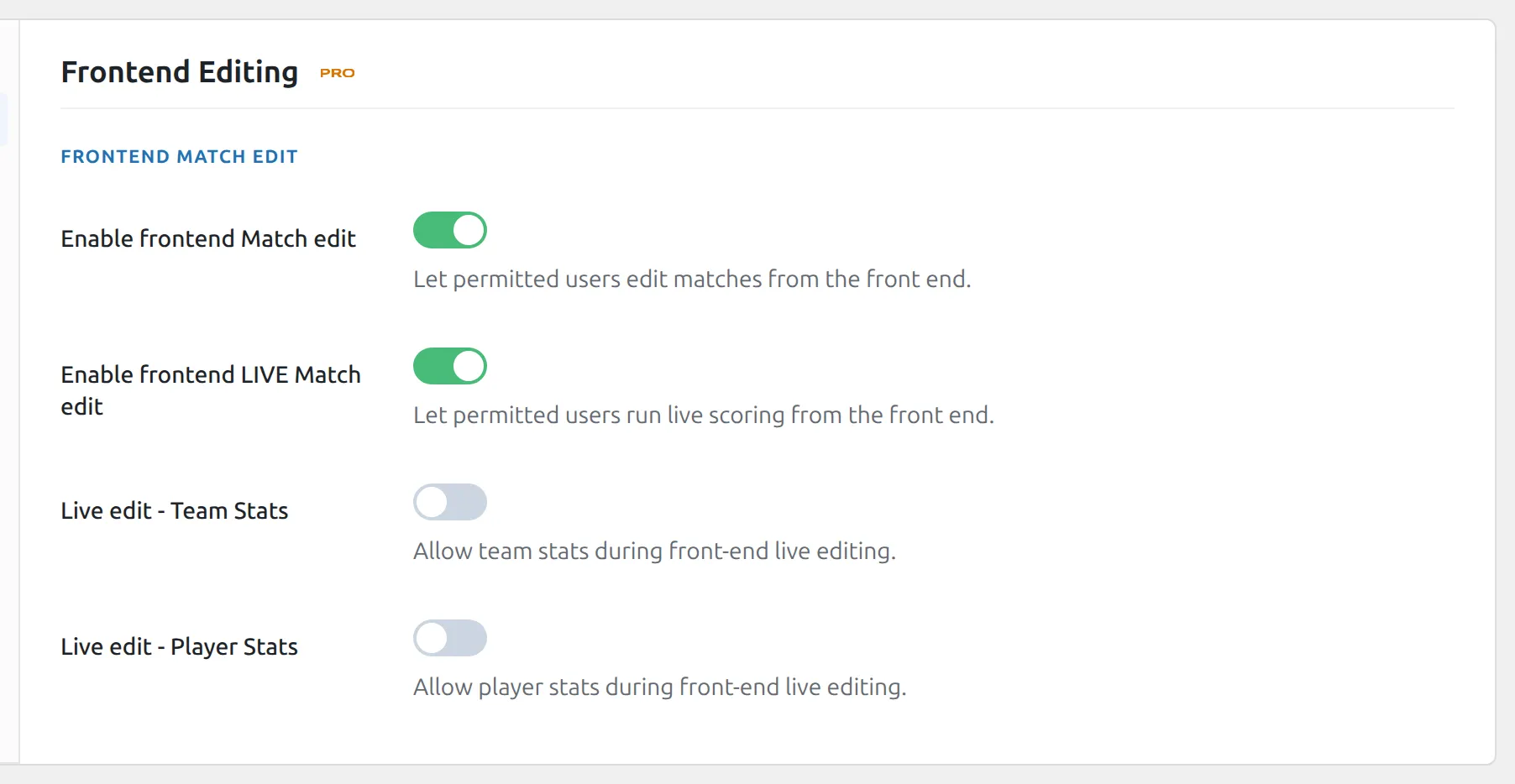
| Toggle | What it does |
|---|---|
| Enable frontend Match edit | Turns on the whole feature and puts the edit match button on the panel. Start here. |
| Enable frontend LIVE Match edit | Adds the orange LIVE button next to it, for minute-by-minute reporting while a match is being played. Only on matches that aren’t finished yet. |
| Live edit – Team Stats | Shows and saves your own custom club stat columns in the editor. Off means the built-in stats still save, your custom columns just aren’t there. |
| Live edit – Player Stats | Shows and saves the custom per-player stat columns in the editor. |
The two stat toggles are named for live editing, but they govern the ordinary editor as well. If your custom stat columns aren’t in the front-end editor, one of these two is the reason.
Administrators get the edit panel on every match as soon as the first toggle is on. Everyone else needs an assignment.
Which role to use
The three differ in how wide the access is and how much of the match the person can touch. A user can hold more than one at once – the widest one wins.
| Match Editor | Competition Supervisor | Club Captain | |
|---|---|---|---|
| Assigned on | One match | One competition | One club |
| Can edit | That match only | Every match in that competition, including all its stages and groups | Every match their club plays, home or away, in any competition |
| Scope inside the match | Both clubs, everything | Both clubs, everything | Their own club’s half only |
| Kickoff, stadium, match week, attendance | Yes | Yes | No |
| Match status | Sets it outright | Sets it outright | Votes – both captains must agree |
| Live reporting | Yes | Yes | No |
| How many per item | Up to 5 | No limit | No limit |
None of the three assignments grants anything beyond that one editor: no creating matches, no editing a squad, no adding players, nothing else in the admin area. If a reporter can do more, it came from the WordPress role they already had.
Assigning people
All three fields work the same way: type part of a name, press Search, click the user. The user has to exist in WordPress already, with any role.
Match Editor
Open the match in the admin area and scroll to the Premium Options section. The field is Match Editor (User role). Add up to five people; after the fifth the search box switches off. Administrators are left out of the search results on purpose – they can already edit every match.
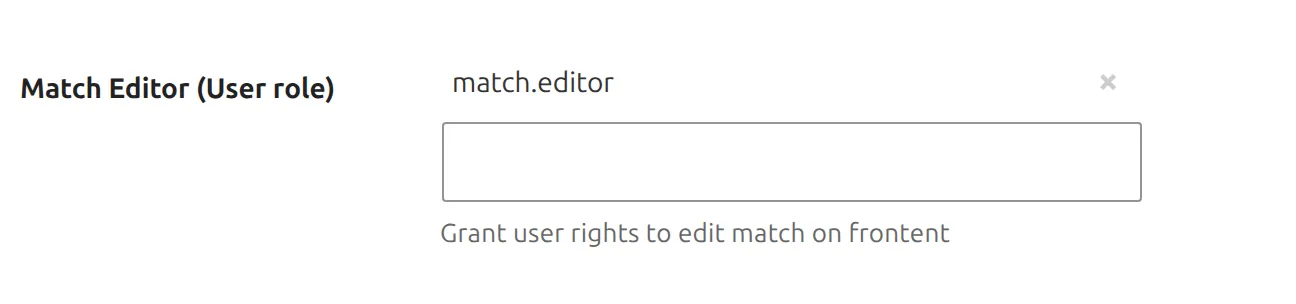
Use this one for a guest reporter, a one-off cup tie, or a match somebody else is covering this weekend.
Competition Supervisor
Open the competition in the admin area. The Competition Supervisor box sits in the right-hand sidebar, below Competition Status. Search, click, and the name appears as a small chip you can remove with the ×. Save the competition to store it.
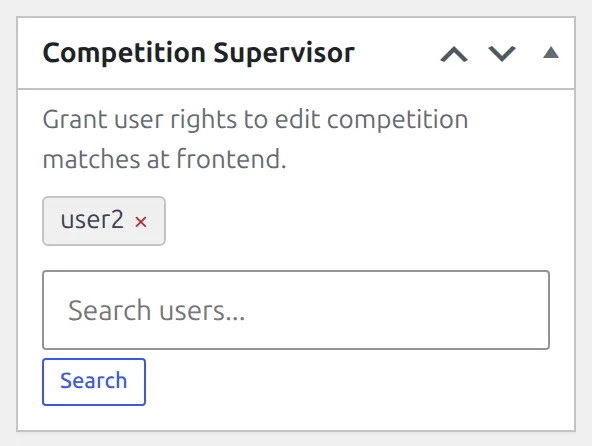
Multistage competitions
The box only appears on the main competition, never on a secondary stage such as Group A or the Quarter-finals. That’s deliberate – one assignment on the main competition covers every stage and group beneath it.
Use this one for a league secretary or a division co-ordinator who reports every fixture in their competition.
Club Captain
Open the club in the admin area and go to the Premium Options tab. The field is Club Captain (User role), described as “Grant user rights to edit club matches at frontend (only club data)”. Search, click, save the club.
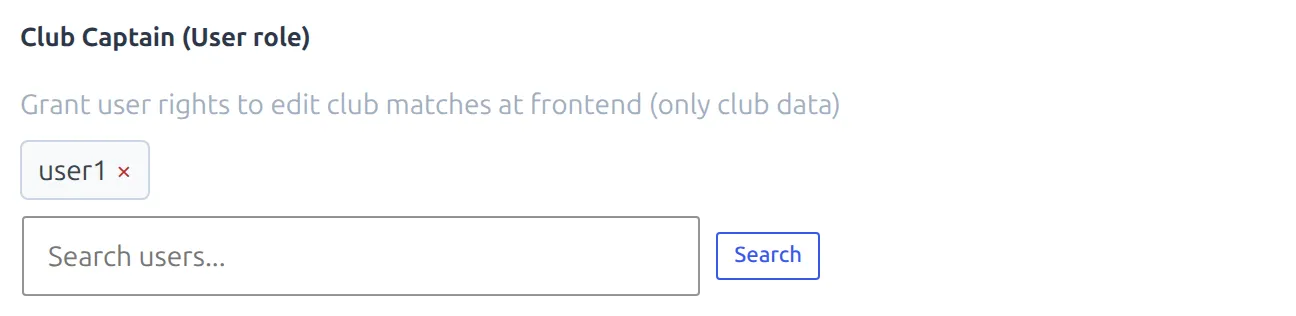
Use this one for amateur and Sunday leagues where each club reports its own side of every match and nobody at the league has time to type it all in.
What the reporter sees
Clicking edit match opens a full-screen editor that covers the page. It’s the same editor for all three roles – what changes is how much of it is filled in.
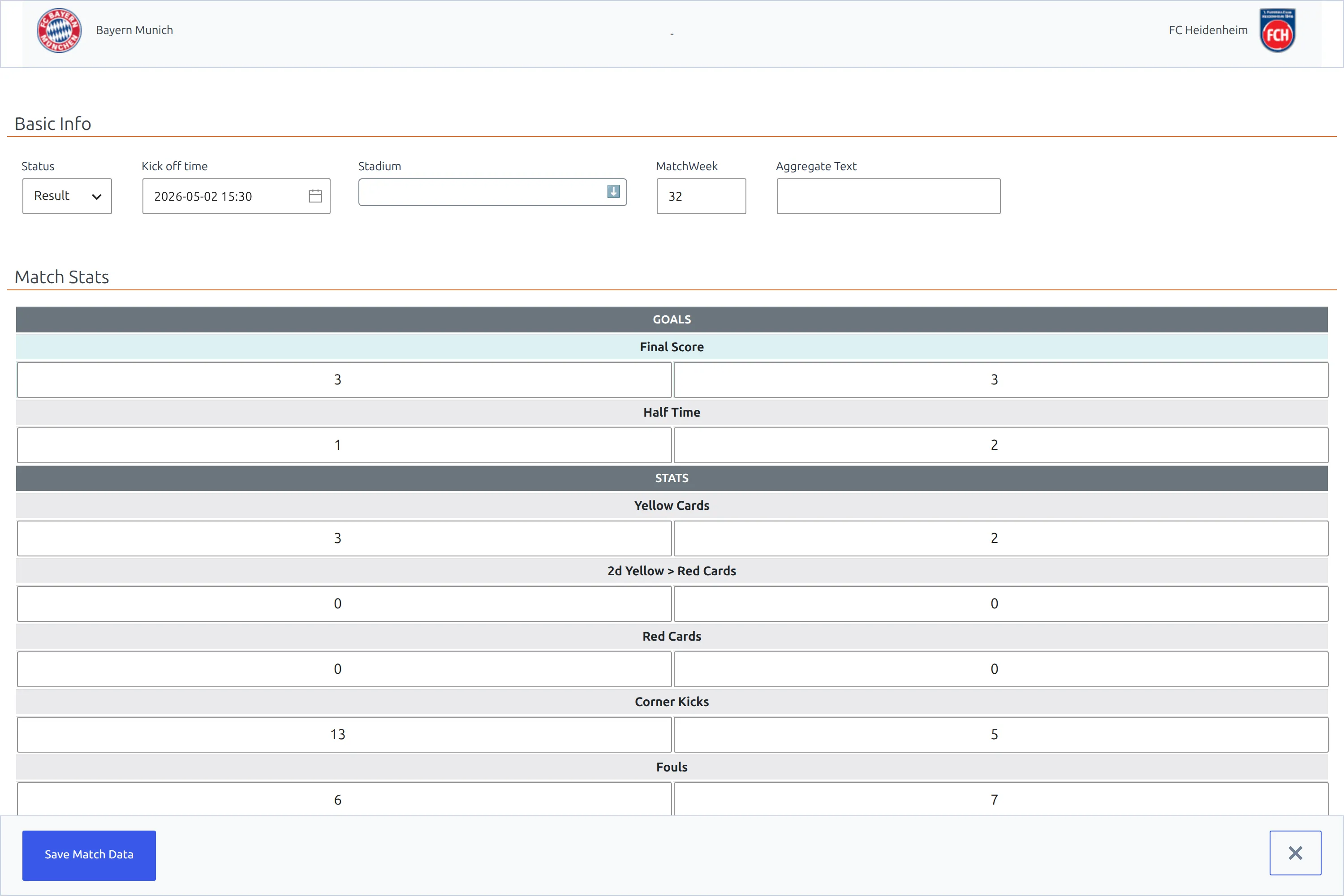
- Basic Info – Status (Fixture or Result), kickoff date and time, stadium, match week on round-robin competitions, attendance while the match is still a fixture, and the aggregate text used in two-legged ties.
- Match Stats – final score, half-time score, then yellow cards, second yellows, red cards, corners, fouls, offsides, possession, shots and shots on goal. Extra Time and Penalty dropdowns at the bottom add full-time, extra-time and shootout score rows when you switch them on.
- Players – line-up and substitutes per club, dragged into the order you want, plus a coach picker. Click a shirt to give a player a one-off number for this match. Players come from the club’s squad for that season.
- Player Statistics – only when Live edit – Player Stats is on.
- Events – Add New Event opens a small form with eight types: goal, card, substitution, missed penalty, penalty shootout, cancelled goal, commentary and significant event.
Save Match Data is pinned to the bottom of the screen. The page reloads after a successful save. The × in the corner goes back to the match page without saving.
No score boxes? Set Status to Result first
While a match is a Fixture the whole Match Stats section is replaced by the line “You can set statistics only for finished matches.” There is nowhere to type the score. Change Status to Result in Basic Info and the score boxes and every stat row appear immediately. Nothing is broken and no setting needs changing.
What a Club Captain sees instead
A captain opens the same editor with an orange notice across the top: “You can edit only data associated with your club”. Everything outside their club is gone, not greyed out.
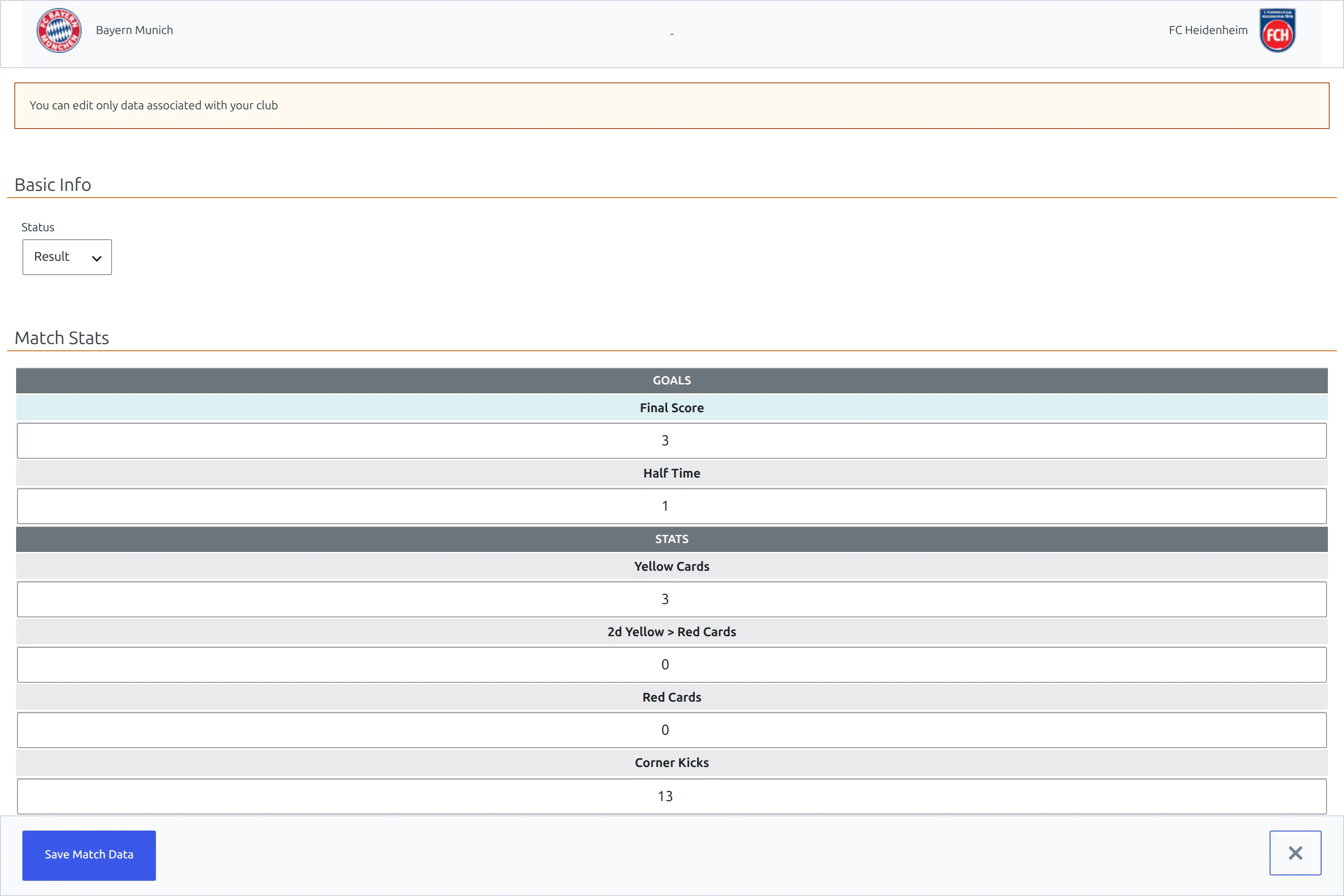
- Basic Info shows one field, Status. Kickoff, stadium, match week, attendance and aggregate text belong to the league, not the club.
- Match Stats shows one column of boxes – their side of the score, their cards, their corners. The opponent’s column is empty.
- Players shows one line-up, one substitutes list and one coach picker.
- In the event form, the club dropdown offers only their own club.
The restriction isn’t only in the interface. Every save is re-checked on the server against the club the user is captain of, so a tampered request is rejected rather than trusted.
Two captains, one result
A captain doesn’t set the match status, they vote on it. The Status dropdown shows that captain’s own vote, and the match only becomes a Result when both captains have chosen Result. One side alone changes nothing on the public page.
It works in both directions. If a captain agreed and then spots a mistake, switching their Status back to Fixture and saving returns the match to a fixture, so the two of them can sort out the difference and agree again. Standings recalculate each time. An administrator or a Competition Supervisor can always settle a dispute by setting the status outright.
Keeping reporters out of the admin screens
Front-end editing doesn’t grant anyone access to the ordinary Football Leagues admin screens – a Subscriber never had it. But if you’ve given reporters a role like Editor or Author for other reasons, you can lock the plugin’s content down separately.
Go to Settings & Tools > Settings > Features > Edit Access and tick the content types under Restrict editing to administrators: Club, Competition, Match, Player, Referee, Stadium, Staff, Standing, Layout Builder, Transfer and Suspension. A ticked type disappears from the admin menu for everyone except administrators, and its edit screens stop opening for them.

Ticking Match is safe to combine with everything on this page. Front-end editing runs on its own permission check, not on the WordPress editing permissions this setting rewrites, so your Match Editors, Supervisors and Captains keep working exactly as before while the Matches list vanishes from the admin menu for non-administrators. Match pages stay readable on the public site too.
🆘 Troubleshooting
The edit button doesn’t appear
Work down this list. The user has to be logged in – the panel never shows to a visitor. Enable frontend Match edit has to be on. The assignment has to be saved on the right item: the match itself for a Match Editor, the main competition for a Supervisor, the club for a Captain. And a Supervisor only sees matches inside their own competition, so check which competition the match actually belongs to.
The button appears but leads to a permissions error or a redirect
The editor is a WordPress admin screen, even though it fills the window and looks nothing like one. Plenty of membership, security and “hide the dashboard” plugins block Subscribers from the admin area entirely and redirect them to the home page, which breaks this feature cleanly and silently. Allow your reporters into the admin area, or add an exception for the Football Leagues app page in whichever plugin is doing the redirect.
My custom stat columns aren’t in the editor
Turn on Live edit – Team Stats for the custom club columns and Live edit – Player Stats for the per-player ones, both under Frontend Editing. The built-in stats don’t depend on either toggle – they’re always there once Status is Result.
A Club Captain’s LIVE button doesn’t save
Live reporting is for administrators, Match Editors and Competition Supervisors. A Club Captain who has the LIVE button in front of them – it shows whenever Enable frontend LIVE Match edit is on and the match isn’t finished – can open the live screen, but the saves are refused. Have captains report through edit match instead, and leave live coverage to a supervisor or the Live Scores Dashboard.
The edit panel shows up twice
Your match layout has both a Header block and a Scoreboard block from the Match group, and each one puts the panel above itself. Drop whichever of the two you don’t need in the Layout Builder.
The Competition Supervisor field won’t keep what I put in it
This one only bites sites upgrading from an older version. If Football Leagues is still showing the Data Migration Pending notice, the competition data migration hasn’t run yet and the supervisor field has nowhere to save to. Open Football Leagues > Toolbox, run the Database Updater, then set the supervisor again.
Renaming the button
“edit match” comes from the Translations menu, under Text Strings. Search for “edit match” and type your own wording – Report result, Enter score, whatever suits your league.
📚 Related
- Live Scores Dashboard – running a match minute by minute from the admin area
- Club Statistics – creating the custom club stat columns that the Team Stats toggle exposes
- Custom Player Statistics – the same for the per-player columns
- Match Statistics – how the numbers a reporter types are drawn on the match page
- Layout Builder – which blocks put the edit panel on the match page