

Layout Builder replaces the default page for a club, player, competition, match, referee, stadium or staff member with your own arrangement of blocks. There are two versions, and which one you want depends on the page type.
🚦 Which version do I use?
| Page type | Use |
|---|---|
| Club / team pages | Team Layout (v2) |
| Player profiles | Player Layout (v2) |
| Competition pages, single-stage and multistage | Competition Layout (v2) |
| Match, Match LIVE, Referee, Stadium, Staff pages | v1 – no v2 equivalent yet. The rest of this page. |
Layout Builder v2 is a rebuilt, modern design with a default layout that works out of the box – start there for the three page types above. Everything below is about v1: keeping your existing layouts healthy, and the page types v2 does not cover yet.
Layout Builder v1
v1 is in maintenance mode: the layouts you already have keep rendering and stay fully editable, but v1 gets no new features and the Layout Builder menu no longer offers to create one.
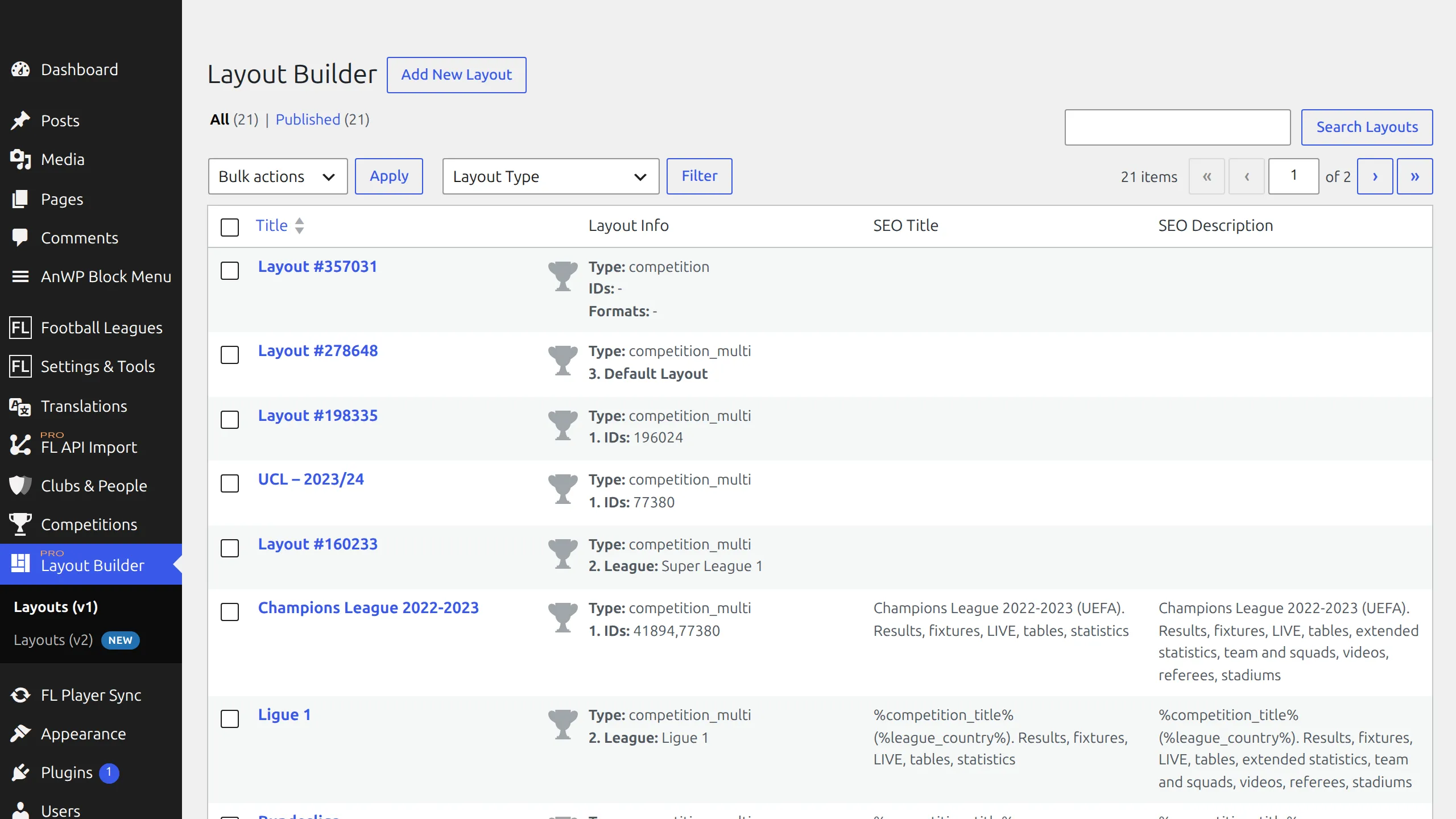
v1 is frozen
The Add New Layout item has been removed from the Layout Builder menu, and v1 is no longer being developed. Nothing else changed – your published layouts render exactly as before, and you can still open, edit, clone and delete them.
This video builds a Competition layout in v1 from start to finish. The screens have moved on since it was recorded – your layouts now live under Layout Builder → Layouts (v1), Display Options sit at the top of the builder, and a new competition page is better built with Competition Layout (v2). Sections, tabs and blocks still work the way it shows.
Where your layouts live
In wp-admin, open Layout Builder → Layouts (v1). It is its own top-level menu, not part of Settings & Tools.
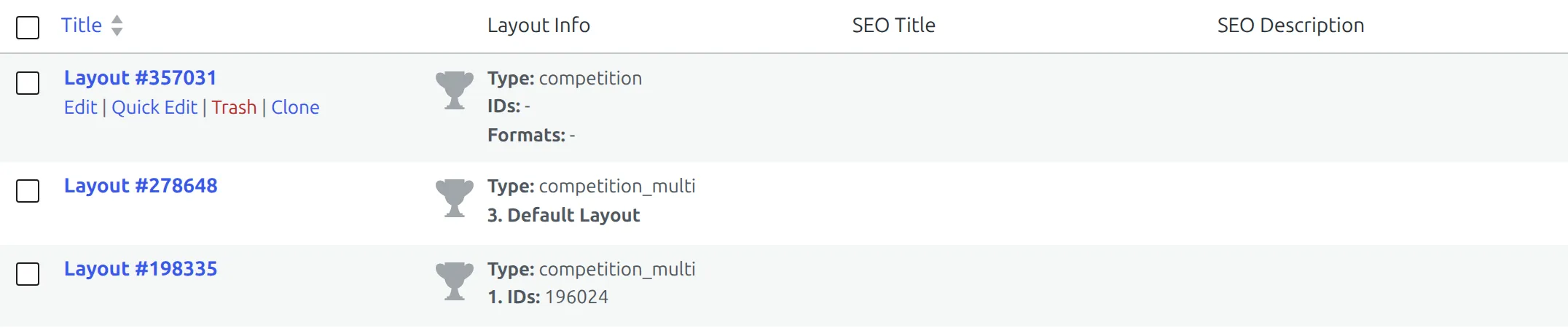
The list shows each layout’s title, its type and display rules under Layout Info, and its SEO Title and SEO Description. Use the Layout Type dropdown above the list to filter down to one type – useful on a site that has collected a dozen layouts over the years.
Creating a v1 layout
The menu item is gone, but the Add New Layout button next to the Layout Builder title on the Layouts (v1) screen still creates one. You’ll need it for a Match, Match LIVE, Referee, Stadium or Staff page that has no layout yet. For club, player and competition pages, use v2 instead.
- Click Add New Layout at the top of the Layouts (v1) list.
- Pick the type in Select Layout Type and click Select Type & Continue. The type can’t be changed later.
- The builder opens on a layout named Layout # plus its ID. Rename it in the title field so you can find it in the list.
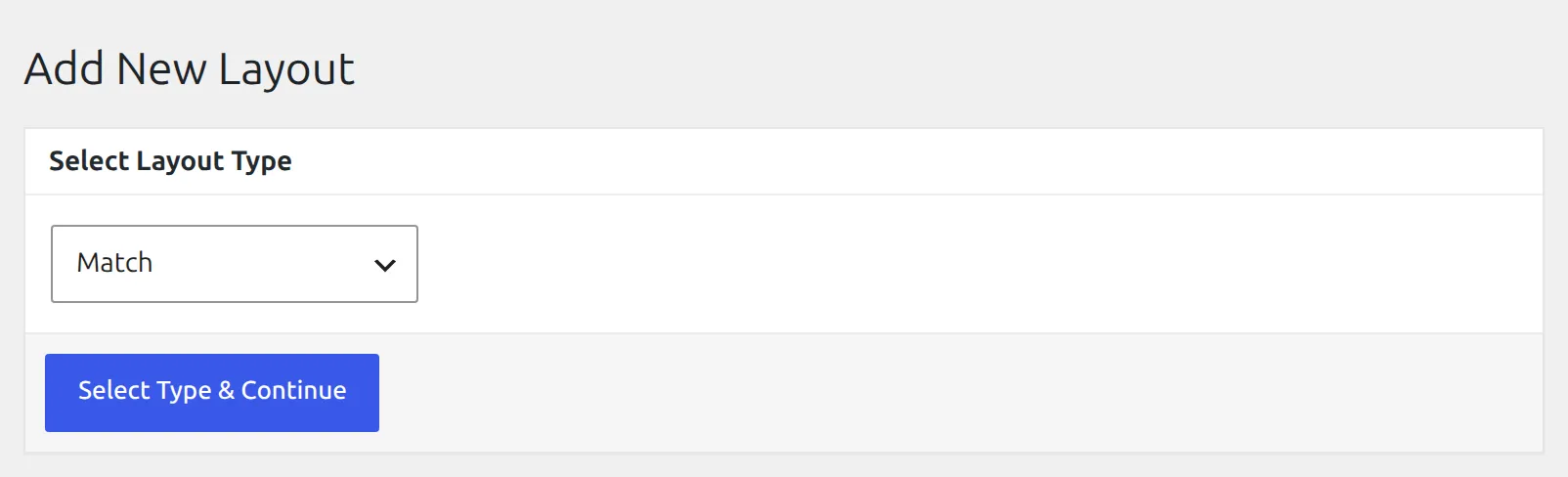
Select Type & Continue publishes the layout right away. A new Match, Competition or Competition Multistage layout stays out of sight until you fill in its Display Options. Other types don’t wait. A Player, Referee, Stadium, Staff or Match LIVE layout has no targeting, and a Club layout starts on Default, so the new layout – the newest of its type – takes over those pages at once, while it’s still empty. For clubs, that’s every club a Team IDs or National Teams layout doesn’t claim. Add your blocks straight after, or switch its status to Draft in the Publish box until it’s ready. An active v2 Team or Player layout still wins on club and player pages.
The nine layout types
A layout’s type is chosen when it is created and cannot be changed afterwards. If a layout is the wrong type, build a replacement of the right type instead of trying to convert it.
| Layout type | Replaces the page for | v2 available? |
|---|---|---|
| Club | Club / team pages | Yes – Team Layout (v2) |
| Player | Player profiles | Yes – Player Layout (v2) |
| Competition | Single-stage competitions | Yes – Competition Layout (v2) |
| Competition Multistage | Multistage competitions | Yes – Competition Layout (v2) covers both |
| Match | Single match pages | Not yet – stay on v1 |
| Match LIVE | Matches while they are live | Not yet – stay on v1 |
| Referee | Referee pages | Not yet – stay on v1 |
| Stadium | Stadium pages | Not yet – stay on v1 |
| Staff | Staff pages | Not yet – stay on v1 |
A competition is routed to the Competition Multistage layout automatically when it is a multistage competition, or one created by Lazy Import – you do not pick between the two types per competition, you build the one that matches the competitions you run.
How a layout is put together
Every layout has three sections, rendered in this order:
| Section | What goes there |
|---|---|
| Top | Content above the tabs – headers, scoreboards, key info. |
| Tabs | The tabbed area. Each tab holds its own blocks. |
| Bottom | Content below the tabs – related content, footer blocks. |
Drag blocks from the list on the left into any section. A block chip shows its group on top and its name below, so Club / Squad is the club squad block.
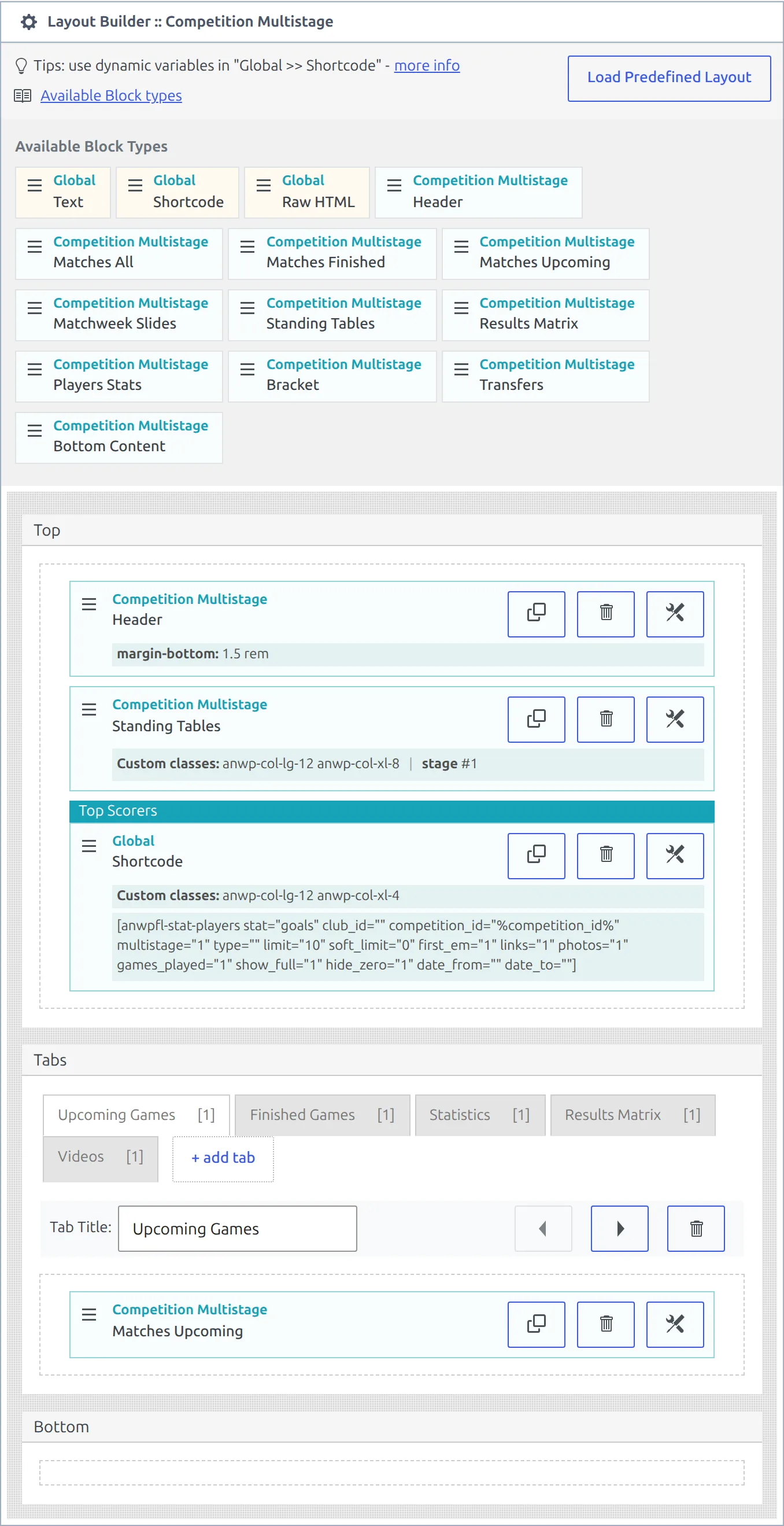
Match, Match LIVE and Competition Multistage layouts also have a Load Predefined Layout button, which fills the sections with a sensible starting arrangement. It replaces what is already there, so use it on a new layout rather than one you have tuned.
The choices are Finished Game and Upcoming Game on a Match layout, LIVE Game on Match LIVE, and Default Layout on Competition Multistage. Pick one and click Load – then click Save to keep it.
Blocks every layout has
Three blocks appear in the Global group regardless of layout type. The rest of the block list depends on the type.
| Block | What it does |
|---|---|
| Global :: Text | A block of your own text, with an optional heading. |
| Global :: Shortcode | Runs any shortcode inside the layout. Dynamic variables let the shortcode pick up the current club, competition or match. |
| Global :: Raw HTML | Unprocessed HTML, output as-is. |
Block options
Every placed block carries three buttons: duplicate, delete, and the tools button (the wrench icon) that opens its options. Which options appear depends on the block – not every block accepts a heading or a width. Anything you set shows as a summary line under the block, so you can read a layout without opening each one.

| Option | Effect |
|---|---|
| Header | A heading rendered above the block. |
| Text | The block’s content – the text, the shortcode, or the raw HTML. |
| Width | full, 1/2 or 1/3. Place two half-width blocks side by side to build a row. |
| Custom Classes | Space-separated CSS classes added to the block wrapper. |
| Inline CSS | Added to the block’s style attribute, for example color:blue;text-align:center; |
| Margin Top / Margin Bottom | Spacing above and below the block. |
Some blocks add options of their own – Disable HTML Wrapper on the three Global blocks, Stage Number and Group Number on competition blocks, No Data text, and Show on Player Position on a Player layout’s Shortcode block. Block Types (v1) lists which blocks take which, and Shortcode Block (v1) covers the dynamic variables.
The Edit Block dialog only has a Close button. Your edits stay in the builder, but nothing is stored until you click Save at the bottom of the Layout Structure box (or Update).
Working with tabs
- + add tab creates a tab. There is no limit on how many you add, but a page with more than five or six tabs gets hard to use on a phone.
- Select a tab to edit it. Each tab chip shows how many blocks it holds in square brackets.
- Rename it in the Tab Title field, and move it left or right with the arrow buttons beside that field.
- Delete a tab with the trashcan button next to the arrows, then confirm.
A new tab is called Tab until you rename it, and it opens selected, so the blocks you drag next land in it.
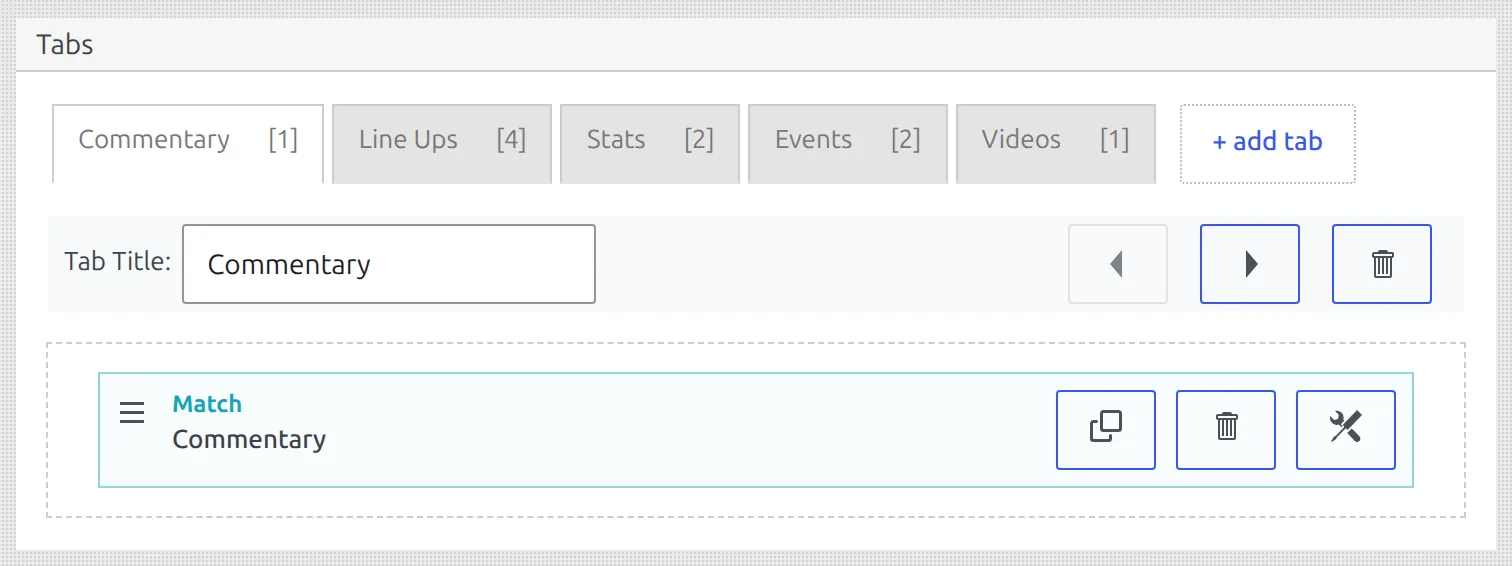
A tab with an empty title is skipped on the frontend, blocks included. If a tab you built has vanished from the live page, check that it still has a title.
Visitors see the Top blocks, then one button per tab with the first tab open, then the Bottom blocks.
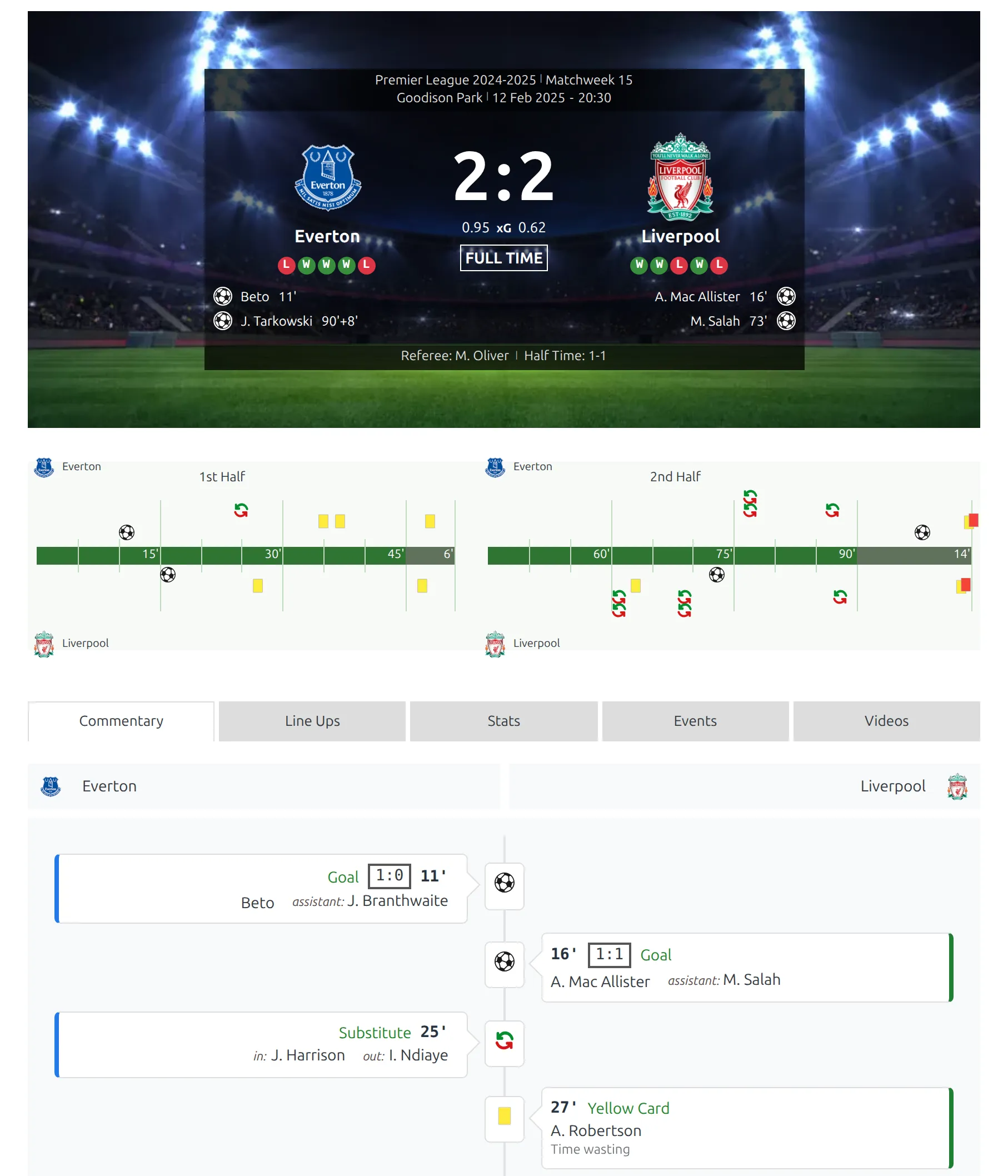
Display Options – which layout renders
A layout does nothing until its Display Options say which pages it applies to. This panel sits at the top of the builder screen, and its fields change with the layout type.
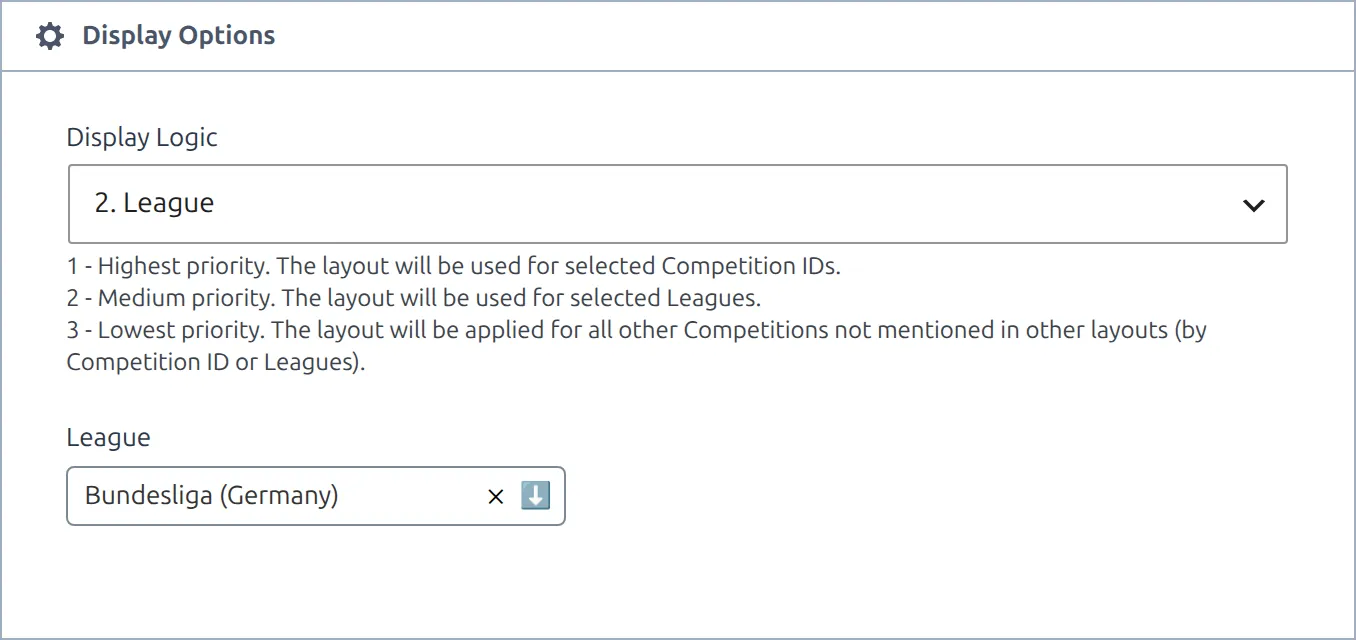
| Layout type | Display Logic choices | Which layout wins |
|---|---|---|
| Club | Default, National Teams, or Team IDs | A layout listing this team’s ID, then a National Teams layout for national teams, then the first layout left on Default. |
| Competition | Competition Type (round-robin / knockout) or Competition IDs | A layout listing this competition’s ID, then one matching its format. |
| Competition Multistage | Competition IDs, League, or Default Layout | Competition IDs first, then League, then the Default Layout. A Lazy Import competition goes straight to the Default Layout when one is set. |
| Match | Game Status & League, or Match IDs | A layout listing this match’s ID, then one whose status (finished / upcoming) and league both match. |
| Match LIVE, Player, Referee, Stadium, Staff | None – applies to every page of that type | See the note below. |
Within one rule, the most recently created layout wins. If two layouts both list the same team ID, the newer one renders and the older one is never used.
Only one Player, Referee, Stadium, Staff or Match LIVE layout is ever used
These five types have no targeting options, so the newest layout of that type applies to every page of that type and any older ones are dead weight. If you edited a player layout and saw no change on the site, check whether a newer player layout exists – that is the one rendering. Delete the ones you do not need.
When a layout’s targeting is incomplete the builder says so directly, with a warning such as Set “Team IDs” to make this Layout active or Set “Game Status” to make this Layout active. A layout showing one of those is not rendering anywhere.
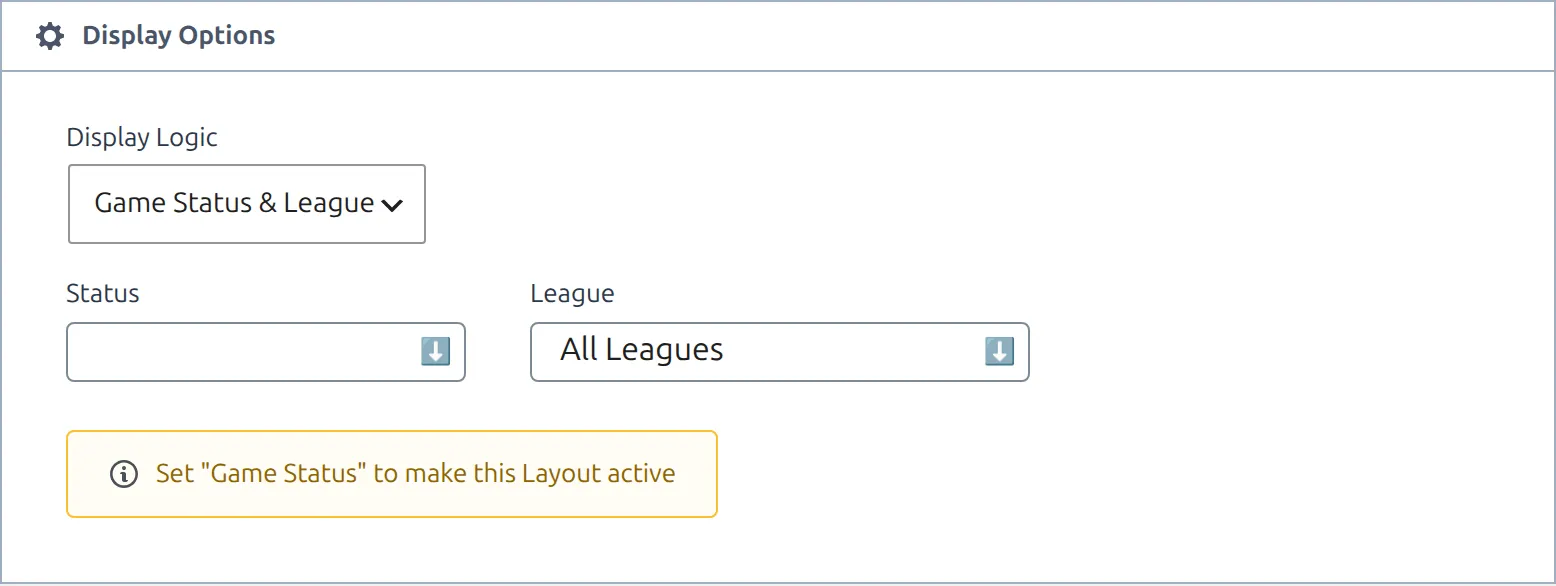
Two more rules catch people out. A Competition layout’s Competition Type field holds round-robin, knockout or both – if a layout meant for round-robin competitions also shows on knockout ones, remove Knockout from that field. And while a match is live, its page switches to your newest Match LIVE layout if you have one, so a Match layout set to Upcoming isn’t shown during the game.
SEO title and description
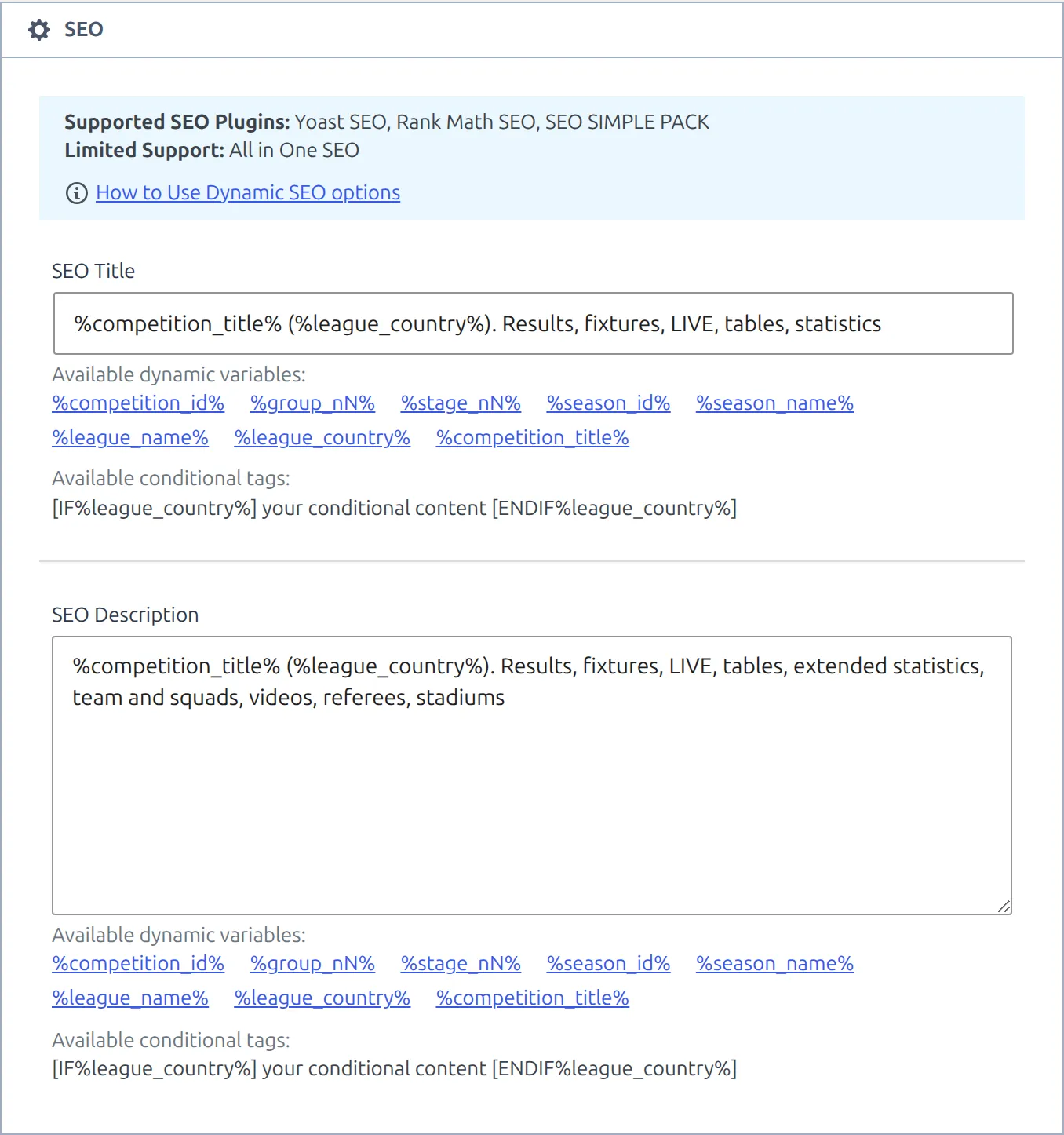
Each layout carries its own SEO Title and SEO Description, set in the SEO panel below the builder. They override what your SEO plugin would otherwise output on every page that layout renders, and they accept the same dynamic variables as the Shortcode block, so one competition layout can title every competition page correctly.
Each field lists the variables it accepts right underneath it – a competition layout offers %competition_title%, %league_name%, %league_country%, %season_name% and a few more. Click one to insert it. Conditional tags are supported too, so a part of the title can disappear when its variable is empty:
[IF%league_country%] your conditional content [ENDIF%league_country%]Fully supported: Yoast SEO, Rank Math SEO and SEO SIMPLE PACK. All in One SEO has limited support.
Cloning a layout
Clone is the quickest way to get another layout of a type you already have, and it is how most v1 maintenance starts. Hover a layout in the list and click Clone – you get a copy, opened for editing, with the same type, the same blocks in all three sections, and the same Display Options.
The SEO Title and SEO Description are not copied. Re-enter them on the clone if the original had them, or the new layout will fall back to your SEO plugin’s output.
A clone starts as a draft, and drafts never render – so nothing changes on your site until you publish it. But it inherits the original’s targeting, so once published, two layouts match the same pages and the clone, being newer, is the one that renders. Adjust the Display Options on one of them before you publish.
Two more things stay behind. The copy has no title – it’s listed as (no title) until you name it. And on a Competition Multistage layout the Default Layout choice isn’t copied – the clone opens on League with no league picked.
🚀 Moving to Layout Builder v2
Layout Builder v2 is a rebuilt, modern design for the three page types that matter most. It is not an upgrade of your v1 layout – you activate the v2 layout, check it, and keep or drop the v1 one.
| Your v1 layout | Move to |
|---|---|
| Club | Team Layout (v2) |
| Player | Player Layout (v2) |
| Competition and Competition Multistage | Competition Layout (v2) – one v2 layout covers both |
| Match, Match LIVE, Referee, Stadium, Staff | No v2 equivalent yet. Keep maintaining these in v1. |
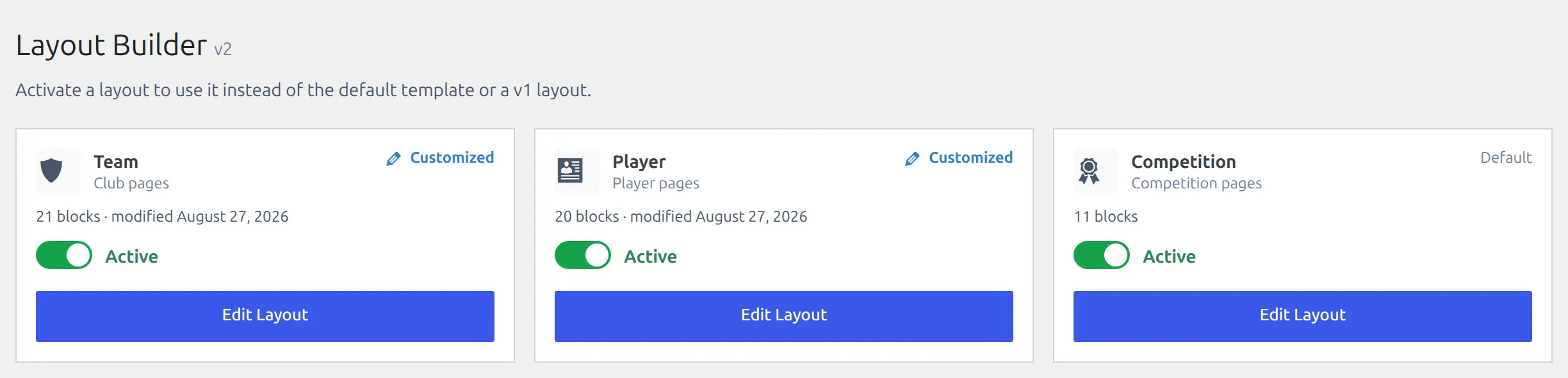
To switch one over, open Layout Builder → Layouts (v2) and turn on the toggle on the Team, Player or Competition card. Its label changes from Inactive to Active, and it takes effect straight away – there’s no Save step and no Activate button inside the builder. Each v2 page linked above walks through what the default layout contains and how to rebuild your v1 extras with it.
Nothing breaks while you decide
Your v1 layouts keep rendering until you activate the matching v2 layout, and activating v2 does not delete them. If the v2 page is not what you wanted, switch its toggle back to Inactive and your v1 layout takes over again immediately.
Activation is per entity type. Activating the v2 Team layout changes club pages only – your v1 match and competition layouts are untouched.
🆘 Troubleshooting
The layout does not show on the frontend
- Check Display Options – an incomplete rule shows a warning in the builder and means the layout is not applied anywhere.
- Check the layout is Published, not a draft.
- Check whether a newer layout of the same type is winning. See Display Options above.
- If the page is a club, player or competition page, check that the matching v2 layout is not active – an active v2 layout takes over that page type entirely.
- On a Match layout, check Status covers the match (Finished or Upcoming) and League is either All Leagues or the match’s own league. During a live game, your newest Match LIVE layout is used instead, if you have one.
- Clear your caching plugin.
Can I put a layout on a page, a post or my home page?
No. A layout replaces the plugin’s own page for a club, player, competition, match, referee, stadium or staff member, and Display Options pick those pages for you – there’s nothing to insert. To show the same kind of content on a regular page, build it from shortcodes with the Shortcode Builder. To send home page visitors to a competition page, link to it, or redirect your home page to it with a redirect plugin.
Every referee (or player, stadium, staff or club) page went blank
You probably just created a layout of that type. Select Type & Continue publishes it, and with no targeting to hold it back it replaces those pages while it’s still empty. Add blocks and click Save, or set it to Draft until it’s ready.
A Competition layout also shows on knockout competitions
Its Competition Type field includes Knockout. Remove it and save. If the competition is multistage, a Competition layout never applies to it at all – multistage competitions use the Competition Multistage layout.
A tab is missing from the live page
A tab with no title is skipped, and so are its blocks. Give the tab a title.
A block renders empty
Most blocks show nothing when there is no data behind them – a Stats block on a match with no statistics entered, a Transfers block on a club with no transfers. Check the entity has the data first, then the block’s own options.
A club layout is ignored on a summary club
v1 club layouts do not apply to summary clubs – those pages use the default template. Use the Team Layout (v2), which handles summary clubs and their subteams.
A cloned layout lost its SEO text
Expected – Clone does not copy the SEO Title and SEO Description. Re-enter them on the copy.
📚 Related
- Team Layout (v2) – the modern club page
- Player Layout (v2) – the modern player profile
- Competition Layout (v2) – one layout for every competition
- Block Types (v1) – every v1 block, by layout type
- Shortcode Block (v1) – dynamic variables for the Global :: Shortcode block
- Custom Classes (v1) – style a block with CSS classes
- Charts on Match Pages – a worked Match layout with charts