

Football Leagues ships a fixed set of fields for each entity – a player has a birthdate, a nationality, a position. Dynamic Custom Fields let you add your own on top: preferred foot, agent, shirt sponsor, whatever your site needs.
It’s a two-part feature. You define the field names once in the settings, then fill in a value for each player, club or stadium individually. The values show up on that entity’s page automatically.
Five entities support them: Player, Club, Stadium, Staff and Referee.
🚀 Step 1. Define the field names
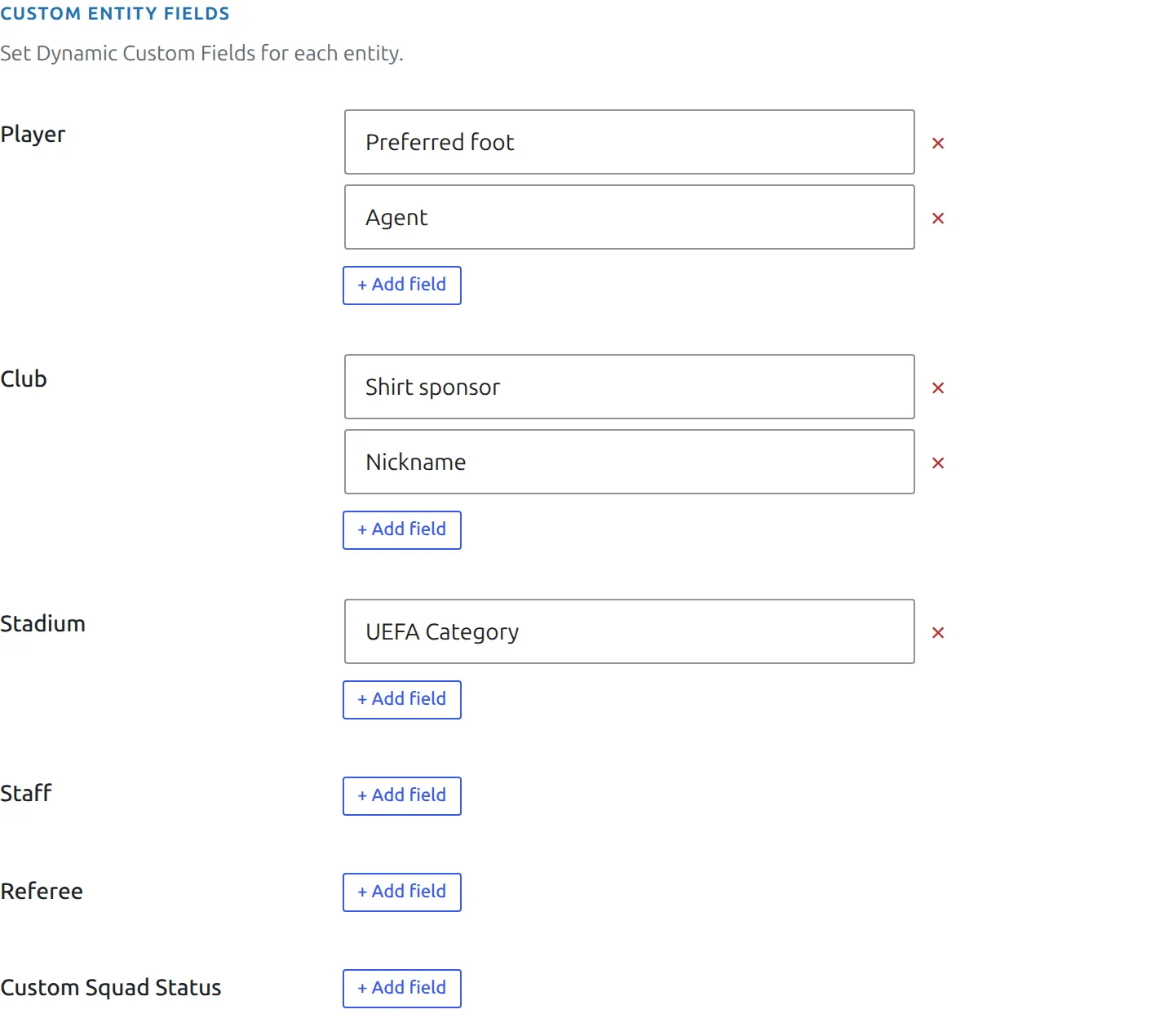
Go to Settings & Tools → Settings → Content → Custom Fields. The first box is Custom Entity Fields, with one row per entity.
Click Add field on the entity you want and type the field name. That name is the label your visitors see, so write it the way it should be displayed – Preferred foot, not preferred_foot. Add as many as you need, then save.
Renaming a field orphans its values
Values are stored against the field name. Change “Preferred foot” to “Strong foot” and the edit screen shows an empty Strong foot input, while the front end stops showing the old value right away – only names in the current list are printed. Rename it back before you save and the value returns. The next save of that player, club, stadium, staff member or referee drops the old value for good. Settle on names before you fill in hundreds of players.
The same box holds Custom Squad Status. That one is unrelated – it adds options to the Status dropdown in a club’s squad, alongside in club, on loan, left club and on trial. It’s not a custom field.
Step 2. Fill in the values
Open any player, stadium, staff member or referee and switch to the Custom Fields tab of its edit screen. Under three numbered Title / Value pairs there’s a Dynamic Custom Fields section with one input per name you defined. Fill in the ones that apply and save – blank ones are simply skipped.
If you haven’t defined any names yet, that section reads “Dynamic custom fields not exist”. That’s the prompt to go back to step 1, not an error.
In the club editor
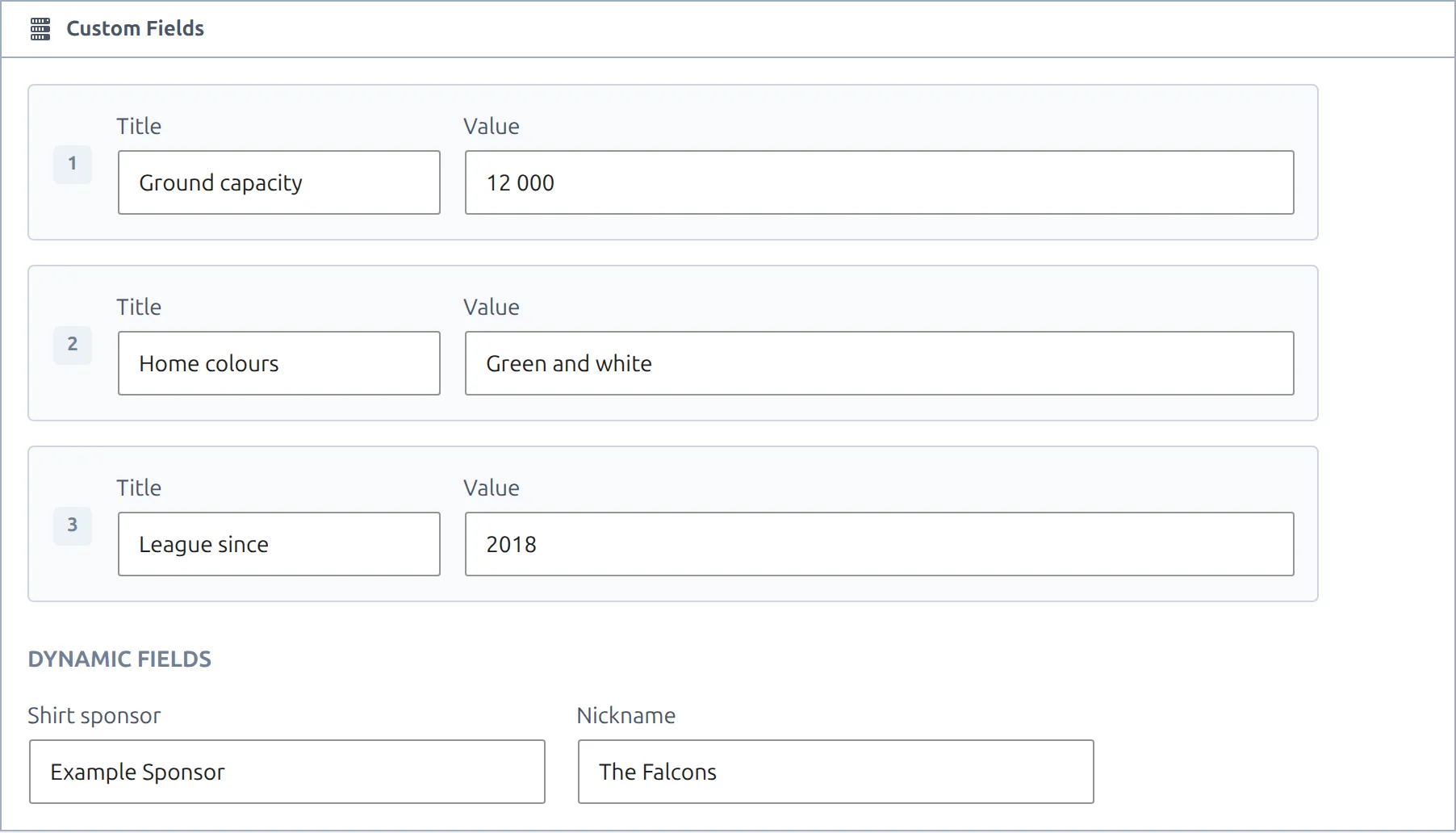
The club editor is laid out differently – Custom Fields is its own block there – but it offers the same two things:
- Three numbered Title / Value pairs. Both halves are per-club, so you can label them differently on every club. Nothing needs defining in the settings first. A pair only appears on the front end if both the title and the value are filled in.
- Dynamic Fields. The same shared-name mechanism as the other entities, listed under a “Dynamic Fields” heading. This section only appears once you’ve defined at least one Club field in the settings.
Use the numbered pairs for one-off facts that differ club to club, and dynamic fields for anything you want on every club.
Where the values appear
Filled-in fields are printed in the entity’s header block on its own page – the panel that already shows things like nationality and date of birth. Each one is a row with the name on the left and the value on the right, in the order you defined the names. Fields you left blank on that entity are skipped entirely, so a player with no agent doesn’t get an empty “Agent” row.
Here’s what visitors see on a player with two Player fields defined – First Coach and Academy – filled in as John Green and Super Soccer School:
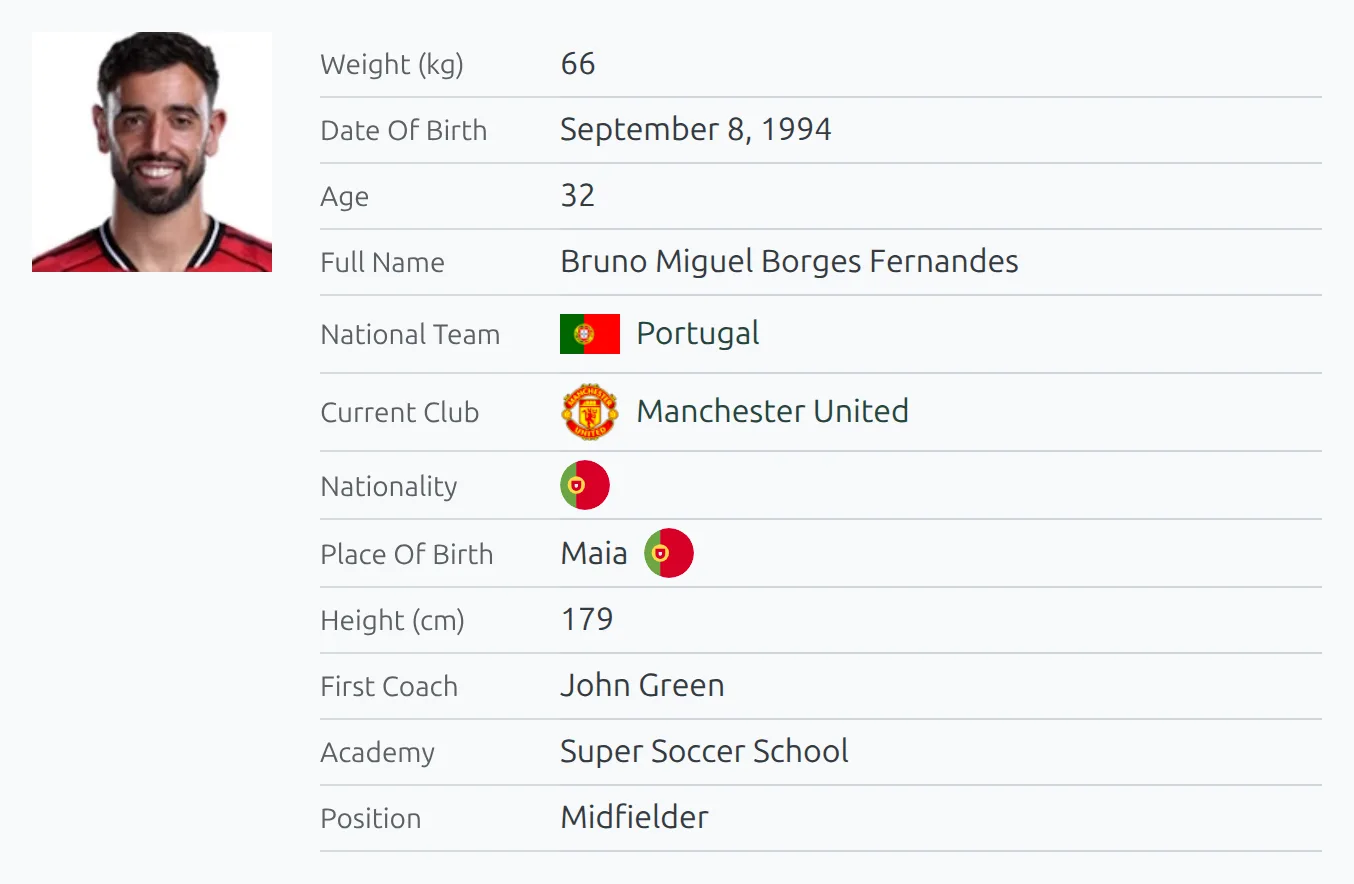
The three numbered Title / Value pairs print in the same place, just before the dynamic fields. On a player page that’s after the built-in rows and before the social icons.
On PRO you choose where they go. Under Settings & Tools → Settings → Display → Player & Staff → Player Header (Premium), the Header Elements list has a Custom Fields pill. Drag it to move the rows, or uncheck it to hide both the numbered pairs and the dynamic fields from the player header. The same list drives the compact header and the Layout Builder Player Header block.
Nothing needs to be added to a template or a shortcode – defining the name and filling the value is all it takes.
Shortcodes work inside values
Field values are run through WordPress’s shortcode parser before they’re printed, so you can put a shortcode in one. Handy for embedding a small widget under a club or player without touching a template. Quoted attributes work as usual, like [anwpfl-club club_id="12"].
Styling one specific field
In the standard player header each custom field also gets a CSS class built from its name, so you can target a single field without affecting the others:
.player-header__option__Agent {
    font-style: italic;
}
Stadium, staff and referee headers do the same with stadium-header__option__, staff-header__option__ and referee-header__option__. The class is the name exactly as typed, so a name with a space splits in two: First Coach gives player-header__option__First, which is the one to target. The club header, the compact player header and the Layout Builder Player Header block don’t add these classes.
Custom fields in import and export
All five entities get a column per custom field in Settings & Tools → Data Import, so you can fill them for a whole roster in one paste. Define the names first – the columns are built from whatever is configured at the time you open the tool.
Export currently covers clubs, stadiums, staff and referees, and includes their custom fields. There’s no player export, so player custom fields are import-only.
🆘 Troubleshooting
“Dynamic custom fields not exist” on the edit screen
No field names are defined for that entity yet. Add them in Settings & Tools → Settings → Content → Custom Fields.
A value was entered but nothing shows on the page
Usually the field was renamed – the page only prints names in the current list, and the next save drops the old value (see the warning in step 1). Check the name in the settings still matches exactly, including capitalization and spacing. Also check that a numbered pair has both its Title and its Value filled in; one without the other prints nothing. On a PRO player page, make sure Custom Fields is still checked in Header Elements.
There’s no Dynamic Fields section on my club
That section is hidden until at least one Club field name exists in the settings. The three numbered Title / Value pairs are always there.
📚 Related
- Data Import Tool – bulk-fill custom fields for players and clubs.
- Player shortcode and Club shortcode.