

Rate every player in every game and the number shows up as a small coloured badge next to their name: in the line-ups, on the formation, in the player statistics table and on the player’s own page. Low ratings are red, high ratings shade towards blue.
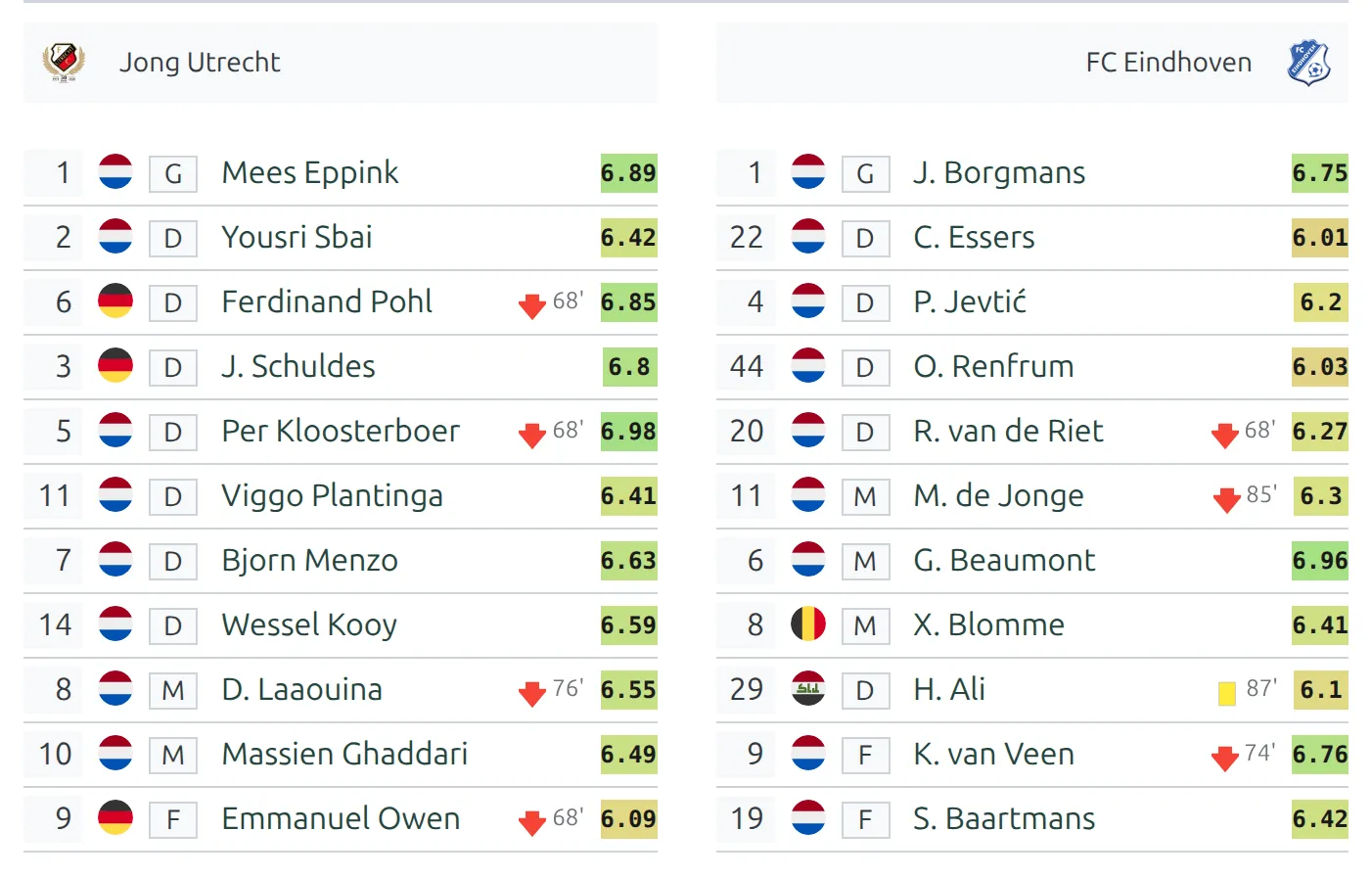
The rating isn’t a built-in field. It’s an ordinary player stat column that you nominate as the rating, which is why setting it up takes two steps instead of one. Once it’s set, the same number also feeds season averages, “best rated” lists and the “matches top rated” counter on player pages.
Importing games from API-Football? The import can create and nominate the rating column for you, and ratings then arrive with every finished game. Read steps 1 and 2 anyway so you know where things live, then jump to “Ratings from API-Football” further down.
🚀 Set up player ratings in four steps
1. Create the rating column
Go to Settings & Tools > Statistics. On the Statistics Configurator, find the Match >> Player Statistics block and add a column of type Simple.
- Full Name: Rating
- Short Name: Rating, or something shorter for narrow table columns
- Digits: 1, so 7.5 stays 7.5 instead of rounding to 8
Save. It has to be a Simple column. Calculated, formula, composed and time columns can’t be used as the rating and won’t appear in the next step’s dropdown.
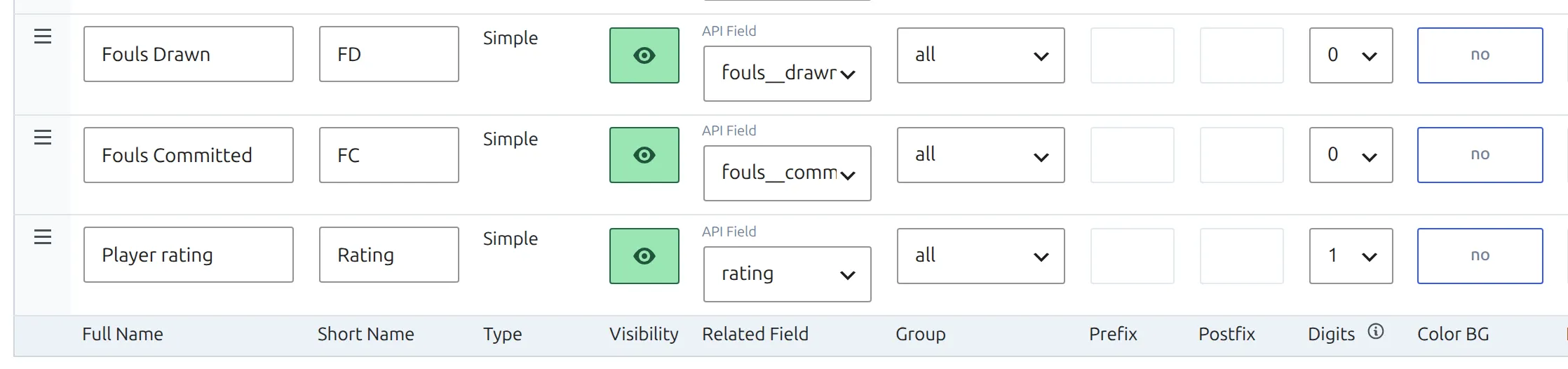
Note the number in the column’s ID cell, next to the Remove button. Shortcodes refer to the rating column by that ID.
2. Nominate it as the rating
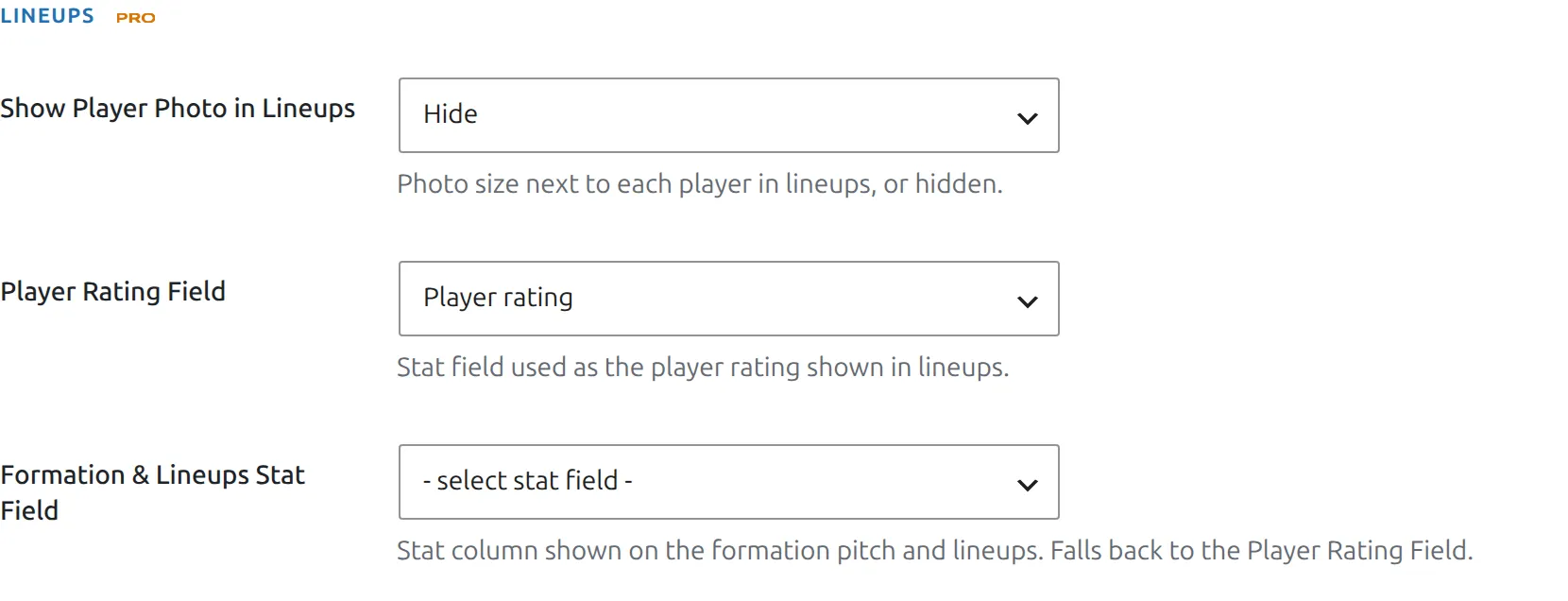
Go to Settings & Tools > Settings, open the Display tab, pick Match Display and find the Lineups group. Set Player Rating Field to the column you just made. Direct link: admin.php?page=anwp-fl-settings#match_display.
This one setting reaches the whole site
The label says line-ups, but this field drives the rating badge everywhere: formations, the player statistics table, player pages, season and career blocks in the Layout Builder, and several shortcodes. Pointing it at a different column re-colours all of them at once.
3. Rate the players
Open a game and click Players Statistics in the editor’s left-hand menu. You get four tables: goalkeepers and field players, for each club. Type a rating next to each name and press Save.
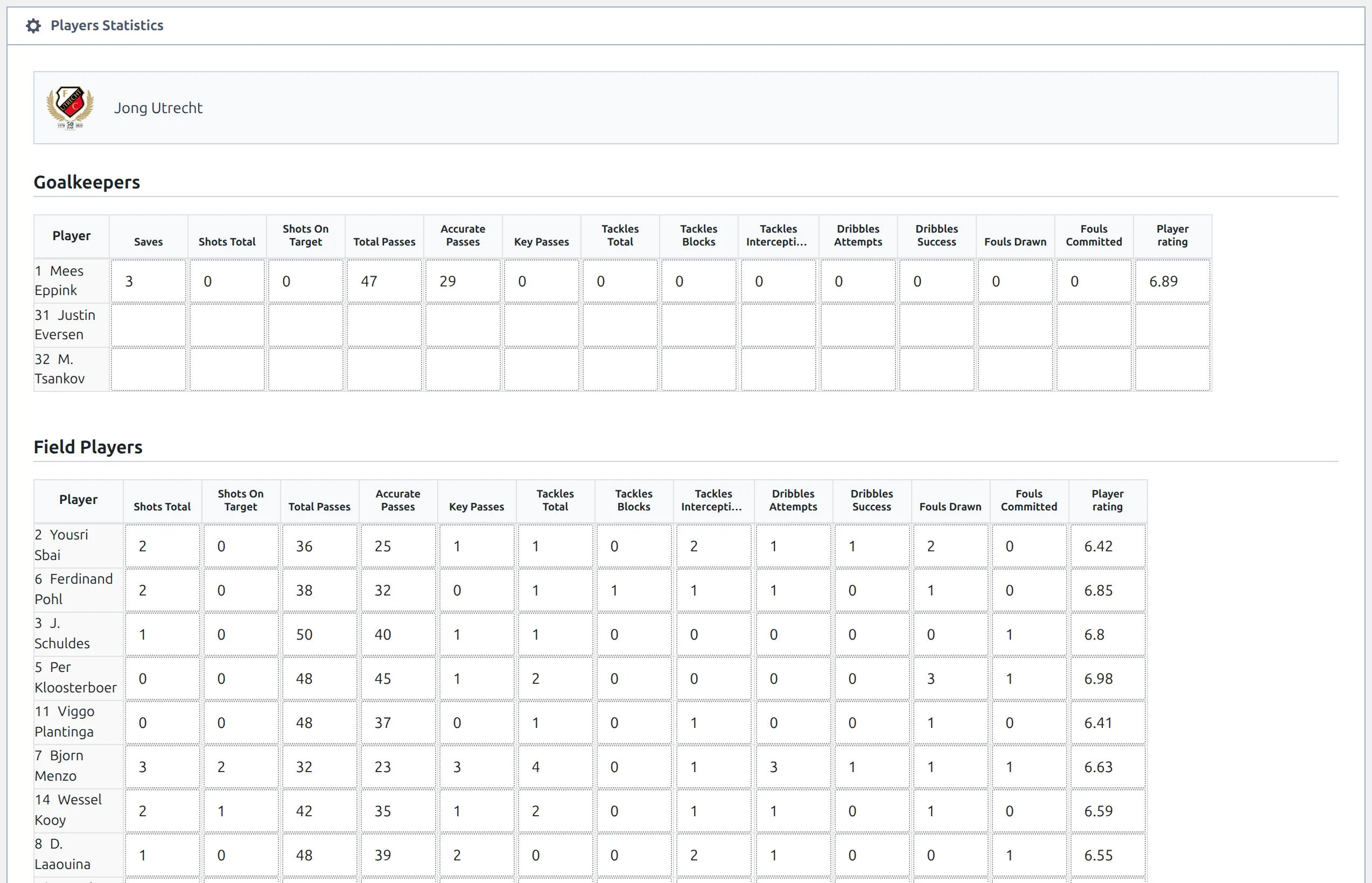
The tables list everyone in the starting eleven and the substitutes list, so fill in the line-up first. You can add a player to the line-up and rate them in the same Save. Unlike team statistics, player statistics can be entered before a game is marked finished, so you can rate players as soon as the line-up is in.
The input accepts any text. There’s no minimum, maximum or decimal check, so 6.5, 65 and a typo all save without complaint. Pick a scale, whether that’s 1 to 10 or 1 to 5, and stay on it. And leave a player who didn’t earn a rating blank. Don’t type 0: most averages, including the Season Record badge, Season Leaders and the shortcodes, count it as a real rating and drag the player’s season figure down.
Two more ways to enter ratings, both off by default:
- From the front end. Under Settings & Tools > Settings > Features > Frontend Editing, turn on Enable frontend Match edit and Live edit – Player Stats, and permitted users get the same tables in the front-end game editor.
- During a live game. Under Settings & Tools > Settings > Features > Live Scores, turn on Player Stats (it appears once Enable Manual Live Scores is on). The Players Statistics box then gets an Update (Live) button on unfinished live games, which publishes ratings mid-game without saving the game.
4. Match the colours to your scale
Badge colours run along a continuous ramp from red at the bottom of the scale to blue at the top. Two settings tell it where the scale starts and ends. They’re under Settings & Tools > Settings > Configuration > Advanced, in the Premium group: admin.php?page=anwp-fl-settings#advanced.
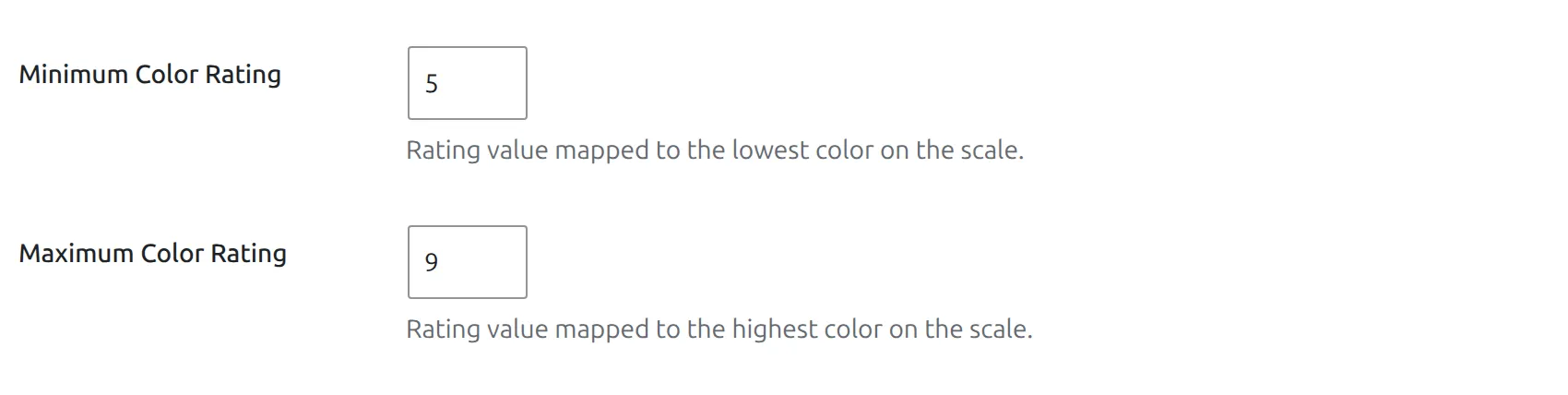
| Setting | Default | Meaning |
|---|---|---|
| Minimum Color Rating | 5 | Ratings at or below this are fully red |
| Maximum Color Rating | 9 | Ratings at or above this get the top colour |
The defaults are 5 and 9, not 5 and 10. That’s deliberate: on a 10-point scale almost nobody scores above 9, so ending the ramp at 9 spreads the colours across the range people actually use. With the defaults, 5.0 is red, 6.0 yellow, 7.0 light green, 8.0 mint green and 9.0 or more sky blue. If you rate out of 5, set 2 and 4.5 instead, otherwise every badge comes out the same colour.
⚽ Where the rating shows up
Once the setting points at a column, the badge appears on its own. You don’t add a block or a shortcode for the game page.
On the game page
- Line Ups, next to starters and substitutes (screenshot at the top of this page). There’s no switch to turn it off here.
- Formation, on each shirt on the field. This one can be turned off, see below.
- Players Statistics table, as its own column.
- The live player statistics table during a game imported live from API-Football.
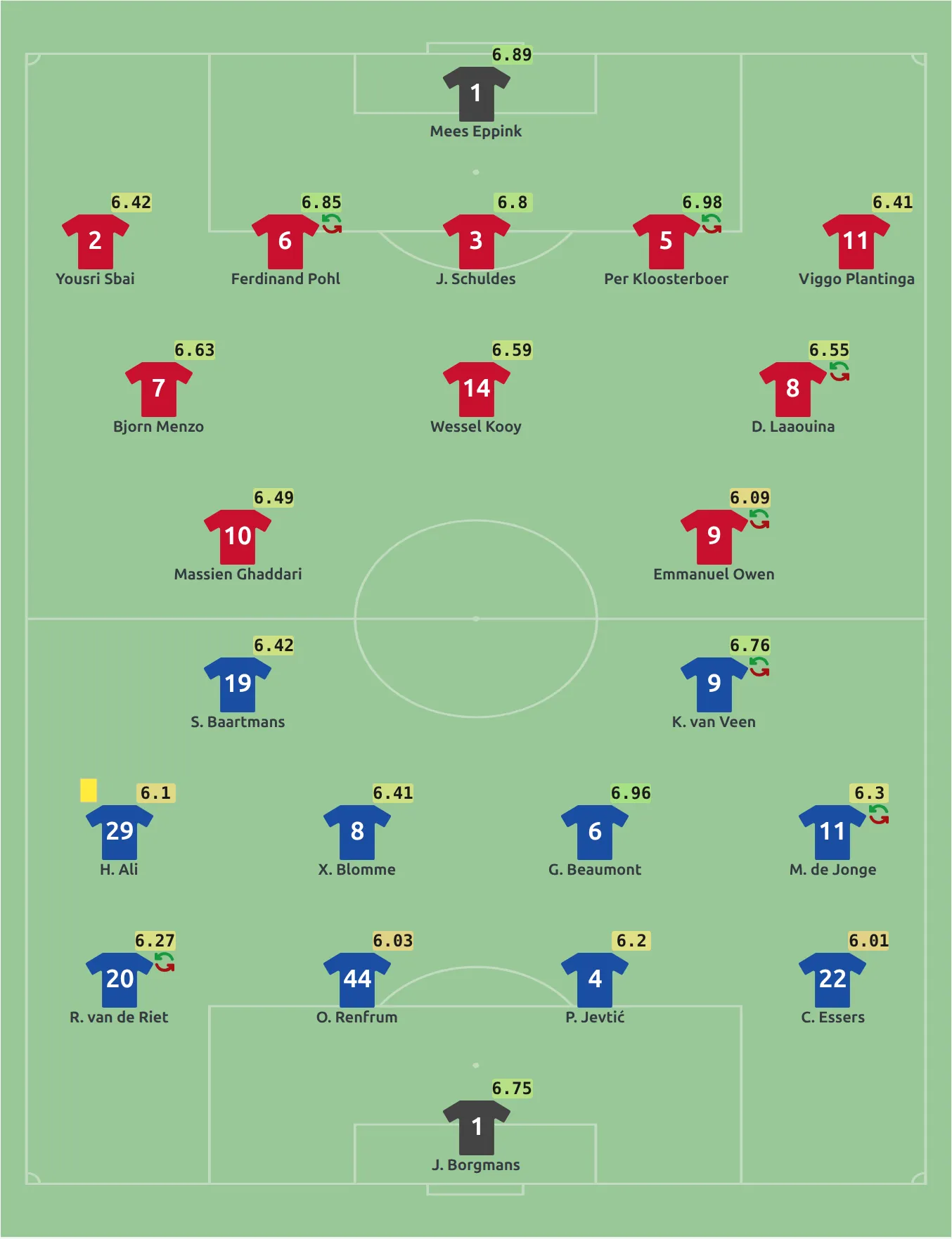
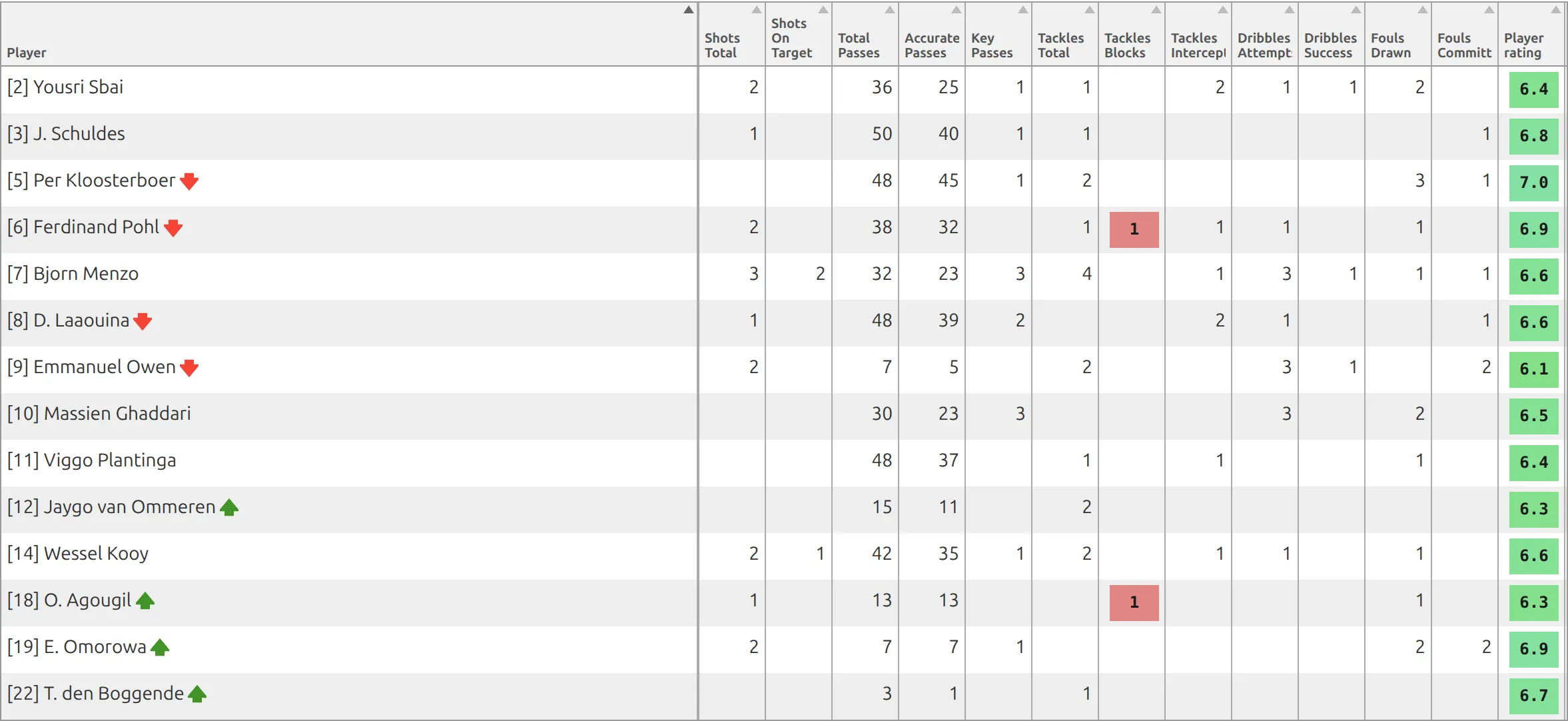
The line-ups and formation print the rating exactly as it was saved, so an imported 6.89 shows as 6.89. The Players Statistics table rounds to the column’s Digits, so the same player reads 6.9 there. If your ratings come in with two decimals, set the column’s Digits to 2 and both match.
If you’ve built a Game layout in the Layout Builder, the page only shows the blocks in that layout. No LineUps or Formation block, no line-up or formation badges.
Hiding it on the formation
In the same Match Display panel, the Formations group has a Rating option set to Show by default. Switching it to Hide removes the badge from the formation field only. The line-ups list keeps showing it.
Showing a different number instead
The Lineups group has a second option, Formation & Lineups Stat Field. Set it and that stat replaces the rating in the line-ups and on the formation, while every other block carries on showing the rating. It accepts calculated and formula columns as well as simple ones, so you can put a computed number on the field.
Leave it empty unless you want that split. If two blocks on one game page show different numbers next to the same player, this setting is why.
On player pages
Player pages built with Layout Builder v2 use the rating in these blocks:
| Block | What the rating does there |
|---|---|
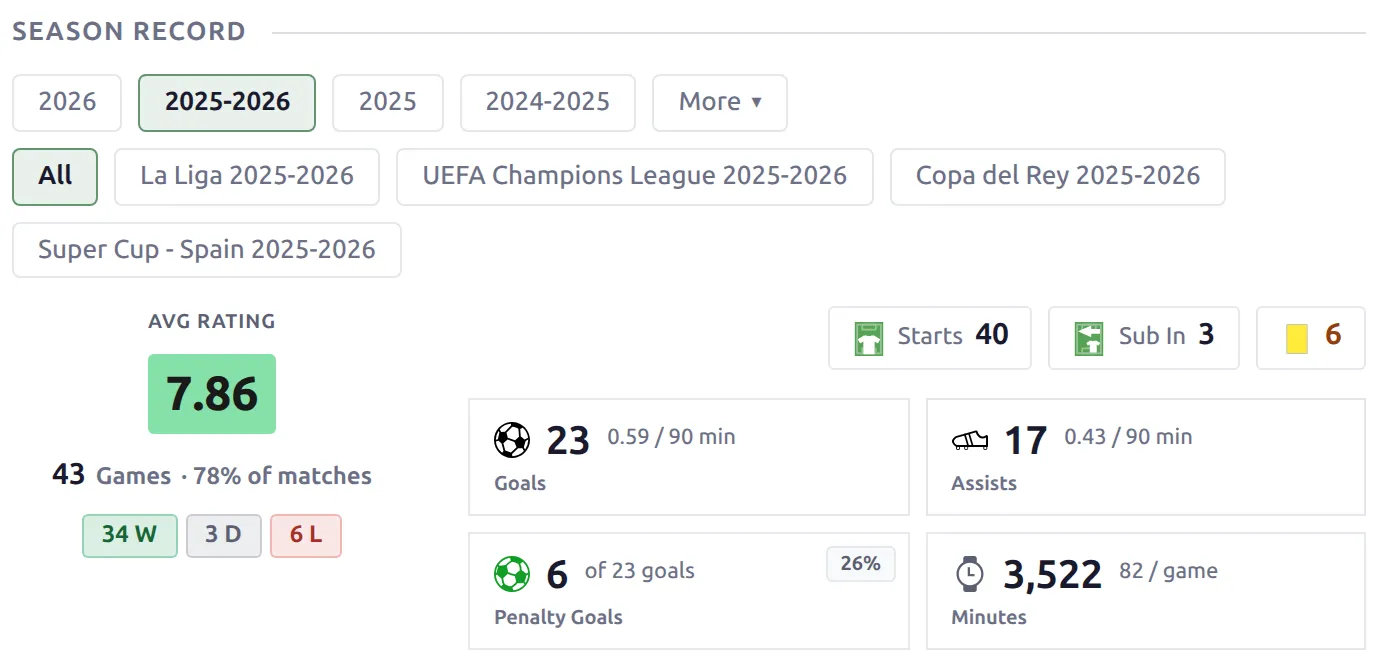
| Season Record | The season’s average rating is the big badge. With no rated games it shows games played instead. |
| Game Log | A rating column per game, and the average in the footer once the player has at least 3 rated games |
| Form Trends | Rating is the first metric in the colour-bar timeline, offered only when at least half of the games in view have a rating |
| Top Performances | The player’s 5 highest-rated games, plus a “matches top rated” counter. Hides until there are 5 rated games. |
| Career Chart | Average rating per season as one of the trajectory lines |
| Career | Average rating per season and club |
| Splits, vs Opponents | Average rating per split or opponent. Goalkeepers get conceded and clean sheets here instead, with no rating column. |
| Season Statistics | Average rating per competition |
| Stats Panel | A season-average tile, when you pick the rating column in the block’s stats |
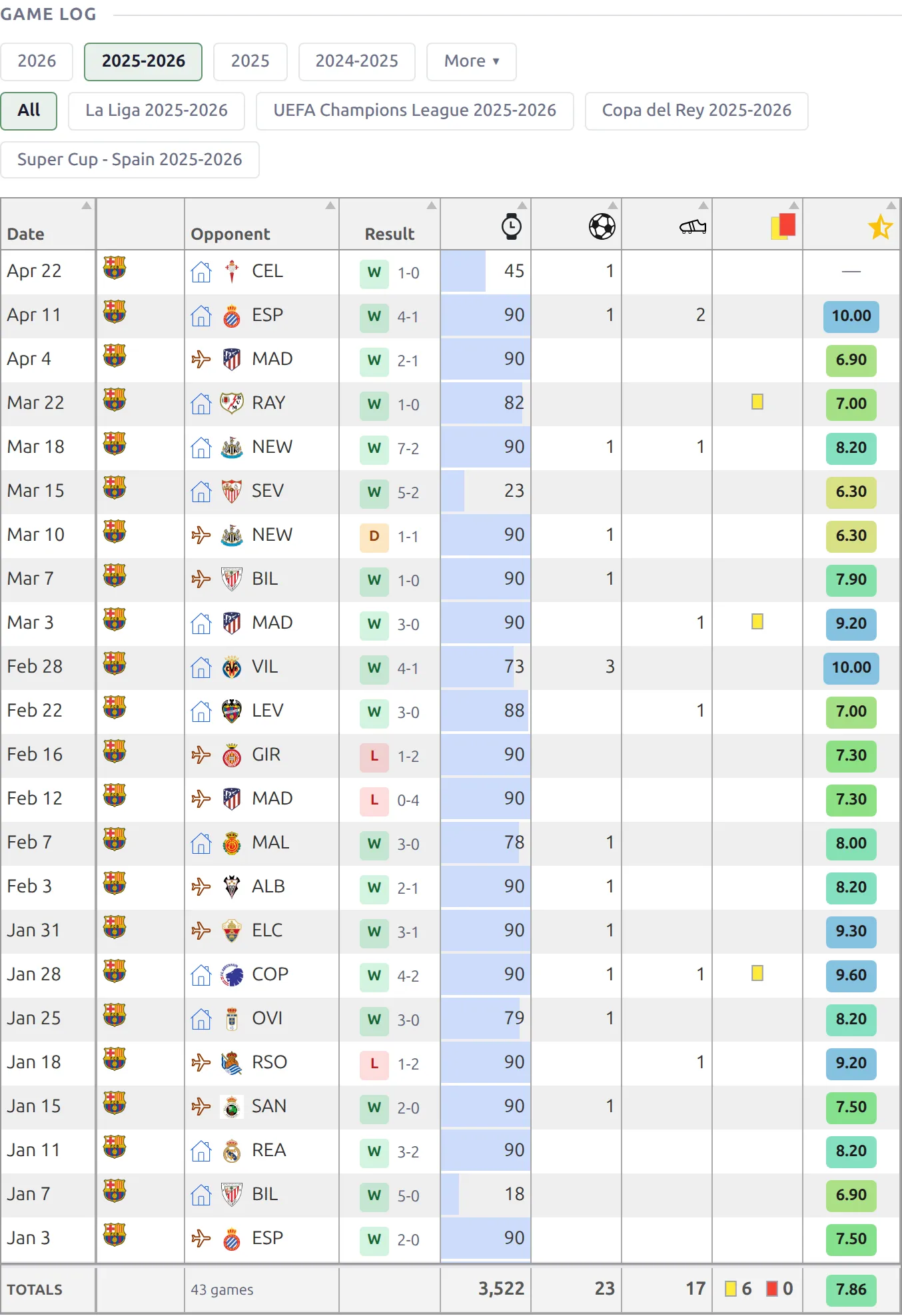
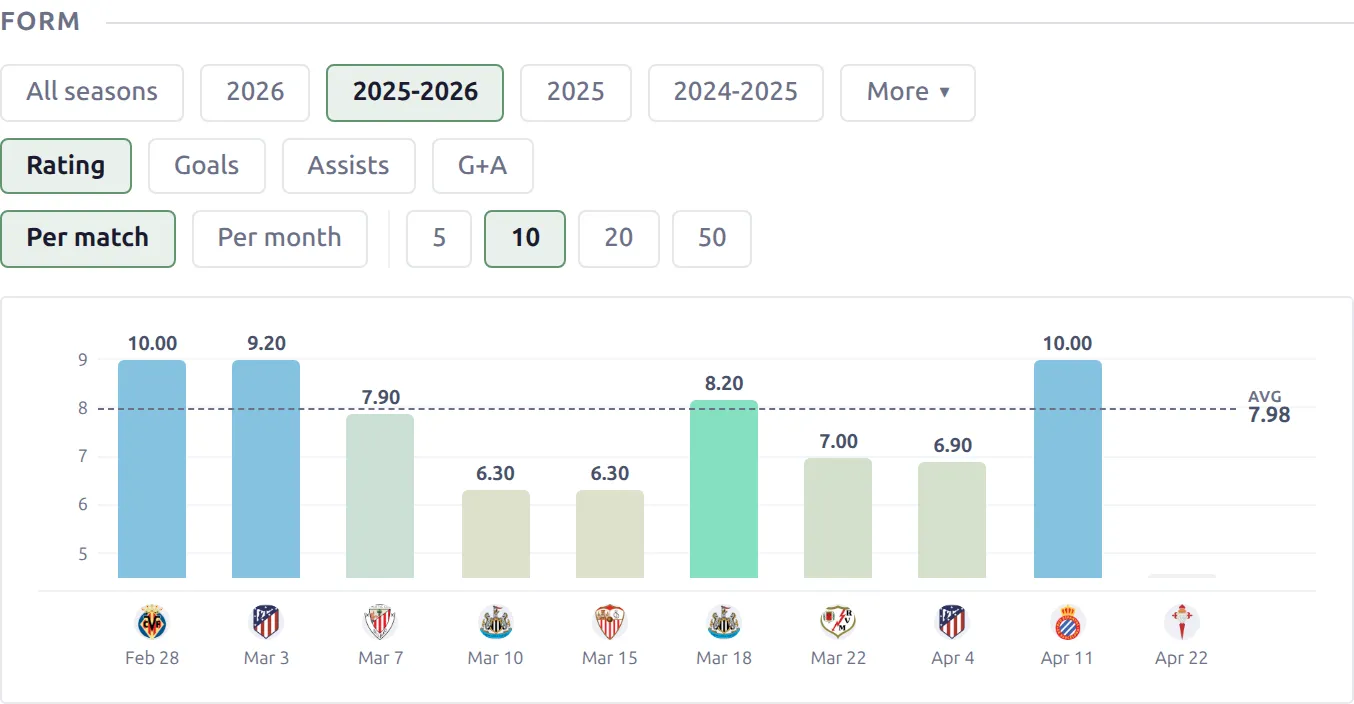
Player pages without Layout Builder v2 show the rating in two classic sections: Stats, with an average per competition, season and career total, and Matches, with a badge on every game.
Man of the match and “matches top rated”
The Top Performances block counts the games where the player finished with the highest rating on the field, and prints it as “12 matches top rated”. Two rules keep that number honest. A shared top rating counts for everyone on it. And a game only counts when at least 11 players in it were rated, so a site that rates three people per game doesn’t hand out a credit every week.
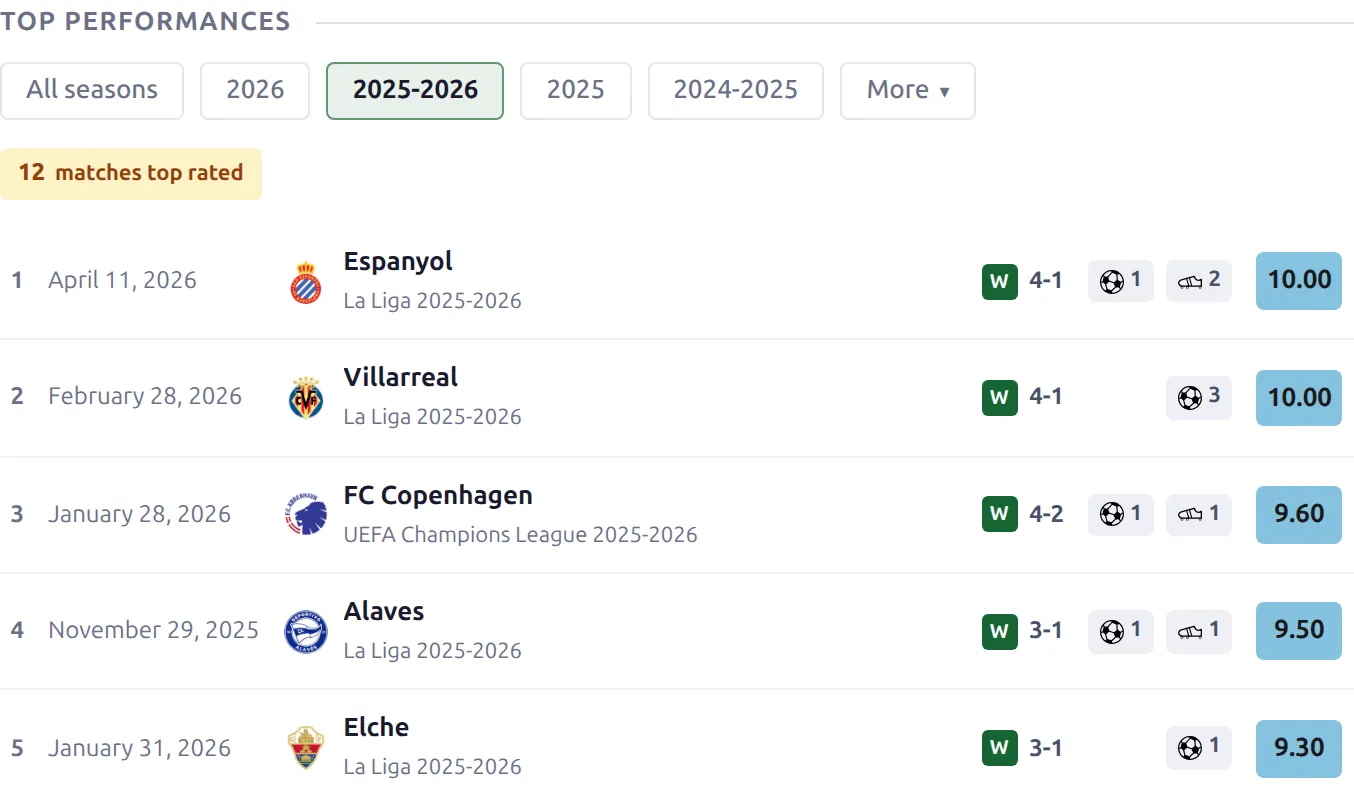
That’s a statistic, not an award. There’s no “Man of the Match” field on a game. If you want to name one yourself, add a Simple player column called “Man of the Match”, type 1 against the winner of each game, and rank the season’s winners with the Stat Players shortcode, as in the next section, using that column’s ID and no calculation.
On team and competition pages
In Layout Builder v2, the competition Season Leaders block adds a “Ratings & Advanced” card with the best average ratings, and the Player Statistics (competition) and Player Stats (team) tables include a rating column in their default column set. See Competition Pages with Layout Builder v2.
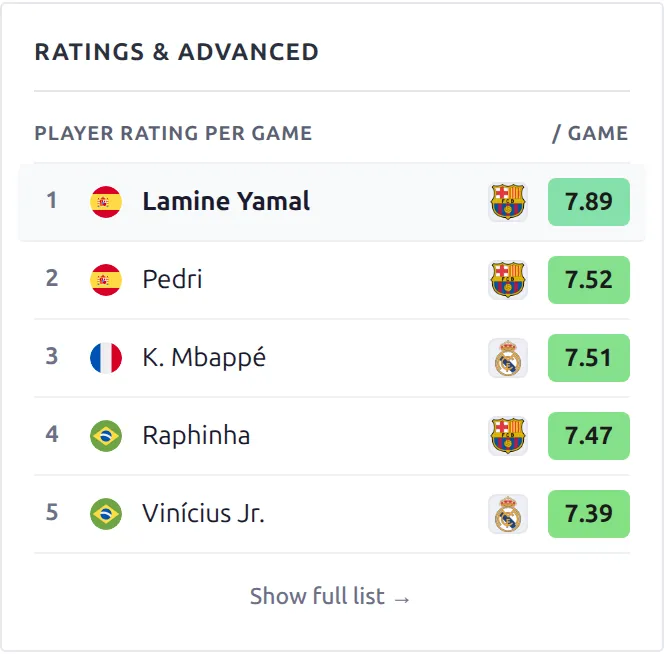
The Season Leaders rating list only ranks players with at least half as many appearances as the busiest player in the competition. A substitute with one 8.5 doesn’t top the card.
Rank players by average rating
For a “best rated players of the season” list anywhere on your site, use the Stat Players shortcode with the rating column’s ID. Here 14 is the rating column and 281181 the competition:
[anwpfl-stat-players stat="14" calculation="avg_game" digits="2" min_games="20" competition_id="281181" limit="5"]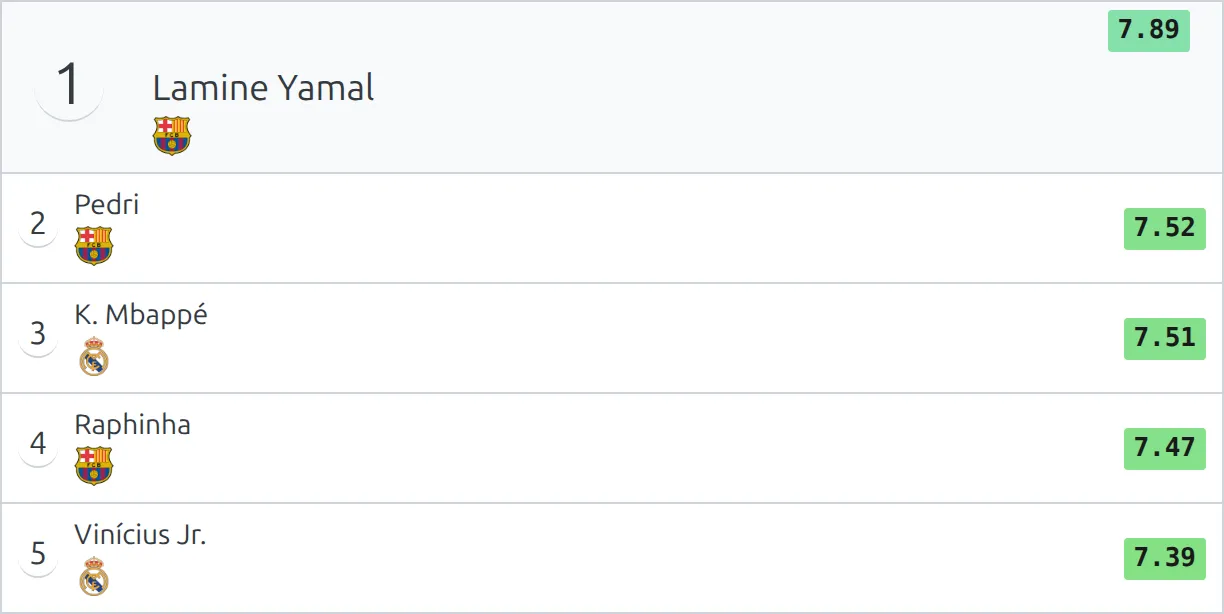
Two attributes matter. calculation="avg_game" turns it into an average, and without it the list adds ratings up, which ranks whoever played most. min_games keeps out a player with one great game. In the Stat Players builder the rating column is in the Stat Value dropdown after the built-in stats, so you don’t have to type the ID.
The rating also turns up in these tables:
- Stats Players adds an average rating column by itself. If you pick Sections in its builder, the rating column disappears, because Rating isn’t in that list. Add
ratingto thesectionsattribute by hand, as insections="appearance,goals,assists,rating". - Custom player stats table: add the rating column’s ID to
columns. It always averages, with or without:avg. - Player stats panel: pick the rating column in Stat Value and the tile shows that player’s average.
How the average is worked out
Every season, career and leaderboard figure is the average of the games that have a rating. A game where the player has no rating isn’t counted at all, so it doesn’t pull the average down.
Say a player has three games rated 7.0, 8.0 and blank. The average is 7.5, not 5.0. If the blank were typed as 0, the shortcodes, the Season Record badge and Season Leaders would show 5.0, while Game Log, Career and Splits, which skip zeros, would still show 7.5. That’s the reason for “leave it blank” in step 3.
Ratings from API-Football
If you import games from API-Football, the provider supplies its own player rating and the setup can wire the whole thing up for you. It creates a Simple column called Player rating with Digits 1, maps it to the API field rating, and sets Player Rating Field to point at it. After that, ratings arrive with every import.
To map an existing column by hand, use the Related Field column on the Statistics Configurator and choose rating, as on the Player rating row in the step 1 screenshot, where the cell reads API Field: rating. That dropdown only appears when player statistics import is switched on in your API Import settings. See Import Player Game Statistics.
API-Football rates only players who were on the field, so an unused substitute never gets a rating from the import. Ratings are written when the finished game is imported. Games imported before you switched player statistics on need Re-Update Finished Matches run for that competition, in its Config Actions under API Leagues. The regular finished-games update skips games that are already finished.
🆘 When a rating doesn’t show
I followed the steps and see no rating at all
Check these in order, it’s almost always one of them:
- The rating column is type Simple and the Statistics Configurator was saved.
- Player Rating Field in Match Display > Lineups points at that column, and the settings page was saved.
- The game has a line-up, and the ratings were typed against players in it, then the game was saved.
- Formation & Lineups Stat Field is empty. If it names another column, the line-ups show that instead.
- If the site uses a Game layout in the Layout Builder, it contains the LineUps or Formation block.
The dropdown in step 2 is empty
You have no Simple player stat columns. Calculated, formula, composed and time columns are excluded on purpose. Go back to step 1.
One player has no badge, everyone else does
Almost always a substitute who never came on. The badge needs the player to have an appearance recorded, which starters get automatically and substitutes only get once a substitution event is added to the game. The rating you typed is saved, it just isn’t drawn.
Temporary players, the ones typed straight into a line-up without a player record, can never carry a rating.
A rating I typed vanished on save
Ratings are only kept for players who are in that game’s starting eleven or substitutes list. If you remove a player from the line-up and save, their rating goes with them.
A player’s season average looks too low
Look for games where the player is rated 0. The shortcodes, the Season Record badge and Season Leaders count a 0 as a real rating. Clear those cells and save each game.
Top Performances or the Form rating is missing
Both hide on thin data. Top Performances needs 5 rated games in the selected season, and the Form block only offers Rating when at least half of the games have one. The Game Log footer average needs 3 rated games.
Can I rate the coach or the referee?
No. Ratings are stored against players in a game’s line-up, and staff and referees have no player statistics.
Empty ratings show as 0.0
In line-ups and formations an empty rating draws nothing. In the Player Statistics table it can render as 0.0 instead, if you’ve turned off Hide Zero Values in the Player Statistics group of the Match Display panel. Turn it back on.
The colours don’t match between two blocks
The line-ups and formation badges use the Minimum and Maximum Color Rating settings above. The Player Statistics table colours the same number using that column’s own Color BG range, which starts at 0 and 10 unless you change it. Set the column’s Color BG minimum and maximum to match and the two agree.
To do that, click the rating column’s Color BG cell on the Statistics Configurator, tick the checkbox and enter the same numbers as the rating settings, 5 and 9 by default. With Color BG switched on, line-ups, formations, Stat Players and the player stats panel follow the column range too. The Layout Builder v2 player blocks, Season Leaders and the classic player sections always follow the rating settings, and the Player Statistics tables (game page, Layout Builder v2 team and competition pages, the custom player stats table) always use the column range. Same numbers in both places, and every badge on the site agrees.
Using one flat colour instead
Add this to your theme’s custom CSS (see CSS Recipes for where to put it). It covers the game page badges plus the classic player page and shortcode badges that share their styling. Layout Builder v2 blocks use their own styling and aren’t affected:
body .match__player-rating,
body .player-stats__player-rating,
body .player-stats-pro__player-rating,
body .players-stats__player-rating {
    background-color: #ff8b2b !important;
    border-radius: 4px;
    padding: 2px 6px;
}
Don’t set the text colour to white
Older versions of this recipe added color: #fff. The plugin now ships a dark badge text colour chosen for contrast, and a white override on a mid-tone background fails accessibility contrast checks. Set the background only and let the text colour alone.
📚 Related
- Custom Player Statistics – the full guide to player stat columns, including the types the rating can’t use
- Formation – the other block the rating badge appears on
- Player Pages with Layout Builder v2 – Season record, Game Log, Form and Top Performances
- Import Player Game Statistics – ratings from API-Football
- Custom player stats table shortcode – rank players by average rating across a season