

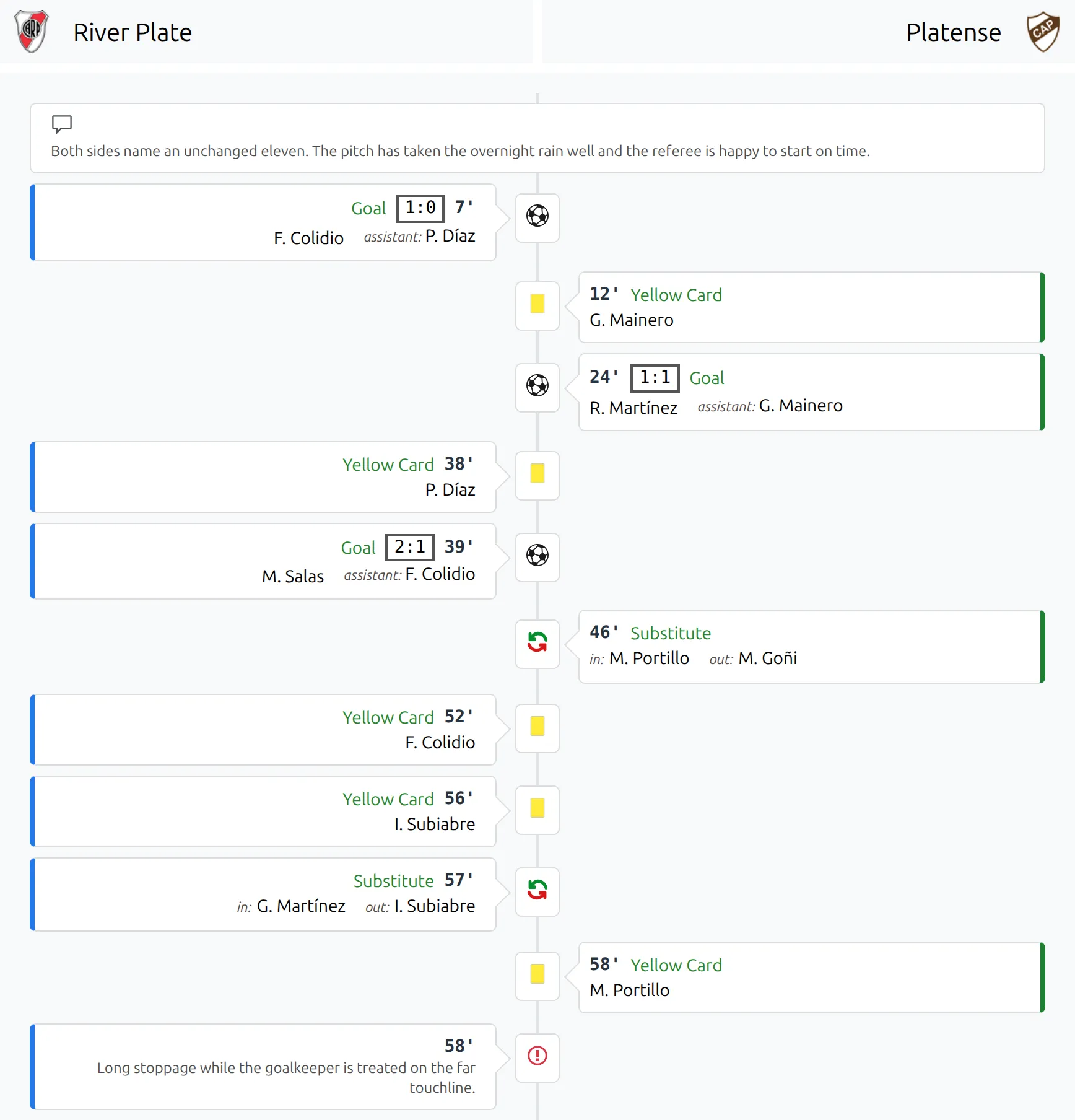
The commentary block turns a game’s events into a written feed – two columns, home on one side and away on the other, with an icon down the middle and the running score on each goal. Alongside the automatic entries you can write your own, which is what makes it a live blog rather than a list.
🚀 1. Get it on the page
The commentary draws itself on every game page, near the bottom, once the game has events it can show.
That changes the moment you build a Game layout. A game layout replaces the default page completely, so any block you didn’t add is gone, this one included. Two ways to put it back:
- In the Layout Builder, add the Commentary block from the Match group. The built-in Finished Game layout puts it in its own tab – press Load Predefined Layout to start from there.
- With the match shortcode:
[anwpfl-match match_id="123" sections="commentary"].
Like the timeline, the block draws nothing at all when there is nothing to show – no qualifying events, and the game is neither live nor an active API game.
2. Which events reach the commentary
Nine of the event types on the game’s Match Events tab are shown:
| Event | Shown as |
|---|---|
| Goal | Ball icon, scorer, assist when you recorded one, and the running score. |
| Card | The card in its color, with the player. |
| Substitute | Both players, labeled In and Out. |
| Missed penalty | Crossed-out ball, with the player. |
| Cancelled goal | Crossed-out ball, with the player. |
| Penalty shootout | A scored or missed ball, with the taker. |
| VAR | Its own icon, and whatever you wrote in the comment. |
| Commentary | A speech-bubble icon. This is the plain text entry. |
| Significant event | A red alert icon, for the moments you want to stand out. |
Every one of them can carry free text: fill in Event Comment and it appears under the event. For a Commentary or Significant event entry that text is the whole point – the rest of the fields are optional.
✍️ 3. Write your own entries
- Open the game and go to the Match Events tab.
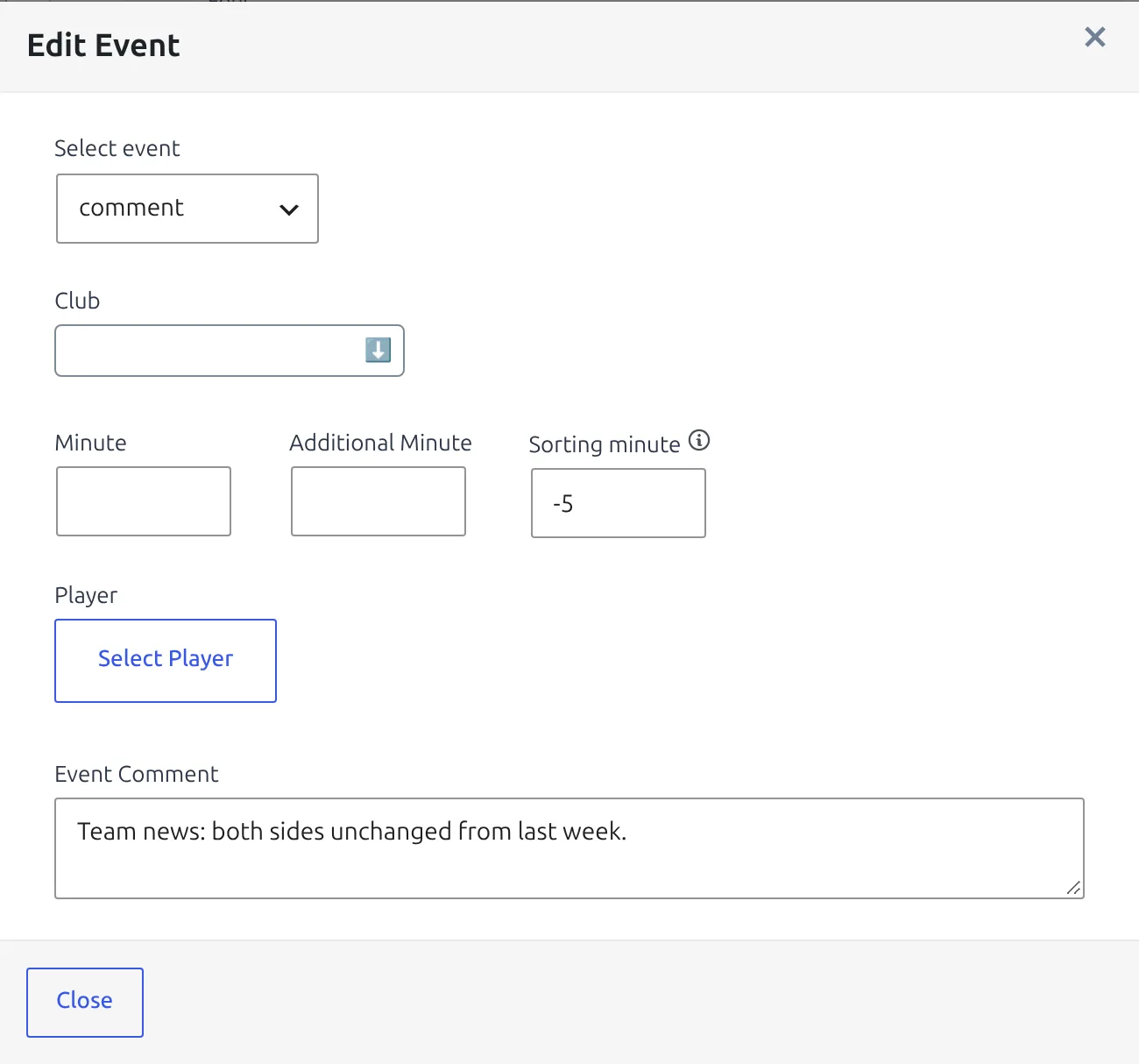
- Press add event. In the Edit Event window, set Select event to comment – or significant event for something that should catch the eye. Once added, the event list shows a comment entry as Commentary.
- Set the Minute if the entry belongs to a moment in the game.
- Optionally pick a Club, then a Player. The player list stays empty until a club is set.
- Write the text in Event Comment, close the window and save the game.
The club decides the column. A free-text line like “Right side action. Ronaldo fouled from behind” is a comment entry with the away club picked, so it sits in the away column next to the goals and cards.
Neutral entries that span both columns
Leave the Club field empty and the entry is drawn full width across the middle instead of in one team’s column. That is how you write anything that belongs to neither side – kick-off, half time, the weather, a delay – and it reads much better than arbitrarily assigning it to the home team.
An entry with no minute needs a Sorting minute
The feed is ordered by minute, so an entry with neither a minute nor a sorting value has no place in the sequence and is dropped without warning. Whenever you leave Minute empty, fill in Sorting minute instead.
Sorting minute
The field appears for Commentary, Significant event and Penalty shootout only, and it grays out as soon as Minute is above 0 – the two are alternatives, not a pair.
- A negative value puts the entry before kick-off. Use
-5for a team-news note that should sit at the top of an ascending feed. - A plain number places it as if it were that minute.
- A value with a plus sign, like
90+9, places it as minute 90 plus 9 added minutes. It needs the number before the plus –+6on its own is dropped (see Troubleshooting).
The sorting value is never printed. Visitors see the entry with no minute at all, just the icon and your text, in the right place in the feed.
For a note in stoppage time, skip Sorting minute and use the minute fields: Minute 45 and Additional Minute 2 places it at the end of the first half, before anything from the 46th minute on, and shows it as 45′ +2′.
Penalty shootout entries sort themselves after everything else, in the order you entered them, so you rarely need to touch this for a shootout.
4. Display options
Go to Settings & Tools > Settings and open the Match Commentary tab in the Display group. It sits right after Match List.
| Setting | Default | What it does |
|---|---|---|
| Layout | Default | Slim tightens the padding and drops the text a size. Worth it on a long feed. |
| Events Order | Ascending | Oldest first, like a match report. Descending reads like a live blog. |
| Max Height (px) | 0 | Above 0, the feed scrolls inside that height instead of running down the page. 0 removes the limit. |
| Show player photo | Yes | Photos beside each event, on the outer edge of the column. |
| Show scores | Yes | The running score on each goal. |
Coming from an older version: these used to be in the FL+ Configurator, which was retired in 0.18.2. Its old address now forwards into this Settings screen.
A live game is always newest-first
While a game is live the feed ignores Events Order and shows the newest entry at the top, so a visitor watching the page does not have to scroll to find what just happened. When the game finishes it reverts to your setting.
The running score is counted in the direction the feed reads, so it stays correct either way: ascending counts up from 0-0, descending counts down from the final score.
Each side’s column is edged in that club’s main color, falling back to blue for home and red for away when a club has no color set. The block heading and the In / Out / Assistant labels are editable under Translations > Text Strings.
🆘 Troubleshooting
My commentary entry does not appear
It has no minute and no sorting minute. Open the event and fill in one of the two.
If you did fill in Sorting minute, check what you typed. A value that starts with a plus sign, like +6, has no minute to sort by, so the entry is dropped – write 90+6 instead. In the event list a working entry shows its sorting value (for example -5') under the minute column – no value there means it was dropped. Use a plain number, a value like 90+6, or Minute plus Additional Minute for stoppage time.
The whole block is missing
No event on the game is one of the nine types above, or every one of them was dropped for the reason just given. A game whose only events are, say, missing players has nothing for the commentary to draw.
An entry is in the wrong column
The column comes from the event’s club. Clear the club to move it to the middle, or set the right one.
No player photos
The setting shows a photo only where the player actually has one. Events with no player – a neutral commentary entry, most VAR entries – never show one.
The order is wrong on a live game
That is the newest-first rule above, not a bug. Check the same page after the game is marked finished.
📚 Related
- Match Timeline – the same events drawn as a bar, with a narrower set of types.
- Live Scores Dashboard – entering events by hand while a game is running.
- Layout Builder – where the block goes on the page.