

Display a results matrix showing head-to-head results between all teams in a competition. The matrix shows home team results on rows and away team results in columns, giving a complete overview of all matchups. You may know it as a cross table, a crosstable or a head-to-head grid – it’s the same thing.
Premium Feature
This shortcode requires the Football Leagues Premium plugin.
Every matrix is built from a standing table. The clubs, their order and the stage and group all come from that table, and the scores come from the finished games of the same stage and group. No standing table, no matrix.
🚀 Show a results matrix
There are three places a results matrix appears: wherever you put the shortcode, in a Layout Builder competition layout, and on a classic competition page, where it shows on its own.
Basic Usage
[anwpfl-results-matrix standing_id="45"]This displays a results matrix using the clubs from standing table 45. You’ll find the ID in the ID column of Competitions > Standing Tables.
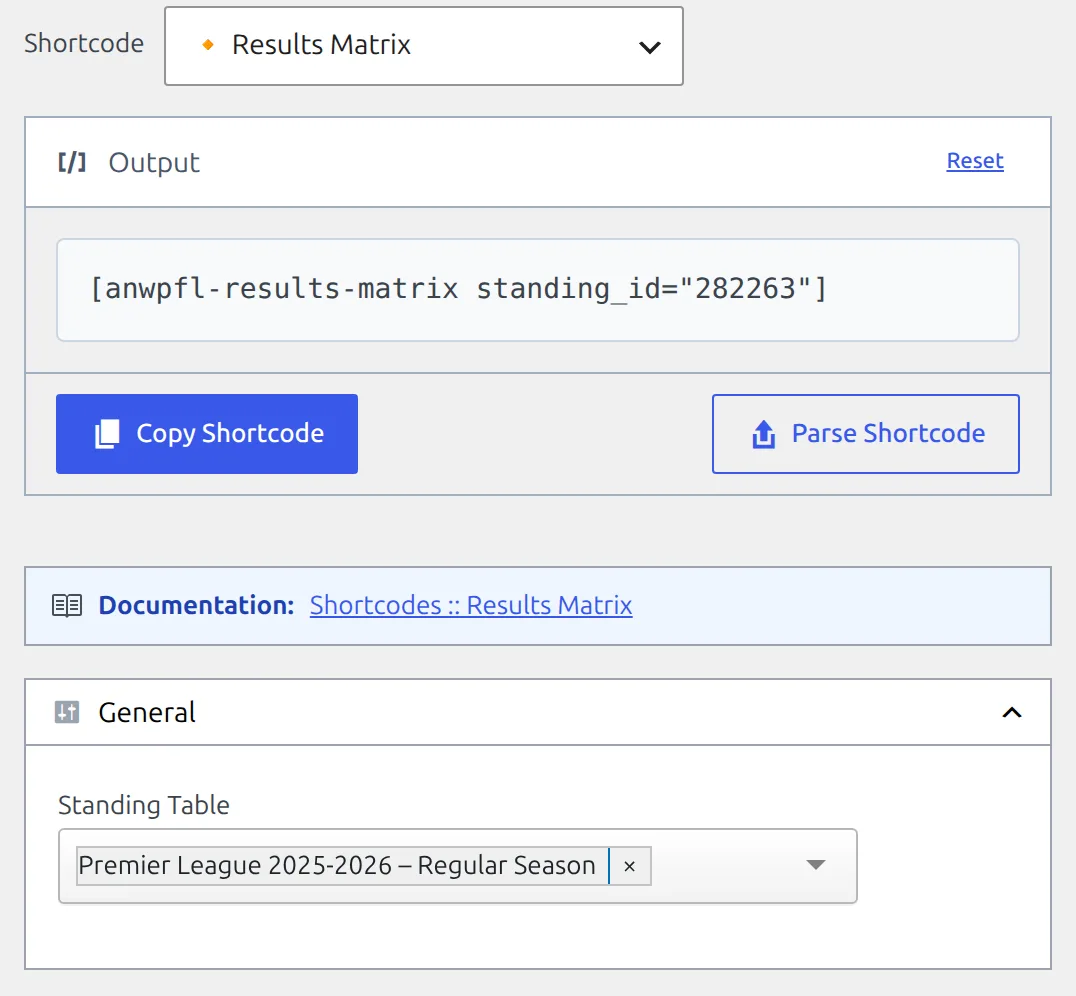
Don’t want to look up IDs? Open Football Leagues > Shortcodes, pick Results Matrix and choose the table from the Standing Table list. The builder writes the shortcode for you – see the Shortcode Builder guide.
On a competition page with Layout Builder
With the Layout Builder v2 competition layout active, open Layout Builder > Layouts (v2), edit the Competition layout and drag the Results Matrix block in from the palette. It isn’t part of the default layout, so a new site doesn’t show a matrix until you add it.
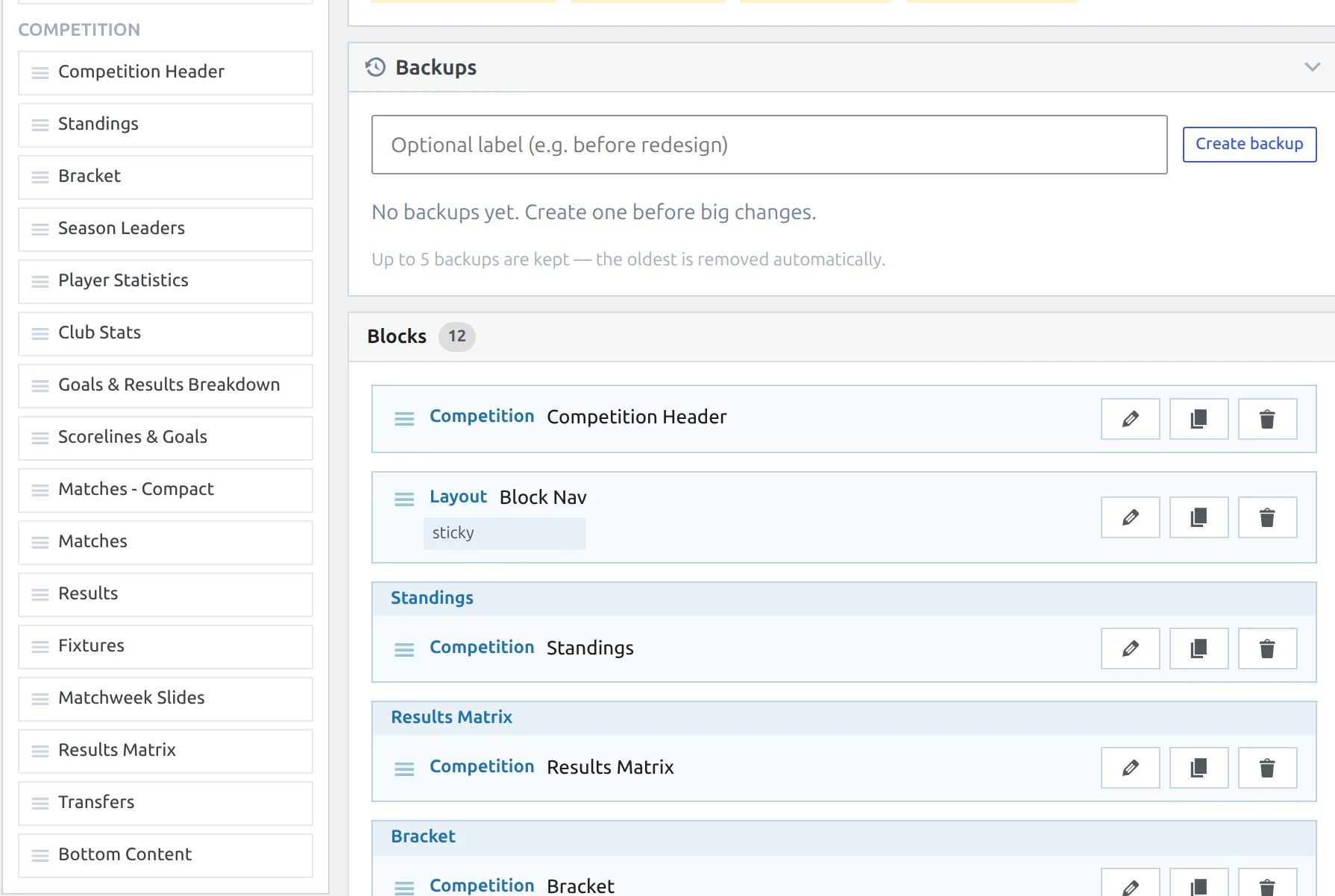
The block needs no settings. It draws one matrix for every round-robin group that has a standing table, each under its group name, and in a multistage competition under its stage name too. Knockout stages are skipped, so on a cup the block shows nothing. More on the layout itself in Competition Pages with Layout Builder v2.
Still on Layout Builder v1? Your existing competition layouts (Layout Builder > Layouts (v1)) have a Results Matrix block in the Competition group as well. Its Group Number option limits it to one group, counted from 1 – see Layout Builder v1 block types.
On a classic competition page
A competition page that no Layout Builder layout applies to shows a matrix on its own, right below the standing table of every round-robin group. There’s no setting to switch it off there. The old “Results Matrix in default layout” option and the per-table “Matrix Results” option are gone. To show a competition page without a matrix, render it with a Layout Builder layout and leave the block out.
All Parameters
| Parameter | Default | Description |
|---|---|---|
standing_id |
(empty) | Standing Table ID to get clubs and matches from. The stage and group come from the table too, so this is the only parameter you need. |
competition_id |
(empty) | Competition ID, or the Stage ID of one stage in a multistage competition. Used together with group_id to find that group’s standing table – the alternative to standing_id. Ignored when standing_id is set. |
group_id |
1 | Group ID when competition has multiple groups. It’s the number shown as Group ID at the bottom of each group card in the competition editor. Only read together with competition_id. |
The shortcode has no display attributes. Labels, the place column and the layout are set once for the whole site – see Change the look below.
Examples
Example 1: Using Standing Table
When to use: Most common approach – uses existing standing table.
[anwpfl-results-matrix standing_id="45"]Result: Matrix showing all head-to-head results between clubs in the standing.
Example 2: Using Competition ID
When to use: When you know the competition (or stage) but not the standing table’s ID. The competition still needs a standing table for that group.
[anwpfl-results-matrix competition_id="12"]Result: The same matrix standing_id would give. With no group_id the plugin looks for the standing table of group 1 in competition 12. If that group has no standing table, nothing is shown.
Example 3: Specific Group in Multi-Group Competition
When to use: Competition has multiple groups (e.g., Champions League group stage).
[anwpfl-results-matrix competition_id="12" group_id="2"]Result: Matrix for the group whose card shows Group ID: 2 in the competition editor. Don’t assume that’s Group B: IDs are handed out as groups are created, so after groups are added, removed or dragged around, the ID and the letter often don’t match. Check the card.
Example 4: One group in a Layout Builder Shortcode block
When to use: You want a single group’s crosstable in its own tab on every competition page, instead of the Results Matrix block’s one-after-another list.
[anwpfl-results-matrix competition_id="%competition_id%" group_id="%group_n3%"]Result: The layout fills in the competition ID and the ID of its third group. A competition without a third group shows nothing in that spot. The variables are listed in Competition Pages with Layout Builder v2.
Tip
Using standing_id is recommended as it points at exactly one standing table. Both ways end up in the same place: competition_id and group_id just look that table up for you, and the clubs always come from the standing table, never from the games.
Reading the Matrix
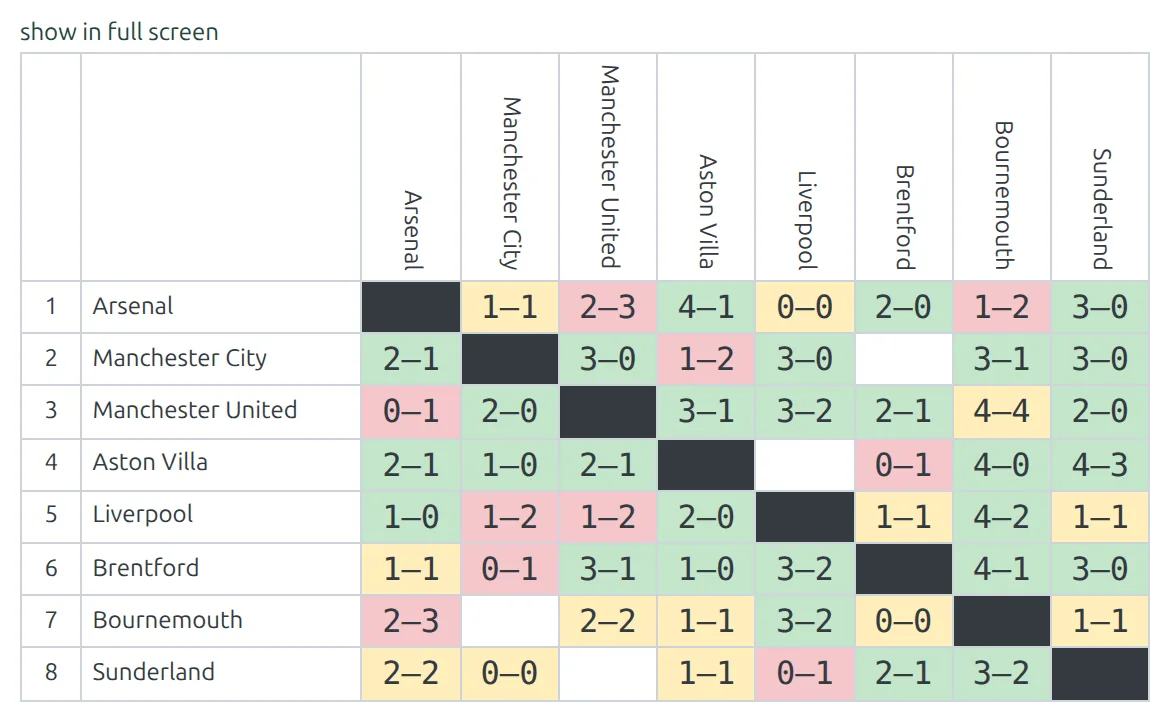
- Rows: Home teams, in the order of the standing table. The number on the left is each club’s place (when Show club place is on).
- Columns: Away teams, in the same order.
- Cell value: Score from home team’s perspective (e.g., “2-1” means home won)
- Cell color: green when the home club won, yellow for a draw, red when the away club won.
- Empty white cells: the game hasn’t been played yet, or there’s no such game. Only finished games show a score.
- Dark cells on the diagonal: a club against itself.
The show in full screen link
A matrix with more than 10 clubs gets a show in full screen link above it, which opens the whole table in an overlay. Below that size the link doesn’t appear.
To change the link text, or translate it, go to Translations > Text Strings and look for show in full screen.
🎨 Change the look
Four settings control how every results matrix on the site looks – the shortcode, both Layout Builder blocks and the classic competition page. Go to Settings & Tools > Settings > Display > Standing and scroll to the Results Matrix group.
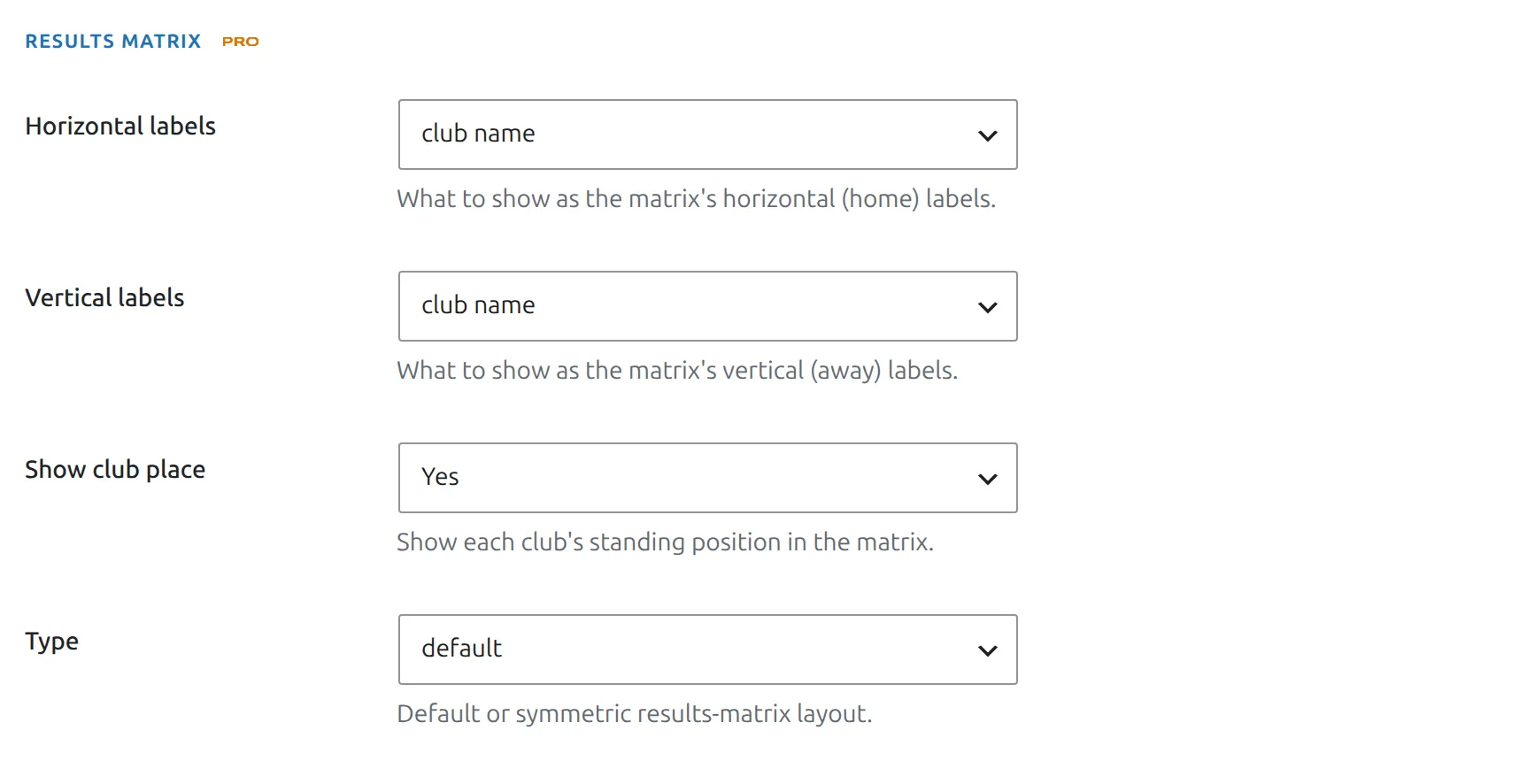
| Setting | Options | Default | What it changes |
|---|---|---|---|
| Horizontal labels | club name, club logo, club abbreviation, club logo and abbreviation | club name | The club labels down the left side. |
| Vertical labels | club name, club logo, club abbreviation, club logo and abbreviation | club name | The club labels across the top. Names and abbreviations are written vertically to keep the columns narrow. |
| Show club place | Yes, No | Yes | The column with each club’s place in the standing table. |
| Type | default, symmetric | default | Whether a row holds a club’s home games only (default) or all its games against each opponent (symmetric). |
Logos and abbreviations
With 16 or 20 clubs, full names make a wide table. Logos or abbreviations shrink it. The abbreviation is the Abbreviation field on the club’s General tab; a club with an empty one shows its full name instead. With logos only, hovering a logo shows the club name.
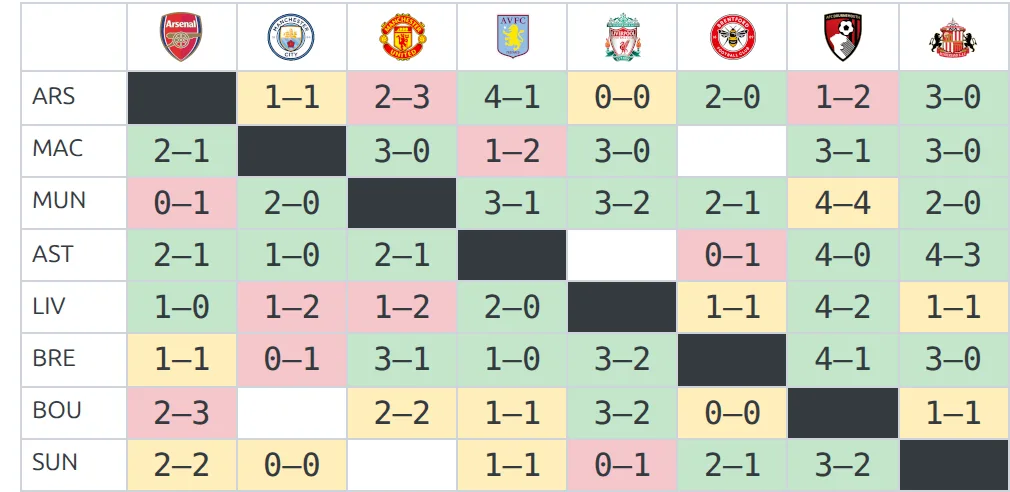
Symmetric type
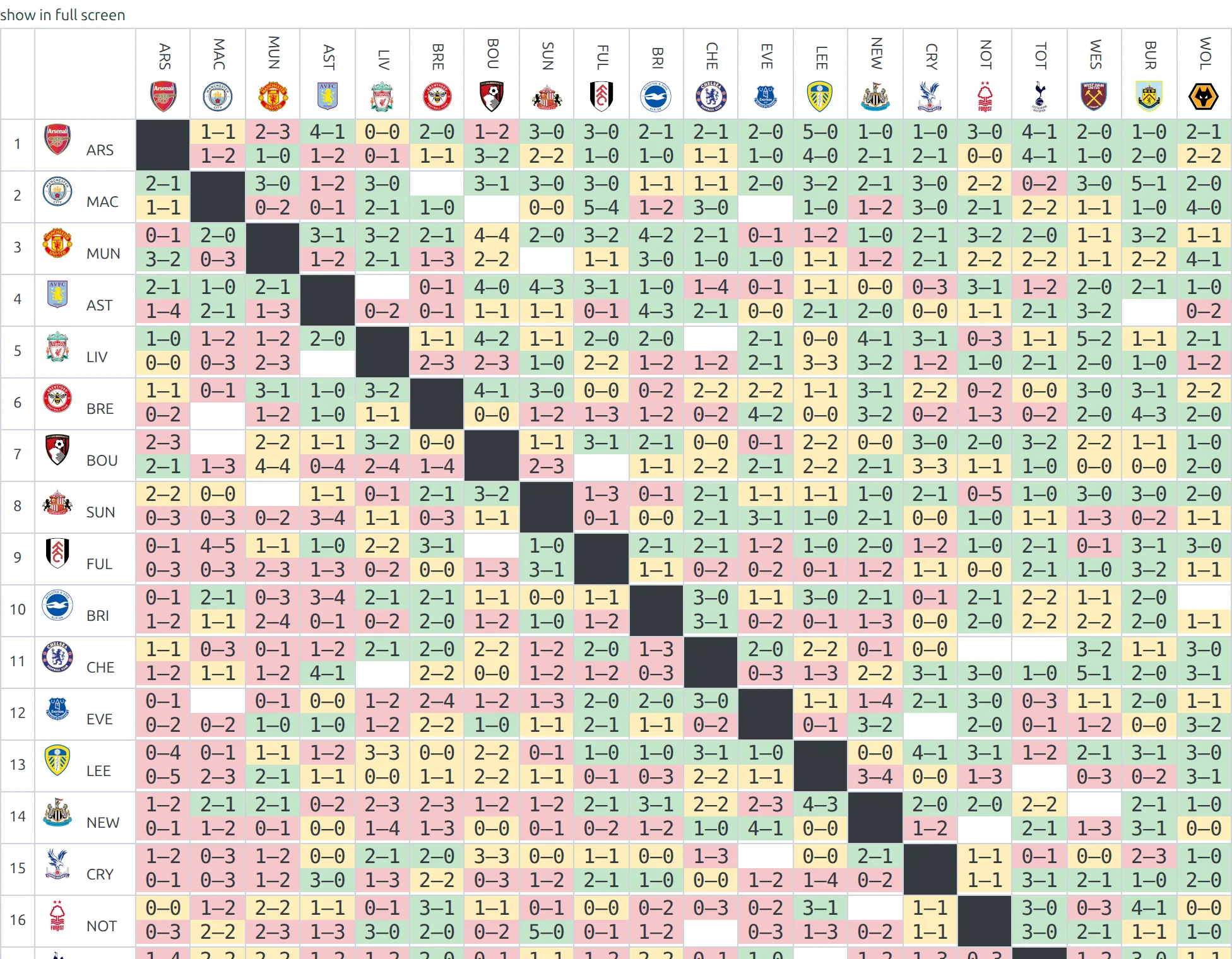
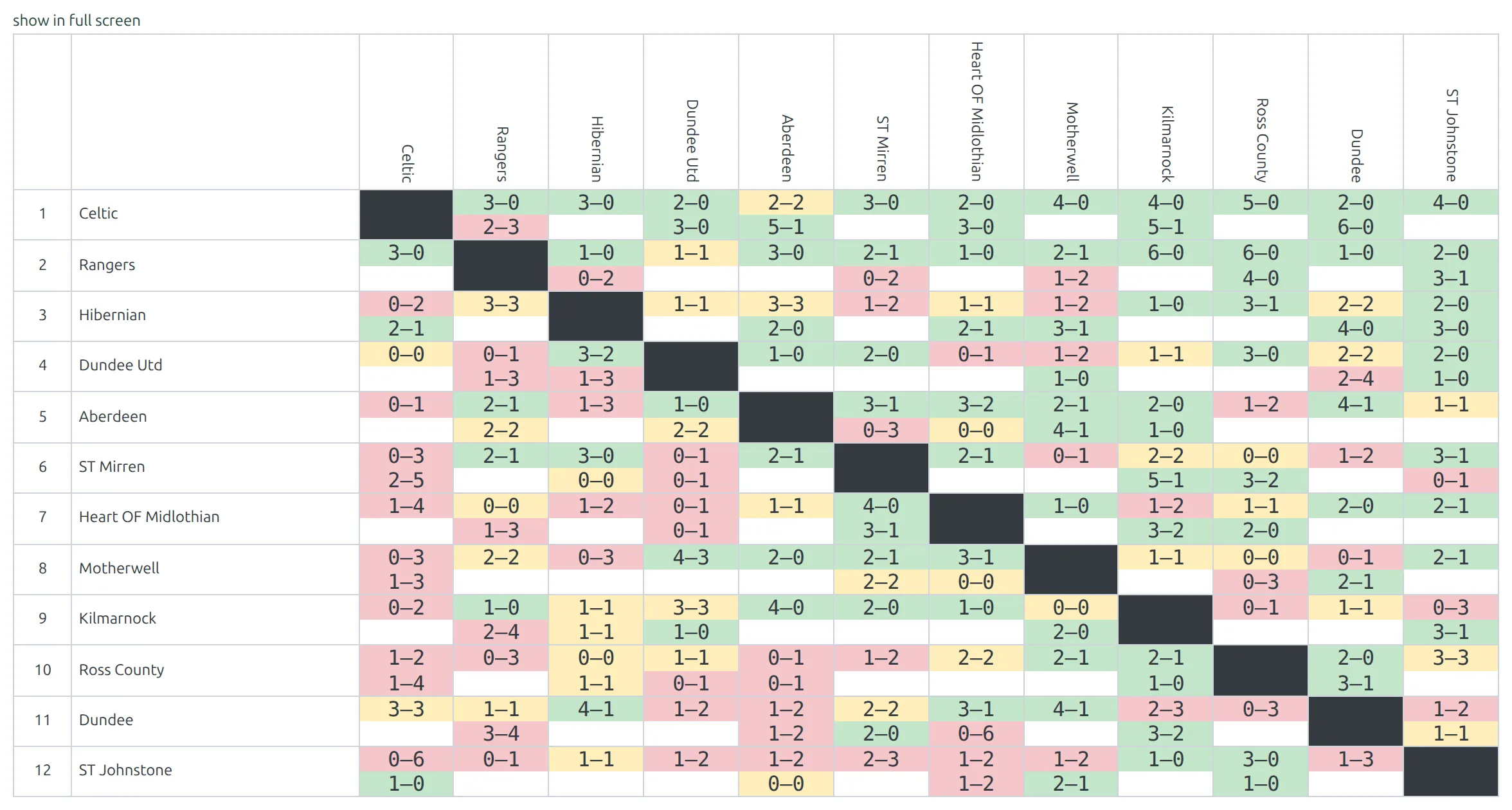
In the symmetric type a row is one club’s whole season against each opponent, home and away. Each cell holds up to two scores: the club’s home game on top, its away game below. Both are written with that club’s goals first and colored from its side – green for a win, yellow for a draw, red for a loss. So every game appears twice, once in each club’s row. The matrix at the top of this page uses the symmetric type.
Use it when visitors read the table one club at a time. In a single round-robin, each cell holds the one game the two clubs play.
Clubs that meet three or more times
In the default type a cell holds one game. That’s fine for a single or double round-robin, where a club hosts each opponent once. In a triple round-robin, or any schedule where a club hosts the same opponent twice, only one of those games shows.
Set the stage’s Round-Robin Format to Custom in the competition editor. The cell then stacks every finished game that home club played against that away club, one score under another, each colored on its own. Where the format lives, and what Single and Double are for, is on the Round-Robin competitions page.
🆘 Troubleshooting
Nothing shows at all
- Check standing_id or competition_id is correct. A
standing_idthat doesn’t exist renders nothing. - With
competition_id, the group needs a standing table. Create one under Competitions > Standing Tables, or usestanding_id. - For multi-group competitions, verify group_id against the Group ID on the group card – it defaults to 1.
- The Layout Builder block and the classic competition page skip knockout stages – a matrix is for round-robin groups.
The grid is there but every cell is empty
No game in that stage and group is finished yet. The matrix is drawn from the standing table, so before the first game it’s a full grid of empty cells. Verify matches exist and have results. On a Layout Builder v2 page you can keep the block hidden until the season starts with Show for Competition Status – see Competition Pages with Layout Builder v2.
The matrix shows fewer results than the standing table
One site owner counted 21 results in their standing table and only 19 in the matrix. The usual causes:
- Two games with the same home club against the same opponent. Often one game has home and away the wrong way round. The default type shows one of them. Fix the game, set the Round-Robin Format to Custom if the clubs really meet more than twice, or switch the Type to symmetric, which shows every game.
- A game in another group or stage. The matrix only counts games of the standing table’s own stage and group.
- A game without a result. Games that aren’t finished leave the cell empty.
Clubs missing from matrix?
The matrix lists exactly the clubs in the standing table, whether or not they’ve played. A club that isn’t in the table isn’t in the matrix, even if it has games. The standing table takes its clubs from the group, so add the club to that group in the competition editor. The table picks it up the next time it’s recalculated – saving a game from that group does it.
Can I highlight who won?
It’s built in. Every score is colored: green for a home win, yellow for a draw, red for an away win. In the symmetric type the colors follow the club in that row.
Can I show abbreviated club names?
Yes. Set Horizontal labels or Vertical labels to club abbreviation or club logo and abbreviation, as described under Change the look.
How do I hide the matrix on a competition page?
On a classic competition page you can’t – it appears below every round-robin group’s table. Render the page with a Layout Builder competition layout that doesn’t include the Results Matrix block. The v2 default layout doesn’t include it.
📚 Related
[anwpfl-standing]– League standings table[anwpfl-matches-h2h]– Head-to-head match comparison- Competition Pages with Layout Builder v2 – the Results Matrix block and dynamic variables
- Round-Robin competitions – stages, groups and the Round-Robin Format
- Shortcode Builder – build the shortcode without looking up IDs