

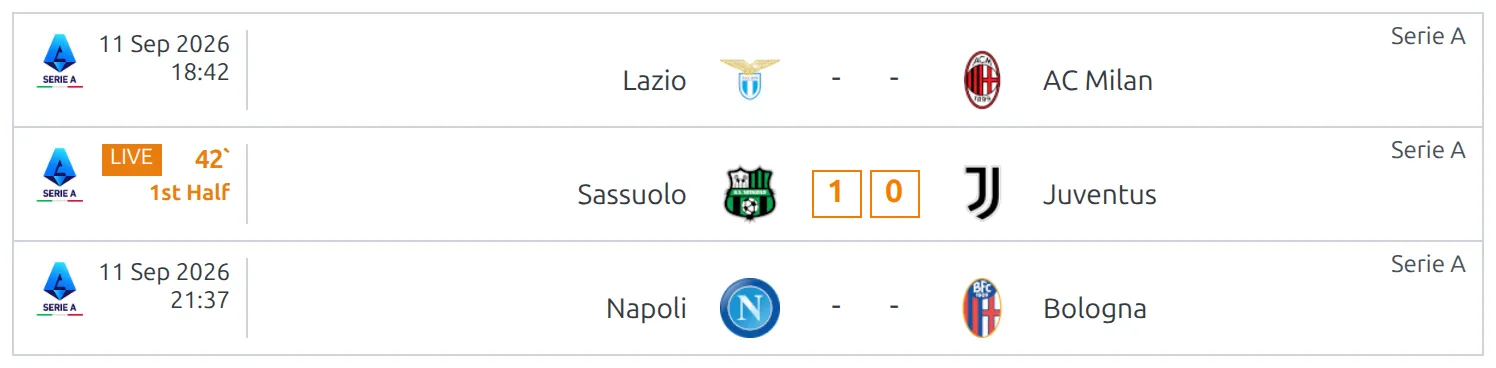
When a game kicks off, every list it appears in changes by itself. The kickoff time is swapped for an orange LIVE badge, a running minute and the current period, and the score turns orange and starts moving. Nobody has to reload the page.
This page is about what your visitors see. Running a game by hand is covered on the Live Scores Dashboard page, and pulling scores in automatically on the Live Scores Import page.
🚀 Turning it on
There’s nothing to switch on for the match list itself. It follows whichever live source the site already uses, and you need one of these two:
- Manual live scores – Settings & Tools → Settings → Features → Live Scores, set Enable Manual Live Scores to Yes. You then give a game a live status from the Live Scores Dashboard or from the game’s own edit screen.
- API live import – FL API Import → Settings → LIVE, enable Import LIVE data from API, pick the competitions and start the schedule.
Both can run at the same time. The front end then watches both sources and a game goes live from whichever one has it.
Coming from an older version?
Older guides told you to open the FL+ Configurator and set Enable Live Match Mode. That page was retired in 0.18.2 and its settings moved into the main Settings screen under Features → Live Scores. The option is now called Enable Manual Live Scores.
Which layouts show live scores
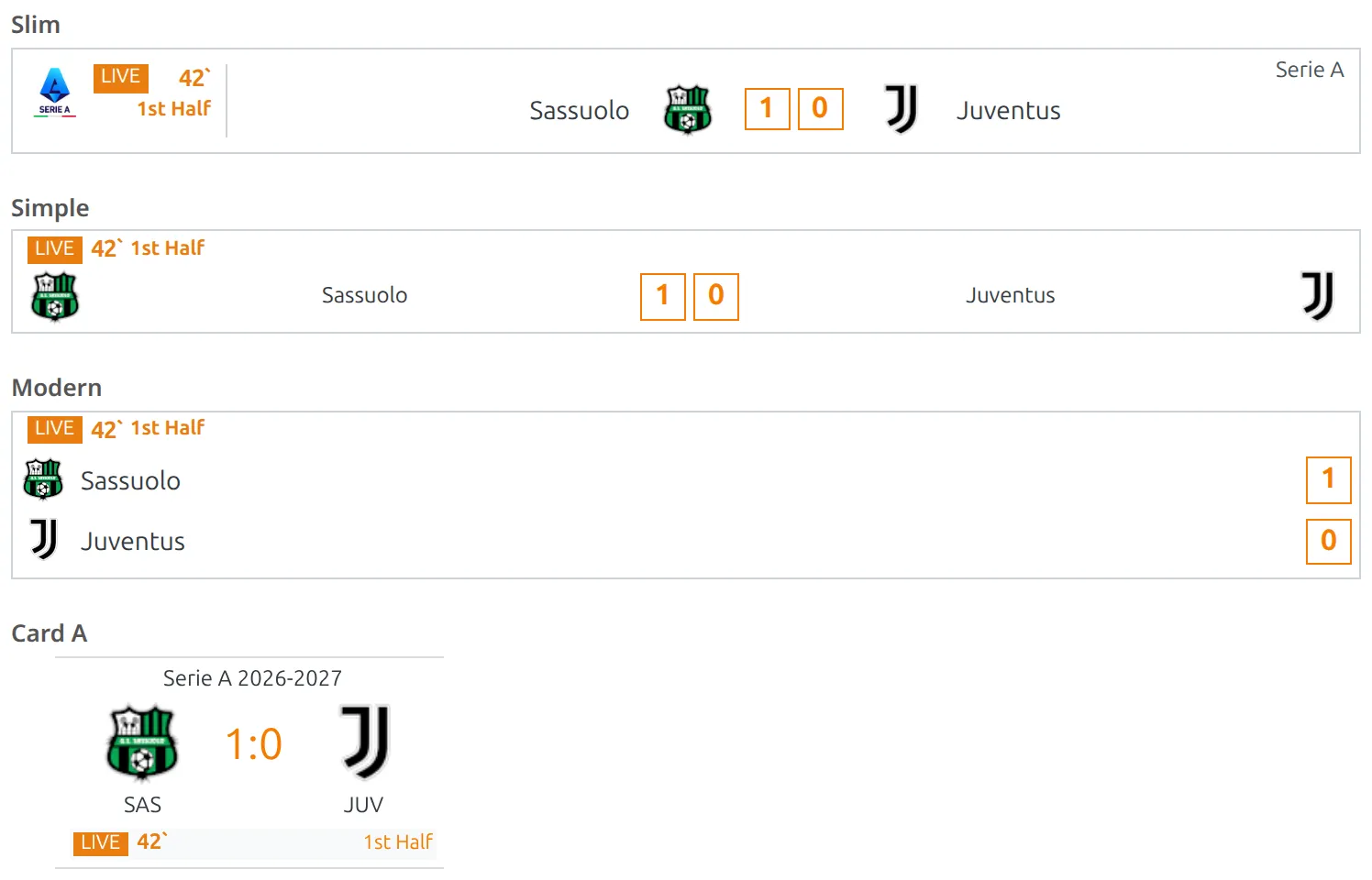
A match list is drawn from one of six match card layouts, and four of them carry the live markup. Pick one of those four anywhere you want live scores.
| Layout | Live? | Where you meet it |
|---|---|---|
| slim | Yes | The default almost everywhere – competition pages, [anwpfl-matches], [anwpfl-live], head-to-head lists, referee pages, team schedule blocks. |
| simple | Yes | The Matches widget on its default layout, and layout="simple" on the matches and live shortcodes. |
| modern | Yes | The same widget with Layout set to Modern, and layout="modern". |
| card-a | Yes | The default card of Matches Scoreboard, and a card option in the team Schedule blocks. |
| plain | No | layout="plain" on [anwpfl-matches]. It’s a bare text link by design, so there’s nowhere to put a badge. |
| small | No | A compact card reachable only through a theme override or custom code. It carries no live markup at all. |
The old documentation said live scores were slim-only and worked “everywhere except widgets”. Neither is true any more. There are four live layouts, and the Matches widget draws the simple layout, so it updates live like anything else.
⏱ What updates, and how often
The page asks the server for live data every 60 seconds by default and redraws four things on each in-play row: the score, the running minute, the period label and the LIVE badge itself. Between requests the minute keeps counting on its own, so the clock looks continuous even though the data arrives once a minute.
Some details worth knowing before you tune anything:
- It only polls around kickoff time. A page starts asking 15 minutes before a kickoff on it, and gives up 4 hours after that kickoff if nothing ever went live. A page of next month’s fixtures makes no requests at all.
- It pauses in a background tab. If the visitor switches away, polling stops and resumes with an immediate catch-up the moment the tab is visible again.
- Finished games clean themselves up. When a game leaves the live feed the plugin checks whether it was saved as a result; if it was, the badge disappears and the final score is written in, with no page reload.
- Lists loaded later are picked up too. Switch matchweek on a competition page, or open a Matches Scoreboard slide, and the new rows join the live updates straight away.
The display settings
Go to Settings & Tools → Settings → Features → Live Scores. The second group, Live Scores Settings (Manual & API Import), is the one that changes what visitors see, and it applies to both live sources.
| Setting | Default | What it does |
|---|---|---|
| Update period – match list (sec) | 60 | How often a page full of matches asks for new scores. Lower means fresher and more requests. |
| Blink on score change | Off | Flashes the changed score for about six seconds so a goal is hard to miss. |
| Play sound on changed scores | Off | Plays a sound when a score changes on the page the visitor is looking at. |
| Score-change sound file | empty | The audio file to play. Pick one from the media library – without a file the sound option has nothing to play. |
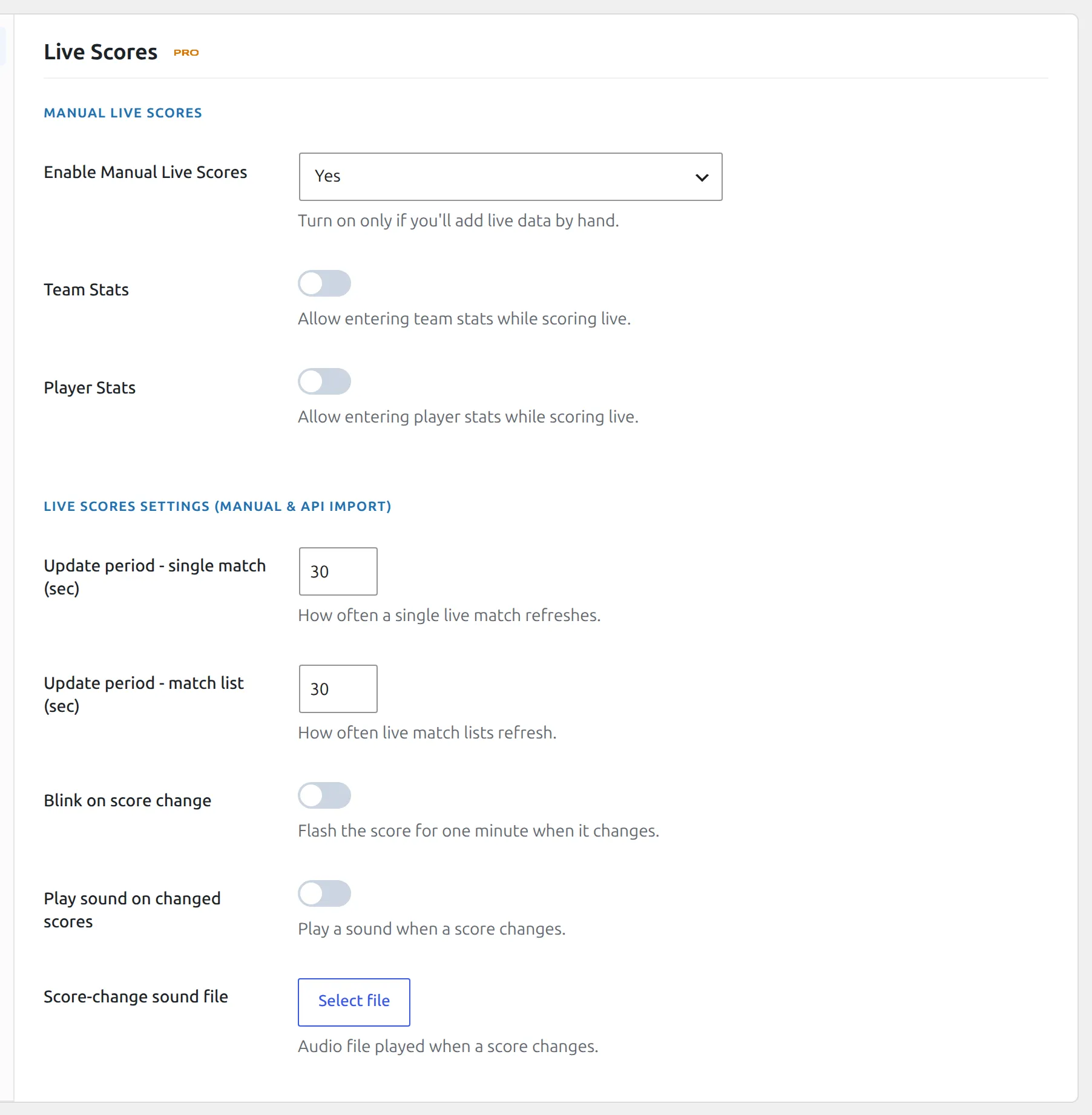
Update period – single match in the same group belongs to the game’s own page, not to lists.
One more live option lives elsewhere. Under Settings → Display → Match List → Premium, Show Prediction (Live) in Slim layout decides what happens to the prediction line when a slim row goes live. Left at Hide the prediction is dropped the moment the game starts; set to Show it stays on screen next to the live score.
The word on the badge and the six period labels – 1st Half, Half Time, 2nd Half, Full Time, Extra Time and Penalty – are all editable under Translations > Text Strings, in the match :: live group. The orange used for the badge, the minute and the live score comes from the plugin’s stylesheet and can be changed with a little CSS.
A list of only the live games
An ordinary match list shows everything you queried and lights up the rows that happen to be in play. For a matchday page or a homepage block that should contain nothing but the games running right now, use the LIVE shortcode instead:
[anwpfl-live]It builds its list from the live feed itself, so games appear when they kick off and drop out when they end, and it shows your No data text when nothing is on. It offers the slim, simple and modern layouts.
Homepage tip
Reach for [anwpfl-live] before [anwpfl-matches] on a home page. A matches block with a date range still has to render its fixtures whether or not any are on, while the live block collapses to one line of text on a quiet afternoon and fills up on a Saturday by itself.
🆘 Troubleshooting
The score updates but there’s no LIVE badge
The badge, the minute and the period label live in the slot the kickoff date and time normally occupy, so turning that slot off takes them with it. The score sits elsewhere in the row and keeps updating, which makes this look like a bug rather than a setting.
Check for show_match_datetime="0" on the shortcode, or Show match datetime unticked in the Matches widget. Both default to on. A game with no kickoff date at all has the same problem, for the same reason.
Nothing on the page goes live
Work down this list. The layout has to be slim, simple, modern or card-a. One of the two live sources has to be enabled. The match has to still be a fixture – a game already saved as a result is never treated as live. And the page has to be within the polling window, from 15 minutes before kickoff to 4 hours after.
A row keeps its LIVE badge after the game ended
The game still has a live status. This usually means it was set to Finished in the live status dropdown, which stops the clock but does not finish the match – and because Finished has no period label, the row shows the badge with an empty status beside it. Finish the game properly by opening it and setting Status to Result. The Live Scores Dashboard page has the full sequence.
The sound never plays
Two usual causes. Either Score-change sound file is empty, so there’s nothing to play, or the browser is blocking it – most browsers refuse to play audio until the visitor has clicked something on the page. That’s a browser rule, not a plugin setting, and there’s no way around it. Blink on score change is the reliable attention-getter.
Scores are a minute behind
That’s the update period doing its job. Drop Update period – match list to 30 seconds if you want it tighter, and remember that every visitor with the page open makes that request, so on a busy matchday the cost is real. If the delay is much longer than the period you set, the data is arriving late rather than displaying late – check the live source itself.
📚 Related
- Live Scores Dashboard – run a matchday by hand from one screen
- Live Scores Import – pull scores in automatically from api-football.com
- LIVE Events and Commentary – what the same game looks like on its own page
- LIVE shortcode – a block containing only the games in play
- Matches Scoreboard – a scrolling row of match cards