

Argentina’s Liga Profesional plays two tournaments in one season. The Apertura runs from January to June, the Clausura from July. Each one starts with 30 clubs split into two zones of 15, and each one ends in a single-leg knockout from the round of 16 to the final.
That’s a group stage split into conferences, then a knockout, twice. This page builds the 2025 season from scratch with the API import, step by step, with the real names you’ll see on screen. The same recipe fits any league that splits its year into an Apertura and a Clausura, or splits its clubs into zones before a play-off.
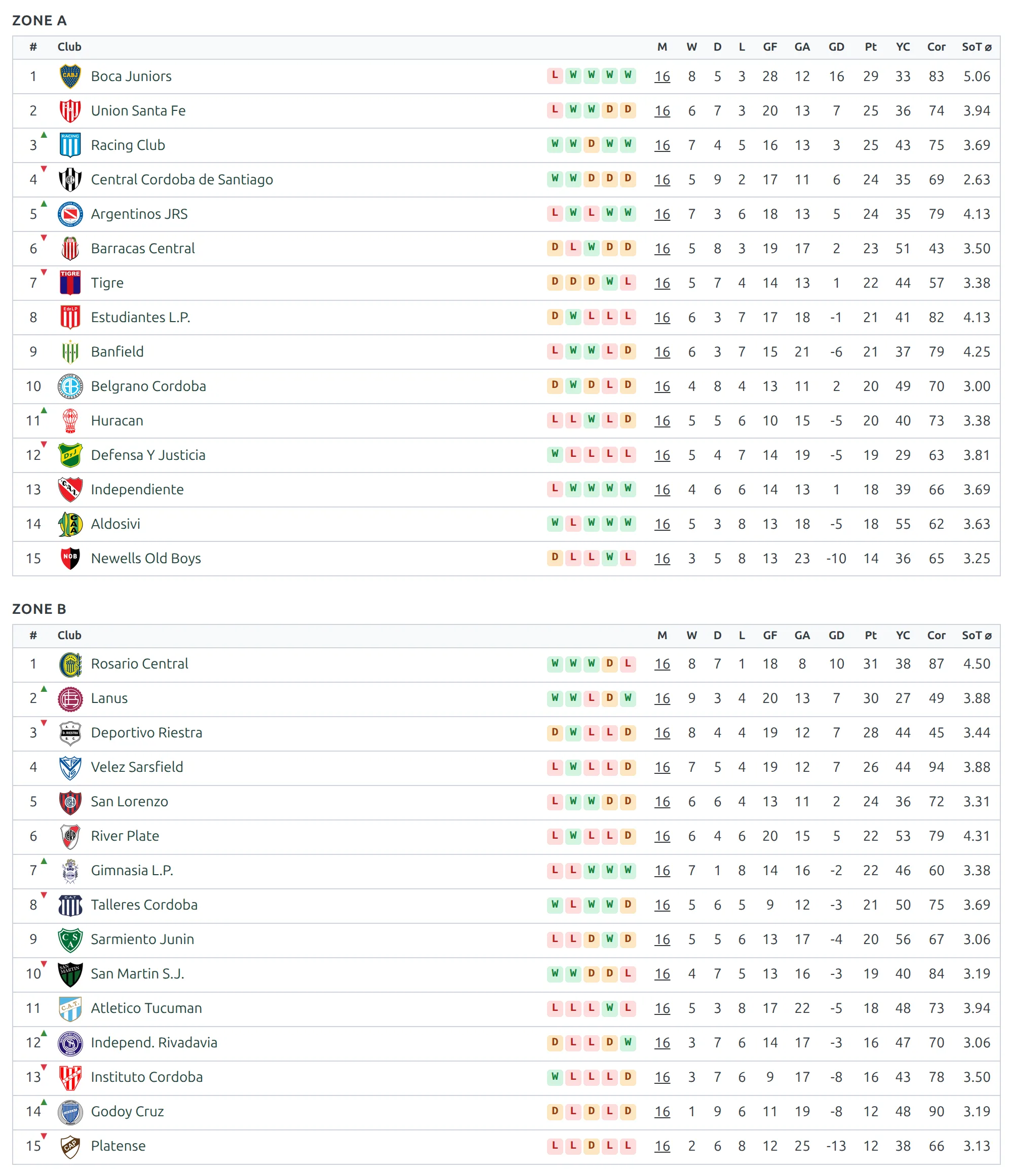
Here’s where you’ll end up – one standing table per group stage, drawn as two zones with their own numbering:
🚀 Before you start
- The API import is set up with a working api-football.com key – see API Import – Getting Started.
- You’ve linked at least one plain league before. API Import for a Round-Robin League explains the API Leagues row and the two structure steps in full. This page only covers what’s different here.
- You don’t need the clubs on your site first. The import creates any club it doesn’t find.
This is the shape you’re building. The stage titles are yours to choose; the API round names come from the provider and are exactly what the dropdowns show for the 2025 season.
| Stage | Competition Type | Stage rounds | API rounds |
|---|---|---|---|
| Apertura – Group stage | Round Robin | One (the default) | 1st Phase - 1 to 1st Phase - 16 |
| Apertura – Final stage | Knockout, single-leg ties | Round of 16, Quarter-finals, Semi-finals, Final | 1st Phase - 8th Finals, 1st Phase - Quarter-finals, 1st Phase - Semi-finals, 1st Phase - Final – one per round |
| Clausura – Group Stage | Round Robin | One (the default) | 2nd Phase - 1 to 2nd Phase - 16 |
| Clausura – Final stage | Knockout, single-leg ties | Round of 16, Quarter-finals, Semi-finals, Final | Round of 16, Quarter-finals, Semi-finals, Final – one per round |
Steps 1 to 8 build the first three stages, which is all a season has until the Clausura play-off draw. Step 9 adds the fourth.
1. Create the league and the season
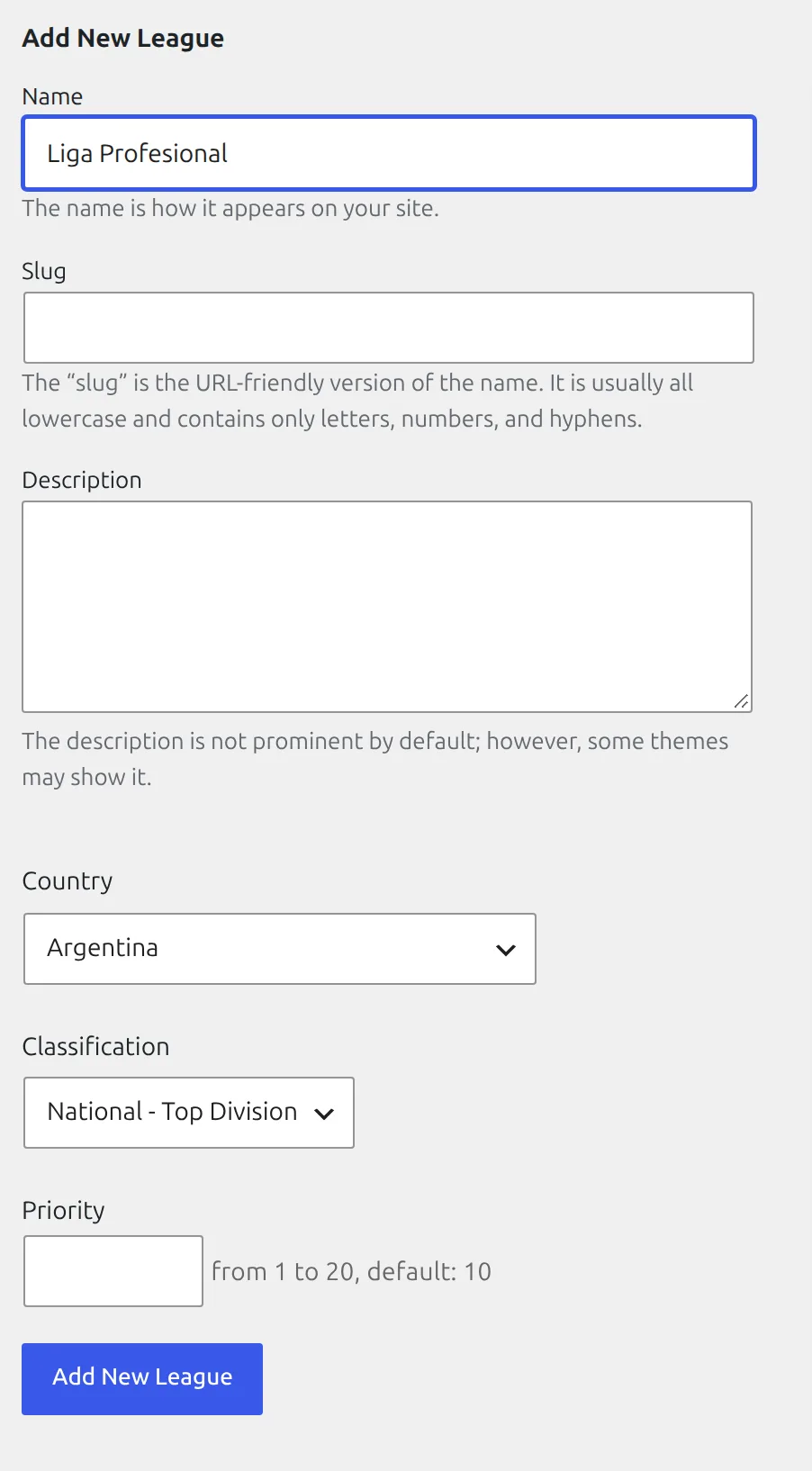
Go to Competitions > Leagues. Type Liga Profesional as the name, pick Argentina in Country, and click Add New League. Classification is optional – National – Top Division fits.
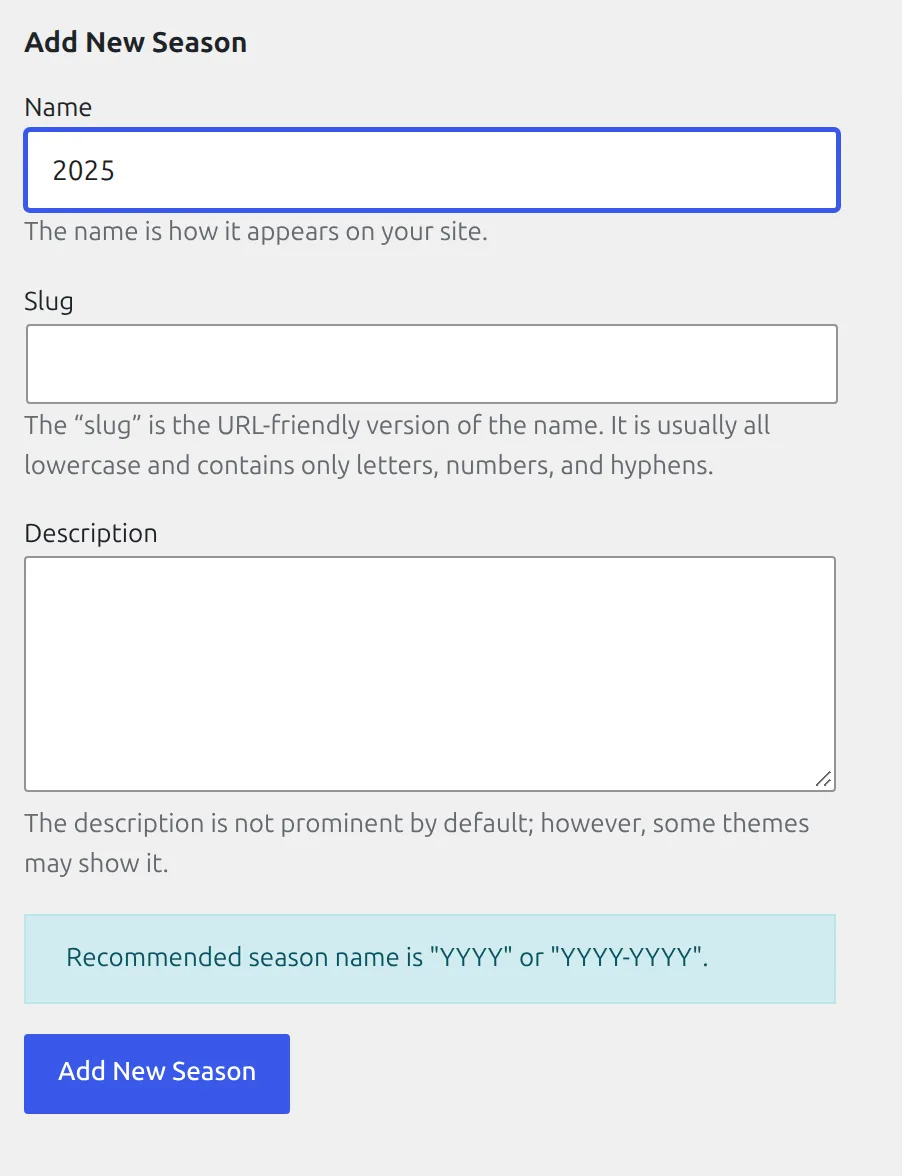
Then go to Competitions > Seasons, type 2025 and click Add New Season. Argentina plays inside one calendar year, so the season is a single year rather than 2024-2025.
Already inside the competition editor? You can skip both screens. Click the League or Season field there and use Create New League or Create New Season in the picker.
2. Create the competition and its stages
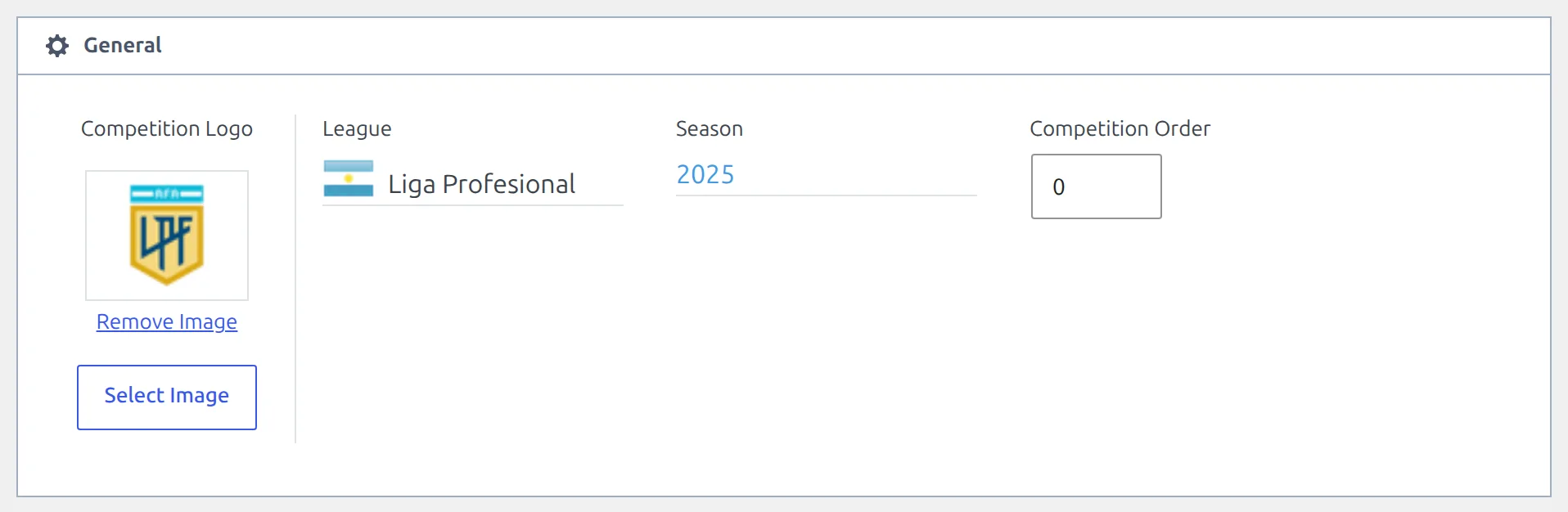
Go to Competitions and click Add New Competition. You can leave the title empty. In the General block, click the League field and pick Liga Profesional, then click the Season field and pick 2025.
Below it, the first stage tab is already there. Build three stages – see Multistage Competitions if the stage editor is new to you:
- First tab. Set Stage Title to Apertura – Group stage and leave Competition Type on Round Robin. A round-robin stage has one round and one group, and that’s all the import needs – it fills the group with every club.
- Add New Stage. Title it Apertura – Final stage, set Competition Type to Knockout and check Knockout Format reads single-leg ties. Name the first round Round of 16, then click Add New Round three times for Quarter-finals, Semi-finals and Final.
- Add New Stage again. Title it Clausura – Group Stage and leave it on Round Robin.
- Click Save.
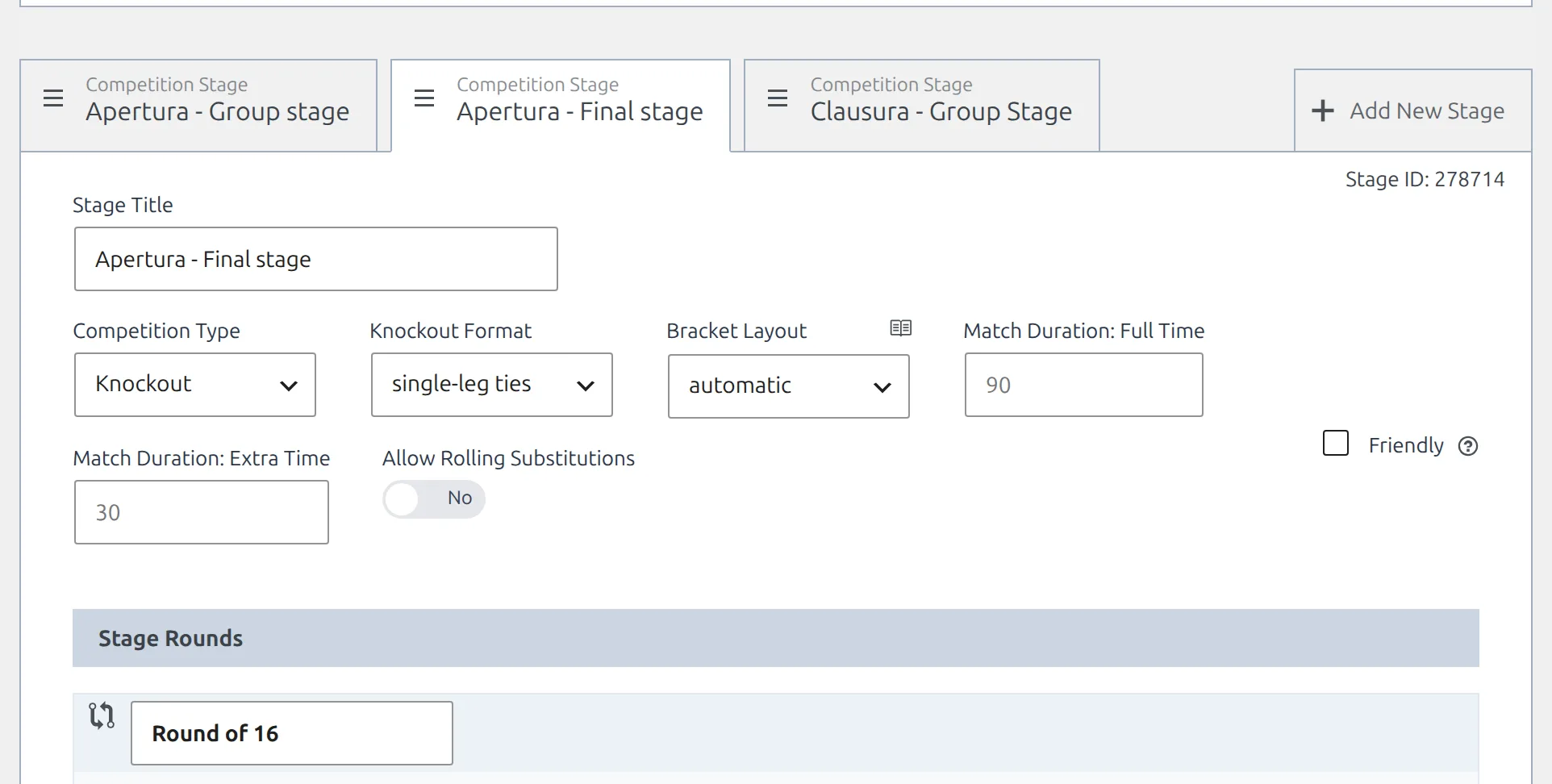
With the title left empty, the competition is named after the league and season on save – Liga Profesional 2025 – and each extra stage gets a matching name, such as Liga Profesional 2025 – Apertura – Final stage. Those are the names the import screens show. The standing table picker adds the stage title to the first one too: Liga Profesional 2025 – Apertura – Group stage.
You don’t need to add ties to the knockout rounds. Each round comes with one empty slot, and the import fills it and adds the rest.
3. Link the competition to the provider
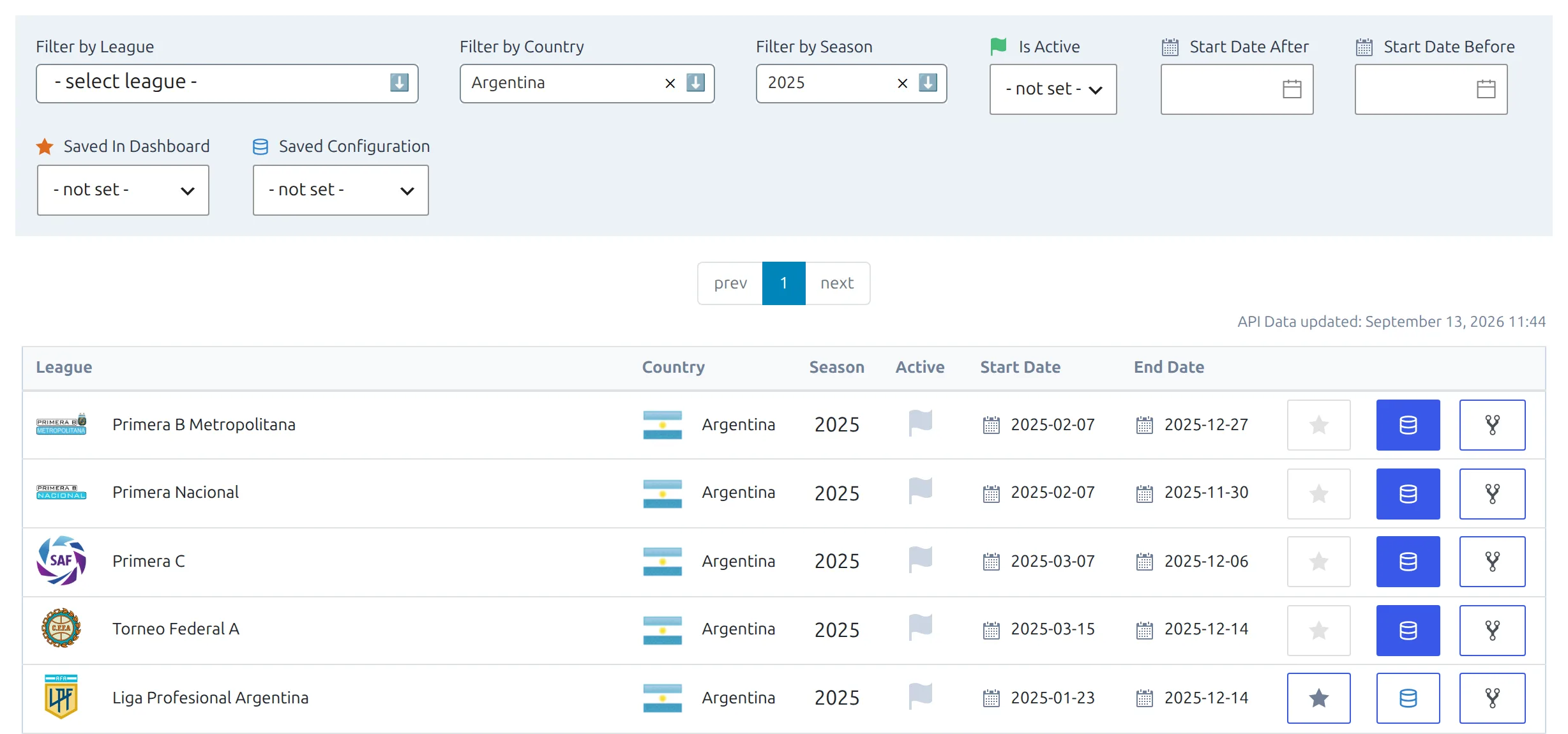
Go to FL API Import > API Leagues. Filter by Country Argentina and Season 2025. The provider calls the league Liga Profesional Argentina. Click the blue database button on its row.
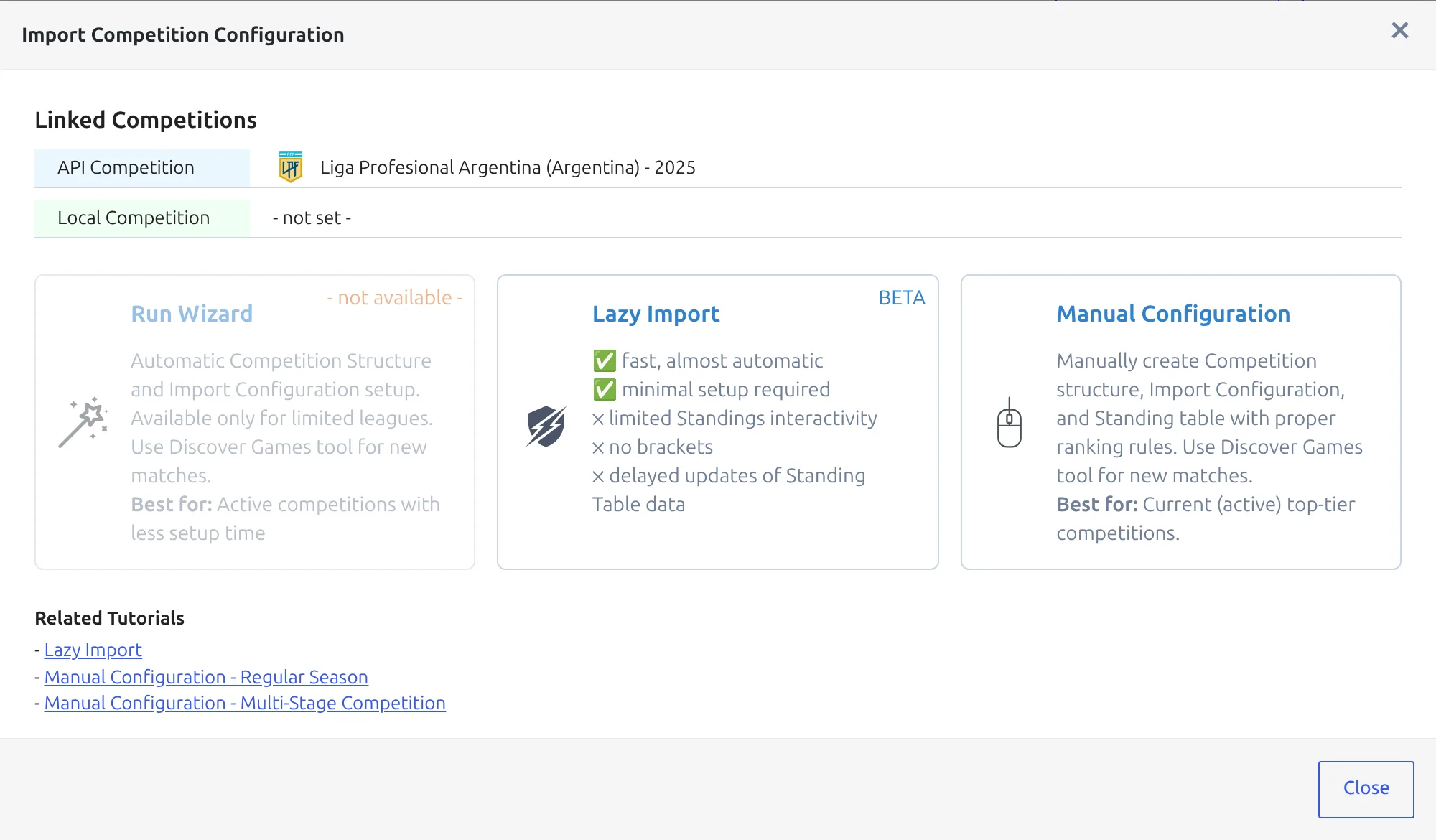
The Import Competition Configuration modal offers three ways in. Pick Manual Configuration. The other two build their own structure, and the whole point here is that you’ve built yours. Lazy Import is faster, but it creates a competition of its own and ignores the stages you built – and this league needs four.
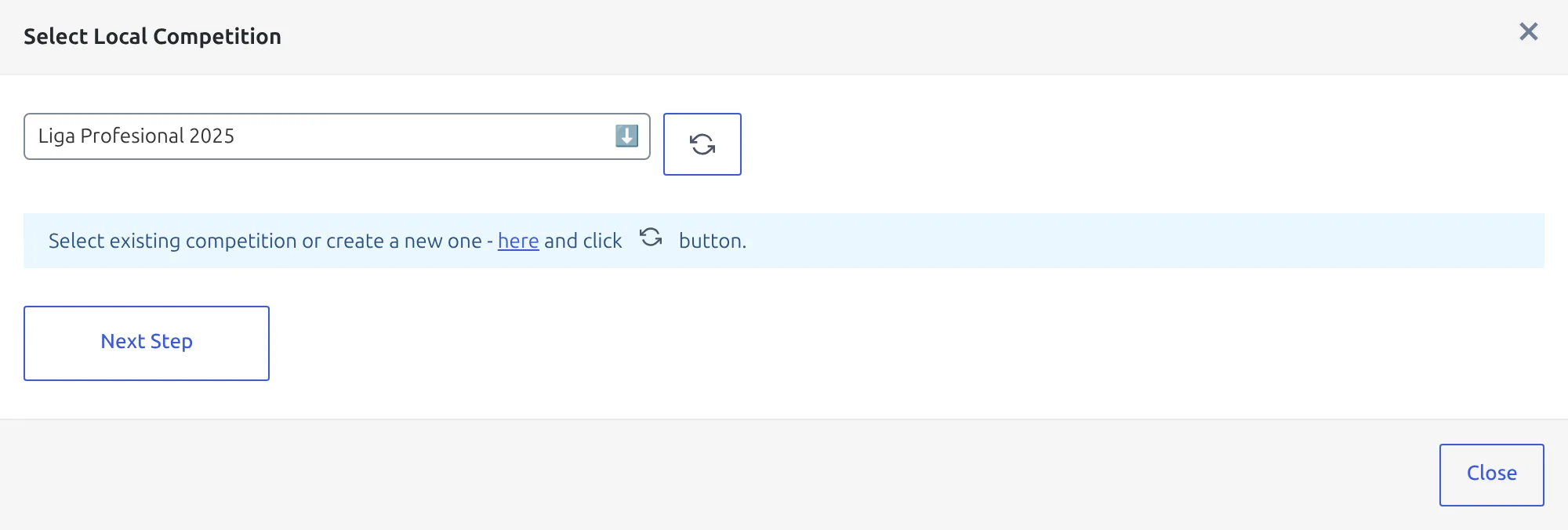
In Select Local Competition, pick Liga Profesional 2025 and click Next Step. Only main competitions are listed – you link the whole competition once, and its stages come with it.
4. Map each stage to its API rounds
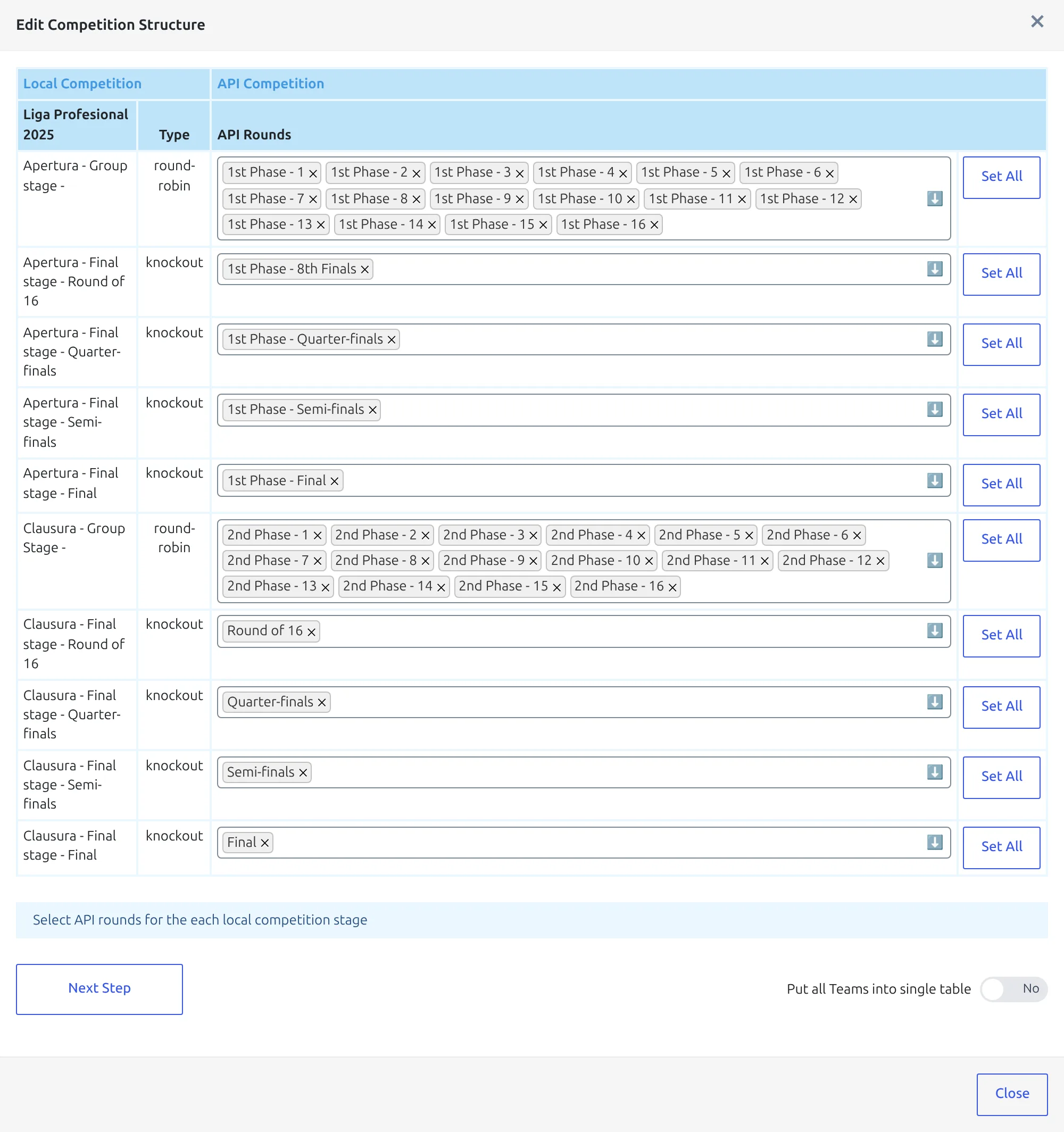
Edit Competition Structure opens on step 1, with one row per stage round in stage order: the Apertura group stage, the four Apertura knockout rounds, then the Clausura group stage. Fill in the API Rounds column row by row, using the table at the top of this page. The dropdowns are searchable – type 1st Phase to narrow the list.
A round you’ve picked on one row disappears from the other rows’ dropdowns, so the list gets shorter as you go. Skip Set All on this competition. It adds every round no other row has taken yet – clicked on the Apertura group row first, that’s all 40.
When every row is filled, set Put all Teams into single table to Yes and click Next Step.
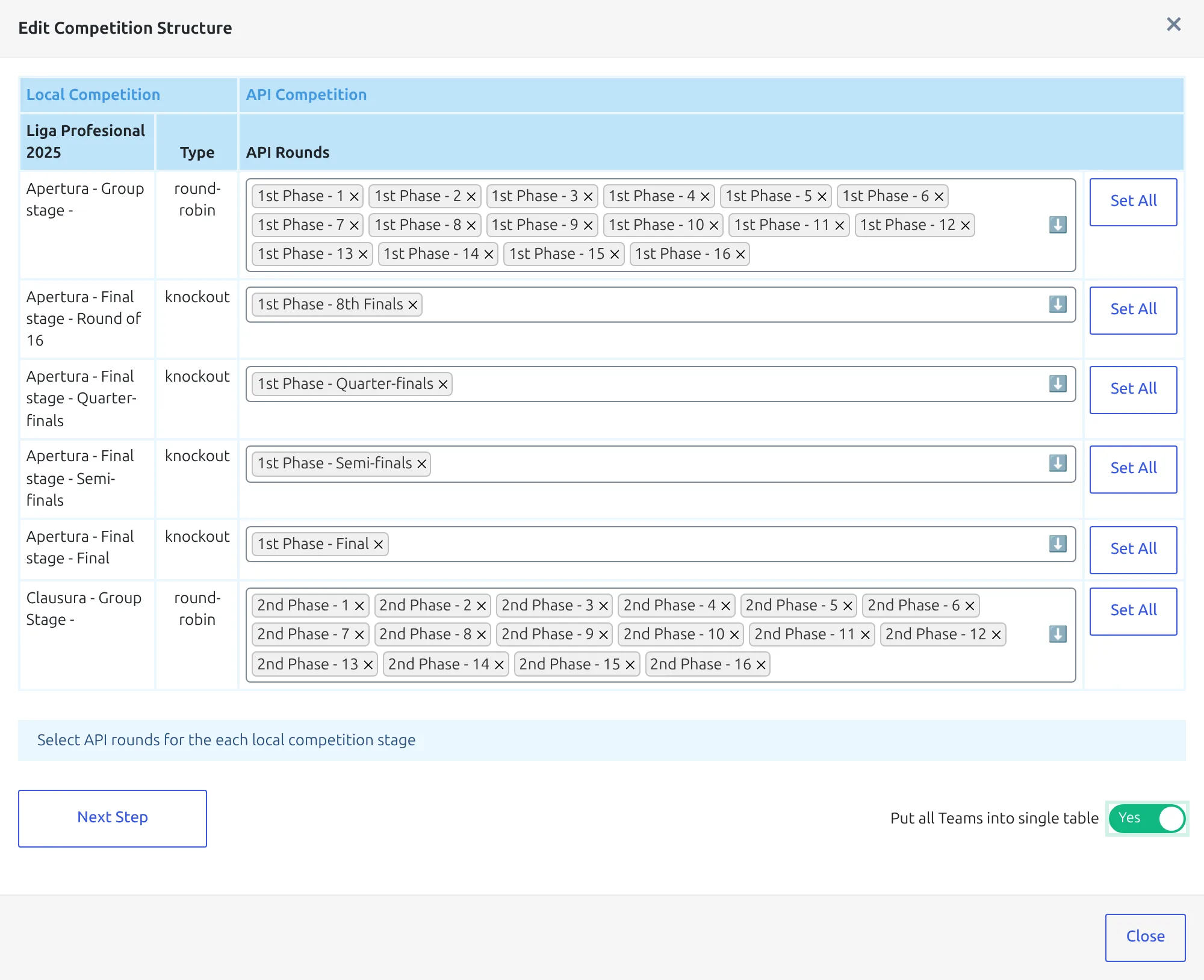
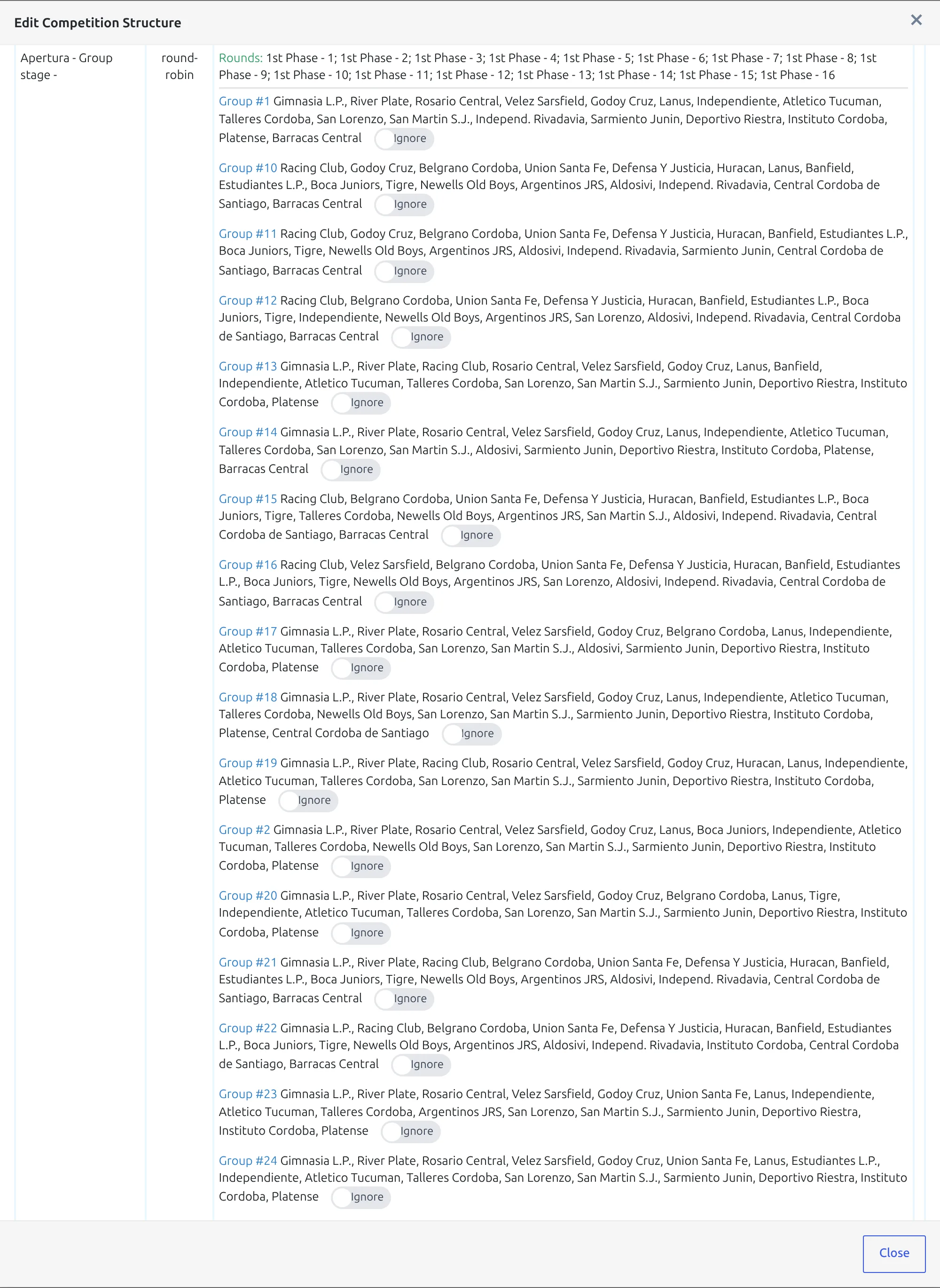
Why the switch matters here: without it, the plugin works the groups out from who each club played. Every Liga Profesional club plays its 14 zone rivals and two clubs from the other zone, so every club ends up with a slightly different opponent list – and step 2 shows 30 overlapping groups of 17 clubs instead of one. With the switch on, every club in the mapped rounds goes into one group, and you draw the zone line on the standing table in step 8.
One switch for the whole modal, and it resets
There’s a single Put all Teams into single table switch, not one per stage. It covers both group stages in the same pass and has no effect on the knockout rows. It flips back to No as soon as step 2 loads – if you go back with Previous Step to fix a round, set it to Yes again before clicking Next Step.
5. Check the groups and update the structure
Step 2 shows what the plugin recognised. Read it before you commit:
- Each group stage has a single Group #1 listing all 30 clubs. It keeps that name because the provider’s own tables hold 15 clubs each, so neither matches a 30-club group.
- The Apertura knockout rows show Ties: – 8 for the round of 16, 4 for the quarter-finals, 2 for the semi-finals and 1 for the final.
- On a competition you’re linking for the first time, every toggle is green and reads Create.
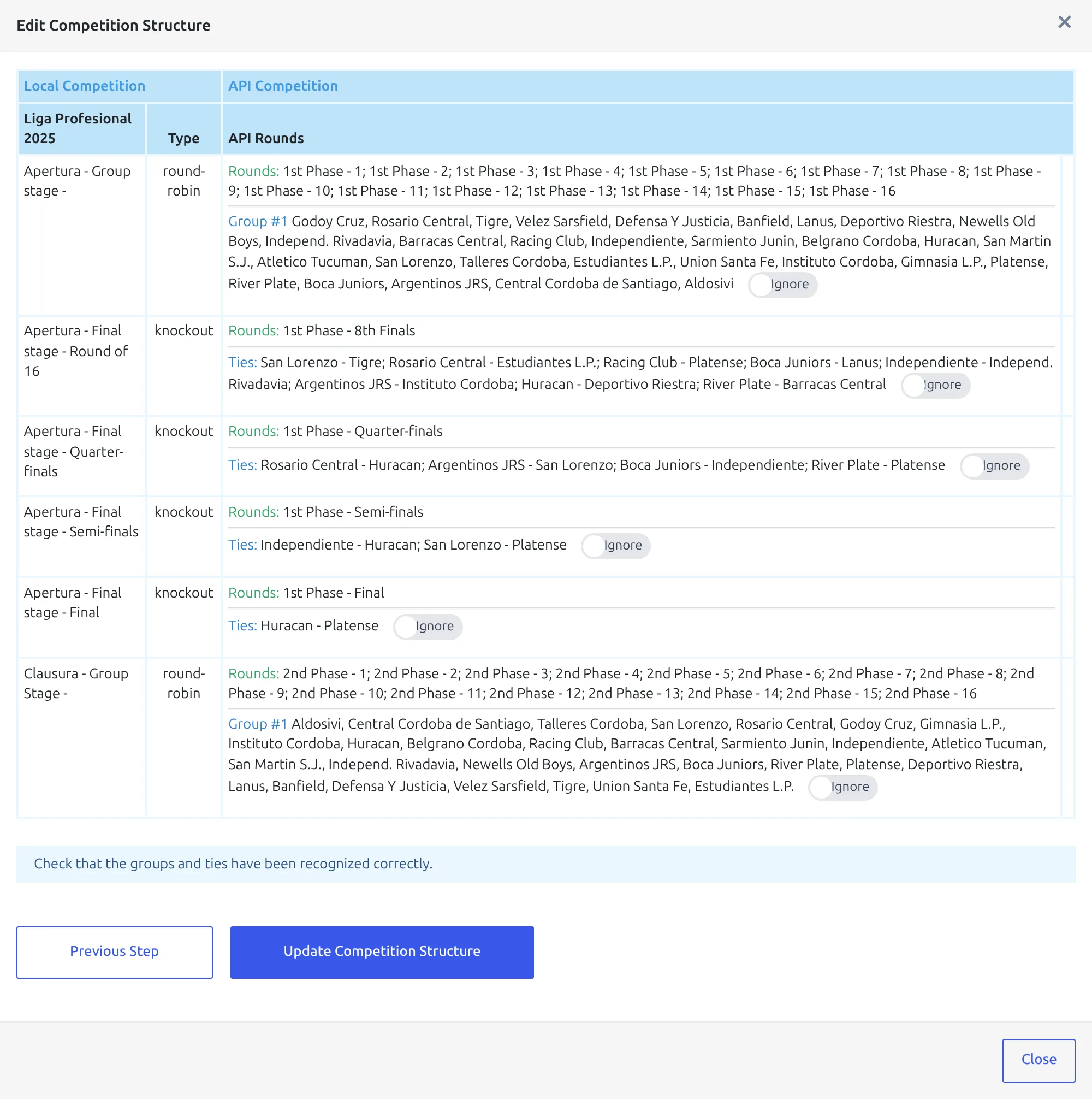
Click Update Competition Structure. Clubs that aren’t on your site yet are imported, the groups and ties are filled, and the round mapping is saved for every later import. On a league this size it takes a few minutes – leave the tab open.
6. Create the games and the squads
When the update finishes, the modal switches to the actions for the linked competition. In Create & Setup, run Create Games, then Update Players & Squads with All Clubs selected. For a tournament that’s already under way, run Update Finished Games in Update Games as well.
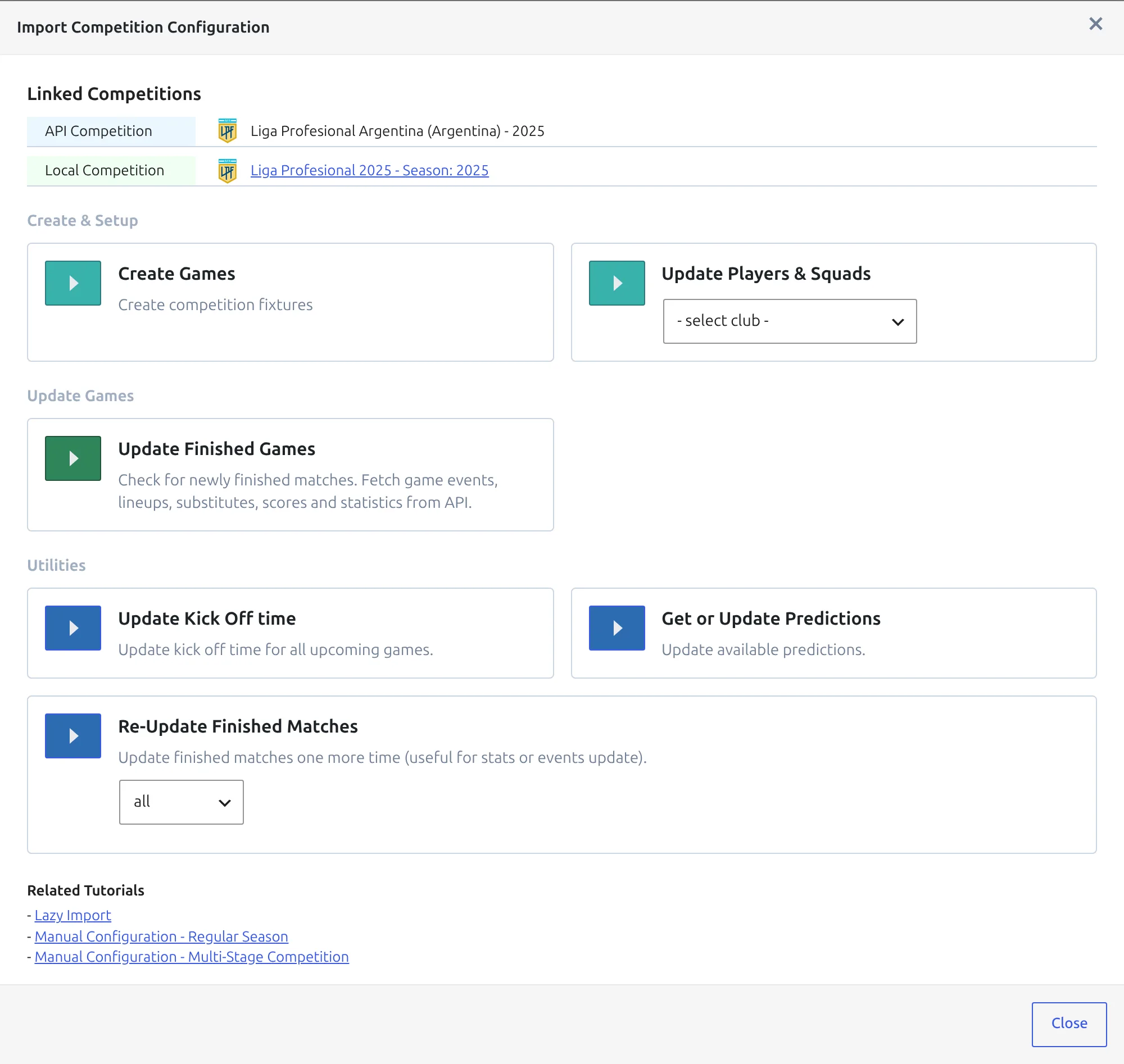
Each game lands in the stage that owns its API round. For 2025 that’s 240 games in each group stage – 30 clubs, 16 rounds – and 15 in the Apertura final stage.
On each final stage, check Bracket Layout in the competition editor. A stage added in PRO starts on manual, where you arrange the ties yourself; automatic lines each round’s ties up with the tie their winners play next, working back from the latest round with clubs. See Bracket for the options.
7. Add a standing table for each group stage
Standings belong to groups, and each group stage has one group. Go to Competitions > Standing Tables and click Add New Standing Table. In Select Competition Group, pick Liga Profesional 2025 – Apertura – Group stage in Competition, then Group #1 in Group, and click Save & Continue.
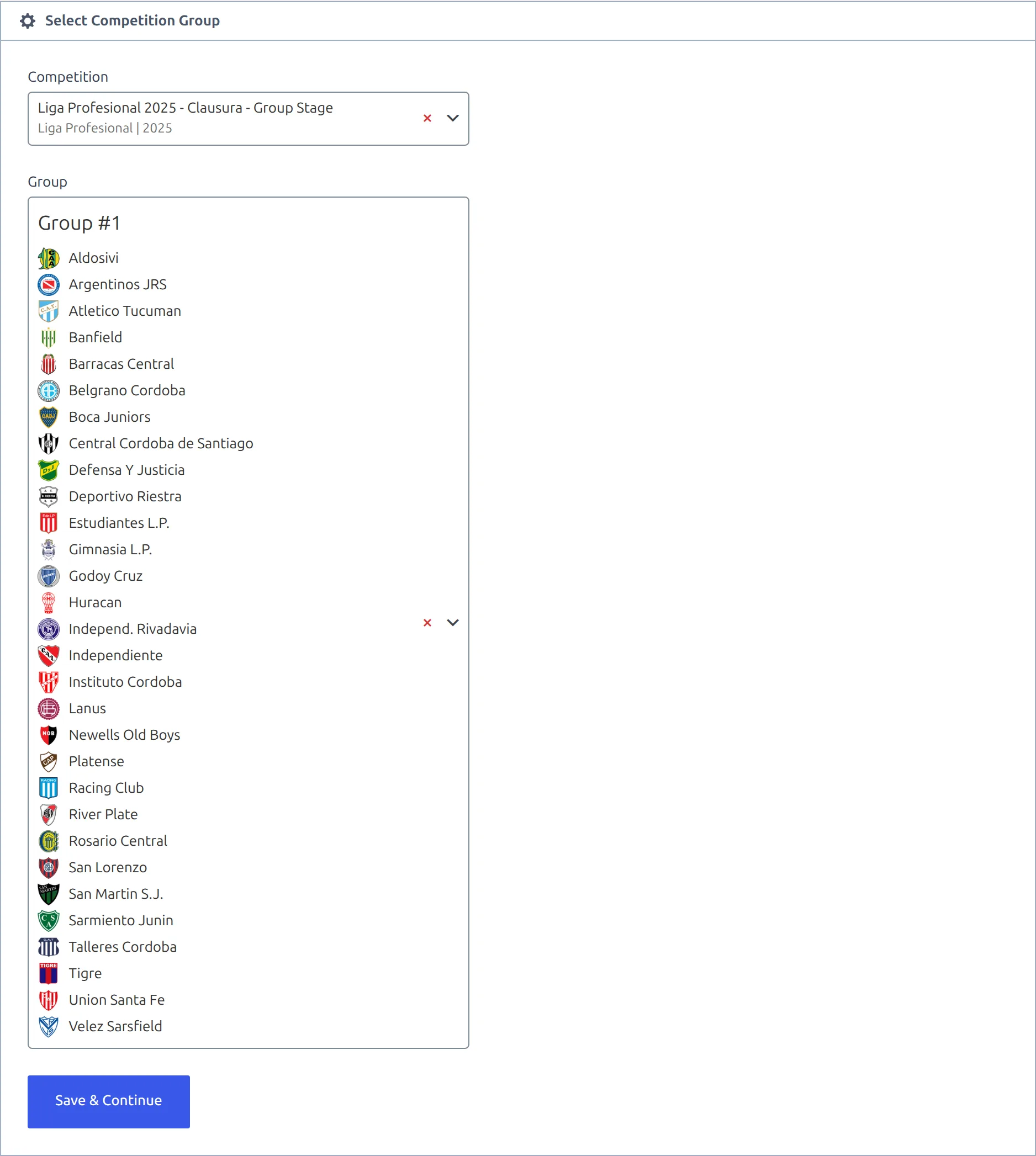
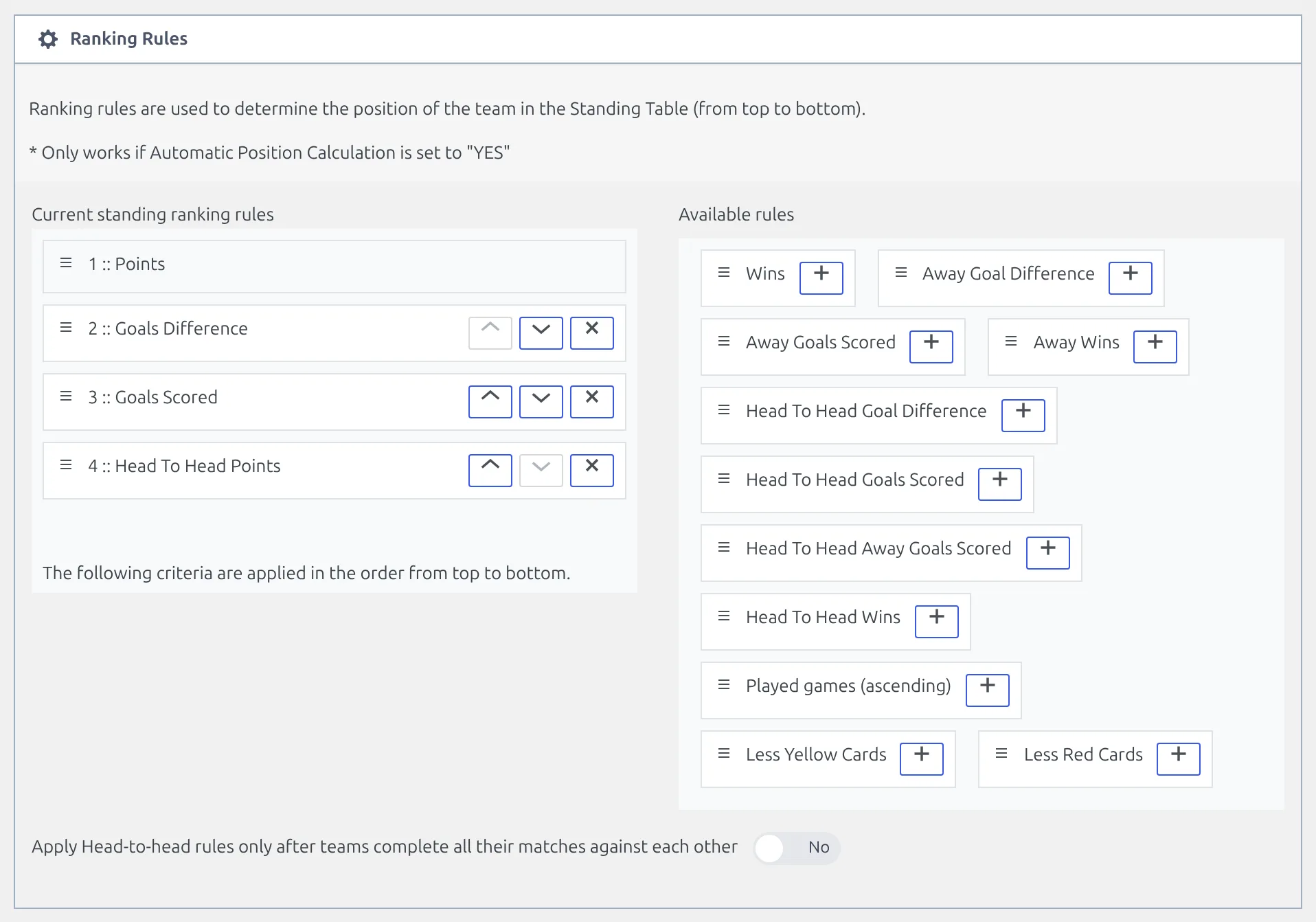
In Ranking Rules, points always come first. Add Goals Difference, Goals Scored and Head To Head Points from Available rules, in that order, and click Publish – that first save is also what calculates the table from the group’s clubs and games. Standing Rules explains every rule on the list.
8. Split each table into the two zones
The zones live on the standing table, not on the competition. The competition keeps one group, so every game and every statistic stays in one place, and the table draws the line.
- In the Standing Table block, turn Conferences Support on. A Conference column appears on every club row.
- Click Manage conferences, add Zone A and Zone B, and close the modal.
- Pick a zone for each of the 30 clubs in the Conference column.
- Check the strip above the table reads Zone A 15 and Zone B 15, then click Update.
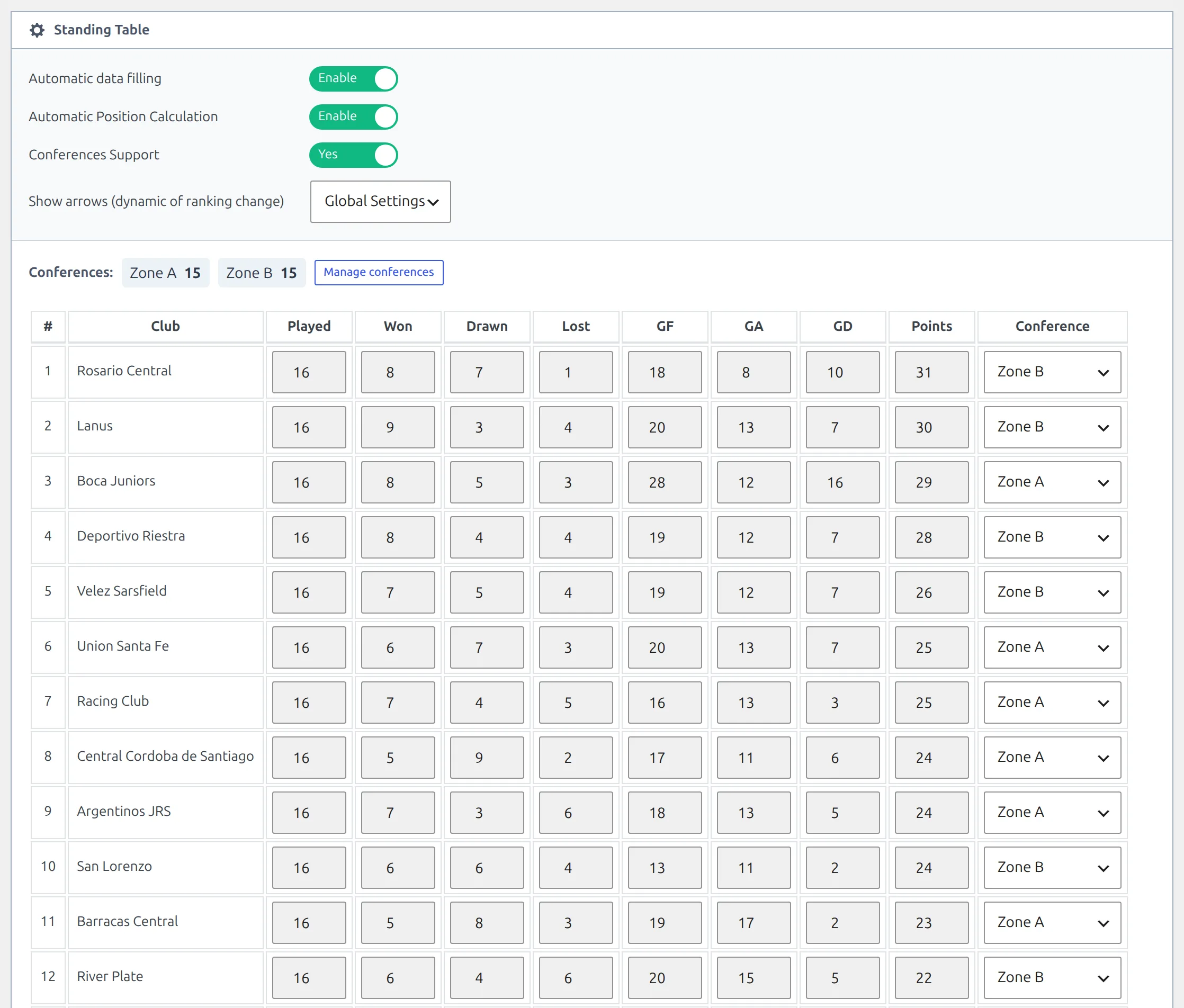
Zones are sorted alphabetically, so Zone A is drawn first. Each one gets its own numbering, its own position colors and its own arrows. Standing Conferences covers the rules and the current limits.
Now repeat steps 7 and 8 for the Clausura: the competition is Liga Profesional 2025 – Clausura – Group Stage, the group is again Group #1.
Clone the Apertura table instead
Hover the Apertura table in Competitions > Standing Tables and click Clone. Pick the Clausura group stage and Group #1, click Save & Continue, then Publish to build the table. The ranking rules, Conferences Support and every club’s zone come across with the clone. If a club changed zone between the two tournaments, fix that row – and check the strip still reads 15 and 15.
9. Add the Clausura final stage once the draw is out
A season in progress has no Clausura knockout fixtures until the group stage ends, so there’s nothing to map yet. Add the stage when the provider publishes the rounds. For 2025 it has: the Clausura round of 16 was played from 22 November.
- Open the competition, click Add New Stage, and build Clausura – Final stage exactly like the Apertura one: Knockout, single-leg ties, rounds Round of 16, Quarter-finals, Semi-finals, Final. Click Save.
- Back on FL API Import > API Leagues, click the branching-arrow button on the Liga Profesional Argentina row and choose Add teams to groups/ties. Your earlier mapping is still there, and four new rows sit at the bottom.
- Map them to
Round of 16,Quarter-finals,Semi-finalsandFinal. - Set Put all Teams into single table to Yes so the group stages read cleanly on step 2, and click Next Step.
- Everything already filled reads Ignore; the new ties read Create. Click Update Competition Structure.
- Open the database button on the same row and run Create Games. Games you’ve already imported aren’t added again.
The Clausura knockout rounds have no phase in their name
For 2025 the provider names the Apertura play-off rounds 1st Phase - 8th Finals to 1st Phase - Final, but the Clausura ones just Round of 16, Quarter-finals, Semi-finals and Final. Once the Apertura rows are mapped, the four plain names are the only knockout rounds left in the dropdowns. Other seasons may name them differently – always read the dropdown.
This is the same return trip as adding a knockout draw to a tournament mid-season. The Euro 2024 walkthrough under API Import Use Cases does it from the Discover New Games tab, which works here too.
✅ Check the result
- Games. Open Competitions > Matches and filter by the competition: 240 per group stage, 15 in each final stage once its knockout is over.
- Zones. Open each standing table: the strip above it reads Zone A 15 and Zone B 15.
- Front end. View either standing table. It draws Zone A and then Zone B, each numbered from 1, like the screenshot at the top of this page.
- Competition page. The Liga Profesional 2025 page lists the stages one under another, each with its stage title. A final stage shows its bracket only while its Bracket Layout isn’t hide.
To keep scores, line-ups and the tables updating through the season, save the league to the Import Dashboard with the star button on its row – see Import Dashboard.
🆘 Troubleshooting
Step 2 shows 30 groups instead of one
Put all Teams into single table was off when you clicked Next Step – or it reset when you went back. You’ll see a long list of groups of 17 clubs that almost repeat each other: one zone plus a club’s two cross-zone opponents. Click Previous Step, set the switch to Yes and click Next Step again.
Liga Profesional 2025 isn’t in the Select Local Competition list
The list skips competitions that are already linked to an API league, and it never lists stages – only the main competition. If you created the competition after the modal opened, click the refresh button next to the dropdown.
A round I need isn’t in the API Rounds dropdown
Another row has already taken it – picked rounds vanish from every other row. Find it, remove it with its small cross, and it’s back. If the round has never been there, the provider hasn’t published it yet. The list is read when the modal opens, and with Cache some requests on in the API import settings it can be up to 10 minutes old, so close the modal and try again later.
The Clausura group stage picked up the knockout rounds
Set All was used on that row while the four knockout rounds were still unmapped, so it took Round of 16, Quarter-finals, Semi-finals and Final as well. Remove those four from the row, and map them in step 9 once the final stage is built.
I can’t change the league on the competition
Once a competition has games, its League field is locked. Get the league right in step 2, before you create the games.
The strip reads 14 and 16, or shows a third zone
A club is in the wrong zone, or a name was typed two ways – Zone A next to Zone A1, say. The strip lists every name in use with its club count, so the odd one stands out. Fix the club’s row, or open Manage conferences and rename the stray name to the real one, which merges them. A club left on Unassigned is drawn in a separate group at the bottom of the table.
The Liga Profesional stage isn’t in the Competition dropdown
The list only offers round-robin stages with at least one group that has no published table yet. Once a group stage’s table is published, that stage drops out – open the existing table from the Standing Tables list instead. The Group dropdown stays greyed out until you pick a competition. If no round-robin group anywhere on your site is free, you’ll see There are no available “Round-Robin” competitions. instead of the dropdowns.
📚 What’s next
- API Import Use Cases – the other real competitions set up end to end.
- API Import for a Competition with Conferences – the single-table switch and the split table, for a league with no stages.
- API Import for a Multistage Competition – stage-by-stage mapping for a cup.
- Standing Conferences – how zones render, and what they don’t work with yet.
- Import Dashboard – keep the whole season updating on a schedule.