

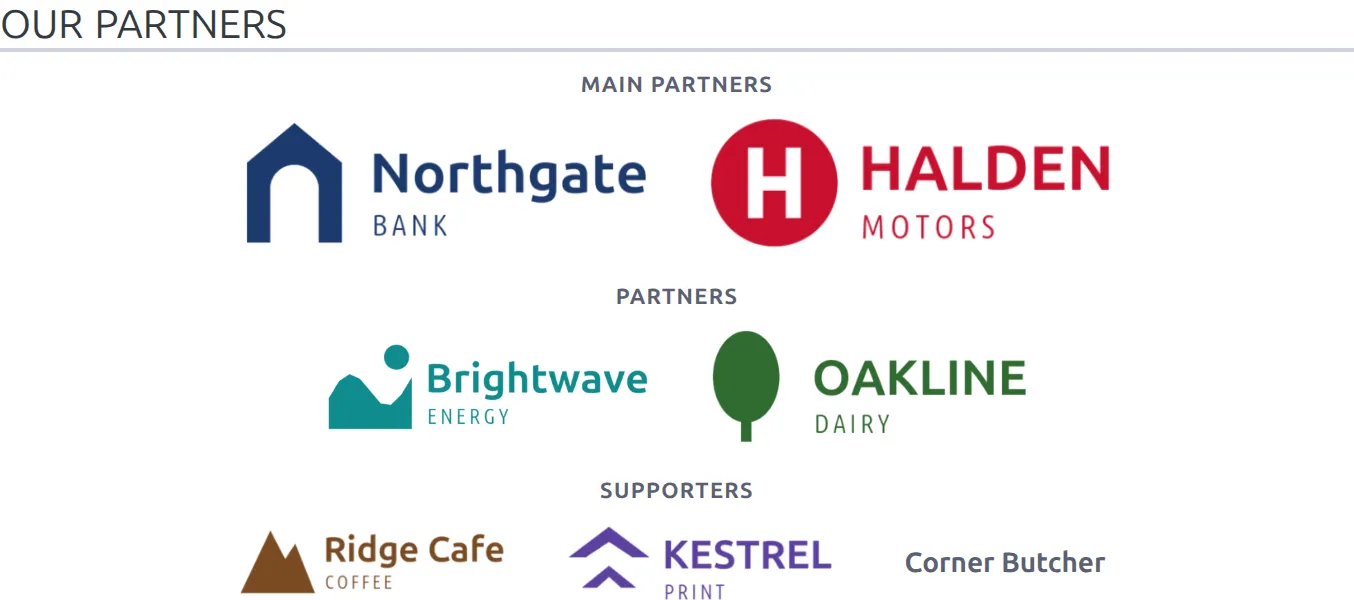
Sponsors keeps your club’s partners in one list – name, logo, link and tier – and shows their logos wherever you need them: a strip on the home page, a sidebar widget, a block on a Layout Builder page, or a “Presented by” row on a single game. Change a logo once and every place updates.
Every sponsor link opens in a new tab and carries rel="sponsored", the tag Google asks for on paid links. Nothing shows on your site until you place it.
🚀 Add your sponsors
Go to Clubs & People > Sponsors.
- Click Add Sponsor. A new row appears at the bottom.
- Click Select logo and pick an image from the Media Library (or upload one).
- Type the sponsor’s name and its website link.
- Pick a tier: Main Partners, Partners or Supporters.
- Repeat for each sponsor, then click Save.
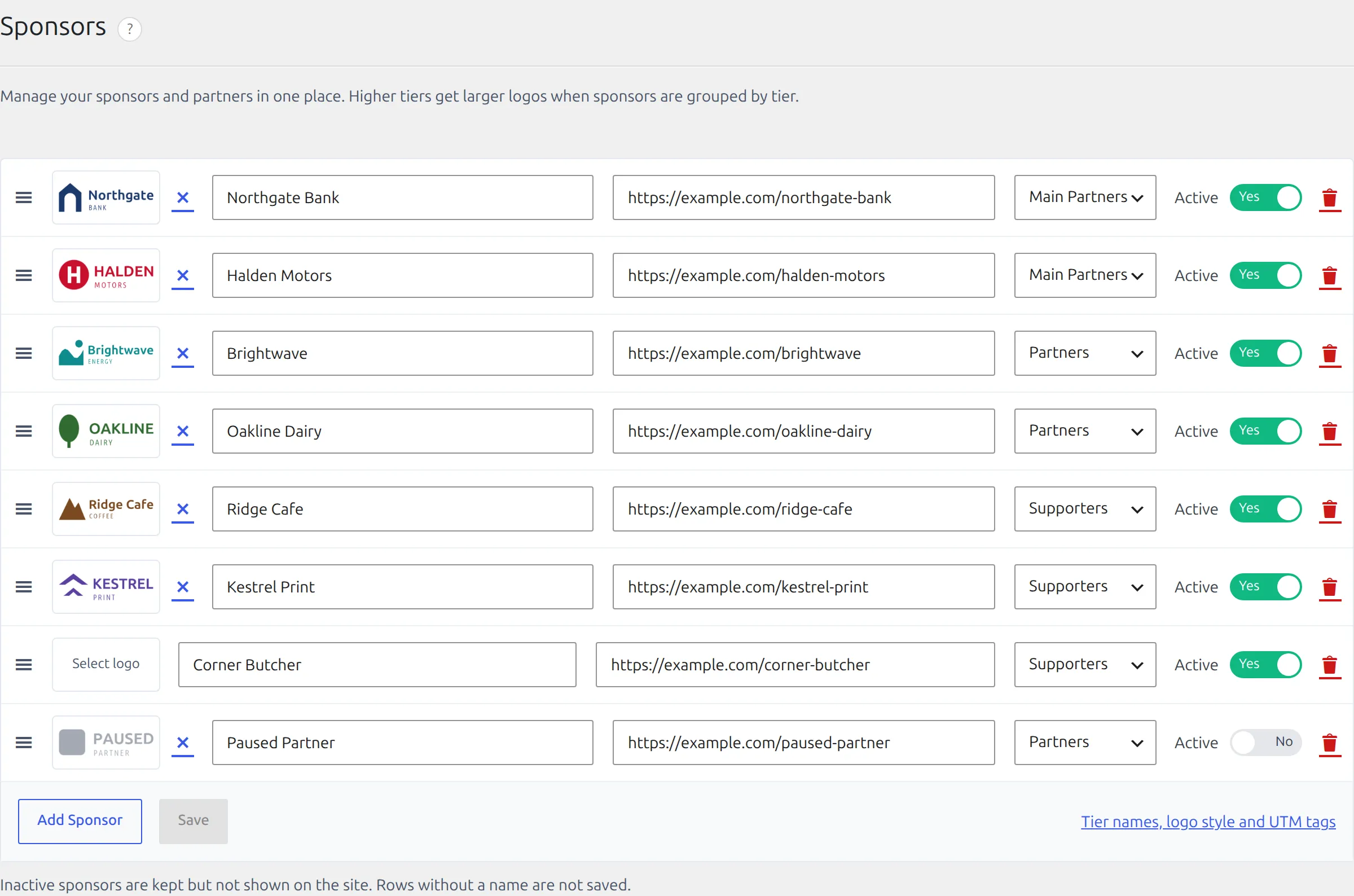
A few things to know about the list:
- Order: drag the handle on the left. Logos show in this order inside each tier.
- Active: switch a sponsor off when a deal ends or pauses. It disappears from the site but stays in the list, so you can switch it back on next season.
- No logo yet? The sponsor’s name shows in its place.
- No link? The logo shows without a link.
- Delete (the bin icon) removes the sponsor for good, including from any games it was assigned to.
Tiers and logo sizes
The tier decides where a sponsor sits and how big its logo is. When logos are grouped by tier, each tier gets its own row with a heading, biggest first:
| Tier | Default name | Logo height (max) | On phones |
|---|---|---|---|
| 1 | Main Partners | 72px | 56px |
| 2 | Partners | 56px | 44px |
| 3 | Supporters | 48px | 38px |
A sidebar widget shrinks every logo to 36px, and the game row to 32px. You can rename the three tiers – “Gold Sponsors” or “Club Friends”, whatever your club uses – in the settings below. New sponsors start in tier 3.
Show sponsors on your site
The same strip comes in four forms. Pick whichever fits the place.
Shortcode
Add this to any page, post or text widget:
[anwpfl-sponsors title="Our Partners"]That shows every active sponsor, grouped by tier. To build the shortcode with a form instead, open Football Leagues > Shortcodes and pick Sponsors. All options:
| Option | Default | What it does |
|---|---|---|
title | (empty) | Heading above the logos. |
tier | (all) | Show one tier only: 1, 2 or 3. Several work too: tier="1,2". |
ids | (all) | Show only these sponsors, comma-separated. The ID shows next to each name in a game’s Sponsors box. |
display | strip | strip = logos in a centered row, grid = logos in equal-width cells. |
style | (settings) | color, mono (grayscale) or mono-hover (grayscale until the mouse is over it). Empty uses the Logo style setting. |
group_by_tier | 1 | 0 puts all logos in one row with no tier headings. |
placement | strip | Only matters with UTM tags on – see Show sponsors their clicks. |
Two common setups: a footer band with only your main partners, [anwpfl-sponsors tier="1" group_by_tier="0"], and a full partners page, [anwpfl-sponsors title="Our Partners" display="grid"].
Block
In the block editor, search for Sponsors. The block has the same options as the shortcode in its sidebar panel, except placement.
Sidebar widget
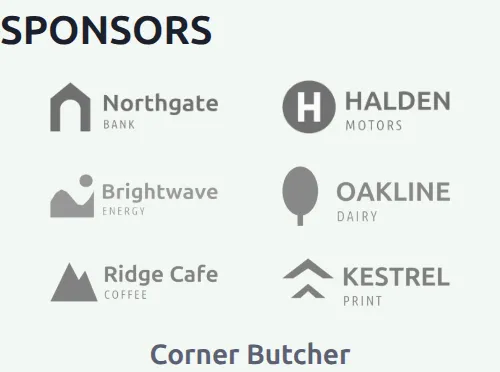
Classic themes: go to Appearance > Widgets and add FL+ Sponsors to a sidebar. It uses the grid layout by default and smaller logos that fit a narrow column.
Layout Builder pages
There’s no separate Sponsors block in the Layout Builder. Add a Shortcode block where you want the strip – a team page sidebar, under a game’s lineups, at the bottom of a competition page – and paste [anwpfl-sponsors] with the options you want.
⚽ Game sponsors – “Presented by”
Many clubs sell single games: “Today’s game presented by…”, the match ball sponsor, the player of the match award. You can give any game its own sponsors, each with its own label.
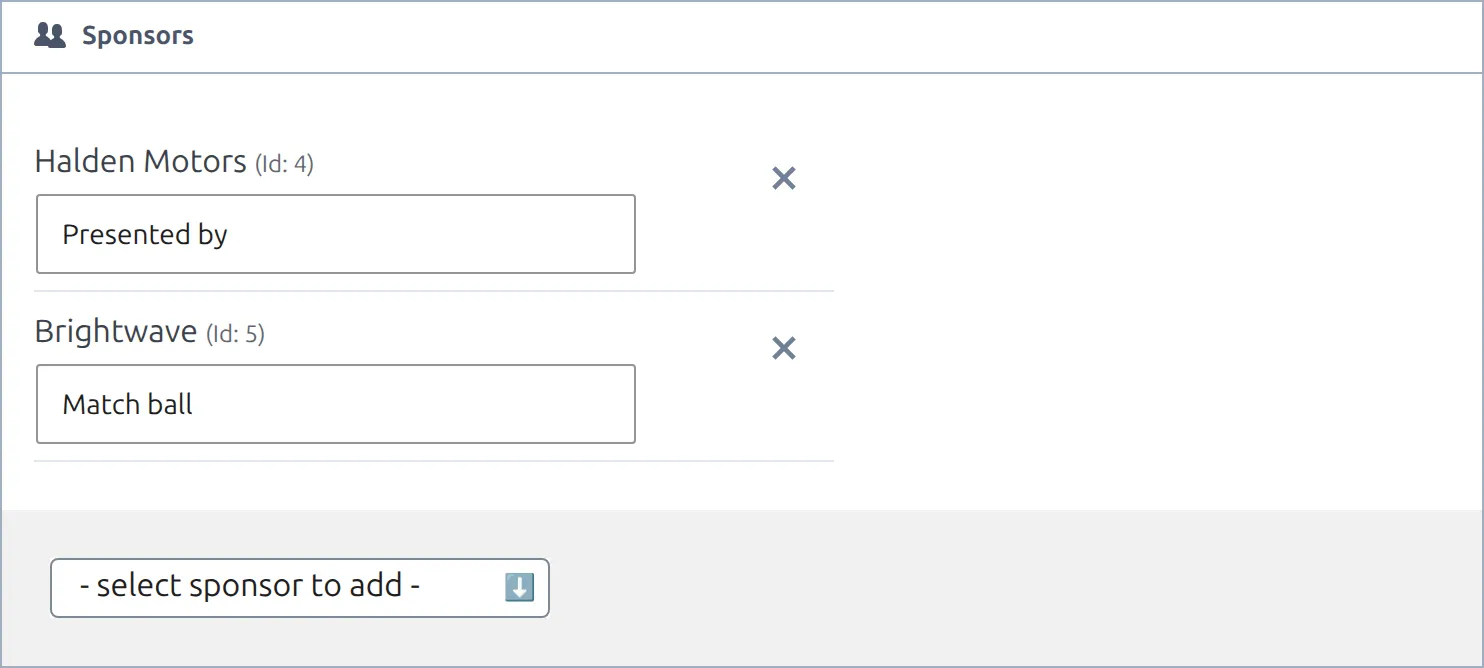
- Open the game in the editor. The Sponsors box shows once you have at least one sponsor in your list.
- Pick a sponsor in – select sponsor to add –. It’s added with the label “Presented by”.
- Change the label if you need to, for example “Match ball”. Add more sponsors the same way.
- Save the game.
The sponsors then show in a row at the bottom of the game’s scoreboard (or the game header, if your game page uses it):
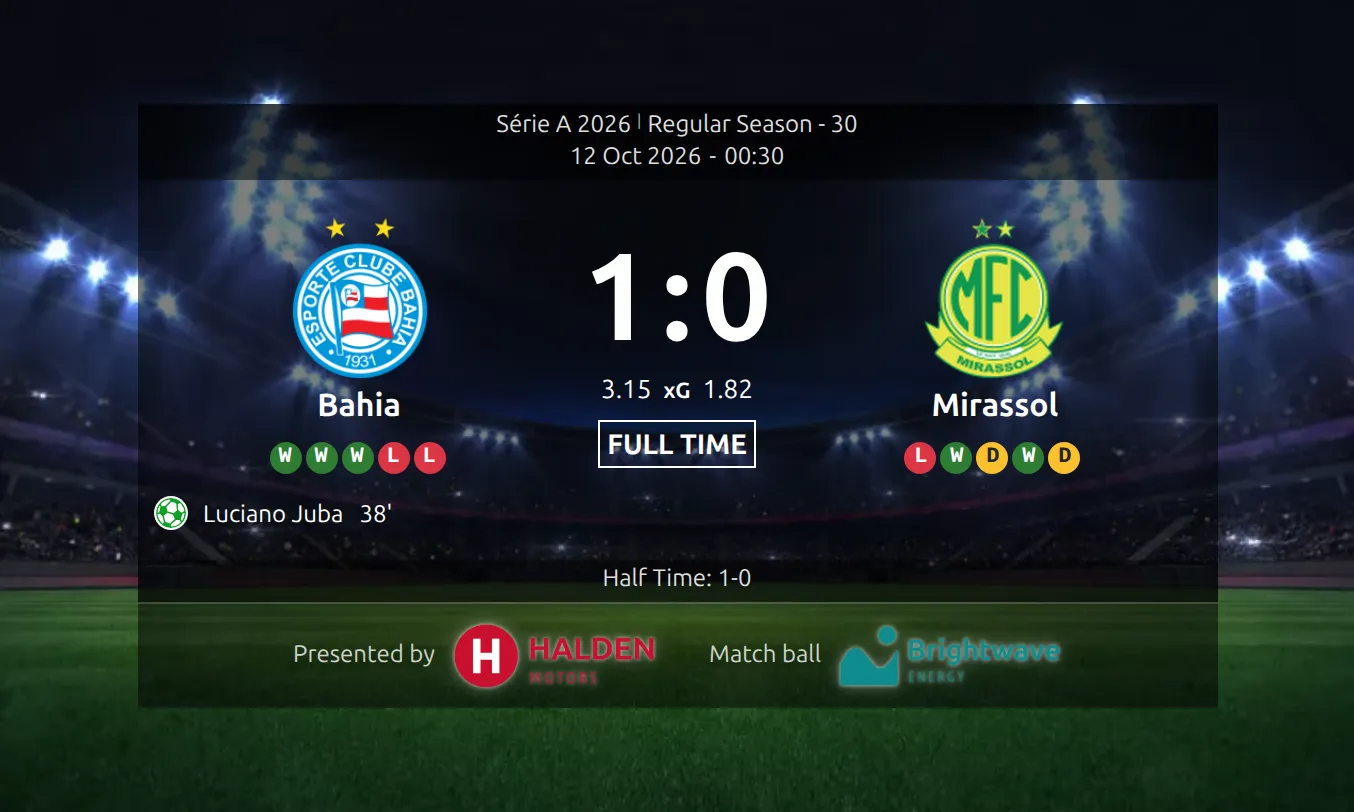
Logos on a dark scoreboard
The scoreboard sits on a dark photo and its logos are only 32px tall. Dark logos get a soft light halo, but a white or light version of the logo still reads much better – ask the sponsor for one. Crop the image tightly too: empty space around a logo makes it look tiny.
A sponsor that you switch off disappears from its games too – the game editor marks it “Inactive – hidden on the site”. Delete a sponsor and it’s gone from every game it was on.
Where the game row shows
By default the row shows on the game page only – under the scoreboard or the game header. A game page shows one or the other: on a Layout Builder game page it’s the display style of the Game Header block; otherwise it’s the Scoreboard setting. Both are ticked by default, so the row follows whichever your page uses.
You can also add the row to game lists (the Slim, Card A, Modern and Simple layouts) and to the Last Match / Next Match widgets – see Show match sponsors in below.
Settings
Go to Settings & Tools > Settings > Configuration > Formats & Search and scroll to Sponsors. The Tier names, logo style and UTM tags link under the sponsor list takes you straight there.
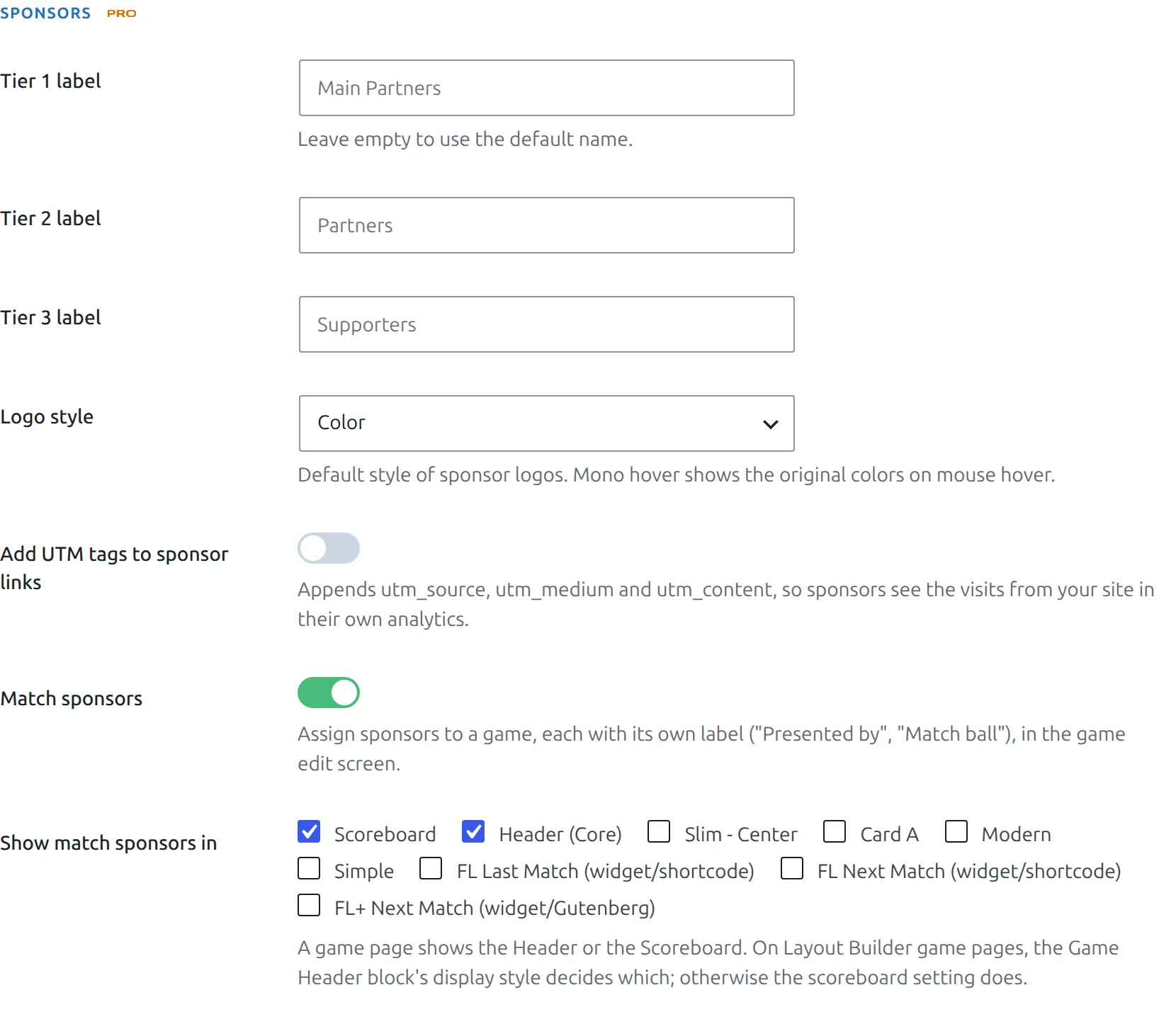
| Setting | Default | What it does |
|---|---|---|
| Tier 1 / 2 / 3 label | Main Partners / Partners / Supporters | The tier headings on your site and the names in the tier dropdown. Leave empty for the default. |
| Logo style | Color | Color, Mono (grayscale) or Mono hover (grayscale until hovered). A shortcode or block can override it. Sponsors pay to be seen in their own colors, so Color is usually the right call. |
| Add UTM tags to sponsor links | Off | See the next section. |
| Match sponsors | On | Turns the game sponsors feature on or off. Off hides the Sponsors box in the game editor and the row on game pages. |
| Show match sponsors in | Scoreboard, Header (Core) | Where the game row shows – see above. |
📈 Show sponsors their clicks
Renewing a sponsorship is easier when you can show the sponsor what they got. Switch on Add UTM tags to sponsor links, and every sponsor link gets three tags that the sponsor’s own analytics (Google Analytics and the like) picks up:
| Tag | Value |
|---|---|
utm_source | Your site’s domain, e.g. myclub.com |
utm_medium | sponsor |
utm_content | Where the click came from: strip (shortcode and block), widget (sidebar widget) or match (game row) |
To tell two strips apart, give each its own placement: [anwpfl-sponsors tier="1" placement="footer"] sends utm_content=footer. The sponsor then sees, for example, 40 visits from your footer and 12 from game pages last month.
Football Leagues doesn’t count views or clicks itself – the numbers live in the sponsor’s analytics, which is the report they trust anyway.
Moving to another site
Site Migration carries game sponsors along with the games. On import, each one is matched by name to a sponsor already on the new site; if there’s no match, the sponsor is created with its logo. Sponsors that aren’t assigned to any exported game don’t travel – add them on the new site.
🆘 Troubleshooting
| Problem | Fix |
|---|---|
| The strip shows nothing | Check that the sponsors are switched on (Active) and that the tier or ids option isn’t filtering them all out. An empty strip prints nothing at all – not even the title. |
| A sponsor shows as text, not a logo | It has no logo, or its image was deleted from the Media Library. Select a logo again on the Sponsors page. |
| No Sponsors box in the game editor | Add at least one sponsor first, and check that Match sponsors is on in the settings. |
| The game row doesn’t show | The sponsor may be switched off, or the place your game page uses isn’t ticked in Show match sponsors in. On a Layout Builder game page, check whether the Game Header block shows the header or the scoreboard. |
| A logo looks tiny | The image has empty space around the logo. Crop it tightly and upload it again. |
📚 Related
- Shortcode block – place the strip on Layout Builder pages
- Match Scoreboard – the game page header the sponsor row sits in
- Site Migration – move games and their sponsors to another site