

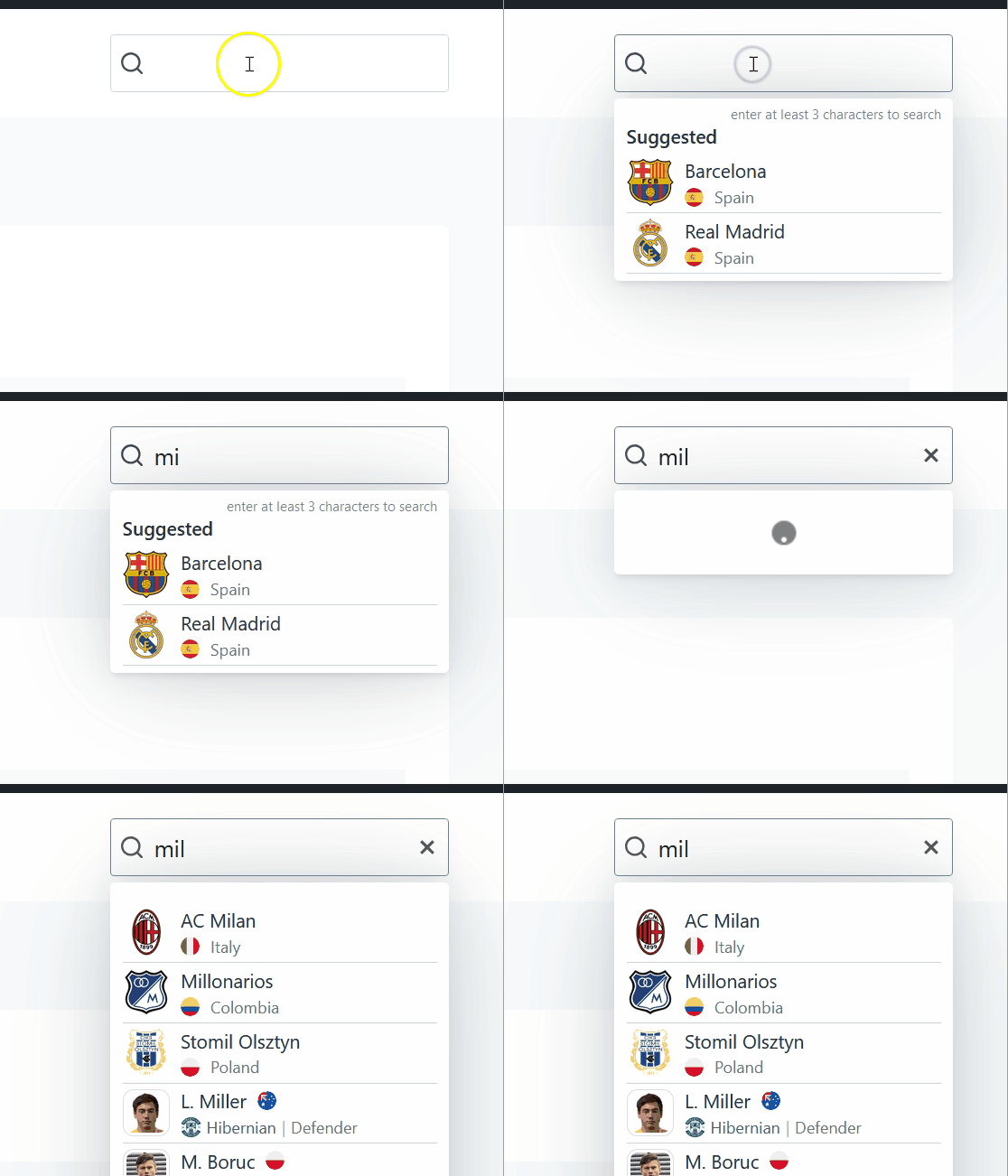
Add a live search widget that lets visitors quickly find teams and players. Features instant results as users type, with dropdown or inline display options. Perfect for navigation headers, sidebars, or dedicated search pages.
Premium Feature
This shortcode requires the Football Leagues Premium plugin.
🚀 Add a live search box
Basic Usage
[anwpfl-search]This displays a search widget for finding teams and players.
You can also build it at Football Leagues > Shortcodes with the Shortcode Builder. Its Search Width (px) field starts at the usual 250.
How the search works
- 3 characters minimum. Nothing is searched until the box holds at least 3 characters. Below that, the box shows the hint “enter at least 3 characters to search”.
- Clubs match on the club name, with what you typed read as one phrase. “Manchester” and “chester Un” both find Manchester United, but “Man Utd” doesn’t.
- Players match word by word against the player’s name, full name and short name. Every word has to match, in any order, so “Haaland Erling” still finds a player whose full name is Erling Haaland.
- How many results: with
search="all"you get up to 5 clubs, then up to 5 players (10 players when fewer than 2 clubs match). Withteamsorplayersyou get up to 10. A Load More button appears under a longer list. - Only published clubs and players are searched. Drafts and trashed entries never show.
- Each result links to the club or player page and opens it in a new tab.
All Parameters
| Parameter | Default | Description |
|---|---|---|
search |
all | What to search: all, teams, players |
suggested |
(empty) | Comma-separated club and player IDs to show as suggestions before typing |
layout |
dropdown | Results display: dropdown or inline |
width |
250 | Search input width in pixels. Anything under 100, or empty, becomes 100 |
has_search_icon |
1 | Show search icon. Use 0 to hide. The back arrow that closes the phone search stays either way |
has_reset_icon |
1 | Show reset/clear icon (the X). It only appears once the visitor starts typing. Use 0 to hide |
mobile_icon_only |
1 | Show only search icon on mobile (screens under 576px wide). Use 0 for full input |
cache |
3600 | How many seconds to cache the search box’s HTML – its labels and the Suggested list. 0 turns it off. The typed results are never cached. Not offered in the Shortcode Builder, so type it by hand |
The cache parameter does nothing while Plugin Caching System is switched off at Settings & Tools > Settings > Configuration > Advanced > Performance & Caching. It’s on by default.
Suggested clubs and players
The suggested parameter takes the IDs of your most popular clubs and players, and lists them under a Suggested heading. Mix club and player IDs in one list – here’s how to find an ID.
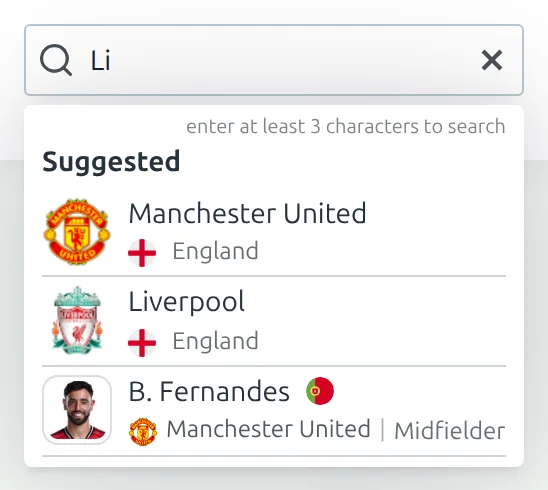
[anwpfl-search suggested="8386,8366,12004"]The Suggested list shows in two situations:
- While the box holds fewer than 3 characters, under the “enter at least 3 characters to search” hint. In the dropdown layout that’s as soon as a visitor clicks into the box. In the inline layout it’s there from the moment the page loads.
- When a search finds nothing, under the “No results found” message.
Once a search of 3 or more characters finds something, the Suggested list is hidden and the results take its place.
A few things to know about the list:
- It’s only what you put in
suggested. The plugin doesn’t track what visitors search for, so there’s no automatic “popular” list. Leave the parameter empty and there’s no Suggested section at all. - Clubs come first, then players – not necessarily in the order you typed the IDs.
- It ignores
search. Asearch="players"box still lists any club IDs you put insuggested. - Unpublished clubs and players are skipped, same as in the results.
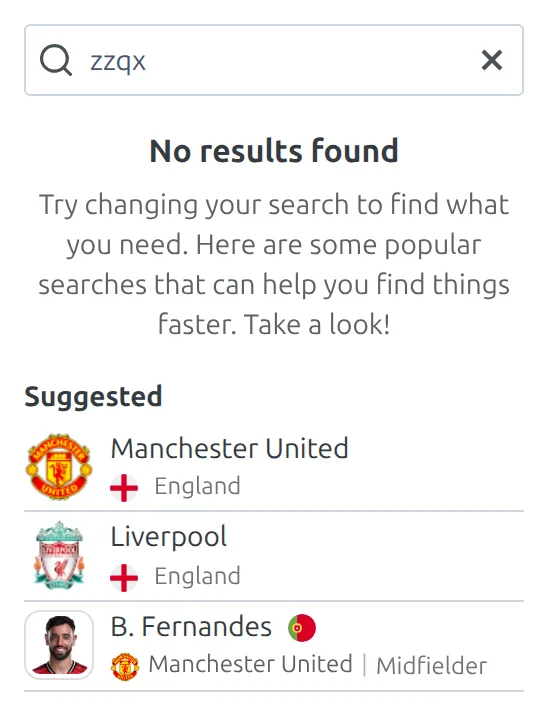
The words in the box are all yours to change at Translations > Text Strings, in the Live Search group: Suggested, enter at least 3 characters to search, No results found, the sentence under it, and Search (the name screen readers announce for the box). If you don’t use suggested, it’s worth rewording that sentence – by default it points visitors at “popular searches” that won’t be there.
Examples
Example 1: Header Search Widget
When to use: Navigation bar search.
[anwpfl-search layout="dropdown" width="200" mobile_icon_only="1"]Result: Compact search that expands on mobile tap.
Example 2: Teams Only Search
When to use: Team finder widget.
[anwpfl-search search="teams" width="300"]Result: Search limited to team names.
Example 3: Player Search with Suggestions
When to use: Player finder with popular suggestions.
[anwpfl-search search="players" suggested="150,160,175" layout="inline"]Result: Player search showing suggested players before typing.
Example 4: Full-Width Search Page
When to use: Dedicated search page.
[anwpfl-search layout="inline" width="400" mobile_icon_only="0"]Result: Wide search with inline results display.
Tip
The suggested parameter lets you highlight featured teams or star players. These appear as quick-access links before the user starts typing.
Layout Comparison
| Layout | Best For |
|---|---|
dropdown |
Headers, navigation bars, compact spaces |
inline |
Search pages, sidebars, full-width sections |
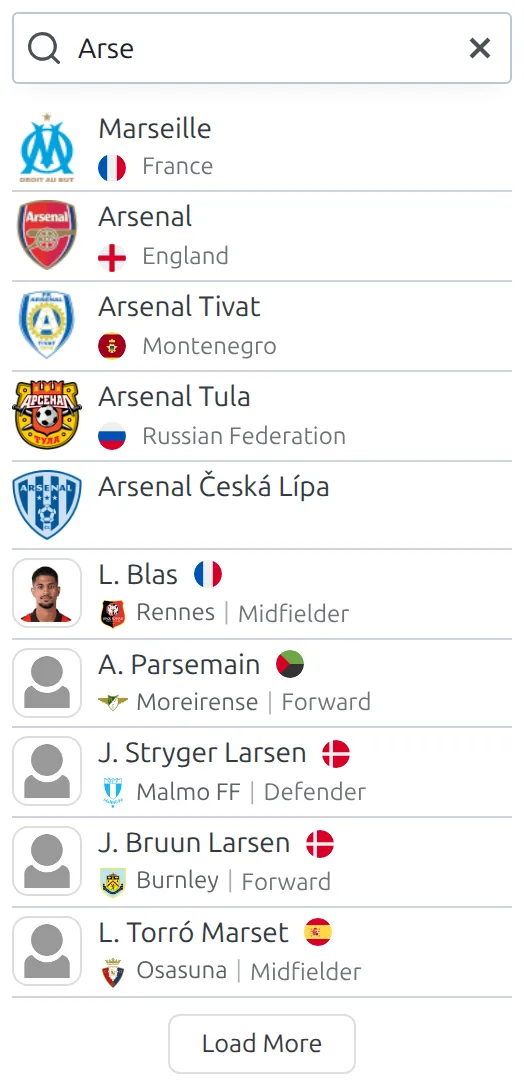
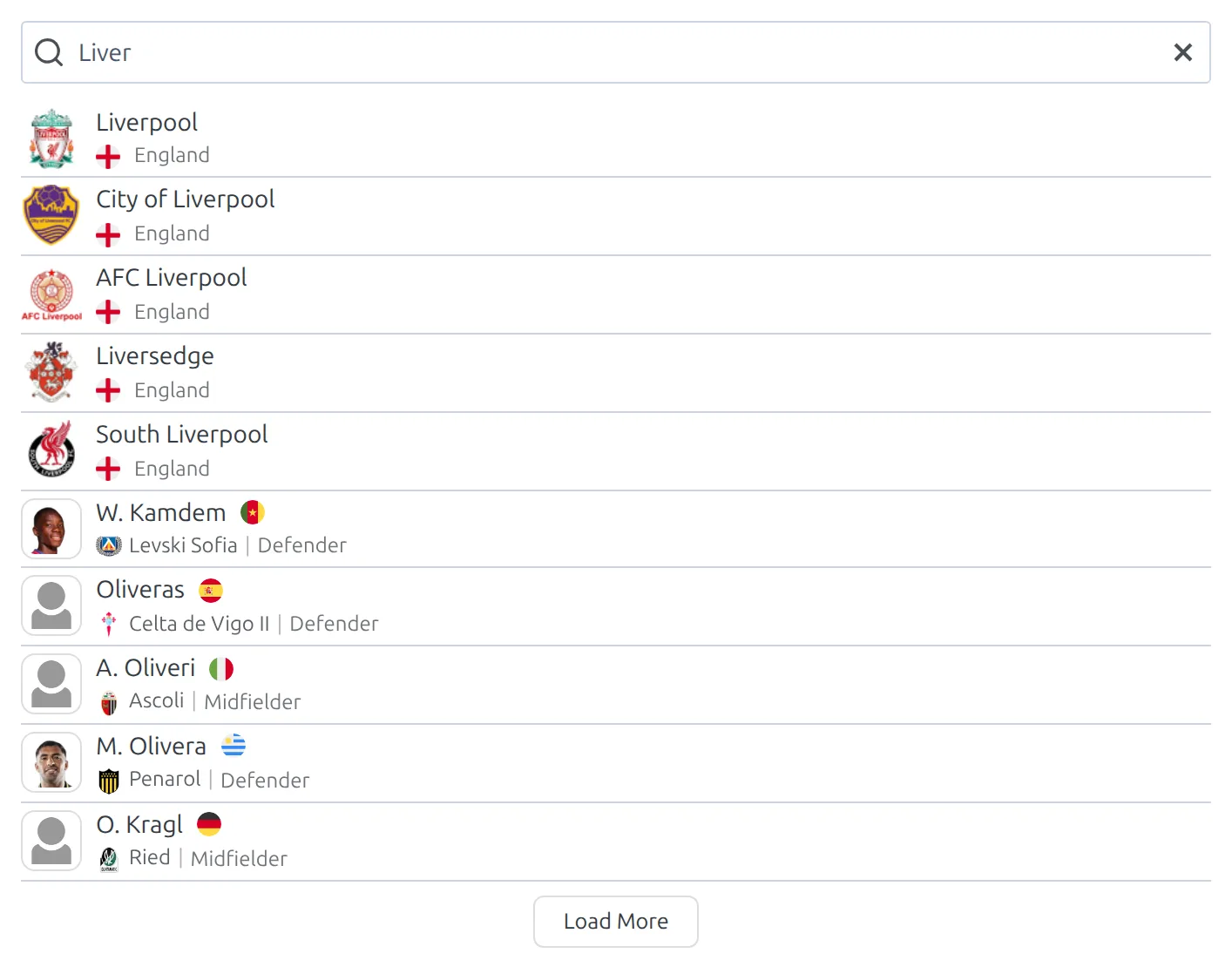
The same query in each layout – the difference is where the results go:
dropdown
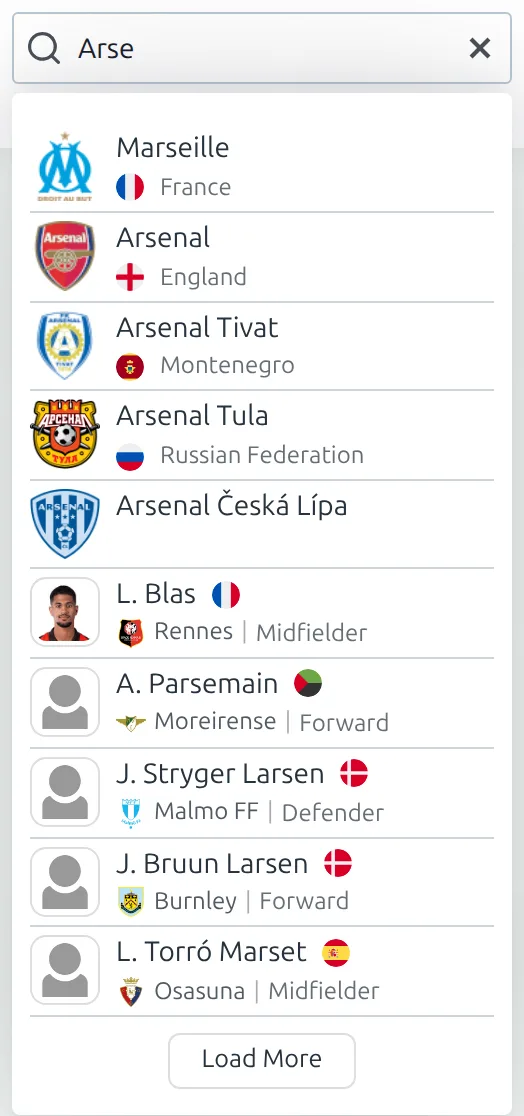
inline
Make the inline search a percentage width
The width parameter only takes pixels, which can look narrow on a dedicated search page. To size the inline search as a share of its column instead, add this CSS at Appearance > Customize > Additional CSS (block themes: see where to put custom CSS). Change 70% to the width you want and leave the 100% alone.
/* Inline live search at 70% of its column */
.anwpfl-live-search__layout-inline {
	width: 70% !important; /* the width you want */
}

/* The box, and the No results found message, fill that width */
.anwpfl-live-search__layout-inline .anwpfl-live-search__input-wrapper,
.anwpfl-live-search__layout-inline .anwpfl-live-search__input,
.anwpfl-live-search__layout-inline .anwpfl-live-search__empty {
	width: 100% !important; /* keep at 100% */
}
The !important is needed here. The pixel width is written straight onto the box, and a normal stylesheet rule can’t beat that.
📱 Search on phones: icon only
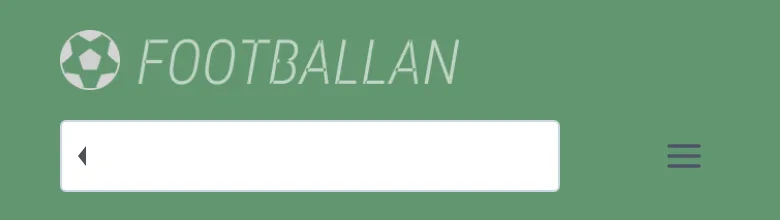
A full search box takes a lot of room in a phone header. So by default (mobile_icon_only="1"), on screens under 576px wide the box is replaced by a single search icon. Tapping the icon opens the full box, with a back arrow at its left edge. Tapping the arrow folds it back to the icon.

One thing to watch: mobile_icon_only isn’t limited to the dropdown layout. On the inline layout it hides the box on phones too, which is rarely what you want on a search page. Use mobile_icon_only="0" there, as in Example 4.
In a Kadence mobile header
Some themes build their header in a way that the opened search doesn’t fit, and it squeezes in next to the logo. Here’s the CSS for Kadence, which moves the opened box onto its own row under the logo. It assumes Kadence’s standard mobile header, with the logo in Main – Left.
- Go to Appearance > Customize > Header and switch the header builder to Tablet / Mobile.
- Drag an HTML item into Main – Right, next to the Trigger (the menu toggle). If Kadence’s own Search Toggle is there, remove it.
- Click the HTML item and put
[anwpfl-search width="200"]in its content box. - Open Additional CSS, paste the CSS below, and click Publish.
/* While the phone search is open, let the header row wrap */
body.anwpfl-live-search__search-mobile-state--active .site-main-header-inner-wrap.site-header-row {
	display: flex !important;
	flex-wrap: wrap !important;
}

/* ...and give the right-hand section (search + menu toggle) a full row */
body.anwpfl-live-search__search-mobile-state--active .site-header-main-section-right {
	display: flex;
	width: 100%;
	justify-content: space-between !important;
	margin-top: 15px;
	margin-bottom: 15px;
}

body.anwpfl-live-search__search-mobile-state--active .site-header-main-section-left {
	margin-top: 15px;
}

/* Line the closed search icon up with the menu toggle */
.anwpfl-live-search__search-mobile-icon {
	margin-bottom: -6px;
}
Kadence switches to its mobile header below 1025px, but the search only folds into an icon below 576px. On a tablet the full box sits in the mobile header, which is why the example keeps width at 200.
Not on Kadence? The same idea works in any theme. While the phone search is open, the plugin adds the class anwpfl-live-search__search-mobile-state--active to the page’s <body>, so start each rule with that class and swap the Kadence header classes for your theme’s.
🆘 Troubleshooting
Search not showing results?
- Verify teams/players exist in the database
- Check that entities are published (not draft)
- Ensure JavaScript is enabled in the browser
- Type at least 3 characters – nothing is searched before that
- For a club, try one word from its name. The whole text you type has to appear in the club name as it’s written, so abbreviations and nicknames won’t match
I renamed a club and the search still shows the old name
It depends on where you see the old name, because only part of the search is cached.
- Typed results are never cached. Every search asks the database, so a renamed club, a new logo or a player added a minute ago shows up as soon as someone searches for it.
- The search box itself is cached for an hour. That covers the Suggested list and the labels. So a renamed or re-logoed club in
suggested, or a label you changed at Translations > Text Strings, can show the old version for up to 60 minutes. Saving a player clears it sooner; saving a club doesn’t.
To see the change right away, click Flush at Football Leagues > Toolbox, on the Caching tab. If you edit the Suggested list often, add cache="0" to the shortcode. And if you run a page cache plugin, clear that too – it keeps its own copy of the whole page, search box included.
The search box is tiny
The shortcode has width="" in it, usually because it came from the Shortcode Builder with Search Width (px) left empty. An empty or under-100 width becomes 100px. Put a number in, for example width="250".
The clear icon, a spinner or “No results found” never goes away
The search box shows and hides those pieces with classes from the plugin’s legacy Bootstrap stylesheet. If you’ve set Load Legacy Bootstrap CSS to No at Settings & Tools > Settings > Configuration > Advanced > Legacy CSS, they stay on screen and the phone icon shows on wide screens too. Set it back to Yes, which is the default.
📚 Related
[anwpfl-clubs]– Club listings (Core)[anwpfl-players]– Player listings (Core)- Shortcode Builder – build any shortcode from a form
- CSS Recipes – where to put custom CSS, and more snippets