

Plenty of competitions change shape halfway through. A World Cup plays groups and then knocks teams out. A league plays everyone twice and then splits into a championship round and a relegation round. A continental cup runs qualifying, a league phase and a knockout phase in the same season.
Football Leagues handles all of those with one competition that has more than one stage. Each stage has its own structure and its own round-robin or knockout type, and they all live under one title, on one page.
Why not just create three competitions?
Because everything that adds statistics up works on the whole competition, not on the stage. A player who scores in the group phase and again in the final gets one World Cup row on their page with both goals in it. Three separate competitions would give them three rows that don’t add up, three entries in every dropdown, and three URLs to link to. One multistage competition keeps the structure separate and the totals together.
🚀 Create the competition
There’s no “multistage” setting to switch on. A competition becomes multistage the moment it has a second stage, and goes back to being an ordinary one if you remove it.
Open Competitions → Add New Competition.
- Give it a title and fill in the General panel. League and Season are required – the editor shows an orange “Fill in the required fields” notice until both are set. Title it after the whole competition (“World Cup 2022”), not after its first stage.
- Build the first stage. The Competition Stages panel already has one tab, pre-named
Regular Season. Rename it to what the first phase is really called – “Group Stage”, “Qualifying rounds”, “Regular season” – then set its Competition Type and fill in its groups or ties exactly as you would for a single-stage competition. - Click Add New Stage at the right end of the tab strip. A second tab appears and the panel below switches to it.
- Build the second stage. Name it, pick its Competition Type – a new stage starts as Round-Robin – and fill in its structure. A knockout stage gets rounds and ties; a round-robin stage gets groups.
- Repeat for any further stages, then click Save.
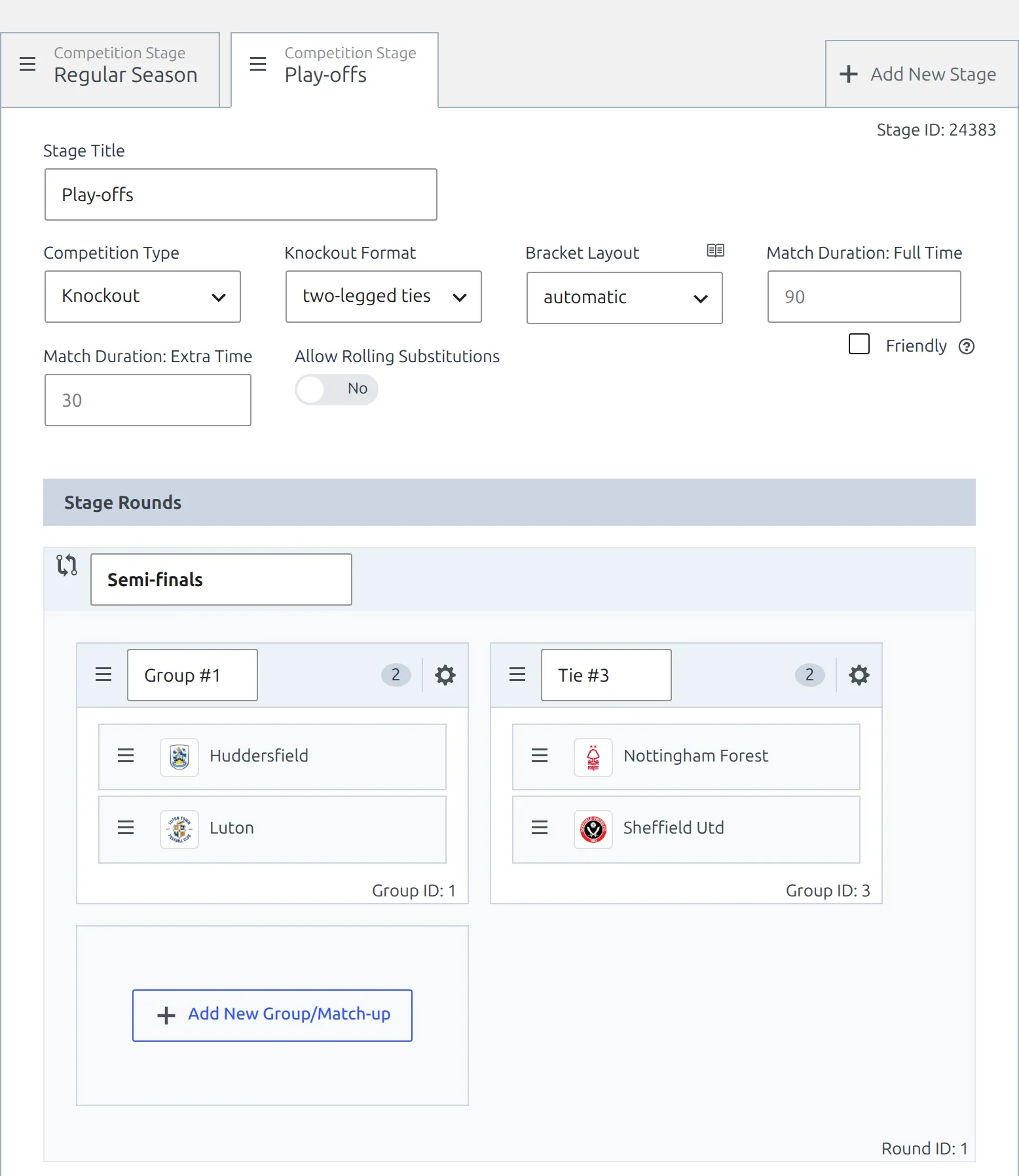
Nothing is created until you save. A brand-new tab shows Stage ID: temp-... until then, and it only gets a real ID once the competition is saved. Save before you start adding that stage’s matches.
Working with the tabs
- Switch stages by clicking a tab. The panel underneath is always the active stage.
- Rename a stage in the Stage Title field at the top of the panel. The tab label follows it.
- Reorder stages by dragging a tab by its grab handle. Left to right is the order they’re played in, and that’s the order the plugin stores.
- Delete a stage with the red Delete Stage link at the bottom right of its panel. The first stage has no such link – it’s the competition itself.
Deleting a stage is permanent, and its matches stay behind
Delete Stage removes the tab straight away, and the next Save deletes the stage for good – it doesn’t go to the Trash and there’s no undo. The matches that were in it are not deleted. They stay in Competitions → Matches pointing at a stage that no longer exists, which means they stop appearing on the competition page. If you delete a stage by accident, re-create it and put those matches back through Match Setup – see the troubleshooting section below.
What belongs to a stage, and what belongs to the competition
Only the things inside the stage panel are per-stage. Everything else is set once, on the competition, and every stage inherits it.
| Per stage | Whole competition |
|---|---|
| Stage Title | Title, League, Season |
| Competition Type (round-robin or knockout) | Competition Logo and Detailed Logo |
| Round-Robin Format / Knockout Format | Competition Order |
| Friendly | Bottom Content |
| Rounds, groups and ties, and the clubs in them | Layout |
| PRO: Bracket Layout, Current Matchweek, Match Duration, rolling substitutions |
So a stage can be a knockout while the one before it is a round-robin, and one stage can be marked Friendly while the rest count towards player statistics. But a stage can’t sit in a different season or under a different league from the competition it belongs to, and it can’t have its own logo – it uses the competition’s.
It doesn’t have to be groups then knockout
Stages are just phases, and they can all be the same type. A split league is four round-robin stages – Regular season, Championship play-offs, Europe play-offs, Relegation play-outs – each with its own table. A league with a two-legged relegation decider is one round-robin stage plus a one-tie knockout stage. Use as many stages as the competition really has phases, and no more.
Add matches
A match belongs to a stage, not to the competition as a whole. Go to Competitions → Matches → Add New Match and open the Competition dropdown: every stage is listed under its competition, named Competition - Stage.
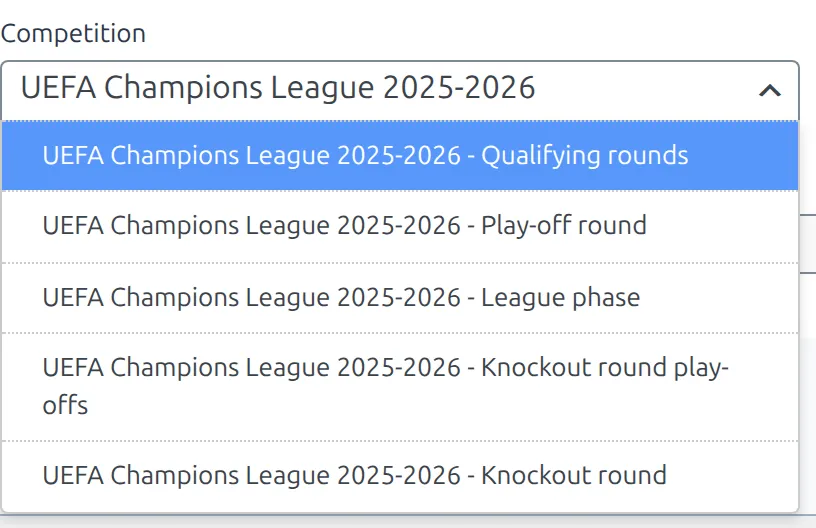
Pick the stage the match is played in, and the rest of the screen follows that stage’s type: a knockout stage adds a Round selector and narrows the club lists to the ties in that round, a round-robin stage doesn’t. The plugin remembers the parent competition on its own, so nothing else needs setting.
The show only active competitions toggle at the top of Match Setup hides everything outside the active season, stages included. Switch it off if the competition you’re looking for is from another year.
For a whole draw at once, the Data Import Tool takes a spreadsheet paste, and PRO adds the Import Matches tool and the API import. All of them ask for the stage, the same way this screen does.
Standing tables
Standing tables belong to stages too. Each round-robin stage gets one table per group, and knockout stages get none.
Go to Competitions → Standing Tables → Add New Standing Table. The Competition dropdown on the Select Competition Group step lists stages the same way Match Setup does, so a league that splits into three phases shows up three times – once per phase.
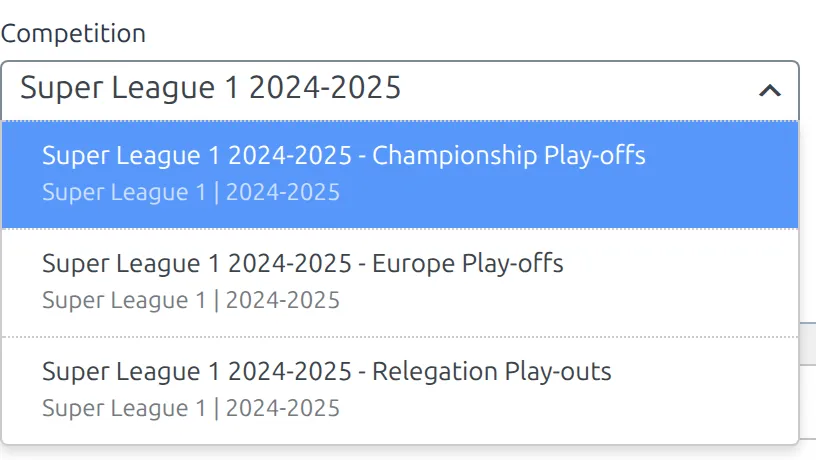
Pick the stage, pick the group, click Save & Continue and carry on as described in Competition: Round-Robin. Once a group has a published table it drops off this list, which is how you can tell at a glance which stages still need one.
Tables are worked out from the matches of that stage alone. Points a club carried into a play-off round from the regular season aren’t brought over automatically – add them with Add Initial Points in the Initial Points section of the play-off table itself.
Show it on the site
A multistage competition has one page. Stages are sections on it, each headed by its Stage Title, with that stage’s groups, rounds, tables and matches underneath. Stages have no page of their own and no URL of their own.
On the built-in competition page, the last stage is printed first. A competition whose tabs read Group Stage → Knockout stage puts the knockout section at the top and the group section below it, so the part of the competition that’s happening now is the part a visitor lands on. Drag the tabs if you want a different order – the page order is the tab order, reversed.
A stage with no matches yet is skipped. That’s normal while a cup is still in its group phase, and the knockout section appears by itself once its first match exists.
Tabs instead of stacked sections
The free version has a Layout box in the competition sidebar with two choices: Default stacks the stages down the page, Tabs puts one tab per stage across the top and shows one at a time. On a competition with four or five stages, Tabs is usually the easier read. With PRO installed the box isn’t there – PRO builds competition pages with the Competition Layout Builder instead, and a Layout Builder page reads the stages the way you ordered them, first stage first.
Shortcodes
Shortcodes that take a competition understand the difference between the whole thing and one phase of it.
| Option | What it selects |
|---|---|
competition_id | The competition. Its picker lists competitions only, never stages – matches from every stage are included. |
stage_id | One stage. Its picker lists every stage, so this is how you show just the group phase or just the play-offs. |
show_secondary | Typed by hand, not in the builder form. 1 (the default on [anwpfl-matches]) pulls in the other stages alongside competition_id; 0 limits it to the first stage. |
[anwpfl-matches competition_id="1234"]                 <!-- every stage -->
[anwpfl-matches stage_id="1237"]                       <!-- the knockout phase only -->
[anwpfl-matches competition_id="1234" show_secondary="0"]  <!-- the first stage only -->
[anwpfl-standing] takes the ID of one table, so it’s per-stage by nature. The PRO [anwpfl-standings] can print several at once, which is the quick way to put every phase of a split league on one page. The competition header always names the whole competition.
Check your work
The Stages column in the Competitions list is the fastest confirmation that the structure saved the way you meant. A multistage competition is labelled MULTIPLE and then prints every stage in order – the first as #1 >, later ones as #2 >> – each with its type, its format, how many groups or ties it holds, and its ID.

There’s only one row – stages don’t get their own. The Standings column next to it lists the tables of every round-robin stage together, so a cup with a group phase shows its group tables here and a cup without one shows nothing.
Over in Competitions → Matches, each row names the competition and then the stage the match is in, so you can confirm a match landed in the right phase without opening it.

🆘 Troubleshooting
My later stages are printed above the first one
That’s how the built-in competition page works: it prints the stages in reverse, so the final phase is at the top. Drag the tabs into a different order if you want a different result. A page built with the PRO Layout Builder doesn’t do this – it keeps the order you set.
A stage is missing from the competition page
A stage is only printed if it has matches. Check the Stages column in the Competitions list: if the stage is there with its groups or ties, the structure is fine and it’s the matches that are missing. Add one match to the stage and the section appears.
Clicking a stage opens the wrong competition
It opens the right one. Stages don’t have an edit screen of their own, so anything that points at a stage – a bookmark, a link in a list, a stage ID typed into the address bar – redirects to the competition it belongs to, where all its stages are on tabs.
Matches disappeared after I deleted a stage
They’re still there, they just have nowhere to be drawn. Go to Football Leagues → Plugin Health and run the checks: Games without Competition reports “Games with invalid Competition ID” and gives you a link that filters the Matches list down to exactly those matches. Open each one, use Match Setup to move it to a stage that exists, and save.
Old matches are missing from the competition page
Matches remember which competition their stage belongs to, and matches created by very old versions or a partial import can be missing that link. Football Leagues → Plugin Health has a check for it – Games with incorrect Main Stage ID – with a Fix Games button that fills the link in.
A player’s totals are split across two entries
The phases were created as separate competitions rather than as stages of one. There’s no converter for that – re-create the later phases as stages of the first competition, then move each match onto its new stage through Match Setup. Do it before the competition gets long, and check the fix on one player’s page before moving the rest.
Statistics from a stage shouldn’t count
Tick Friendly on that stage. It’s a per-stage checkbox, so a pre-season group inside a real competition can be excluded from player statistics while the rest of the competition still counts. If the stage already has matches, the panel offers a Fix button to bring their status into line with the new setting.
📚 What’s next
- Competition: Round-Robin – groups, points and the standing table.
- Competition: Knockout – rounds, ties, extra time and penalties.
- Advanced Bracket – a bracket for the knockout stage that advances winners for you.
- [anwpfl-standings] – print every phase of a split league on one page.
- API data import – bring a multistage competition in from API-Football instead of building it by hand.