

A round-robin competition is one where every club in a group plays every other club, and the results add up into a table. That covers a regular league season, a group stage inside a cup, a conference, a friendly mini-tournament – anything ranked by points rather than by elimination.
It’s the default type for a new competition, and it’s the only type that can have a standing table. If your competition is decided by ties and rounds instead, set the stage to Knockout instead.
🚀 Create the competition
Open Competitions → Add New Competition. Competitions is its own top-level menu in wp-admin, and it also holds Matches, Standing Tables, Leagues and Seasons.
- Give it a title. Include the season if you run the same league every year – “Premier League 2025-2026” beats “Premier League”.
- Fill in the General panel. League and Season are required; the editor shows an orange “Fill in the required fields” notice until both are set. You can also add a Competition Logo and a Competition Order number (lower sorts first when matches from several competitions are listed together).
- Set the stage. A new competition starts with one stage called Regular Season. Leave Competition Type on Round Robin and pick a Round-Robin Format.
- Put the clubs in the group. The stage starts with one empty group. Click the cog icon on the group card to open it and add clubs.
- Click Save.
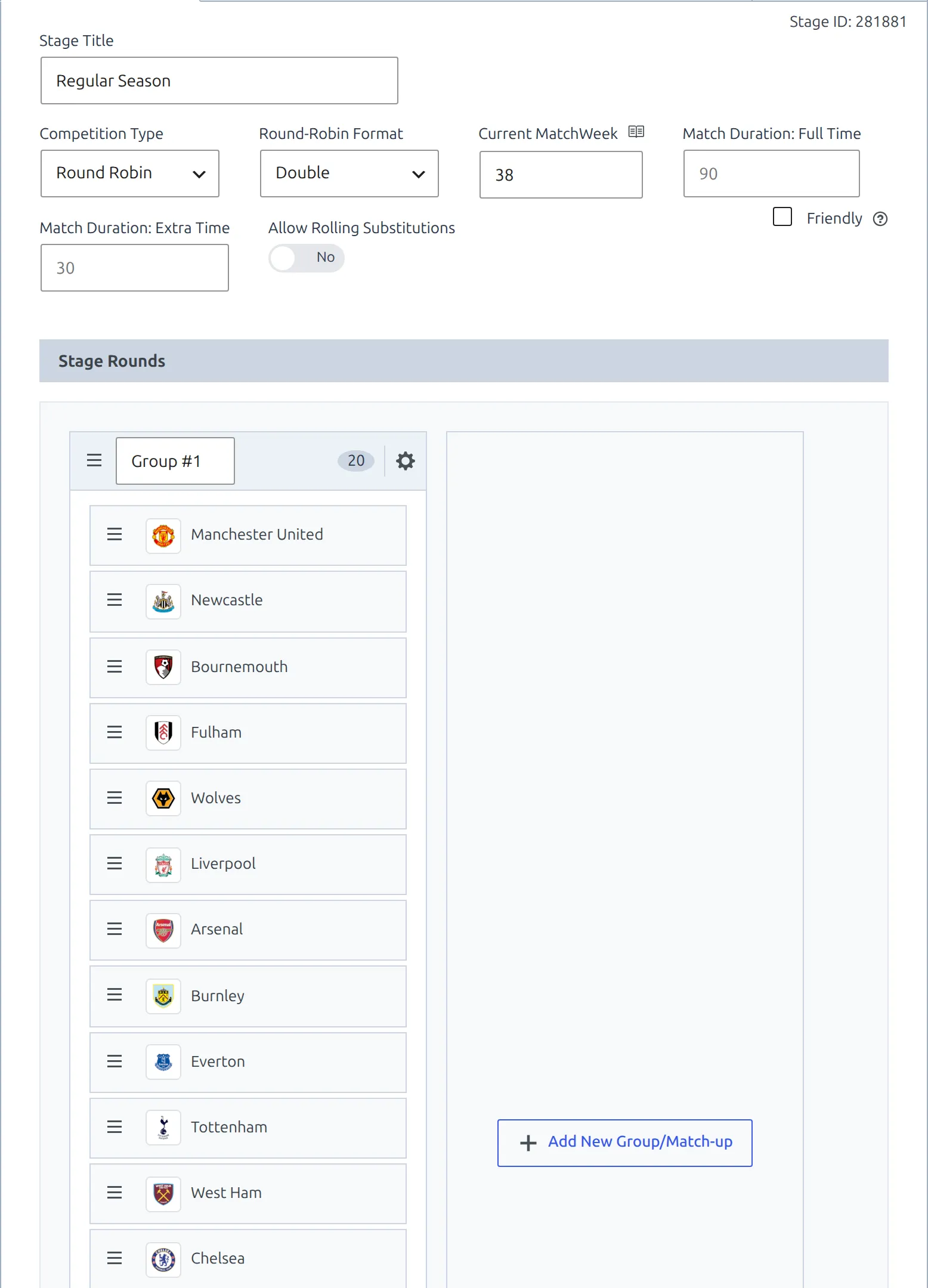
The Friendly checkbox next to the format marks the whole stage as unofficial. Player statistics are not calculated for friendly matches. If you flip it after matches already exist, the editor offers a Fix button that changes the status of every match in the stage to match.
Round-Robin Format
| Format | Use it for |
|---|---|
| Single | Every club meets every other club once. Group stages, short tournaments. |
| Double | Home and away. The usual league season, and the default for a new stage. |
| Custom | Anything else – three meetings, an uneven schedule, a split season. |
The format describes your schedule, it doesn’t build it
Picking Double does not generate 380 fixtures. Matches are always added by you, by the import tools, or by the API import. The setting is a label that the plugin reads in three places: the competition list column, the Home / Away filter on the PRO standing table (shown only when the format is Double), and the layout of the PRO results matrix.
Groups and clubs
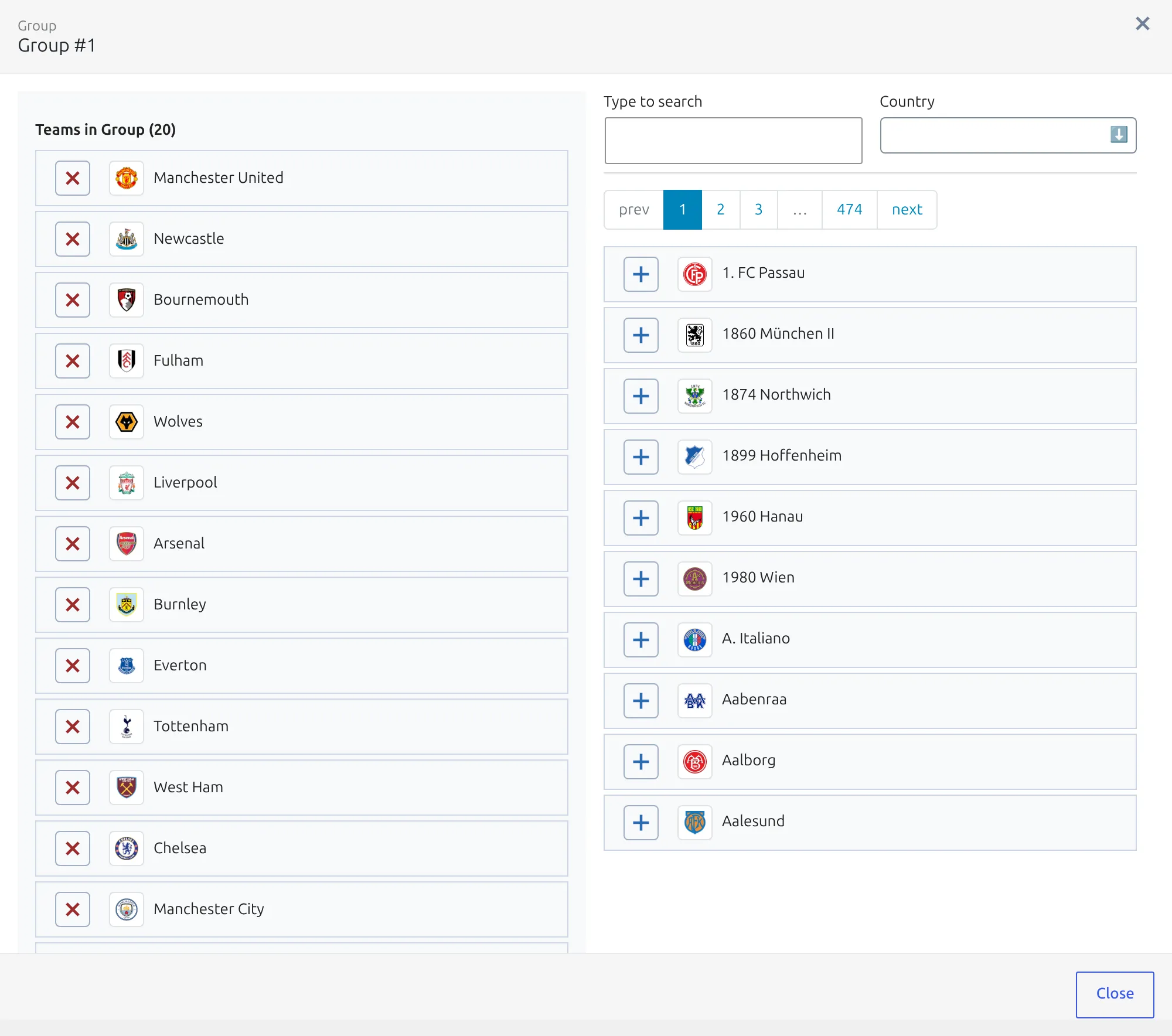
A group is a set of clubs that play each other and share one table. Click the cog on a group card to open the group manager: clubs already in the group are on the left, everything else on the right, with a search box and filters by country. Click the + next to a club to add it, and the red × to take one out. You can also drag clubs between group cards on the stage panel.
A plain league needs exactly one group. Add more with Add New Group/Match-up when the stage is a group phase – eight Champions League groups, ten European qualifying groups, two conferences. Each group gets its own standing table, and clubs never mix across groups.
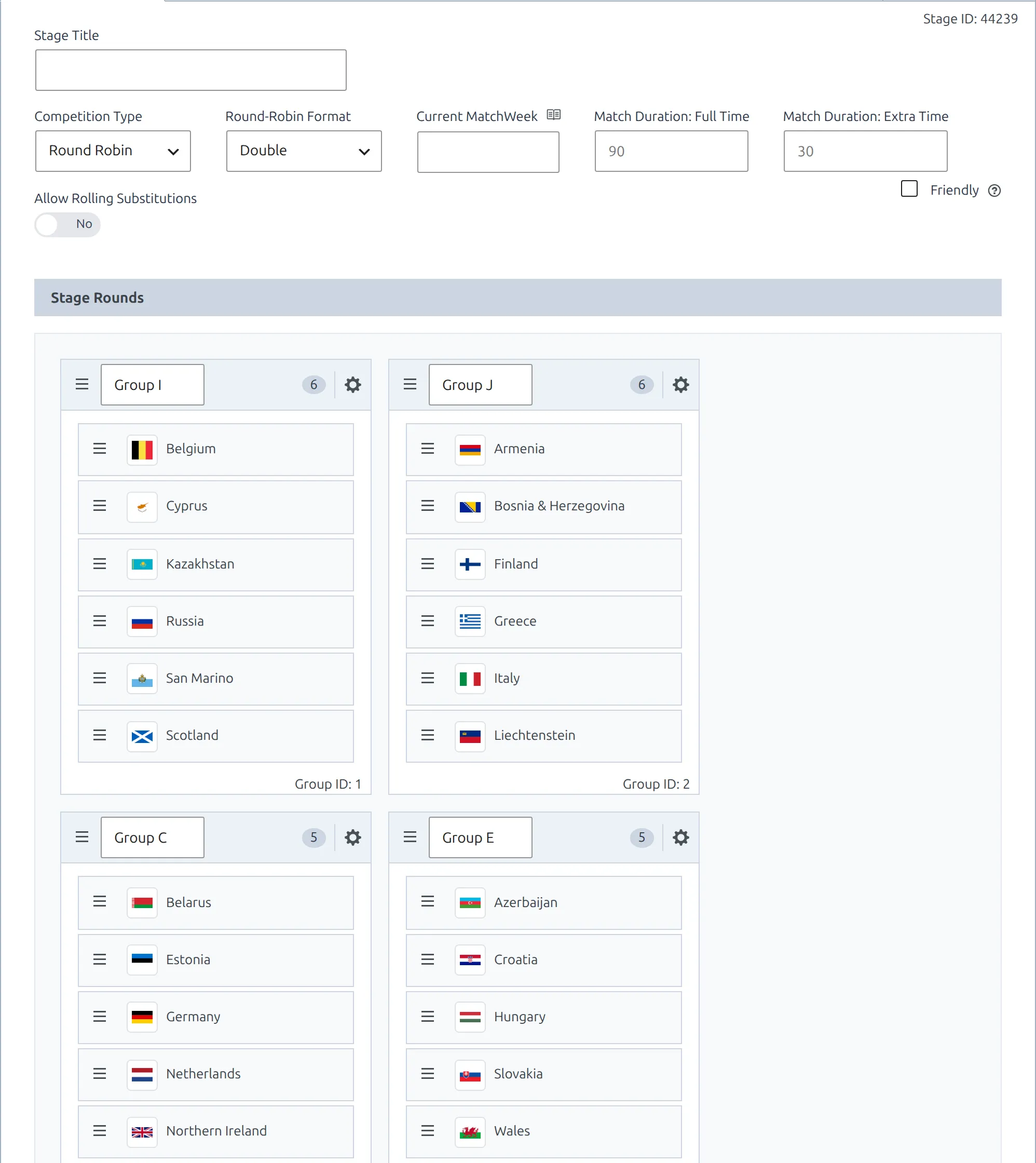
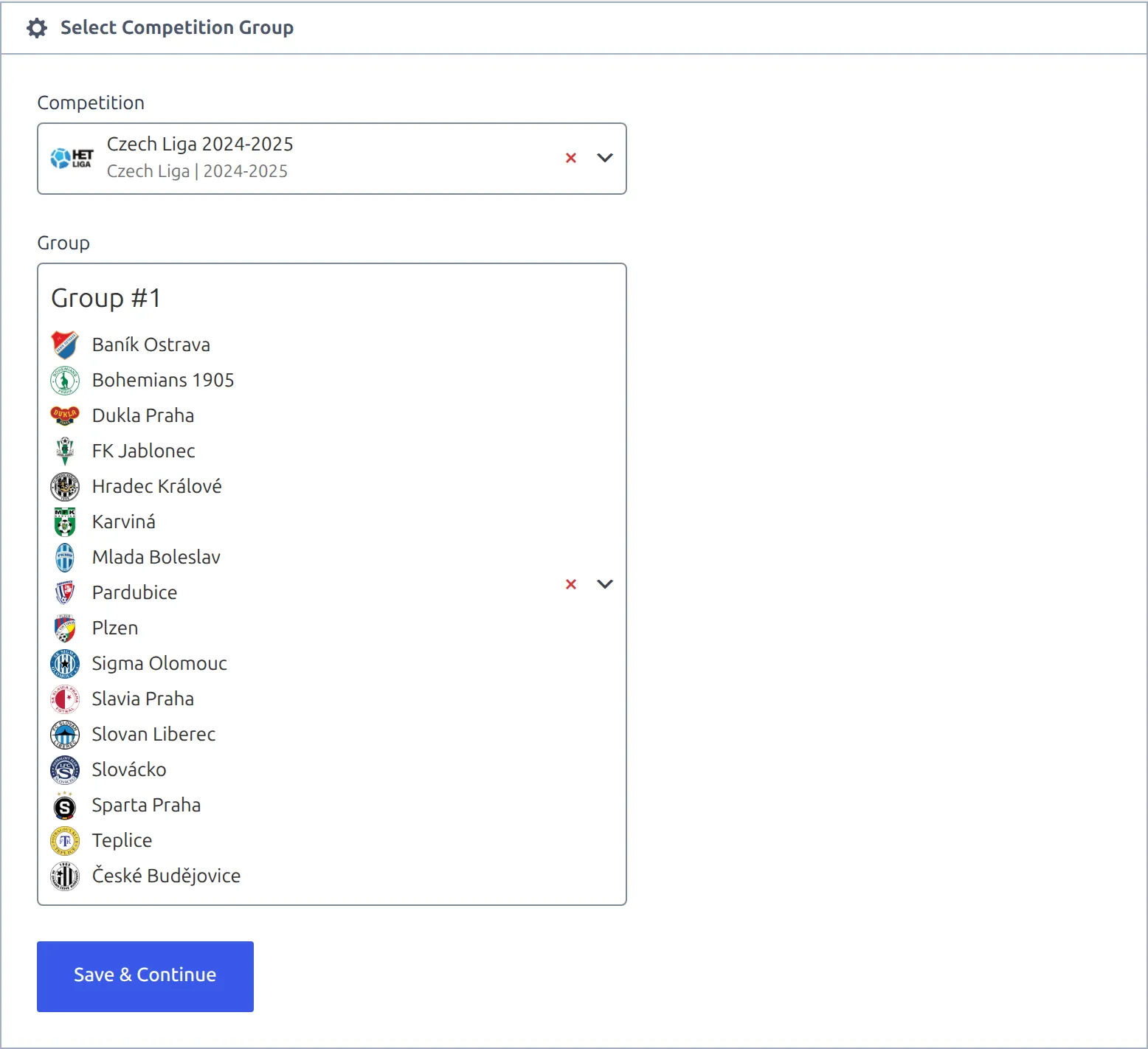
Name your groups. An untitled group is stored as #1, #2 and so on, and that is what you’ll be picking from later when you create the standing table.
Add matches
Go to Competitions → Matches → Add New Match. The first screen is Match Setup: pick the competition, the season, the home club and the away club, then Save & Continue to open the full match editor.
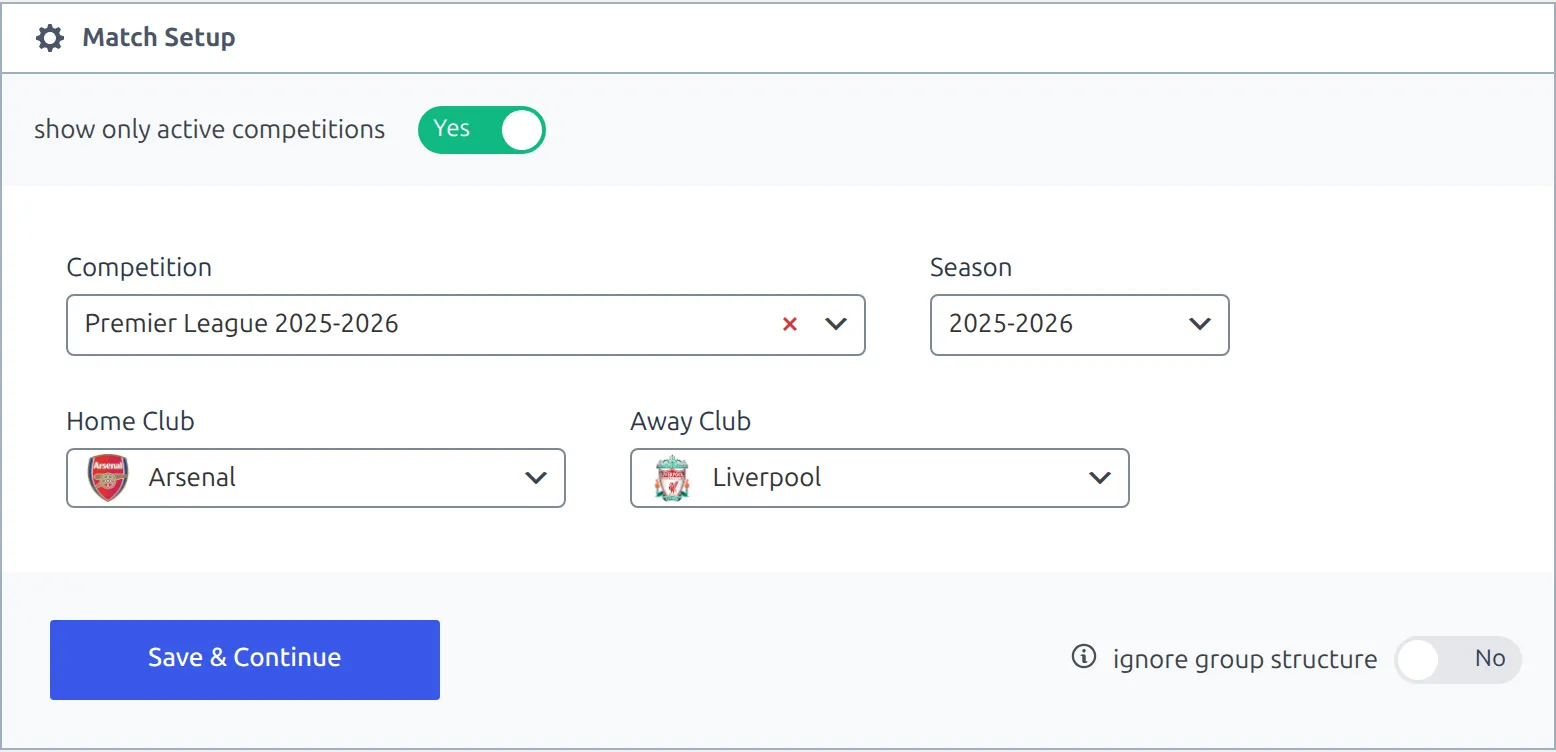
You never pick the group by hand. The club dropdowns only offer clubs that are in one of the competition’s groups, and once both clubs are chosen the plugin works out which group they share and stores it on the match. That’s the link the standing table uses.
“Ignore group structure” leaves the match out of every table
The toggle at the bottom of Match Setup shows every club on the site, ignoring the groups. It’s meant for one-off games that don’t belong to a table. A match saved that way has no group, so it will never be counted in a standing table and no amount of recalculating will bring it in. If you used it by mistake, reopen the match, switch the toggle off, re-pick both clubs and save again.
Inside the match editor, a round-robin match gets a Match Week field (1 to 255). It’s optional, but it’s what powers matchweek navigation, the “current matchweek” filters and the matchweek range on standing tables. Knockout matches get a round instead, and that one is chosen back on the setup screen.
For a full season, adding matches one at a time gets old fast. The Data Import Tool takes a spreadsheet paste, and PRO adds the Import Matches tool and the API import.
Create the standing table
Standing tables are separate items – they are not created automatically with the competition. Go to Competitions → Standing Tables → Add New Standing Table, choose the Competition and then the Group (the dropdown previews the clubs in each one), and click Save & Continue.
The table starts with the standard 3 points for a win, 1 for a draw, 0 for a loss, and you can change all three. Rows are built from the clubs in the group, and only finished matches count – a fixture with no result yet is ignored until you switch its status to Result. Saving a match recalculates the table for its group straight away.
Each group gets one table. Once a group has one, it drops out of the list on the Add New screen. To show a table on a page, use the [anwpfl-standing] shortcode.
Check your work
The Competitions list is the quickest audit. The Stages column prints the structure the plugin read back – Single or Multiple, then the stage type, the format, the number of groups and the stage ID. The Standings column links to every standing table attached to the competition.
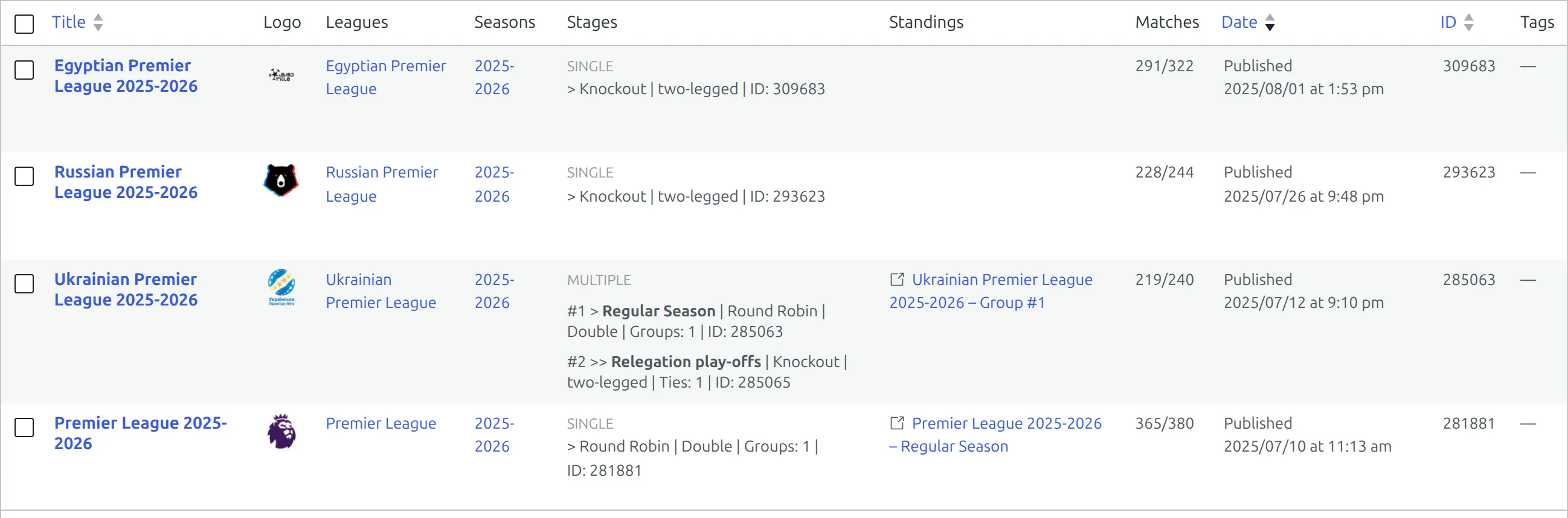
If the Stages column reads Round Robin | Double | Groups: 1 and the standings column shows a link, the competition is wired up correctly.
🆘 Troubleshooting
The club dropdowns on Match Setup are empty
No clubs are assigned to the competition’s group yet. Open the competition, click the cog on the group card, add the clubs and save.
My competition isn’t in the Match Setup list
The show only active competitions toggle at the top of the panel limits the list to the current active season. Switch it off to see everything.
A played match isn’t in the standing table
Three things to check, in this order:
- The match status is Result, not Fixture. Fixtures are never counted.
- The match belongs to a group – see the “Ignore group structure” warning above.
- Both clubs are in the same group as the standing table. A club that was moved out of the group after the match was played drops that match from the table.
There’s no Home / Away filter on my table
That split is a PRO feature and it only appears when the stage’s Round-Robin Format is Double. It’s also switched off for manually filled tables and for conference tables.
“There are no available Round-Robin competitions”
The Add New Standing Table screen offers only groups that don’t already have a published table. That message means every round-robin group on the site is taken – the table you want probably exists already, under Competitions → Standing Tables, or is linked from the Standings column in the Competitions list.
There’s no standing table option at all
Standing tables exist only for round-robin stages. A knockout stage is ranked by its bracket, so the Standing Tables screen won’t offer its groups.
📚 What’s next
- Competition: Knockout – ties, rounds and two-legged match-ups.
- Competition: Multistage – a group phase and a knockout phase in one competition.
- [anwpfl-standing] and [anwpfl-matches] – put the table and the fixtures on a page.
- [anwpfl-competition-header] – the competition title block with logo, league and season.