

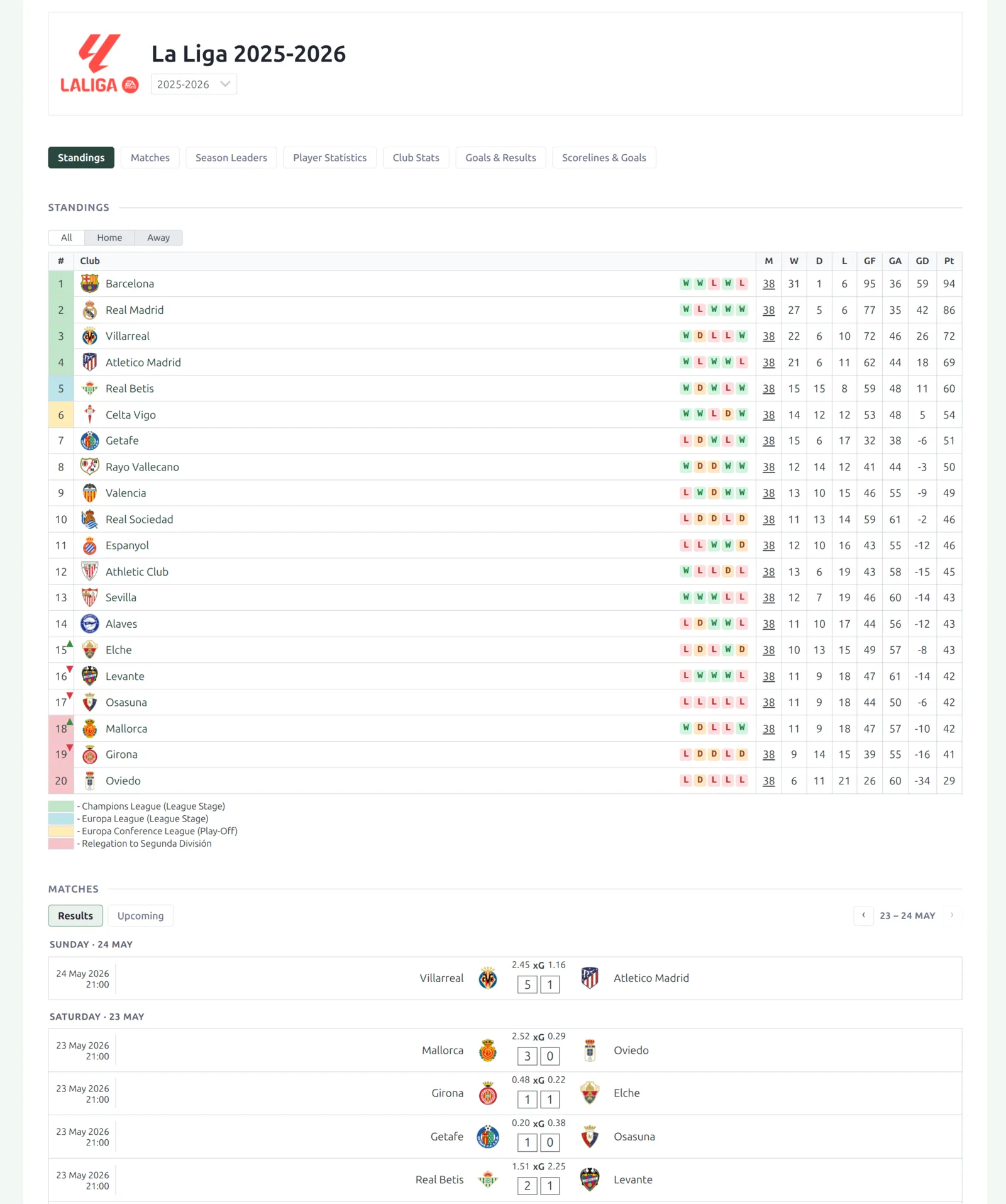
Layout Builder v2 renders every competition you have from one layout – single-stage and multistage, a full league with player statistics and a cup that only records results. There’s nothing to configure per competition. Sections with no data hide themselves instead of leaving an empty heading behind, so the same layout works on all of them.
🚀 Turn it on
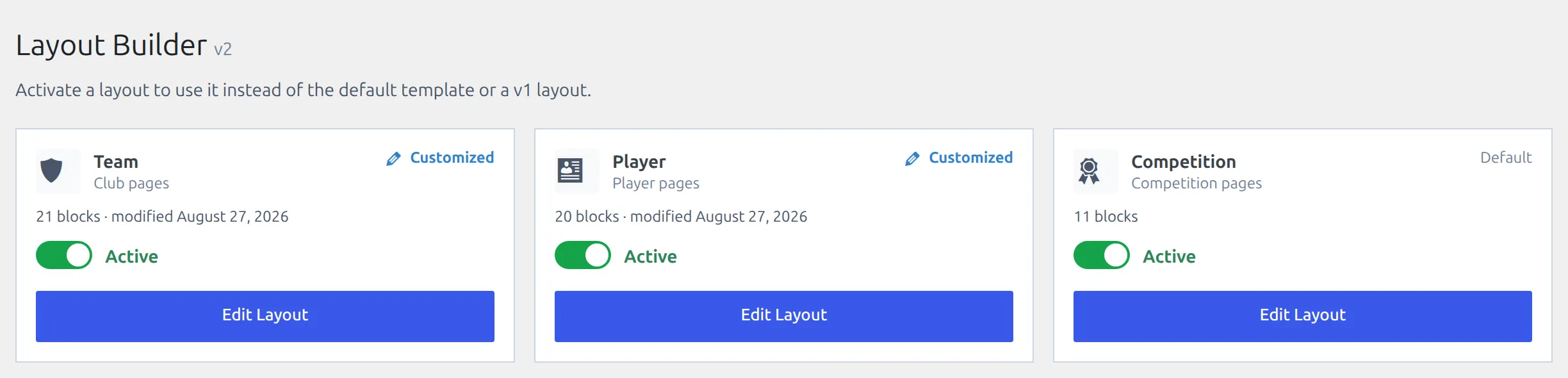
The new competition layout is off until you activate it. Your classic competition pages and any Layout Builder v1 competition layouts keep rendering until you do.
- In wp-admin, open Layout Builder → Layouts (v2).
- Find the Competition layout card.
- Switch its toggle on. The label next to it changes from Inactive to Active.
Every competition page now renders the new design. A multistage competition renders on its main competition page with all of its stages inside it – secondary stages don’t have a page of their own.
What’s on the page
The default competition layout ships with these blocks, in this order. You can reorder, remove, or regroup any of them in the builder.
| Block | Shows |
|---|---|
| Competition Header | Logo, title, league and season selector. |
| Section navigation | Sticky jump links to the sections below. |
| Standings | The league table. A stage with several groups shows one group’s table at a time, with a pill for each group. |
| Bracket | The knockout tree of each knockout stage whose Bracket Layout isn’t set to hide, including the self-filling Advanced Bracket. |
| Matches | Compact All / Results / Upcoming segments with a date-window pager. |
| Season Leaders | Top players grouped into Scoring, Creating, Ratings & Advanced, Goalkeeping and Discipline cards. |
| Player Statistics | The sortable per-player statistics table, plus a separate Goalkeepers table with its own columns. |
| Club Stats | Per-club totals – played, W/D/L, goals, plus the stat columns you pick. |
| Goals & Results | Goals per match, over 2.5, both-teams-scored, and the home/draw/away split. |
| Scorelines & Goals | Most common scorelines, exact goals per match, half-time to full-time outcomes. |
| Bottom Content | The text from the competition’s Bottom Content box, at the foot of the page. Shortcodes in it run. |
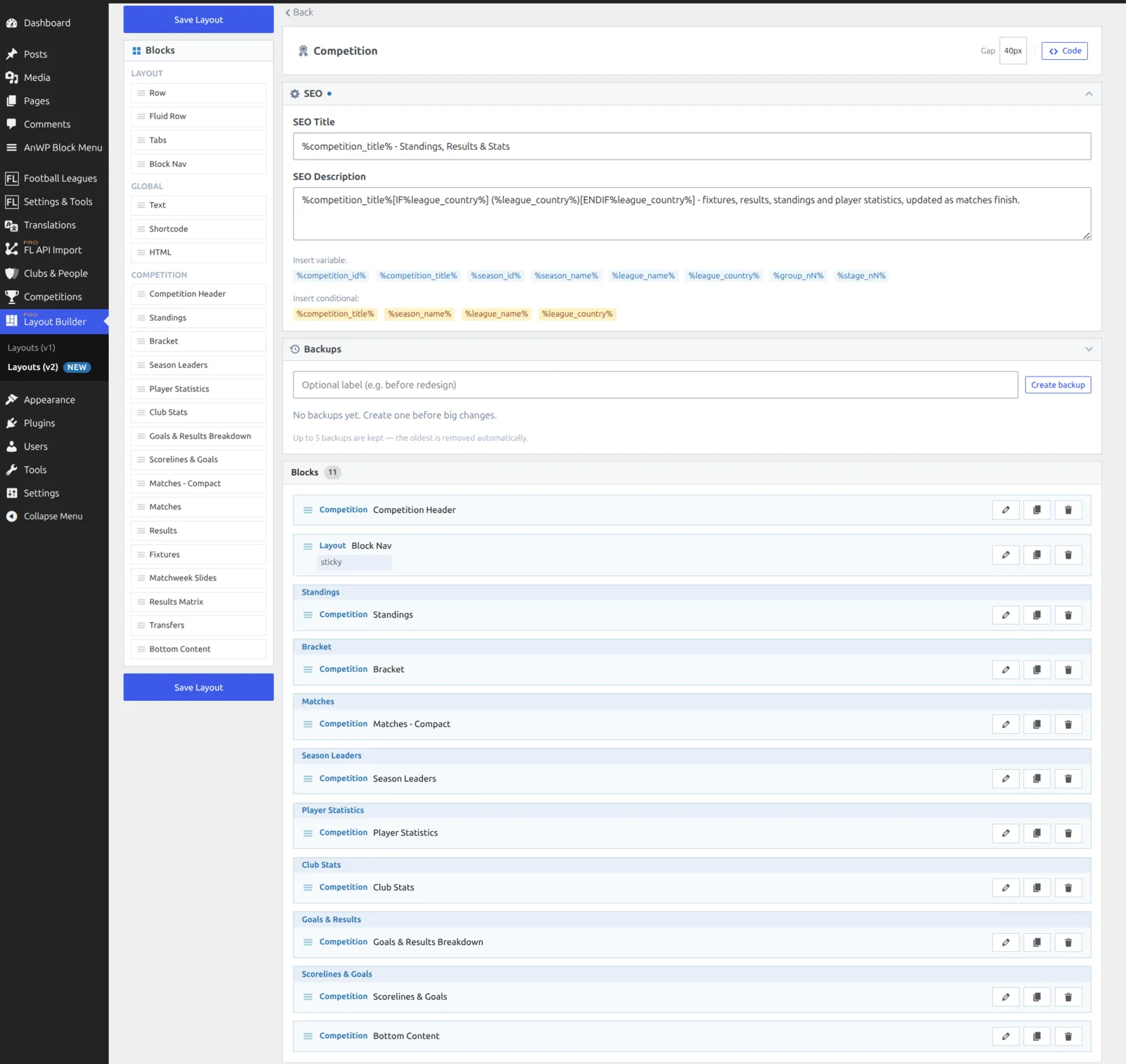
Standings and Bracket sit next to each other on purpose – they’re the structure of the competition, and a cup shows one where a league shows the other. Matches comes straight after them, because “what’s the table” and “what was played” are the two questions a competition page exists to answer.
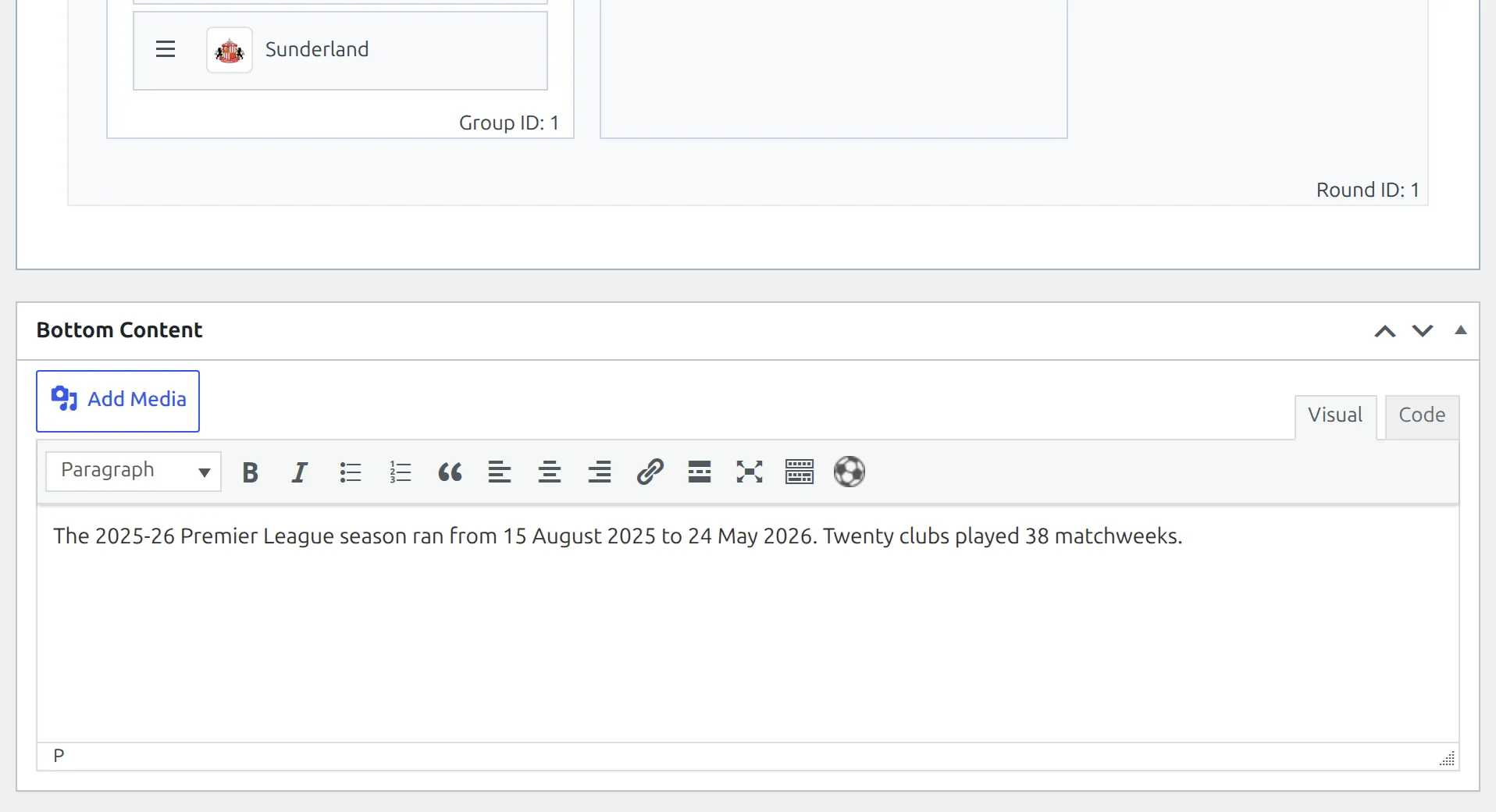
Bottom Content prints what you write in the Bottom Content box on the competition edit screen, below the Competition Stages box – an intro paragraph, a sponsor note or a shortcode. Leave the box empty and the block hides.
More blocks in the palette
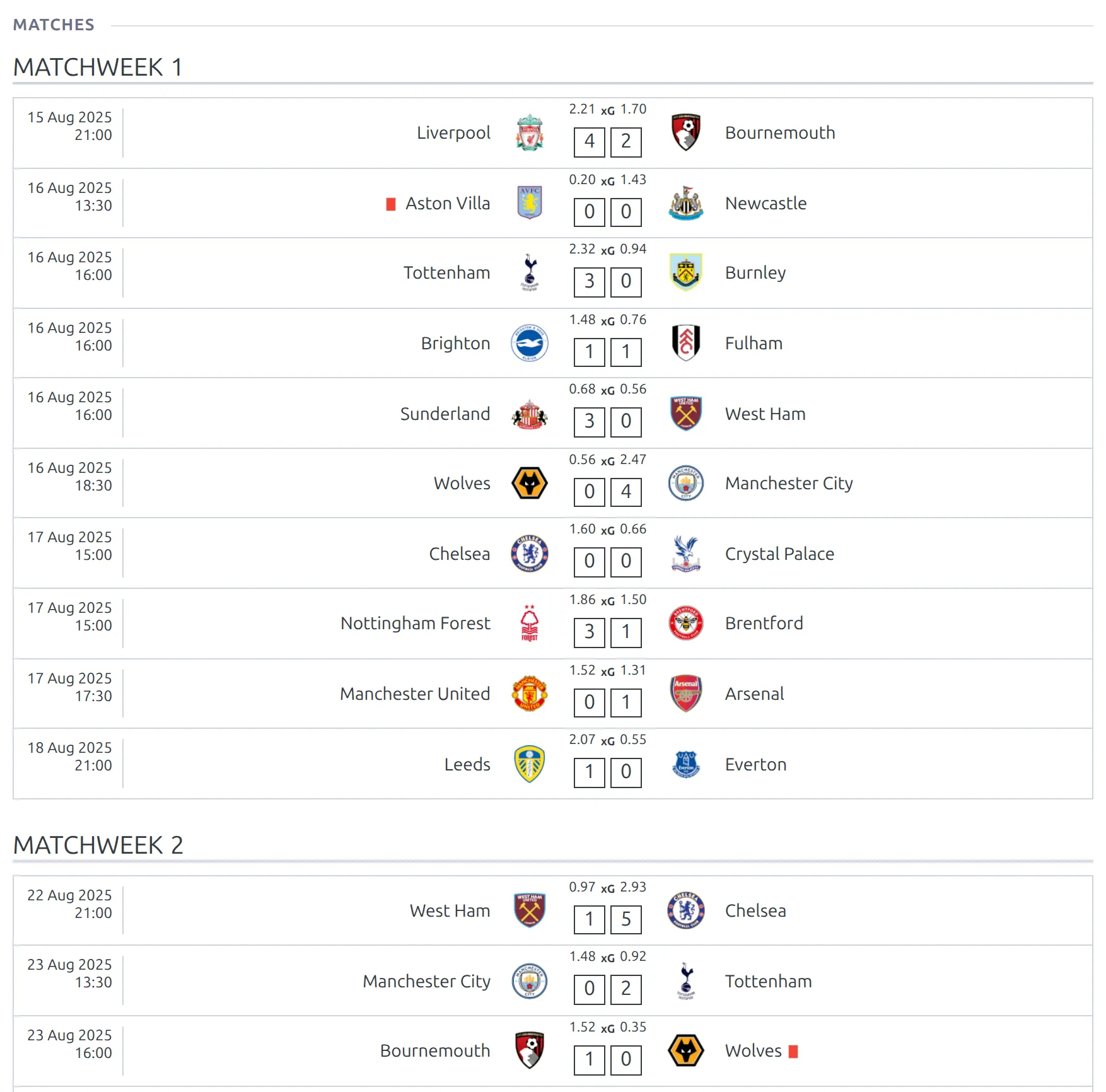
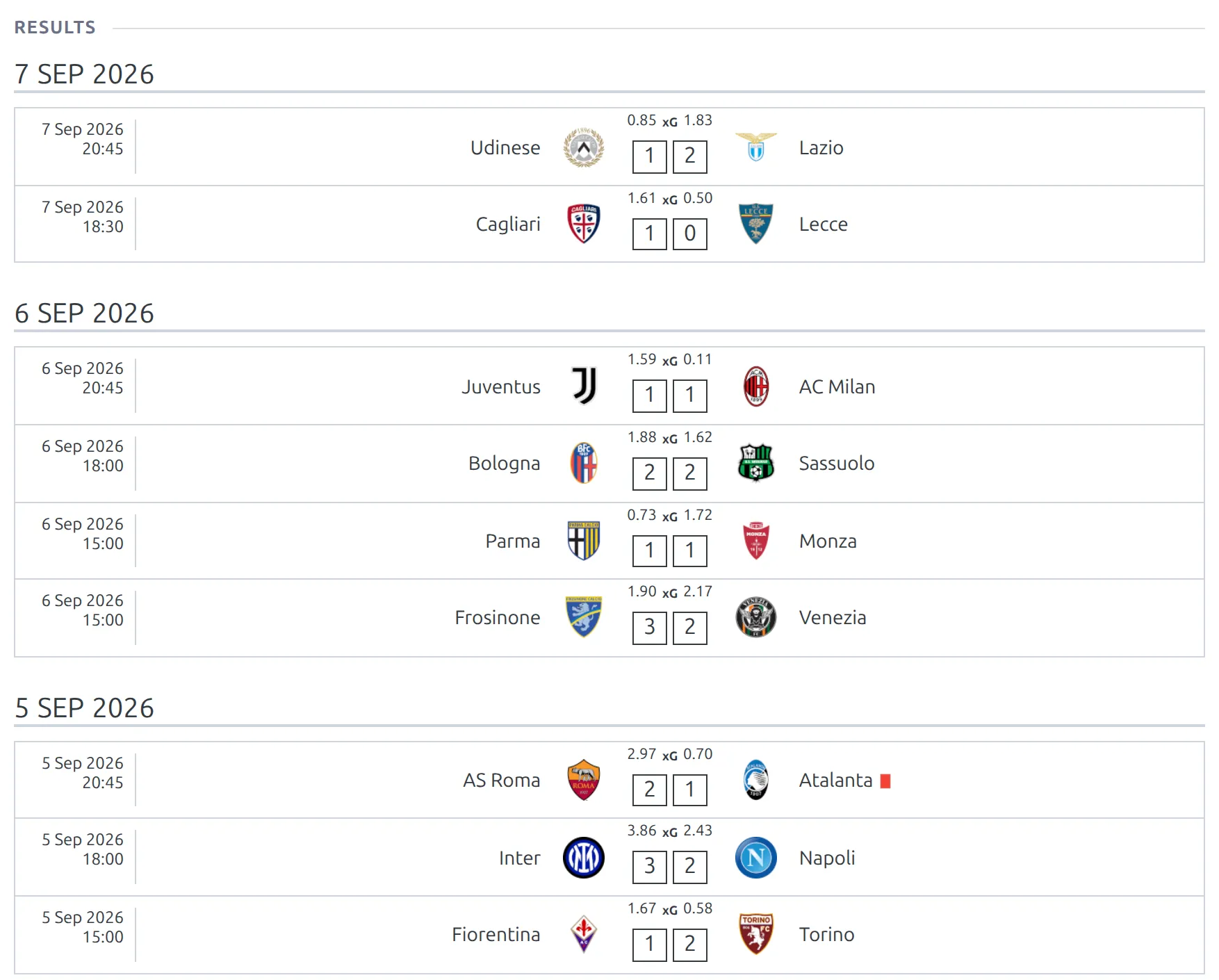
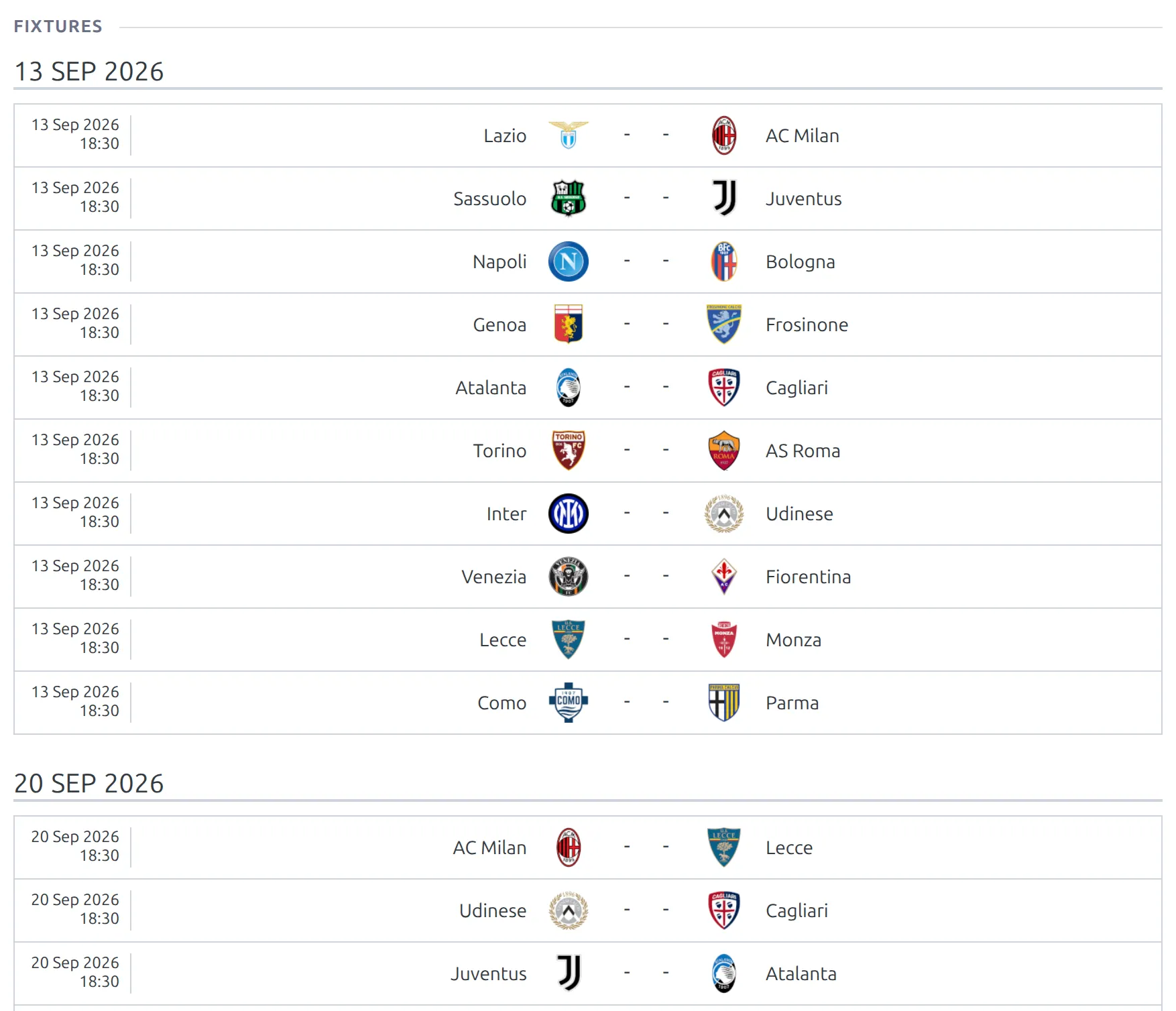
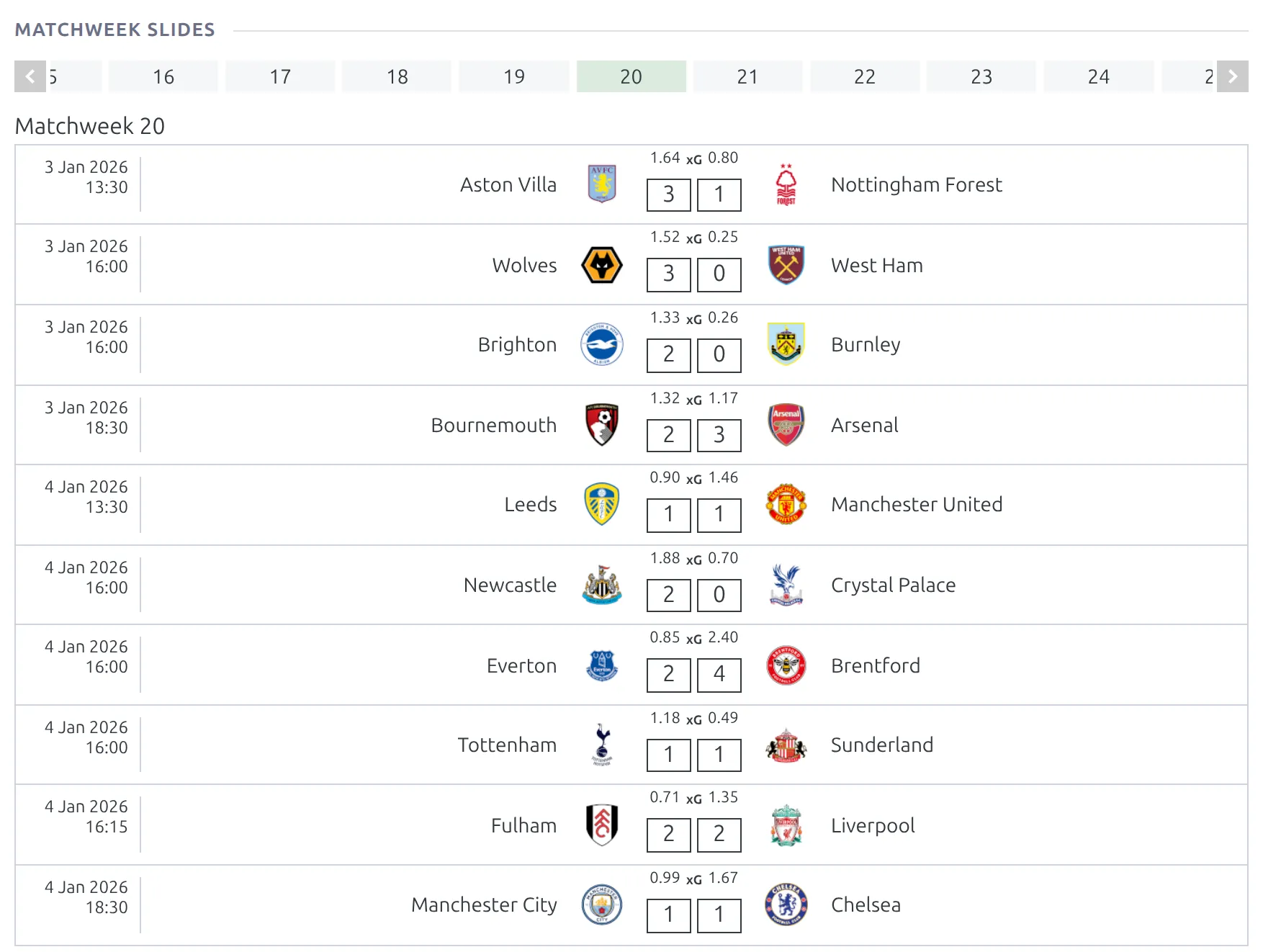
Six more competition blocks aren’t in the default layout but are one drag away. The first four are the classic match lists – use them when you want the whole season on the page rather than the compact Matches block.
| Block | Shows |
|---|---|
| Matches | Every match of the season. A round-robin stage is grouped by matchweek, a knockout stage by round, and each stage of a multistage competition sits under its own caption. |
| Results | All finished matches in one list, newest first, grouped by day. On a multistage competition every stage is merged into that one list. |
| Fixtures | Matches without a result, soonest first, grouped by day. Stages are merged the same way. |
| Matchweek Slides | A slider that shows one matchweek at a time and opens on the stage’s Current MatchWeek. One slider per round-robin stage – knockout stages have no matchweeks and are skipped. |
| Results Matrix | The everyone-versus-everyone crosstable, one per round-robin group that has a standing table. |
| Transfers | Transfers in and out of the competition’s clubs for its season, with a club switcher. Before a visitor picks a club it shows the latest 50 – change that with Rows Shown on the block. |
Sections hide themselves
This is what lets one layout cover every competition. Each section checks its own data at render time and returns nothing when there isn’t any – the heading goes with it, so you never get an empty “Season Leaders” title above blank space.
- A league with full statistics shows everything.
- A cup that only records results drops Standings and the player-level tables. Goals & Results and Scorelines still fill in, because they’re worked out from match scores alone.
- A competition with nothing played yet collapses to the header and the upcoming fixtures – plus the standings, if you’ve already created its standing table, with every club on zero.
Rows and tab containers follow the same rule – a row hides completely when every block inside it is empty, and tabs drop empty panes together with their tab buttons.
Keeping an empty section visible
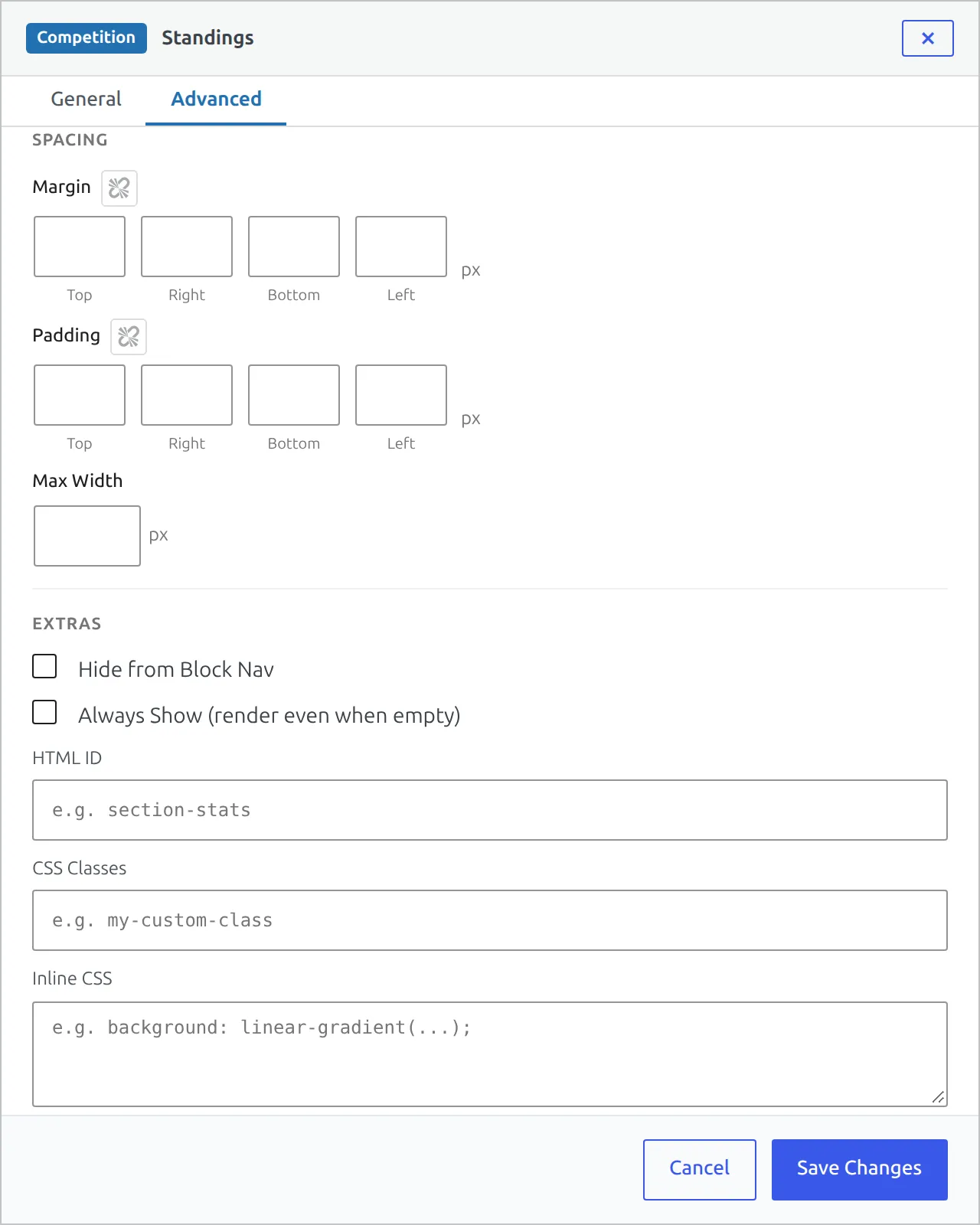
If a section is meaningful even when it’s empty, open the block’s Advanced settings and turn on Always Show. It applies to containers too.
The Matches block
The default layout uses the compact Matches block (Matches – Compact in the palette): All, Results and Upcoming segments, one window of about 10 games at a time, with a date-window pager instead of the whole season on one page. On a full league that roughly halves the weight of the competition page.
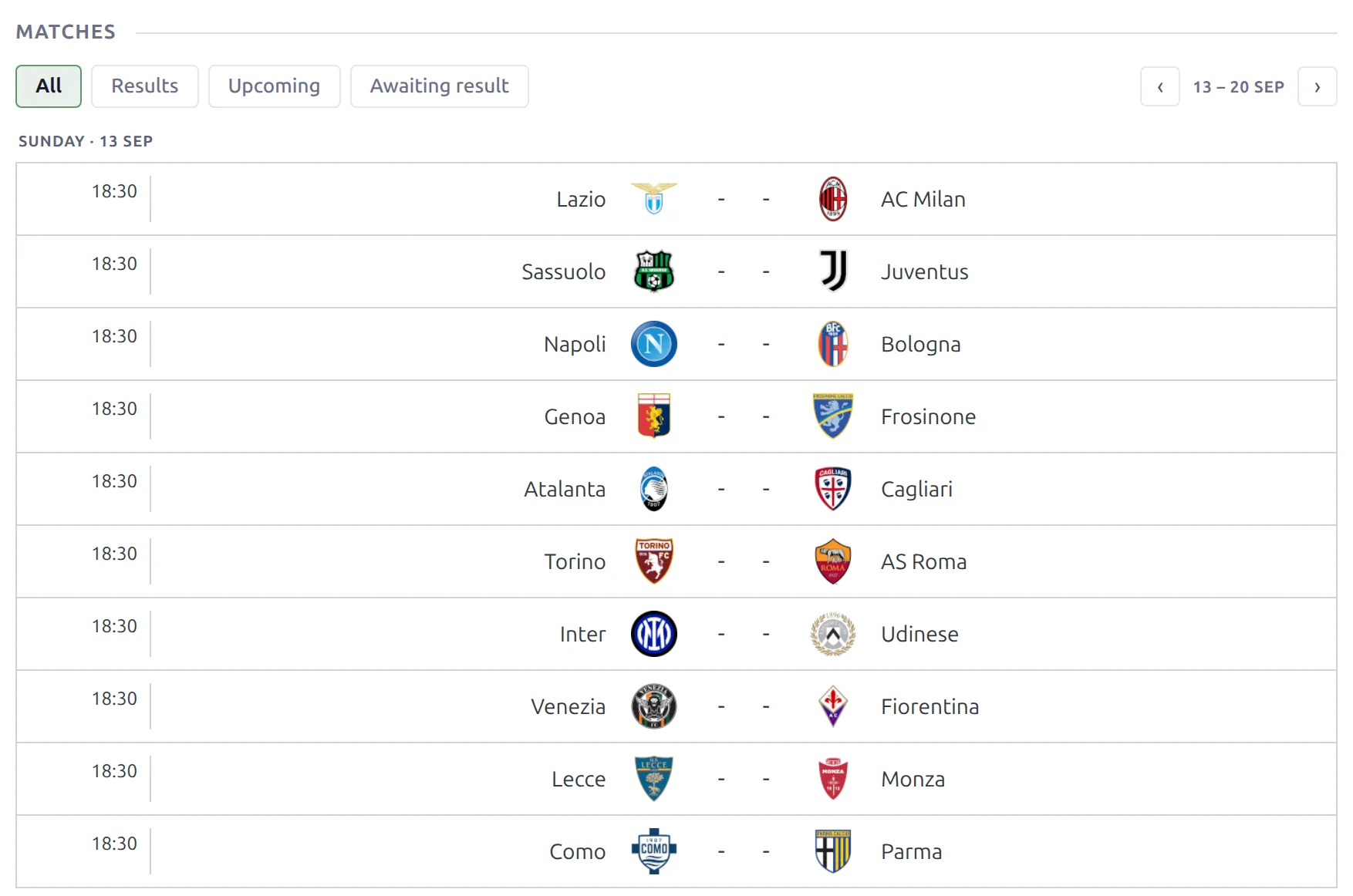
All opens by default – one date-ordered list, so a matchday shows its finished and upcoming games together. Two block settings change that: Default Segment picks which segment opens with the page, and Games per Window sets how many games each window aims for (4 to 30). A window always holds whole days, so it usually stops a few games short rather than cut a matchday in half – and a single day with more games than that is shown complete. If the default segment has no games, the next one that does opens instead.
An extra Awaiting result segment appears only on competitions that have matches with no result entered yet – past-dated games that are neither a result nor an upcoming fixture. It stays hidden everywhere else, so most sites never see it.
On a multistage competition you get an all-stages view with a small stage tag on each match, plus stage pills. Pick a stage and Results and Upcoming group its games by matchweek (by round on a knockout stage). If you’d rather show the whole season at once, the classic full-season Matches block is still in the palette.
Multistage competitions
In Layout Builder v1 a multistage competition needed its own layout type, with a stage or group number typed into each block. That’s gone. One layout covers both shapes, and the stage resolves when the page renders.
- Standings renders each stage’s tables automatically, stage by stage under each stage’s title, with a pill for each group when a stage has several.
- Bracket, the full-season Matches block, Matchweek Slides and Results Matrix render every stage they apply to, one after another, each under its stage caption.
- Season Leaders, Player Statistics, Club Stats, Goals & Results, Scorelines & Goals and the compact Matches block get stage filter pills – visitors switch stage in place, without reloading the page.
- Shortcodes you add yourself no longer need a hand-typed
multistageattribute. It’s resolved for you.
Single-stage competitions simply don’t show the pills.
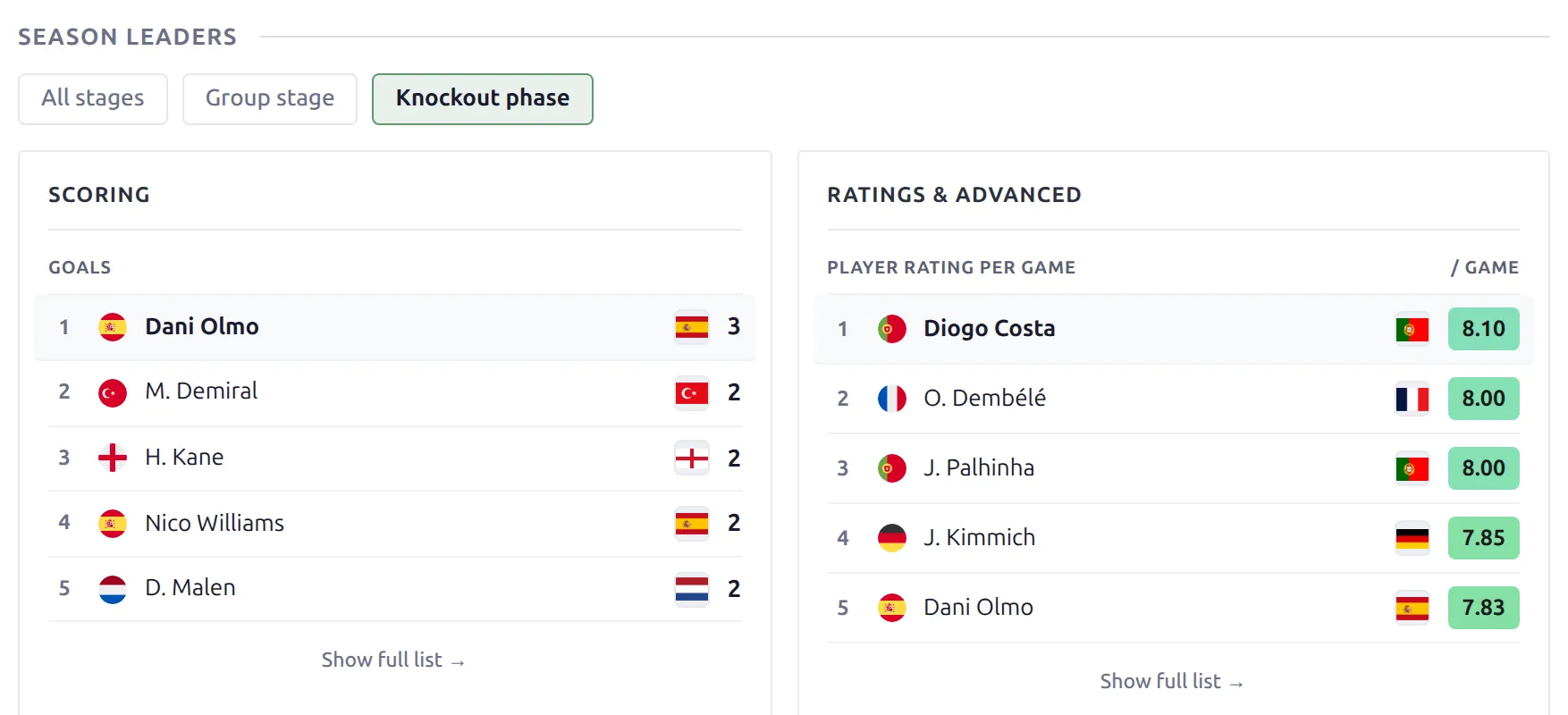
Give every stage a title. Captions and pills use the Stage Title from the Competition Stages box on the competition edit screen. A stage without one gets no caption, and its pill reads “Stage 2”, “Stage 3” and so on.
Example: a qualifying competition with ten groups
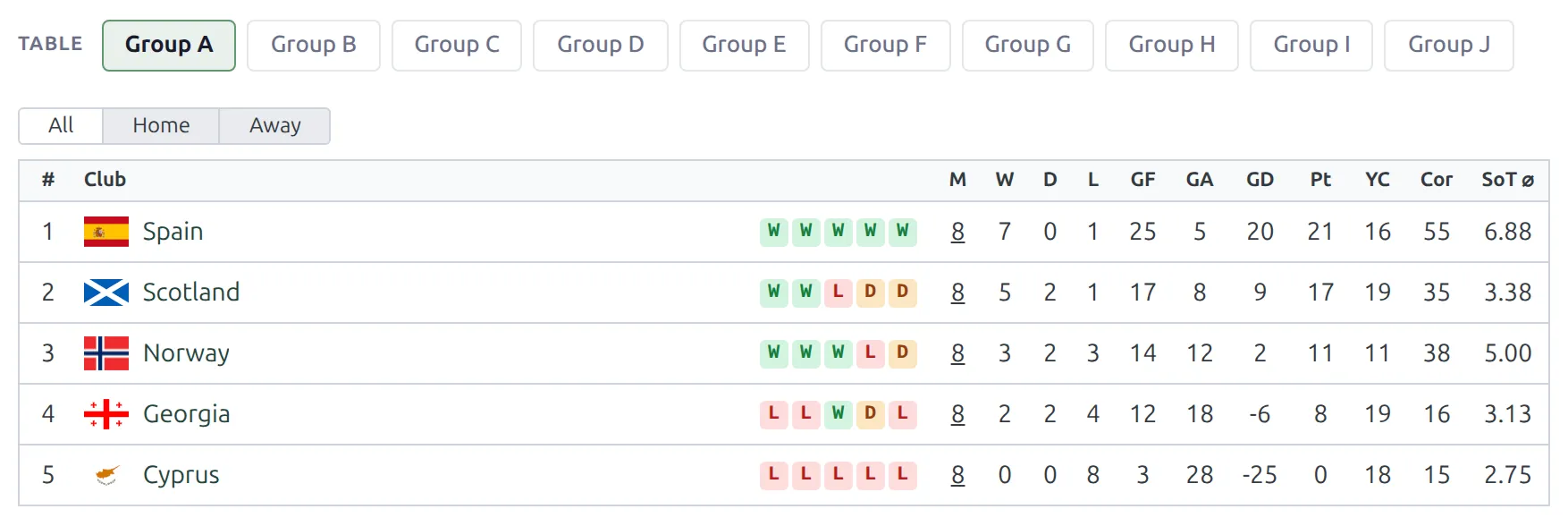
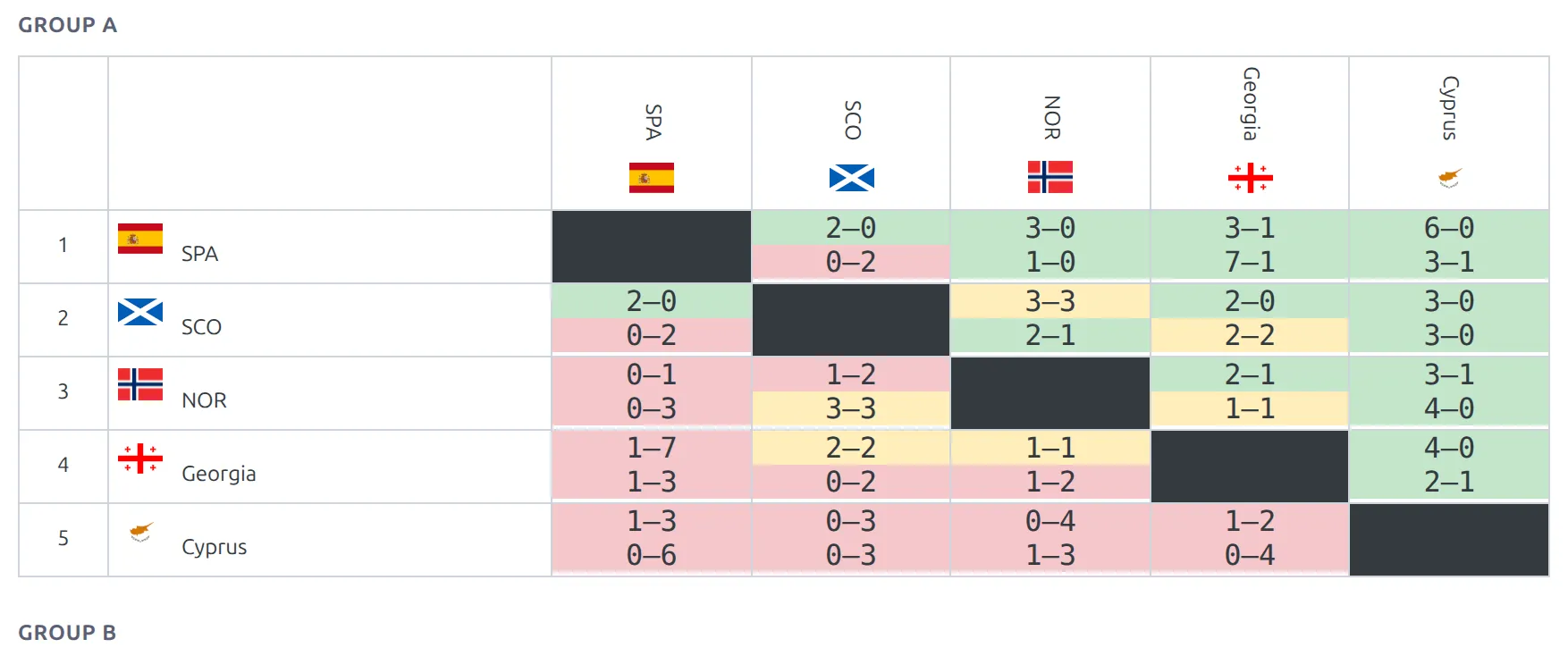
Take a European Championship qualifying competition: one round-robin stage, ten groups of five or six national teams, Group A to Group J. In Layout Builder v1 the usual build was a tabs block with a tab per group, and in each tab a Standing Tables, a Results Matrix and a Matches Finished block, all set to the same Group Number – thirty blocks to keep in step.
With the default v2 layout there’s nothing to set up:
- Standings shows one table with ten pills, Group A to Group J. The first group’s table loads with the page and each of the others loads when a visitor clicks its pill.
- Matches lists all ten groups’ games by date.
- Drag in Results Matrix and you get a crosstable for every group, each under its group name.
Example: qualifying rounds, a play-off, a group stage and a final stage
A Champions League-style competition has six stages: three qualifying rounds, a play-off, a group stage with eight groups and a knockout final stage. In v1 that meant a tab per stage – Qualification, Play Off, Group Stage, Final Stage – and a Stage Number typed into every block inside them.
The same default v2 layout handles it:
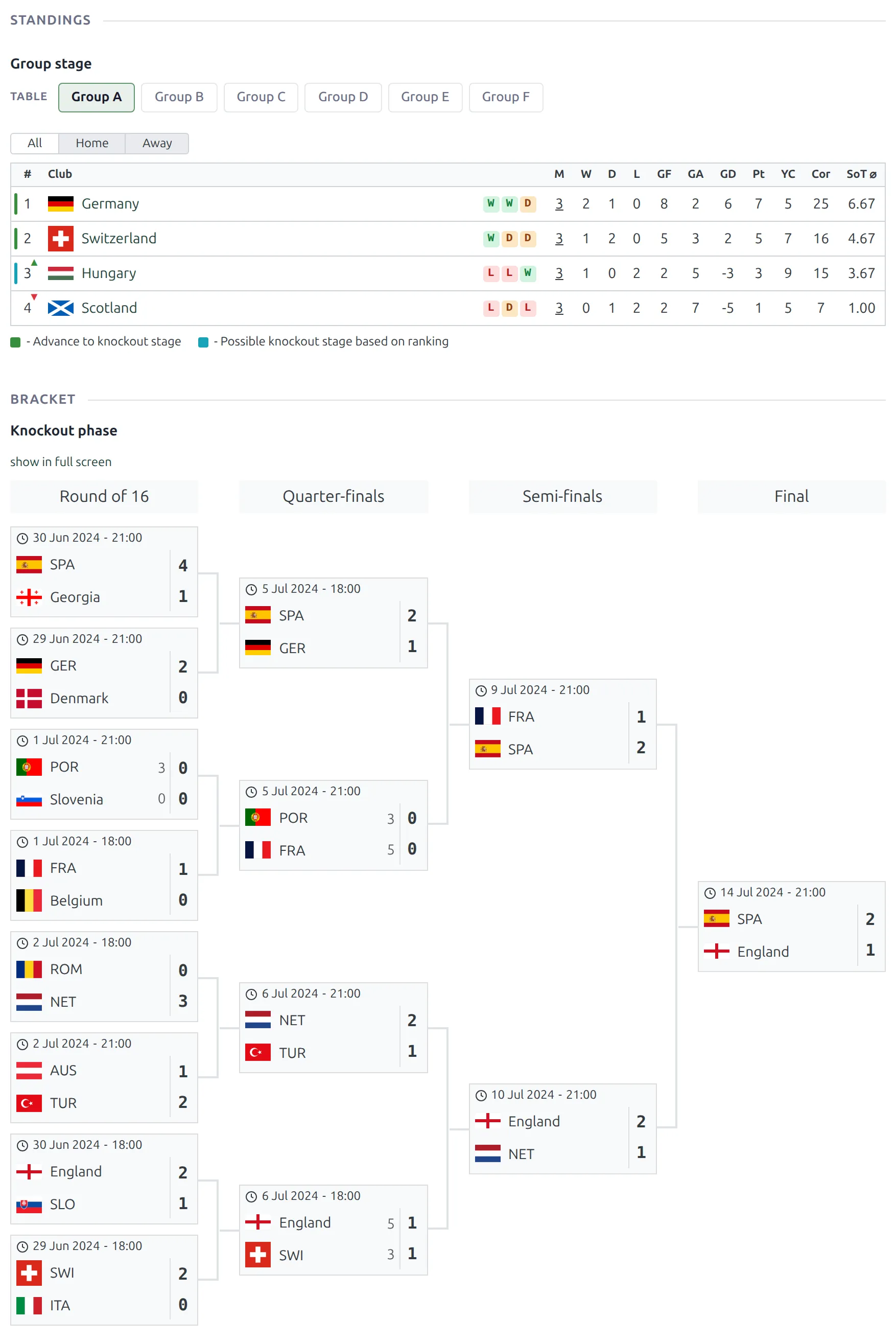
- Standings shows only the group stage, under its title, with a pill for each of the eight groups. Knockout stages have no table.
- Bracket draws every knockout stage whose Bracket Layout isn’t set to hide – usually just the final stage – each under its own title.
- Matches lists every stage’s games by date with a stage tag on each, and the stage pills narrow it to one stage.
- Season Leaders and the other stat blocks open on all stages combined, and switch to one stage with the pills.
- Want every stage listed in order instead? Add the full-season Matches block: each stage gets its caption, knockout stages list their ties round by round and the group stage is grouped by matchweek.
One stage or one group in its own tab
v2 blocks have no Stage Number or Group Number option – the blocks above split by stage and group on their own. If you still want the v1 arrangement, a tab per stage, build it from a Tabs container and Shortcode blocks that use the %stage_nN% and %group_nN% variables.
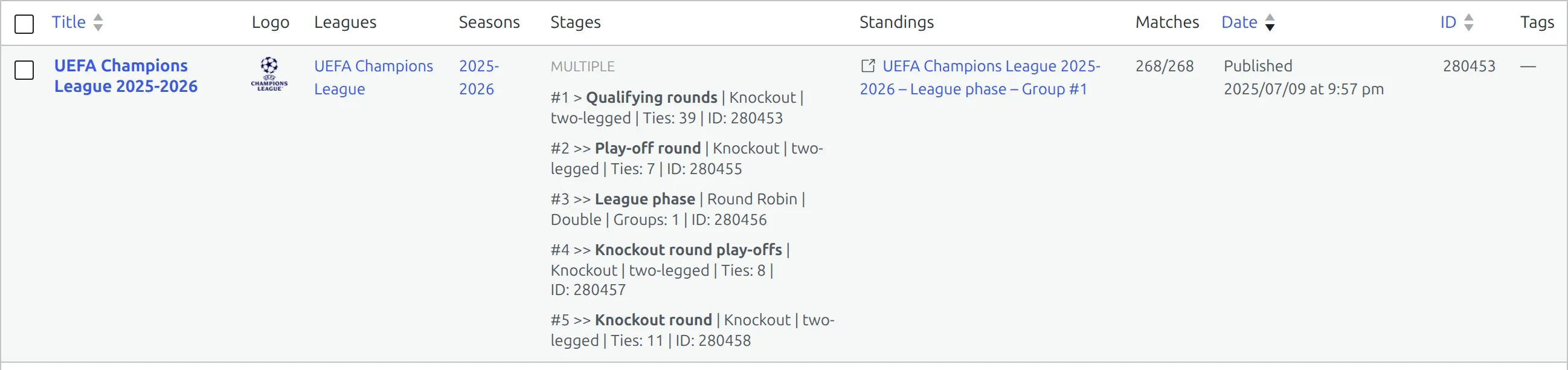
- Find the stage number. Open Competitions > Competitions and look at the Stages column. A multistage competition lists its stages in order, each line starting with its number:
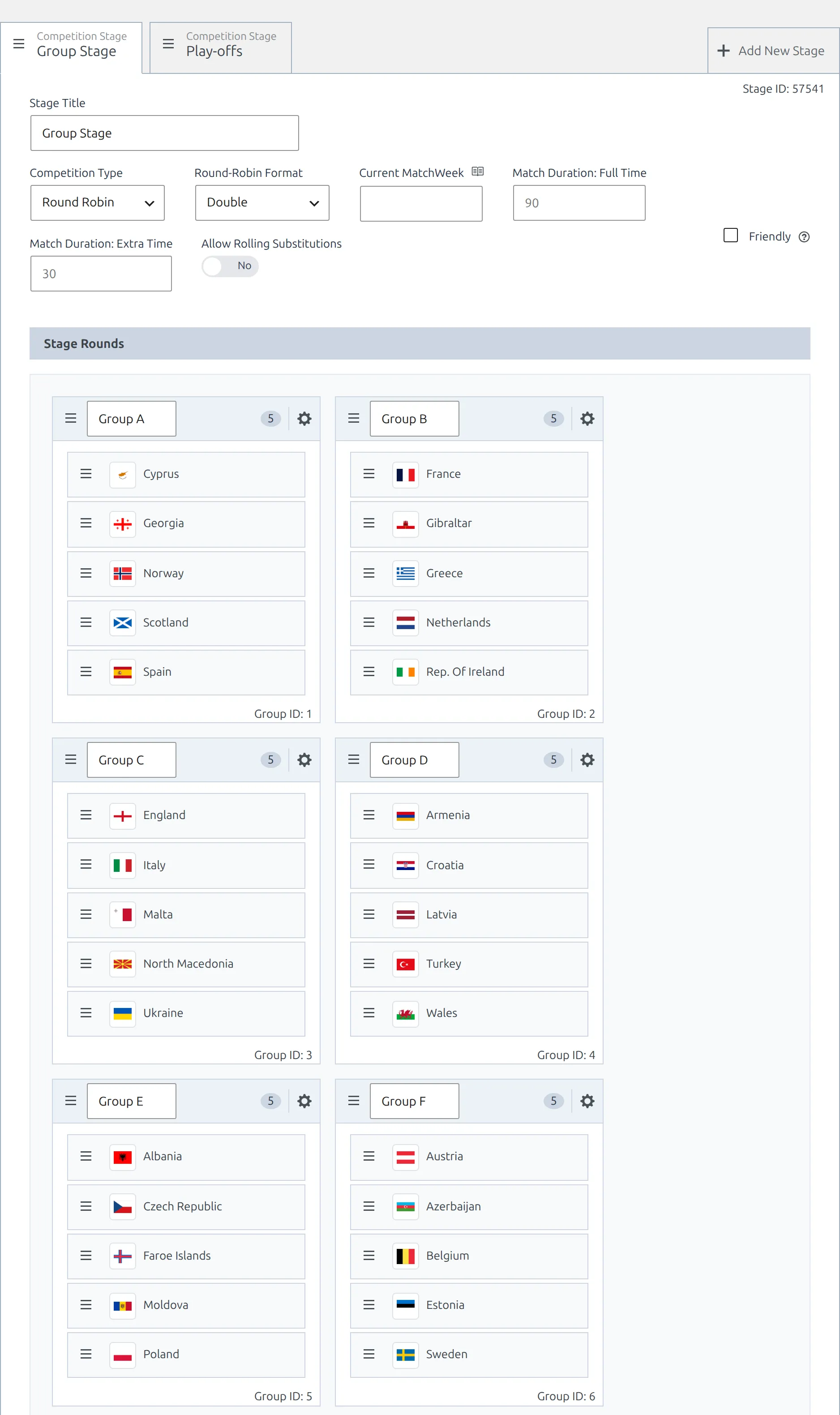
#1 >is stage 1,#2 >>is stage 2, and so on. - Find the group number. Groups count from 1 in the order the Competition Stages box lists them.
%group_nN%reads the groups of the competition’s first stage – the only stage on a single-stage competition. - In the builder, drag Tabs (under Layout) into the layout, open its settings and type a label for each tab under Tab Labels. Add Tab adds another.
- Drag a Shortcode block (under Global) into each tab and type the shortcode. The variables are listed under the text box – click one to insert it.
- Save the layout, then open two or three real competitions to check each tab shows what you meant.
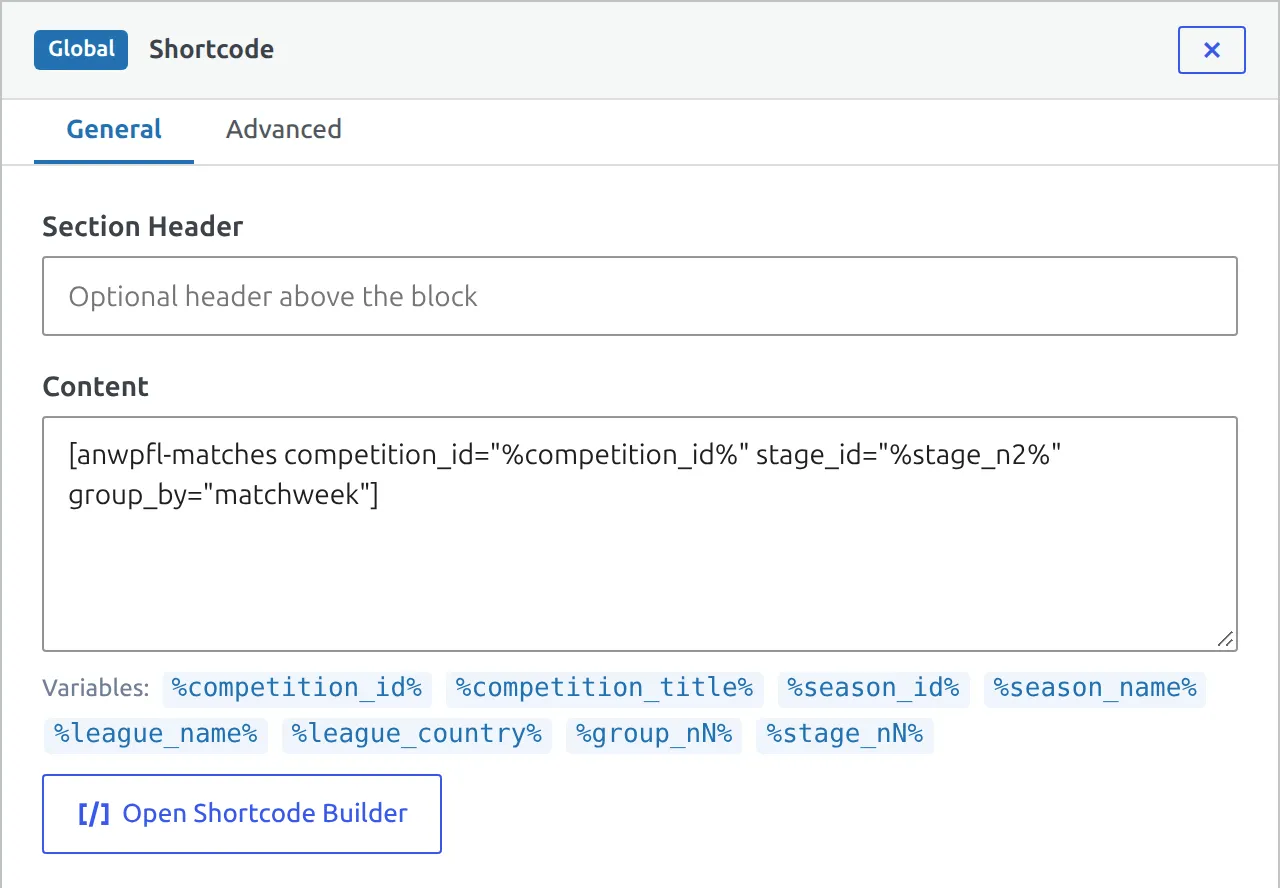
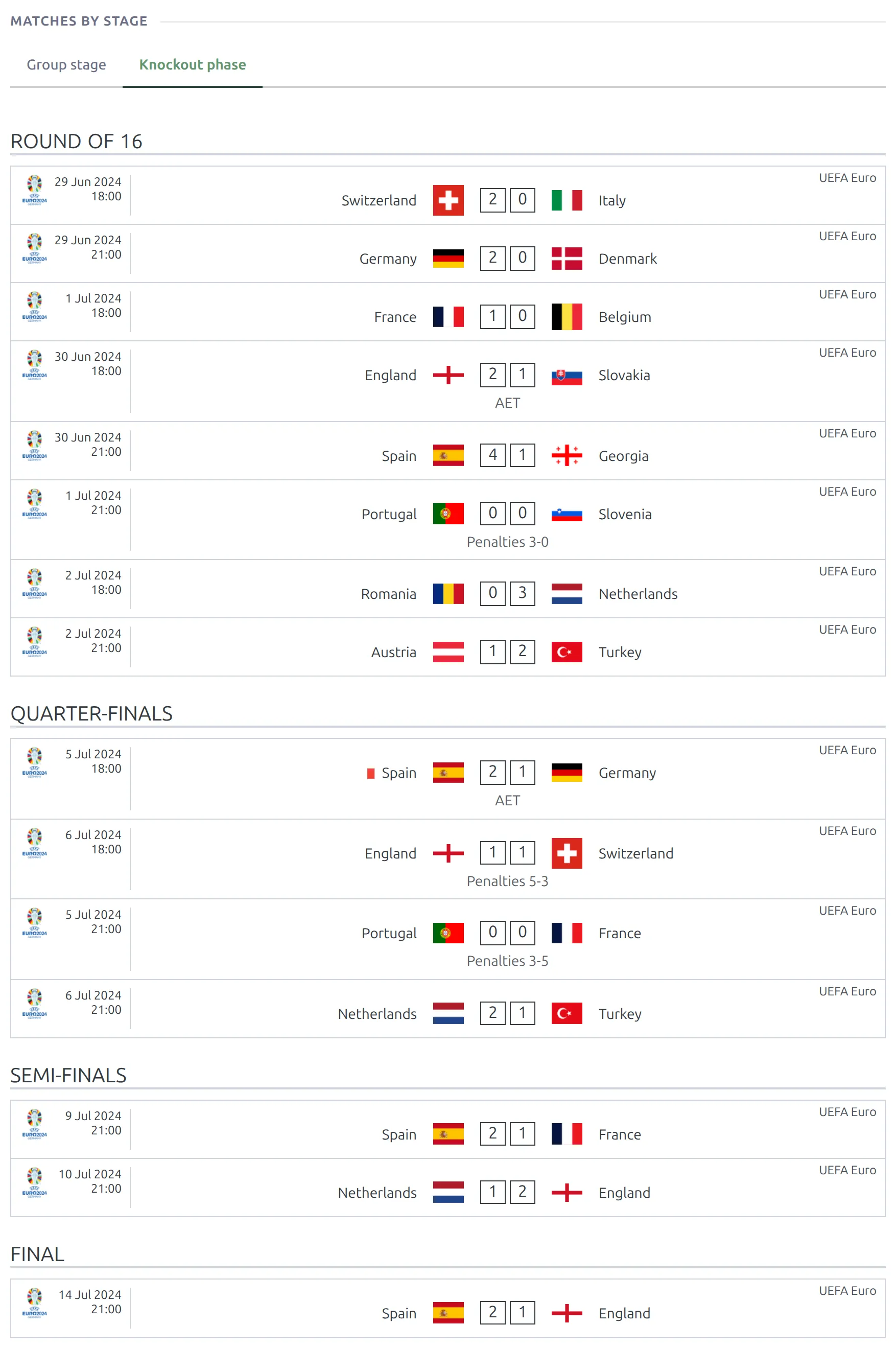
Two shortcodes cover most of what v1 users pinned:
| In the tab | Shortcode |
|---|---|
| Every match of stage 2, by matchweek (by round on a knockout stage) | [anwpfl-matches competition_id="%competition_id%" stage_id="%stage_n2%" group_by="matchweek"] |
| Only the finished matches of group 3, newest first | [anwpfl-matches competition_id="%competition_id%" show_secondary="0" group_id="%group_n3%" type="result" sort_by_date="desc" group_by="day"] |
| The crosstable of group 3 | [anwpfl-results-matrix competition_id="%competition_id%" group_id="%group_n3%"] |
One layout, every competition
The same layout renders on every competition page, and a competition without a stage 6 or a group 9 has nothing to put in %stage_n6% or %group_n9%. A Shortcode block using a variable that doesn’t resolve is skipped on that page – it shows its No Data Text if you set one, otherwise nothing. A Results Matrix with a missing group renders nothing, and a tab with nothing in it drops out together with its button. Pinned stage tabs suit sites whose competitions share one shape – otherwise the built-in blocks already split by stage.
Still on Layout Builder v1? The Stage Number and Group Number block options are covered in Layout Builder v1 block types.
Season Leaders
Season Leaders replaces a long stack of separate top-scorer lists with grouped cards: Scoring, Creating, Ratings & Advanced, Goalkeeping and Discipline. Each card fills itself from the stats that actually have data and hides when there are none.
The cards show the top 5 (top 3 on some lists). Every list has a Show full list link that opens the top 25 with a games-played column, and a Load more button to go further. The list is only fetched when you open it, so it costs nothing until a visitor uses it, and it follows whichever stage pill is selected.
Rate leaderboards (per 90, per game) and fewest-conceded need a minimum share of appearances, so a substitute with one goal in ten minutes doesn’t top the chart.
Show or hide by competition status
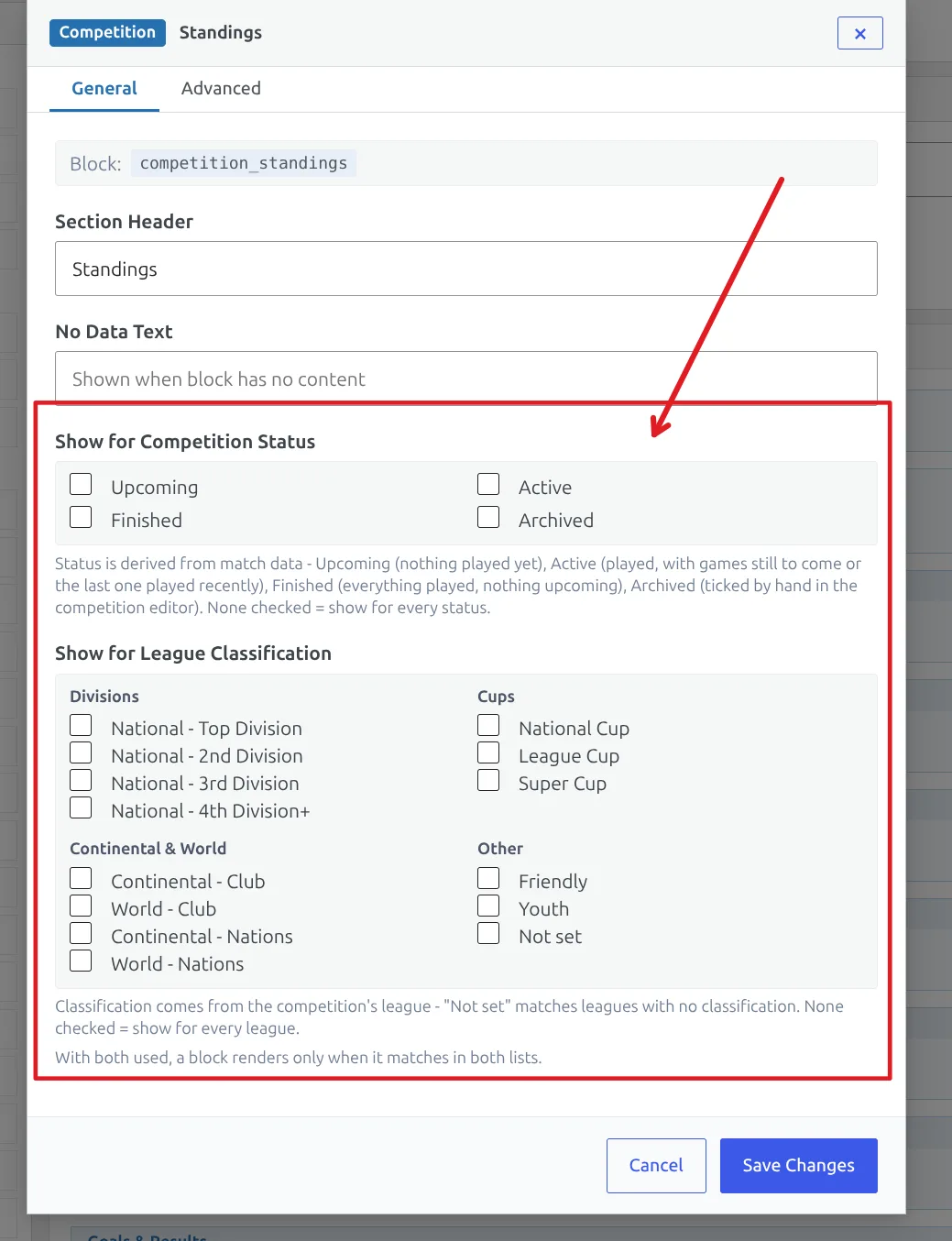
Any block, row or tabs group can be shown only for certain competition states. Open the block’s settings and use Show for Competition Status and Show for League Classification. A block with nothing ticked always shows, so existing layouts don’t change.
Competition status
Status comes from your match data, so it stays current without anyone maintaining it.
| Status | When it applies |
|---|---|
| Upcoming | Nothing has been played yet. |
| Active | Some games are played and fixtures remain – or the last game was recent (45 days for a league, 100 for a cup, so a long cup break doesn’t read as finished). |
| Finished | Everything is played and the last game is past that window. |
| Archived | The Archived checkbox is ticked in the competition editor. It overrides the other three. |
League classification
The second list matches the classification set on the competition’s league, grouped into Divisions, Cups, Continental & World and Other – National Top Division, National Cup, Continental Club, Friendly, Youth and so on. Use it to show a block on cups but not on leagues, or to keep a sponsor panel off youth competitions. A Not set option covers competitions whose league has no classification.
The two lists work together: a block with both set shows only when the status matches and the classification matches. Hiding a row hides everything inside it.
A real case: Results Matrix is drawn from the standing table, not from played matches, so before a league’s first game it prints a full grid of empty cells. Tick Active, Finished and Archived under Show for Competition Status and the matrix stays off the page until the season starts.
Adding what the default doesn’t include
The default layout is deliberately a backbone, not everything the plugin can show. Anything else goes in as a Global Shortcode block. Dynamic variables are substituted before the shortcode runs, and multistage resolves on its own, so each of these is a one-line add with nothing to maintain per competition.
| What you want | Put this in a Global Shortcode block |
|---|---|
| Ads or any third-party block | that plugin’s own shortcode |
| Suspension watch | [anwpfl-suspension-risk competition_id="%competition_id%"] |
| Referee statistics | [anwpfl-referees-stats competition_id="%competition_id%"] |
| Goal-timing charts | [anwpfl-charts competition_id="%competition_id%"] |
| Calendar view | [anwpfl-calendar competition_id="%competition_id%"] |
| Filterable full match list | [anwpfl-matches-section competition_id="%competition_id%"] |
| A single stat list, v1 style | [anwpfl-stat-players competition_id="%competition_id%" stat="goals"] |
Six more competition blocks are in the palette but not in the default layout – see More blocks in the palette above. Two of them are left out because they’re heavy and not every site wants them: Results Matrix (the everyone-versus-everyone crosstable) and Transfers. Drag either one in if you want it.
Dynamic variables
These work in Text, HTML and Shortcode blocks, and in the layout’s SEO title and description.
| Variable | Value |
|---|---|
%competition_id% | Competition ID |
%competition_title% | Competition title |
%season_id% / %season_name% | Season ID / name |
%league_name% / %league_country% | League name / country |
%stage_nN% | Stage ID – replace N with the stage number (%stage_n2% is the second stage) |
%group_nN% | Group ID – replace N with the group number (groups of the competition’s first stage) |
Some of these can be empty – a competition with no league has no country. Wrap the surrounding text in [IF%league_country%] … [ENDIF%league_country%] and it’s dropped entirely when the value is missing, instead of leaving stray brackets or punctuation. The same guard works for %competition_title%, %season_name% and %league_name%.
Moving from classic competition layouts
Layout Builder v1 competition layouts aren’t converted automatically – you rebuild once, in the v2 builder, and then you’re done maintaining variants. In v1 a site typically needed several layouts: one for single-stage competitions, another for multistage ones, and often a further copy per data tier (a full-statistics league, a goals-and-assists league, a results-only cup). One v2 layout replaces all of them, because the sections hide themselves and the stage resolves at render time.
Every v1 competition block has a v2 block of the same job:
| Layout Builder v1 block | Layout Builder v2 block |
|---|---|
| Header | Competition Header |
| Matches All | Matches (full season), or Matches – Compact for a lighter page |
| Matches Finished | Results |
| Matches Upcoming | Fixtures |
| Matchweek Slides | Matchweek Slides |
| Standing Tables | Standings |
| Results Matrix | Results Matrix |
| Bracket | Bracket |
| Players Stats | Season Leaders and Player Statistics |
| Transfers | Transfers |
| Bottom Content | Bottom Content |
| Stage Number / Group Number (block options) | Gone – blocks split by stage and group on their own. For a stage in its own tab, see One stage or one group in its own tab above. |
The rebuild:
- Open Layout Builder → Layouts (v2), click Edit Layout on the Competition card and look at the default. On most sites it’s already close to the v1 backbone.
- Add your site-specific extras as Global Shortcode blocks, using the table above. This is where v1 ad slots and single-stat lists land.
- Drop the Stage Number and Group Number values you were carrying in v1 blocks – don’t recreate them. Stage handling is automatic now.
- Back on Layouts (v2), switch the Competition card’s toggle to Active. The layout only shows on the front end once it’s active.
- Open a few real competitions: a full league, a cup, and one with nothing played yet. The same layout should look right on all three. If it doesn’t, switch the toggle back off while you adjust it.
Nothing breaks while you work
Your v1 competition layouts keep rendering until you activate the v2 layout, and your v1 layouts aren’t deleted when you do. If you want to go back, deactivate the v2 layout.
If you customized the v2 layout and want the current default back, use Reset to Default in the builder. That replaces your layout with the shipped default, so export or note your changes first.
🆘 Troubleshooting
A section I expected is missing
That’s the hide-when-empty rule doing its job – the block found no data for this competition. Check the underlying data first (are standings calculated, are player statistics recorded for these matches, does the stage have games). If the section should show regardless, turn on Always Show in the block’s Advanced settings.
The page still looks like the old design
The v2 layout isn’t activated yet, or a page cache is serving the old HTML. Activate it in Layouts (v2), then clear your caching plugin.
How do I apply the layout to a competition?
You don’t assign it. There’s one Competition layout, and once it’s active it renders on every competition page. To show a block on some competitions and not others, use Display Conditions (competition status or league classification). Sections with no data already hide on their own.
A block is hidden on some competitions but not others
Check its Display Conditions. A status or classification whitelist hides the block everywhere it doesn’t match, and a condition on a row hides everything inside that row.
Stage pills don’t appear
They only render on multistage competitions, and only on the blocks that support them (Season Leaders, Player Statistics, Club Stats, Goals & Results, Scorelines & Goals and the compact Matches block). A single-stage competition never shows them.
The Bracket block doesn’t show on a cup
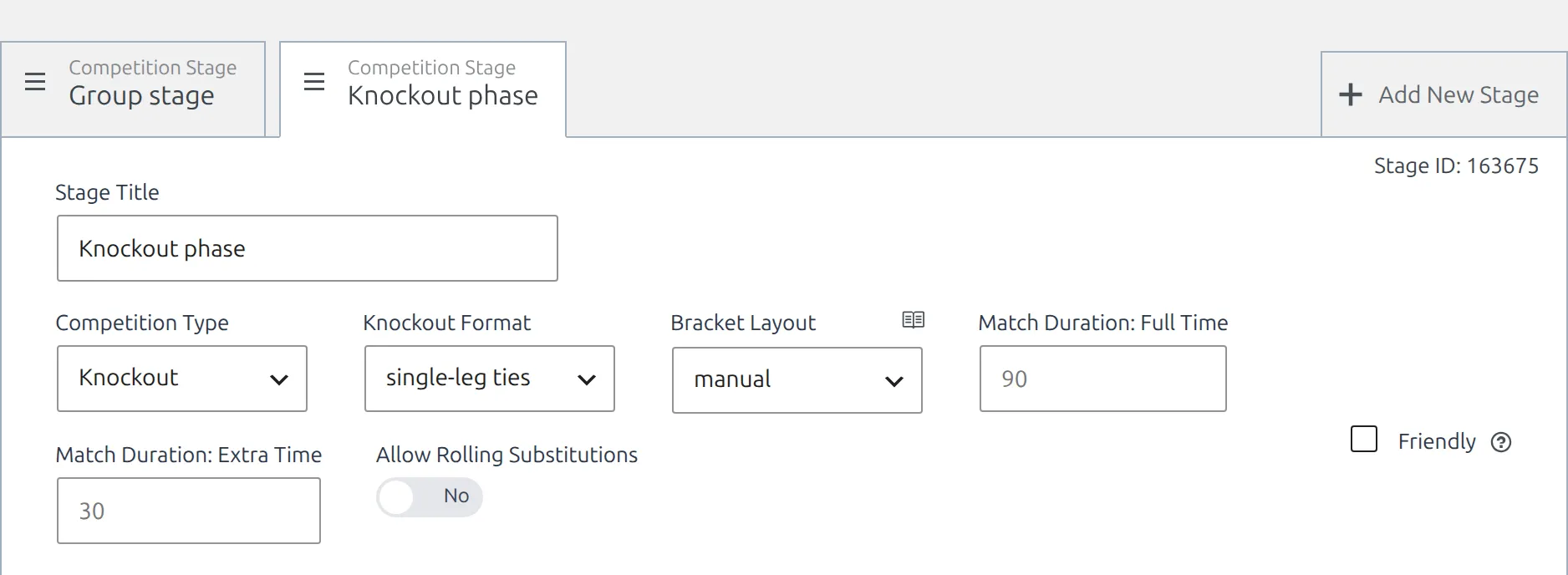
Open the competition and check the knockout stage’s Bracket Layout in the Competition Stages box. The block draws stages set to manual, automatic or advanced and skips stages set to hide. A knockout stage created by the API’s Lazy Import holds a table rather than ties, so it shows in Standings instead of Bracket.
Matchweek Slides opens on matchweek 1
The slider opens on the stage’s Current MatchWeek, and with none set it starts at the first matchweek. Set the number on the round-robin stage in the Competition Stages box – see Current MatchWeek.
A Shortcode block with %stage_nN% shows nothing
That competition has no stage with that number, so the block is skipped rather than showing the wrong matches. Fill in the block’s No Data Text to explain the gap, or, if your competitions don’t share the same stages, use the built-in blocks instead of pinned stage tabs.
Results Matrix shows an empty grid
The competition has a standing table but no games played yet. Limit the block to the Active, Finished and Archived statuses with Show for Competition Status, as described above.
📚 Related
- Team Pages with Layout Builder v2
- Player Pages with Layout Builder v2
- Multistage competitions – how stages and groups are set up
- Current MatchWeek – where Matchweek Slides opens
- Results Matrix shortcode and Matches shortcode – every attribute for pinned stage and group tabs
- Layout Builder v1 block types – if you still run v1 competition layouts
- Advanced Bracket – the self-filling tournament bracket shown by the Bracket block
- Custom Player Statistics shortcode
- All PRO shortcodes