

Overview
Site Migration moves a competition (and all its connected data — clubs, players, staff, referees, matches, lineups, standings) from one Football Leagues site to another. The flow runs competition-by-competition: pick a competition on the donor, the recipient pulls it over the WP REST API using an Application Password, and recreates everything on the destination.
Use cases:
- Moving a staging build to production
- Consolidating multiple league sites into one master site
- Offering a pre-configured league setup to a new customer
- Cloning a competition between sister sites
The system is idempotent — re-running the same migration UPDATEs existing rows rather than creating duplicates. Safe to retry.
Prerequisites
| Requirement | Why it matters |
|---|---|
| Both sites on FL+ Premium 0.18.0 or later | The donor and recipient need matching schema (custom tables: anwpfl_clubs, anwpfl_competitions, anwpfl_standings). Earlier versions used postmeta — the table-to-table flow doesn’t downgrade. |
| Both sites fully migrated | The Toolbox Updater migration tasks (clubs, competitions, standings, squad) must show “Done” on both sides. Migration assumes data is in the new tables. |
| Application Password support | Standard WordPress REST authentication. Available since WP 5.6, no plugin needed. |
| Network reachability | The recipient pulls data over HTTPS from the donor. The donor must be publicly reachable (or at least reachable from the recipient’s network). |
| Donor REST API not blocked | Some hosts/security plugins block /wp-json/. If REST is disabled or the anwpfl/v1/site-export/* routes return 404, migration can’t start. |
| Sufficient PHP timeout / memory | Large competitions ship many matches and players. Default max_execution_time=30 is usually fine because the importer batches, but memory_limit < 256M can OOM on very large bundles. |
🚀 Donor Setup
The donor is the source site. Site Migration on the donor is passive — it doesn’t push, it just exposes read-only endpoints that the recipient pulls from.
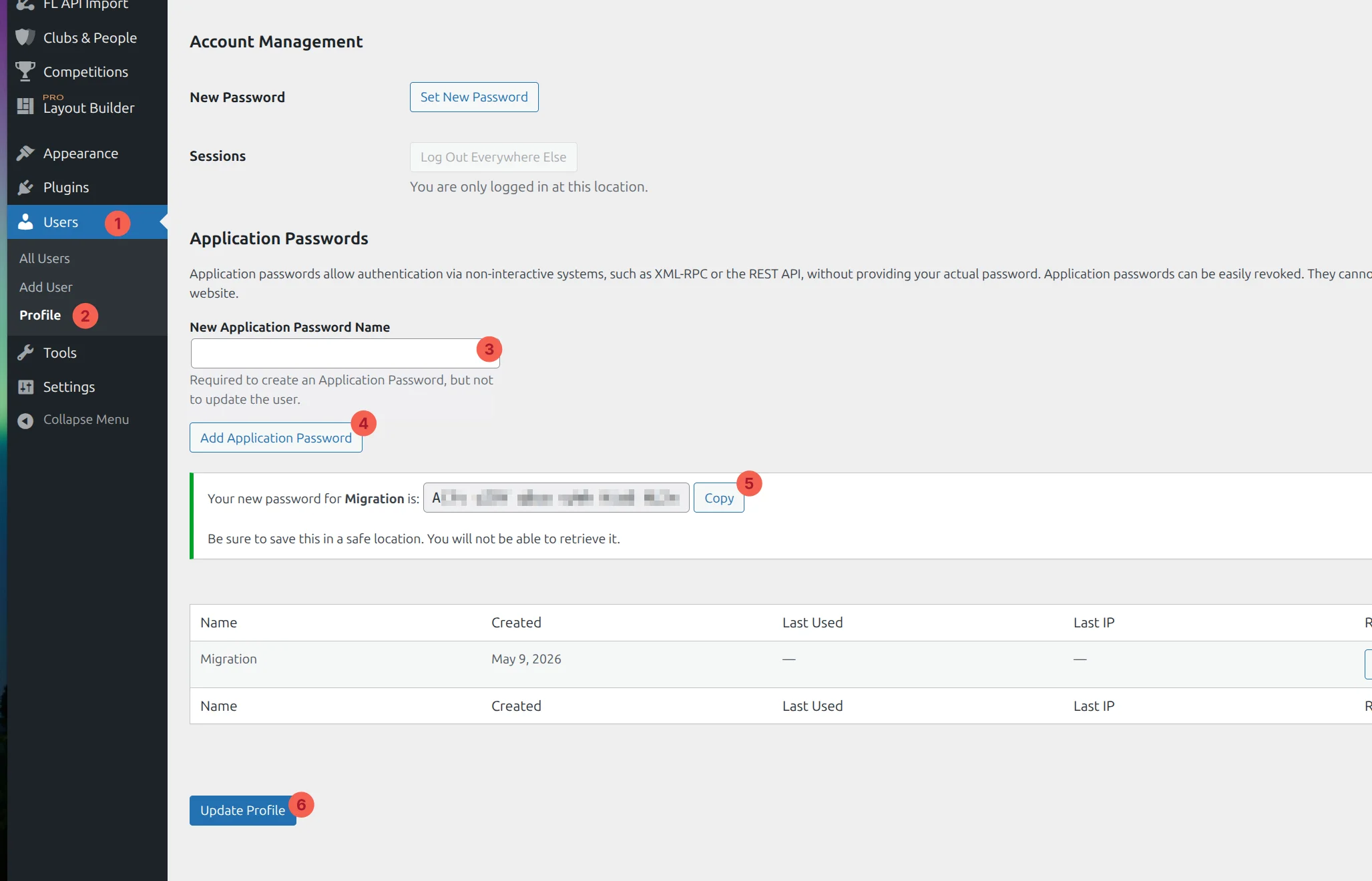
Step 1: Generate an Application Password
The recipient needs to authenticate to the donor’s REST API as an admin user.
- Go to Users → Profile on the donor site
- Scroll to Application Passwords
- Enter a name (e.g., “Site Migration Recipient”)
- Click Add New Application Password
- Copy the generated password — it shows once and never again
Step 2: That’s it
No menu page on the donor side. The export endpoints register automatically when FL+ Premium 0.18.0 is active. The recipient discovers them when you provide the donor URL.
🚀 Recipient Setup
The recipient is where you want the data to land.
Step 1: Open the Site Migration page and connect to the donor
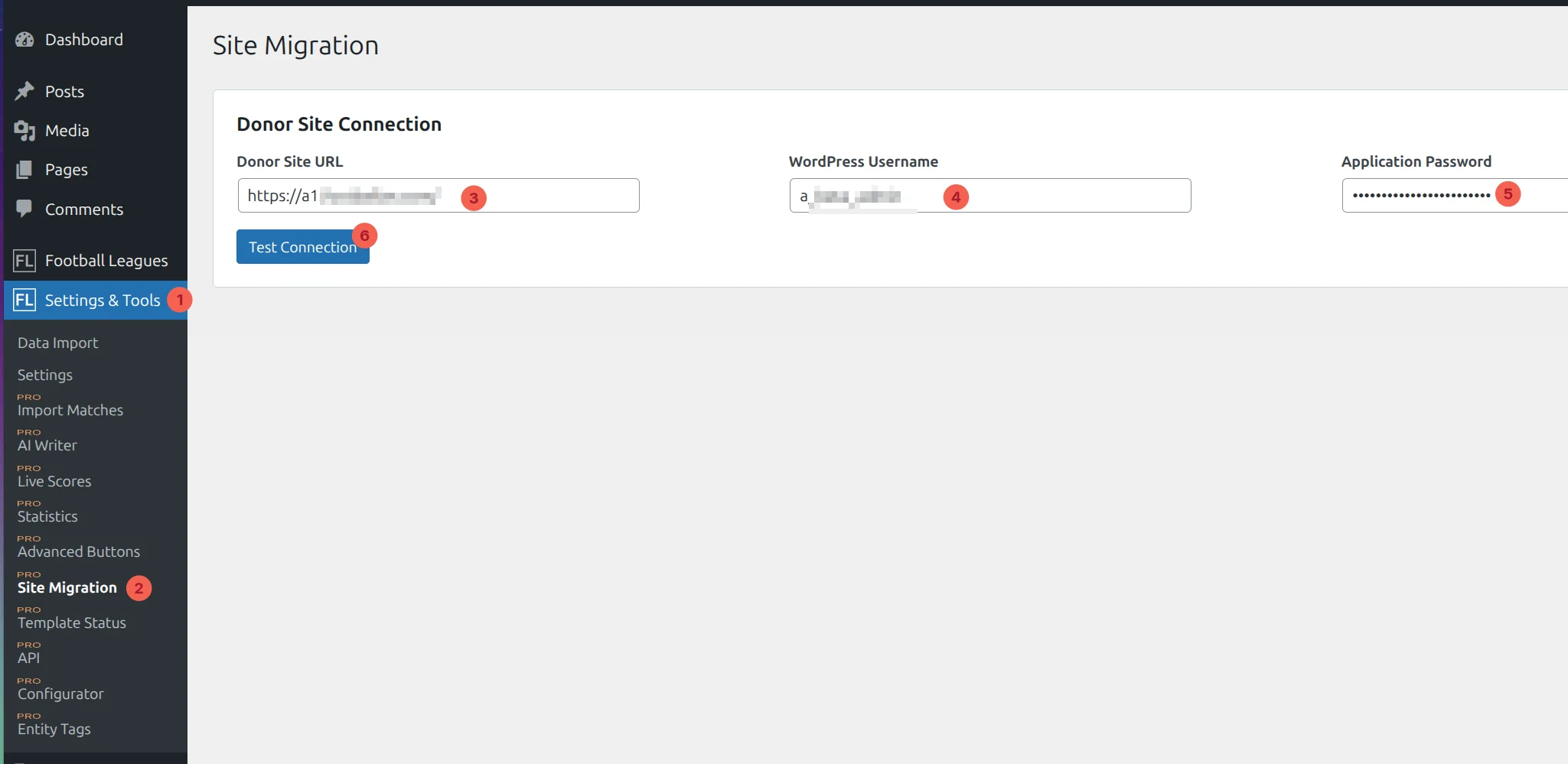
Navigate to Settings & Tools → Site Migration (1, 2 in the screenshot).
Fill in the donor details:
- Donor Site URL (3) — full URL with scheme, e.g.,
https://donor-site.com - WordPress Username (4) — admin user on donor whose Application Password you generated
- Application Password (5) — paste the password from donor setup
- Click Test Connection (6)
Step 2: Confirm connection and fetch competitions
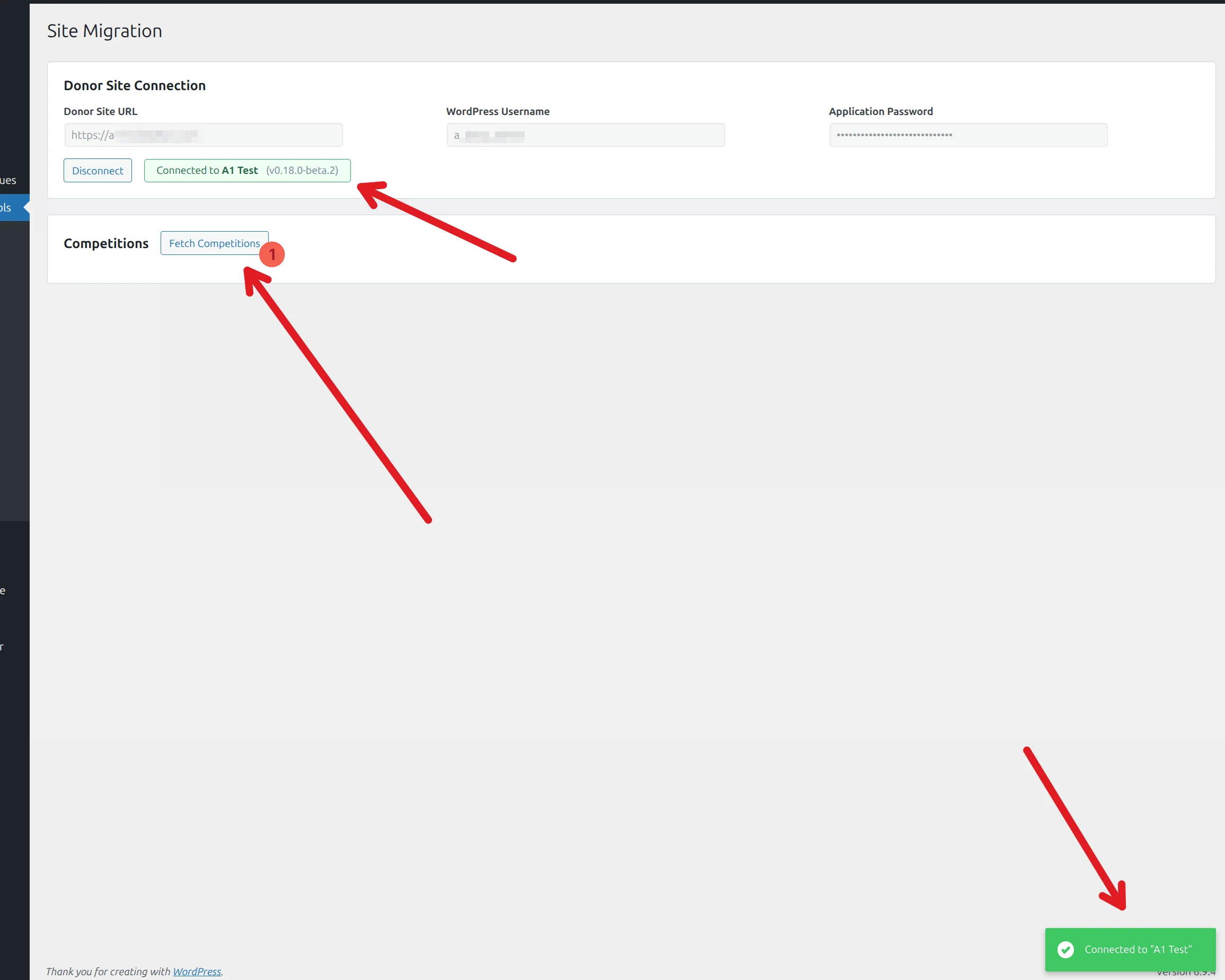
A successful connection shows the donor’s site name and plugin version. Click Fetch Competitions (1) to pull the list of available competitions from the donor.
Step 3: Pick a competition
Click Select (1) next to the competition you want to migrate. Each competition shows ID, title, season, league, match count, and type (round-robin / knockout / multistage).

Step 4: Check IDs
After selecting a competition, click Check IDs to run a pre-import scan. This compares donor post IDs against the recipient’s existing posts and shows what will conflict (if anything).
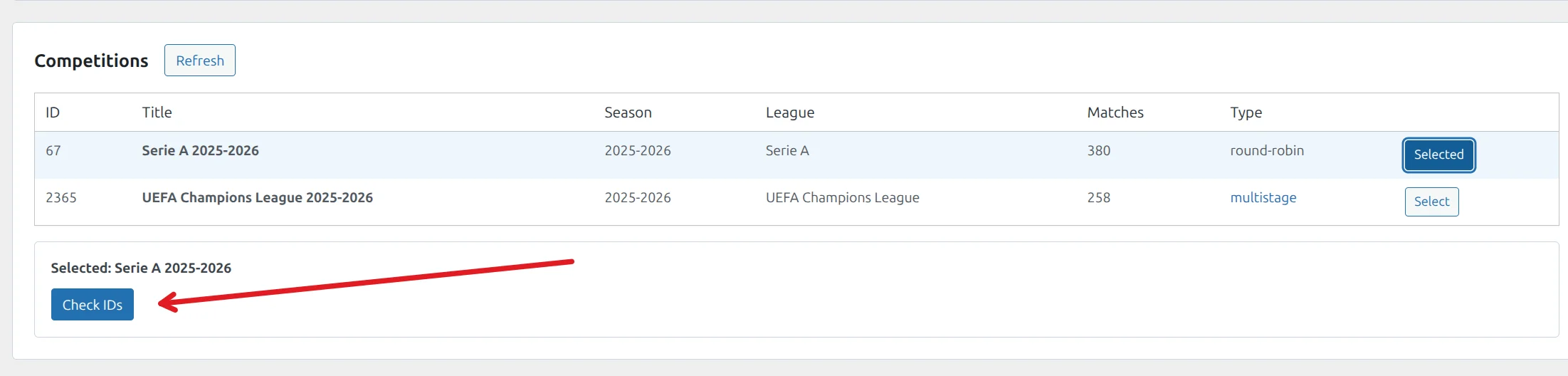
If the recipient has overlapping post IDs (typically WP attachments from earlier media uploads), an ID Conflicts panel lists them.
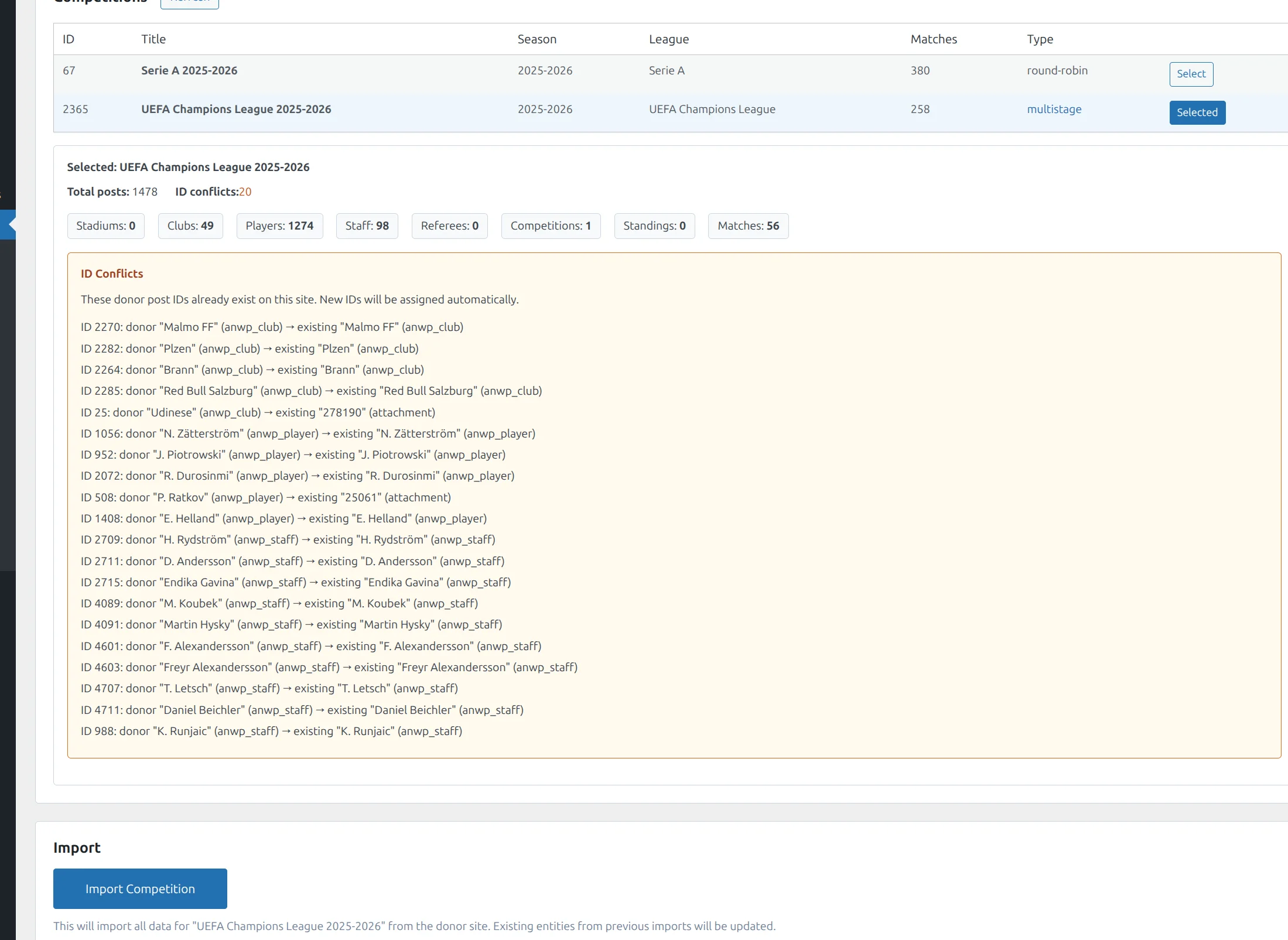
This is normal and safe
The importer assigns fresh IDs to anything that conflicts and tracks the mapping in anwpfl_import_mapping so future re-runs update the right rows.
When to pause and investigate:
- The conflicts list shows your old FL data (not WP attachments). That means previous FL migration data is still on the recipient. Decide whether to keep it (re-running will UPDATE existing rows) or reset for a clean import.
- The conflict count is very high (hundreds). On a busy recipient, the random remap is fine, but expect new IDs everywhere — bookmarks and external links to old recipient post URLs will break.
Step 5: Import the competition
Once the ID check is clean (or you’ve accepted the conflicts), the Import Competition button appears with a summary of what’s coming over (clubs, players, staff, matches, etc.).
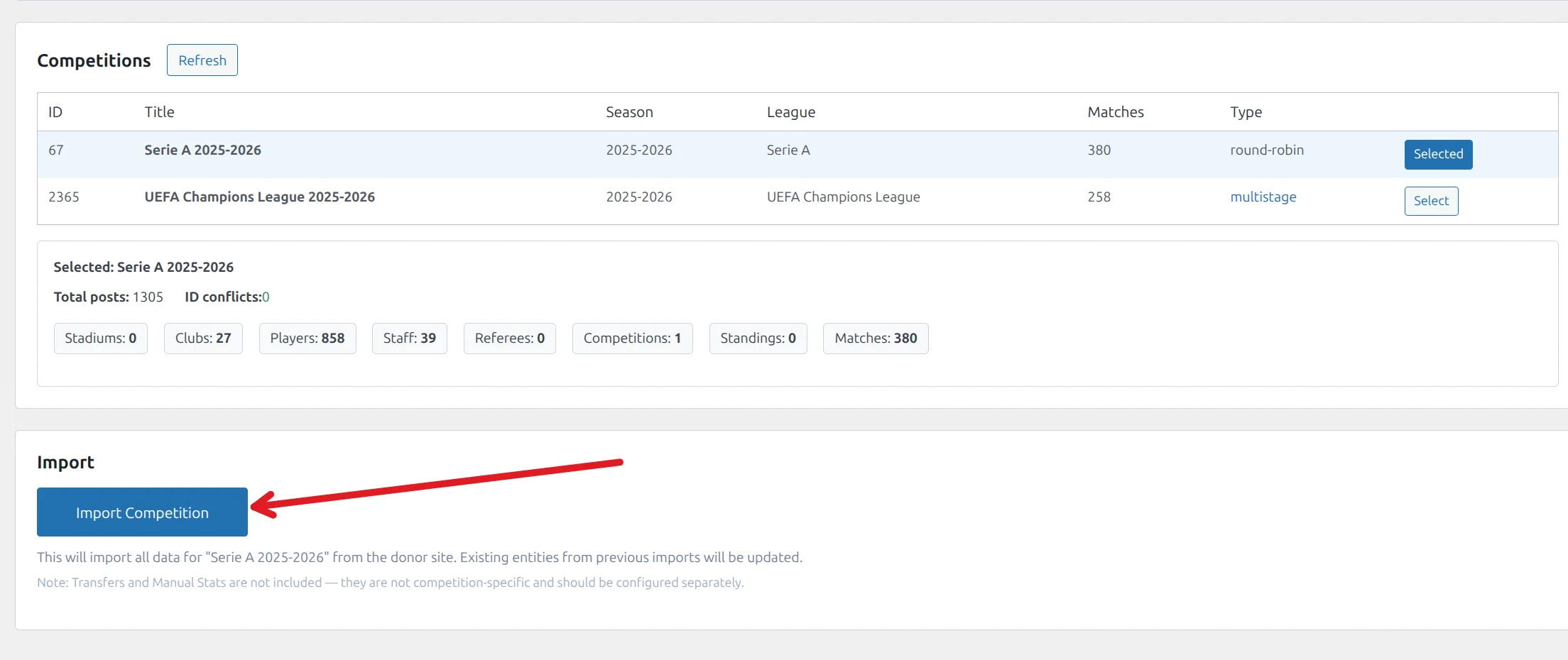
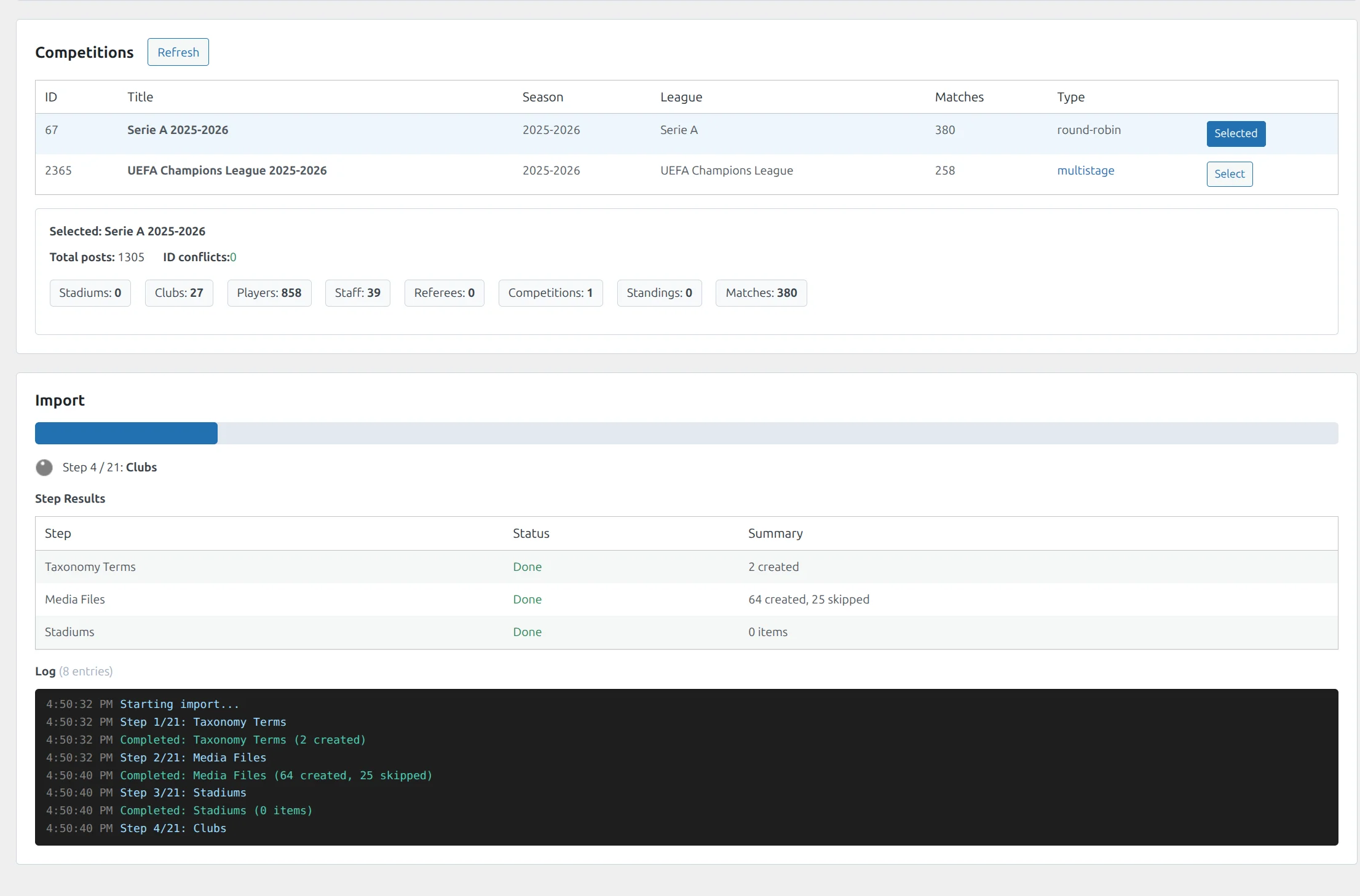
Click Import Competition to start. The importer runs through 21 batched steps in order: taxonomies → media → stadiums → clubs → players → staff → referees → competitions → standings → matches → custom-table data → standings recalc → lineups → formations → club history. Each step shows progress, a per-step result count, and a live log.
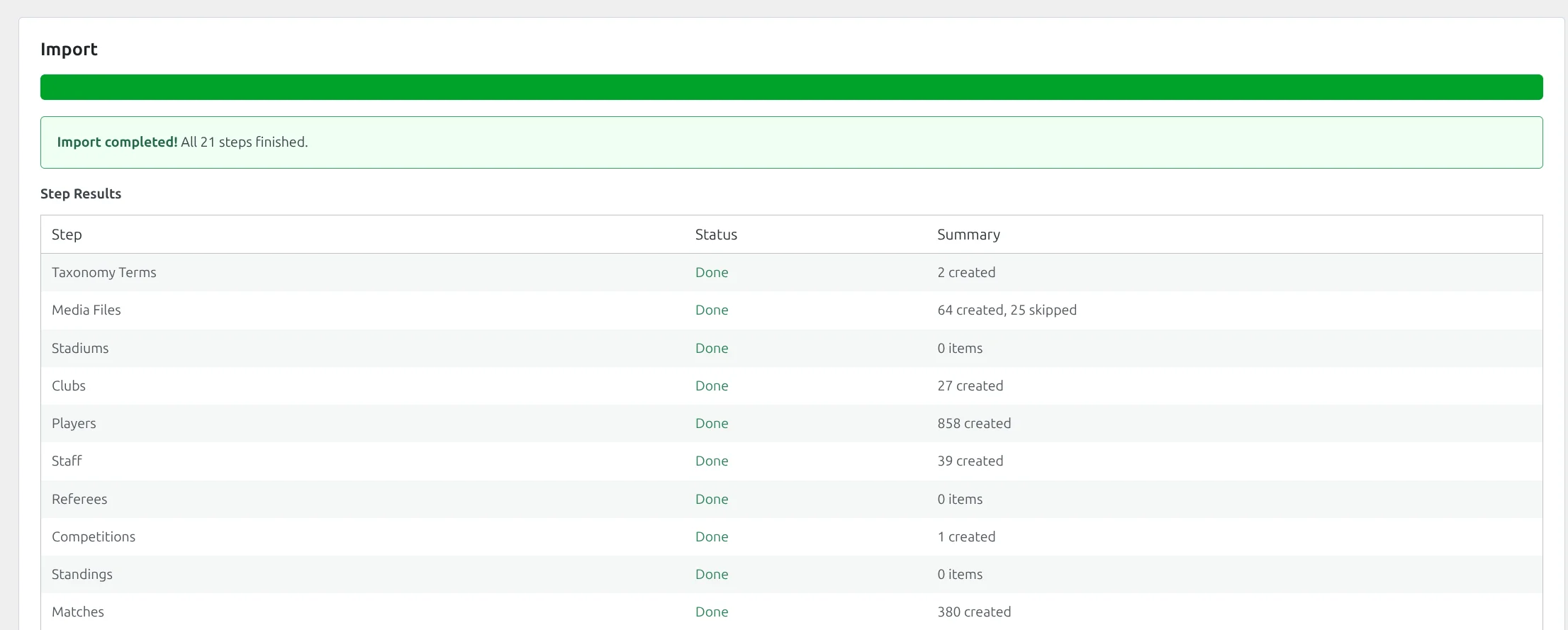
Step 6: Verify on the recipient
Open the imported competition page on the recipient frontend. Standings, fixtures, clubs, and players should all render.
What Gets Migrated
Migrated
| Entity | Where it lands on recipient |
|---|---|
| Competition (main + secondary stages) | anwpfl_competitions + wp_posts (anwp_competition) |
| Clubs (incl. subteam clubs) | anwpfl_clubs + wp_posts (anwp_club) |
| Players | wp_posts (anwp_player) + anwpfl_players + anwpfl_player_data |
| Staff | wp_posts (anwp_staff) |
| Referees | wp_posts (anwp_referee) |
| Matches | anwpfl_matches |
| Lineups + match events | anwpfl_lineups |
| Standings (with auto-recalculation) | anwpfl_standings |
| Seasons + leagues + tags | Custom taxonomies |
| Logos + photos | Uploaded to recipient’s media library |
After import, the recipient automatically recalculates standings against locally-imported matches — so totals reflect what the recipient actually has, not a frozen snapshot from the donor.
Not migrated (by design)
| Entity | Why not |
|---|---|
| User accounts | User IDs don’t map between sites. Recipient admins keep their existing accounts. |
| Competition supervisor assignments | Donor user IDs would point to nonexistent recipient users. Re-assign supervisors manually after migration. |
| WordPress posts/pages outside FL | Site Migration only handles FL data. Use a generic WP migration tool for everything else. |
| Plugin settings (Customizer, FL Settings, Configurator) | Settings stay on each site. Configure recipient settings to match if needed. |
| API-Football wizard mappings | Donor’s external API IDs don’t map cleanly. The wizard has its own re-import flow. |
Idempotency: Re-Running Is Safe
Running the same migration a second time:
- UPDATEs existing competitions, clubs, players (matched by external ID / donor post ID, tracked in
anwpfl_import_mapping) - Adds new matches that appeared on the donor since the last run
- Does NOT create duplicate clubs or competitions
- Does NOT touch entities that already exist on the recipient under different IDs (you’d see those as separate rows)
This means you can:
- Run a full migration, then incrementally re-run after adding more matches on the donor
- Recover from a partial failure by simply re-running
How to update (re-import a competition)
The expected workflow when donor data has changed (new fixtures added, results updated, lineups filled, players transferred, etc.):
- On the donor, edit/import as usual. Save changes.
- On the recipient, open Settings & Tools → Site Migration.
- The donor connection (URL + Application Password) is remembered — click Refresh under Competitions to pull the latest list from the donor. No need to disconnect/reconnect.
- Find the competition you migrated previously and click Migrate again.
- The importer detects existing rows via
anwpfl_import_mappingand runs UPDATE statements instead of INSERTs. Fresh matches appear, modified results update in place. - The post-import standings recalc runs automatically against the now-current matches.
Things to know about updates:
- Donor post IDs that already mapped to recipient IDs stay mapped — your post URLs don’t change.
- Competition supervisors (if you assigned them on the recipient) are preserved — supervisor data is excluded from import.
- Custom recipient data NOT in the donor (e.g., shortcodes you added to a club’s description) survives the update.
- If you renamed a competition on the donor between runs, the recipient’s post title gets the new name.
- Manual ID re-numbering on the recipient (highly unusual) breaks the mapping. Avoid editing post IDs directly.
When NOT to use update:
- If the donor data has been fundamentally restructured (e.g., a competition got split into multiple stages, or stages were renumbered) — reset the recipient and start fresh.
- If you’re moving to a brand-new recipient site and want pristine data with no leftovers from earlier test runs.
Failure Modes & Recovery
Connection test fails
| Symptom | Cause | Fix |
|---|---|---|
| 401 Unauthorized | Wrong username or App Password | Re-generate Application Password on donor, paste fresh |
| 403 Forbidden | User lacks manage_options | Use an admin account on donor |
| 404 on the export endpoint | FL+ Premium not active on donor, or REST API blocked | Check donor plugin status; check security plugins blocking /wp-json/ |
| Timeout / no response | Donor unreachable, slow host, or Cloudflare blocking REST | Check donor URL in browser; whitelist recipient IP if firewalled |
Migration runs but data missing on recipient
| Symptom | Cause | Fix |
|---|---|---|
| Subteam clubs not visible | Donor subteam list never re-saved through the Vue editor | Re-save affected parent clubs on donor, re-run migration |
| Standings show wrong totals | Recipient has fewer matches than donor (transient errors during import) | Re-run migration — the standings recalc step recomputes against locally-imported matches |
| Player photos missing | Image optimization plugin on recipient filtering attachment URLs | Disable image optimization plugin temporarily, re-run player imports |
| Logo URLs point to donor domain | Bundle synthesis didn’t fully rewrite media URLs | Re-run import to retrigger media copy step |
Mid-migration interruption
If the browser tab closes or network drops mid-flight:
- Re-open the Site Migration page
- Click the same competition again — the importer skips already-migrated entities and resumes
- No manual cleanup required
After-Migration Verification Checklist
Run through this list once each migration completes:
| Check | How |
|---|---|
| Competition page renders on recipient frontend | Visit the imported competition URL |
| Standings populated | Standing widget shows clubs, points, GD |
| Fixtures populated | Match list shows scheduled and finished matches |
| Club pages render | Click into a club from the standings — squad, fixtures, history all show |
| Player pages render | Click into a player from a club squad — stats, match history visible |
| Subteam links work | If parent clubs have subteams, click a subteam in the parent’s profile — should land on subteam page, not 404 |
| Standings totals match donor | Spot-check 2-3 standings rows against the donor site |
| Re-supervise competitions | Re-assign supervisor users (excluded from migration by design) |
| Update competition tags / featured | If donor used WP post_tag taxonomy or featured flags, those need re-tagging on recipient |
🆘 Troubleshooting
Migration finishes but no progress shown
Problem: UI shows “complete” immediately with no per-phase output.
Solution:
- Open browser DevTools Network tab
- Look for failed REST calls to
/wp-json/anwpfl/... - Check recipient debug log for fatal errors
- Verify both sites are on FL+ Premium 0.18.0+
“Migration Required” notice appears
Problem: After installing 0.18.0, recipient shows a Migration Required banner.
Solution:
- Open Football Leagues → Toolbox → Database Updater
- Run any pending migration tasks (clubs, competitions, standings, squad) to completion
- Re-open Site Migration page — banner should be gone
Re-running creates new rows instead of updating
Problem: Each re-run adds duplicate clubs / competitions instead of updating.
Solution: This shouldn’t happen — file a bug report with site URLs and competition ID. As a workaround, delete the duplicate rows and the anwpfl_import_mapping rows for affected entities, then re-run.
Reset before re-running
If you want a completely clean recipient before re-running migration (e.g. you migrated test data and now want production data), the safest path is to start with a fresh recipient site:
- On a brand-new WordPress install (no FL content yet), just install FL Core + Premium and run the migration — nothing to clean up.
- On an existing site that already has FL content from earlier tests, take a full database backup, then ask your host (or use a plugin like WP Reset) to wipe all posts and uploaded media before re-running migration.
Warning
Always take a database backup before any reset operation. If you’re unsure how to clean an existing recipient safely, contact support before doing anything destructive.
📚 Related Documentation
- REST API Reference — for building external integrations
- Migration Guide v0.18.0 — for theme override authors