

Import Matches Tool
Import Matches is a batch import tool for quickly adding multiple matches to a competition. Instead of creating matches one at a time, enter entire matchdays, tournament rounds, or historical seasons in minutes using a spreadsheet-like interface.
Key Features
- Enter match data in a familiar spreadsheet grid
- Copy/paste directly from Excel or Google Sheets
- Real-time validation catches errors before import
- Support for both fixtures (upcoming) and results (completed)
- Works with round-robin and knockout competitions
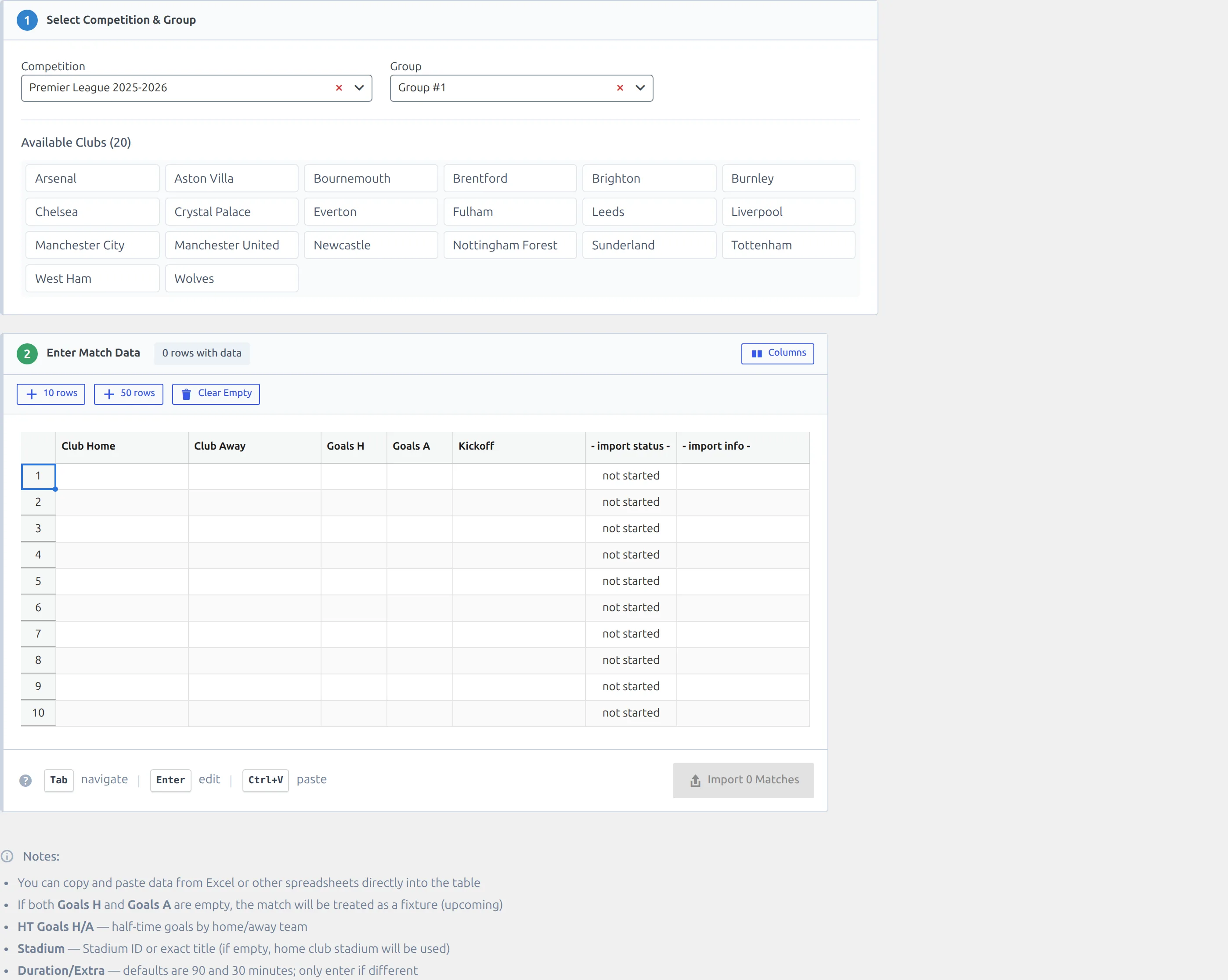
Getting Started
Step 1: Access the Tool
Go to Settings & Tools → Import Matches
Step 2: Select Competition
- Choose a Competition from the dropdown (all round-robin and knockout competitions)
- Select the Group (for round-robin) or Round (for knockout)
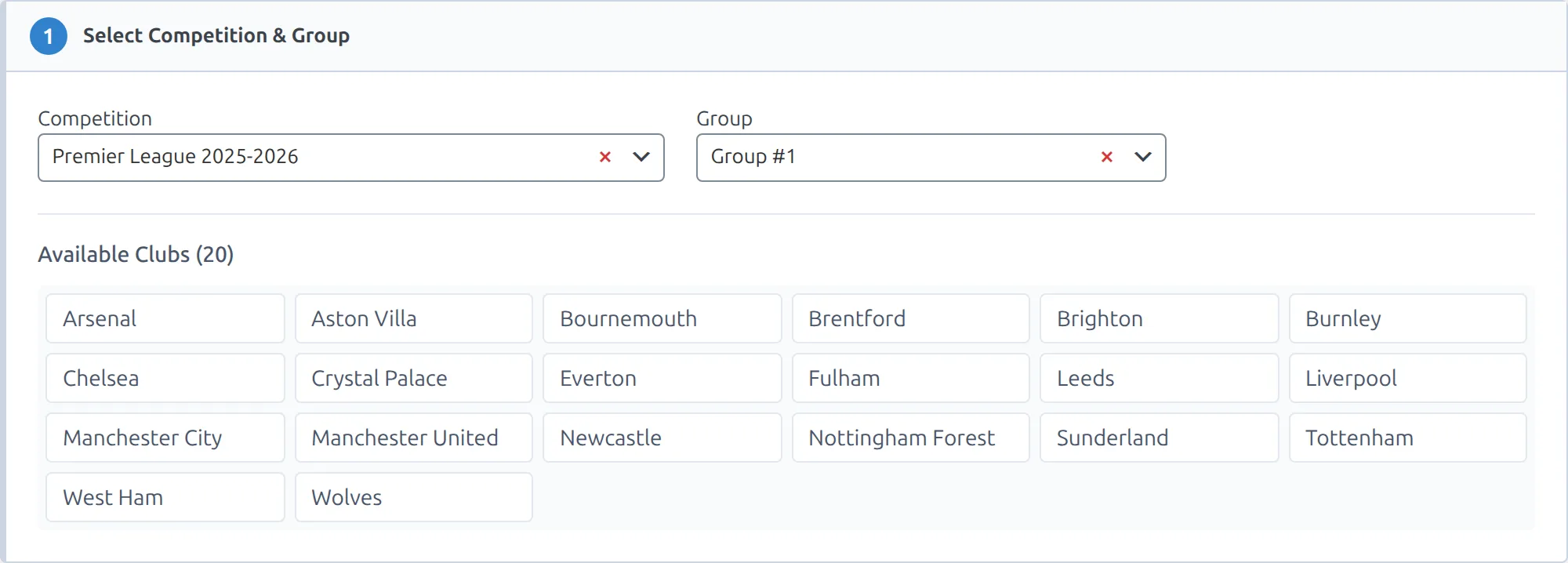
After selection, you’ll see:
- Available Clubs – All teams in the selected group/round
- Data Entry Table – Spreadsheet grid for entering matches
Step 3: Enter Match Data
You have several ways to enter data:
Option A: Manual Entry
- Click a cell to start typing
- Use Tab to move between cells
- Use Enter to confirm and move down
- Club columns show autocomplete with team names
Option B: Excel Paste
- Prepare data in Excel/Google Sheets with columns in this order:
Club Home | Club Away | Goals H | Goals A | Kickoff - Copy the rows (without headers)
- Click the first cell in the import table
- Press Ctrl+V to paste
The table auto-expands if your paste has more rows than available.
Option C: Use External Fixture Generator
For round-robin leagues, you can use online fixture generators to automatically create all matchday pairings:
- Search for “round robin fixture generator” or “league schedule generator”
- Enter your team names
- Generate the fixture list
- Copy the Club Home and Club Away columns
- Paste into the import table
- Add kickoff dates and matchweek numbers
Tip
This saves significant time for leagues with many teams. A 20-team league has 380 matches – generating them manually would take hours.
Option D: Smart Kickoff Entry
The Kickoff field has smart formatting:
- Type digits only:
202501151430 - Auto-formats to:
2025-01-15 14:30 - Date-only (8 digits):
20250115becomes2025-01-15
Step 4: Review Validation
The table highlights data issues with colored backgrounds:
| Color | Meaning |
|---|---|
| Orange | Invalid club name (not in group) |
| Orange | Invalid date format or impossible date |
| Red | Same team selected as both home and away |
| Green | Successfully imported |
Step 5: Import
- Review the row count shown in the header (“X rows with data”)
- Click Import X Matches
- Watch the progress bar
- After import, each row shows: success with edit link, or error with error message
Column Reference
Required Columns (Always Visible)
| Column | Description |
|---|---|
| Club Home | Home team (autocomplete from group’s teams) |
| Club Away | Away team (autocomplete from group’s teams) |
| Goals H | Home team score. Leave empty for fixtures |
| Goals A | Away team score. Leave empty for fixtures |
| Kickoff | Date/time: YYYY-MM-DD or YYYY-MM-DD HH:MM |
Optional Columns
Click the Columns dropdown to show/hide additional fields:
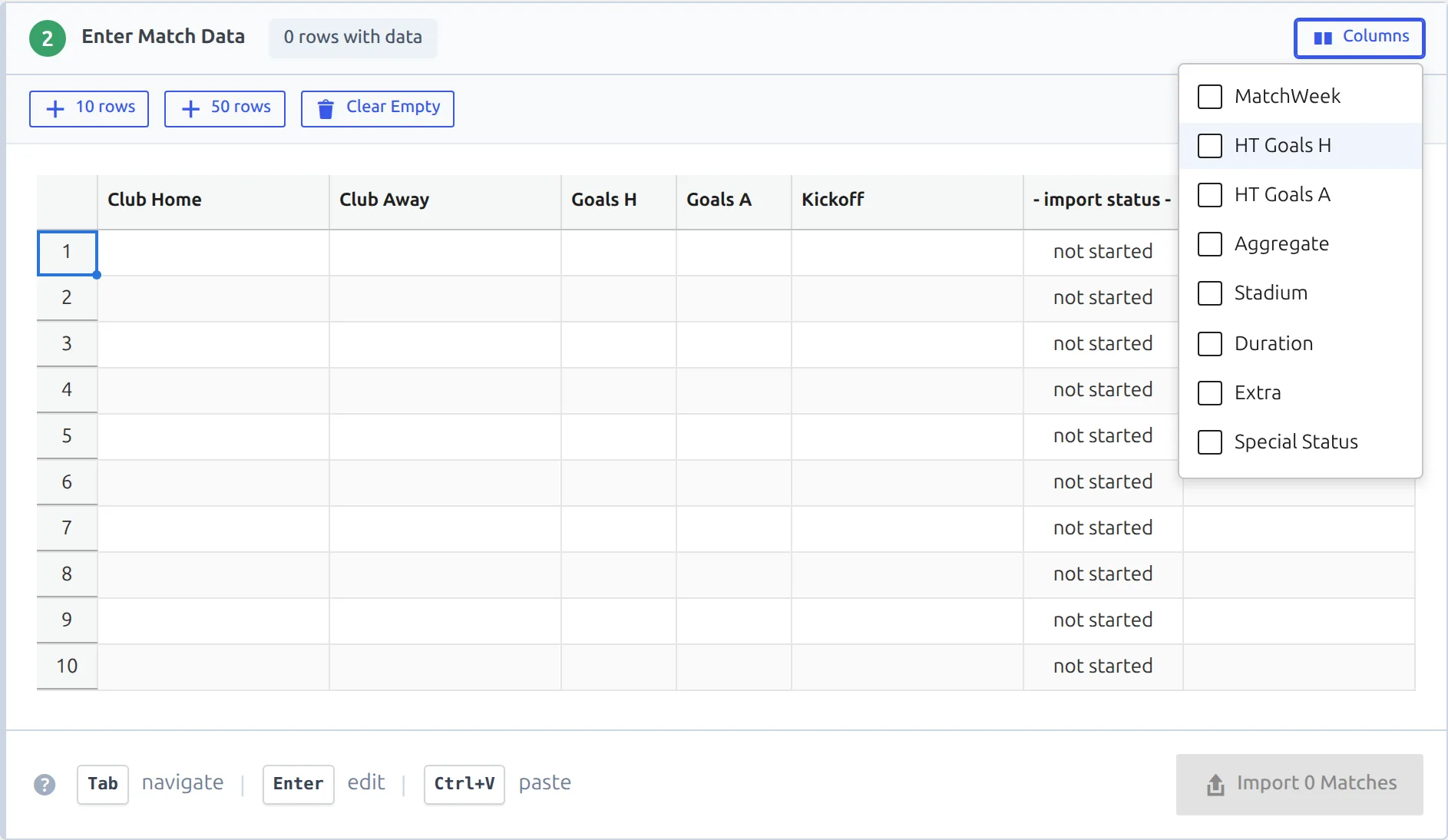
| Column | When to Use |
|---|---|
| Season | Multi-season competitions (auto-shows if 2+ seasons) |
| MatchWeek | Round-robin: matchday/gameweek number |
| HT Goals H/A | Half-time scores |
| Aggregate | Knockout: aggregate score text (e.g., “3-2 agg.”) |
| Stadium | Stadium ID or exact name (default: home club’s stadium) |
| Duration | Full-time minutes if not 90 |
| Extra | Extra-time minutes if not 30 |
Your column preferences are saved automatically.
Tips & Best Practices
Preparing Your Data
- Match column order – Ensure your spreadsheet columns match the tool’s order
- No headers – Don’t include column header row when pasting
- Date format – Always use
YYYY-MM-DD(ISO format) - Club names – Must exactly match names in your group
Excel Date Formatting
If dates appear incorrectly when pasting from Excel:
- Select the date column in Excel
- Right-click → Format Cells
- Choose Custom format
- Enter:
YYYY-MM-DD HH:MMorYYYY-MM-DD - Copy and paste into the import table
Importing Fixtures vs Results
| Goal | What to Enter |
|---|---|
| Fixture (upcoming match) | Leave Goals H and Goals A empty |
| Result (played match) | Enter both goal values |
After Import
- Use Clear Success to remove imported rows, keep errors for retry
- Use Clear All to start fresh
- Changing competition or group resets the table
Keyboard Shortcuts
| Key | Action |
|---|---|
Tab |
Move to next cell |
Shift+Tab |
Move to previous cell |
Enter |
Confirm edit, move down |
Escape |
Cancel edit |
Ctrl+V |
Paste from clipboard |
| Arrow keys | Navigate (when not editing) |
Examples
Example 1: Import League Matchday
Scenario: Import all 10 matches for Premier League Matchday 20
Spreadsheet data:
Arsenal       Chelsea      2  1  2025-01-15 15:00
Liverpool     Man United   3  0  2025-01-15 15:00
Man City      Tottenham    1  1  2025-01-15 17:30
Steps:
- Select “Premier League 2024/25” competition
- Select “Group A” (or main group)
- Click Columns → check “MatchWeek”
- Paste from Excel
- Enter “20” in MatchWeek column for all rows
- Click Import 10 Matches
Example 2: Import Knockout Round Fixtures
Scenario: Set up Round of 16 fixtures without scores
Spreadsheet data:
Real Madrid   PSG          2025-02-10 21:00
Bayern Munich Arsenal      2025-02-11 21:00
Steps:
- Select competition
- Select “Round of 16”
- Paste data (Goals columns left empty)
- Click Import 8 Matches
Result: 8 fixtures created, ready for live updates or later results entry.
Troubleshooting
Club name highlighted orange
Problem: Entered club name doesn’t match any team in the group.
Solution:
- Check spelling exactly matches the club name in WordPress
- Ensure the club is assigned to this group/round
- Use autocomplete to select valid club names
Both clubs highlighted red
Problem: Home and away teams are the same.
Solution: Change one of the club names. A team cannot play itself.
No valid rows to import
Problem: Import button shows 0 matches.
Solution: Each row needs both Club Home AND Club Away to be valid. Check that required columns have data.
Import button disabled after import
Problem: Cannot import more matches.
Solution: This is intentional to prevent duplicates. Click Clear Success or Clear All to reset, or change competition/group.
Standings not updated after import
Problem: Matches imported but standings show old data.
Solution: For round-robin competitions, standings auto-recalculate after import. If not updated:
- Go to the Competition → Standing tab
- Click “Recalculate”
Note
This tool requires Football Leagues Premium. Make sure you have created a competition with clubs assigned before using the import tool.