

A standing table is normally worked out from your finished matches. Switch Automatic data filling off and it stops being worked out at all: every number becomes an input box and the table holds exactly what you type. Useful for a historical season you have the final table for but not the results, for a league whose official table is published by someone else, and for any table you want to keep frozen.
🚀 Switching it on
The order matters on a brand-new table, because the rows themselves are created by the automatic calculation. Let it run once, then take over.
- Go to Competitions > Standing Tables and open the table, or add a new one and pick its competition and group.
- Click Update once with everything still on defaults. That creates one row per club in the group.
- In the settings strip just above the table, set Automatic data filling to Disable.
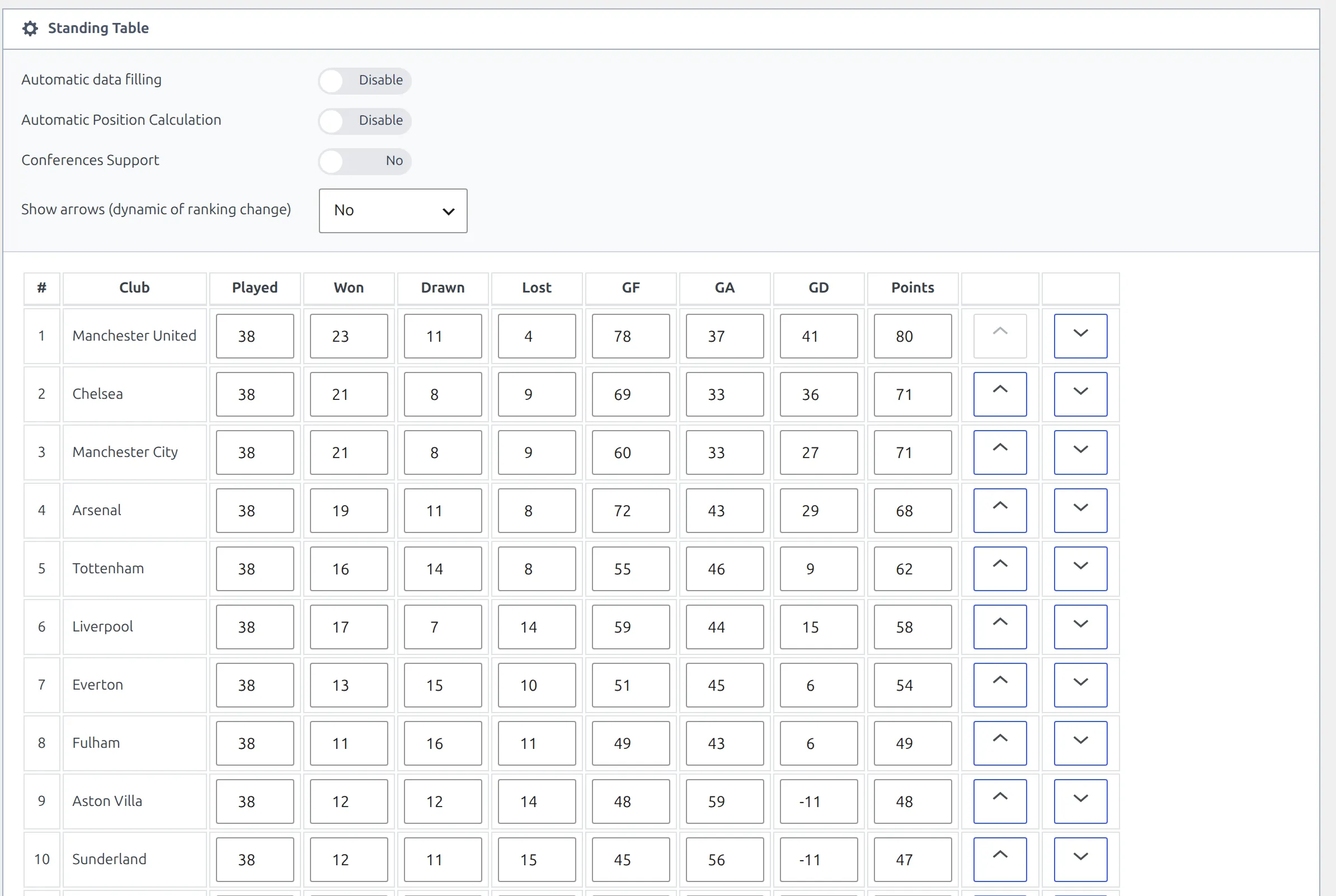
- Type the numbers into the cells.
- Put the clubs in the right order with the up and down arrows at the end of each row – the position column renumbers itself as you go.
- Click Update.
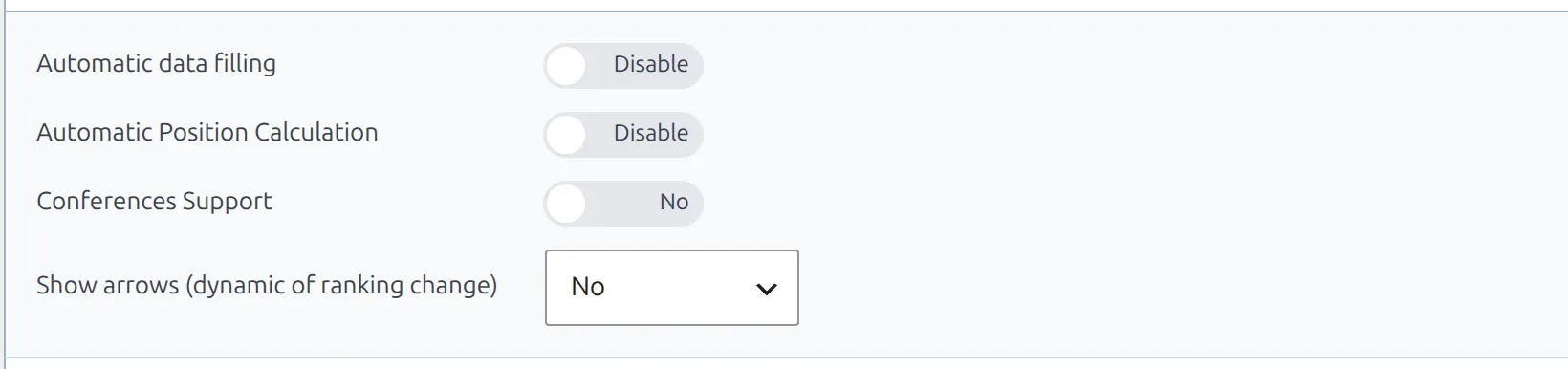
If you never want the plugin reordering the rows either, set Automatic Position Calculation to Disable as well. On a manual table that’s usually what you want: it keeps the order you arranged and stops the positions being recomputed from the points you typed.
What you can and can’t edit
Eight cells per club become editable: Played, Won, Drawn, Lost, GF, GA, GD and Points. Nothing is calculated from anything else, so goal difference and points are yours to get right – type 41 into GD, not 78 and 37 and hope.
Two things stay out of your hands in this grid:
- The position number is not typed. It follows the row order, and the arrows are how you change it.
- The club list comes from the competition group, and there’s no add-a-row or delete-a-row button. To change which clubs are in the table, change the group’s clubs on the competition, switch Automatic data filling back on, save once so the rows are rebuilt, then switch it off again and re-enter the numbers.
Nothing you do to your matches touches these numbers
This is the whole point of the feature and it’s worth being precise about. Every route that would normally rebuild a standing table checks this switch first and stops. Not “recalculates and gets the same answer” – it never runs.
| What you do | Effect on a manually filled table |
|---|---|
| Save a match in the admin, with a score | None |
| Mark a match Finished, or un-finish it | None |
| Delete a match | None |
| Edit a match from the front-end game editor | None |
| Close a live match from the live-scores screen | None |
| Import results with the API import | None on the table’s numbers |
| Paste results into Settings & Tools > Data Import | None, and the table isn’t even flagged for recalculation |
| Run Recalculate on it from the Standing Tables list | None – the notice reports it as skipped |
| Move the site with the migration tool | None – the table travels as typed |
So the historical seasons you type in are safe from the day-to-day work on the current one, even when they share a club, a competition or a season with it.
The three things that do overwrite it
- Saving the standing table. Update writes whatever is in the grid at that moment. That’s how you edit it – and it’s also how a half-finished edit gets saved, or how another admin’s stale browser tab overwrites yours.
- Switching Automatic data filling back on. The next save recalculates the table from your finished matches, and everything you typed is gone. There’s no undo and no confirmation, so if you only wanted to rebuild the club rows, note the numbers down first.
- An API standings re-import. On a table the API import maintains, the next run replaces the rows as soon as the provider publishes a different table – and clears the ranking rules, the table notes and the row colours on it at the same time.
Update after each finished match
For a live season on manual filling, this is the job. The table will not follow your results, so every finished match means opening the table and editing eight numbers for two clubs. It’s the right trade for a finished historical season. For a season still being played, it’s a weekly commitment – and switching to automatic filling later means retyping nothing, but it does mean the table gets rebuilt from your matches, so those matches have to be complete and correct first.
What changes on the front end
The table renders like any other – same columns, same colours, same notes. Four things that depend on having matches behind the numbers switch themselves off.
| Element | On a manually filled table |
|---|---|
| All / Home / Away buttons | Not drawn. A home-only split can’t be worked out from a typed total. |
| Position arrows | Off. There’s no previous matchweek to compare against. |
| Clicking the Played number | Plain text instead of a link – there are no matches to list in the modal. |
| Club form (W/D/L strip) | Drawn from the letters already stored on the row rather than from matches, and the grid has no field for them. So it is frozen: a table that was being calculated before you switched keeps the form it had, an imported one keeps the form the provider sent, and a table built from scratch has none and shows no strip. |
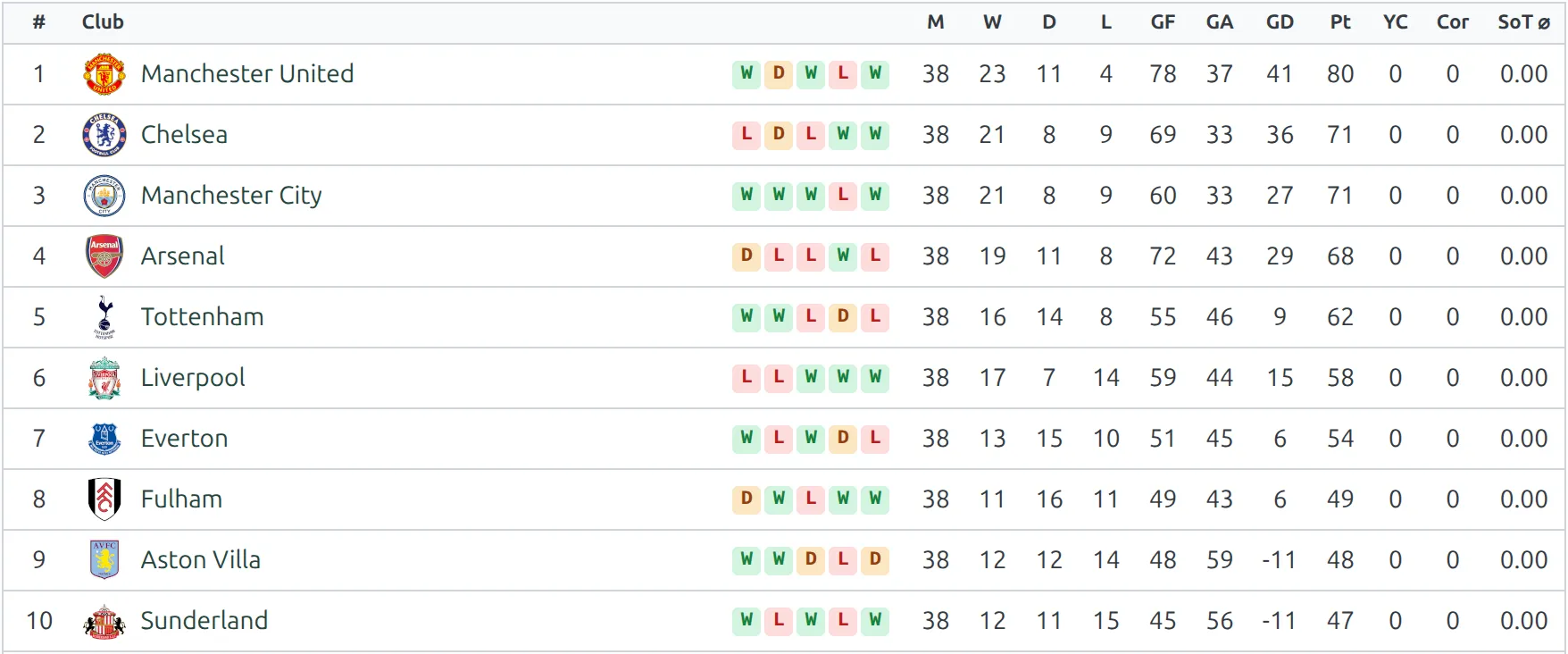
Everything else on the table still works: the column set, the row colours, the notes under the table, conferences, and the partial slice. Those are display settings and don’t care where the numbers came from.
Settings that stop applying
Three blocks stay visible in the editor but have nothing to act on, because they’re all inputs to a calculation that no longer happens.
| Block | What to do instead |
|---|---|
| Ranking Rules | Order the rows with the arrows. The rules can’t sort a table that isn’t being sorted. |
| Points – points for a win, draw, loss | Nothing. You type the points total directly. |
| Initial points – deductions and carried-over points | Type the adjusted total into the Points cell. A -10 entry here won’t be applied. |
A deduction still deserves an explanation, and Table Notes does work – add a line there saying why a club’s points don’t match its results.
API-imported tables are already manual
A standing table created by the API import arrives complete – positions, played, points, the lot – and is switched to manual filling automatically. That’s deliberate: your site may not hold the matches those numbers were calculated from, so there’s nothing to recalculate it out of.
You can edit such a table by hand exactly as described above. Remember the third overwrite rule, though: on a table the import keeps up to date, the next run replaces your edits the moment the provider publishes a different table.
See Standing Columns for the Game Date Range block, which is how an imported table earns its statistics columns, and Lazy Import for importing tables in the first place.
🆘 Troubleshooting
The cells are greyed out and I can’t type in them
Automatic data filling is still enabled. The cells are read-only until you set it to Disable – they show the calculated figures so you can see what the table currently holds.
My numbers came back after I saved
Automatic data filling was switched back on, either on this save or a previous one. Once it’s on, the save rebuilds the table from the finished matches and the typed numbers are gone. Check the switch before every Update on a manual table.
The table is empty and there’s nothing to type into
The rows haven’t been created yet. The editor says “This table hasn’t been calculated yet” when this happens. Switch Automatic data filling back on, click Update once so the rows are built from the group’s clubs, then switch it off again. If it’s still empty after that, the competition group itself has no clubs in it.
Recalculate says my table was skipped
That’s correct behaviour, not a failure. The Bulk actions Recalculate on the Standing Tables list reports “N Standing Tables skipped (missing, or set to manual filling)” for every manual table in the selection, and leaves them alone. Recalculating one would wipe it.

A “Needs recalculation” flag never appears on it
It won’t. The Data Import tool only flags tables it could actually rebuild, so a manual table is never marked and never counts towards the “N standing tables need recalculation” bar. If you switched a table to manual after it was flagged, the flag clears itself the first time a recalculation is attempted on it.
I can’t reorder the rows
The up and down arrows are drawn in two extra columns at the right-hand end of each row, and they’re only there when Automatic data filling or Automatic Position Calculation is switched off. The first row’s up arrow and the last row’s down arrow are always disabled.
📚 Related
- Standing Ranking Rules – the calculation this page switches off, and how to configure it instead
- Standing Columns – which columns your table shows, on manual and calculated tables alike
- Standing Conferences – splitting a table into named divisions
- Lazy Import – importing standing tables from the API
- Standing shortcode – putting the table on a page