

CSV Export downloads your Football Leagues data as spreadsheet files. Every file has the same columns, in the same order, as the matching tab of the Data Import Tool – so you can export, edit in a spreadsheet, and paste the rows straight back to update what you already have.
🚀 Where to find it
Go to Settings & Tools > Data Import > CSV Export. Each entity has its own button. Clicking one downloads the file immediately – nothing is queued and nothing is stored on the server.
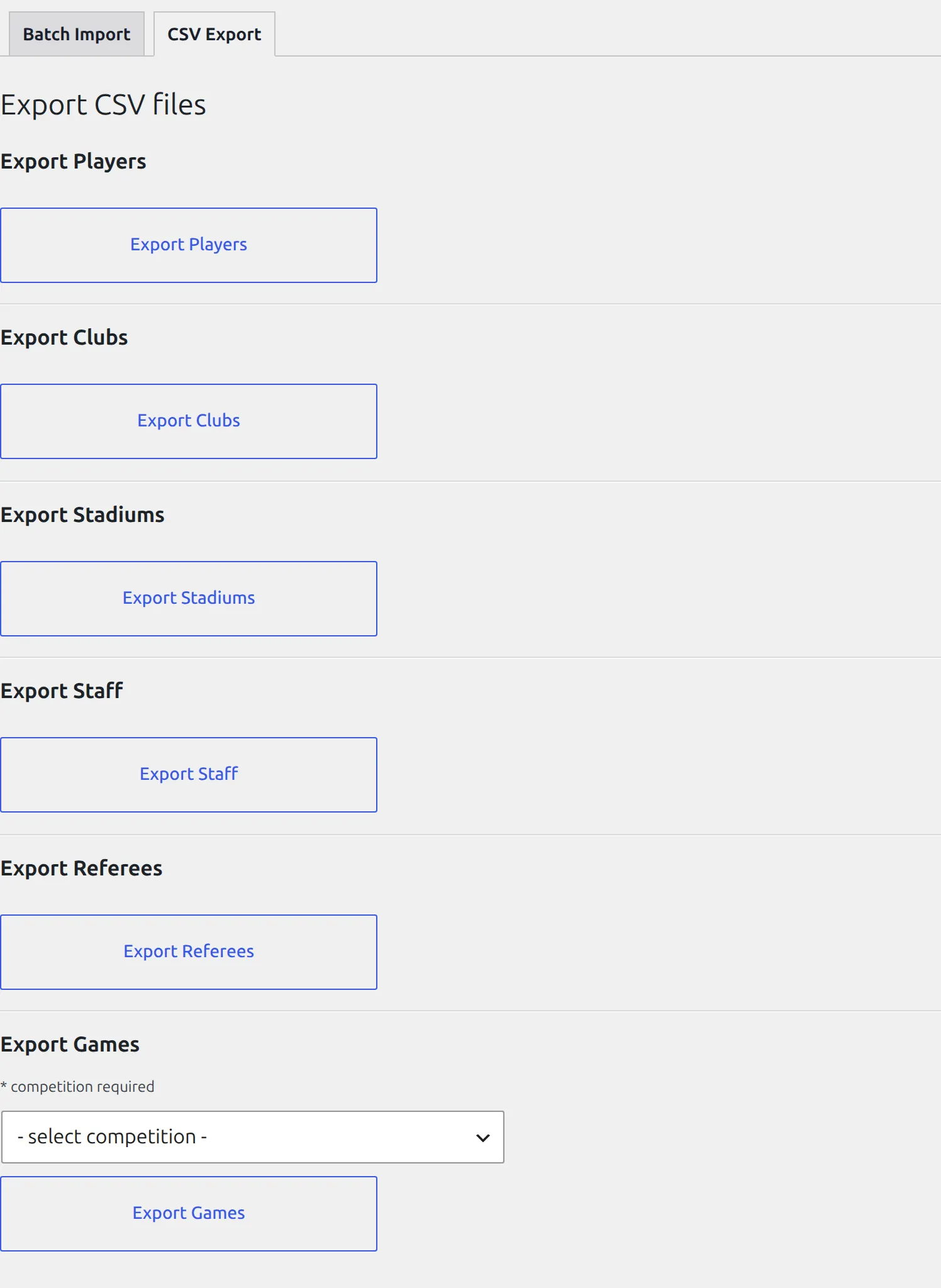
What you can export
| Export | File | Notes |
|---|---|---|
| Players | players.csv | All players on the site |
| Clubs | clubs.csv | Unavailable while a database migration is pending |
| Stadiums | stadiums.csv | All stadiums |
| Staff | staff.csv | All staff members |
| Referees | referees.csv | All referees |
| Games | games.csv | Pick a competition first – this export is per competition |
The round trip: export, edit, import back
This is the main reason the export exists. Bulk-editing 200 clubs in a spreadsheet is far quicker than opening 200 editor screens.
- Export the entity you want to change.
- Open the file in Excel, Google Sheets or LibreOffice.
- Edit the cells you want to change. Leave the ID column alone – that is what tells the import which record to update.
- Select the rows (including the header row) and copy them.
- Go to Settings & Tools > Data Import, open the matching tab, choose the Update mode, and paste.
- Import.
Keep the ID column
Every export ends with an ID and an External ID column. In Update mode the ID is how a row is matched to an existing record. Blank it out and the import has nothing to match on, so it may create a duplicate instead of updating.
Columns you get
The header row is generated from the same column definitions the Batch Import tabs use, so the two always agree. If you rename a custom field, both sides pick up the new name.
Clubs
Club Title, Abbreviation, City, Country, Address, Website, Founded, National Team, Club ID, Club External ID, three Custom Field Title/Value pairs.
Stadiums
Stadium Title, Address, City, Website, Capacity, Opened, Surface, Description, three Custom Field Title/Value pairs, Stadium ID, Stadium External ID.
Staff
Staff Name, Short Name, Current Club, Job Title, Place of Birth, Date of Birth, Date of death, Nationality, Bio, three Custom Field Title/Value pairs, Staff ID, Staff External ID.
Referees
Referee Name, Short Name, Place of Birth, Date of Birth, Job Title, Nationality, Referee ID, Referee External ID, three Custom Field Title/Value pairs.
Your custom fields
Custom fields you defined under Settings > Custom Fields are appended as extra columns at the end of the file, one per field, using the field name as the header. They come back in on import the same way.
🆘 Troubleshooting
The Clubs button is missing and shows a warning instead
A database migration is still pending. Club data is being moved to a new table and an export taken mid-migration could be incomplete, so the button is held back. Open Football Leagues > Toolbox > Database Updater, run the pending migrations, then come back. See Migrating to v0.18.0.
The Games export does nothing
Games are exported one competition at a time. Pick a competition from the dropdown first – the button shows an alert if none is selected.
Accented characters look wrong in Excel
The files are UTF-8. Excel on Windows sometimes assumes a different encoding when you double-click a .csv. Use Data > From Text/CSV and pick UTF-8, or open the file in Google Sheets or LibreOffice instead.
A cell starts with = or + and my spreadsheet treats it as a formula
Exported cells are sanitised against spreadsheet formula injection: a value that starts with =, +, - or @ is written with a leading apostrophe, so the spreadsheet shows it as text instead of running it. If you paste such a row back into the import, remove that apostrophe first.
📚 Related
- Data Import Tool – the other half of the round trip
- Remove Games in Bulk
- Site Migration – moving whole competitions between sites