

Mark a club or player as Hidden and it keeps its place everywhere your data needs it – standings, statistics, lineups, squad lists – but as plain text instead of a link. Its own page returns a 404 and it drops out of search.
This is built for single-team sites. Import a whole league so your results, standings and stats stay complete, then hide the opponents. You get a full league table without publishing a profile page for all 19 clubs you don’t run.
🎯 What Hidden changes
Hidden is decided per place, not everywhere at once. That’s the point – hiding an opponent must not erase it from the league table.
| Where | A hidden club or player |
|---|---|
| Standings table | Still listed – name as plain text, no link |
| Player stats, scorers, assists | Still listed – name as plain text, no link |
| Squad list | Still listed – no link, no photo overlay |
| Match page and lineups | Still listed – name as plain text, no link |
Its own page (/club/..., /player/...) | Returns 404 |
| Site search and the Football Leagues search box | Not listed |
Clubs directory ([anwpfl-clubs]) | Not listed |
| Admin dropdowns and the FL Selector | Still selectable |
| Standings calculation | Unchanged – results still count |
That last row matters. Hiding a club changes nothing about your data – every match it played still counts toward the table, the top scorers list and every statistic you track. You’re only removing its public profile page and the links pointing at it.
Hidden entities also stay fully selectable in the admin, so you can still build matches against them, assign squads and import results exactly as before.
🚀 Set up a single-team site in one step
If you run one club and imported a whole league around it, go straight to Settings & Tools > Visibility. This page does the whole setup at once.
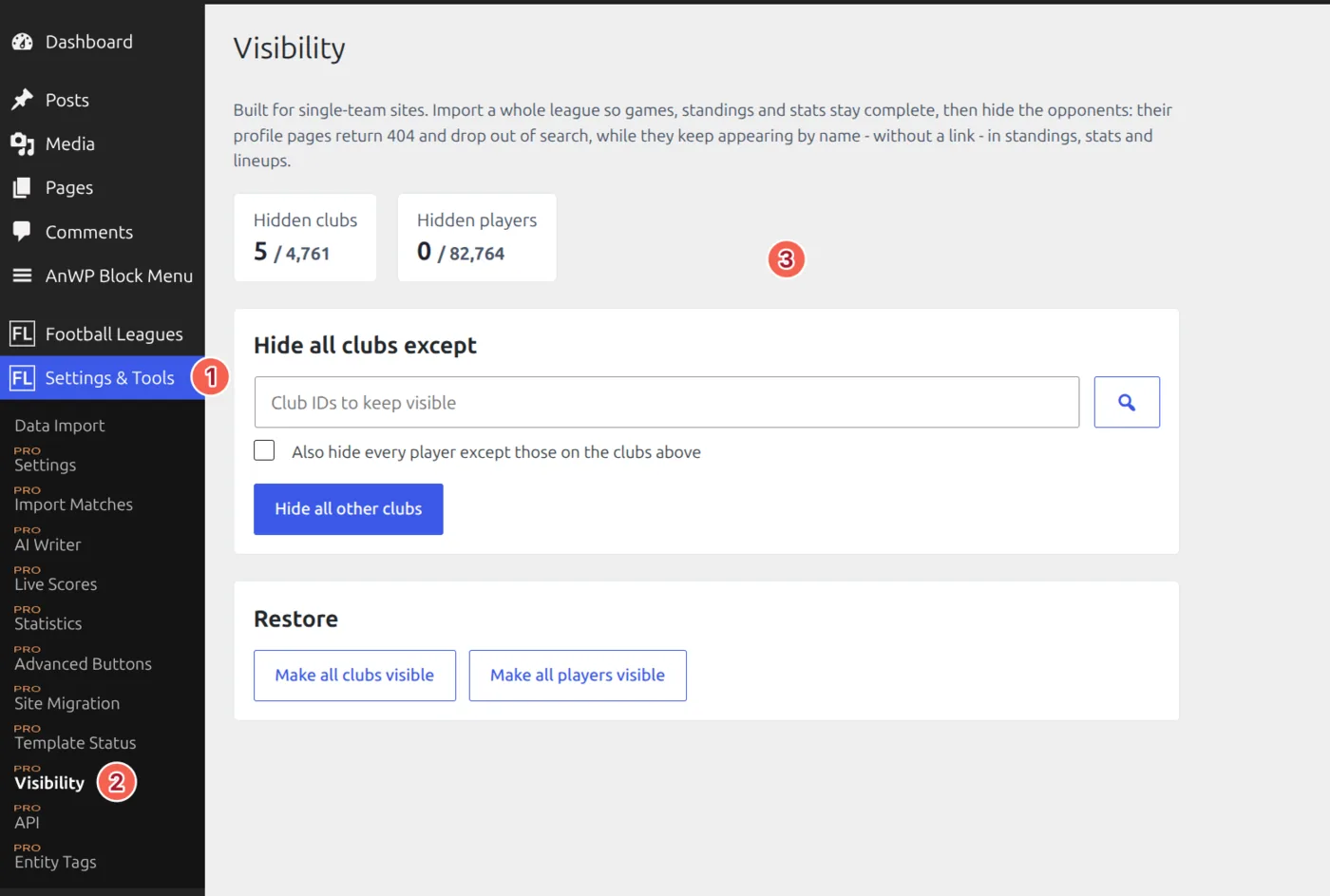
- Under Hide all clubs except, click the search button and pick the club (or clubs) you want to stay public.
- Tick Also hide every player except those on the clubs above if you want the opponents’ players hidden too.
- Click Hide all other clubs.
The two counters at the top show how many clubs and players are hidden out of your total, so you can confirm the result at a glance.
Keep the tab open
On a big site this runs in batches, so leave the tab open until it reports Finished. You can stop it at any time – everything already changed stays changed, and nothing is left half-written. Just re-run it to carry on.
Hide one club or player
From the editor
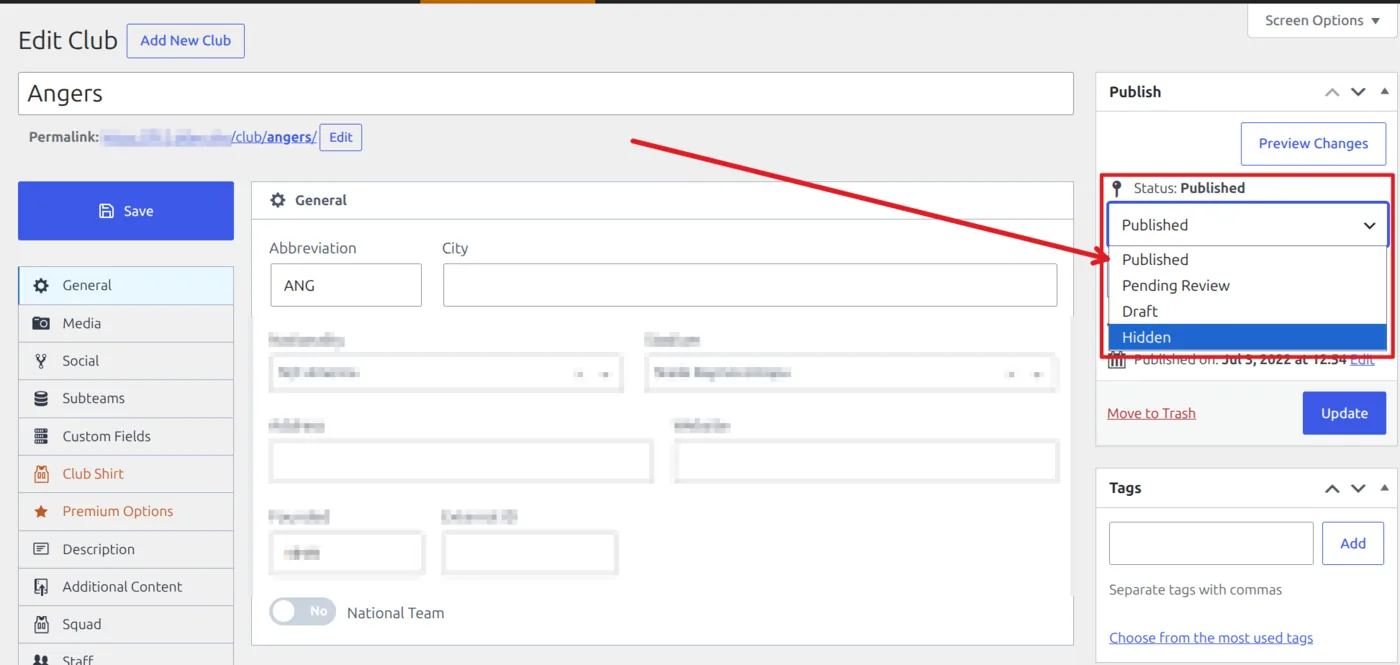
Open the club or player, then in the Publish box click Edit next to Status and choose Hidden. Save.
From the list, in one click
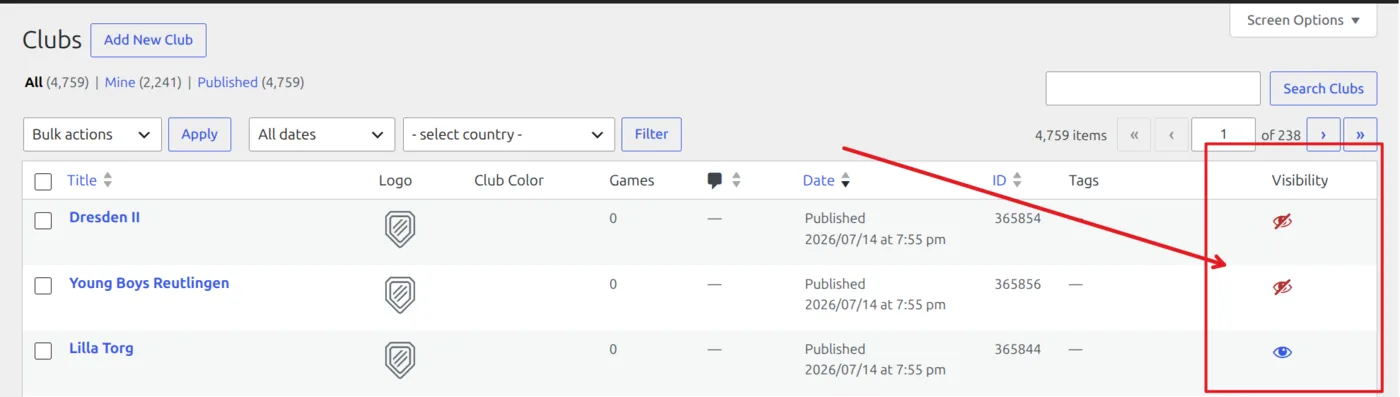
The Clubs and Players lists have a Visibility column. Click the eye on any row to flip it – no page reload, no save. A blue open eye means visible, a red crossed-out eye means hidden.
Rows showing a dash
Drafts, pending items and anything in the trash show a gray dash instead of an eye. They’re already off your site for a different reason, and the toggle deliberately won’t touch them – clicking it would publish something you never meant to publish. Publish the item first if you want to hide it.
Hide several at once
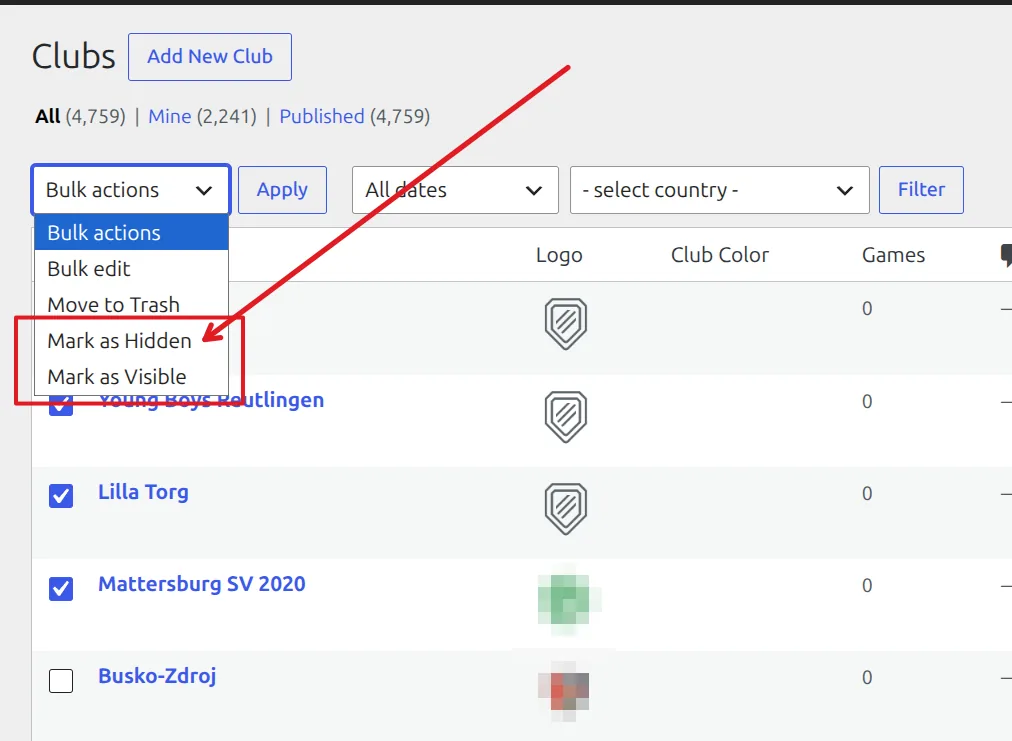
On the Clubs or Players list, tick the rows you want, then pick Mark as Hidden from Bulk actions and click Apply. Mark as Visible reverses it.
Hidden is also in the status dropdown of Quick Edit and Bulk Edit, if you’re already editing rows there.
Create imported clubs and players hidden
If an import or a scheduled task keeps adding clubs and players, you don’t want to hide them by hand after every run. Turn on Hide new teams and players created by an import in API Import > Settings > Advanced Setup.
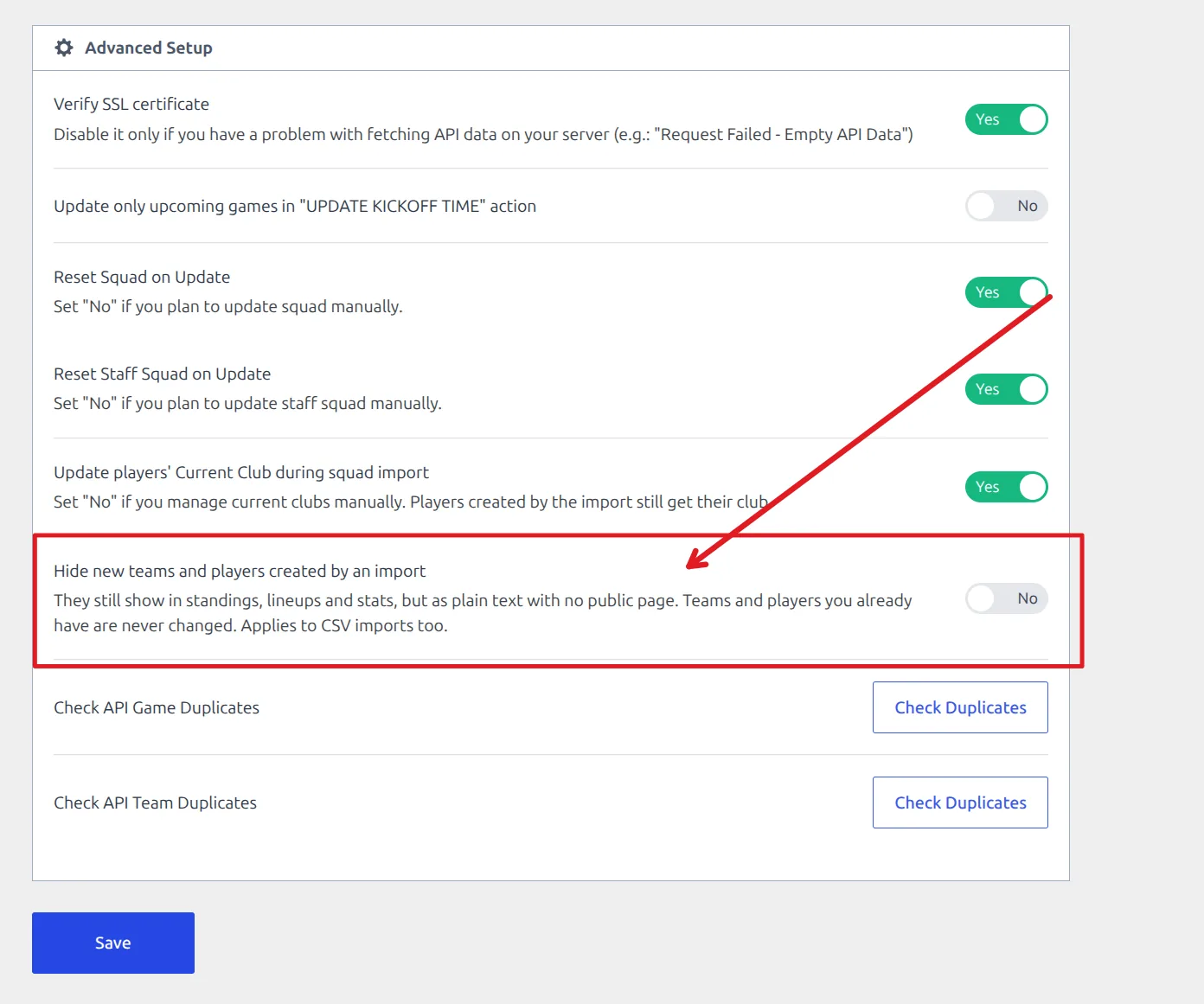
With it on, every club and player an import creates lands Hidden. Teams and players you already have are never touched – in either direction. A re-import won’t publish one you hid, and it won’t hide one you published. The option applies to the CSV Data Import tool too.
Single-team tip
Turn this on before your first import, and your own club is the only thing you ever need to publish. Import the league, then just make your club visible from its row in the Clubs list.
Make things visible again
Nothing here is one-way. Any of these puts a club or player back:
- Click the red eye in the Visibility column.
- Set the status back to Published in the editor, Quick Edit or Bulk Edit.
- Select rows and use the Mark as Visible bulk action.
- Use Make all clubs visible or Make all players visible in the Restore section of the Visibility page.
🆘 Good to know
A hidden page still opens for me
You’re logged in as an editor, previewing your own hidden content. Open the URL in a private window to see what visitors get, which is a 404.
A hidden player still appears in the search box for a while
If your site sits behind a CDN such as Cloudflare, a search response cached before you hid the player can keep serving until it expires. It sorts itself out – or purge your CDN cache if you’d rather not wait.
Hidden vs Draft vs Trash
Use Hidden when you want the club or player to keep working in your data but have no public page. Use Draft for something you haven’t finished writing. Use the Trash for something you want gone – and remember that deleting a club removes it from the standings and statistics that reference it, which Hidden never does.
📚 Related
- API Data Import – importing a full league from API-Football
- Data Import Tool – the CSV importer, which follows the same hide-on-import option
- Team Layout Builder – building the page your own club keeps