

A standing table ships with eight columns – Played, Won, Drawn, Lost, GF, GA, GD and Points. With Football Leagues PRO you decide which columns appear, in what order, and which ones stay put when the table runs out of room. You can also add columns the free version doesn’t have: points per game, win percentage, and match statistics like corners, cards or clean sheets.
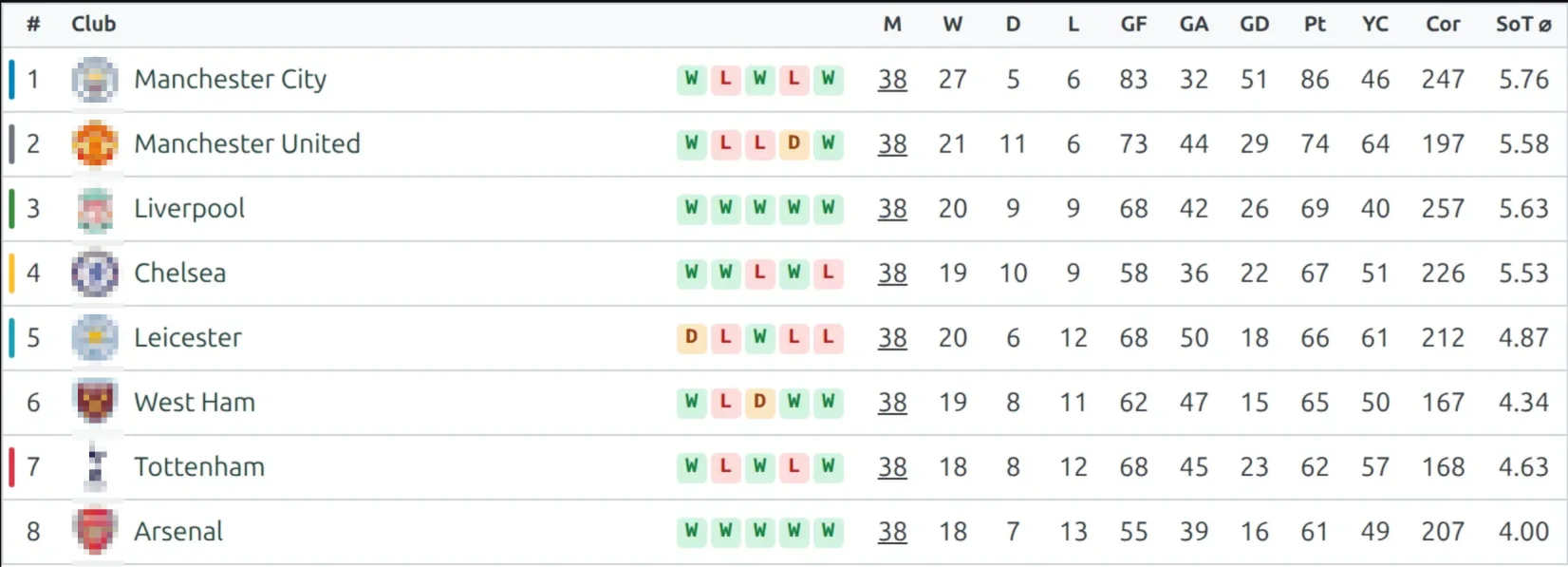
🎯 What you can add
Ratio columns
Four columns worked out from the numbers already in the table. They need no extra data and work on every kind of table – calculated, manually filled, or imported from the API.
| Column | Header | What it shows |
|---|---|---|
| Points per game | PPG | Points divided by matches played, to 2 decimals |
| Win percentage | Win% | Wins as a percentage of matches played, to 1 decimal |
| Goals for per game | GF/G | Goals scored divided by matches played |
| Goals against per game | GA/G | Goals conceded divided by matches played |
PPG is the one to reach for in an amateur league where clubs have played a different number of games. A club that hasn’t caught up on its fixtures looks worse than it is on points alone.
A club with no matches played shows - rather than a zero, so a fixture-less club doesn’t look like the worst team in the league.
Match statistics columns
Eight built-in club statistics, plus every custom club statistic you’ve defined under Settings & Tools > Statistics.
| Column | Header |
|---|---|
| Clean Sheets | CS |
| Yellow Cards | YC |
| Red Cards | RC |
| Corners | Cor |
| Fouls | Fls |
| Offsides | Off |
| Shots | Sh |
| Shots on Goal | SoT |
Every one of them comes in two flavours: the season total, and per game. The per-game version is a separate entry in the picker, labelled with the ⌀ marker – “Corners ⌀” gives you a Cor ⌀ column. You can show both side by side, though two columns of corners next to each other are hard to tell apart at a glance – pick one unless you really need both.
Card columns follow whatever you chose for second-yellow cards in the plugin settings, so they agree with the card totals elsewhere on the site.
Which games are counted
Exactly the games the table itself is built from – the same competition, the same group, finished only. Friendly competitions are included, so a friendly tournament gets real numbers. If a visitor switches the table to Home or Away, or filters it by matchweek, the stat columns follow that view.
Where columns are set
There are two places, and each standing decides which one it listens to.
- Global – one set of columns for the whole site, at Settings & Tools > Settings > Display > Standing, in the Table Columns (Global) group. Change a list here and every standing that follows the global set updates on the next page load. No re-saving standings.
- Custom – per standing, in the standing editor under Display Options – Table columns order and visibility. Use it for the one table that needs to be different.
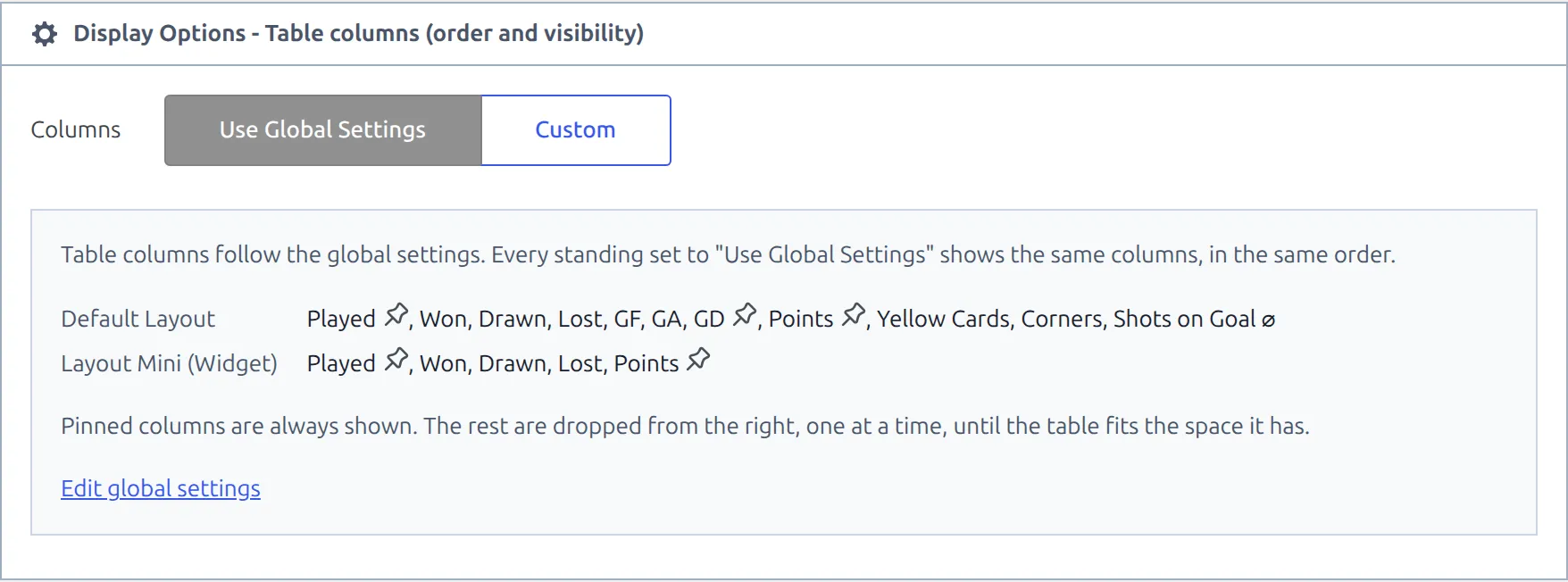
Open a standing table, find the Columns switch at the top of Display Options, and pick Use Global Settings or Custom. On Global you get a read-only preview of what the site-wide lists currently hold, with a link straight to the settings page.
🚀 Adding a column
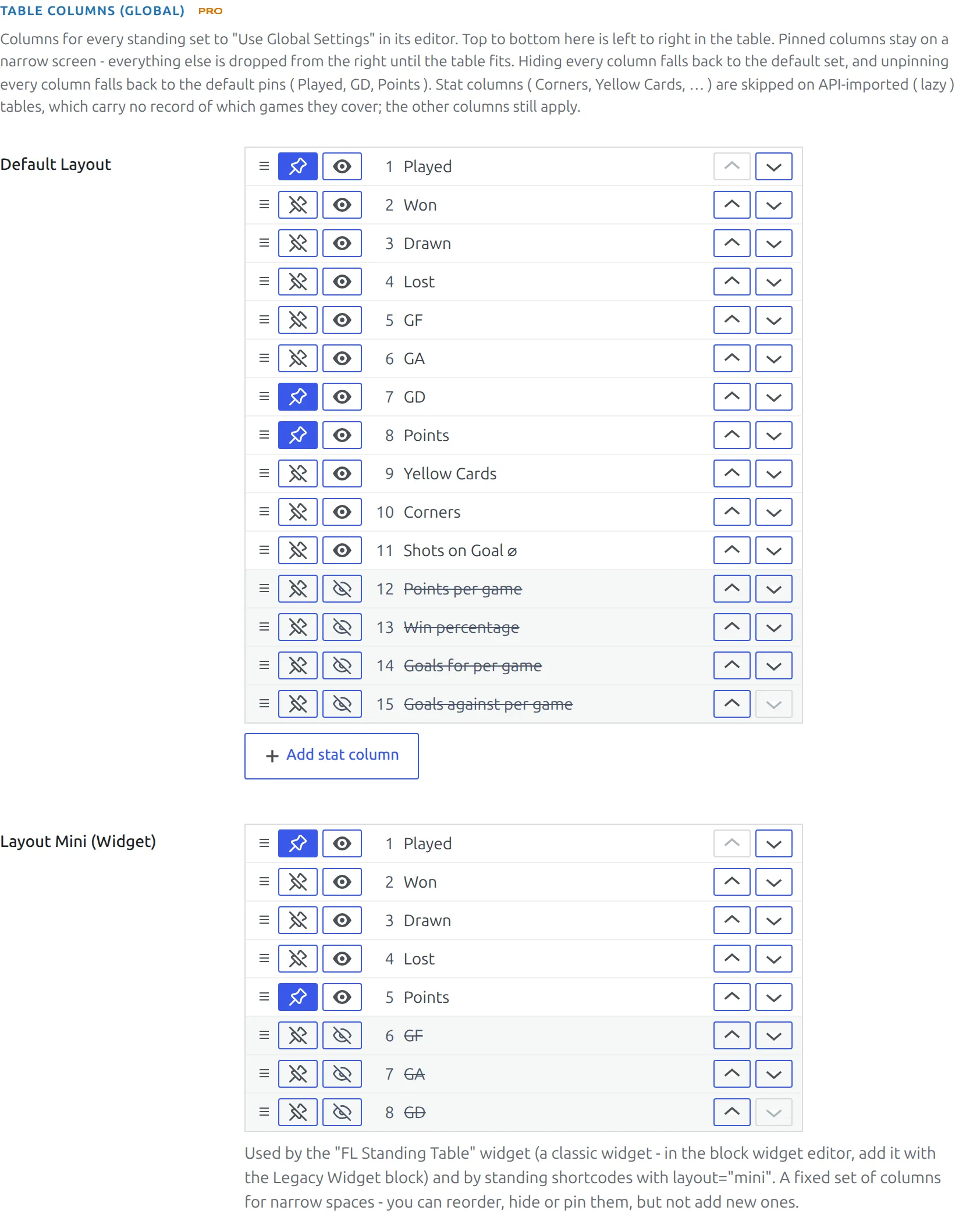
Both places use the same editor: one row per column, and top to bottom in the list is left to right in the table. The standard eight and the four ratio columns always have a row – a hidden one is just crossed out. Each row has:
- Pin – the pin button. A pinned column is never dropped when the table runs out of room. More on that below.
- Show or hide – the eye button. A hidden column stays in the list but stops rendering.
- Reorder – drag the handle on the left, or use the up and down arrows on the right.
- Add a statistic – press Add stat column under the Default Layout list and pick one.
Two safety nets. Hide every column and the table falls back to that layout’s standard columns – a standing always shows something. Unpin every column and it falls back to the default pins (Played, GD and Points on the full table).
On the global settings page a hidden stat column doesn’t keep its row. After you save and reload it’s back under Add stat column, ready to add again.
Layouts and pinned columns
A standing table has two column lists: Default Layout for the full table and Layout Mini (Widget) for the compact one. Each has its own pins – the pin button on each row.
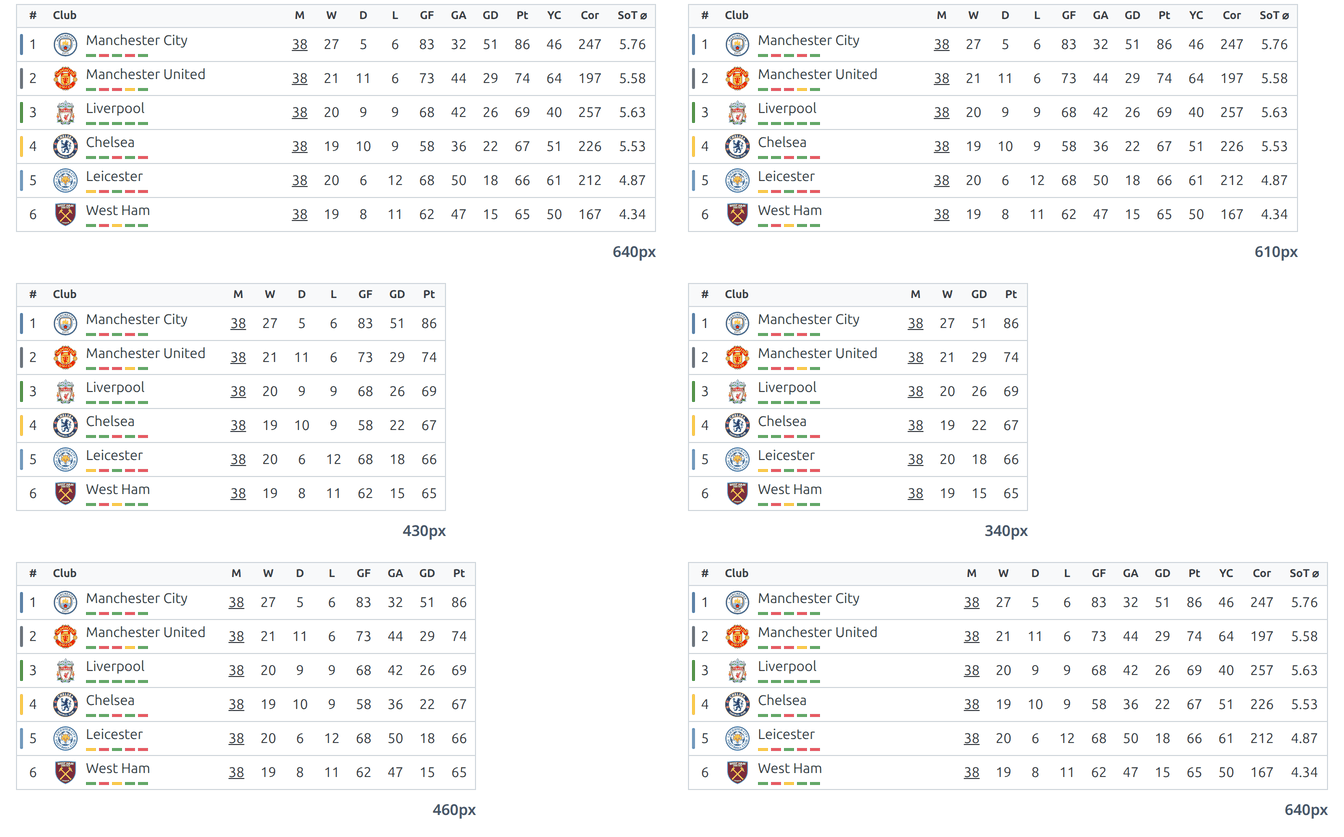
There are no fixed screen-size breakpoints. The table measures the space it actually has and drops non-pinned columns from the right, one at a time, until what’s left fits. A twelve-column table needs more room than an eight-column one, and it works that out for itself – in a sidebar, in a narrow layout column, on a phone.
| List | What it does | Shown by default | Pinned by default |
|---|---|---|---|
| Default Layout | Columns and order for the full standing table | Played, Won, Drawn, Lost, GF, GA, GD, Points | Played, GD, Points |
| Layout Mini (Widget) | Columns and order for the compact Mini standing | Played, Won, Drawn, Lost, Points | Played, Points |
Pinned columns are the ones that survive a narrow screen
Add Corners to Default Layout and it shows wherever there’s room for it. On a phone it’s dropped, because the club names come first. If Corners has to survive that, pin it as well. But pin sparingly: a phone fits three or four number columns, and every pin is one more column the table isn’t allowed to drop.
The Mini layout has no ratio or stat columns. The Mini standing is a sidebar widget a few hundred pixels wide, and they have nowhere to go in it. It does offer GF, GA and GD – hidden by default, press the eye to show them. The Mini list is used by the FL Standing Table widget and by standing shortcodes with layout="mini".
If your theme overrides the standing template
A theme can carry its own copy of shortcode-standing.php. A copy made before this release doesn’t get the auto-fit at all – it shows every column at every width, so on a phone the club names get squeezed to nothing. Check Settings & Tools > Template Status for outdated overrides and update the copy in your theme.
Renaming the headers
Every column header is short by design, with the full name in the tooltip. Where you rename one depends on which kind of column it is.
| Column type | Where to rename it |
|---|---|
| The standard eight and the four ratio columns | Settings & Tools > Settings > Content > Text & Labels > Standing Columns – header text and tooltip, one pair per column |
| Built-in statistics (CS, YC, Cor, …) | Settings & Tools > Statistics – fill in the stat’s Abbr field |
| Your own custom club statistics | Same place – the stat’s Name and Abbr fields |
A statistic’s Abbr is global to that statistic – it applies wherever the column appears, not just in standings. Leave it empty and the table uses the shipped abbreviation, which is translated with the rest of the plugin. If you only want to reword the shipped abbreviation for your language, go to Translations > Text Strings and search for short column header.
API-imported tables
A table imported from the API arrives complete – positions, points, goals, everything. Nothing on your site records which games those numbers were calculated from, so FL can’t work out corner or card totals for it without help.
Imported tables follow the global column set and have no per-standing picker. The standard columns and the four ratio columns work as normal, because they come straight off the imported row. Statistics columns are skipped unless you tell FL which games the table covers.
Open the standing and fill in the Game Date Range block – the first and last game date the table covers. Save. FL then counts the finished games on your site inside that range and compares them to the table:
- Green – the range matches, and the statistics columns appear on this table.
- Red – the range doesn’t match. FL tells you how many finished games your range covers and how many the imported table reports, so you can correct the dates. The statistics columns stay hidden until it agrees.
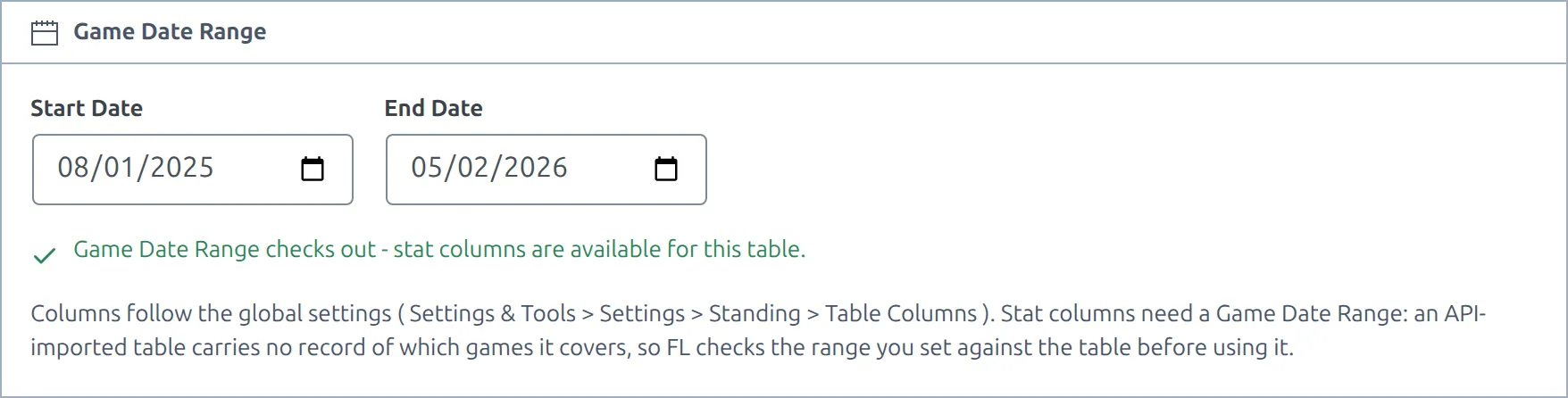
The check is strict on purpose. A number under a Corners header has to belong to the same set of games as the Played column beside it – a total that’s close but not right is worse than no column at all. It also means a season split into two phases works: give each table its own date range and each gets its own numbers, even though both sit in the same competition.
If your site doesn’t hold the games at all – you import tables but not fixtures – statistics columns aren’t available for that table. There’s nothing to count.
🆘 Troubleshooting
I added a column and nothing changed
Check the Columns switch in that standing’s Display Options. A standing on Custom ignores the global lists, and a standing on Use Global Settings ignores its own. If you’re looking at a Mini standing, the list that governs it is Layout Mini (Widget), not Default Layout.
The column shows on desktop but not on mobile
The table dropped it to fit. Non-pinned columns go from the right, so whatever sits at the end of the list disappears first. Two fixes: pin it with the pin button on its row, or move it further up the list so a different column goes instead.
Statistics columns don’t appear on an imported table
Fill in the Game Date Range on that standing and check the verdict underneath it. If it’s red, the dates don’t cover the same games as the table.
A column vanished from the picker
Custom club statistics are site-specific. Delete one under Settings & Tools > Statistics and its column disappears from every standing that used it, headers and all. Nothing is left behind and no zeros are shown – but the column is gone.
The table is too wide
Every added column costs width. The club name column won’t shrink past a floor, so beyond that point the table drops non-pinned columns rather than squeezing the names. Six statistics columns is past the point where a league table still reads as one. Keep the pinned list short and let the fit handle the rest. Printing is the exception – a printed table shows every column, whatever the screen was doing.
📚 Related
- Standing tables – how a table is calculated from match results
- Lazy Import – importing standing tables from the API
- Competition Layout (v2) – where a standing block sits on a competition page