

UEFA Euro 2024 is the classic case of a tournament you import before its knockout draw exists. The group stage – 36 games in six groups – is on your site from day one. The Round of 16 pairs only appear at the provider after the last group games on 26 June, and you need those 8 games without touching anything already imported.
This walkthrough does it end to end on the real Euro 2024: pull in the Round of 16 with Discover New Games, drag the bracket into the official order, add every kick-off time so visitors see it in their own timezone, and put the bracket on the site. The same recipe fits the World Cup, Copa America, the Africa Cup of Nations or any cup whose draw arrives after the import – only the round names and the number of ties change.
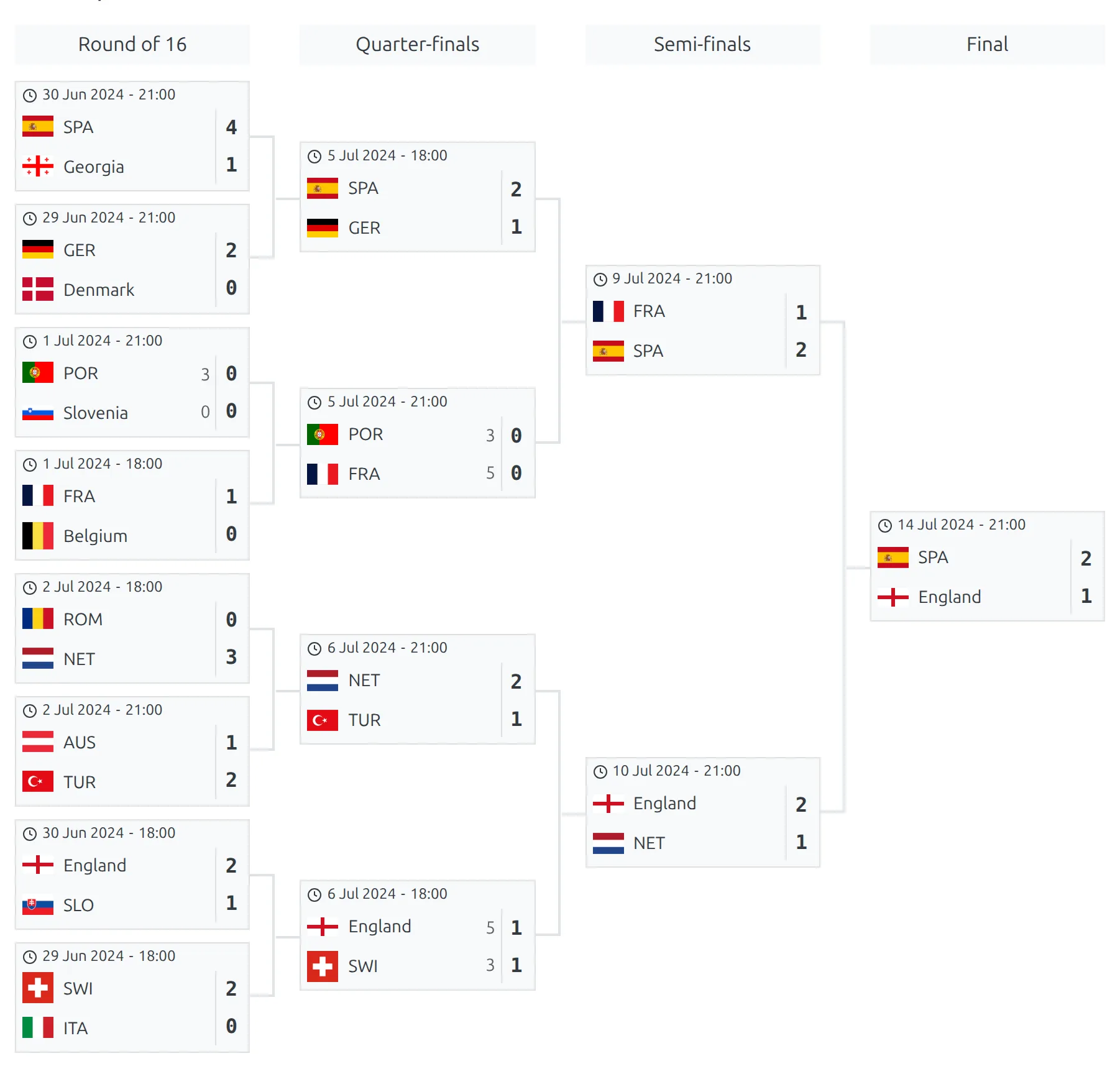
It’s one of four real competitions set up step by step in API Import Use Cases.
What you need first
- The competition, linked to the provider. UEFA Euro 2024 is a multistage competition. Its main stage, Group stage, is round-robin with Groups A to F, linked to the provider’s Euro Championship league, season 2024, with the group games imported. If you haven’t got that far, start with API Import for a Multistage Competition.
- A knockout stage with its rounds already created. A second stage, Knockout phase, with Competition Type set to Knockout, Knockout Format set to single-leg ties, and four rounds named Round of 16, Quarter-finals, Semi-finals and Final. The import maps provider rounds onto rounds that exist, so a stage with only one round has nowhere to put the quarter-finals later. Each round comes with one empty tie, and that’s all it needs. See Multistage Competitions.
- The competition saved to the Import Dashboard. On the API Leagues tab, the star on the league’s row is orange (tooltip remove from Dashboard). The Discover tab only checks competitions saved there.
🚀 Part 1 – Import the Round of 16
Step 1. Discover what’s new
Go to FL API Import > Discover New Games and click the Discover New Games button. The plugin works through every competition saved to the Dashboard, one at a time, and compares the fixtures the provider has now with the games already on your site.
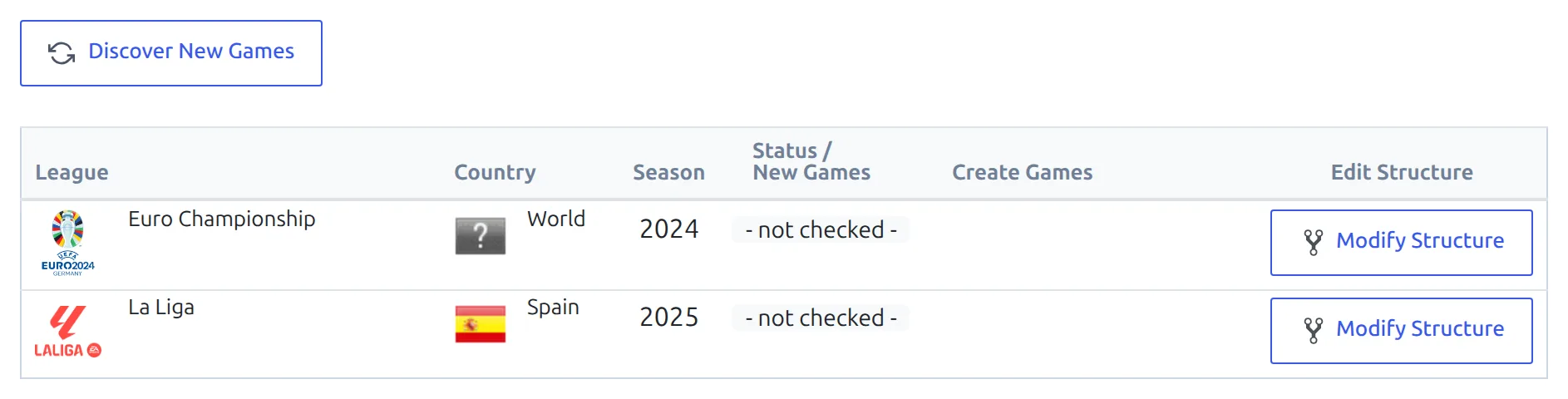
Step 2. Check the count and open Modify Structure
When the check finishes, the Status / New Games column on the Euro Championship 2024 row reads 8 – the eight Round of 16 fixtures. Competitions with nothing new drop off the list. A Create Games button appears on the row, next to Modify Structure.
Don’t create the games yet. The Round of 16 isn’t mapped to anything on your site, so there’s nowhere to put them. Click Modify Structure.

Step 3. Map the Round of 16
The Edit Competition Structure modal lists every round of every stage. The Group stage row already holds its 18 provider rounds, Group A – 1 to Group F – 3. Leave them alone.
In the Knockout phase – Round of 16 row, pick Round of 16 from the dropdown. Provider rounds that aren’t on any row yet are counted in red next to the API Rounds heading, which is a quick way to spot a round you forgot. Leave Put all Teams into single table on No and click Next Step.
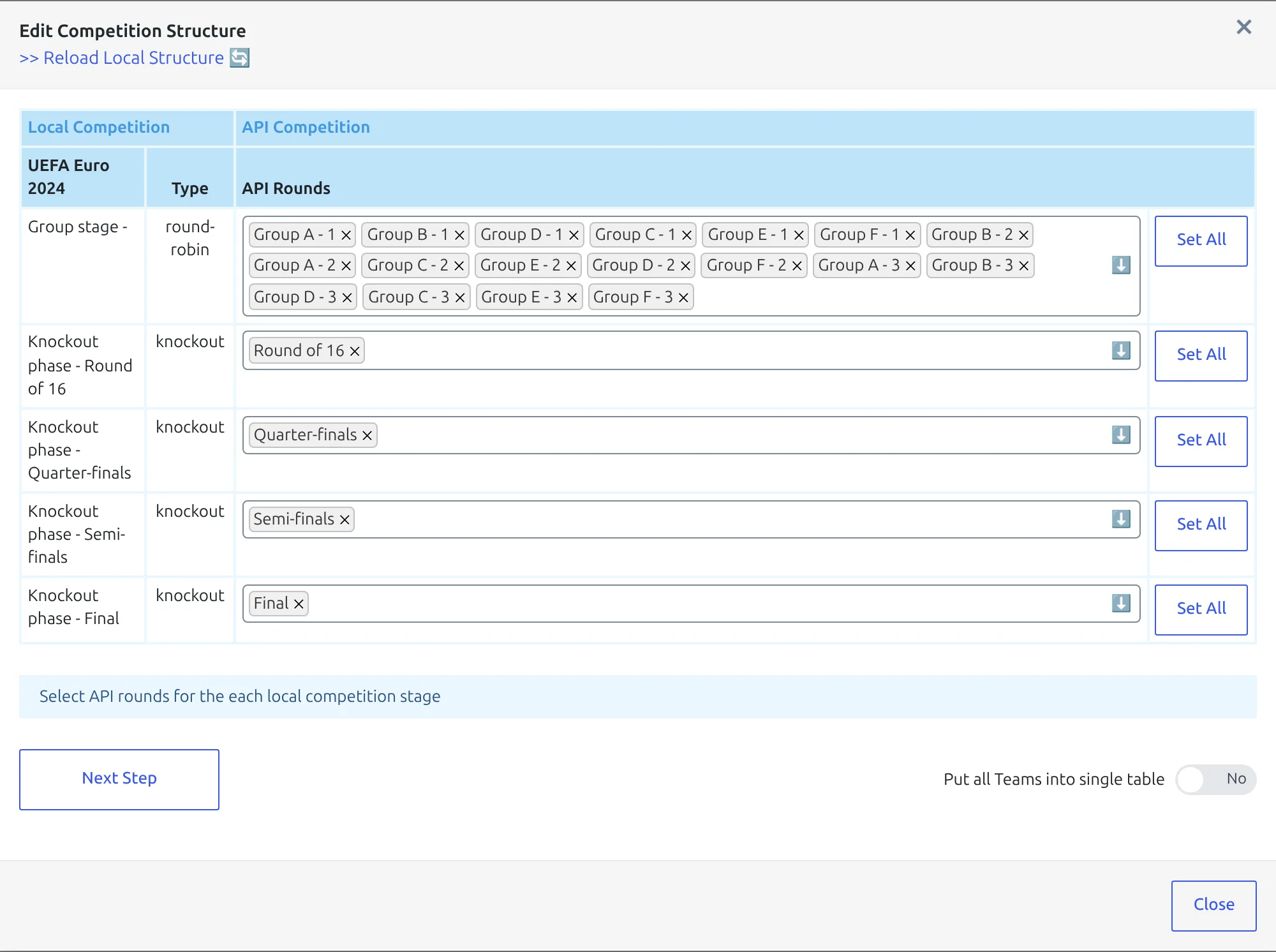
Pick the round yourself rather than pressing Set All on the Round of 16 row. Set All drops every unmapped provider round into that one row, so if the quarter-finals are already published they’d land in the Round of 16 too. Doing this later in the tournament, with more rounds out? Map each one to its own row now – one provider round per row.
Step 4. Update the competition structure
Step 2 shows what the plugin found. The six groups are set to Ignore, because they already hold their clubs. The Round of 16 row lists the eight ties, in the order the provider publishes them – Switzerland – Italy, Germany – Denmark, France – Belgium, England – Slovakia, Spain – Georgia, Portugal – Slovenia, Romania – Netherlands, Austria – Türkiye – with its toggle on Create.
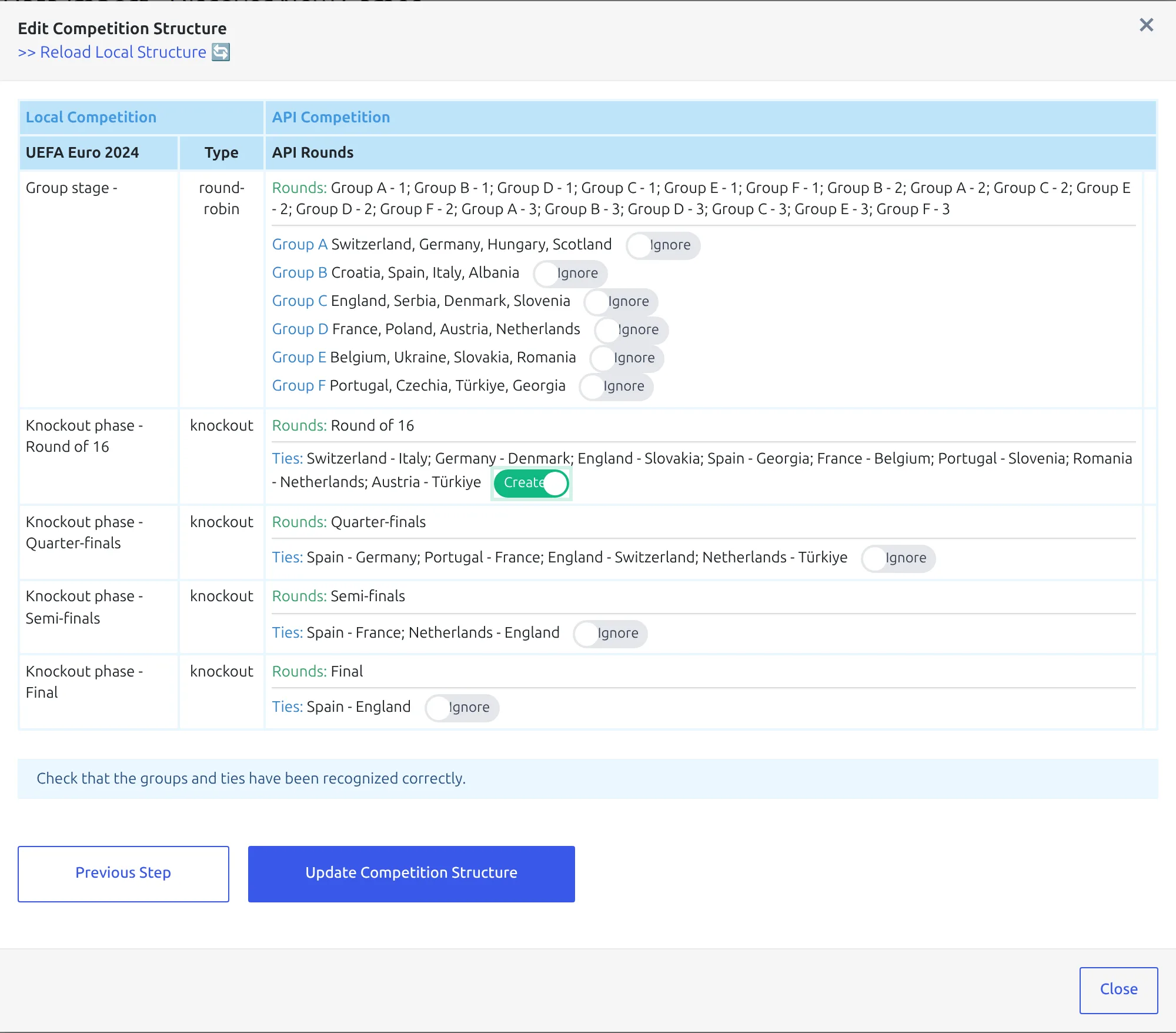
Click Update Competition Structure. The modal closes with Competition Structure Updated. Behind it, the first pair went into the empty tie the Round of 16 came with, the other seven were added as new ties named Tie # plus a number, and the round mapping was saved. Any club new to your site would be imported here too – at the Euro all sixteen already exist from the group stage.
Step 5. Create the games
Back on the list, click Create Games on the Euro Championship row. A progress line counts up, then a message confirms 8 items were imported. The plugin then checks the competition again, and if all eight games were created, Euro 2024 disappears from the list.

Games are only created for mapped rounds, and only where a tie holds both clubs. Nothing you imported before is touched, so running it again after every draw is safe.
The other route: from the API Leagues row
You can do exactly the same from FL API Import > API Leagues: the branching-arrow button on the league’s row opens a menu, and Add teams to groups/ties in it opens the same structure modal. The database button’s actions include Create Games. That route is written up in Add New Games to a Multistage Competition. Use it when you know which competition changed; use the Discover tab when you want the plugin to tell you.
🏆 Part 2 – Put the bracket in the right order
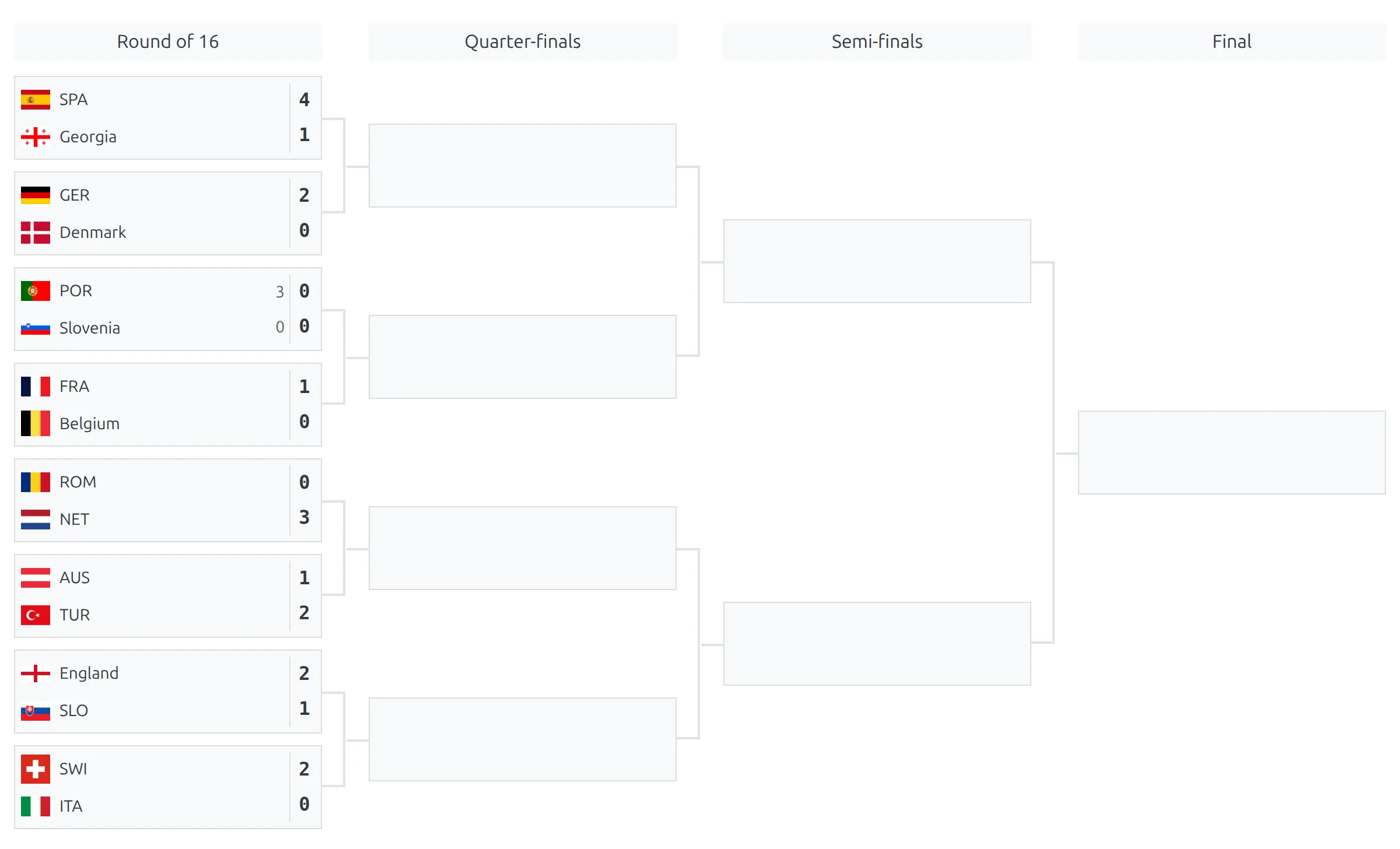
Open the competition page now and the bracket probably looks wrong. The Round of 16 comes out in import order, Switzerland – Italy on top, with a single empty box in each later round.
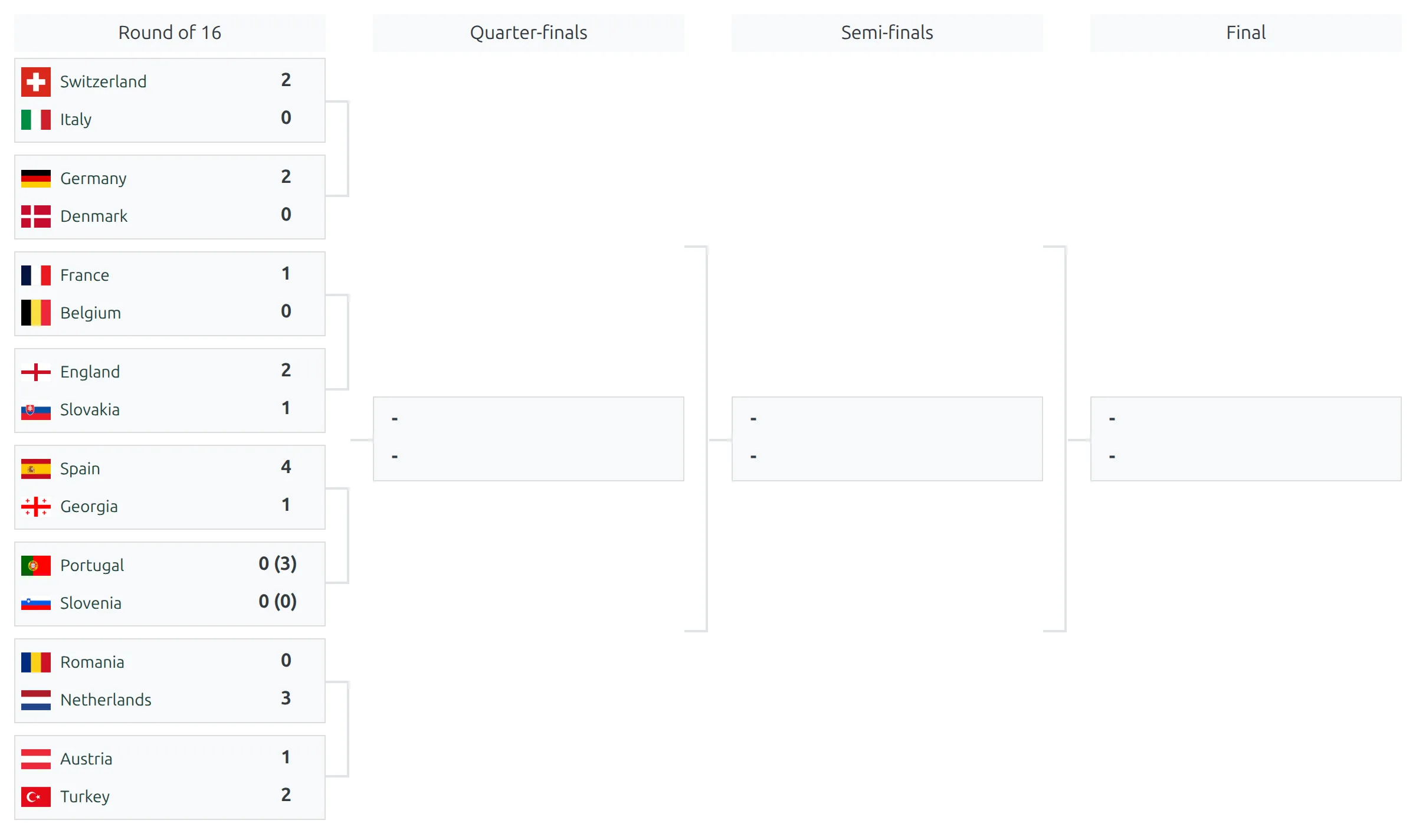
That’s not a bug. On manual, ties are drawn in the order they were created, which is the provider’s order. On automatic, each round is lined up with the round after it, working back from the latest round whose ties have clubs – and until the quarter-finals are drawn there’s nothing to line up against. Manual, with a minute of dragging, fixes it today.
Step 6. Open the knockout stage and switch to manual
Go to Competitions, open UEFA Euro 2024 and click the Knockout phase stage tab – every stage of a multistage competition is edited on the same screen. Next to Knockout Format, set Bracket Layout to manual.
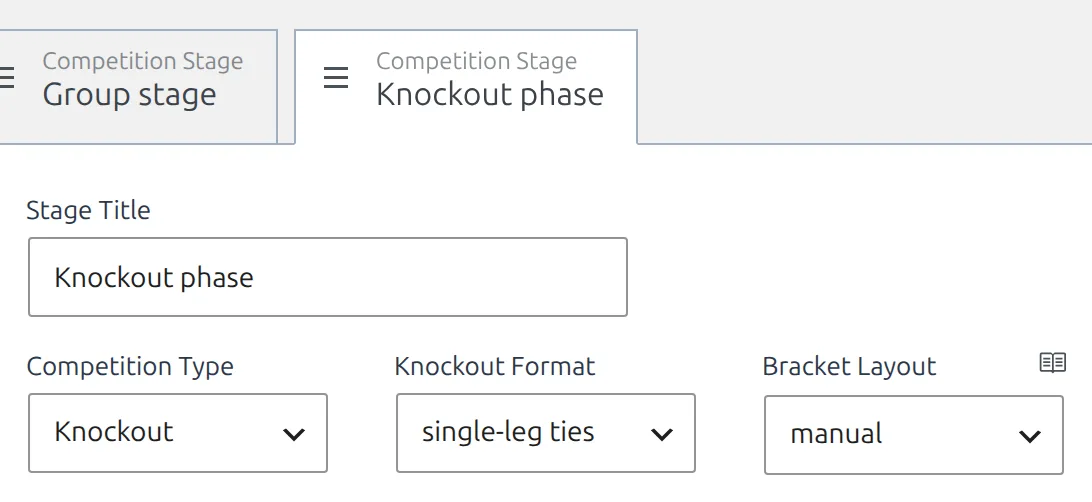
The four options, and what the visitor gets from each:
| Bracket Layout | What you get |
|---|---|
| hide | No bracket on the competition page or in Layout Builder. The [anwpfl-bracket] shortcode still draws it. |
| manual | You order the ties by dragging them, and each tie gets an options box for placeholder team names and a kick-off date/time. The bracket appears once the stage has a game or a tie has a placeholder team name. A stage added with Add New Stage starts here. |
| automatic | Built from the stage structure, each round lined up against the next. Needs at least one game in the stage, and has no per-tie options – no kick-off times. |
| advanced | A separate bracket you draw on the stage’s own Bracket tab. It finds games by ID and advances winners for you. See Advanced Bracket. |
Step 7. Drag the ties into the official order
With manual selected, a Bracket Layout Yes/No toggle appears above the rounds. On Yes the rounds sit side by side as bracket columns, which makes the order easy to read. Grab a tie by the handle on the left of its header and drop it into place. Ties only move within their own round.
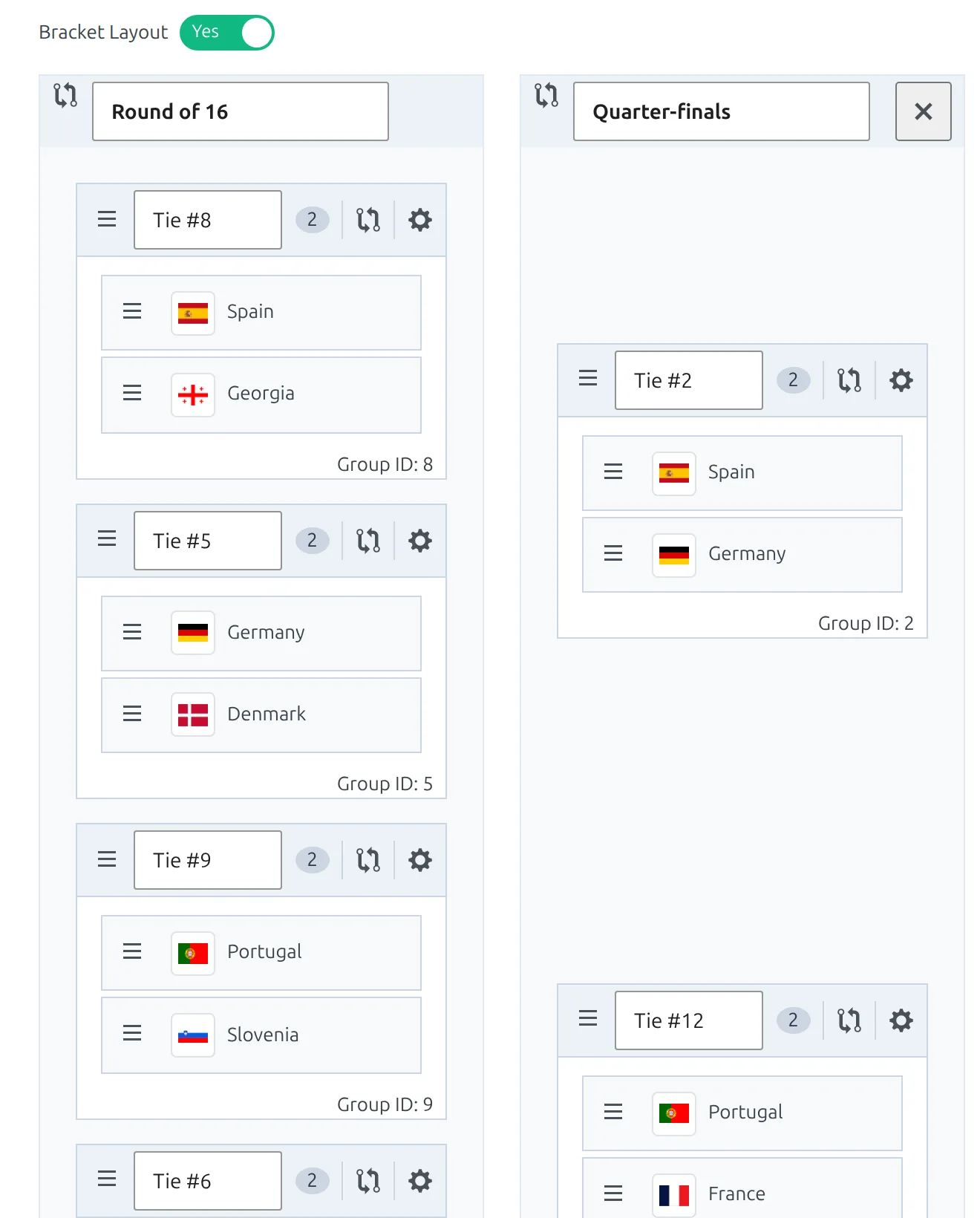
The official Euro 2024 bracket, top to bottom. Ties 1 and 2 meet in the first quarter-final, 3 and 4 in the second, and so on:
| Position | Round of 16 tie |
|---|---|
| 1 | Spain – Georgia |
| 2 | Germany – Denmark |
| 3 | Portugal – Slovenia |
| 4 | France – Belgium |
| 5 | Romania – Netherlands |
| 6 | Austria – Turkey |
| 7 | England – Slovakia |
| 8 | Switzerland – Italy |
Moving a tie doesn’t change its Group ID, so the games you just created stay attached to it.
Step 8. Add empty ties for the later rounds
Each later round still has only the one empty tie it came with. Click Add New Group/Match-up under the Quarter-finals column until it has four ties, and under the Semi-finals until it has two. The Final already has its one.
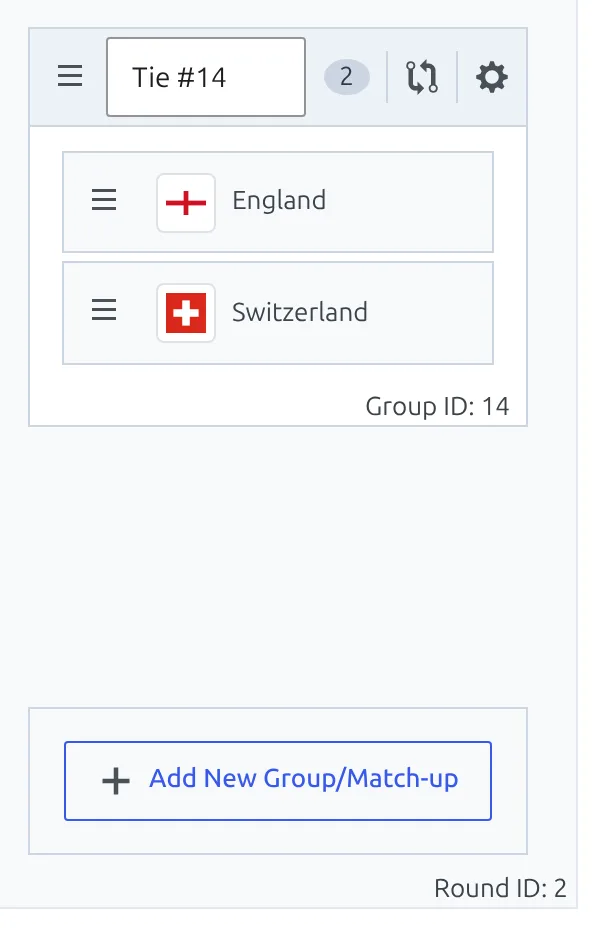
Now the bracket has its full shape before any later draw happens. And when the quarter-final pairs reach the provider, Update Competition Structure fills these empty ties instead of adding new ones.
Check every later round after you import it
New pairs fill the empty ties in the order the provider lists its fixtures, not in bracket order. If a pair lands in the wrong slot, drag the tie – and re-check its kick-off text, which moves with it. Never move clubs from one tie to another with the cog: every game stays attached to the tie it was created in, so the bracket would show its result against the wrong tie or not at all.
Step 9. Save and check
Click Save and reload the competition page. The Round of 16 now reads in the official order, and the empty quarter-final, semi-final and final boxes line up with the ties that feed them.
Part 3 – Kick-off times in the visitor’s timezone
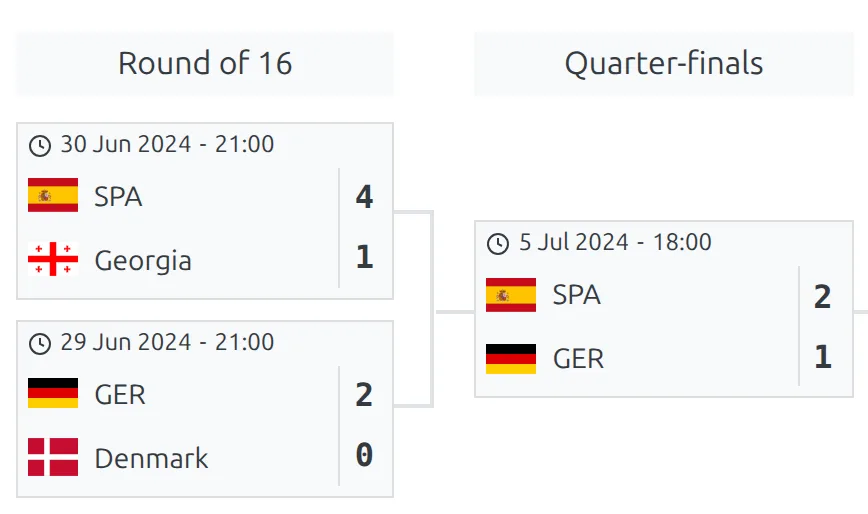
A manual bracket can print each tie’s kick-off above its clubs. Type it as an ISO 8601 date and the bracket shows it in the visitor’s own timezone – so a fan in Lisbon and a fan in New York both see the right time for Spain – Georgia.
Step 10. Turn on the user timezone setting
Go to Settings & Tools > Settings > Configuration > Advanced and, in the Premium group, switch on Use default user’s timezone. Save.

The ISO dates need this setting
The date and time are filled in by the visitor’s browser, and only while Use default user’s timezone is on. With it off, a tie with a valid ISO 8601 date shows just the clock icon and a dash. If you don’t want the setting, type plain text instead – 30 Jun, 21:00 CEST – which the bracket prints exactly as written.
Visitors see times in their browser’s timezone, or in the one they picked with the timezone selector. More in User Timezone.
Step 11. Open a tie’s bracket options
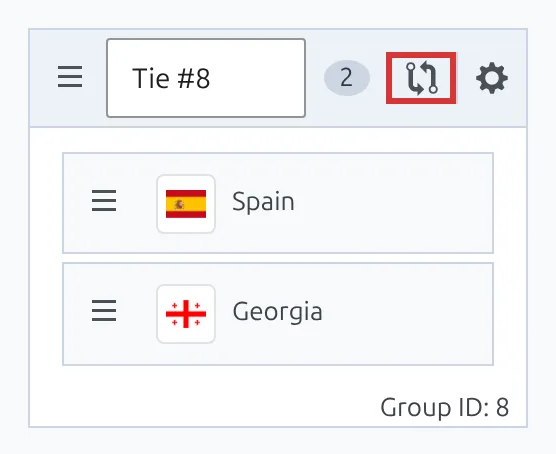
Back on the Knockout phase stage, find the button with two arrows in each tie’s header, just left of the cog. It’s only there while Bracket Layout is manual. Click it on the Spain – Georgia tie.
Step 12. Type the kick-off and save
The Bracket Options box has four fields. Team A (placeholder) and Team B (placeholder) are printed in a tie that has no clubs yet, so an empty quarter-final can read Winner Spain/Georgia. Text Date/Time is the one you want here: type 2024-06-30T21:00:00+02:00.
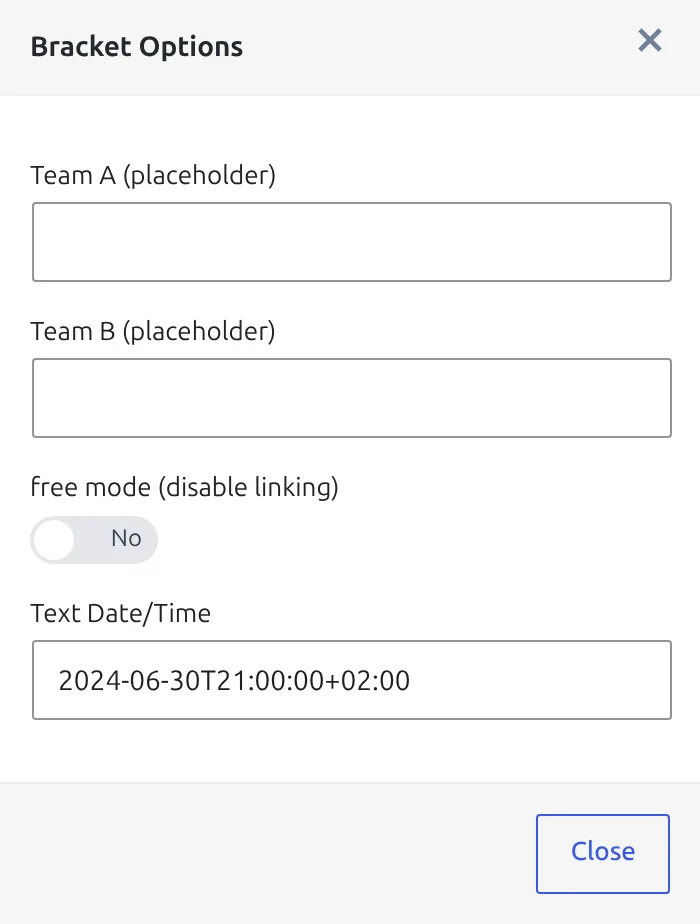
The box has no save button of its own. Close it, fill in the other ties the same way, then click Save on the competition – that’s what stores all of them.
The format has to be exact: date, the letter T, time with seconds, then the offset from UTC. Anything else is printed as plain text.
| You type | The bracket shows |
|---|---|
2024-06-30T21:00:00+02:00 | The kick-off in the visitor’s timezone |
2024-06-30T19:00:00Z | The same moment, written in UTC – works too |
2024-06-30T21:00+02:00 | The text as typed – no seconds |
2024-06-30 21:00 | The text as typed – no T, no offset |
Every Euro 2024 kick-off, ready to paste
All knockout games were played in Germany, on Central European Summer Time, so every offset is +02:00. Rows are in bracket order, top to bottom. You can fill in the quarter-finals, semi-finals and final on day one – their slots and times were fixed before the pairs were known.
| Round | Tie | Text Date/Time |
|---|---|---|
| Round of 16 | Spain – Georgia | 2024-06-30T21:00:00+02:00 |
| Round of 16 | Germany – Denmark | 2024-06-29T21:00:00+02:00 |
| Round of 16 | Portugal – Slovenia | 2024-07-01T21:00:00+02:00 |
| Round of 16 | France – Belgium | 2024-07-01T18:00:00+02:00 |
| Round of 16 | Romania – Netherlands | 2024-07-02T18:00:00+02:00 |
| Round of 16 | Austria – Turkey | 2024-07-02T21:00:00+02:00 |
| Round of 16 | England – Slovakia | 2024-06-30T18:00:00+02:00 |
| Round of 16 | Switzerland – Italy | 2024-06-29T18:00:00+02:00 |
| Quarter-finals | 1st box (Spain – Germany) | 2024-07-05T18:00:00+02:00 |
| Quarter-finals | 2nd box (Portugal – France) | 2024-07-05T21:00:00+02:00 |
| Quarter-finals | 3rd box (Netherlands – Turkey) | 2024-07-06T21:00:00+02:00 |
| Quarter-finals | 4th box (England – Switzerland) | 2024-07-06T18:00:00+02:00 |
| Semi-finals | 1st box (Spain – France) | 2024-07-09T21:00:00+02:00 |
| Semi-finals | 2nd box (Netherlands – England) | 2024-07-10T21:00:00+02:00 |
| Final | Spain – England | 2024-07-14T21:00:00+02:00 |
Note the quarter-finals: the 3rd box kicks off at 21:00 and the 4th at 18:00. Box order follows the bracket, not the clock.
Part 4 – Show the bracket on your site
On the competition page
Usually there’s nothing to do. Which page your competition uses decides it:
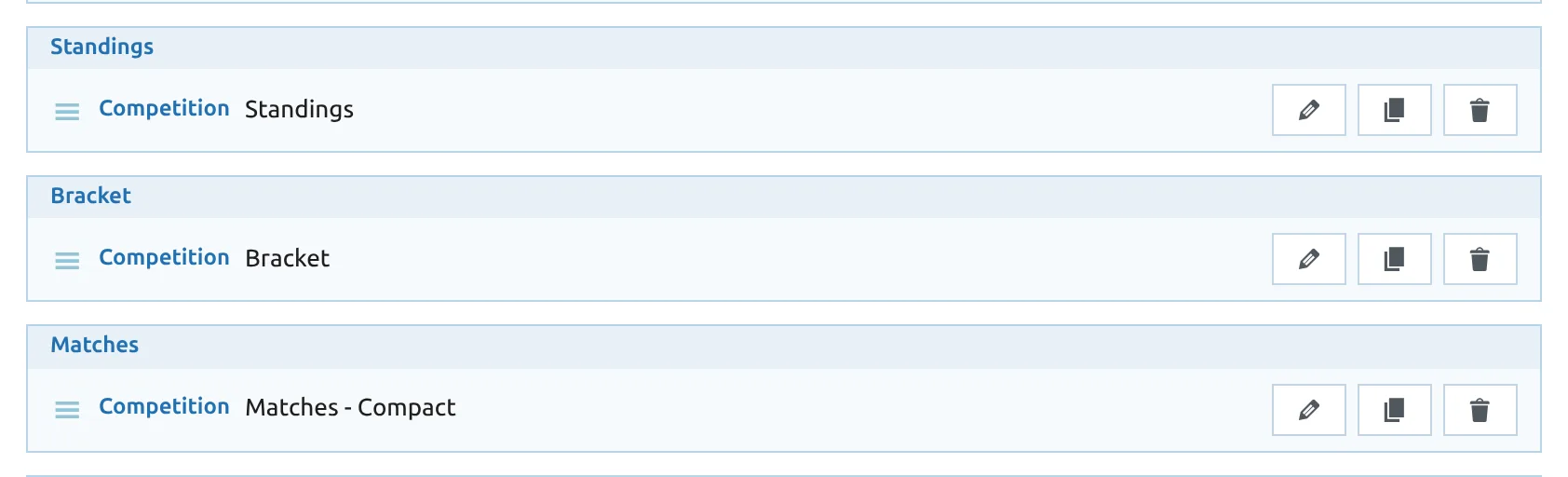
- Layout Builder v2 competition layout (Layout Builder > Layouts (v2) > Competition, activated). The default layout already has a Bracket block, right after Standings. It draws one bracket for every knockout stage whose Bracket Layout isn’t hide, captioned with the stage title – Knockout phase here – and hides itself on a competition with no knockout stage. If you removed it, add the Bracket block back from the palette and save. See Competition Layout (v2).
- Classic competition page, with no layout. The bracket is drawn above the Knockout phase stage.
- Older Layout Builder v1 “Competition Multistage” layout. Add its Bracket block. Leave Stage Number empty for every knockout stage, or set
2for the Knockout phase only – the main stage is 1.
On any page or post
Use the bracket shortcode. Go to Football Leagues > Shortcodes, pick Bracket Layout, choose the Knockout phase in the Competition Stage ID picker and copy the code. It looks like this, with your own stage ID:
[anwpfl-bracket competition_id="163675"]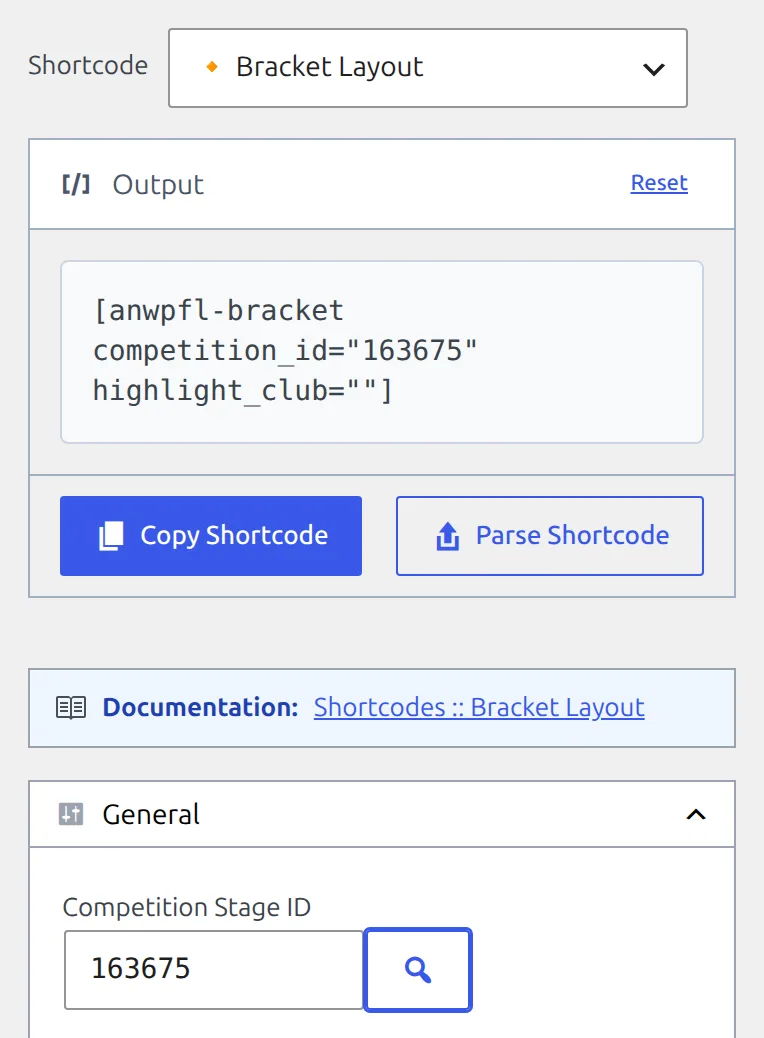
competition_id is the knockout stage, not the competition
Pass the ID of the Knockout phase stage. The main competition’s ID points at the round-robin Group stage, and the shortcode draws nothing for it, with no error. The Stages column in the Competitions list prints each stage’s ID, and the builder’s picker shows each stage by name – pick UEFA Euro 2024 – Knockout phase, not Group stage.
The shortcode also takes highlight_club, a club ID whose rows are highlighted all the way through the bracket. Full reference: Bracket Shortcode.
Check the result
- The Knockout phase lists its eight Round of 16 games on the competition page.
- The bracket reads Spain – Georgia at the top and Switzerland – Italy at the bottom.
- Every tie shows a kick-off date and time – check one against your own clock.
- After each later draw, run Steps 1 to 5 again for the new round and look over its slots.
Scores appear in the bracket as games finish. Keep the competition on the Import Dashboard with Update Finished Games running and you don’t have to touch it again – see Import Dashboard.
🆘 Troubleshooting
Euro 2024 isn’t in the Discover list
The tab only checks competitions saved to the Import Dashboard. Click the star on the league’s row in API Leagues so it turns orange, then reload the tab. Competitions added with Lazy Import are never listed – they don’t use stages, and their bracket is the Advanced Bracket. The table also shows ten rows at a time; after a check, the ones with nothing new drop off and make room.
The Round of 16 isn’t in the Modify Structure dropdown
The provider hasn’t published the fixtures yet, or you’re looking at a cached answer. With Cache some requests on in the API settings, fixture lists are kept for up to 10 minutes. Wait, then click Reload Local Structure at the top of the modal or reopen it. A round mapped on another row also drops out of this dropdown – an earlier Set All may have put it there, so clear it from that row.
Create Games says “No Games to Create”, or imports 0 items
No Games to Create means the new fixtures belong to a round that isn’t mapped – go back to Step 3. 0 items means the round is mapped but no tie holds the pair yet, because Update Competition Structure wasn’t run. Go back to Step 4, then create the games again.
Euro 2024 stays in the list after Create Games
The count covers every provider fixture you don’t have, mapped round or not. If the provider has already published a later round, those games are still counted until you map that round and create them too.
The bracket doesn’t show results
The bracket prints a tie’s score from the finished games that belong to that tie. Two things break it.
- The game isn’t finished on your site yet. Imported knockout games start as Fixture. Results arrive with Update Finished Games on the Import Dashboard, or open the game and check its status is Result.
- The game points at a different tie. This happens after clubs were moved between ties with the cog, or a tie was deleted and added again. Open the game: its header shows Group/Matchup ID. Compare it with the Group ID on the tie card in the Knockout phase. If they differ, click Edit Structure in the game header and pick the clubs again, then Save & Continue. The tie is only worked out again when you choose the away club, so if the right pair is already selected, switch Home Club to another club and back, then pick Away Club.

A tie shows only a clock icon and a dash
The Text Date/Time is a valid ISO 8601 date, but Use default user’s timezone is off, so nothing fills it in. Turn the setting on (Step 10), or replace the date with plain text.
There’s no Text Date/Time field, or no two-arrow button
Both belong to the manual layout. Set Bracket Layout to manual on the Knockout phase stage and they appear. The automatic layout has no per-tie options at all.
No bracket on the page at all
- Bracket Layout on the Knockout phase is still hide (this hides it on the competition page and in Layout Builder).
- The shortcode has the main competition’s ID instead of the knockout stage’s.
- The competition uses a Layout Builder layout with no Bracket block, or a v1 layout whose Bracket block’s Stage Number points at the Group stage.
- The layout is automatic and the stage has no games yet.
Some clubs show a short code, others their full name
The manual bracket prints a club’s Abbreviation when it has one, and the full name when it doesn’t. Fill in or clear the Abbreviation on the club’s General tab to make the column consistent.
📚 What’s next
- API Import Use Cases – the other real competitions set up step by step.
- Add New Games to a Multistage Competition – the same job from the API Leagues row.
- Import Dashboard – keep scores and line-ups coming in between draws.
- Advanced Bracket – a bracket that advances winners on its own.
- Competition: Knockout – rounds, ties, extra time and penalties.