

Each Layout Builder v1 layout offers a different set of blocks, decided by its layout type. A Match layout has up to twenty-six to choose from; a Staff layout has four. This page lists all of them and shows what the less obvious ones render, so you can pick blocks before you start rearranging a layout.
For how layouts, tabs and display rules fit together, start at Layout Builder. This page is the block reference that page points at.
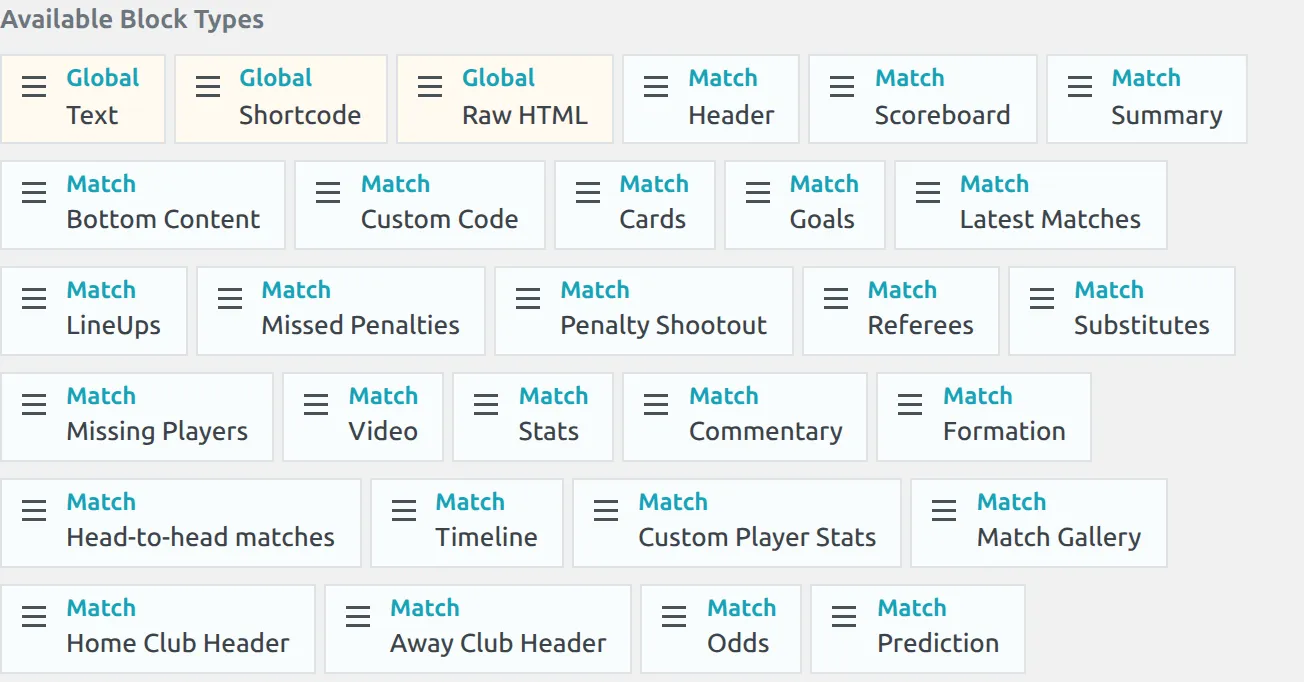
Layout type is fixed
A layout’s type is chosen when it is created and cannot be changed later, so the block list below is fixed for the life of that layout. If you need a different set of blocks, build a layout of the right type instead.
🌐 Global blocks
Three blocks appear in every layout regardless of type.
| Block | What it does |
|---|---|
| Text | Your own text or HTML, with an optional heading above it. Shortcodes inside it run, but dynamic variables such as %match_id% aren’t substituted – use Shortcode or Raw HTML for those. |
| Shortcode | Runs any shortcode inside the layout, with dynamic variables substituted. See Shortcode Block. |
| Raw HTML | Your own HTML in a plain full-width wrapper, with no heading. Shortcodes inside it still run and dynamic variables are still substituted. It takes no heading, width, class or spacing options. |
Block options
Click the tools icon on a placed block to open Edit Block. Which fields you see depends on the block, so a Header block shows fewer than a Latest Matches block.
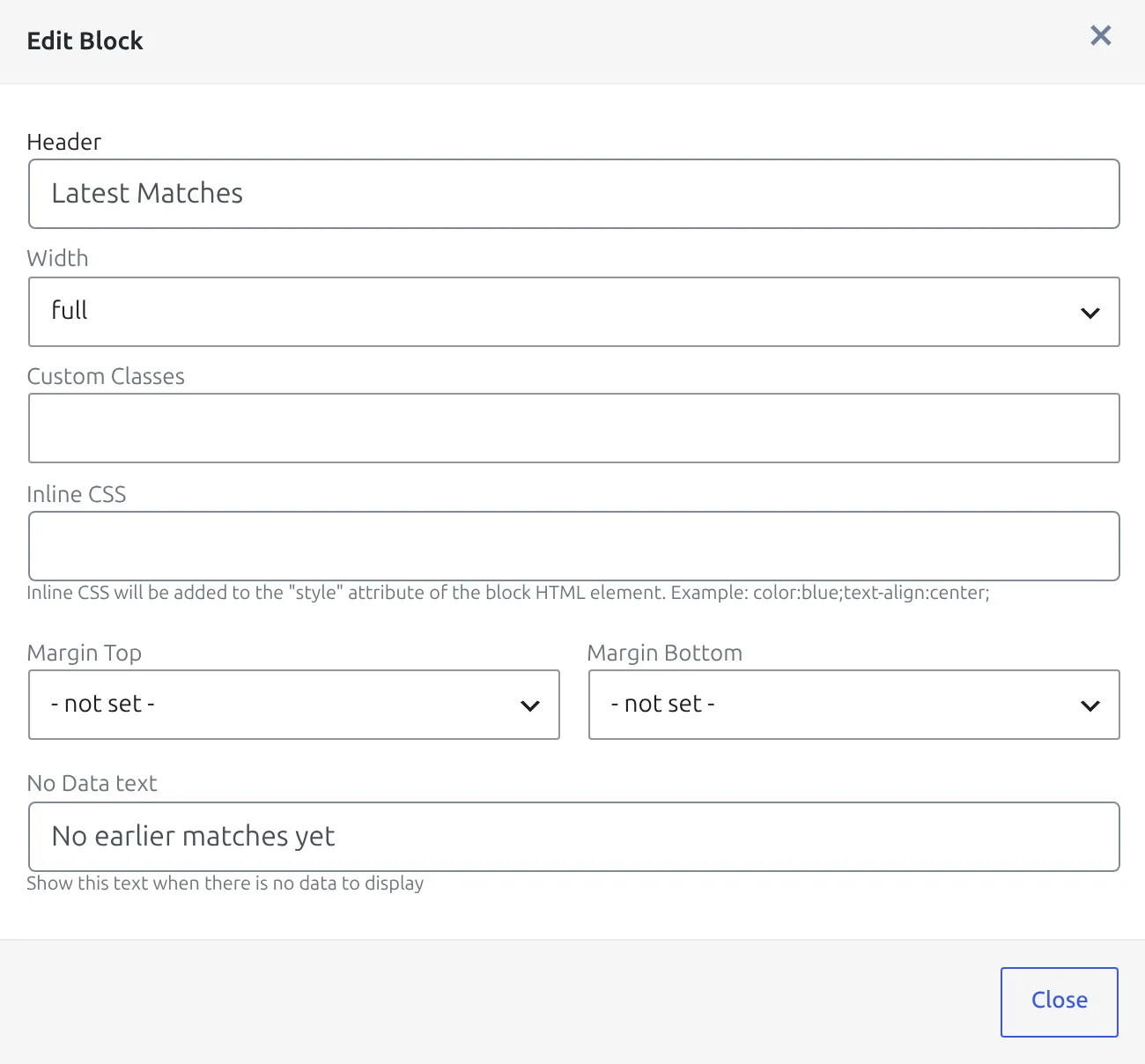
| Option | Where it appears | What it does |
|---|---|---|
| Header | Most blocks | A heading printed above the block. Leave it empty for no heading. |
| Text | Text, Shortcode, Raw HTML | The content of the block. On Shortcode it lists the dynamic variables you can click to insert, plus an open Shortcode Builder button. |
| Width | Most blocks | full, 1/2 or 1/3. Half width starts at medium screens. A 1/3 block is half width on medium screens and a third only on extra-large ones. Below that, blocks stack at full width. |
| Custom Classes | Every block except Raw HTML | Extra CSS classes on the block. See Custom Classes. |
| Inline CSS | Every block except Raw HTML | Added to the block’s style attribute, for example color:blue;text-align:center; |
| Margin Top / Margin Bottom | Every block except Raw HTML | Spacing from 0 up to 3 rem, or a small negative margin to pull blocks closer. |
| Disable HTML Wrapper | Text, Shortcode, Raw HTML | Outputs only your content, without the block’s wrapper div, heading, width or classes. |
| Stage Number / Group Number | Competition match lists, Matchweek Slides, Standing Tables, Results Matrix (Stage Number on Multistage layouts only; Bracket takes Stage Number) | Limit the block to one stage or group, counted from 1. Empty shows all. |
| No Data text | Match Latest Matches, Head-to-head matches | Text shown when there’s nothing to list, instead of hiding the block. |
| Show on Player Position | Shortcode block on a Player layout | Show the block only for goalkeepers, or only for field players. |
🧱 Blocks by layout type
Blocks below are grouped by what they do rather than in picker order, so a long list is easier to scan. Nearly all of them accept a heading and a width. Header blocks, the Match Scoreboard and the Player Stats Panel accept neither, and the Home and Away Club Header blocks take a width but no heading.
Club
| Block | What it shows |
|---|---|
| Header | Club logo with its details: city, country, address, website, founded, stadium, kit and social links. |
| Info | The club’s description text. |
| Fixtures | The club’s upcoming matches. |
| Latest Matches | The club’s finished matches. |
| Squad | The squad for the current season. |
| Players Stats | A player statistics table for the club’s players. |
| Club Stats | The club’s own match statistics, not the players’. |
| Transfers | Transfers in and out. |
| Birthdays | Upcoming player birthdays. |
| Gallery | The club’s image gallery. |
| Bottom Content | The custom content saved on the club itself. |
Players Stats and Club Stats are not the same block. Players Stats lists per-player numbers; Club Stats shows the team’s own match statistics. Sites often want both, side by side at half width.
Competition and Competition Multistage
Both types offer the same eleven blocks. Which one renders is decided automatically: a multistage competition, or one created by the API’s Lazy Import, uses the Competition Multistage layout, and everything else uses Competition.
| Block | What it shows |
|---|---|
| Header | Competition logo, title and season. |
| Matches All | Every match in the competition. |
| Matches Finished | Played matches only. |
| Matches Upcoming | Fixtures only. |
| Matchweek Slides | Matches grouped into a matchweek slider. |
| Standing Tables | The league table, or one table per group. |
| Results Matrix | The home-against-away results grid. |
| Bracket | The knockout bracket. |
| Players Stats | Season leaders across the competition. |
| Transfers | Transfers recorded in the competition’s season. |
| Bottom Content | The custom content saved on the competition. |
Match
The largest set, and the one most sites customise. Twenty-five blocks, or twenty-six when the Prediction block is available.
| Block | What it shows |
|---|---|
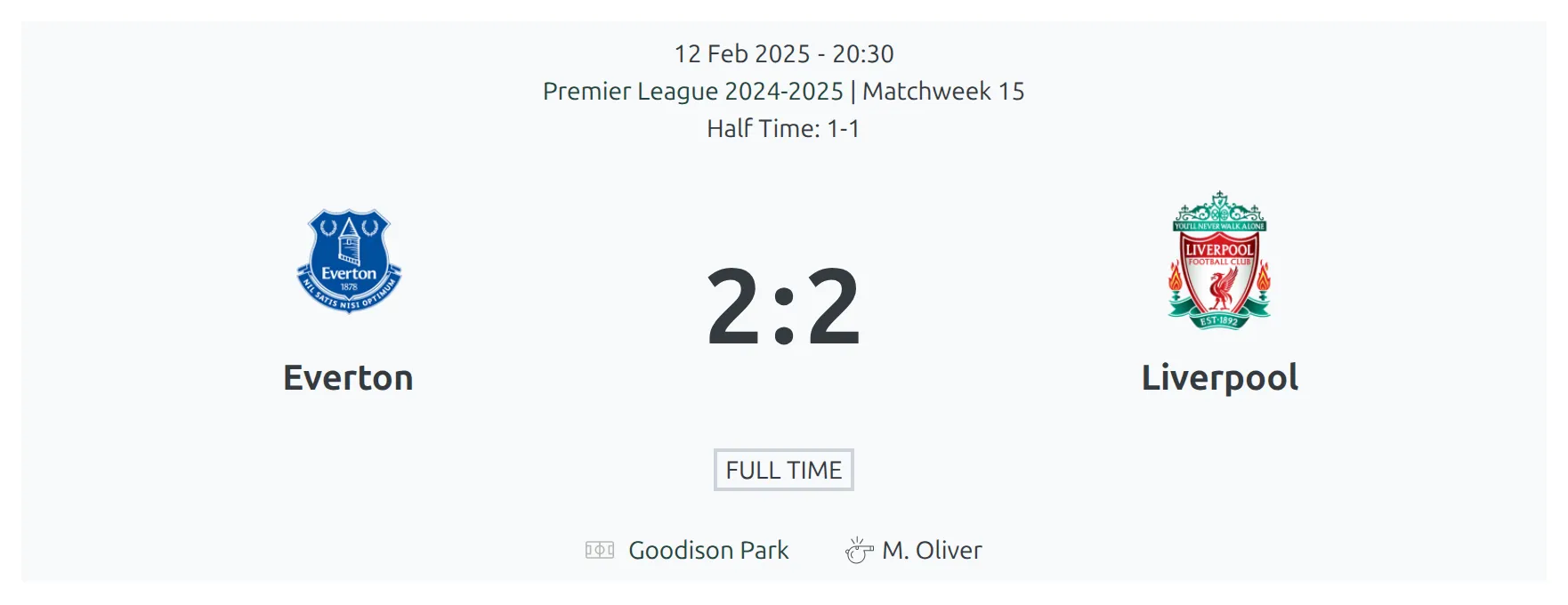
| Header | The standard match header: competition and matchweek, date and time, both clubs, the score with half-time and full-time status. An upcoming match can show a countdown instead. |
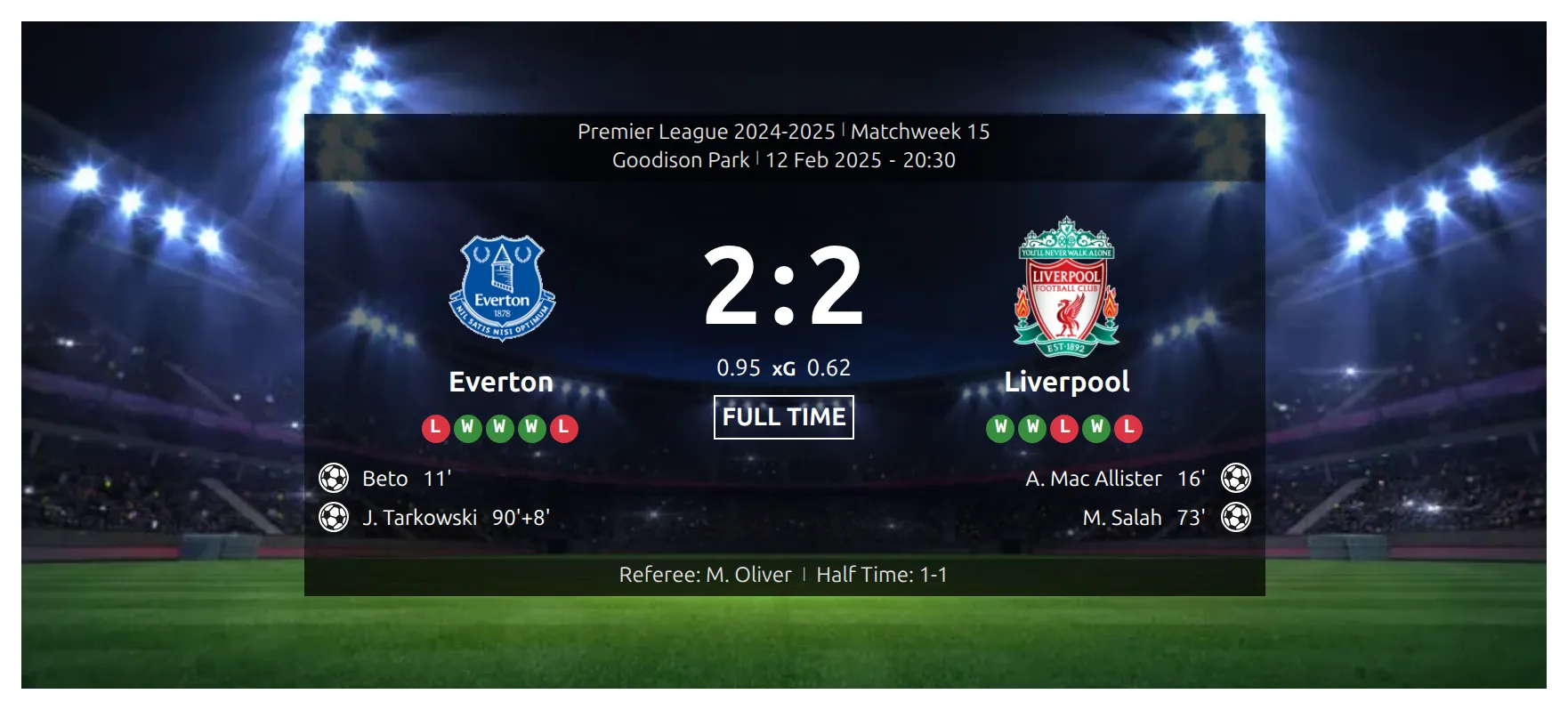
| Scoreboard | The scoreboard with an image background, with goal scorers listed under each club. See Match Scoreboard. |
| Summary | The match preview or summary text. |
| Home Club Header | A bar with the home club’s logo and name, linked to the club page. |
| Away Club Header | The same for the away club, aligned right. |
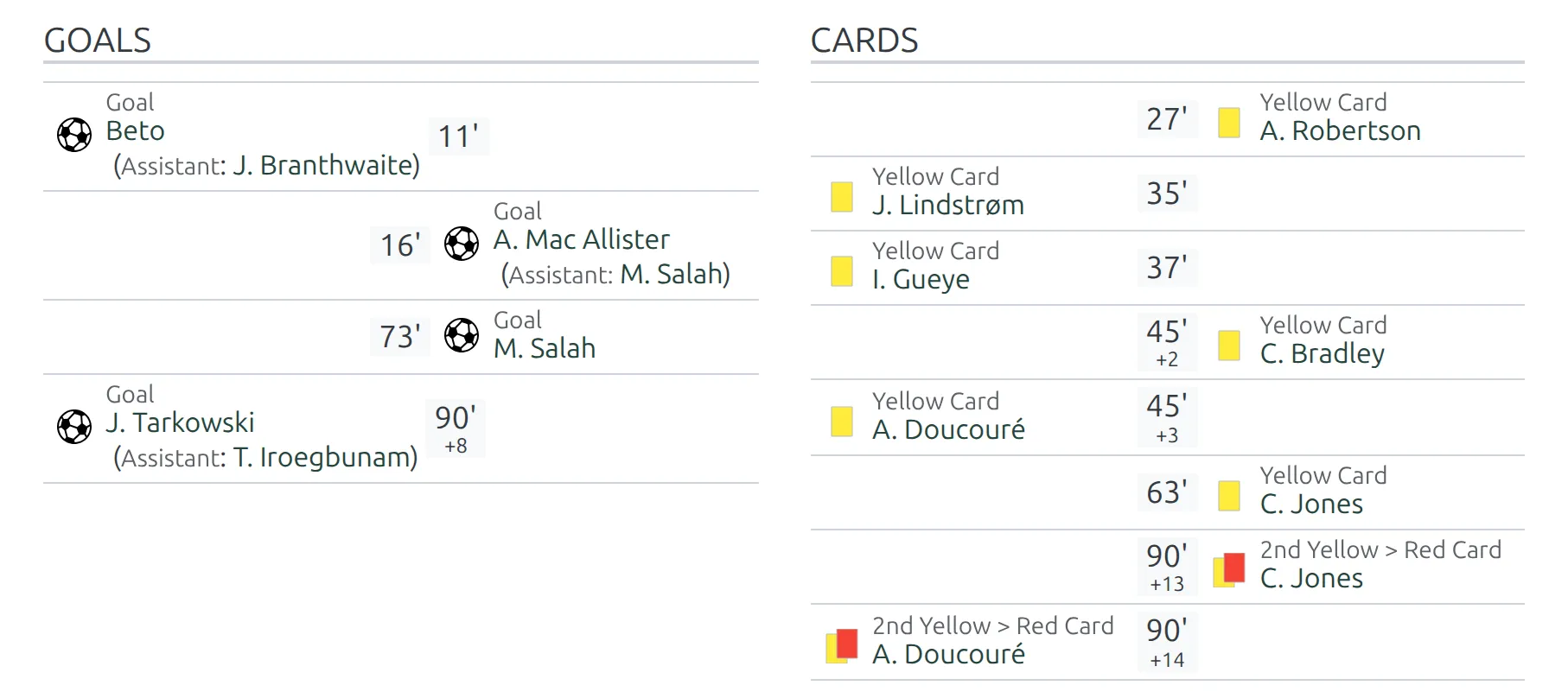
| Goals | Goals scored, both sides, with the minute and any assist. |
| Cards | Yellow and red cards, including second yellows. |
| Substitutes | Substitutions made, player out and player in. |
| Missed Penalties | Penalties not converted. |
| Penalty Shootout | The shootout, when there was one. |
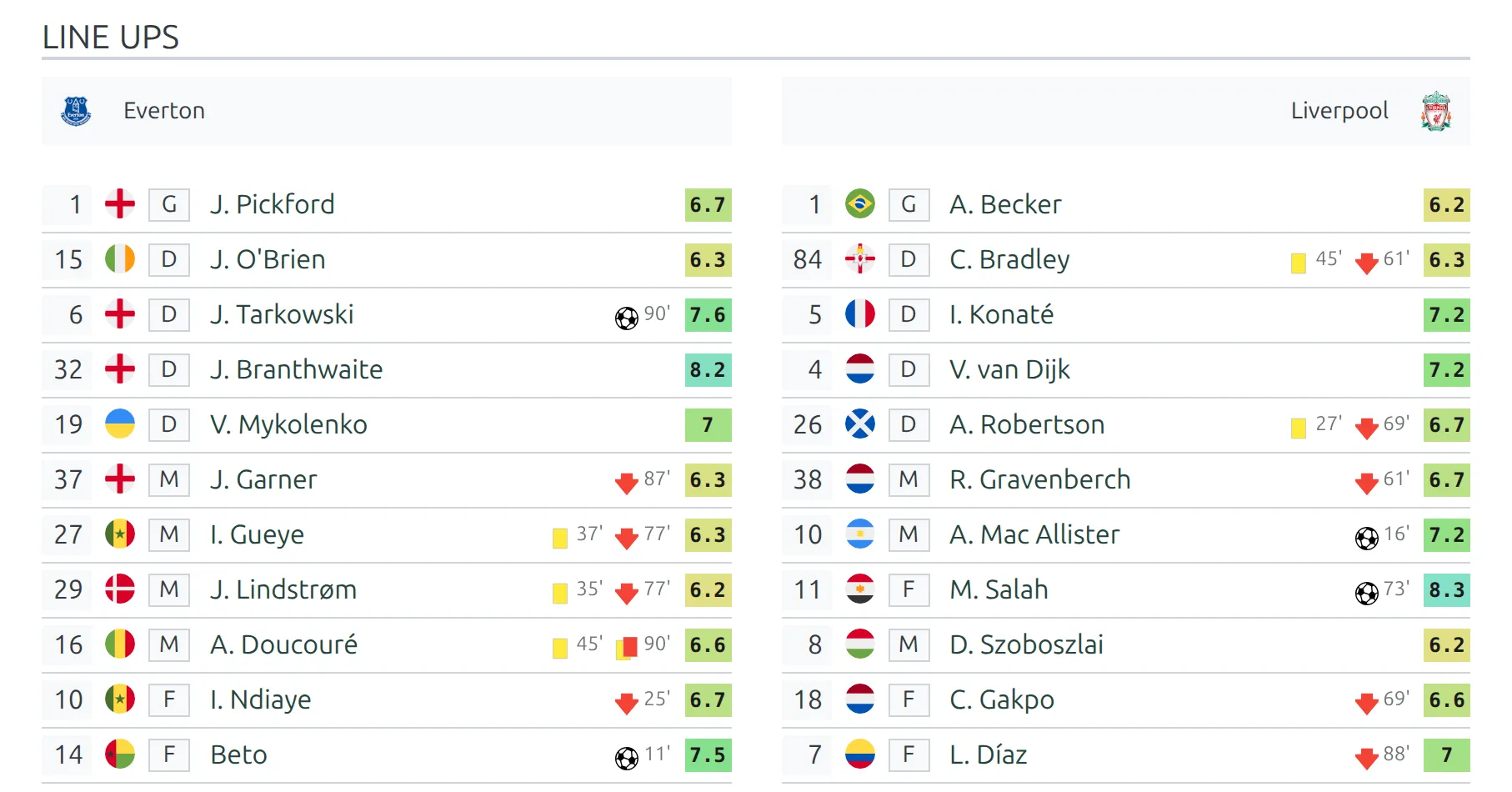
| LineUps | Starting elevens and benches. |
| Formation | The formation graphic on a field. See Match Formation. |
| Missing Players | Injured and suspended players. |
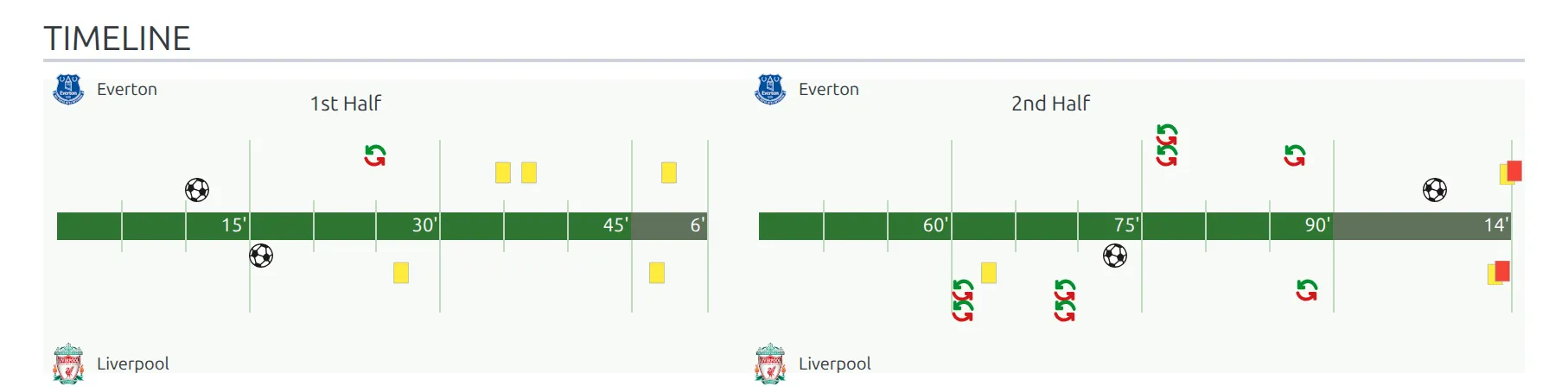
| Timeline | Events on a minute-by-minute bar. See Match Timeline. |
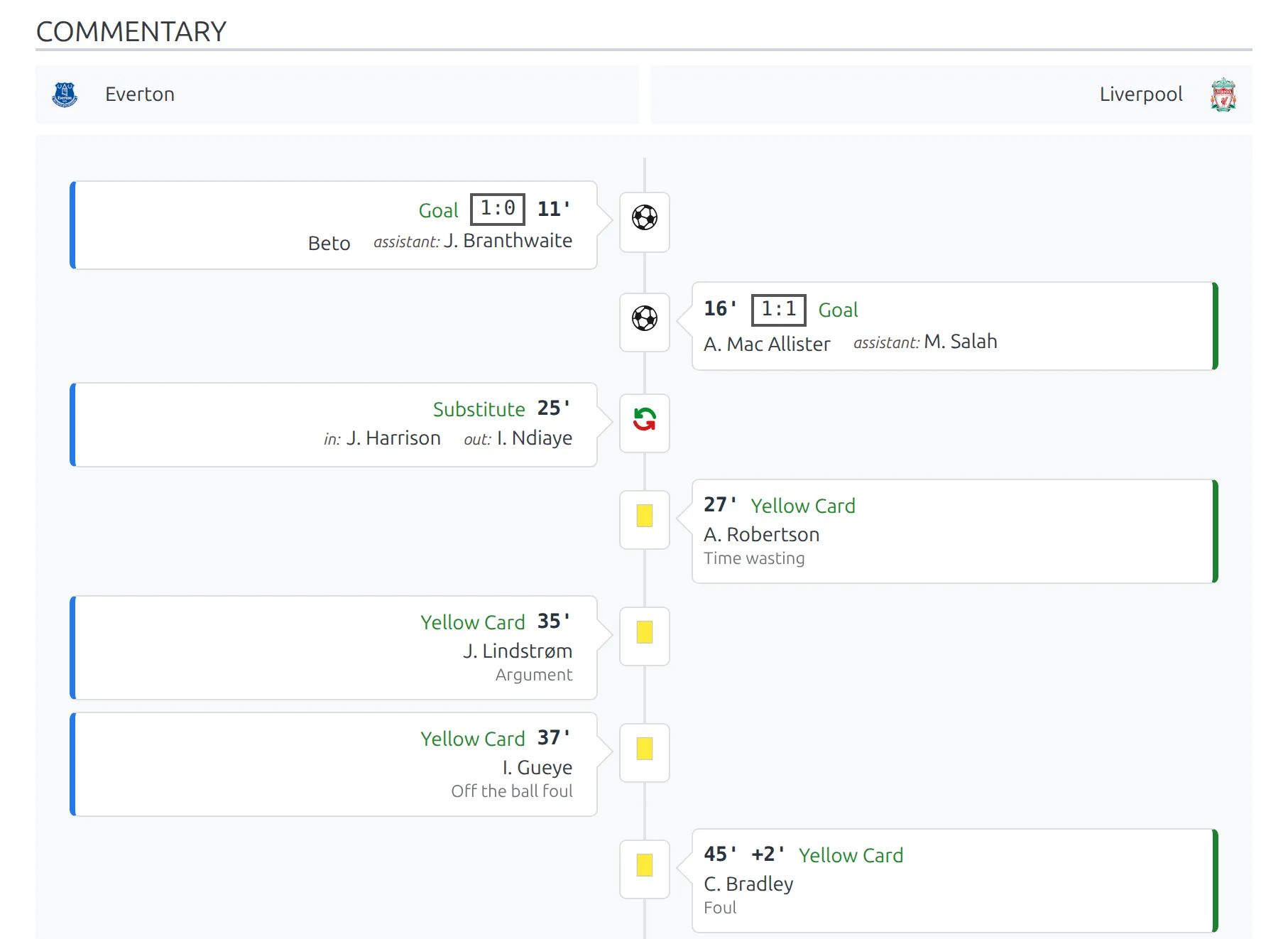
| Commentary | Events and text entries as a vertical feed. See Match Commentary. |
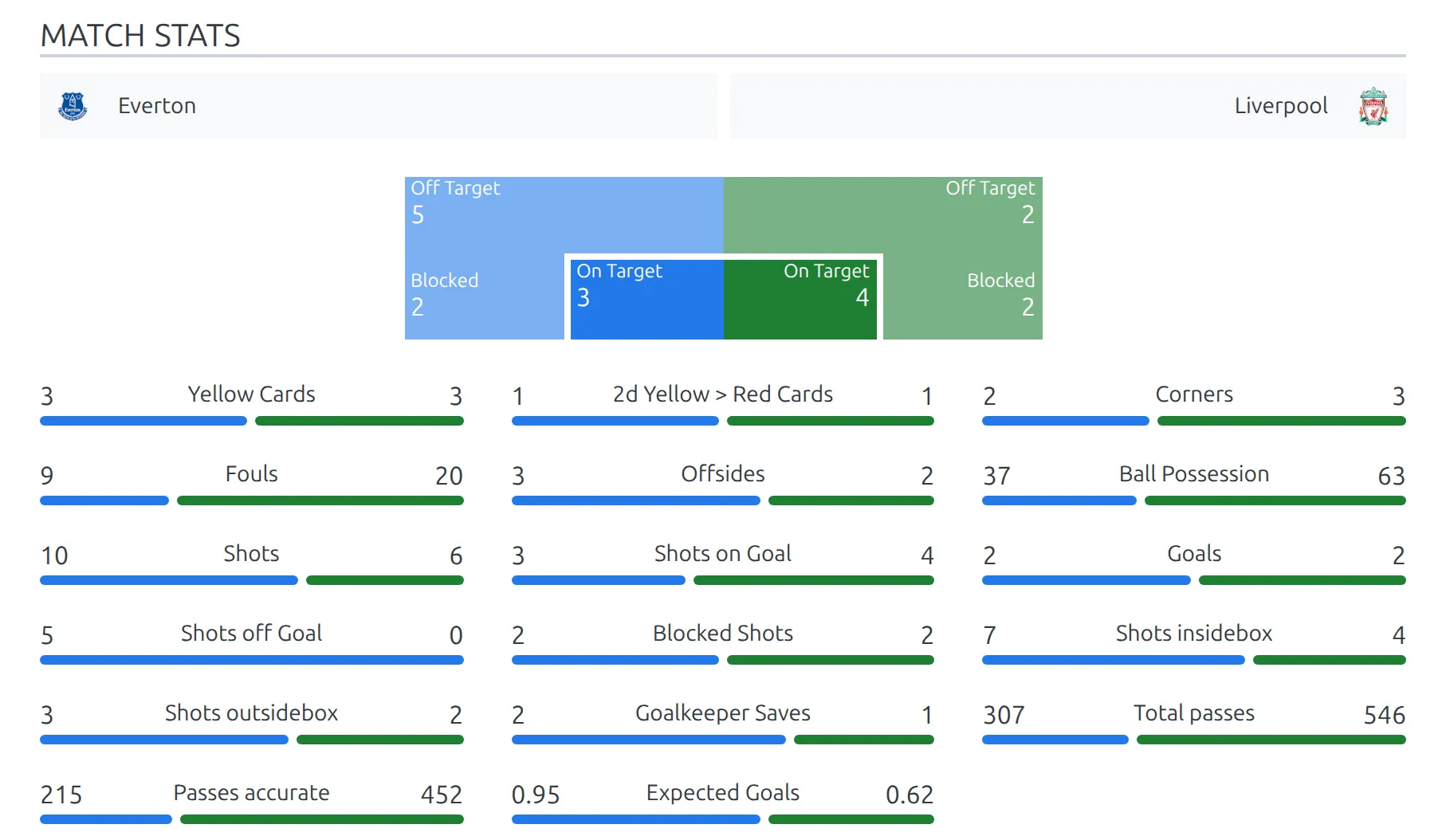
| Stats | Team match statistics. See Match Statistics. |
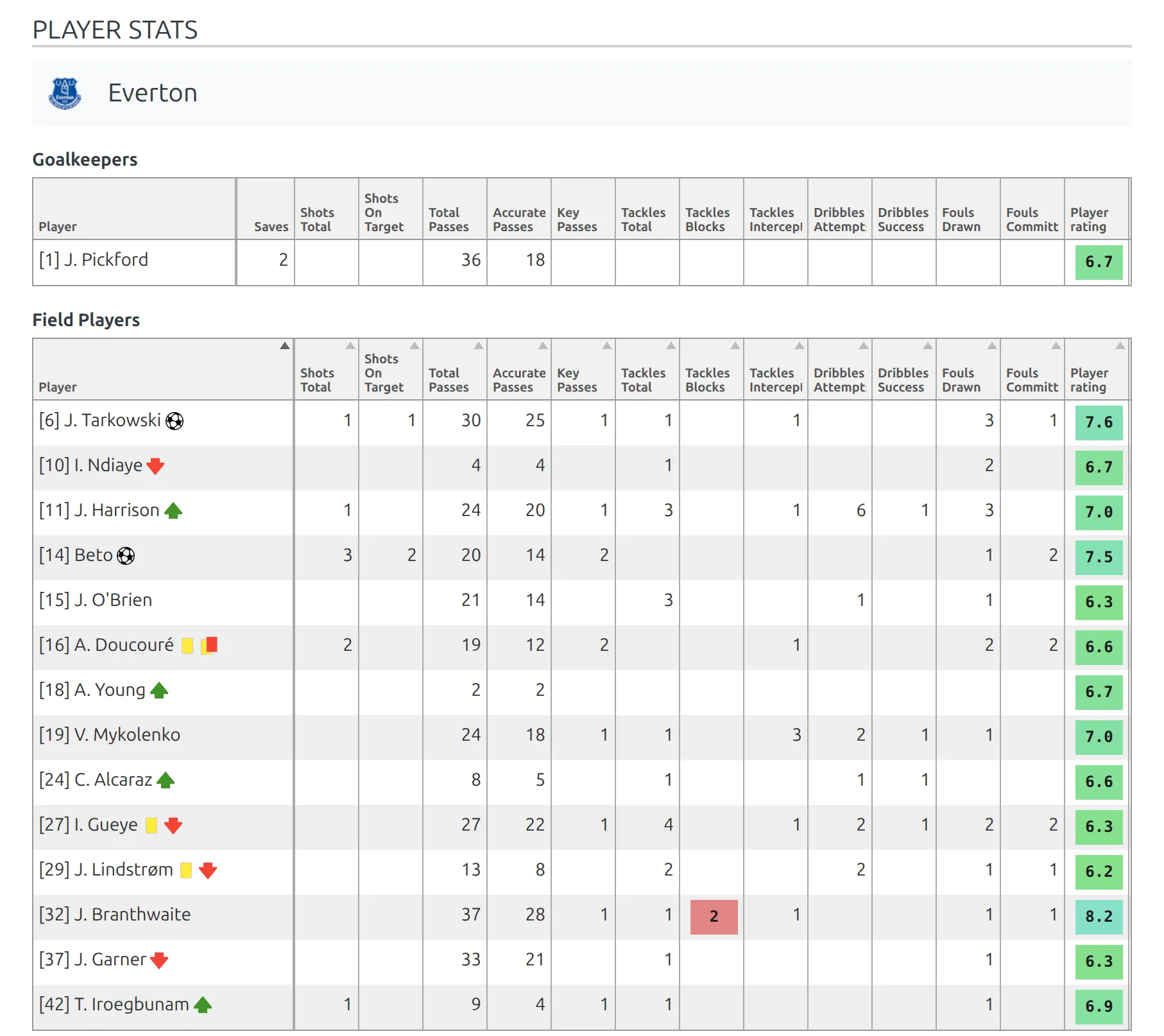
| Custom Player Stats | Your own per-player statistic columns. See Custom Player Statistics. |
| Referees | The match officials. |
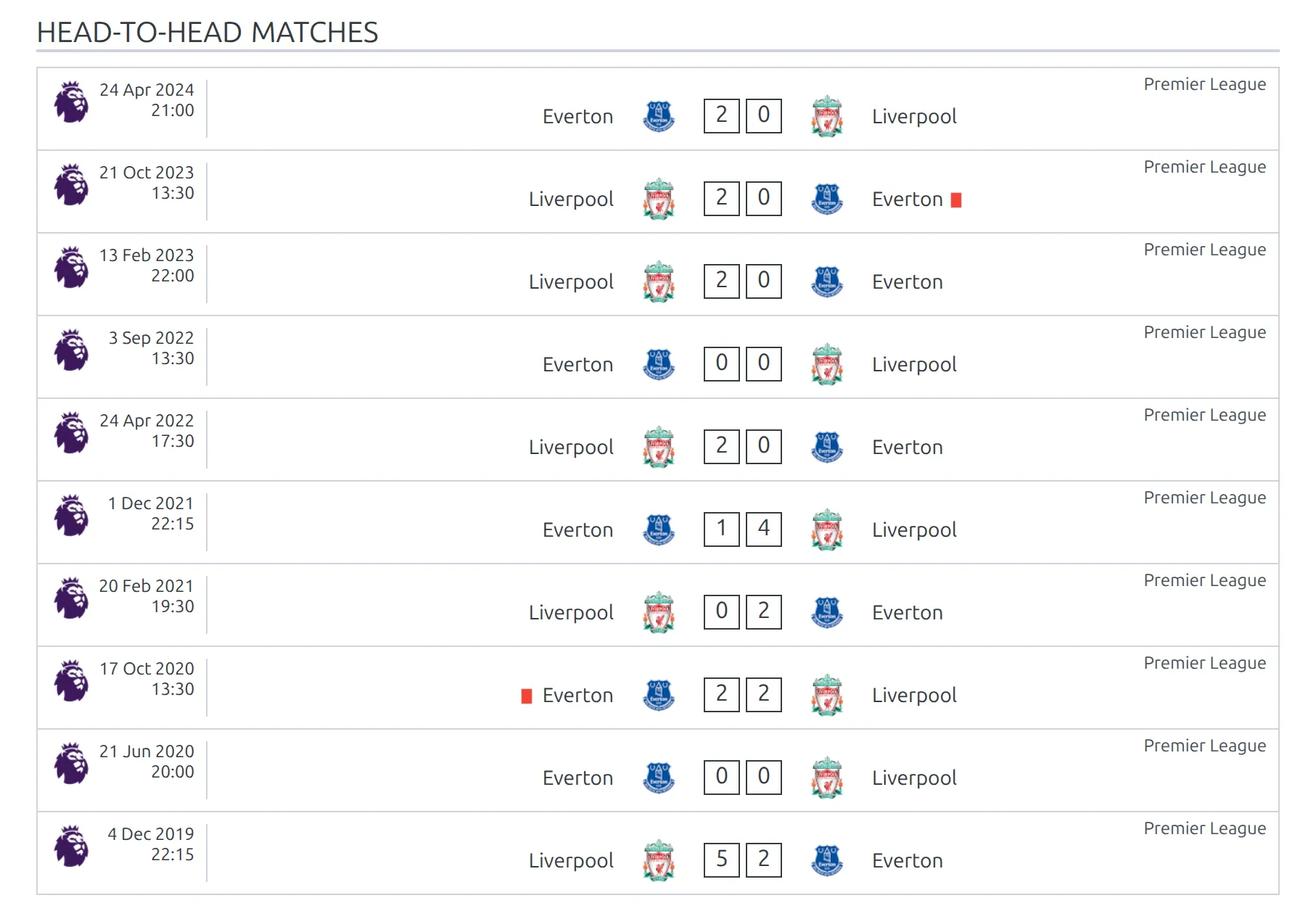
| Head-to-head matches | Up to 10 earlier finished meetings between the two clubs. |
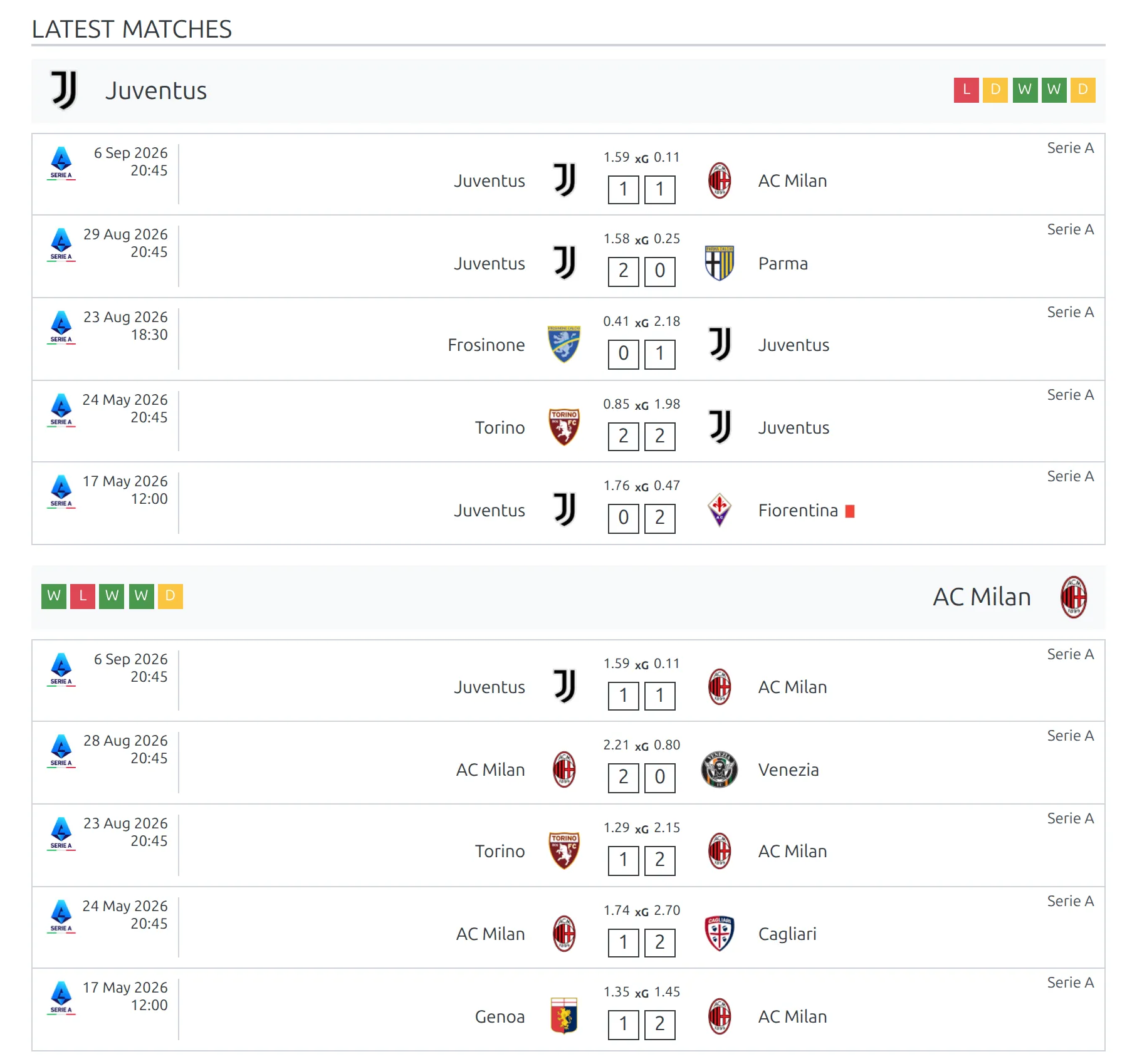
| Latest Matches | Recent form for both clubs: each club’s last 5 results up to the day of this match, with form badges. |
| Odds | Bookmaker odds imported from API-Football. Odds you enter by hand don’t appear in this block. See Import Odds. |
| Prediction | The match prediction: verdict, win percentages and team comparison. See Game Prediction. |
| Video | The match video. |
| Match Gallery | Match photos. |
| Custom Code | Custom code saved on the match itself. |
| Bottom Content | The custom content saved on the match. |
Prediction only shows up in the picker after you turn on API-Football prediction data (Text advice + Comparison) or odds import. Without either, a Match layout offers twenty-five blocks.
Header or Scoreboard?
Both sit at the top of a match page, and you’ll normally use one or the other. Header is the plain match header. Scoreboard puts the same score on a background picture and adds the goal scorers.
Match events: Goals, Cards and Substitutes
These three blocks read the match events and list them minute by minute, home club on the left and away club on the right. Missed Penalties uses the same row style. Goals and Cards fit well side by side at 1/2 width.
Team form: Latest Matches and Head-to-head matches
Both are useful on a preview page. Latest Matches shows each club’s last 5 results up to the day of the match – so once the match is finished, it’s the first row in both lists. The form badges next to each club name are that club’s latest 5 results on the whole site, so on an older match they can be newer than the games listed below them. Head-to-head matches shows the two clubs’ earlier meetings. Give either one a No Data text if you’d rather print a message than hide the block when there’s no history yet.
LineUps, Timeline and Commentary
LineUps lists both teams’ players with shirt numbers, positions and event icons. Timeline and Commentary are often confused: Timeline is one horizontal bar across both halves, while Commentary is a vertical feed you read from top to bottom.
Team statistics or player statistics: Stats and Custom Player Stats
Stats compares the two teams, one bar per statistic. Custom Player Stats is a per-player table built from the columns you set up yourself, split into goalkeepers and field players. It stays empty until those columns exist.
Home Club Header and Away Club Header
Use these to label a two-column layout. Put Home Club Header at 1/2 width above the home side’s blocks, Away Club Header next to it, and each column reads as that club’s section.

Where the match text, video and custom code come from
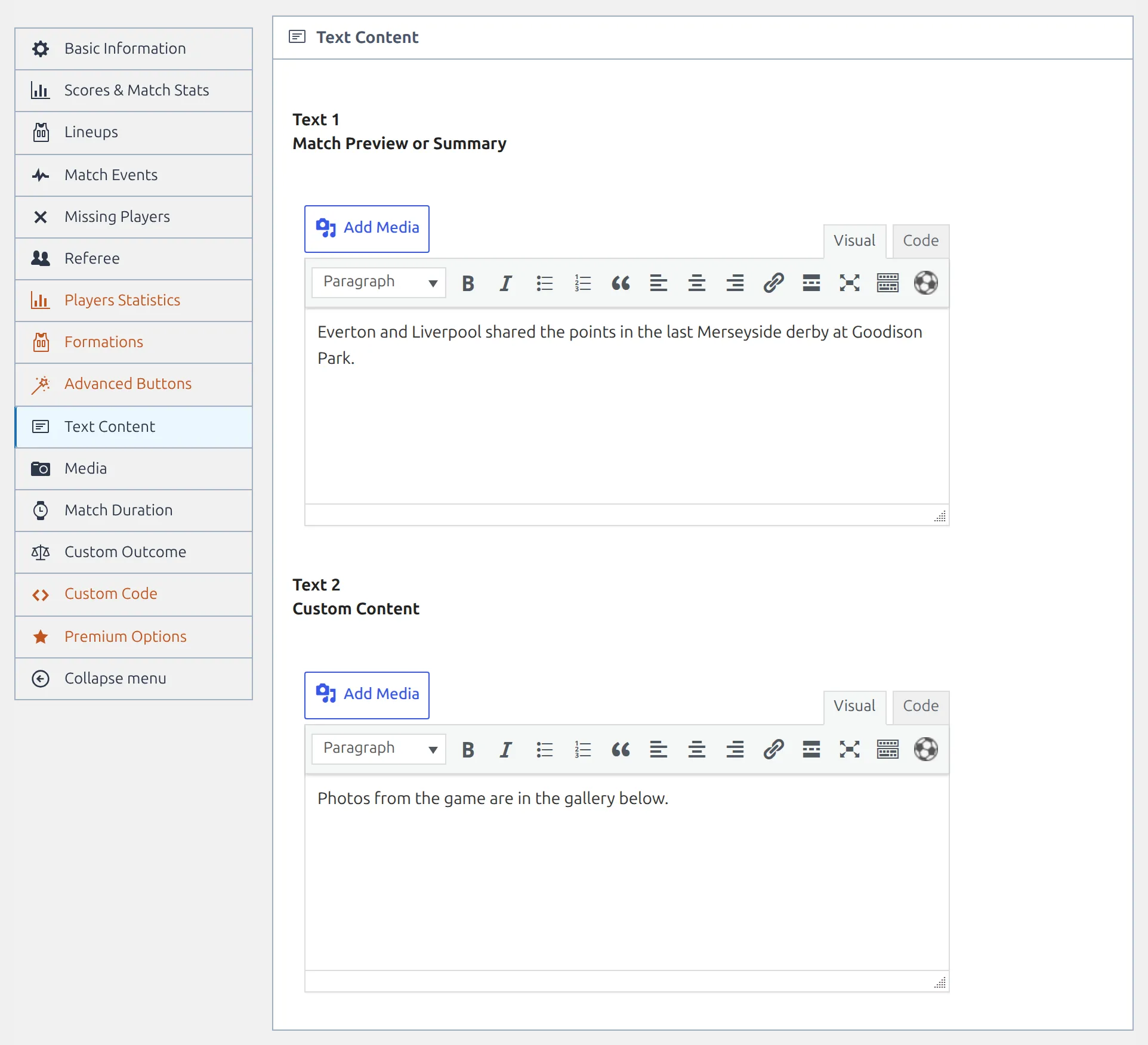
Five Match blocks print content you type on the match edit screen. The field names there don’t match the block names, so here’s the mapping.
| Block | Match edit screen section | Field |
|---|---|---|
| Summary | Text Content | Text 1 – Match Preview or Summary |
| Bottom Content | Text Content | Text 2 – Custom Content |
| Video | Media | Video Source, Video ID (or URL), Video File, Video Description |
| Match Gallery | Media | Gallery, Text below gallery |
| Custom Code | Custom Code | Custom Code |
Same code on every match? Don’t use Custom Code
The Custom Code block prints code saved on one match, so you’d have to paste it into every game. For a banner or a link that belongs on all matches, put it in a Global :: Raw HTML or Global :: Text block in the Match layout instead. It then shows on every match that uses the layout.
Match LIVE
Twenty-one blocks, or twenty without Prediction. A match is routed to this layout while it is live, then falls back to the Match layout once it finishes, so the two layouts usually differ only in emphasis.
It offers the same blocks as Match with five exceptions. Not available: Goals, Cards, Missed Penalties, Penalty Shootout and Odds. For goals and cards during a live match, use Scoreboard, Timeline or Commentary. Everything else carries over, including Scoreboard, Substitutes, LineUps, Formation, Timeline, Commentary, Stats, Custom Player Stats, Referees, Head-to-head, Latest Matches, Prediction, Video, Match Gallery, Custom Code and Bottom Content.
Player
| Block | What it shows |
|---|---|
| Header | Photo with the player’s details: full name, position, current club or national team, nationality, birth date and age, height and weight. |
| Stats Panel | The headline statistics panel. |
| Player Stats | The full statistics table, season by season. |
| Player Matches | Matches the player appeared in. |
| Missed Matches | Matches missed through injury or suspension. |
| Transfers | The player’s transfer history. |
| Bio | The player’s description text. |
| Gallery | The player’s image gallery. |
| Bottom Content | The custom content saved on the player. |
Referee
| Block | What it shows |
|---|---|
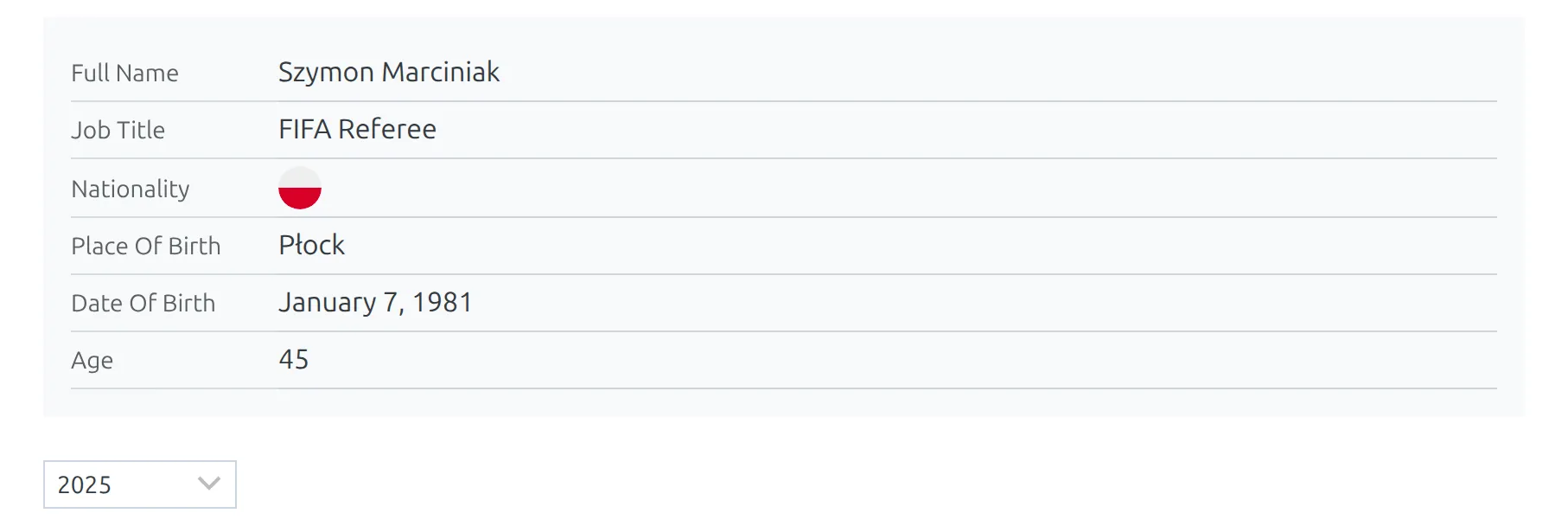
| Header | Photo with the referee’s details: full name, job title, nationality, place and date of birth, age and custom fields. A season dropdown sits below it. |
| Upcoming Games | Every upcoming match the referee is appointed to, grouped by role: Referee, Assistant Referee, Fourth official and any other role. |
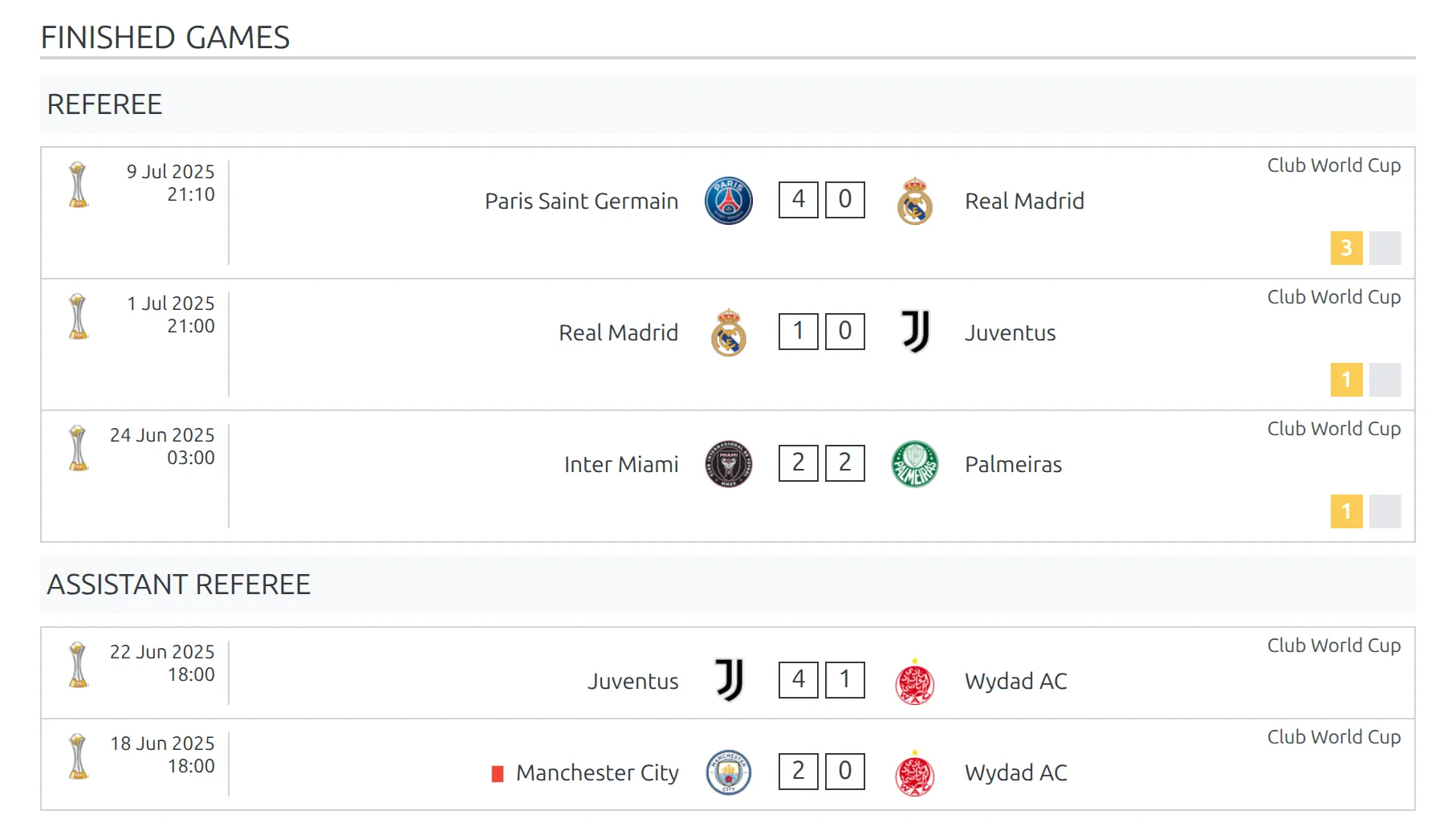
| Finished Games | Matches already officiated in the selected season, grouped by role the same way. Games as main referee show the cards given. Prints “no data” when the season is empty. |
| Bio | The referee’s description text, from the Bio tab. |
| Bottom Content | The custom content saved on the referee, from the Bottom Content tab. |
Stadium
| Block | What it shows |
|---|---|
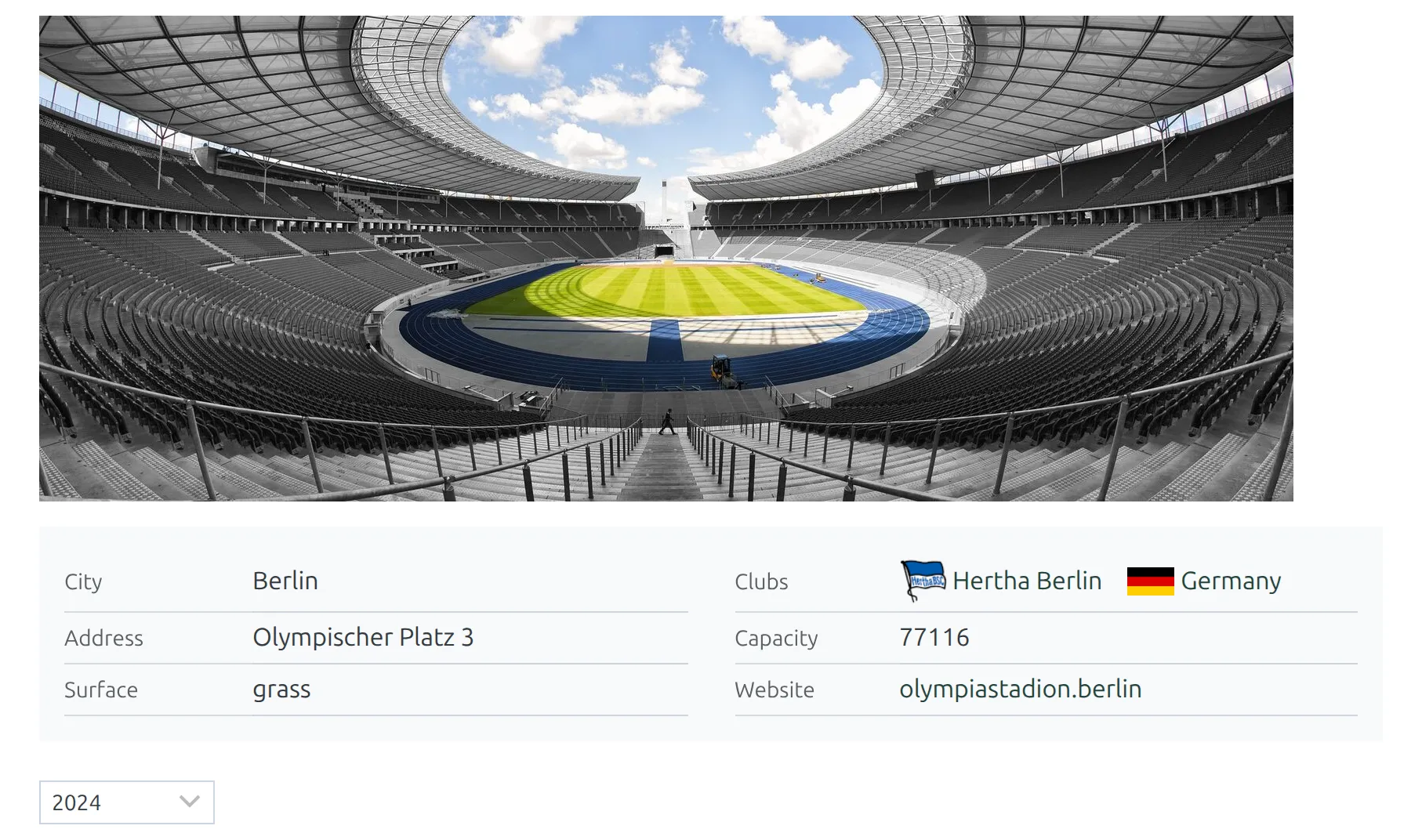
| Header | The stadium photo and a details table: city, clubs, address, capacity, opened, surface, website and custom fields. A season dropdown sits below it. |
| Info | The stadium’s description text, from the Info tab. |
| Upcoming Matches | All upcoming fixtures at this stadium, soonest first. |
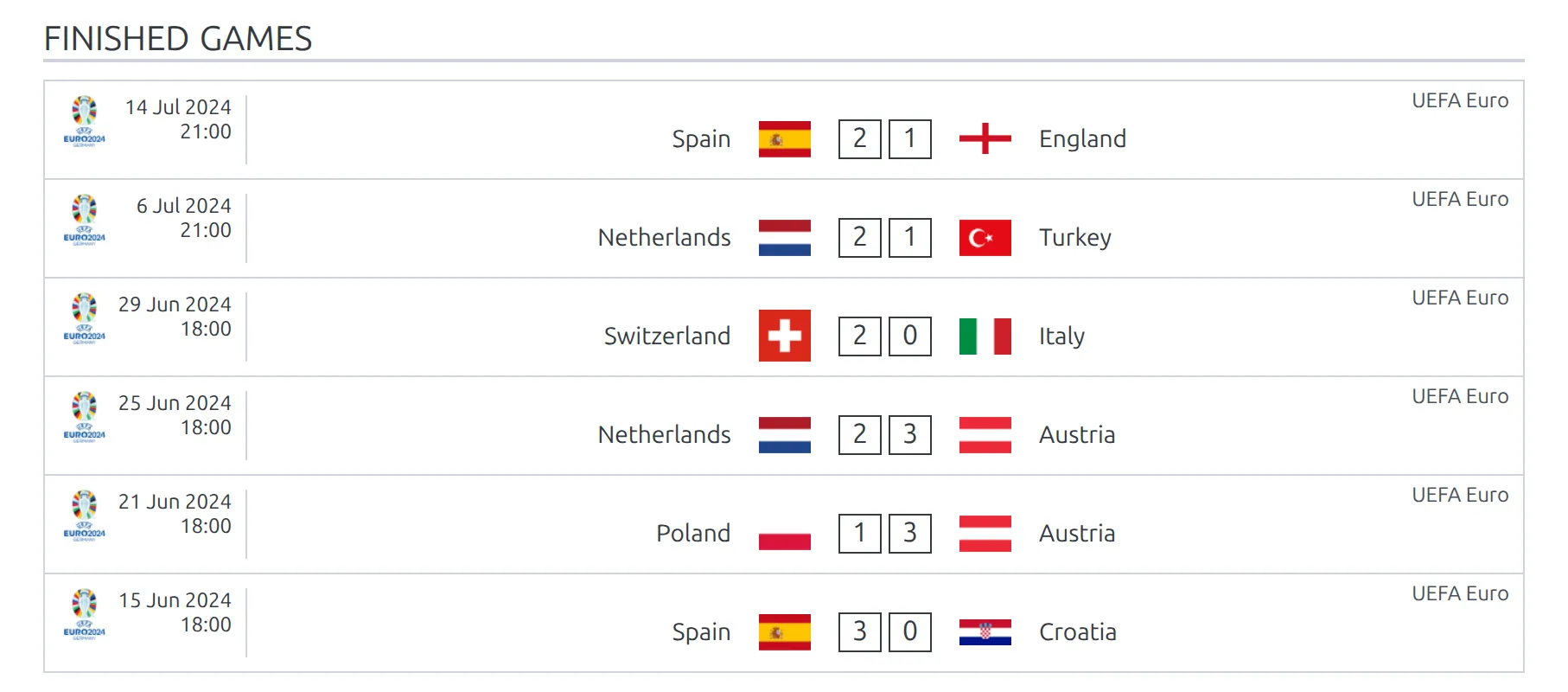
| Finished Matches | Matches played there in the selected season, newest first. |
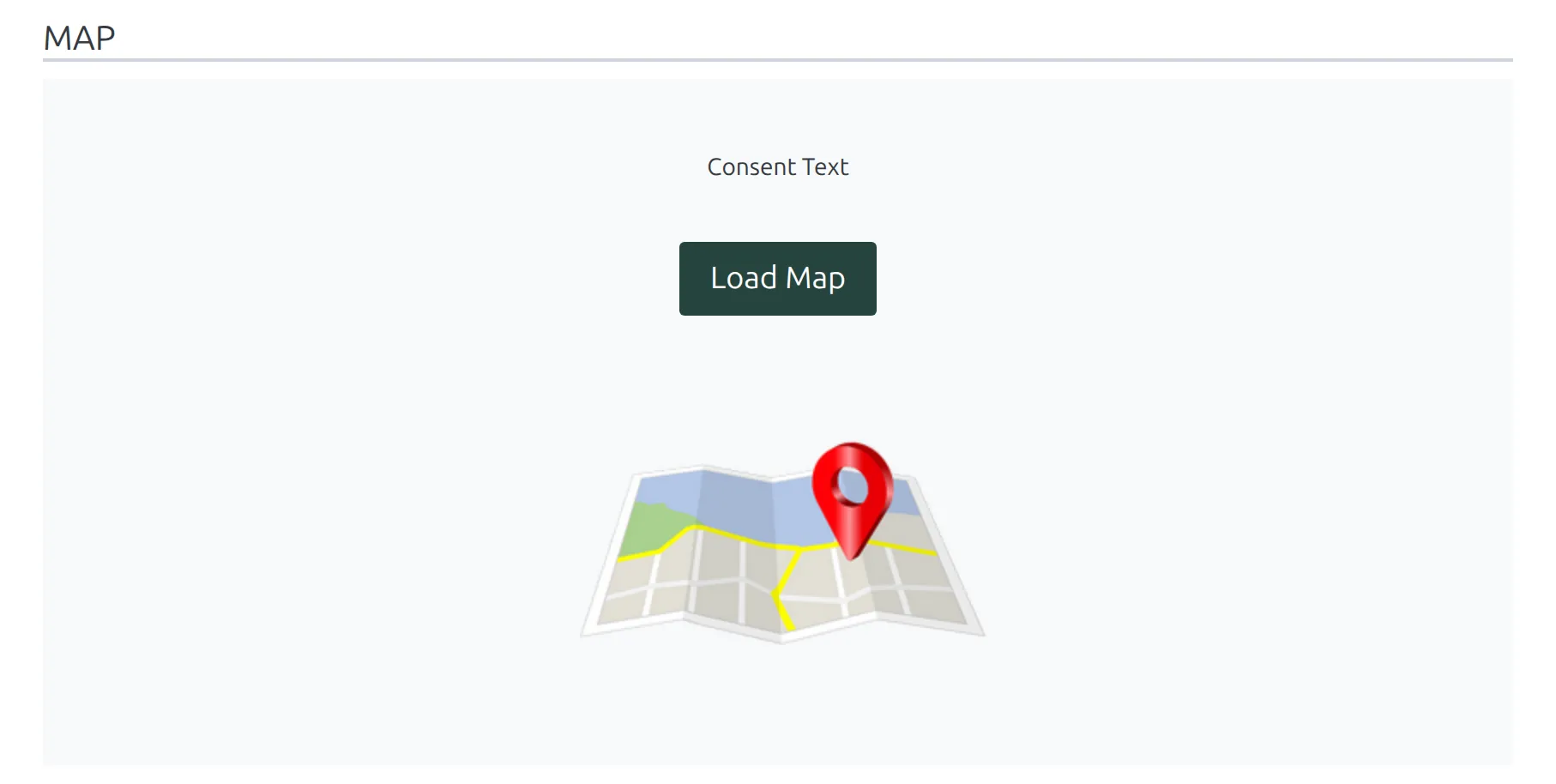
| Map | A Google map with the stadium’s location. |
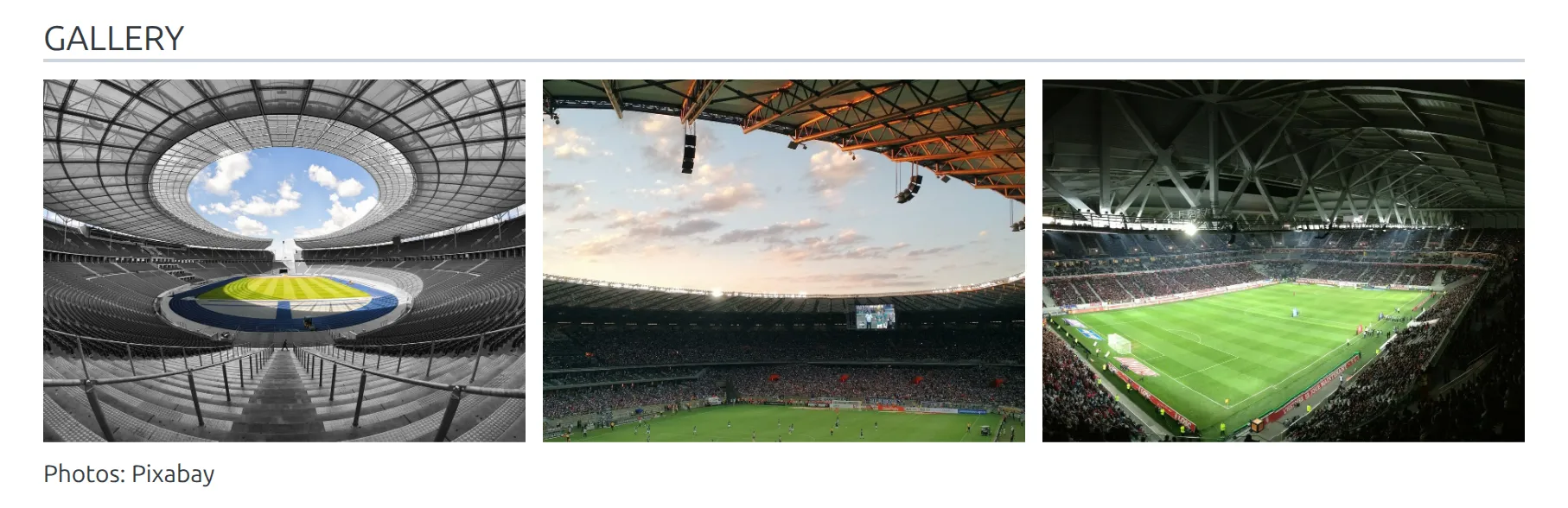
| Gallery | The stadium’s image gallery and the text below it. |
| Bottom Content | The custom content saved on the stadium, from the Bottom Content tab. |
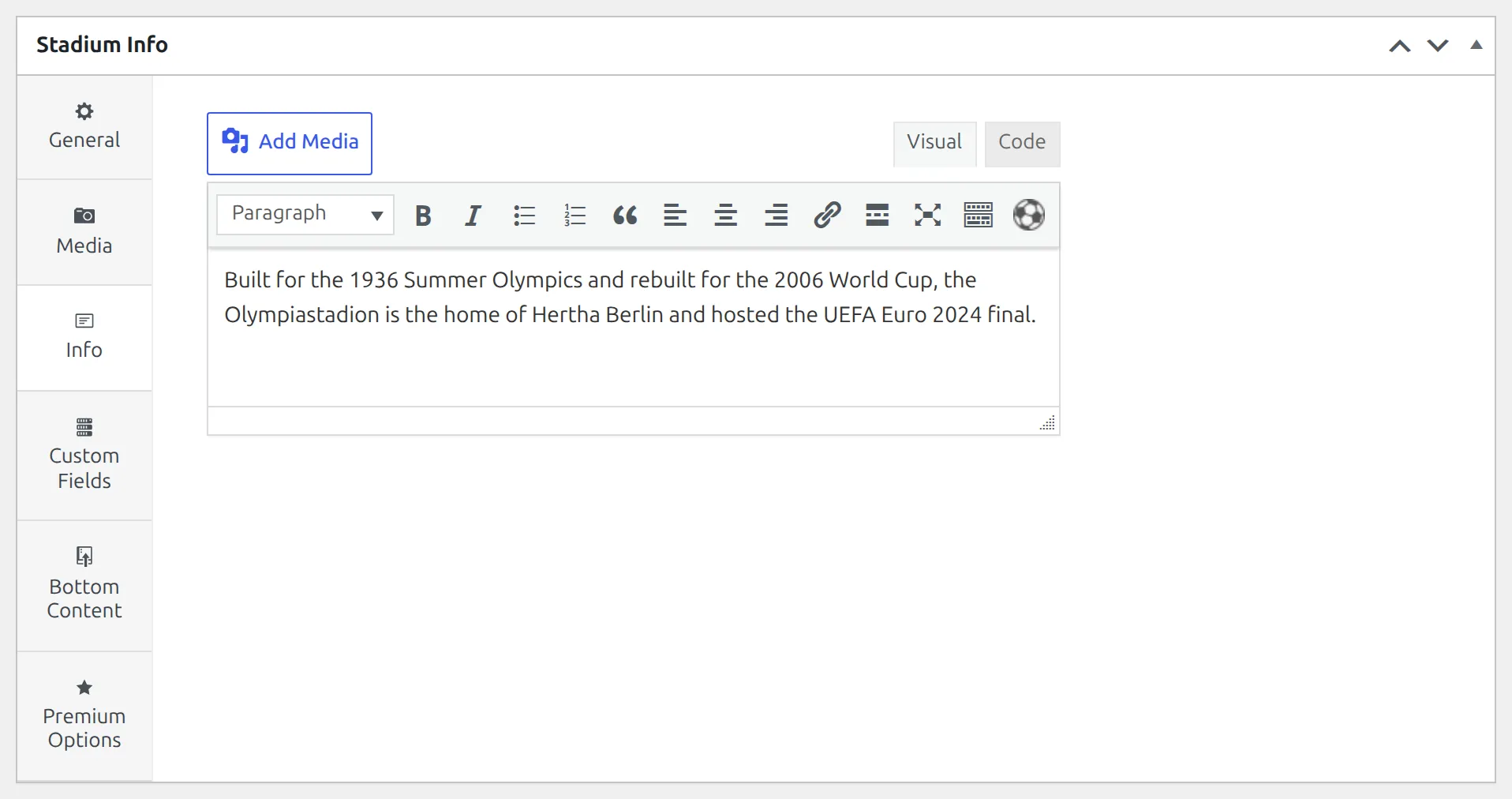
Everything the stadium blocks show is typed on the stadium edit screen. The Header reads the General tab plus the photo and Custom Fields, Info reads the Info tab, and Gallery reads Gallery and Text below gallery on the Media tab.
The Map block needs two things or it prints nothing: a Google Maps API key in Settings & Tools > Settings > Configuration > API Keys, and a location set with the Map field on the stadium’s General tab. If you need visitor consent before Google loads, switch on Require consent before loading Map in Settings & Tools > Settings > Display > Stadium. The block then shows your consent text and a Load Map button in place of the map.
Want a video on a stadium page? There’s no Video block for stadiums. Add the video to the stadium’s Info or Bottom Content text instead – both run shortcodes, so the WordPress shortcode works there.
Staff
| Block | What it shows |
|---|---|
| Header | Photo with the staff member’s details: current club (or clubs), job title, nationality, place and date of birth, age and custom fields. |
| History | A career table with Club, Job Title, From and To, one row per entry on the Staff History tab. |
| Bio | The staff member’s description text, from the Bio tab. |
| Bottom Content | The custom content saved on the staff member, from the Bottom Content tab. |
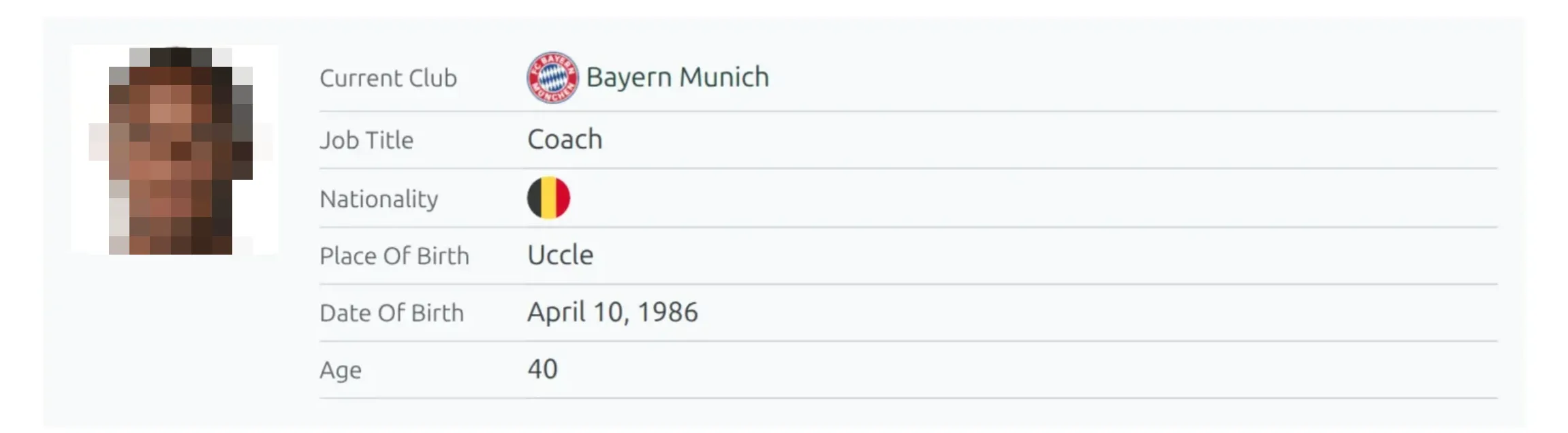

Staff is the smallest layout type, and there’s no block listing the matches a coach managed. If a staff page needs more than these four blocks, add a Global :: Shortcode block and run any shortcode you like inside it.
Starting from a predefined layout
Three layout types ship with ready-made arrangements you can load instead of placing blocks one by one. Click Load Predefined Layout on the builder screen, then Load next to the one you want.
| Layout type | Preset | What it places |
|---|---|---|
| Match | Finished Game | Scoreboard, Timeline and a matchweek scoreboard slider on top; tabs Commentary, Line Ups (Formation, LineUps, Substitutes), Stats (Stats, Custom Player Stats) and Events (Goals, Cards); Referees at the bottom. |
| Match | Upcoming Game | Scoreboard, Head-to-head matches, a matchweek scoreboard slider and Latest Matches. |
| Match LIVE | LIVE Game | Scoreboard, Timeline and a matchweek scoreboard slider on top; tabs Commentary, LineUps (Formation, LineUps) and Latest Matches; Referees at the bottom. |
| Competition Multistage | Default Layout | The recommended layout for multistage and Lazy Import competitions, starting with the Header and a standings shortcode. |
Loading a preset replaces the top area, the tabs and the bottom area, so load it first and edit afterwards. The other six layout types start empty.
🆘 Troubleshooting
A block I expected is not in the list
Check the layout’s type against the tables above. Blocks do not move between types – there is no Standing block on a Match layout, and no Formation block on a Club layout. If you need competition data on a club page, place a Global :: Shortcode block instead.
On a Match or Match LIVE layout, a missing Prediction block means neither prediction data nor odds import is switched on for API-Football.
The block is placed but renders nothing
Most blocks output nothing when the underlying data is empty: a Penalty Shootout block on a match without a shootout, a Transfers block on a club with no transfers recorded, a Gallery block with no images attached. That is expected, and it is why a layout can look different from one match to the next. On Latest Matches and Head-to-head matches you can set a No Data text to print a message instead.
A few blocks need a setting as well as data. Map needs a Google Maps API key and a stadium location, Custom Player Stats needs your custom player statistic columns, and Odds needs odds imported from API-Football.
Do I have to create every goal scorer as a player?
No. In the match’s Lineups, the add player dialog has a Temporary Player option that adds a player as a name, position and nationality without creating a profile on the site. Temporary players can then be picked in goal events, and the Goals block shows their name, just without a link to a player page.
📚 Related
- Layout Builder – layouts, tabs, display rules and the move to v2
- Shortcode Block – run any shortcode inside a layout
- Custom Classes – styling individual blocks
- Match Scoreboard – where the scoreboard background picture comes from
- Game Prediction – turning on the data behind the Prediction block