

Football Leagues keeps its data in 18 of its own database tables. If one of them is missing, the pages that read it go blank or show zero, and Plugin Health turns red. Most of the time you don’t have to do anything about it: the plugin checks its own tables on every request and recreates what’s absent on the next page load. This page covers that first, then the smaller number of sites where the check has nothing left to do and the table is still gone.
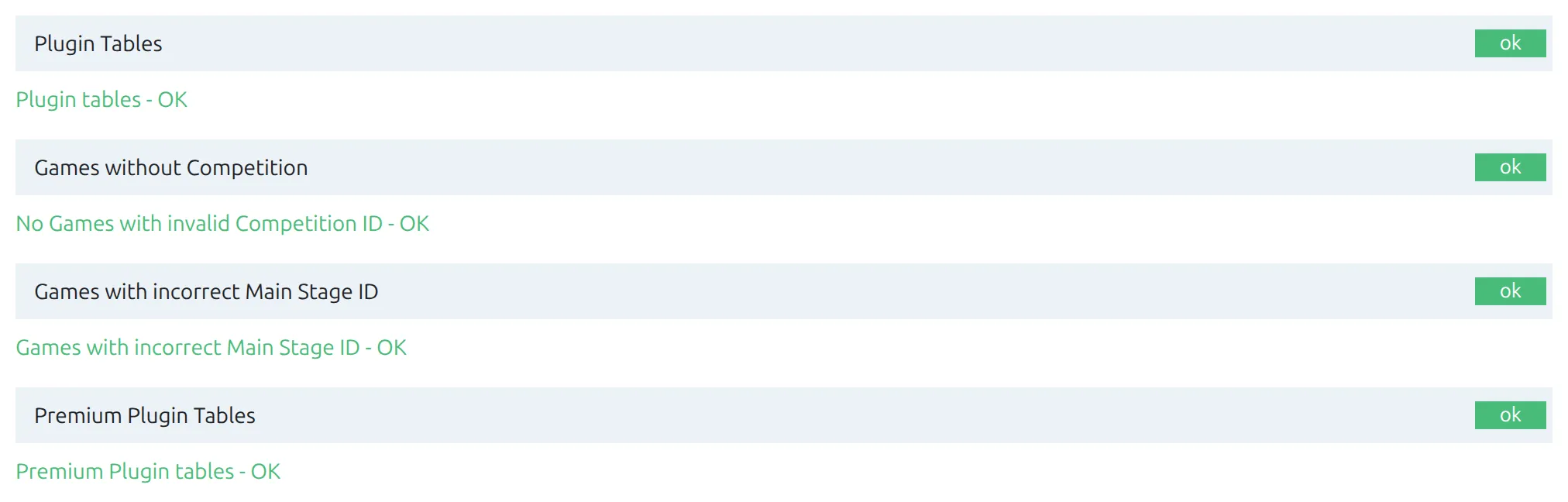
🚀 Try this first: reload an admin page
Open any WordPress admin page – Dashboard, Posts, anything – and let it finish loading. Then go back to Football Leagues > Plugin Health and look at the two table rows again.
That single page load is the fix on most sites, and here’s why. Football Leagues compares its stored database version against the version the installed plugin expects, on every single request, front end and admin alike. If the stored number is behind, it runs the schema update. After that update it re-checks every table it owns, and if any of them is still absent it refuses to record the new version number. So the next request finds the same mismatch and tries again. The plugin keeps retrying until the tables are really there.
There’s no WP-CLI command to trigger this, and you don’t need one. Loading a page in a browser is the supported way to run it.
Deactivating and reactivating the plugin won’t help
It’s the first thing most people try, and it does nothing here. Football Leagues doesn’t create tables at activation – it creates them on the first page load afterwards. That’s also why a fresh install shows no plugin tables in the database until you open a page. Deactivating and reactivating costs you a round trip and changes nothing. Reinstalling the plugin files is equally pointless, though it’s harmless: Football Leagues never deletes your data on uninstall.
Checking which tables you actually have
Plugin Health
Go to Football Leagues > Plugin Health. Two rows cover the schema:
- Plugin Tables – the 9 tables the free core plugin owns
- Premium Plugin Tables – the 9 tables FL+ adds, shown only when the PRO plugin is active
Between them they check all 18, one by one, against the database. Green on both rows means nothing is missing. Red means at least one table is gone, and the next section tells you which.
The full table list on the Support page
Plugin Health gives you a yes or no. Football Leagues > Support gives you the names. On FL+ the list is inside the System Info block: open List of DB Tables and you get every table in your database on one comma-separated line. On the free plugin alone it is a Database Tables panel of chips, with the Football Leagues ones in blue. Either way, compare what you see against the list below.

The 18 tables
Names below are shown without the prefix. Your site’s prefix is whatever $table_prefix is set to in wp-config.php, usually wp_, so the first row is normally wp_anwpfl_matches.
| Core – on every site (9) | PRO – licensed FL+ sites only (9) |
|---|---|
anwpfl_matches | anwpfl_import_mapping |
anwpfl_players | anwpfl_predictions |
anwpfl_player_data | anwpfl_formations |
anwpfl_missing_players | anwpfl_transfers |
anwpfl_players_manual_stats | anwpfl_adv_buttons |
anwpfl_lineups | anwpfl_odds |
anwpfl_clubs | anwpfl_club_history |
anwpfl_competitions | anwpfl_post_entities |
anwpfl_standings | anwpfl_layouts |
On a free-only site you should see the nine on the left and nothing else. On a PRO site you should see all eighteen.
One thing worth knowing before you start blaming the PRO plugin: anwpfl_clubs, anwpfl_competitions and anwpfl_standings are core tables. FL+ adds extra columns to them, but core creates them. If one of those three is the missing table, it’s a core problem even on a PRO site, and the licence has nothing to do with it.
Reading the list yourself
If you have phpMyAdmin, Adminer or any database console from your host, this query lists the Football Leagues tables. It only reads – it changes nothing and it’s safe to run on a live site.
SELECT table_name
FROM information_schema.tables
WHERE table_schema = DATABASE()
  AND table_name LIKE '%anwpfl%'
ORDER BY table_name;
With WP-CLI, the same query plus the two version numbers you’ll want in a moment:
wp db query "SELECT table_name FROM information_schema.tables WHERE table_schema = DATABASE() AND table_name LIKE '%anwpfl%' ORDER BY table_name;"
wp option get anwpfl_db_version
wp option get anwpfl_premium_db_version
Don’t be surprised if the query returns a few extra names. Old backup copies and tables left by other plugins can match the same pattern. What matters is that all 18 of the names above are present.
What it looks like when a table is missing
There’s no admin notice for this, so the first sign is usually something quietly reading zero:
- The Football Leagues dashboard shows 0 games when you know there are hundreds
- Football Leagues > Toolbox > Caching shows 0 under DB Stats
- Standings render empty, or a club page shows no squad
- With
WP_DEBUGturned on, pages print WordPress database error: Table … doesn’t exist
If you have WP_DEBUG and WP_DEBUG_LOG switched on, the debug log carries the proof, naming the exact table:
[FL] dbDelta did not create tables: wp_anwpfl_standings
[FL Premium] dbDelta did not create tables: wp_anwpfl_layouts
That line is written at most once an hour, so seeing it only once doesn’t mean the problem stopped, and reloading five times without a new line doesn’t mean it’s fixed. Check the tables, not the log frequency. If you’re not sure how to turn the log on, see How to Get a Debug Log in WordPress.
Missing table, or pending migration?
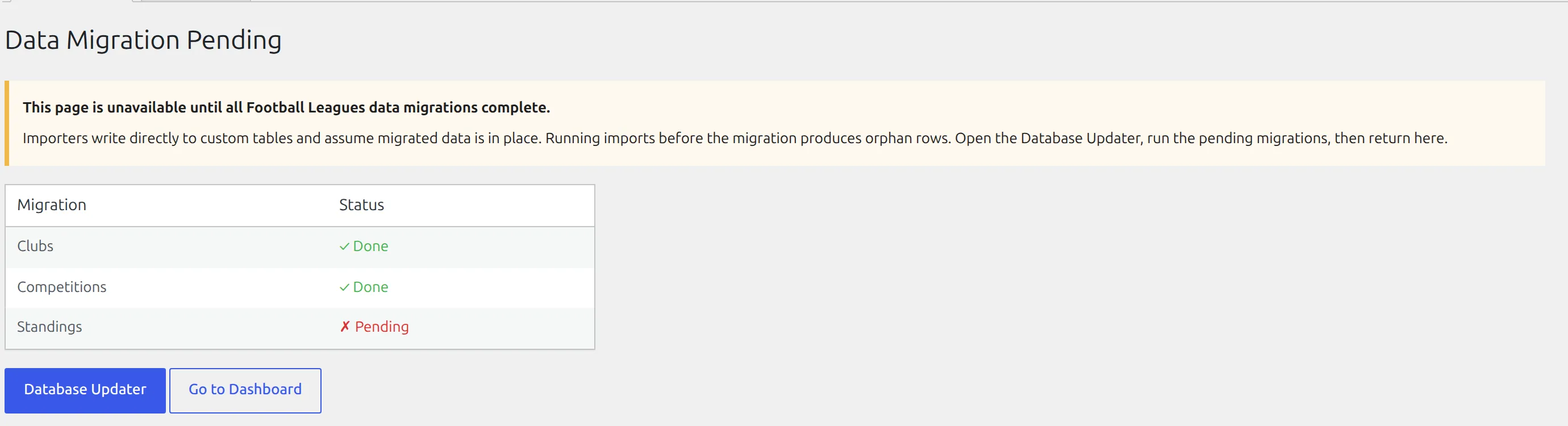
These two look almost identical from the outside and they are not the same problem. A missing table means the table was never created. A pending migration means the table exists but your data hasn’t been copied into it yet – the schema and the data are separate steps.
The clearest example is the Clubs CSV export. It stays switched off until the clubs, competitions and standings migrations have all finished, and if you reach the download link anyway it stops you with “Clubs export is unavailable until the Football Leagues data migration completes.” The Tournament box in the competition editor and the standings endpoints behave the same way. None of that is a missing table.
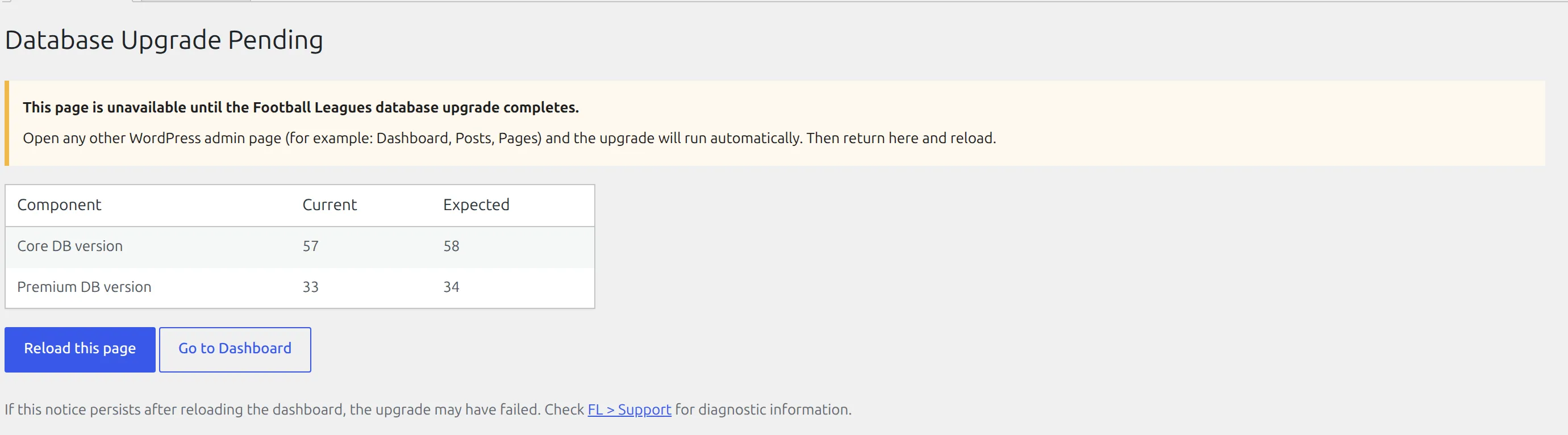
Football Leagues tells the two apart for you. Open Settings & Tools > Data Import and read the heading:
| Database Upgrade Pending | Data Migration Pending | |
|---|---|---|
| What’s wrong | The schema is behind, and a table may be missing | The tables are there, the rows haven’t moved into them |
| What it shows you | A Current vs Expected table of DB version numbers | A Done / Pending row for Clubs, Competitions and Standings |
| How to fix it | This page | Football Leagues > Toolbox, the Database Schema Updater |
If you land on Data Migration Pending instead, nothing on this page applies. Click its Database Updater button, run the pending migrations, and see Migrating to v0.18.0.
🔧 Fixing a site that stays stuck
You’re here because reloading an admin page didn’t bring the tables back. Work through these in order – each step is cheaper and safer than the one after it, and most sites are fixed by step 2 or 3.
Take a database backup before step 3. Nothing below deletes data, but you’re about to edit a settings value by hand and a backup costs you two minutes.
Step 1 – PRO sites: check the licence
If the missing tables are all on the PRO side of the list – transfers, predictions, odds, formations, advanced buttons, layouts, the API import mapping – check the licence before touching anything else.
FL+ creates none of its nine tables unless the licence is active. On a site where the licence has lapsed, was never activated, or where the free build of the plugin is installed, those tables simply never appear, and every feature that needs them does nothing at all. Reactivate the licence, load an admin page, and check Plugin Health again.
The core nine are unaffected by this – they’re created regardless of licence.
Step 2 – compare the two version numbers
Football Leagues stores two database version numbers. On FL+, Football Leagues > Support prints both, as the Plugin DB Version and Premium DB Version rows of the System Info table. The free plugin alone shows the core number only, in a DB Version tile. Both are also shown side by side on the Database Upgrade Pending screen, and WP-CLI gives you each in one line.
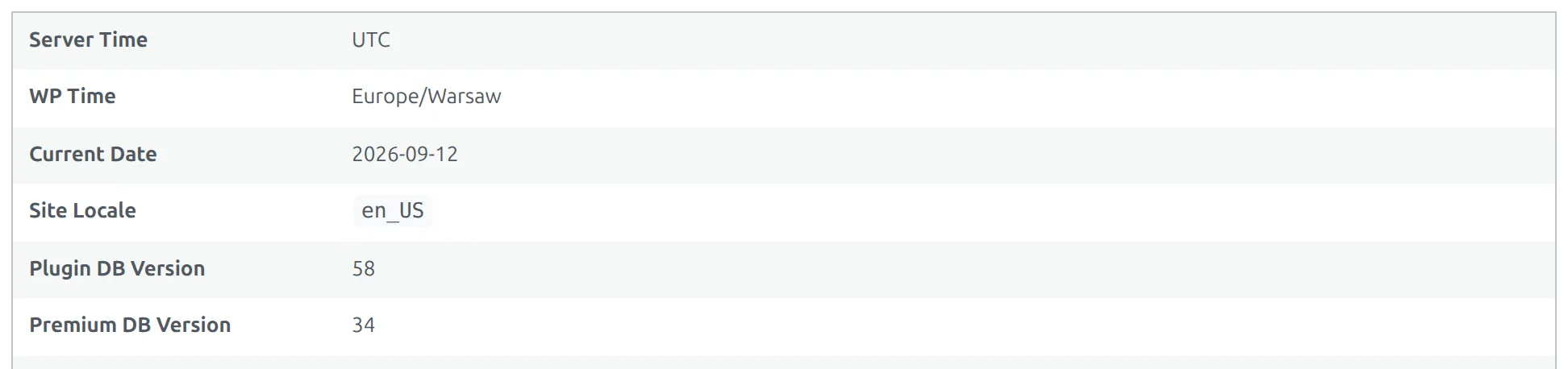
| Setting | Expected in core 0.18.5 / FL+ 0.18.4 |
|---|---|
anwpfl_db_version | 58 |
anwpfl_premium_db_version | 34 |
Those two numbers are an example, from one specific release. They climb with every version that changes the schema, and an older plugin expects a lower number. Never compare your site against the table above – compare Current against Expected on the Database Upgrade Pending screen, which reads both from your own installation.
- Your number is lower than expected – the upgrade is being attempted and failing. Skip to step 4.
- Your number matches, but a table is missing – this is the stuck case. The plugin thinks the work is done, so it never tries again. Step 3 restarts it.
A matching version number with a missing table almost always means the database came from somewhere else: a partial restore, or a site move that carried the settings table but not every plugin table.
Step 3 – lower the version by exactly one
Subtracting 1 from the stored version makes the plugin think it has an upgrade to run. On the next page load it runs it, recreates whatever is missing, checks the tables, and puts the number back up to where it was.
Read the number first, then write back one less than what you read. Don’t type a number from this page – your site’s value depends on the version you’re running.
The cleanest way is WP-CLI:
# read
wp option get anwpfl_db_version
# say it printed 58 - then write one less
wp option update anwpfl_db_version 57

# licensed PRO sites, same two steps
wp option get anwpfl_premium_db_version
wp option update anwpfl_premium_db_version 33
Then load any WordPress admin page once and re-check Plugin Health. If only core tables were missing, you only need the core setting.
Lower it by one, never more, and never set it to a number you haven’t read off the site first. Each older version has its own one-time data conversion attached to it, so dropping the number by ten reruns ten of them for no benefit. Setting it higher than the real value is worse still: the plugin then believes it’s ahead of schedule and stops checking altogether. One step back does the table check and nothing else.
Recreating a table is safe in itself. The schema update only ever adds – it creates tables that are absent and adds columns that are absent. It never drops a table and never deletes rows, so your existing data is untouched.
No WP-CLI? Use the All Settings page
WordPress has a hidden page that lists every stored setting. Open it in your browser:
https://example.com/wp-admin/options.phpUse your own domain in place of example.com. Use your browser’s find function to jump to anwpfl_db_version, note the number in the box, and replace it with that number minus one – 58 becomes 57, 55 becomes 54. On a PRO site do the same for anwpfl_premium_db_version. Then press Save Changes once, and load a normal admin page.
Saving this page can empty settings on a large site
All Settings submits every setting on the page at once, and rewrites each one from what the browser sent. PHP caps how many form fields it will accept in a single submission, and the default cap is 1000. Past that, the rest of the form is dropped in silence – and WordPress writes an empty value for every setting it didn’t receive. A demo site with nothing much installed already holds around 950 settings, so a real site with a page builder and an e-commerce plugin is well over the line. Prefer WP-CLI. If you must use this page, ask your host to raise max_input_vars first, take a backup, and change only the one field before saving. Settings shown grayed out as SERIALIZED DATA are protected, but several Football Leagues settings are stored as plain JSON text and are fully editable – one stray keystroke in one of those breaks it.
Step 4 – still missing? It’s a database permission
If the version number refuses to go back up, or it climbs and the table is still absent, the plugin is asking the database to create a table and being refused. That’s a hosting setting, not a plugin setting, and you can’t fix it from WordPress.
Turn on WP_DEBUG and WP_DEBUG_LOG, load an admin page, and find the [FL] dbDelta did not create tables: line. Then contact your host and ask them to grant your site’s MySQL user CREATE, ALTER and INDEX rights on the site’s database. Some managed and locked-down shared hosts strip these after the initial WordPress install, which is exactly when this shows up.
Send them the log line – it names the table, which is all they need.
Things that will make it worse
Advice for this problem circulates in a few forms that can cost you data. None of these is safe:
- Don’t write the
CREATE TABLEby hand, and don’t copy one from an older site. The table structure is tied to the version number, and a table with the wrong columns doesn’t error – Football Leagues writes to it, the write is silently discarded, and you lose data without ever seeing a warning. This is the worst outcome available here. - Don’t drop or empty a table to “let the plugin recreate it”. If the table holds data, the data is gone.
- Don’t set the version to 0, and don’t delete the setting. That reruns years of one-time data conversions against your live data. Subtract one.
- Don’t use a table repair tool. Repair fixes a damaged table. It can’t create one that isn’t there.
- Don’t reinstall the plugin expecting it to rebuild the schema. It won’t – tables are created on a page load, not at activation. It’s harmless, just useless.
🆘 Sending this to support
If you’re still stuck, go to Football Leagues > Support and press Copy on the System Info block. It puts your plugin versions, WordPress and PHP versions, both database versions, your active plugin list and the full table list on the clipboard in one block. On the free plugin alone the same thing is a text box near the bottom of the page with a Copy to Clipboard button under it.

Paste that, plus the list of Football Leagues tables from the query above and the [FL] dbDelta did not create tables: line if you have it. Those three things are usually enough to answer the ticket in one reply. See How to Get Support for where to send it.
📚 Related
- Migrating to v0.18.0 – running the pending data migrations in the Database Schema Updater
- How to Get a Debug Log in WordPress – turning on the log that names the missing table
- Site Migration – moving a site without leaving tables behind
- How to Get Support – where to send the system info