

An advanced button is a link, an icon or a small block of markup that you build once on its own screen and then attach to individual games. The design is shared, the link isn’t: every game you add the button to gets its own URL. So one “Buy tickets” button covers a whole season, and one “Watch live” button covers every streamed game.
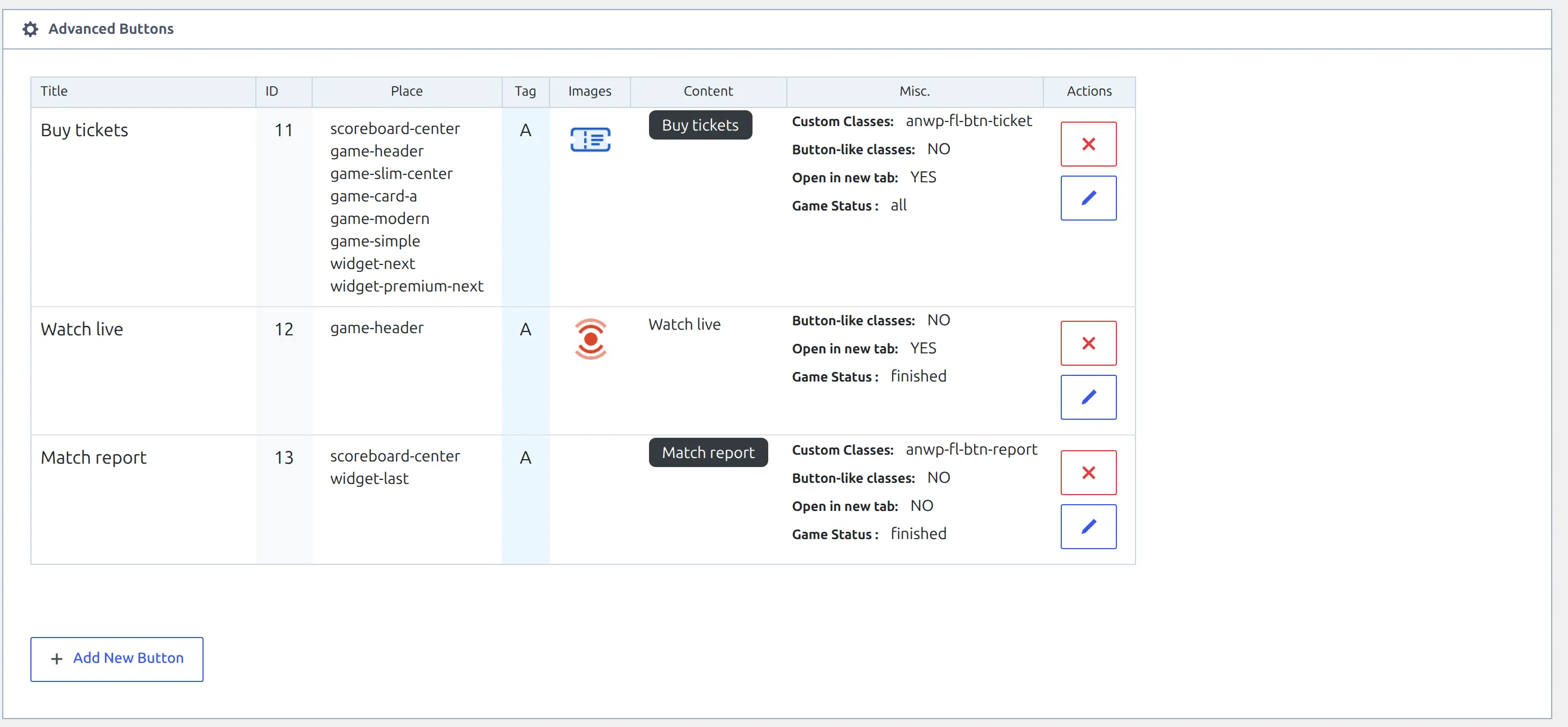
🚀 Creating a button
Go to Settings & Tools > Advanced Buttons and click Add New Button. Everything lives in one dialog.
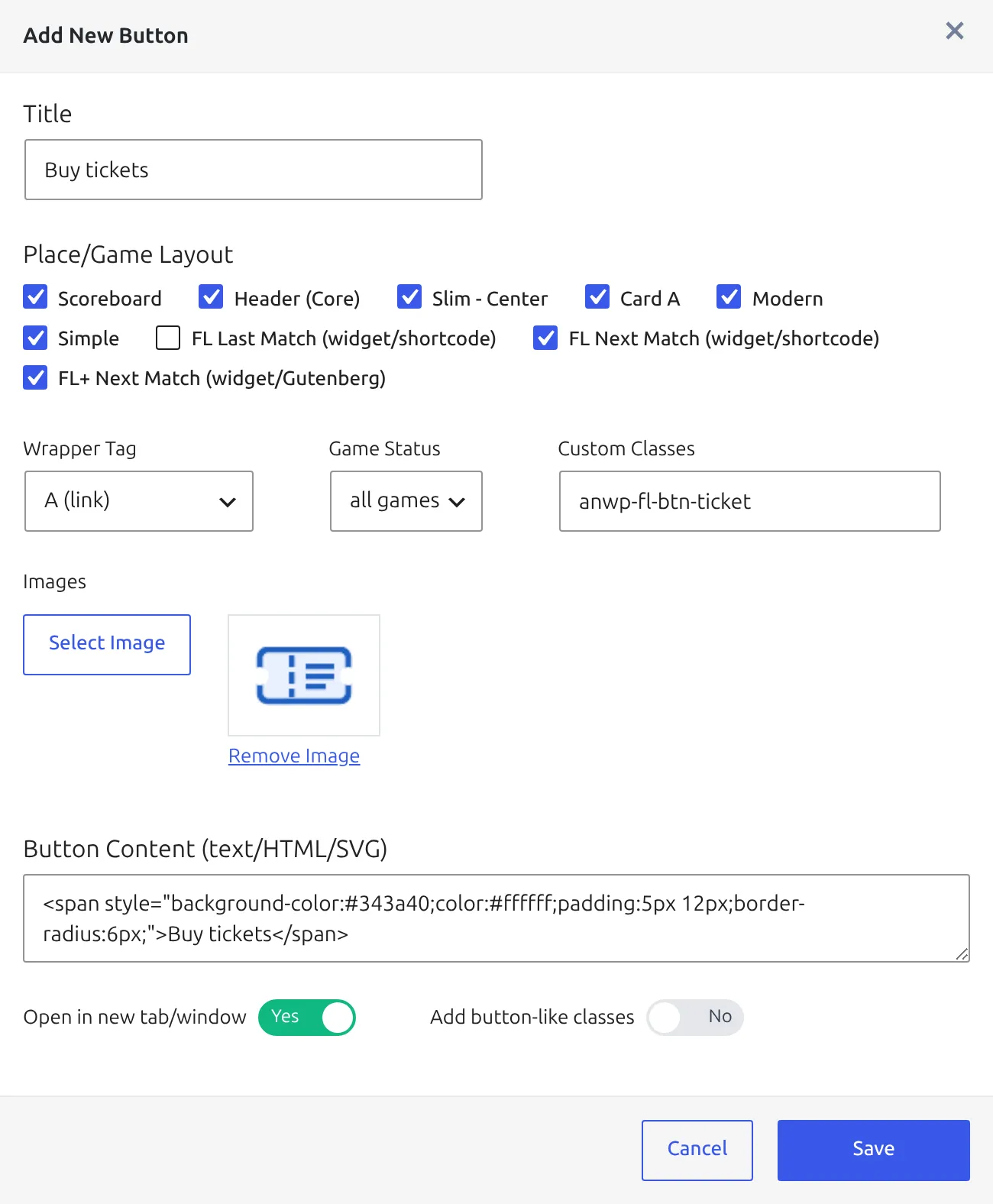
| Field | What it does |
|---|---|
| Title | The name you’ll pick from in the game editor. Admin only, never shown to visitors. Required. |
| Place/Game Layout | Nine tick boxes deciding where the button may appear. At least one is required. |
| Wrapper Tag | A (link) or DIV (block). A link gets a URL box on each game. A block never does, so use it for a badge or a label rather than something clickable. |
| Game Status | all games, finished or upcoming. “Upcoming” means the game isn’t marked finished yet, so a game in play still counts as upcoming. |
| Custom Classes | CSS classes added to the button, separated by spaces. |
| Images | Pick an image from the media library. Click Select Image again to add a second one. They’re printed at their own size, so upload the icon small (an SVG, or a 30×30 PNG) rather than a full-size photo. |
| Button Content (text/HTML/SVG) | Printed after the images. Plain text, HTML or an inline SVG all work. |
| Open in new tab/window | Links only. A new button starts with this off, so switch it on if the link goes off-site. |
| Add button-like classes | Links only. Gives the plugin’s own button look: a light border, rounded corners and a bit of padding. |
Save refuses with Place is not selected if you tick nothing, and with Empty title not allowed if you leave the title blank. The dialog is headed Add New Button whether you’re adding one or editing one, so don’t read that as a sign you’ve lost your edits.
Adding a button to a game
The tab is hidden until a button exists
The game editor only shows its Advanced Buttons tab once you’ve saved at least one button. On a site with none, the tab isn’t there and nothing tells you why. Build the button first, then open the game.
- Open a game in wp-admin and click the Advanced Buttons tab.
- Pick your button from the – select button to add – dropdown. It lists every button you’ve built, with its ID.
- Paste this game’s URL into the box that appears under the title.
- Update the game.
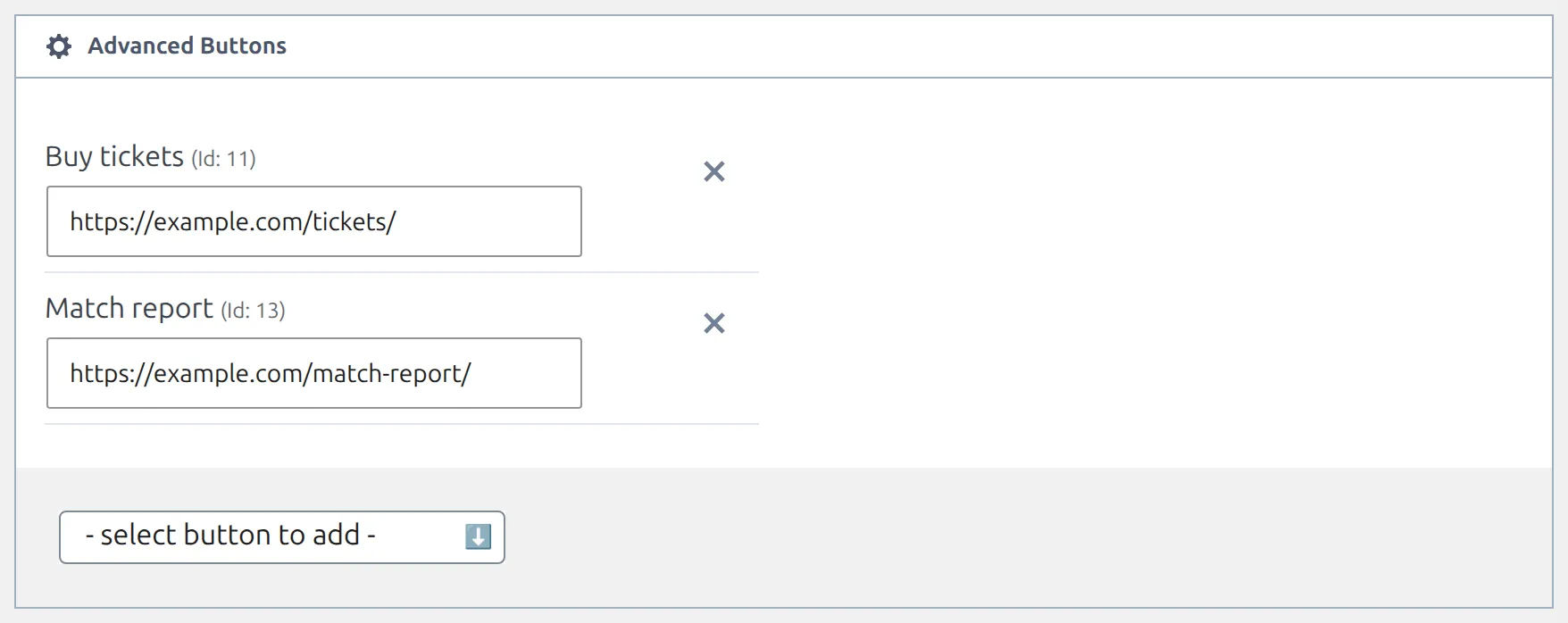
The URL box only appears for buttons whose Wrapper Tag is A (link). Leave it empty on a link button and the button still renders, but it points at the page it’s sitting on, which is almost never what you want.
One game at a time
There’s no competition, club or season setting on a button. You attach it game by game, and nothing attaches it in bulk – not the API import, not a competition setting. The only two things that narrow where a button shows are the places you ticked and the Game Status you chose.
Where the button shows up
The nine tick boxes under Place/Game Layout are spots on the front end: the game page’s scoreboard or header, the four match-list layouts, and three next/last match widgets. Place/Game Layout has a page of its own with a picture of each one.
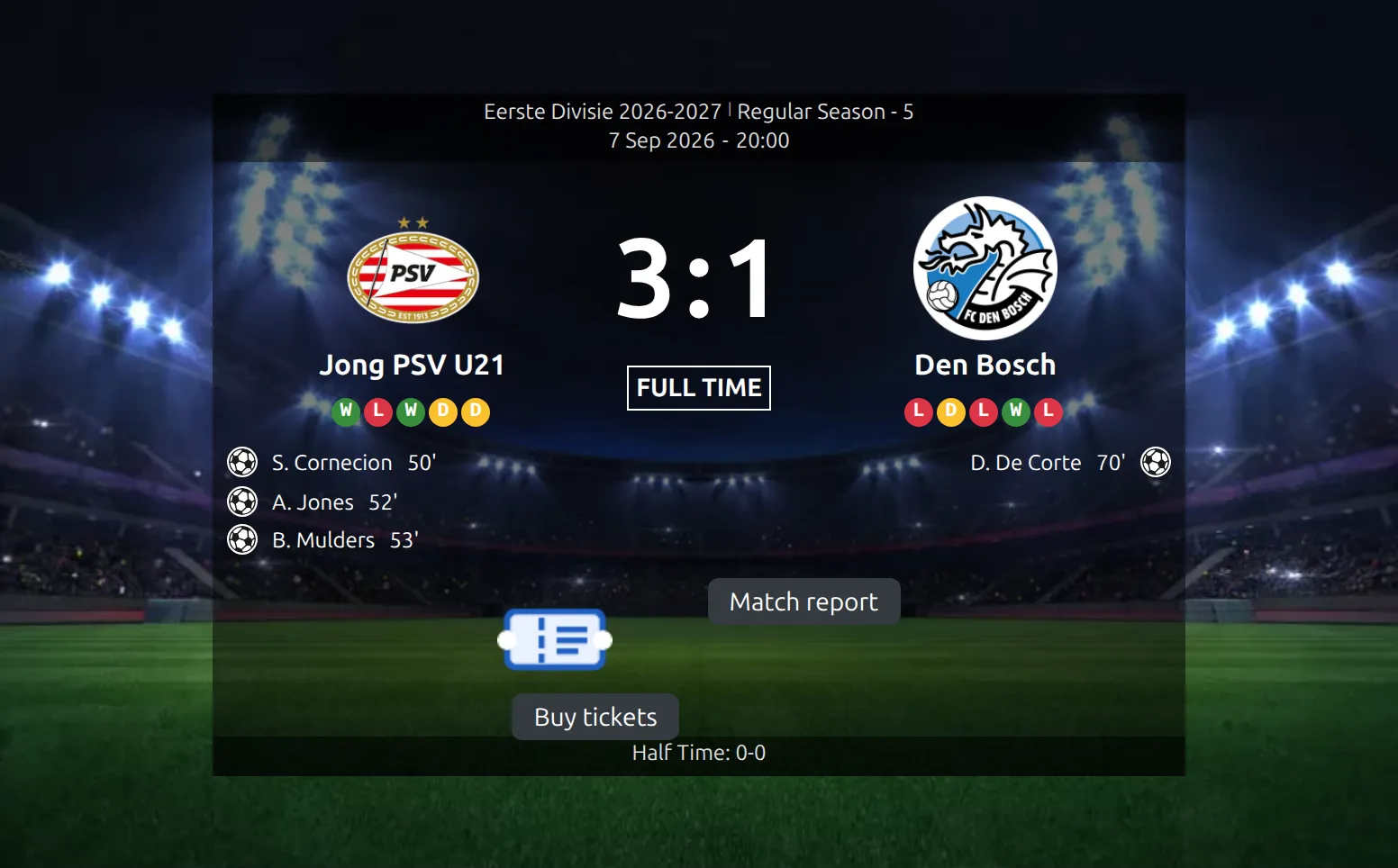
Two of those nine are the top of a game page, and a game page only ever draws one of them. With Scoreboard with background image on, which is the default, you get the image-backed scoreboard and the Scoreboard place. Turn it off and you get the plain header and the Header (Core) place instead. The setting is at Settings & Tools > Settings > Display > Match Display > Scoreboard, and each game can override it from its Premium Options tab. If you’re not sure which one your site uses, tick both.
Two match-list layouts draw no buttons at all, whatever you tick: plain and small.
🎨 Styling with Custom Classes
Anything you type into Custom Classes lands on the button itself. Separate several with spaces. The useful ones from the plugin’s own stylesheet:
| Class | Effect |
|---|---|
anwp-w-10 … anwp-w-500 | Pixel widths, not percentages. anwp-w-100 is 100px wide, not full width. The steps are 10-60 in fives, then 70, 80, 90, 100-150 in tens, then 200, 250, 300, 350, 400, 450, 500. |
anwp-w-1-2, anwp-w-1-3, anwp-w-2-3, anwp-w-1-4, anwp-w-3-4, anwp-w-full | Percentage widths: 50%, 33%, 66%, 25%, 75% and 100%. |
py-1, py-2, px-2 | Vertical and horizontal padding, from the legacy Bootstrap stylesheet. |
The py-* and px-* spacing classes only exist while Load Legacy Bootstrap CSS is on, which it is by default. If you’ve turned it off at Settings & Tools > Settings > Configuration > Advanced > Legacy CSS, those classes do nothing and you’ll want your own CSS instead.
For rules in your own stylesheet, every group of buttons is wrapped in .anwp-fl-advanced-buttons, and the wrapper also carries a class naming the place – .anwp-fl-btn-place-scoreboard-center, .anwp-fl-btn-place-game-slim-center and so on. That’s how you style the same button differently on a game page and in a match list.
One thing to watch. A button sets no text colour of its own, so it inherits whatever it sits on. That’s fine in a match list, which is light. It is not fine on the Scoreboard place, where the background is a photo and a plain label can all but disappear. The same button is usually ticked for both, so picking one colour in Custom Classes only moves the problem. Give the label its own colour instead, inside Button Content:
<span style="background-color:#343a40;color:#ffffff;padding:5px 12px;border-radius:6px;">Buy tickets</span>Deleting a button
Detach it from your games first
Deleting a button clears it from the front end straight away, but every game you’d attached it to keeps a leftover row in its Advanced Buttons tab, reading – missing title – (Id: 4). Nothing sweeps them up. Detach the button from its games, save each one, and delete the button last.
If you’ve already deleted one and you’re looking at those rows, you can still clear them: open the game, click the cross beside the leftover row, and update. You need at least one button to still exist on the site, otherwise the tab is hidden and you can’t reach them.
A simpler option: the match-list icon
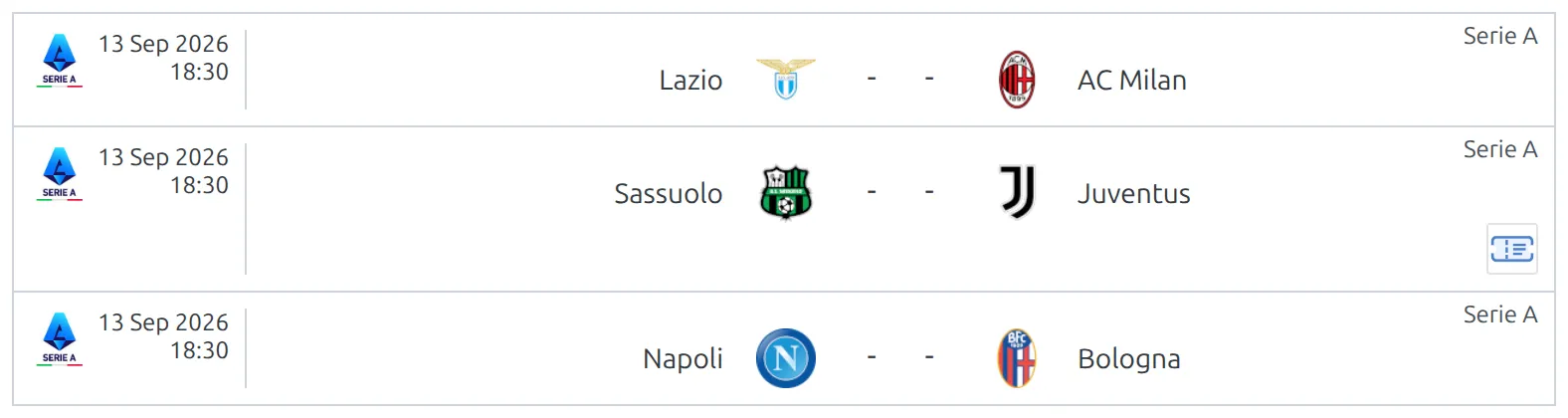
There’s a second, much smaller feature that people often mean when they ask about “a button in the match list”. It’s one icon, site-wide, on the right of a slim match-list row – and it’s not an advanced button.
Set the picture once at Settings & Tools > Settings > Display > Match List > Premium > Custom button image. An SVG works best. Then open a game, go to its Premium Options tab and set Match List (slim) custom button to image only for a plain badge, or image with link plus a Match List custom button URL to make it clickable. Leave it on none and that game shows nothing.
It draws in the slim layout and nowhere else, it’s a 26px square with a light border, and there’s only ever one of them. To drop the border, add .anwp-match-slim-btn { border: none !important; } to your theme’s additional CSS. If you need several buttons, different designs per game, or anything outside the slim layout, use advanced buttons instead.
🆘 Troubleshooting
There’s no Advanced Buttons tab on my game
You haven’t saved a button yet. Create one at Settings & Tools > Advanced Buttons and reload the game.
The button is attached but nothing appears
Work through these in order:
- The place you’re looking at isn’t ticked on the button. A button on Scoreboard only will never show in a match list.
- Game Status is filtering it out. A finished button stays hidden until the game is marked finished.
- You’re looking at the game header but the site draws the scoreboard, or the other way round. See the Scoreboard note above.
- The list uses the plain or small layout, neither of which draws buttons.
- The button has no images and no Button Content, so there’s nothing to draw.
The button shows but clicking it opens the game
In the slim match-list layout, the whole row is a link to the game. If your button sits under that, add anwp-relative anwp-z-10 to its Custom Classes to lift it above the row link.
The image is enormous
The plugin prints your image at its natural size and doesn’t shrink it. Re-upload the icon at the size you want, or add a width class such as anwp-w-30 to Custom Classes.
An icon-only button reads as nothing to a screen reader
An image on its own gives the link no name. Put a word or two in Button Content as well – it’s printed beside the image, and it’s what assistive technology reads out.
📚 Related
- Place/Game Layout – a picture of each of the nine places, and which shortcode or widget draws it
- Match Scoreboard – the image-backed game header the Scoreboard place sits in
- Import Odds – the other screen that uses the same nine places
- Matches shortcode – the match lists the slim, modern and simple places belong to
- Matches Scoreboard – the slider built from Card A match cards