

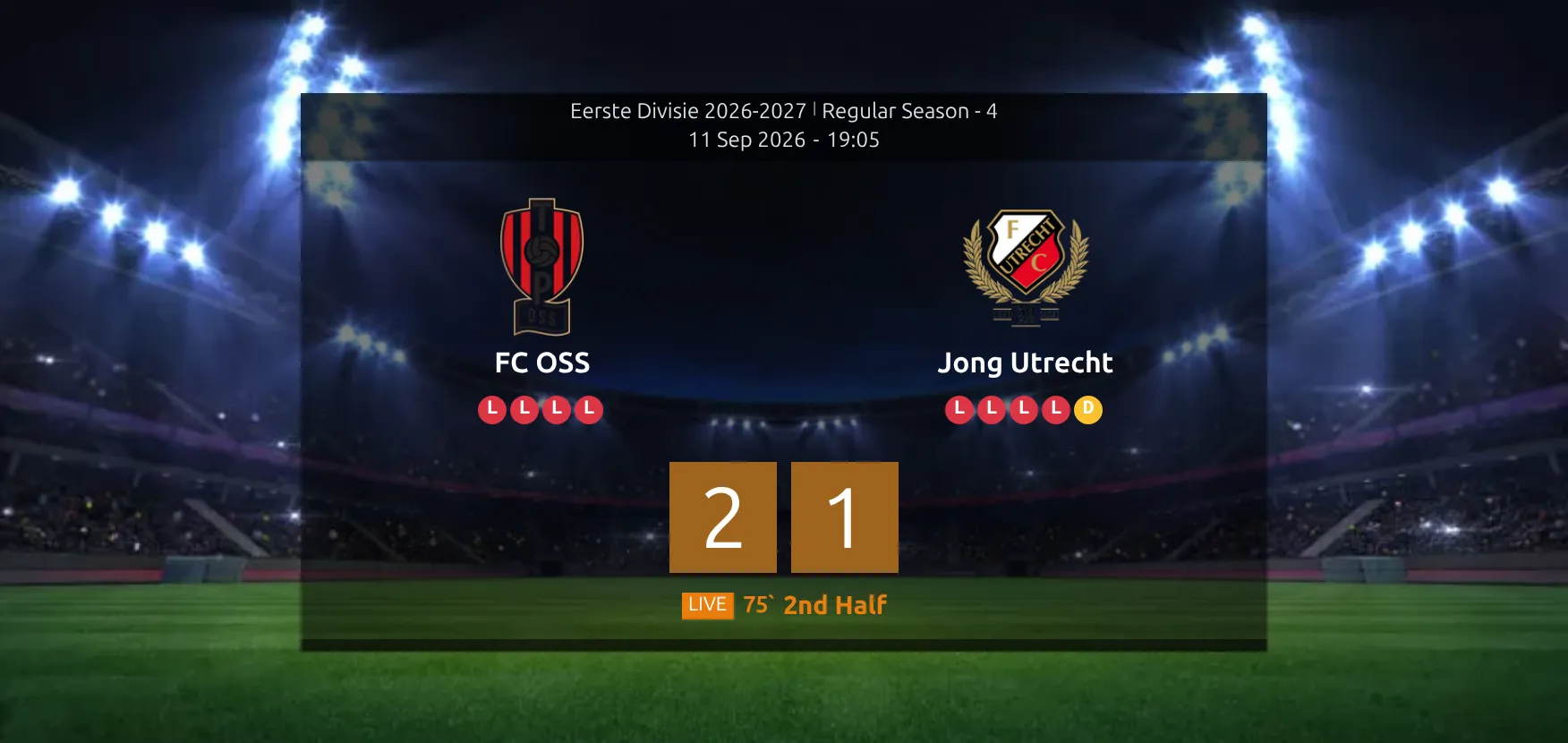
A game’s own page does more than a match list. While the game is on, the countdown is replaced by a big orange live score with the running minute and the period, and the sections underneath – commentary, timeline, team stats, player stats – reload themselves as the game goes on. A visitor can leave the page open for 90 minutes and watch it fill up.
Entering the scores is covered elsewhere – by hand on the Live Scores Dashboard, automatically on the Live Scores Import page. This page is about the game page itself, plus the one live control that isn’t on the dashboard.
🚀 When a game page goes live
The page switches itself into live mode as soon as any one of these is true, and the game isn’t already saved as a result:
- It has a live status – anything you picked in the dropdown, from 1st Half to Penalty.
- Live Events (Commentary) is switched on for that game.
- The API live import currently lists it as in play.
- Kickoff is less than two hours away or has already passed, and one of the two live sources is enabled.
That last one is why a game page can be quietly checking for live data before anyone has touched it. It’s how a visitor who opened the page ten minutes before kickoff sees the score appear without reloading. It’s also why an unfinished fixture keeps checking long after the day is over – see the troubleshooting section.
Live Events (Commentary)
Open a game in wp-admin and find the Live box. At the top of it is a single switch labeled Live Events (Commentary). It’s the only live control that isn’t on the Live Scores Dashboard, and it does three things:
- Puts a LIVE scheduled badge on the public game page, so visitors know you’ll be covering this one.
- Starts the page’s live mode straight away, before the game has any status at all.
- Adds an Update (Live) button to the bottom of the Match Events box, so you can push events out one at a time.
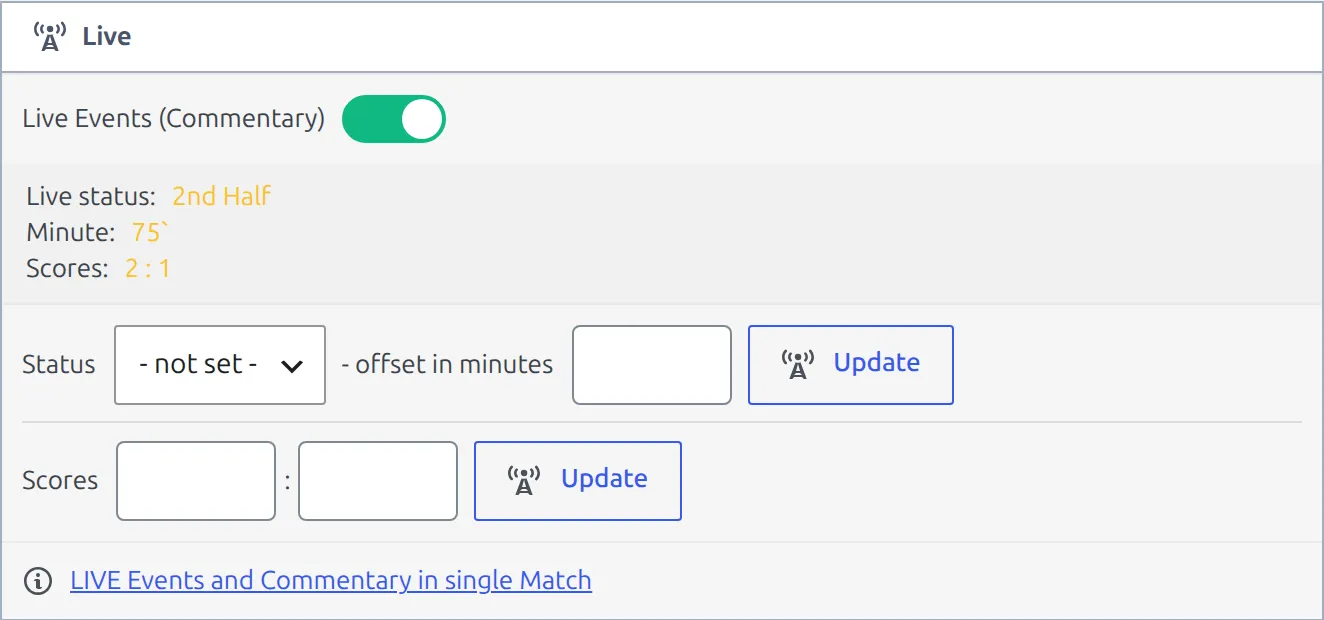
The switch saves the moment you flip it. There’s no need to update the game itself, and nothing else on the edit screen has to be saved for the badge to appear.
No Live box on the edit screen?
The whole box, switch included, only appears when Enable Manual Live Scores is set to Yes under Settings & Tools → Settings → Features → Live Scores. On a site that only imports live data from the API there’s nothing to turn on here – the importer flags games as live by itself. The box also hides on a game already marked finished.
The LIVE scheduled badge
With the switch on, visitors see an orange LIVE scheduled badge on the game page. On a scoreboard header it sits right under the countdown; on the standard header it sits under the row with the two clubs. It shows from the moment you flip the switch – a day ahead if you like – until the game gets its first live status, and then it gives way to the live score and the running minute.
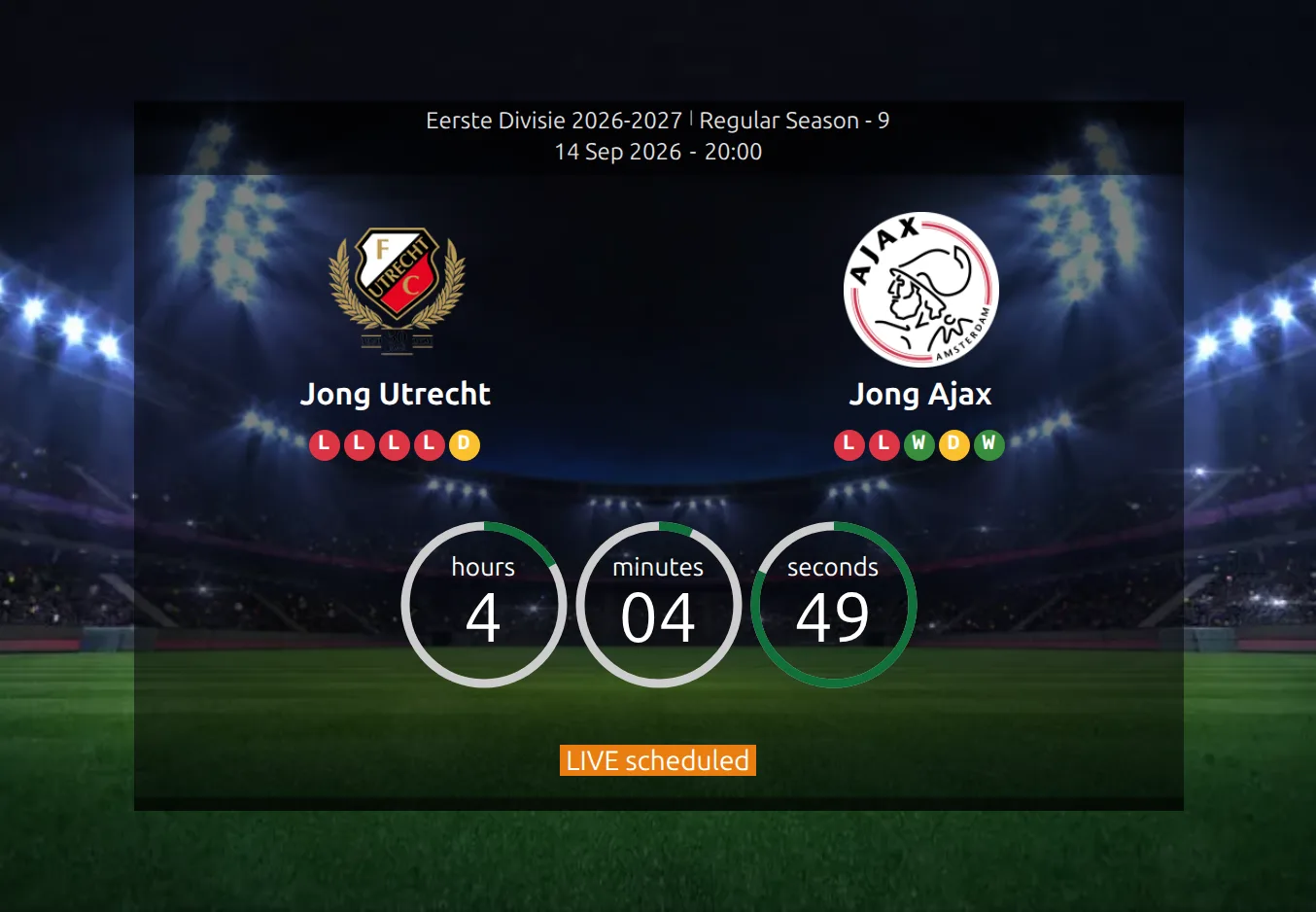
The badge isn’t printed into the page. The live script adds it right after the page loads, so it needs what live updates need: Enable Manual Live Scores on, and the plugin’s JavaScript running for the visitor. If you can see the badge and a logged-out visitor can’t, see “Live updates work for me, but not for logged-out visitors” in the troubleshooting section. To change the wording, go to Translations > Text Strings and search for “LIVE scheduled”.
✍️ Reporting a game as it happens
- Open the game in wp-admin and switch Live Events (Commentary) on. The public page picks up the LIVE scheduled badge.
- At kickoff, set Status to 1st Half in the Live box and press its Update. The badge turns into a running clock.
- Add goals, cards and commentary lines in the Match Events box as they happen, then press Update (Live) – not the post’s Update button. Events go out without saving the whole game.
- Keep the score in step with the Scores row in the Live box, which has its own Update.
- At the whistle, set Status to Result in the main game settings, fill in the final numbers and save normally.

Which event types you can add, how to write a plain commentary line, and the five settings that control how the feed looks are all on the Match Commentary page. One thing worth repeating here: while a game is live the feed ignores your Events Order setting and always puts the newest entry at the top, so nobody has to scroll to find the goal that just went in. It reverts to your setting once the game is finished.
Finding your live games
The Games list in wp-admin has a Live Status dropdown next to the other filters. Live active lists every game that currently has a live status; Live upcoming lists every game you flagged with the Live Events switch. Handy the morning after, for spotting a game nobody finished.
⏱ What refreshes, and how often
The game page asks for fresh data every 30 seconds by default – twice as often as a match list, because there’s much more on the page to keep current. Change it under Settings & Tools → Settings → Features → Live Scores with Update period – single match (sec).
Each time it asks, only what actually changed is redrawn:
| What | When it changes |
|---|---|
| Score, minute and period | Every time you push a score or a status. The minute keeps counting between requests, so the clock never looks frozen. |
| Commentary | Whenever the game’s events change – newest entry first while live. |
| Timeline | With the events. On API games the progress bar fills as the halves run. |
| Team statistics | Whenever the numbers change, if the block is on the page. |
| Player statistics | Same, including the sortable table. |
Two things the page does on its own. The countdown disappears the moment the game becomes active – there’s nothing left to count down to. And on API-import sites the scorers line under the scoreboard is rebuilt as goals go in.
Polling pauses while the visitor is on another browser tab and catches up immediately when they come back.
The two automatic reloads
A live game page and a finished game page are not the same page, so twice in a game’s life the page rebuilds itself for whoever has it open:
- When the game goes live – somebody sitting on a scheduled game page gets the live layout without touching anything.
- When the game is finished – as soon as you save it as a result, open pages swap to the finished layout with the final score, the lineups and the stats.
Normally this is an ordinary page reload. On a site behind an aggressive full-page cache a reload would just serve the same stale page again, so if that happens the plugin notices and fetches the new layout in the background instead, replacing the block in place. Either way the visitor ends up on the right version.
A layout just for live games
In the Layout Builder there’s a layout type called Match LIVE, separate from the ordinary Match type. Build one and any game with a live status – or any game the API says is in play – uses it instead of your normal game layout, and goes back to the normal one when it’s finished.
It’s worth the effort for a busy matchday. A live layout can lead with the commentary and the timeline and leave out the things nobody looks at mid-game, while the finished layout keeps the full report. Note that the switch is driven by the live status and by the API, not by the Live Events (Commentary) flag – a game you’ve only flagged still uses your ordinary Match layout until you start it.
Who can run a live game
Everything on the game edit screen – the Live box, the switch, the Update buttons – is administrators only. An Editor can open the game and see the box, but the Update buttons will refuse to save. That’s deliberate, not a bug.
To let somebody else report a game, use front-end live editing instead. Turn on Enable frontend LIVE Match edit under Settings & Tools → Settings → Features → Frontend Editing, then give the person access to that game – either as a match editor on the game itself, or as a supervisor on the competition. Two extra options on that tab let them enter team and player statistics while they’re at it. Once they’re logged in, an orange LIVE button shows above the scoreboard on the game’s public page, and it opens a full-window live editor.
That editor looks nothing like wp-admin, but it is a WordPress admin screen. It doesn’t give reporters the regular Football Leagues admin screens, but they do have to be allowed into the admin area – a membership or security plugin that sends Subscribers away from wp-admin sends them away from the live editor too. User Roles covers the match editor and supervisor roles and that redirect problem.
🆘 Troubleshooting
Nothing on the game page updates
Check the four conditions at the top of this page. The commonest cause is that the game is already saved as a result, which switches live mode off completely. After that: no live status, no Live Events flag, not in the API’s live list, and kickoff still more than two hours away.
Live updates work for me, but not for logged-out visitors
You and your visitors aren’t looking at the same page. Caching and optimization plugins usually switch themselves off for a logged-in administrator, so the page you check isn’t the one a visitor gets. Open the game in a private browser window, where you’re a visitor too, and work through these three causes.
1. JavaScript optimization. The live updates, and the LIVE scheduled badge, come from the plugin’s main script. A “delay JavaScript until user interaction” feature holds that script back until the visitor scrolls or clicks, so somebody who just sits and watches the page gets nothing. Combining, deferring or minifying scripts can break it outright: the script reads a small settings block the plugin prints just before it, and if the optimizer moves the script ahead of that block, it stops on load – taking tabs and tooltips down with the live scores. Exclude Football Leagues from every JavaScript feature your optimizer has (combine, minify, defer and delay), using whichever form its exclude field asks for:
| The exclude field asks for | Enter |
|---|---|
| A file name, path or URL fragment | football-leagues-by-anwppro – matches every Football Leagues script, free and PRO, whatever the PRO plugin folder is called |
| A script handle | anwp-fl-public-pro |
| A keyword from an inline script | AnWPFLPro – the settings block printed before the main script |
Then clear the optimizer’s cache. Football Leagues already tells Perfmatters, WP Rocket and LiteSpeed Cache to leave its CSS alone (see Page Optimizers), but it does nothing for JavaScript – that exclusion is yours to add.
2. A cached copy of the game page. Whether a game page runs in live mode is decided when the page is built. A copy your page cache saved earlier – the night before, say – has no live mode in it, so its script never asks for scores and nothing ever changes. Football Leagues clears that game’s cached page the moment it gets its first live status, in the cache plugins it knows: WP Rocket, LiteSpeed Cache, W3 Total Cache, WP Super Cache, WP Fastest Cache, FlyingPress, SiteGround, Hummingbird and SpinupWP. It can’t reach a cache it doesn’t know about, such as a Cloudflare “Cache Everything” rule, Varnish or your host’s own server cache. With one of those, keep game pages out of the cache on matchdays, or purge the game’s URL right after you set 1st Half.
Two gaps to know about. The Live Events (Commentary) switch doesn’t clear any cache, so on a cached page visitors only get the LIVE scheduled badge once that copy expires. And on API-import sites, the clearing depends on Full page caching on API import under Settings & Tools → Settings → Configuration → Advanced → Premium: Partial clears the imported game’s own page, Full clears the whole page cache, and the default No clears nothing.
3. The REST API is blocked for visitors. The page fetches its updates from /wp-json/anwpfl/v1/live/, which is open to everyone. Some security plugins only allow REST API requests from logged-in users, and then every visitor’s request fails. To tell the three causes apart, open your browser’s developer tools in the private window, go to the Network tab and type anwpfl into its filter. No requests at all points to cause 1 or 2. Requests that come back 401 or 403 mean something is blocking the REST API – allow anwpfl/v1 for visitors in that plugin.
A game embedded with a shortcode doesn’t update
Live section updates happen on the game’s own page, not on embeds. [anwpfl-match] with sections="..." renders a static copy. The exception is [anwpfl-match match_id="123" layout="slim"], which draws a single match-list row and updates like any other row in a list.
The update period doesn’t seem to apply
On sites running the API live import, the game page currently refreshes on the match list period rather than the single-match one. If you’re on API import and want a faster game page, set Update period – match list (sec) – and bear in mind that also speeds up every list on the site.
Team stats stay at 0 during an API live game
On sites that import from api-football.com, in-play statistics are optional. Turn on Import LIVE – Game Team Stats and Import LIVE – Game Player Stats in the API import settings – see Live Scores Import, and note that each one adds API requests to every live update. Live player stats also need Import Player Game Statistics turned on in the general API settings. With both off, the numbers come in with everything else once the finished game is imported.
The LIVE scheduled badge won’t go away
It shows while a game is flagged for live coverage but has no status yet, and it disappears on its own once you set one. If the game is over, switch Live Events (Commentary) off and save the game as a Result.
An old fixture is still asking for live data
A game that never got a result carries on looking for live data indefinitely, once kickoff has passed and live scores are enabled. It’s one small request per open page every minute or so, but on a site with a backlog of unfinished fixtures it adds up. Finish old games, or find them with the Live Status filter on the Games list.
Events pushed with Update (Live) went missing
Update (Live) and the game’s own Update button write the same list of events, so whoever saves last wins. Within one editing screen that’s fine. It bites when two screens are open on the same game – somebody reporting from the front end while an admin tab sits open on an older copy, and that tab is then saved. Report from one place, and reload the edit screen before switching from live reporting to a normal save.
📚 Related
- Match Commentary – event types, writing your own entries, and the display settings
- Live Scores Dashboard – run every game of a matchday from one screen
- LIVE Scores in the Match List – what the same game looks like in a list
- Live Scores Import – let api-football.com do the reporting
- Match Timeline – the same events drawn as a bar