

Goals, assists and cards are recorded for every player already. Custom player statistics let you track anything else per game: passes, tackles, saves, distance covered, a rating out of ten. You define the columns once and they appear in the game editor and on the front end.
The clubs’ equivalent lives on the same page and works much the same way. See Club Statistics.
🚀 Finding the page
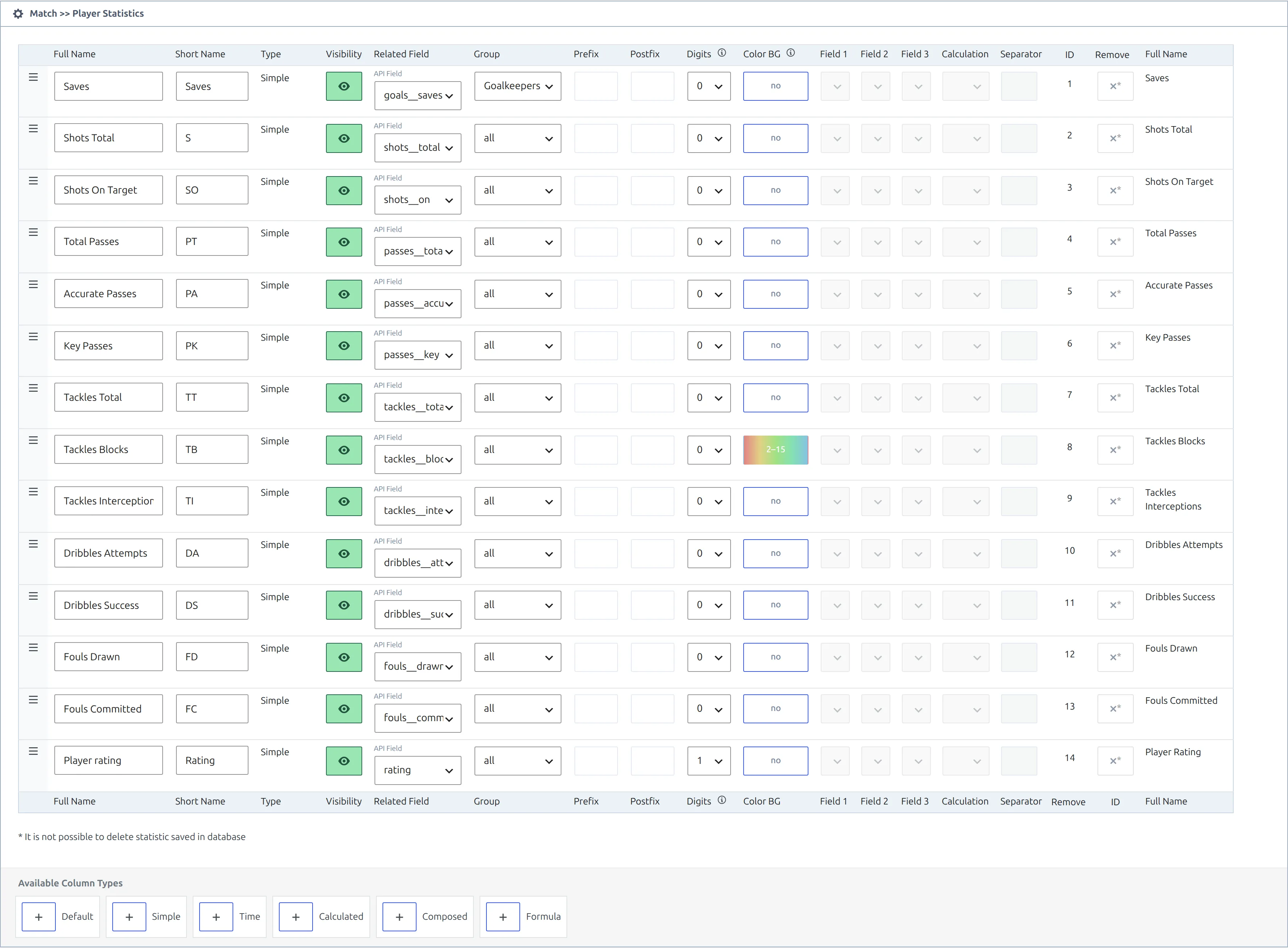
Go to Settings & Tools > Statistics. The Statistics Configurator holds two tables: club stats on top, then Match >> Player Statistics. One Save button writes both, and the page reloads after saving.
🧮 The six column types
Add a column with the buttons under Available Column Types at the foot of the table.
| Type | What it is | You type the values? |
|---|---|---|
| Default | An existing stat: goals, penalty goals, own goals, assists, cards, goals conceded, minutes played | No, taken from the game |
| Simple | A number of your own, such as Tackles | Yes |
| Time | A duration, entered as MM:SS | Yes |
| Calculated | Two columns combined with sum, difference, ratio or ratio (%) | No |
| Composed | Up to three columns printed together with a separator, such as 5-2-1 | No |
| Formula | Any expression across several columns | No |
Only Simple and Time columns get an input box in the game editor. Everything else is worked out when the page is drawn.
A Default column needs its Default Field picked in the Related Field cell: Yellow Cards, 2d Yellow / Red Cards, Red Cards, Goals, Penalty Goals, Own Goals, Assists, Goals Conceded or Minutes Played. Use it to put a built-in number in the same table as your own stats.
Composed is the one people miss. Set Field 1, Field 2 and Field 3 and give it a separator, and you get the compact three-part figure used for things like tackles won, lost and blocked. The separator defaults to a hyphen.
Column settings
Each row of the table is one column. Cells that don’t apply to a type are grayed out.
| Setting | Applies to | What it does |
|---|---|---|
| Full Name | All | The column header on the front end, and its tooltip |
| Short Name | All | Used as the header instead when Show Full Column Name is off (see “How the table looks”) |
| Visibility (eye icon) | All | Hidden columns stay off the front end but still work as inputs to calculated, composed and formula columns |
| Related Field | Default, Simple | Default Field for a Default column; the API-Football field for a Simple one, when player statistics import is on |
| Group | All | all, Goalkeepers or Field Players |
| Prefix, Postfix | Simple, Calculated (open on Formula too, but ignored there) | Text before or after the value, such as a % sign |
| Digits | Simple, Calculated, Formula | Decimal places, 0 to 4 |
| Color BG | All | Shade the value by a minimum and maximum, see “Coloring values” |
| Field 1, 2, 3 | Calculated, Composed | The columns it’s built from. Calculated uses the first two. |
| Calculation | Calculated | sum, difference, ratio or ratio (%) |
| Separator | Composed | The text between the parts |
| ID | All | The number shortcodes use to refer to the column. Set automatically. |
Worked example: pass accuracy %
You record Total Passes and Accurate Passes as Simple columns and want the percentage without typing it. Add a Calculated column:
- Full Name: Pass Accuracy, Short Name: PA%
- Field 1: Accurate Passes
- Field 2: Total Passes
- Calculation: ratio (%)
- Postfix: %, Digits: 1

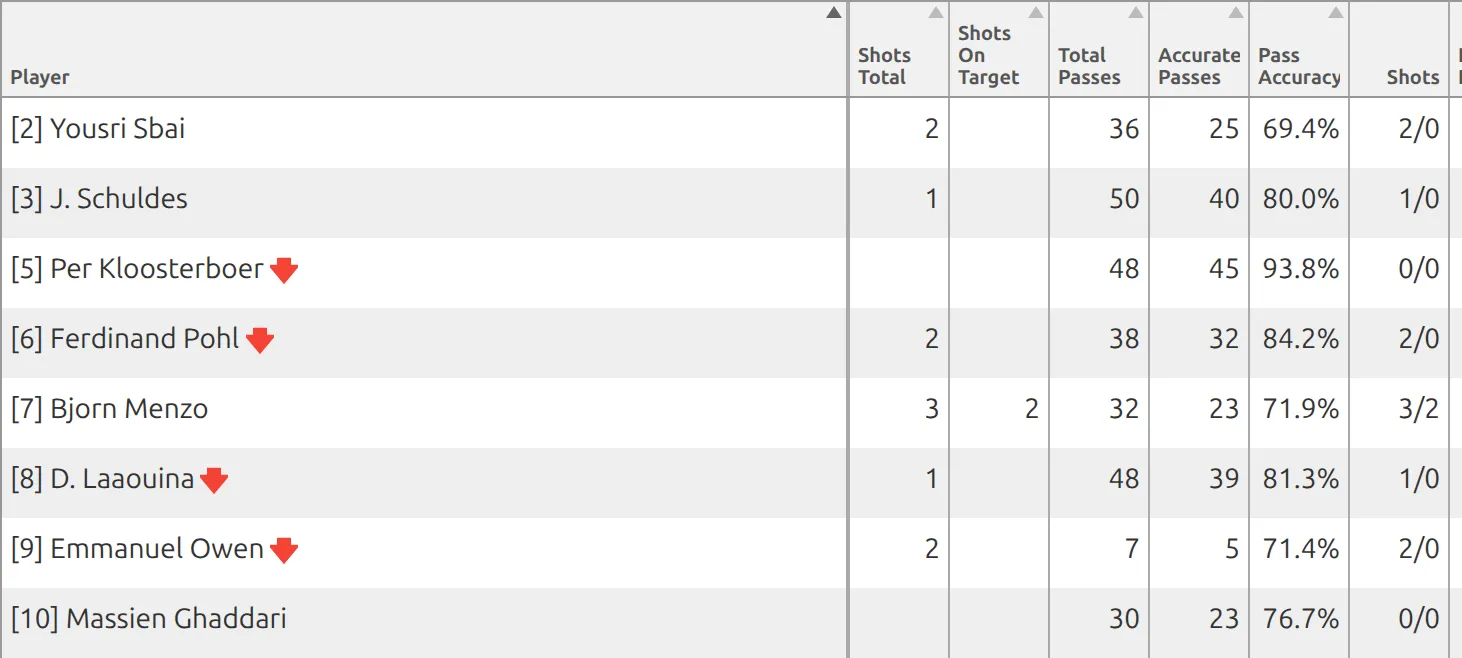
A player with 32 passes and 23 accurate now shows 71.9%. Field 1 is divided by Field 2, so put the smaller number first. If Field 2 is 0 the cell shows 0.0% rather than an error.
For a composed column in the same table, set Field 1 to Shots Total, Field 2 to Shots On Target and Separator to /. That player’s 3 shots with 2 on target reads 3/2.
A Time column works for anything measured in minutes and seconds, such as time on the ball. Values look like 10:15, 5:01 or 0:58.
Keepers and outfield players
The Group column decides who a stat applies to. Set it to Goalkeepers, Field Players, or leave it on all.
This splits both the editor and the front end. Saves belongs on goalkeepers, dribbles on field players, and neither table has to carry a column of blanks for the other group. The game editor shows four tables because of it: keepers and field players, for each club.
🎨 Coloring values
Any column can shade its numbers, so good figures stand out. Click the Color BG cell on a row and you get three controls: a checkbox to enable it, a minimum, a maximum, and a live preview of the resulting colors.
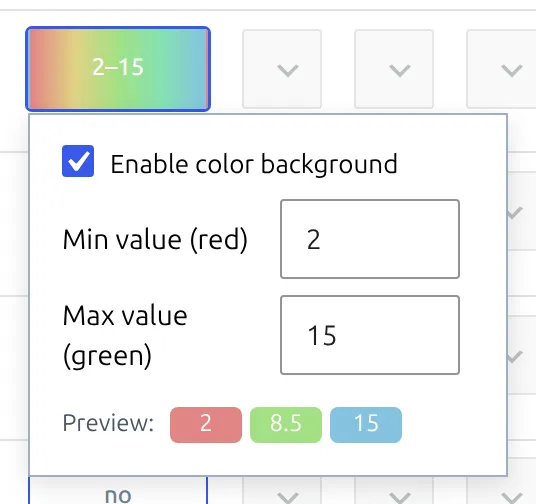
Set the minimum and maximum to the range your numbers actually occupy. New columns start at 0 and 10. The colors run from red at the minimum through yellow and green to a blue at the top, so despite the labels the highest values aren’t green, they’re blue.
Getting the range wrong is the usual complaint. If every value lands between 20 and 40 but the range says 0 to 10, every cell comes out the same color. For the pass accuracy column above, 60 and 90 is a sensible range.
Entering the values
Open a game and click Players Statistics in the editor’s left-hand menu. Every player in the starting eleven and the substitutes list gets a row, with one input per Simple and Time column.
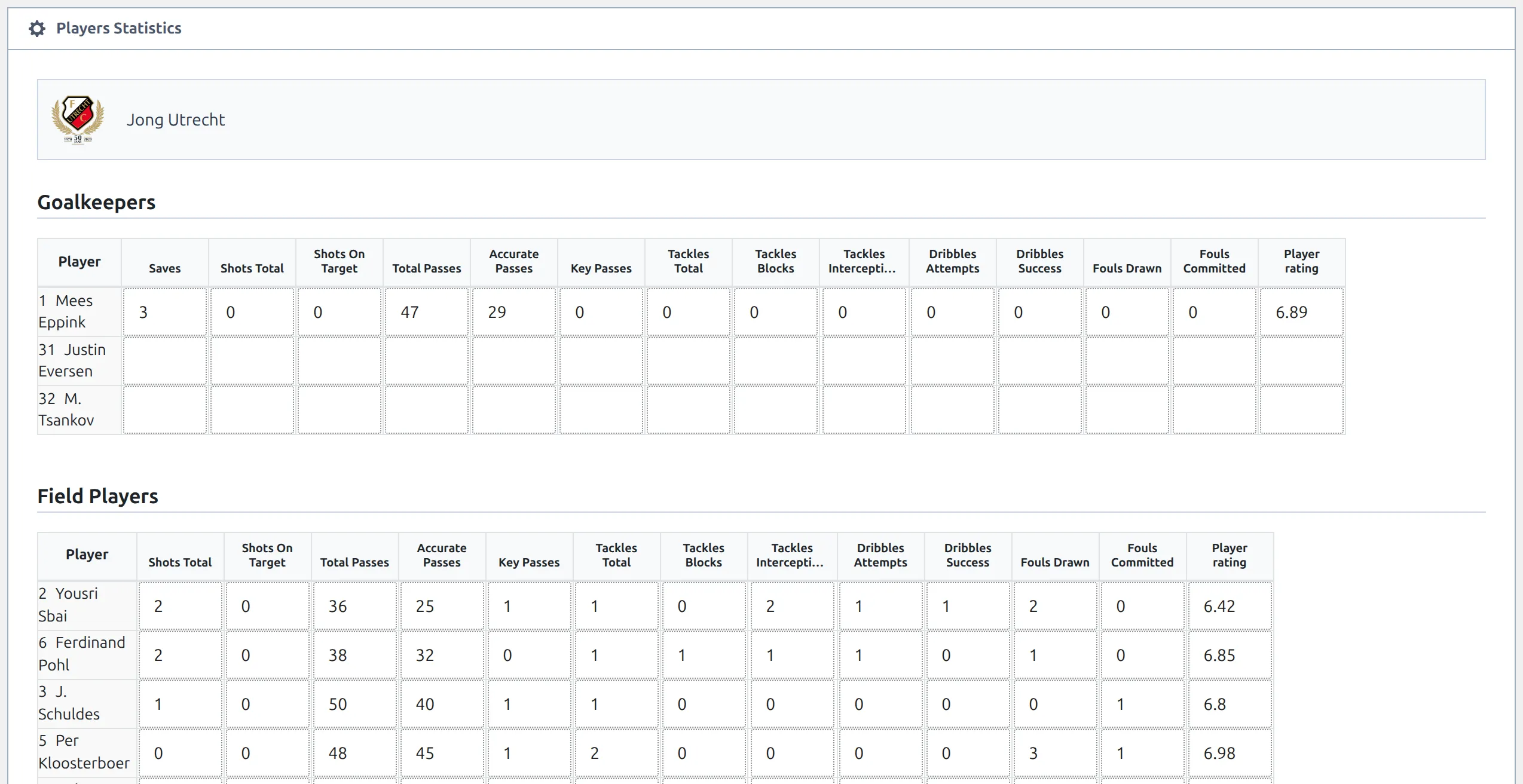
Unlike team statistics, player statistics can be entered before a game is finished, so you can fill them in as soon as the line-ups are in. Front-end editors and manual live scoring can enter them too, once Live edit – Player Stats (Settings > Features > Frontend Editing) or Player Stats (Settings > Features > Live Scores) is switched on.
Statistics belong to the line-up
Values are only kept for players who are in that game’s line-up or substitutes list. Remove a player from the line-up and their statistics go with them, silently. Temporary players, typed straight into a line-up without a player record, can’t hold statistics at all.
Adding a player to the line-up and typing their statistics in the same Save is fine: the line-up is written first.
Filling columns from API-Football
Turn on player statistics import in your API Import settings and the Related Field cell on Simple columns becomes a picker of provider fields: rating, saves, total passes, key passes, pass accuracy, shots, shots on target, tackles, blocks, interceptions, duels, duels won, dribble attempts, successful dribbles, dribbles past, fouls drawn and fouls committed.
Without that setting on, the picker doesn’t render and the cell stays empty. The API setup can also create these columns for you in one go. See Import Player Game Statistics.
The provider’s rating field is what most sites use for player match ratings.
Showing them on the front end
The table draws itself on every game page, under the team statistics. You don’t have to place it, as long as at least one player in that game has a value recorded.
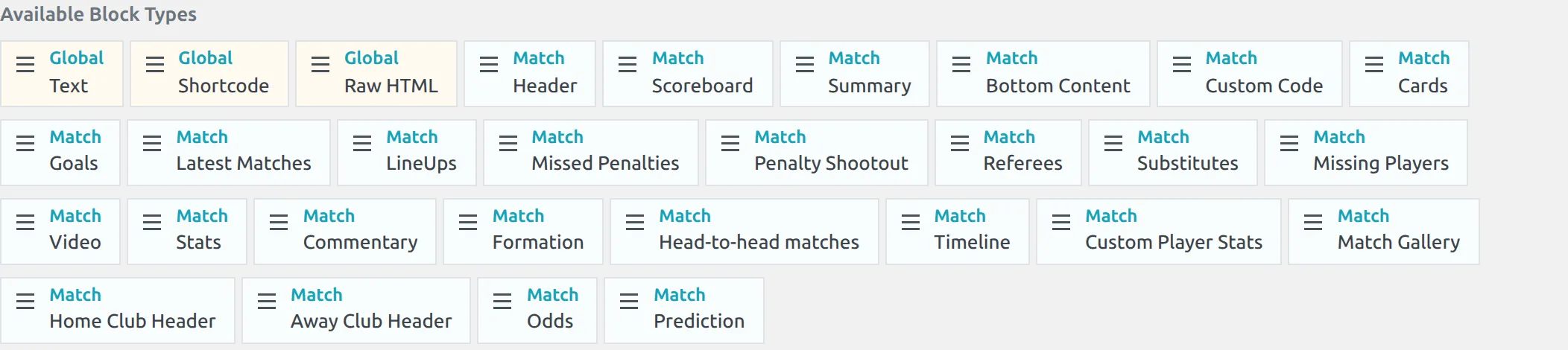
That changes the moment you build a Game layout in the Layout Builder. A game layout replaces the default page completely, so any block you didn’t add is gone, this one included. Add the block whose category is Match and whose name is Custom Player Stats to bring it back.
You can also put the table anywhere else with the match shortcode:
[anwpfl-match match_id="123" sections="player-stats"]The identifier is match_id. Using id renders nothing at all, with no error. Note also that player-stats works even though it isn’t offered in the shortcode builder’s Sections list.
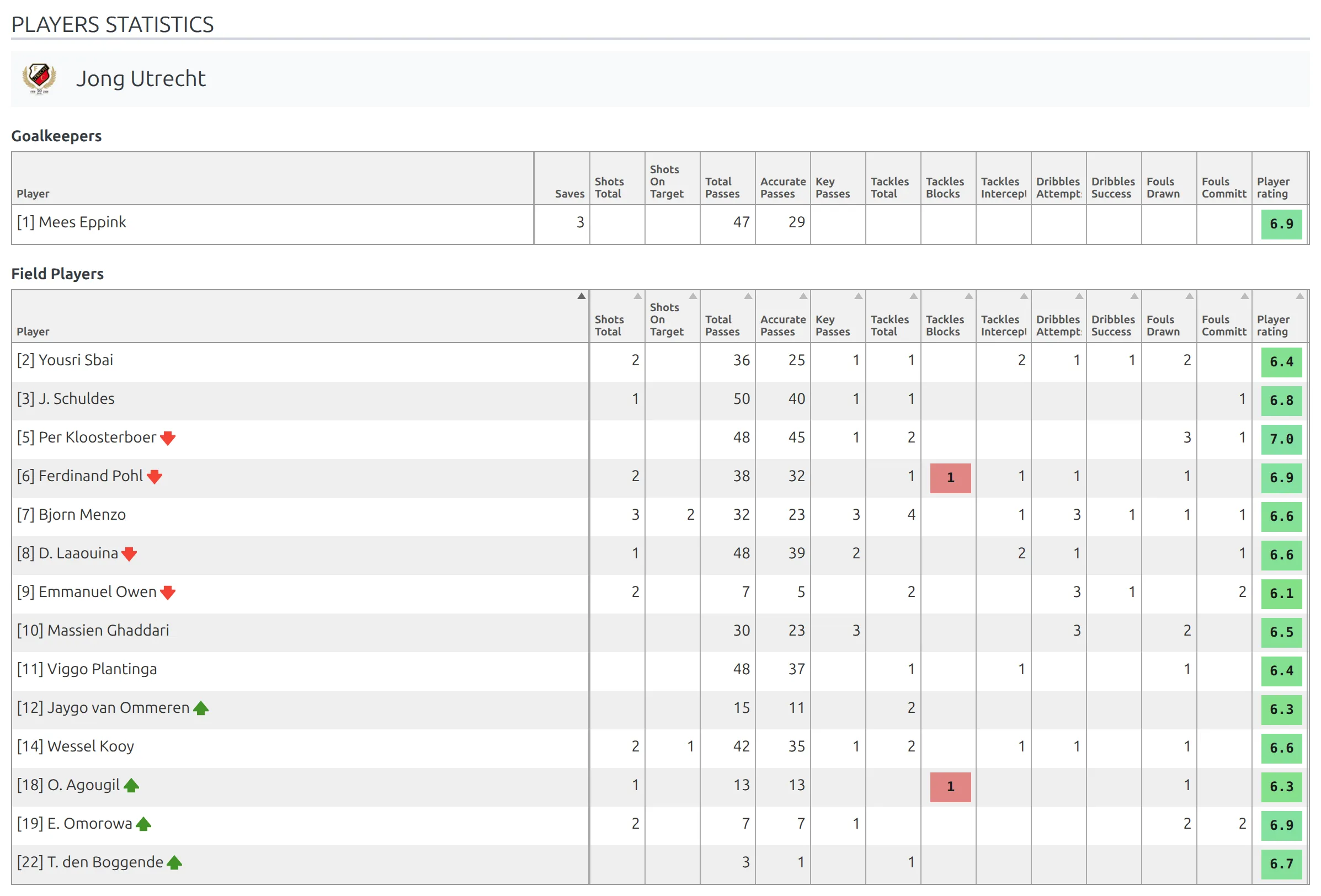
How the table looks
Five settings shape it, under Settings & Tools > Settings > Display > Match Display, in the Player Statistics group.
| Setting | Default | What it does |
|---|---|---|
| Show Full Column Name | Yes | Use Full Name in the header instead of Short Name |
| Hide Zero Values | Yes | Draw a blank cell instead of a 0 |
| Show Game Event Icons | Yes | Add goal and card icons beside the player’s name |
| Column Header Font Size (px) | 10 | Header text size |
| Max Column Width (px) | 50 | Stops long headers stretching the table |
Hovering a header always shows the column’s Full Name, so with Show Full Column Name off you can keep headers short, like PA%, and still tell visitors what they mean.
Season totals and rankings
Custom columns aren’t limited to a single game. Reference them by the numeric ID from the table:
[anwpfl-stats-players-custom season_id="12" columns="player_name,goals,19,20"]Add :avg for a per-game average or :avg_90 for a per-90-minutes figure, as in columns="player_name,19:avg_90". Set layout="tabulator" for a sortable, filterable table. Layout Builder team and competition layouts offer the same columns in their player blocks.
Two things to know for season tables. A percentage column like Pass Accuracy needs :avg: without it the table adds up each game’s percentage, while with it you get the season’s real figure, all accurate passes divided by all passes. And Composed and Time columns are per-game only, so season tables leave them out.
Full attribute list: the custom player stats shortcode.
A player’s season stats on their own page
Want shots on target, passes or key passes added up for the current season on the player’s page? On player pages built with Layout Builder v2, add the Stats Panel block and pick your columns, or add them to the Game Log for a per-game view. Anywhere else, use the player stats panel shortcode with a season_id. The shortcode and the Stats Panel block take Simple, Calculated and Formula columns.
Best player of each game
Use a rating column and let the plugin work it out: see Player Match Rating, including the “matches top rated” counter and best-rated lists. To name a winner yourself instead, add a Simple column called “Man of the Match”, type 1 against one player per game, and rank players by that column’s ID with the Stat Players shortcode.
🆘 Common surprises
A column can’t be deleted
Once a Simple or Time column has been saved, it gets storage of its own in the database and the Remove button is disabled, with the note “not possible to delete statistic saved in database”. This protects the values already recorded against it. Hide the column instead, using the eye toggle, which takes it off the front end while leaving the data intact.
A player is missing from the table
Players whose statistics are all zero are left out of the table entirely. This is the usual reason a table looks half empty. Substitutes who never came on are also excluded from some blocks, because those need a recorded appearance, which a substitute only gets once a substitution event is added to the game.
A column vanished from the table
Table shortcodes hide columns that are empty for every row by default. Set hide_empty_columns="0" to keep them. Check the column’s Group setting too: a goalkeepers column never appears in the field players table.
A time value disappeared
Time columns need MM:SS. When you leave a Time input without the colon in the right place, the editor shows a red “Invalid Time Format! Required: MM:SS” message, but it doesn’t stop you saving. On Save, anything without that colon or shorter than four characters is thrown away, and a value that was saved there before is cleared with it. Fix the entry before you press Save.
A % postfix doesn’t show on a Formula column
The Prefix and Postfix inputs are open on Formula columns, but the game page ignores them there. If you need a % sign, build the column as Calculated with ratio (%), which does print its postfix.
The whole table is missing
Either no player columns are defined, or no player in this game has any values recorded. The block renders nothing rather than an empty table.
📚 Related
- Player Match Rating – turning one of these columns into a colored rating badge
- Club Statistics – the same table, for clubs instead of players
- Custom player stats shortcode – season tables built from these columns
- Player stats panel shortcode – one player’s season totals as tiles
- Import Player Game Statistics – filling the columns automatically