

Ten team stats ship with the PRO plugin: cards, corners, fouls, offsides, possession, shots, shots on goal and goals. The Statistics Configurator lets you reorder them, hide the ones you don’t track, and add your own, including columns that work themselves out from other columns.
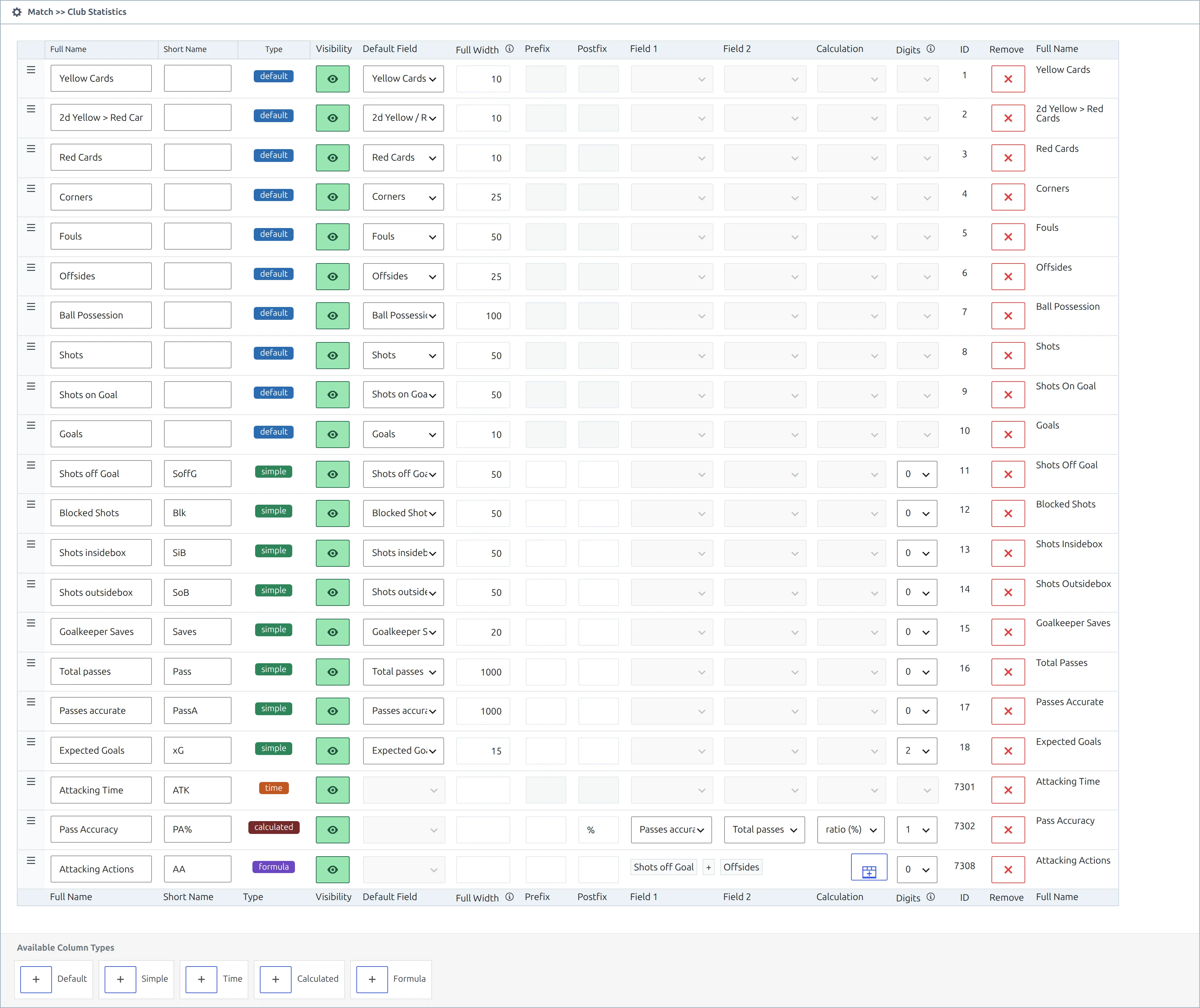
This page is about defining the columns. For how they’re drawn on a game page, and the Classic and Modern layouts, see Match Statistics.
🚀 Finding the page
Go to Settings & Tools > Statistics. The page is headed Statistics Configurator and holds two tables stacked on top of each other: Match >> Club Statistics first, then Match >> Player Statistics. This page is about the first one.
Older guides call this menu item FL+ Statistics, and one message in the game editor still does. It’s the same page.
One Save button for both tables
Saving writes both the club and the player tables together, and the page reloads afterwards. You can’t save one and leave the other, so finish any edits in both before you save.
Reordering and hiding
Drag a row by its handle to change the order stats appear on game pages. Click the eye button to hide a stat, and click it again to bring it back.
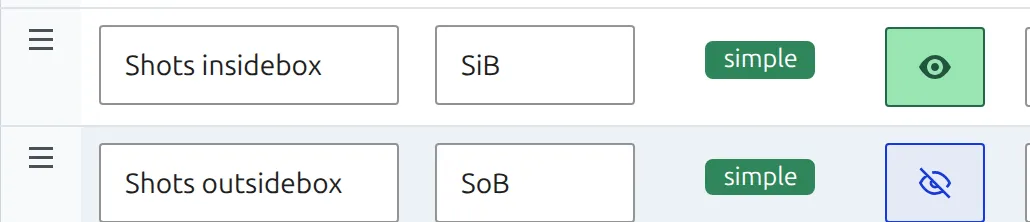
Hidden isn’t the same as deleted. A hidden column is still worked out behind the scenes and can still feed calculated and formula columns. That’s the point of it: keep Total Passes and Successful Passes hidden, and show only the percentage you compute from them. A hidden Simple or Time column also keeps its input boxes in the game editor, so you can still type its values.
🧮 The five column types
Add a column with the buttons under Available Column Types at the foot of the table.

| Type | What it is | You type the values? |
|---|---|---|
| Default | One of the ten built-in stats, picked in the Default Field column | Yes |
| Simple | A stat of your own, such as Clearances | Yes |
| Time | A duration, entered as MM:SS | Yes |
| Calculated | Two other columns combined with one operation | No |
| Formula | Any expression across several columns | No |
Only Default, Simple and Time columns get an input box in the game editor. Calculated and Formula columns work themselves out.
Calculated columns
Pick Field 1 and Field 2, then a Calculation: sum, difference, ratio or ratio (%). The two source fields can be any Simple or Default column.
The classic use is pass accuracy. Add Simple columns for Total Passes and Successful Passes, hide them both, then add a Calculated column with Field 1 as Successful Passes, Field 2 as Total Passes, calculation ratio (%), Digits 1 and Postfix %. You type two numbers per club and the page shows a percentage. Say a club completed 21 of 35 passes: the row reads 60.0%. There’s a full walk-through with real game data further down.
Formula columns
When two fields and one operation aren’t enough, add a Formula column and click Edit Formula. Drag the columns you want into the expression, add brackets and arithmetic, and watch the live preview compute a sample result as you build.
Formulas point at columns by their ID, shown in the ID column of the table. Renaming a column is safe. Deleting a column a formula refers to isn’t: the formula silently falls back to zero rather than reporting an error, so check your formula columns after removing anything.
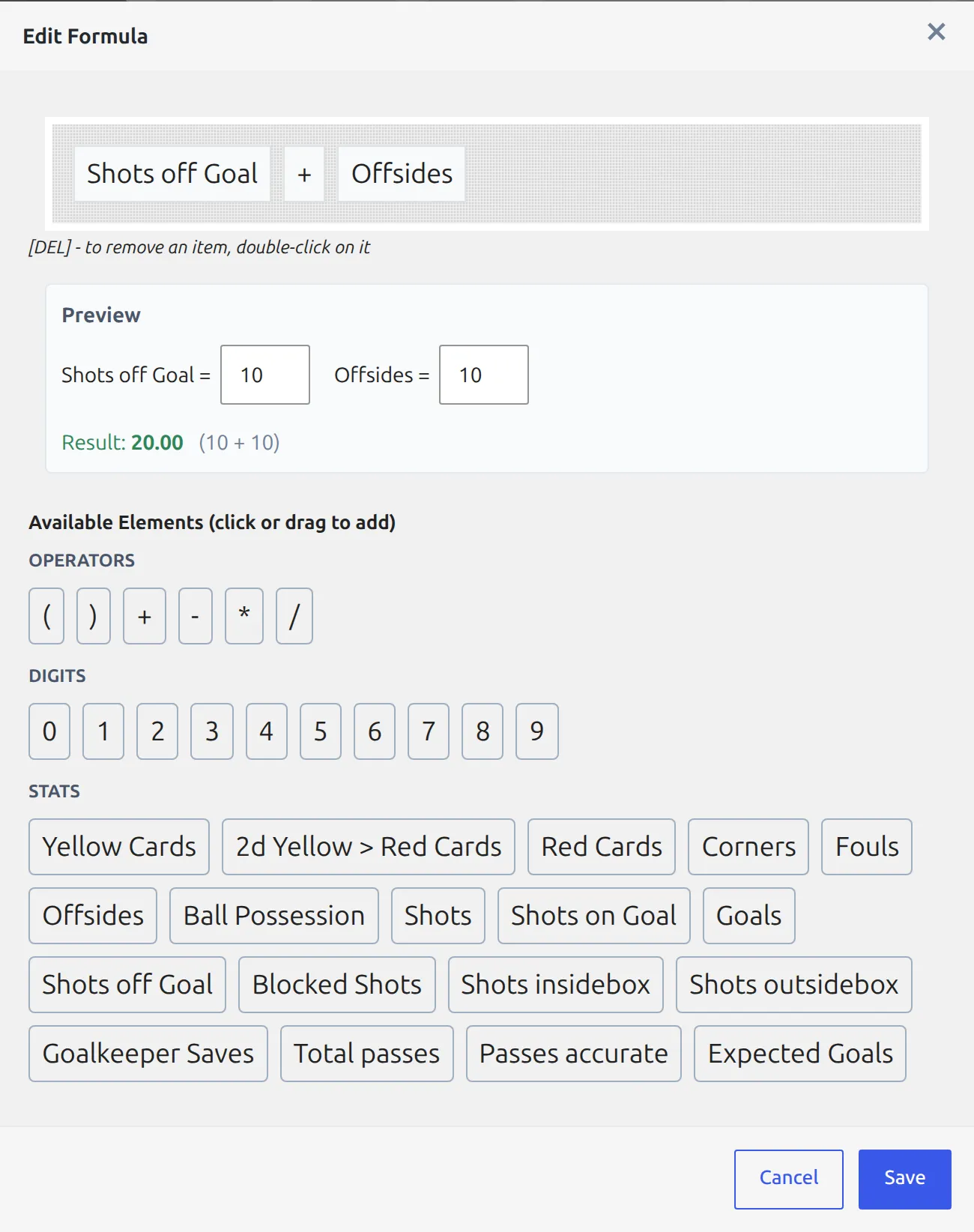
An example that two fields and one operation can’t do: shot accuracy as a percentage. Click or drag these elements in order:
( Shots on Goal / Shots ) * 1 0 0Digits are separate elements, so 100 is the 1, 0 and 0 in a row. Only Default and Simple columns are offered as elements. Set Postfix to % and Digits to 1, and a club with 6 shots on goal from 16 shots shows 37.5%. A club with no shots at all shows 0.0% rather than an error.
The rest of the columns
| Field | What it does |
|---|---|
| Full Name | The label shown on the game page, and the tooltip in table views |
| Short Name | The compact label used where space is tight. Leave it blank and the full name is used instead, which is usually not what you want in a narrow column. |
| Visibility | The eye toggle described above |
| Default Field | For Default columns, which built-in stat this is. For Simple columns it turns into the API field picker, see below. |
| Full Width | The value the bar treats as 100% in the Classic layout. Corners ship with 25, Fouls 50, Possession 100. The Modern layout ignores it. |
| Prefix / Postfix | Text before or after the number, such as a % sign. Available on Simple, Calculated and Formula columns. |
| Digits | Decimal places, 0 to 4. Affects whether a zero row is hidden, see below. |
| ID | Assigned automatically. This is the number you use in shortcodes and formulas. |
Entering the values
Open a game and find the Match Stats box. The built-in stats are at the top and your own columns are below, under a Custom Stats heading.
The box is empty until the game is finished
Team statistics can only be entered on a game marked Finished. Before that the box shows the message “You can set statistics only for finished matches” and no inputs at all. If your new column seems to be missing from the editor, check that first.
Time columns want MM:SS. Type 730 instead of 7:30 and the editor shows a red “Invalid Time Format! Required: MM:SS” message, but it still lets you save. The bad value is kept, and the game page draws that club’s time as 0:00. Fix the entry and update the game again.
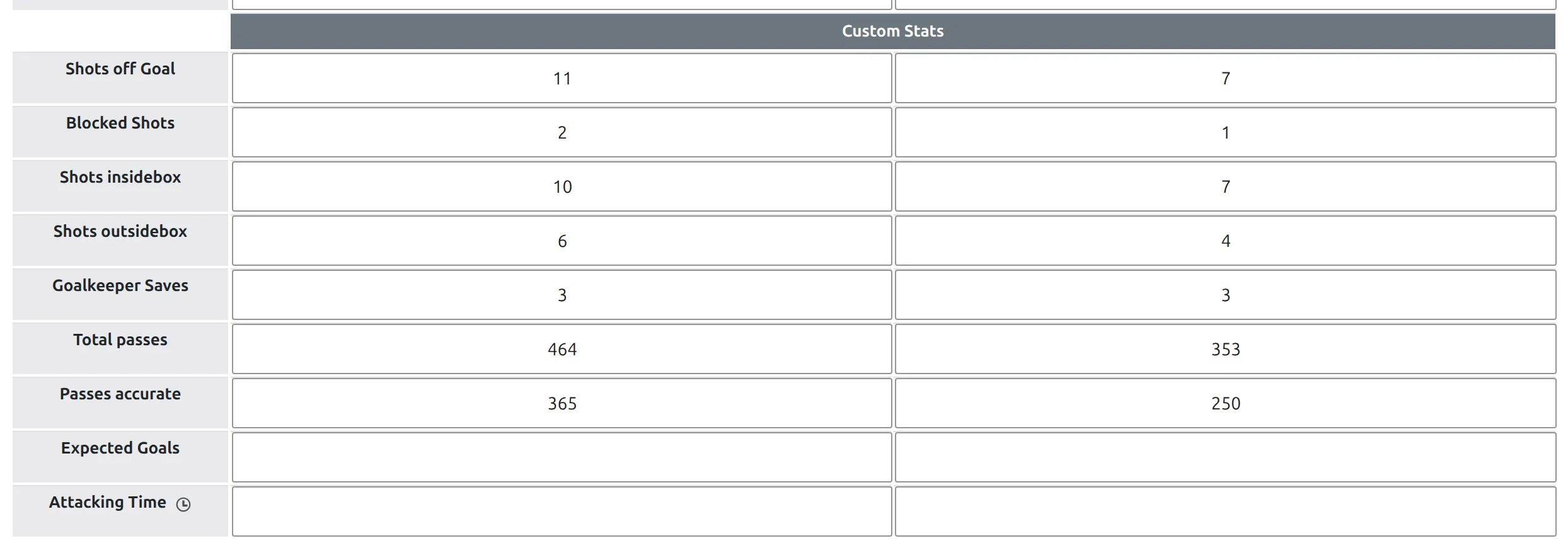
Only Simple and Time columns are listed under Custom Stats. Calculated and Formula columns don’t appear here at all, because there’s nothing to type. And if none of your own columns is Simple or Time, the area shows “No custom club stats defined. To create go to the “FL+ Statistics”” instead, even when you’ve already added a Calculated column.
Filling columns from API-Football
If you import games, a Simple column can be fed straight from the provider. Turn on additional team statistics in your API Import settings first, and the Default Field cell on Simple columns becomes a picker of API fields: Shots off Goal, Blocked Shots, Shots insidebox, Shots outsidebox, Goalkeeper Saves, Total passes, Passes accurate and Expected Goals.
Without that setting on, the picker doesn’t render and the cell stays empty. See Import Additional Team Statistics.
The Expected Goals field has a second job: it’s what the scoreboard reads when you turn on xG display, and the scoreboard only shows xG on finished games where both clubs have a value.
Worked example: team pass accuracy
Here’s the whole thing end to end, on a real imported game: Jong Utrecht v FC Eindhoven. The goal is a pass accuracy row on the game page, worked out from two numbers the API supplies.
- Add a Simple column named Total passes, and pick Total passes in its Default Field cell. The picker is only there with additional team statistics turned on, see “Filling columns from API-Football” above.
- Add a second Simple column named Passes accurate, with Passes accurate as its Default Field.
- Add a Calculated column named Pass Accuracy. Set Field 1 to Passes accurate, Field 2 to Total passes, Calculation to ratio (%), Postfix to % and Digits to 1.
- Hide the two Simple columns if you only want the percentage on the page. Then Save.

The import filled in the two Simple columns: Jong Utrecht completed 365 of 464 passes, FC Eindhoven 250 of 353. Without the API you’d type the same four numbers into the Custom Stats rows yourself. Nobody types the percentage. The game page works it out:
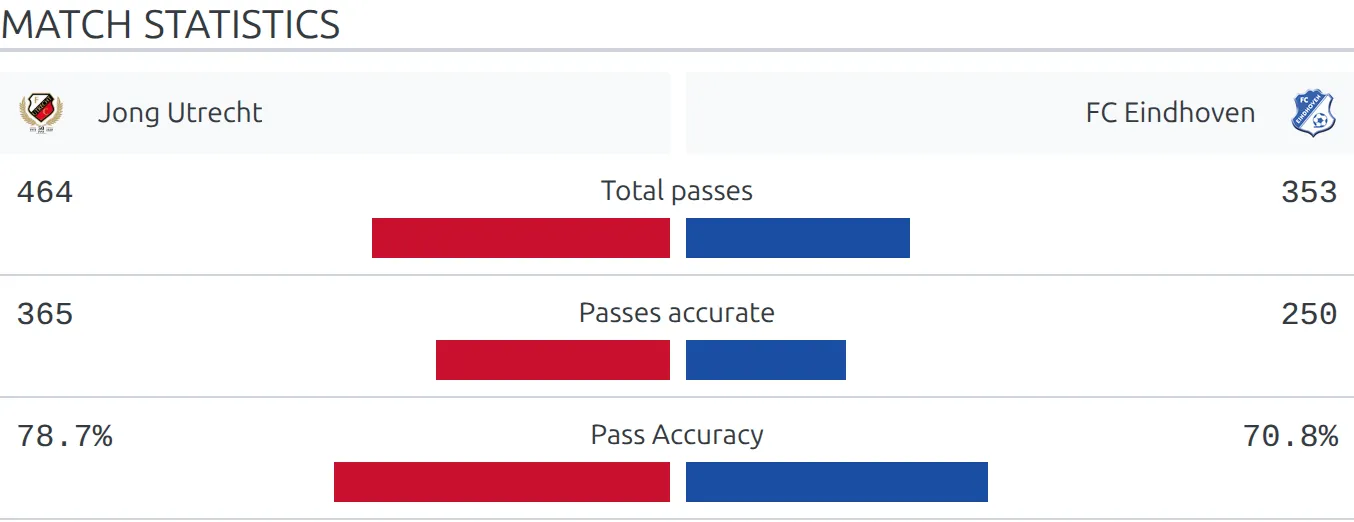
365 divided by 464 is 78.66%, which Digits 1 rounds to 78.7%. With Digits 0 it would read 79%.
Using your columns elsewhere
Custom club stats aren’t limited to the game page. They’re available as season totals too, referenced by the numeric ID from the table.
That works for Simple columns, because a season total adds up the numbers stored against each game. Calculated and Formula columns are worked out on the game page and never stored. Type one into the single-club shortcode and it shows 0. The club stats table drops it altogether, because it hides empty columns unless you set hide_empty_columns="0". For season pass accuracy, show Total passes and Passes accurate side by side instead.
[anwpfl-stats-clubs competition_id="123" columns="goals,shots,19"]Also worth knowing: the single-club panel shortcode has a Stats picker that only offers the ten built-ins, but typing a custom column by hand works anyway.
[anwpfl-stats-club club_id="45" stats="goals,shots,c__19"]In the Layout Builder, a competition layout’s Club Stats block lists your custom columns alongside the built-ins. Full attribute lists: club stats table and single club stats.
🆘 Common surprises
A row doesn’t appear on the game page
Rows where both clubs are empty or zero are dropped. Fill in one side and the row returns.
Digits changes this in a way that looks like a bug. A zero with Digits 0 formats as “0”, counts as empty, and the row disappears. The same zero with Digits 1 formats as “0.0”, which isn’t empty, so the row renders as a flat bar.
My new calculated column isn’t in the game editor
That’s by design. A Calculated column fills itself in from the Simple or Default columns it’s built from, so the game editor never gives it an input box. Type the source values, update the game, and the calculated row appears on the game page. If the editor says “No custom club stats defined”, that only means you have no Simple or Time column. A calculation built from two built-in stats, such as Shots on Goal and Shots, still works: fill in those built-in rows at the top of the box. One built on your own numbers needs its Simple columns added first.
A calculated column is blank
Calculated columns need both source columns filled for both clubs. One missing value on one side and the whole row is skipped.
My column header shows the long name
Short Name is blank on that column, so the full name is used as the fallback. This is most visible on columns created by the API setup, which can end up showing something like “Goalkeeper Saves” in a column sized for three letters.
Deleting a column
Club columns can always be deleted. Any values already entered against them are left behind in the game records rather than removed, so re-creating a column doesn’t bring the old numbers back, and check any formula that referred to it.
📚 Related
- Match Statistics – how these columns are drawn, and the Classic and Modern layouts
- Custom Player Statistics – the same table, for players instead of clubs
- Import Additional Team Statistics – filling Simple columns from API-Football
- Club stats table shortcode – your columns totalled across a season