

The Match Statistics block puts the two teams’ numbers side by side on a game page: possession, shots, corners, fouls, cards and anything else you’ve added. Each row is a bar split between the home and away club, colored with each club’s own color.
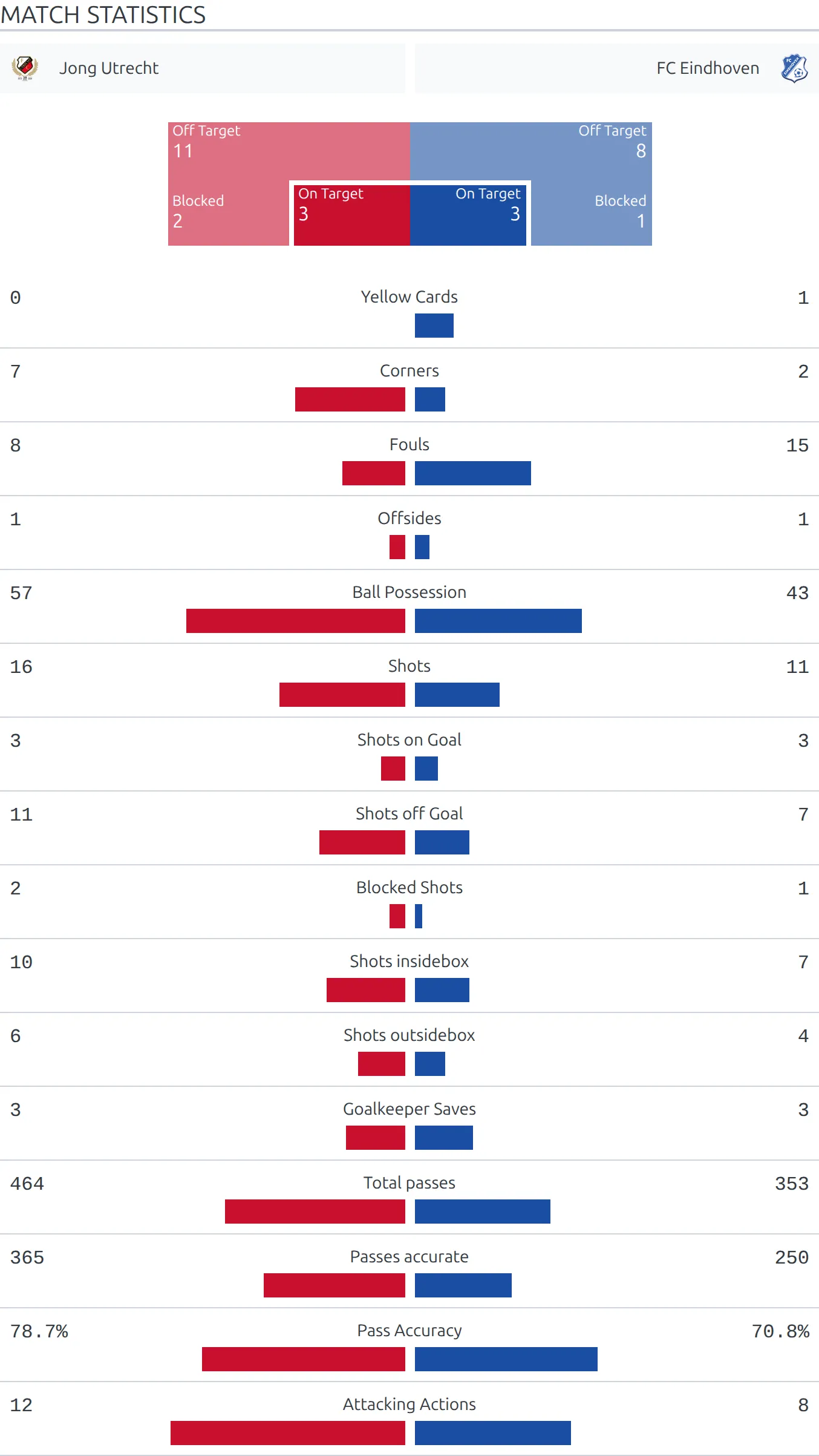
This page covers displaying the block. Defining which stats exist in the first place is a separate job, done on the Statistics Configurator – see Club Statistics.
🚀 What you get without doing anything
The block is already on every game page. It sits after the cards section and before player statistics, and it appears as soon as a match has at least one stat with a value. You don’t have to build a layout or add a shortcode to see it.
Ten stats are set up when you install the PRO plugin: Yellow Cards, 2d Yellow / Red Cards, Red Cards, Corners, Fouls, Offsides, Ball Possession, Shots, Shots on Goal and Goals. The free plugin shows a fixed list of nine and no Goals row, so the block changes the moment PRO is active.
Entering the numbers
Open a game and find the Match Stats box, the second block on the editing screen. Type a value for the home club and the away club in each row you care about.
Mark the game finished first
The Match Stats box only shows its inputs on a finished game. Until you tick Finished and save, the box shows the message “You can set statistics only for finished matches” and nothing else. Player statistics behave differently and can be entered at any time.
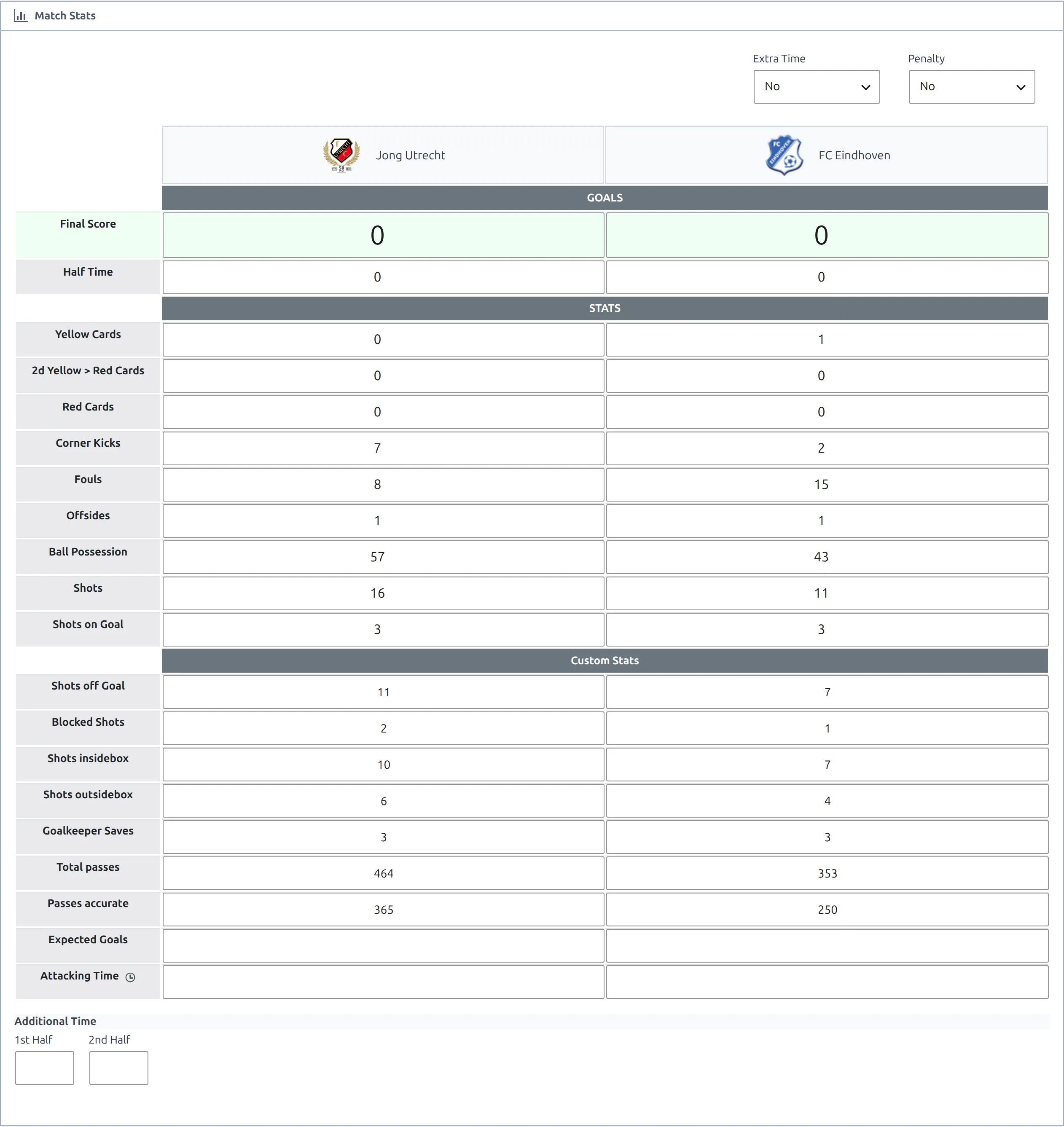
If you import games from API-Football, these values arrive with the import and you don’t type anything.
🎨 Classic or Modern layout
Go to Settings & Tools > Settings, open the Display tab, pick Match Display in the left list and scroll to the Match Stats group. You can jump straight there with admin.php?page=anwp-fl-settings#match_display.
| Option | Choices | Default | What it does |
|---|---|---|---|
| Match Stats Layout | Classic, Modern | Classic | Picks the visual style of the whole block |
| Show Shots Stat Widget | on, off | on | Shows the on-target and off-target shots panel above the bars |
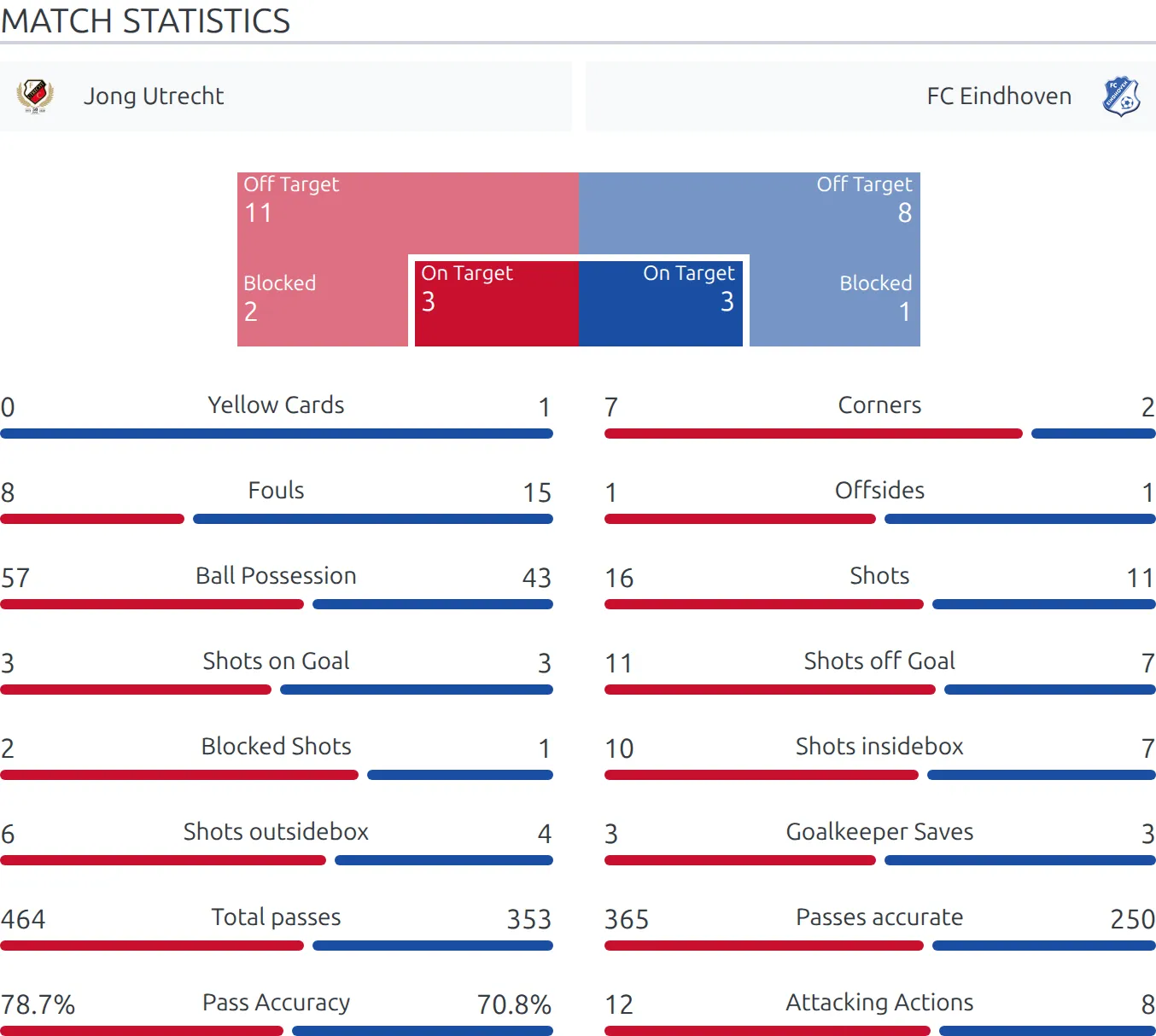
The two layouts measure bars differently
This catches people out, so check it before you switch. Every stat column has a Full Width value on the Statistics Configurator, which is the number the bar treats as 100%. Corners ship with 25, Fouls with 50, Ball Possession with 100.
- Classic uses Full Width as the scale. With Full Width 25 for corners, a game with 4 and 6 corners draws two short bars, so you can compare corners across games.
- Modern ignores Full Width completely. It always splits the bar between the two values, so 4 and 6 corners fill the row at 40% and 60%.
Neither is wrong, but they answer different questions. Classic shows how big the number is, Modern shows who had more. Switching layouts rescales every bar on the site at once.
The shots widget
The shots widget is the panel drawn above the bars that splits each club’s shots into on target and off target. It reads four built-in stats: Shots and Shots on Goal for each club. If all four are empty the widget doesn’t render, even when the setting is on.
It can also show a blocked-shots count, but only from a stat column mapped to the API field blocked_shots, which the API-Football setup creates for you. Your own custom columns never feed this widget.
Placing the block yourself
You only need this if you’re building a custom game page or putting the stats somewhere else.
Layout Builder
In a Game layout, add the block whose category is Match and whose name is Stats. It supports a header and a width setting. The block follows the Classic or Modern setting like the default page does. See the Layout Builder guide.
Shortcode
[anwpfl-match match_id="123" sections="stats"]The attribute is match_id. Using id instead produces a completely blank result with no error message, so copy the line above rather than retyping it. Full attribute list: the match shortcode.
The shortcode always draws the Classic layout
Set Modern and your game pages and Layout Builder blocks switch, but [anwpfl-match sections="stats"] keeps rendering Classic. If you need Modern on a shortcode-built page, use a Game layout in the Layout Builder instead.
Two other sections in the same family are worth knowing: sections="player-stats" renders the per-player table, and it works even though it isn’t offered in the shortcode builder’s Sections list. Adding section_header="0" hides the “Match Statistics” heading.
🆘 When something doesn’t show
A row is missing
A row is dropped when both clubs are empty or zero for that stat. A 0-0 corners row never renders. Fill in one side and the row comes back with the other side at zero.
There’s an exception worth knowing if you use decimals. A value of 0 with Digits set to 0 formats as “0” and the row is dropped. The same 0 with Digits set to 1 formats as “0.0”, which isn’t empty, so the row renders as a flat bar. Same number, different outcome.
A row is also hidden if you’ve set that column’s visibility to hidden on the Statistics Configurator, or if a calculated column’s source columns have no values.
The whole block is missing
- The game has no stats at all. Fill in at least one row for one club.
- The game isn’t marked finished, so you were never able to enter the numbers.
- Every stat column was deleted on the Statistics Configurator. The block needs at least one.
An empty box with a heading above it
On a finished game with no statistics at all, the Classic layout renders nothing and the Modern layout renders the “Match Statistics” heading, the two club crests and an empty box below them. If you see that empty box, the fix is to add the stats or to mark the game unfinished, not to change any setting.
The bars are the wrong colors
Each bar uses the club’s own main color. Clubs without one fall back to the site defaults, set under Settings & Tools > Settings > Display > Club as Default Home Club Color and Default Away Club Color.
Renaming the heading
The “Match Statistics” text comes from the Translations menu, under Text Strings. Search for “Match Statistics” and type your own wording.
📚 Related
- Club Statistics – add your own stat columns, or reorder and hide the built-in ones
- Custom Player Statistics – the same idea, per player instead of per club
- Club stats table shortcode – the same numbers totalled across a season
- Import Additional Team Statistics – fill these rows automatically from API-Football