

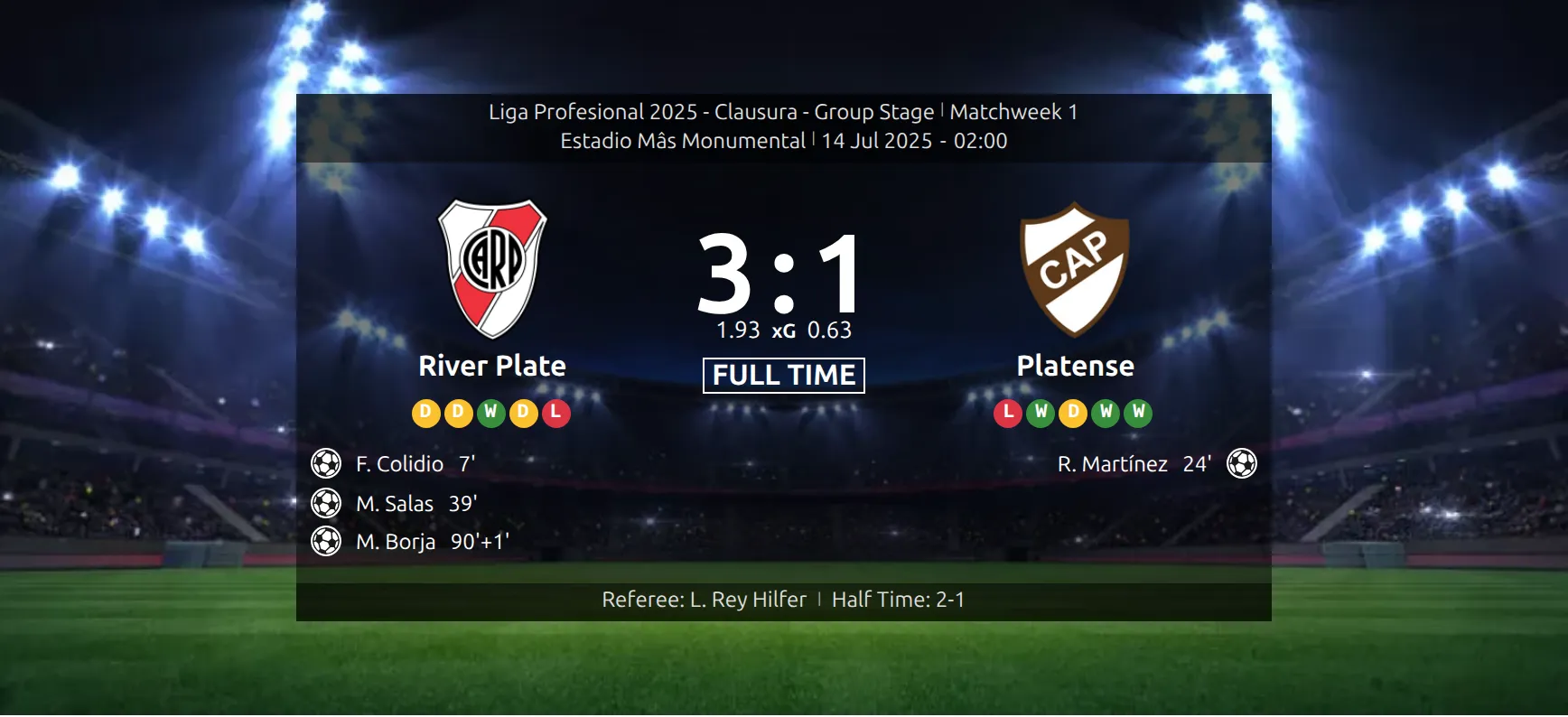
The scoreboard is the big image-backed header at the top of a game page. It replaces the plain default header and carries the competition, kickoff, both clubs, the score, the goal scorers and a footer line with attendance, referee and half-time score.
It is on by default in the PRO version, so if you have never touched these settings you already have one – sitting on a stadium picture that ships with the plugin.
🚀 1. Where the settings live
Go to Settings & Tools > Settings, open the Match Display tab in the Display group, and look at the Scoreboard block – it is the first one on the tab.
If you are coming from an older version: these options used to sit in the FL+ Configurator. That page is gone since 0.18.2 and its old address now forwards into this Settings screen.
| Setting | Default | What it does |
|---|---|---|
| Scoreboard with background image | Yes | The master switch. Set it to No and every game page falls back to the plain default header. |
| Scoreboard background image | empty | Your site-wide picture, used when a game has nothing more specific. See step 2. |
| Club form in scoreboard | Show | The short W/D/L run under each club name, counted from games before this kickoff. |
| Preload scoreboard image | Yes | Tells the browser to fetch the background early so the header paints sooner. |
| Hide score before click | No | Spoiler protection. See step 4. |
| Show xG in scoreboard | Show | Expected-goals totals beside the score. |
🖼 2. Where the background picture comes from
The plugin looks in five places and stops at the first one that has an image. That is what makes the scoreboard useful: set one picture per stadium and every game played there gets it, with no per-game work.
| Order | Where you set it |
|---|---|
| 1 | The game itself – game editor, Premium Options tab, Scoreboard Background Image. |
| 2 | The stadium – stadium editor, Match Scoreboard Image. |
| 3 | The home club – club editor, Premium Options tab, Scoreboard Background Image. |
| 4 | The site-wide setting from step 1. |
| 5 | A stadium photo bundled with the plugin. |
Clearing the image does not bring back the plain header
Level 5 always answers. Remove every picture you have set and the scoreboard simply falls back to the bundled photo – it never disappears. The only way back to the default header is the Scoreboard with background image switch, either globally or per game.
3. Turn it off for one game
Open the game, go to the Premium Options tab and set Display Match Scoreboard with Image Background:
- inherit (from settings) – follow the site-wide switch. This is the default.
- no – this game uses the plain header even though the rest of the site has scoreboards.
- yes – this game keeps its scoreboard even if the site-wide switch is off.
4. What ends up on the scoreboard
Top lines
The competition name, linked to the competition page, followed by the round or matchweek. Then the stadium, then the kickoff date and time. For a game marked TBD only the date shows, without a time.
The stadium name only appears if the stadium is published. A draft stadium is skipped silently.
Middle
Both logos and names, each linked to its club page, with the recent form run underneath if you left Club form in scoreboard on. The score sits between them. Goal scorers with their minutes are listed below, home on the left and away on the right, with separate icons for own goals and penalties.
xG appears only when the game is finished and both clubs have a value stored. One side missing means neither side is shown – there is nothing meaningful to compare.
An upcoming game shows a countdown here instead of scorers.
Footer
Attendance and referee when you have filled them in, then half-time score, then full-time score for games that went to extra time or penalties, then the aggregate line for two-legged ties, and finally the prediction line if you use predictions.
Hide score before click
Switch it on and finished games arrive with the score and the scorers hidden behind a Show Score button. Upcoming and live games are unaffected – there is no result to spoil. The button caption is editable under Translations > Text Strings.
5. Put a scoreboard somewhere else
The scoreboard is not tied to the game page. Two other ways to place it:
- In the Layout Builder, add the Scoreboard block from the Match group. The built-in Finished Game layout already starts with it – use Load Predefined Layout to get there in one click.
- In a post or page, with the match shortcode:
[anwpfl-match match_id="123" sections="scoreboard"].
🆘 Troubleshooting
I set a picture on the game and something else shows
Nothing overrides level 1, so this is almost always a page cache. Clear it and reload. If you are on Cloudflare, purge there too.
The stadium name is missing
The stadium is still a draft. Publish it. Note that a draft stadium can still supply the background image – the two are checked separately.
No xG even though the setting is on
Either the game is not marked finished, or only one club has an xG value. Both are required.
The form run is wrong or empty
It is built from finished games played before this kickoff, so a club with no earlier results shows nothing. A wrong kickoff date on any earlier game will shift it.
📚 Related
- Layout Builder – build the rest of the game page around the scoreboard.
- Matches Scoreboard shortcode – a scoreboard-styled list of several games, which is a different thing to this page.
- Matches Section shortcode – place one part of a game anywhere.